

How to start a WhatsApp video call

With WhatsApp, you can do more than just send messages or make voice calls — you can also connect face-to-face through video calls. In this guide, we’ll show you how it works and share everything you need to know about making a WhatsApp video call.
How to make a WhatsApp video call quick guide
Reaching your contacts via WhatsApp video calling is super easy:
- Launch the chat window for the contact you wish to video call.
- Click on the camera symbol in the upper right.
- Start the video chat.
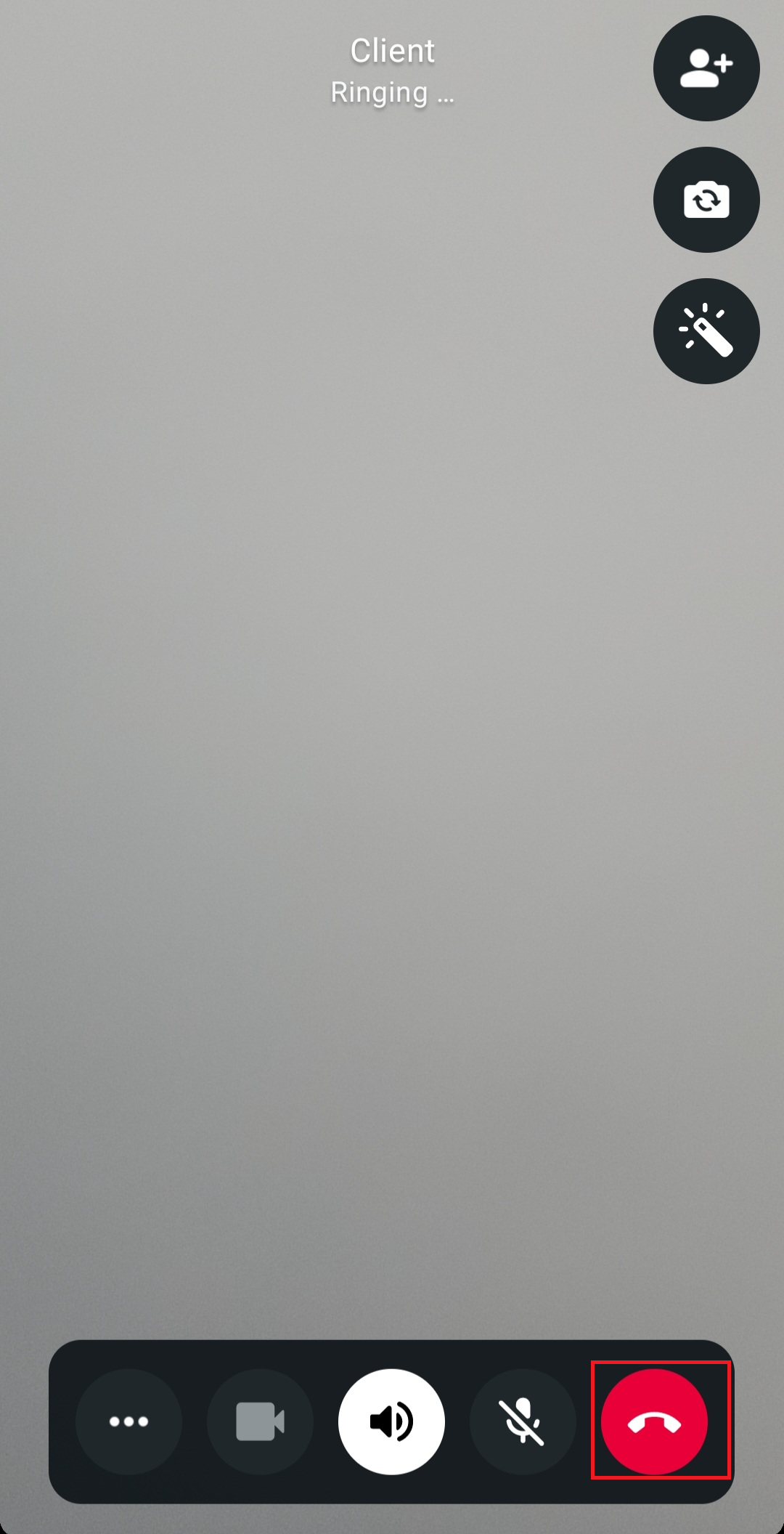
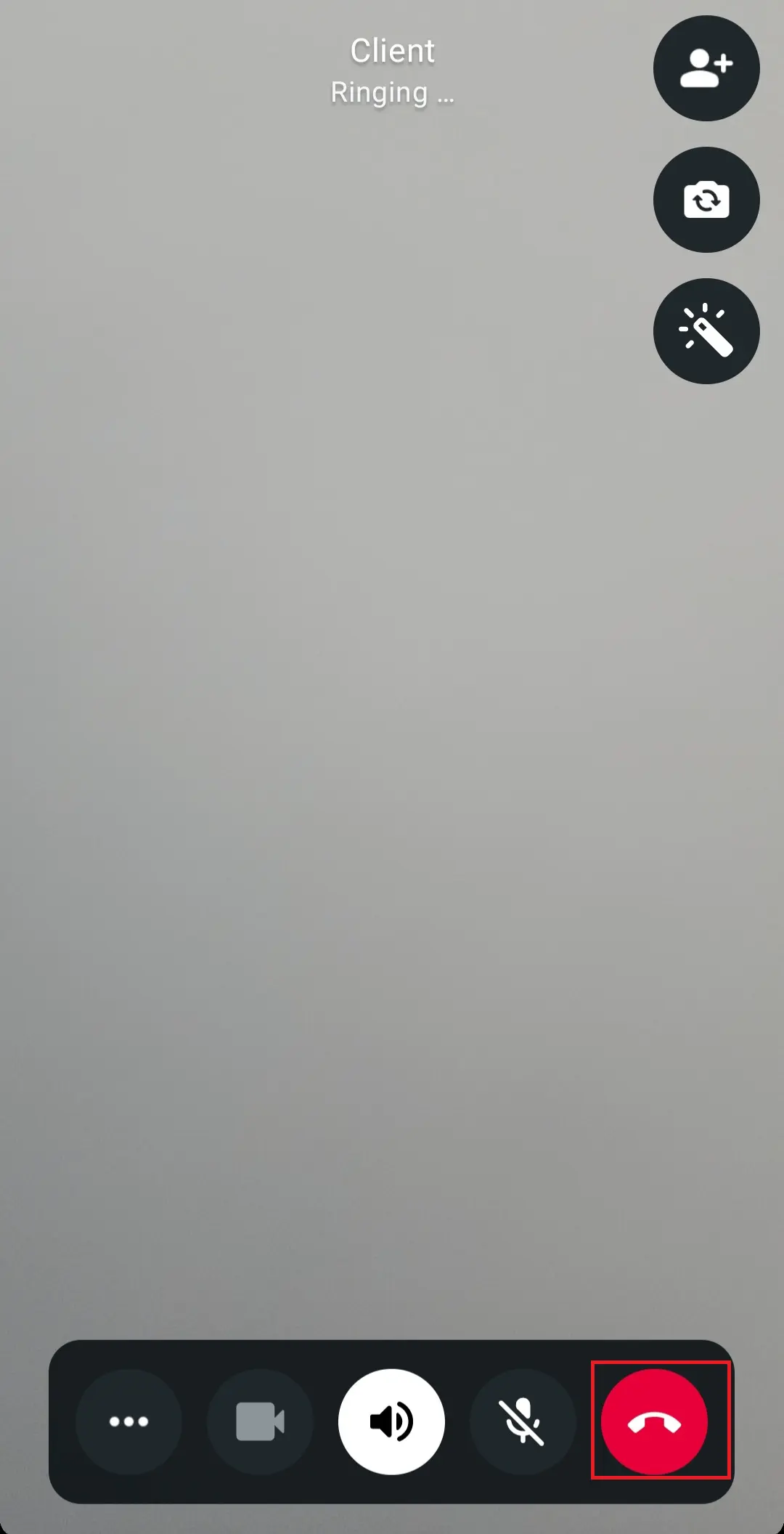
To end the video call, simply tap the red phone icon.
- Store, share, and edit data easily
- Backed up and highly secure
- Sync with all devices
How to receive a WhatsApp video call
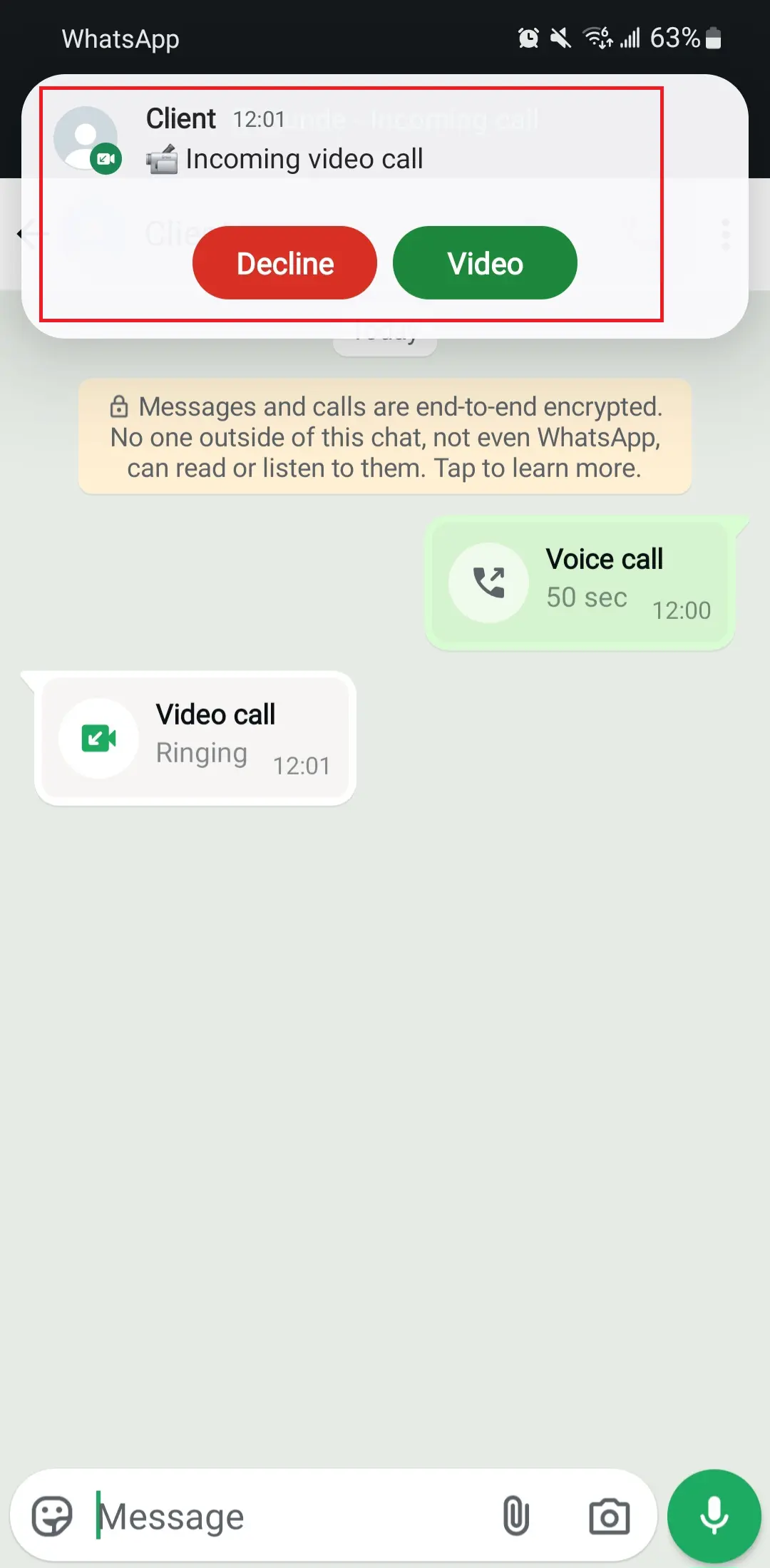
When you receive a video call, you usually get a push notification. You can then use the “Decline” or “Video” buttons to decide whether you wish to accept the WhatsApp video call.
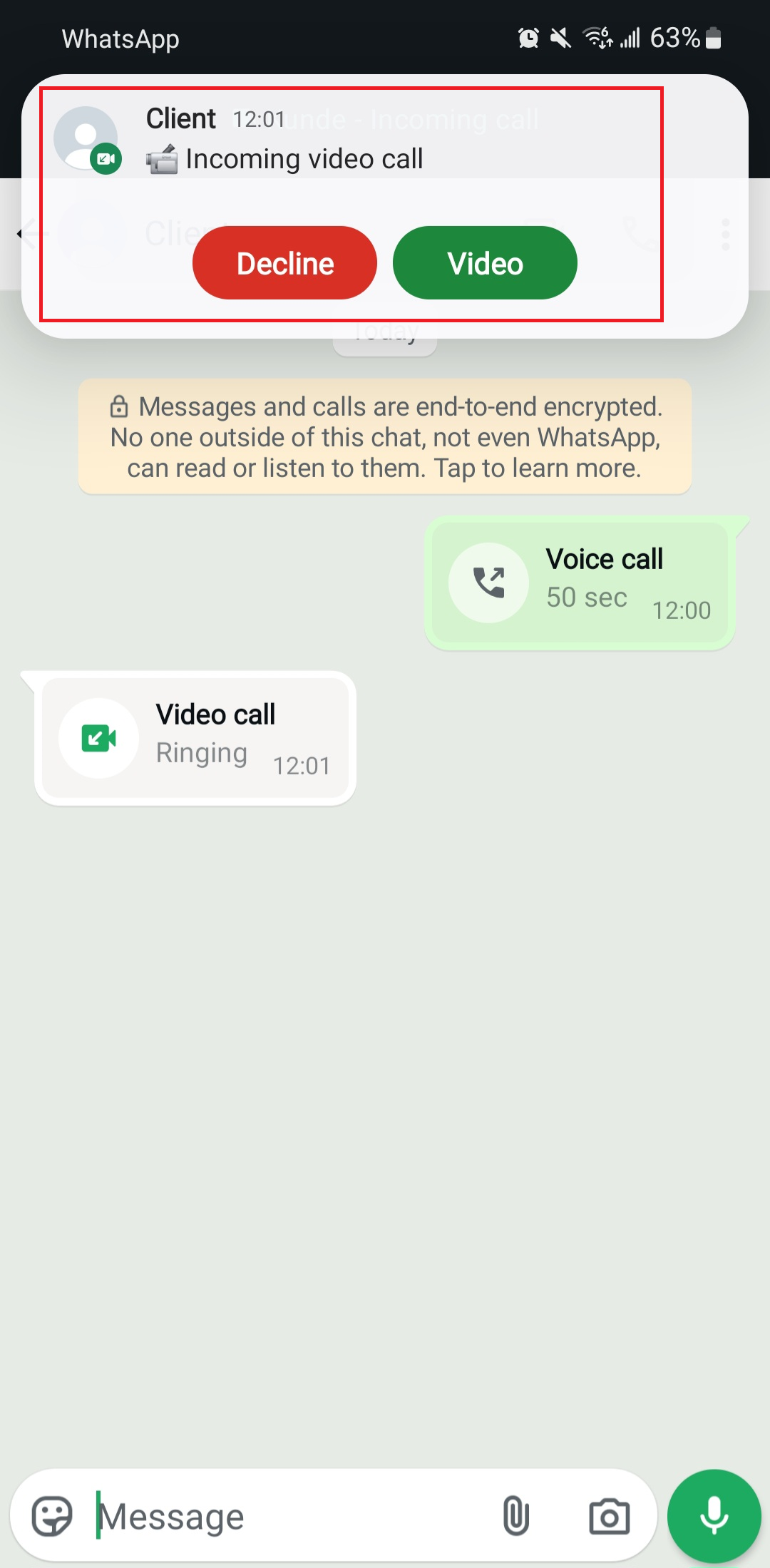
On some devices, the option to reject the call with a message or receive a reminder of a WhatsApp video call is available.
Switch from a WhatsApp voice call to a video call
While on an active voice call in WhatsApp, you have the option to switch to a video call. Just tap the camera icon to make the switch.


WhatsApp group video calls
Planning a video conference with multiple people? Looking for great alternatives to Skype? No problem! With a WhatsApp group call, up to 32 people can connect — whether through video or voice.
Ensure you and your contacts have a strong internet connection when making or receiving WhatsApp group video calls. Keep in mind that the quality of the video call depends on the contact with the weakest connection.
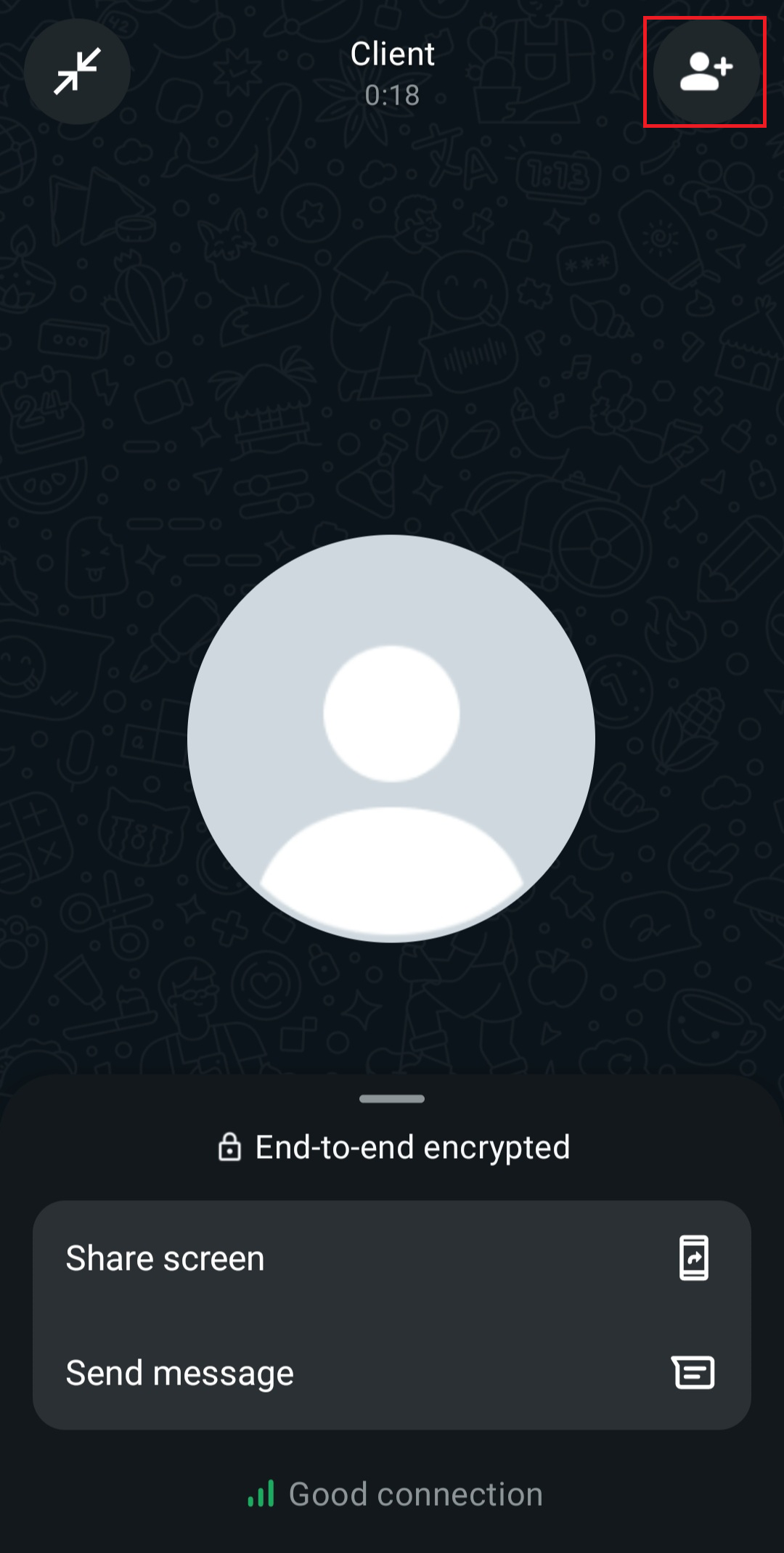
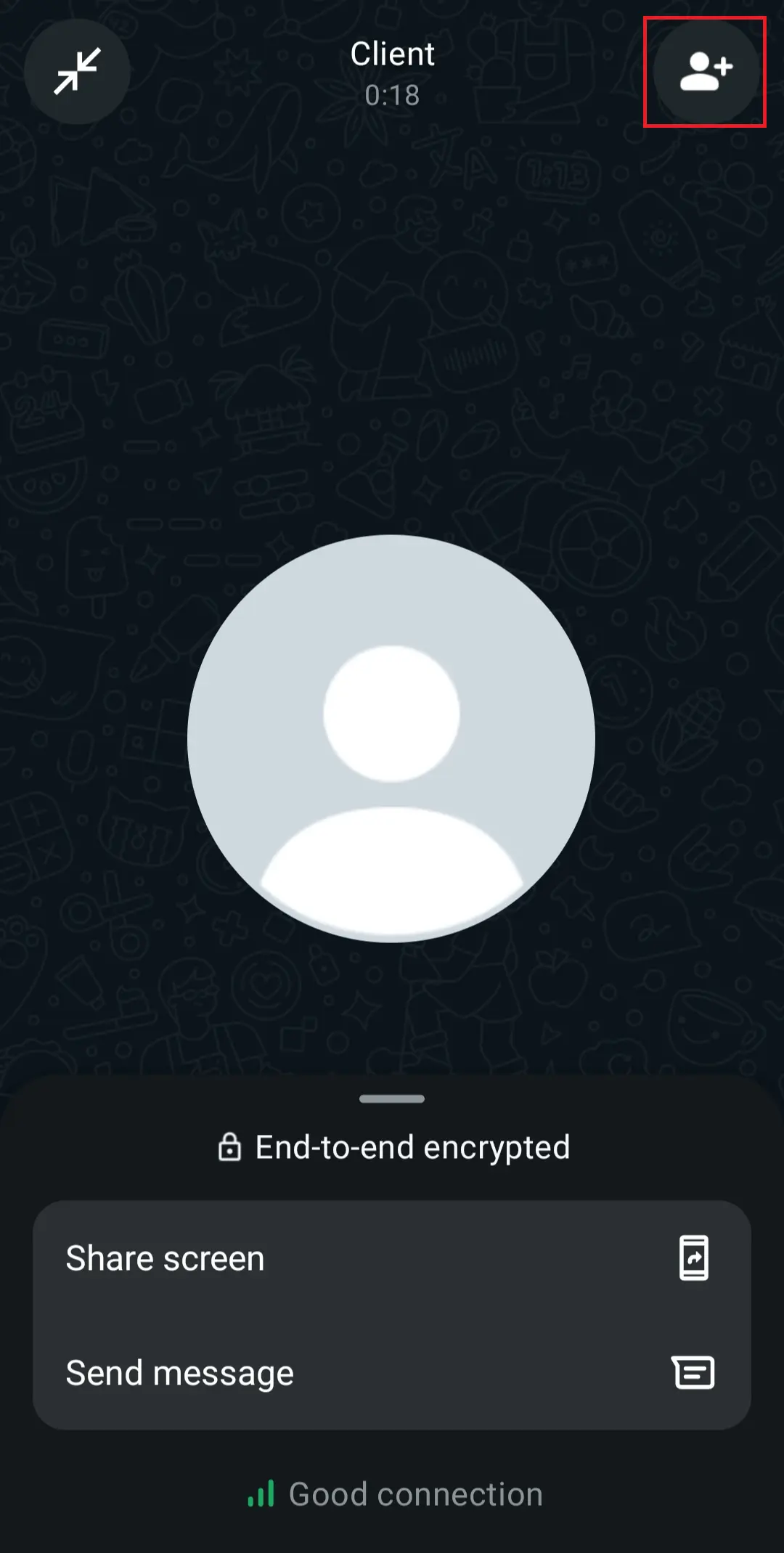
You can extend any video call to a group video call. To do this, simply tap the person icon in the top right corner while a video call is already in progress, select the desired contact from your address book, and confirm by clicking “Add to video call”.
Want to back up your most important WhatsApp data, like contacts, chat history, or media? With IONOS HiDrive Cloud Storage, you can access all your data from any device.
Key info and settings for WhatsApp video calls
Does the cost of a video call differ from voice and text messages? And what settings do video calls offer? Below you’ll find a summary of the most important information.
Are WhatsApp video calls free?
Video calls via WhatsApp are free, but only up to a point. After all, you do pay for them via your data volume, since the connection is established via the internet.
When you’re not within reach of a WiFi network, WhatsApp will use your mobile data volume to make a video call. For users on flat rates, video calls won’t incur higher costs since even high data consumption should be covered by their plan. However, if your data is limited to a monthly usage restriction, your browsing speed may be reduced which can affect the quality of a video call.
Reduce data usage in the WhatsApp video call settings
You can use a simple trick to curb the data usage of WhatsApp video calls. We explain how it works.
Step 1: Launch the WhatsApp menu via the three dots in the top right. Step 2: Go to “Settings”. Step 3: Select “Storage and data”. Step 4: Slide the “Use less data for calls” slider to the right.
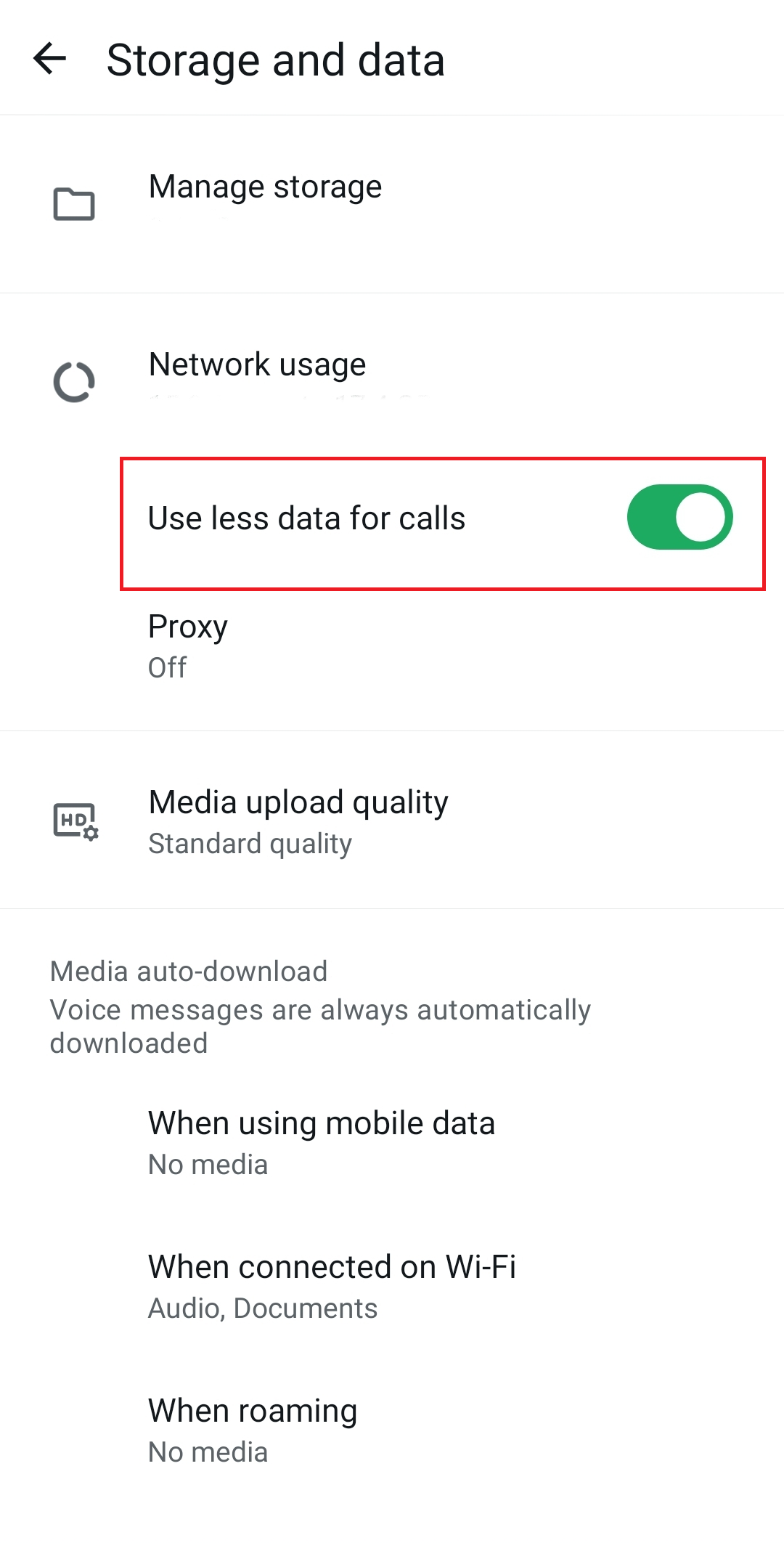
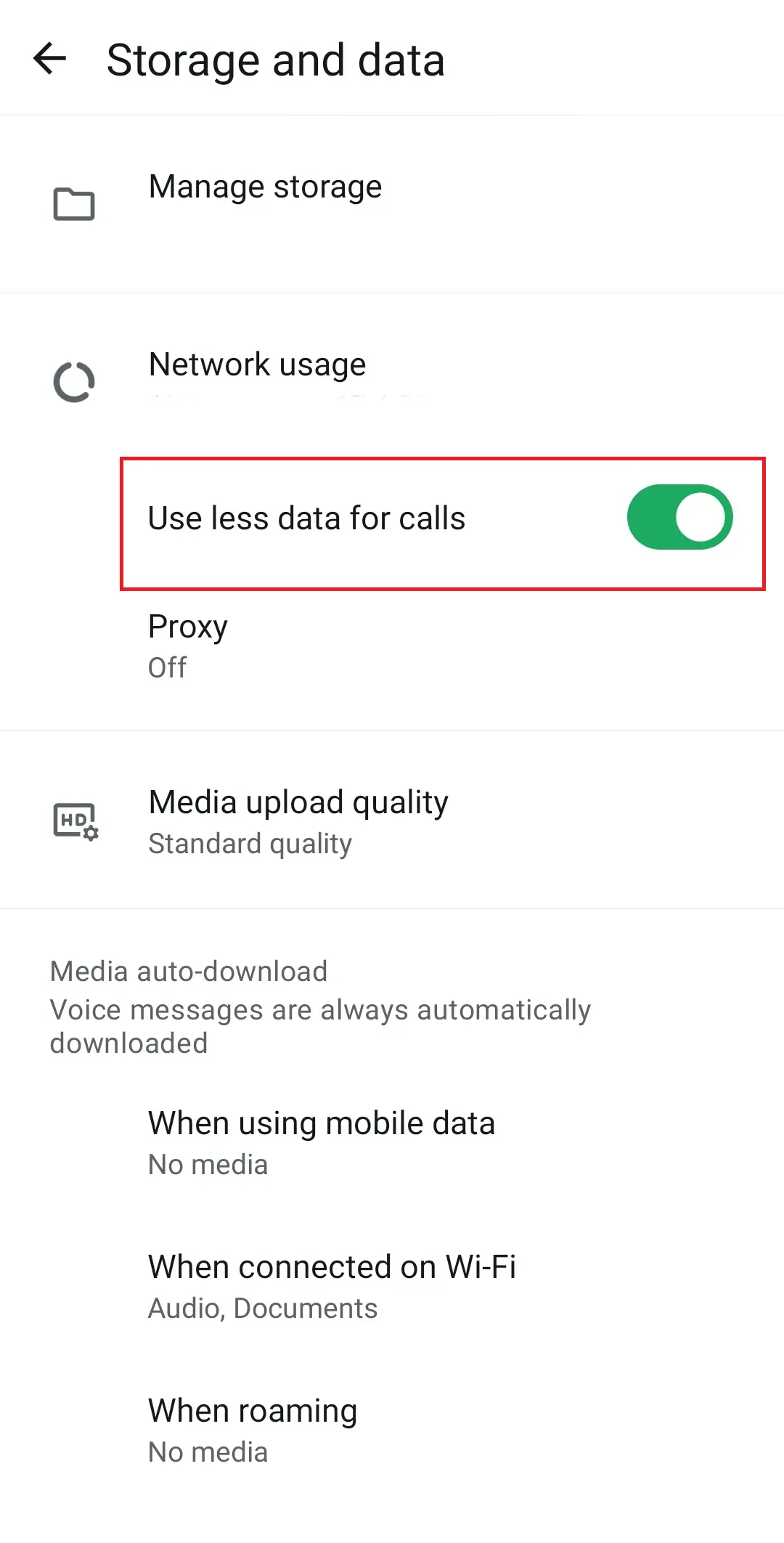
This way, you’ll save data when making calls on the go. Keep in mind, however, that the quality of the calls will deteriorate as a result.
Switch camera in the WhatsApp video call settings
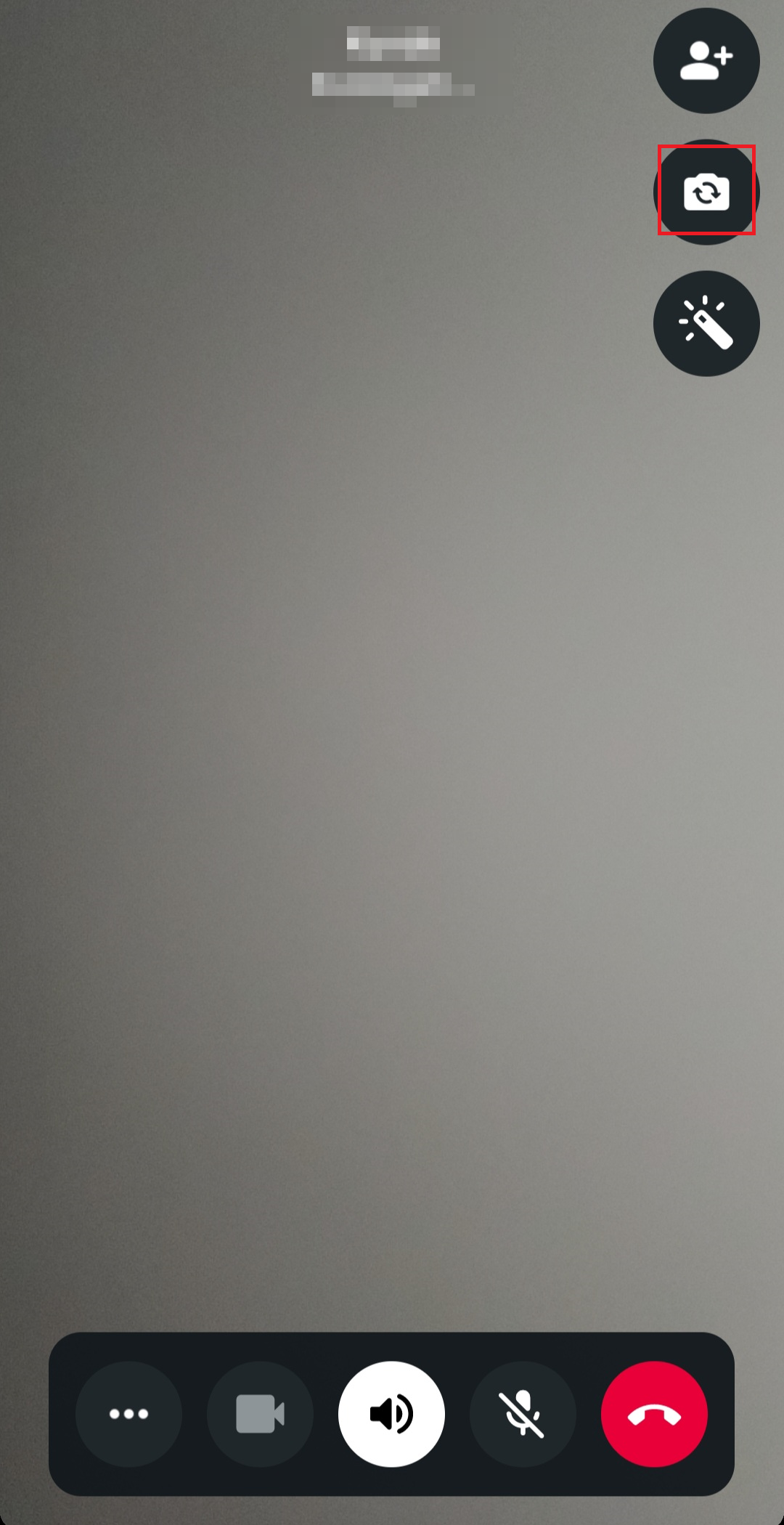
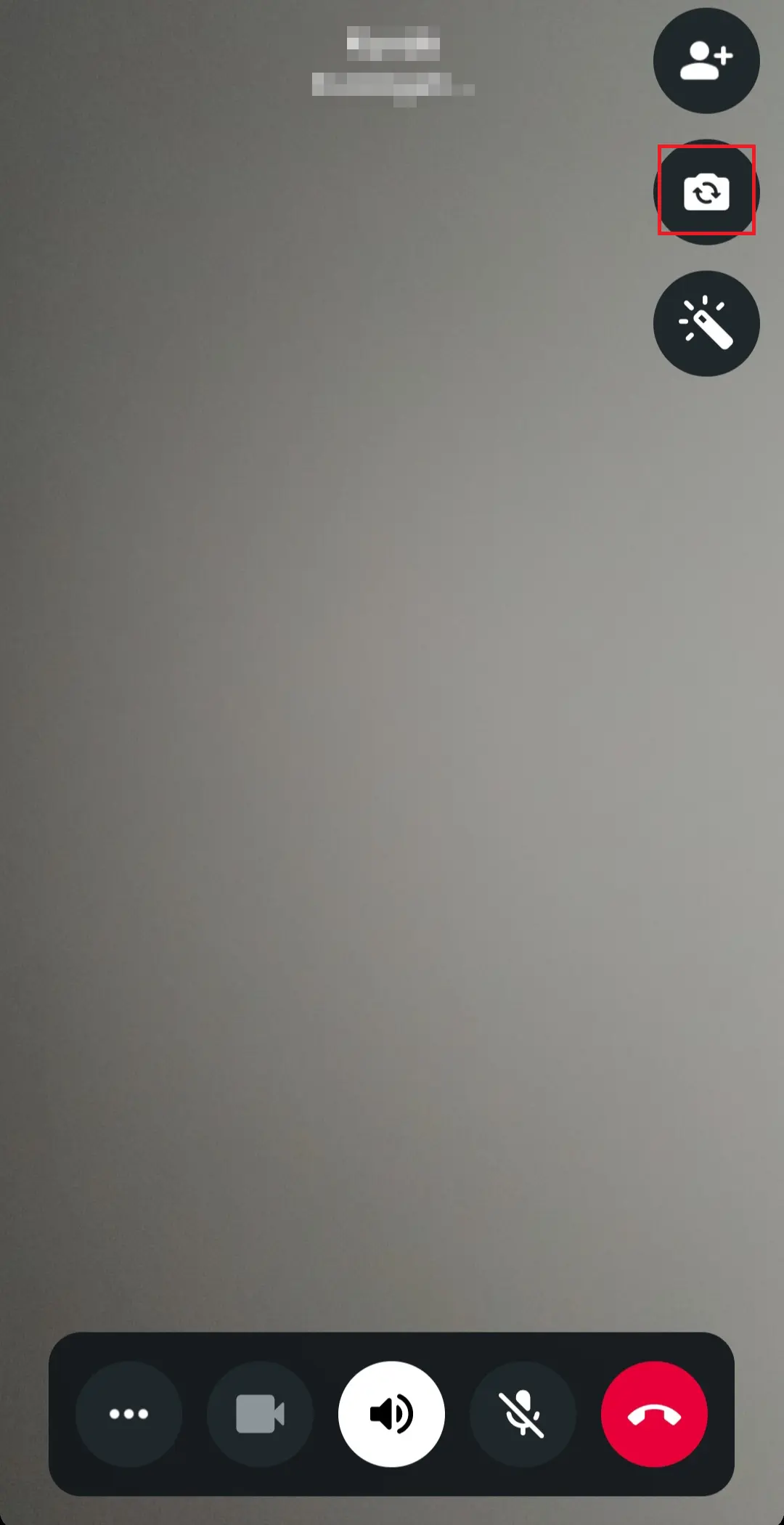
You can also switch the camera via the settings (front or selfie-facing) during a video call on WhatsApp. The only requirement is that your device is equipped with a main and front camera.
To do this, simply click on the “Switch camera” icon during the current call.
Mute function in the WhatsApp video call settings
You can also mute the microphone. To do this, all you have to do is tap the crossed-out microphone icon at the bottom during the current call.
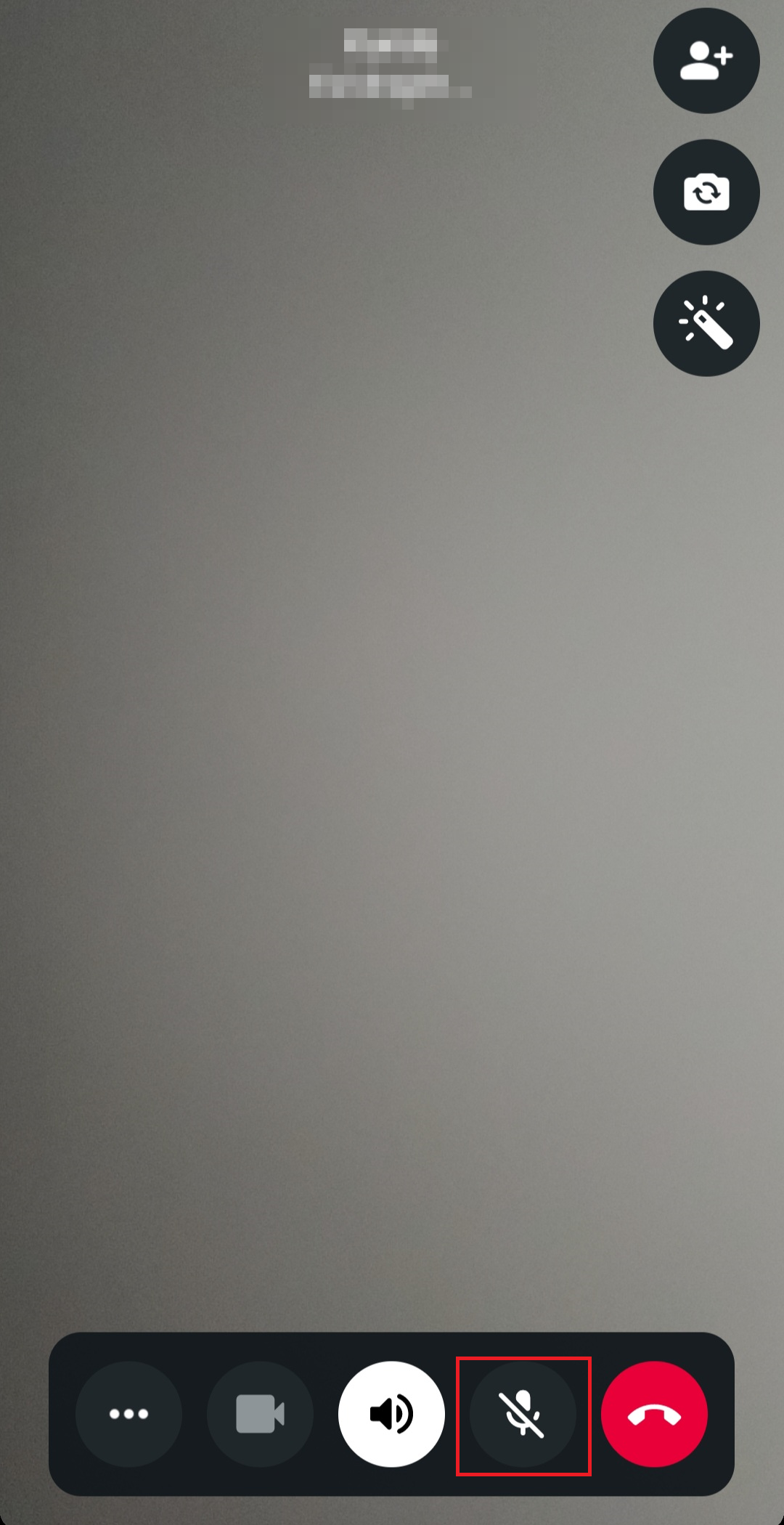
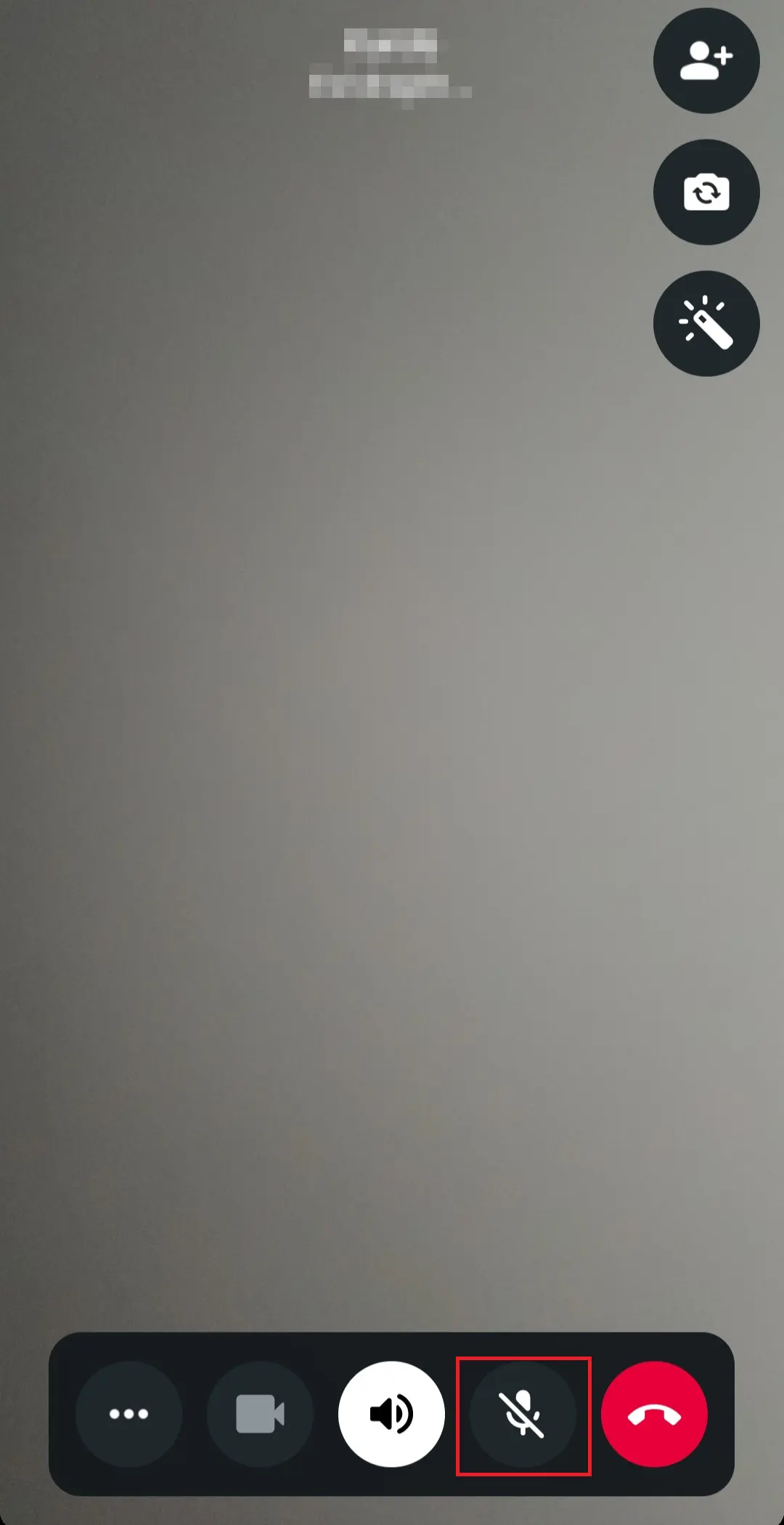
The icon with the crossed-out microphone will then appear in the middle of the screen. Your contact will no longer be able to hear you, but they will still be able to see you. To turn audio back on, simply tap the microphone icon again.
New filter and background features
In October 2024, WhatsApp began rolling out new filter and background features for video calls. These updates give users more ways to personalize, enhance, and even professionalize their video call experience. Virtual backgrounds, for example, let you blur your real surroundings or replace them with an image or alternative scene during a video call. This is especially useful for protecting your privacy — for instance, when joining a call from home. The new filter options also offer creative ways to make your video calls more visually engaging and personal.
However, using these new features may lead to a slightly increased data usage. Since additional visual data is processed and transmitted, the bandwidth requirements are higher than for a standard video call.
Problems with WhatsApp video calls
If you experience issues with WhatsApp video calls, there could be several reasons:
- Weak internet connection: If you or your contact has a poor internet connection, it can lead to low video and audio quality.
- WhatsApp video call not going through: This may happen if you’ve been blocked on WhatsApp by the person you’re trying to reach. Blocking affects both voice and video calls on WhatsApp.
If the issue isn’t caused by a poor connection or being blocked, we recommend restarting the app or your phone. In many cases, this resolves the problem automatically.
WhatsApp now also offers more stable video calls via the desktop version, which can be especially helpful for longer conversations or when using a higher-quality webcam on your computer. For more details, check out our guide on WhatsApp web video calls.
- Build trust with email matching your domain (you@yourbrand.com)
- Free domain included to get your brand online instantly
- Work smarter with AI writing support
Reviewer

Jeanna Raffa
With over 18 years of experience in online marketing, Jeanna Raffa possesses extensive expertise in digital marketing. Since 2020, her focus has been on providing practical information regarding email, office, and cloud storage solutions.