

How to save WhatsApp photos on Android and iPhone

There are two ways to download pictures from WhatsApp to your smartphone. They are either auto-saved in the WhatsApp folder on your mobile device or you can proceed manually via the “Share” option and save your pictures in the photo app or gallery.
- Free Wildcard SSL for safer data transfers
- Free Domain Connect for easy DNS setup
How to save WhatsApp pictures automatically on Android
Step 1: In WhatsApp, select the three-dot button at the top right, then “Settings” and finally “Chats”.
Step 2: Check the “Media visibility” option. If activated, WhatsApp photos are automatically saved under “WhatsApp Images” in your “Gallery” app.
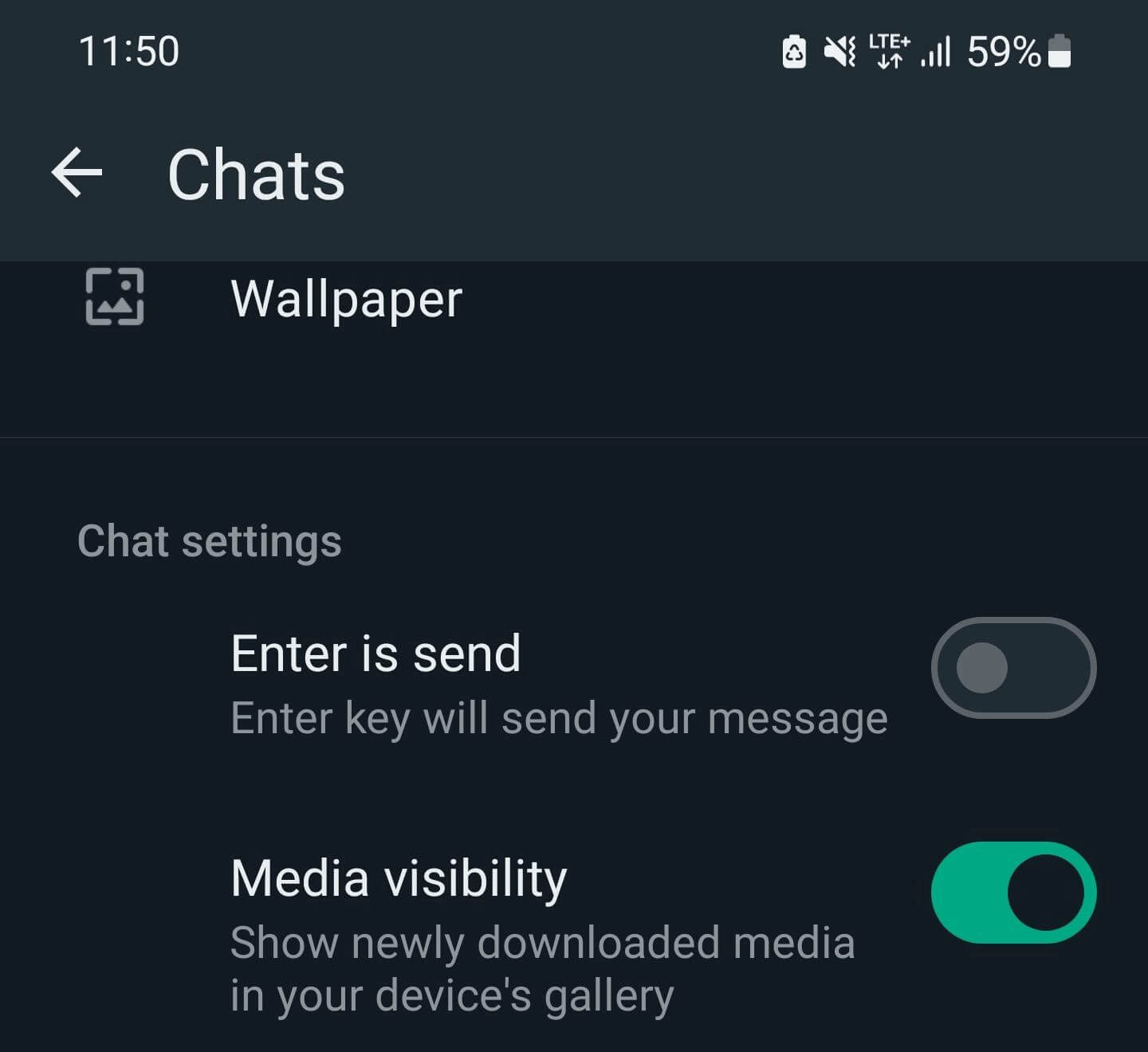
You can customize which people or groups on WhatsApp automatically download and save images to your gallery. To adjust this setting, open the chat, tap the name at the top, and select “Media visibility.” If you don’t want media from a specific chat to be saved in your gallery, choose “No.”
How to save WhatsApp pictures manually on Android
Step 1: If you want to save WhatsApp pictures shared with you, tap on the image in the relevant chat. Next, select the three-dot button in the upper right corner.
Step 2: You’ll be given a few different choices. Select “Share”.
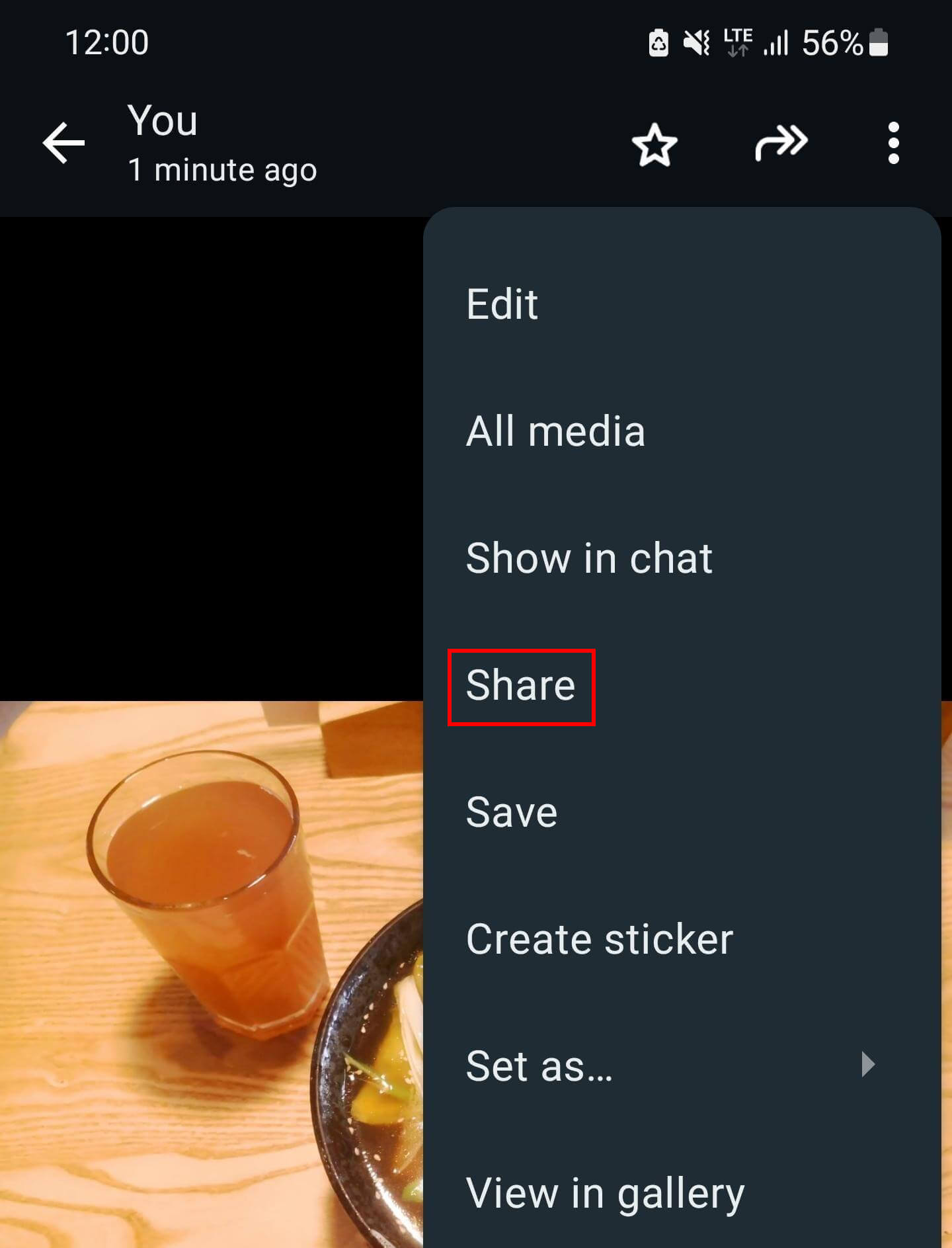
Step 3: Search for the “Upload to Photos” app. You’ll see your Google account. Tap “Upload” at the bottom right.
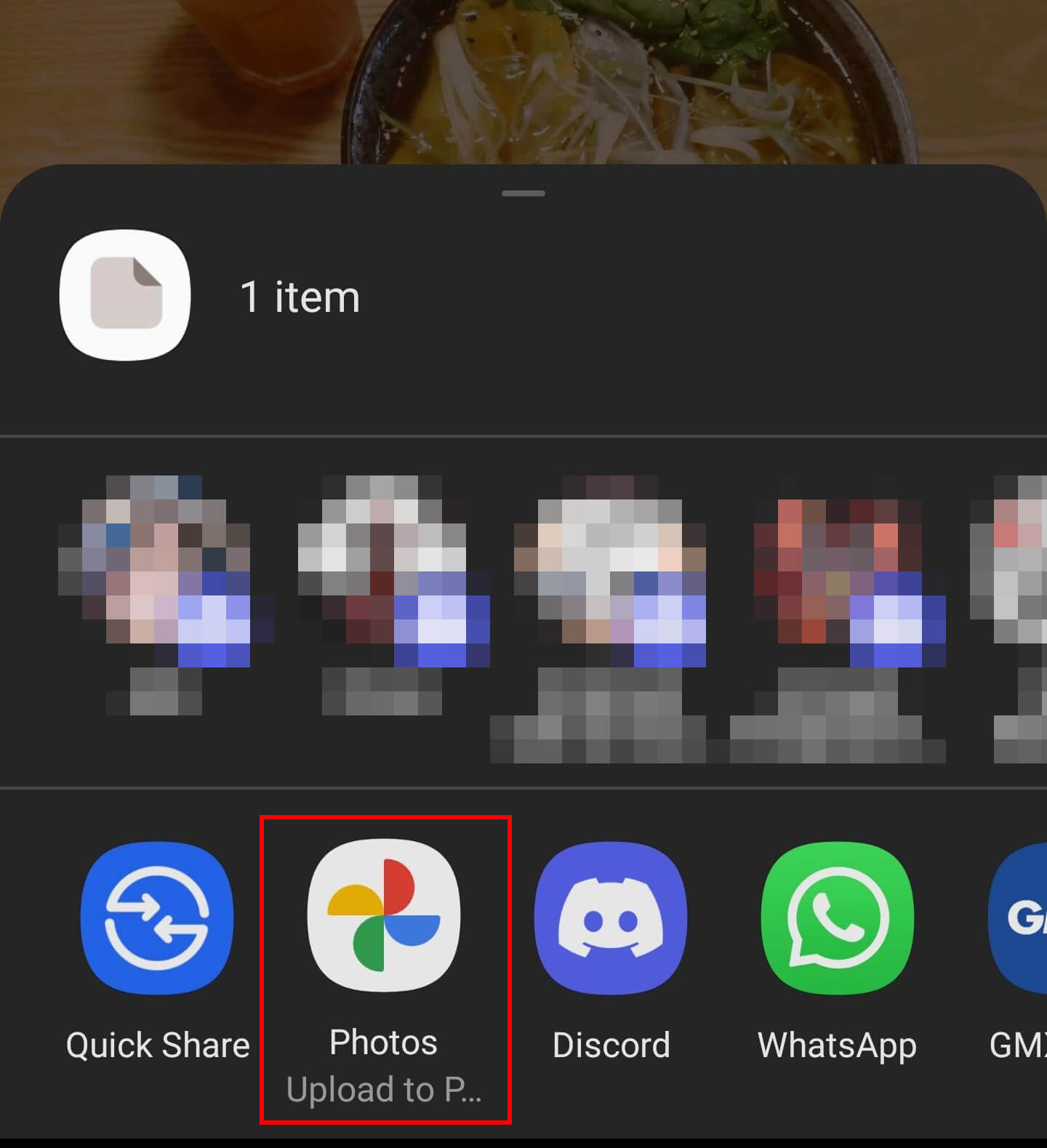
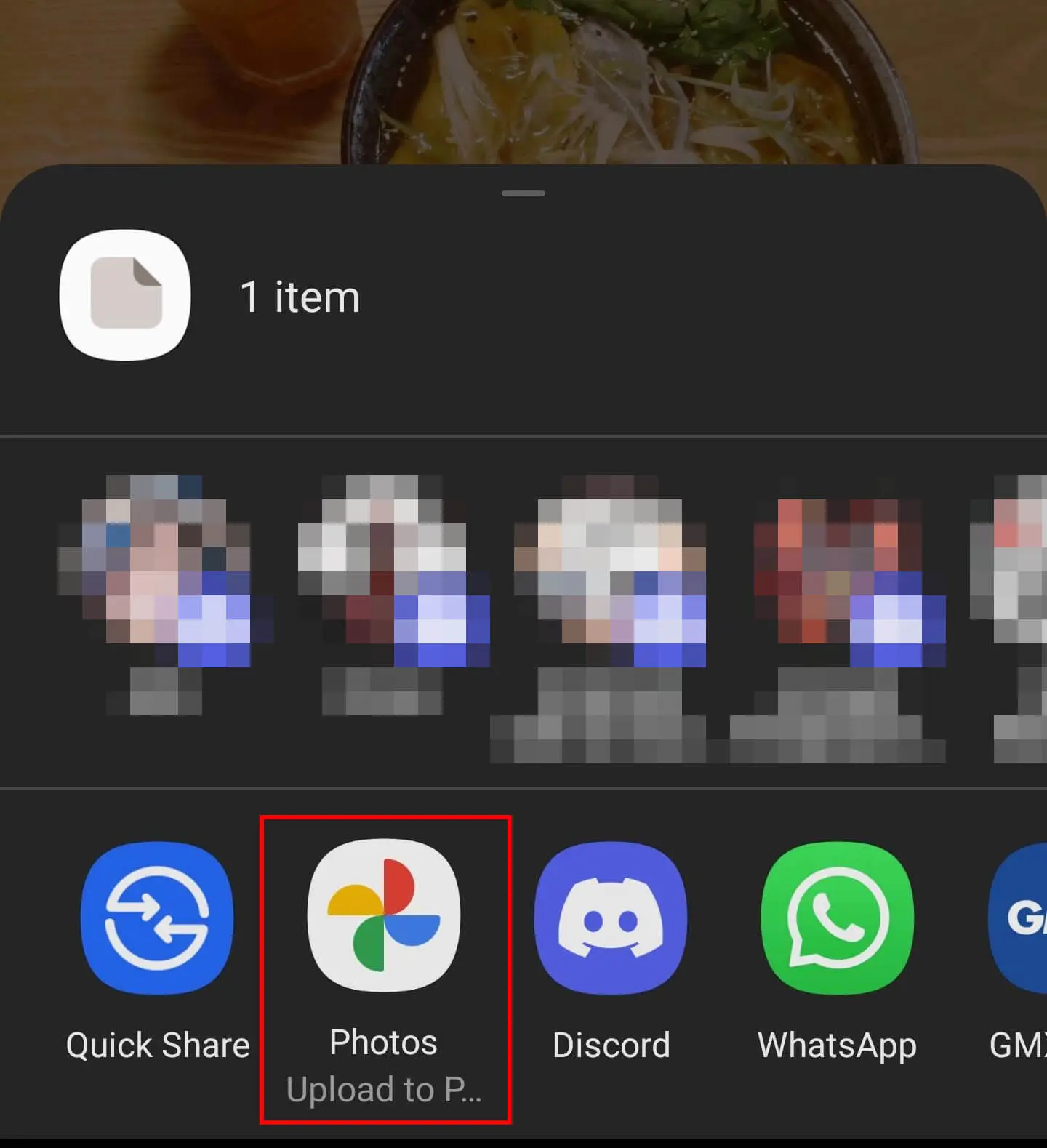
Step 4: Open the Google “Photos” app and select the image you wish to save. Click the three-dot button and finally the “Download” option. The downloaded WhatsApp images will now be visible and saved to your gallery.
With IONOS HiDrive, you can store, share, and edit your images centrally in the cloud. Choose between 100 to 2000 GB of storage space to suit your needs.
How to save WhatsApp pictures automatically on iPhone
Step 1: To automatically back up your pictures, you need to give permission to do so in WhatsApp. To do this, select “Settings” at the bottom right of your app.
Step 2: Then select “Chats” and activate “Save to Photos”.
Step 3: You’ll find a folder named “WhatsApp” in the iPhone “Photos” app. All photos shared with you on WhatsApp end up in this folder.
Step 4: Additionally, for each of your chats, you can save all media or discard it all. To do this, simply tap on the name of your conversation partner or group at the top of the chat and then tap on “Save to Photos”.

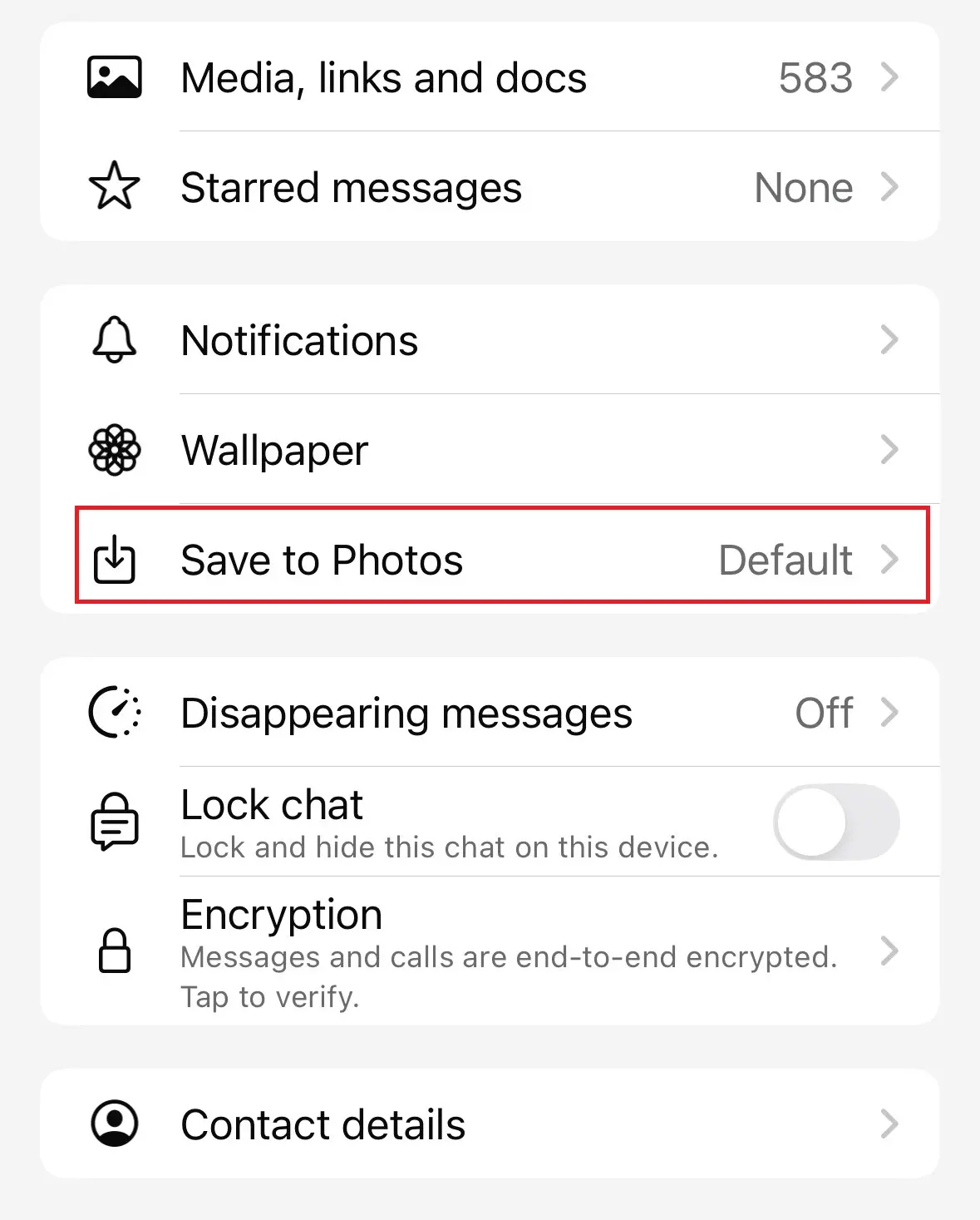
Step 5: You’ve now got three options. “Default” will correspond to the “Settings” you already made for “Save to Photos”. By selecting “Always”, all WhatsApp pictures you receive in the chat are saved. With “Never”, no backup is made. This feature is handy if you want to save only images from selected chats.
Want to know what to do when your WhatsApp storage is full?. The answer is in our detailed Digital Guide article.
How to save WhatsApp pictures manually on iPhone
Step 1: When you want to save a select WhatsApp photo to your device, simply tap on it.
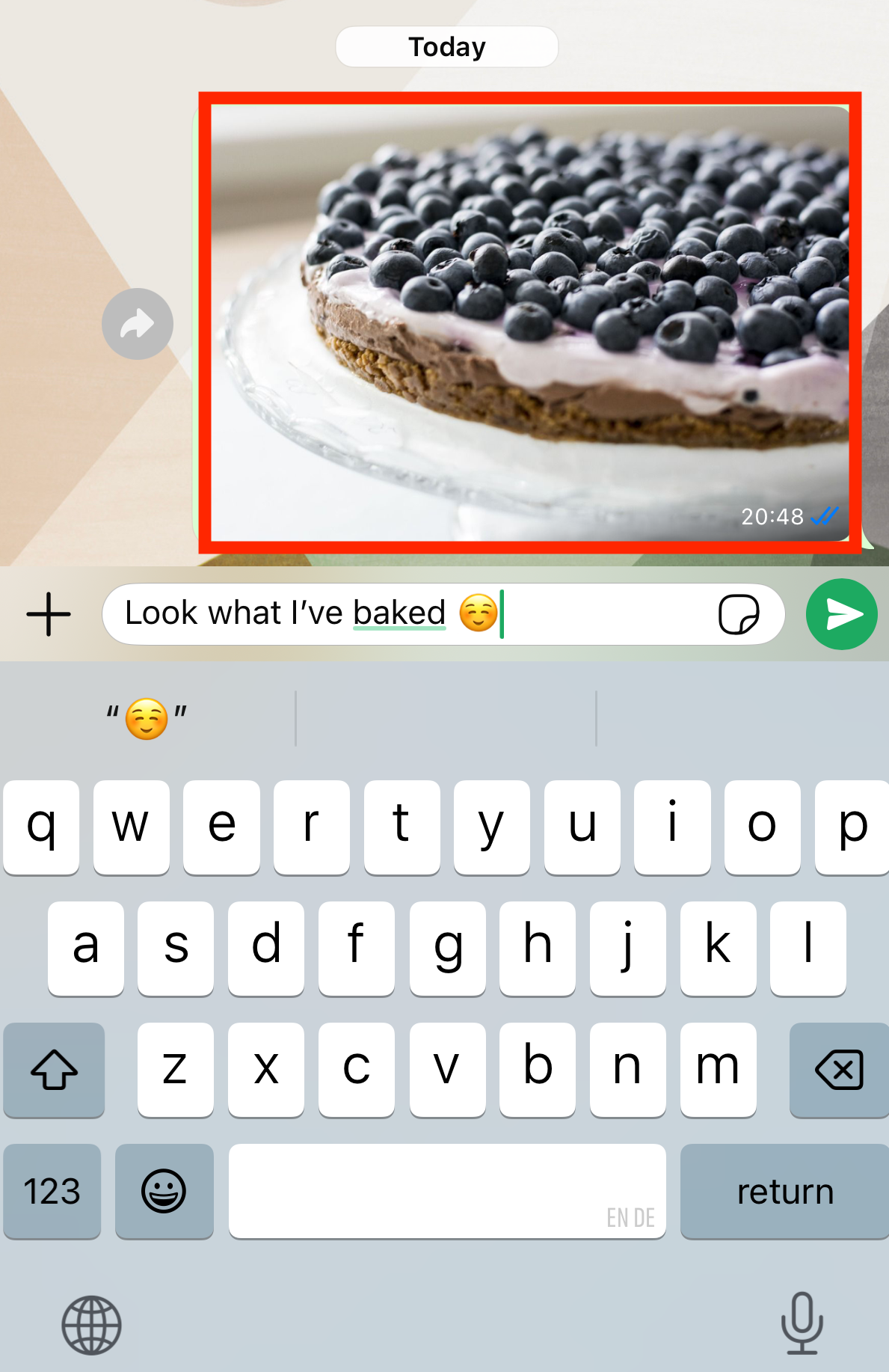
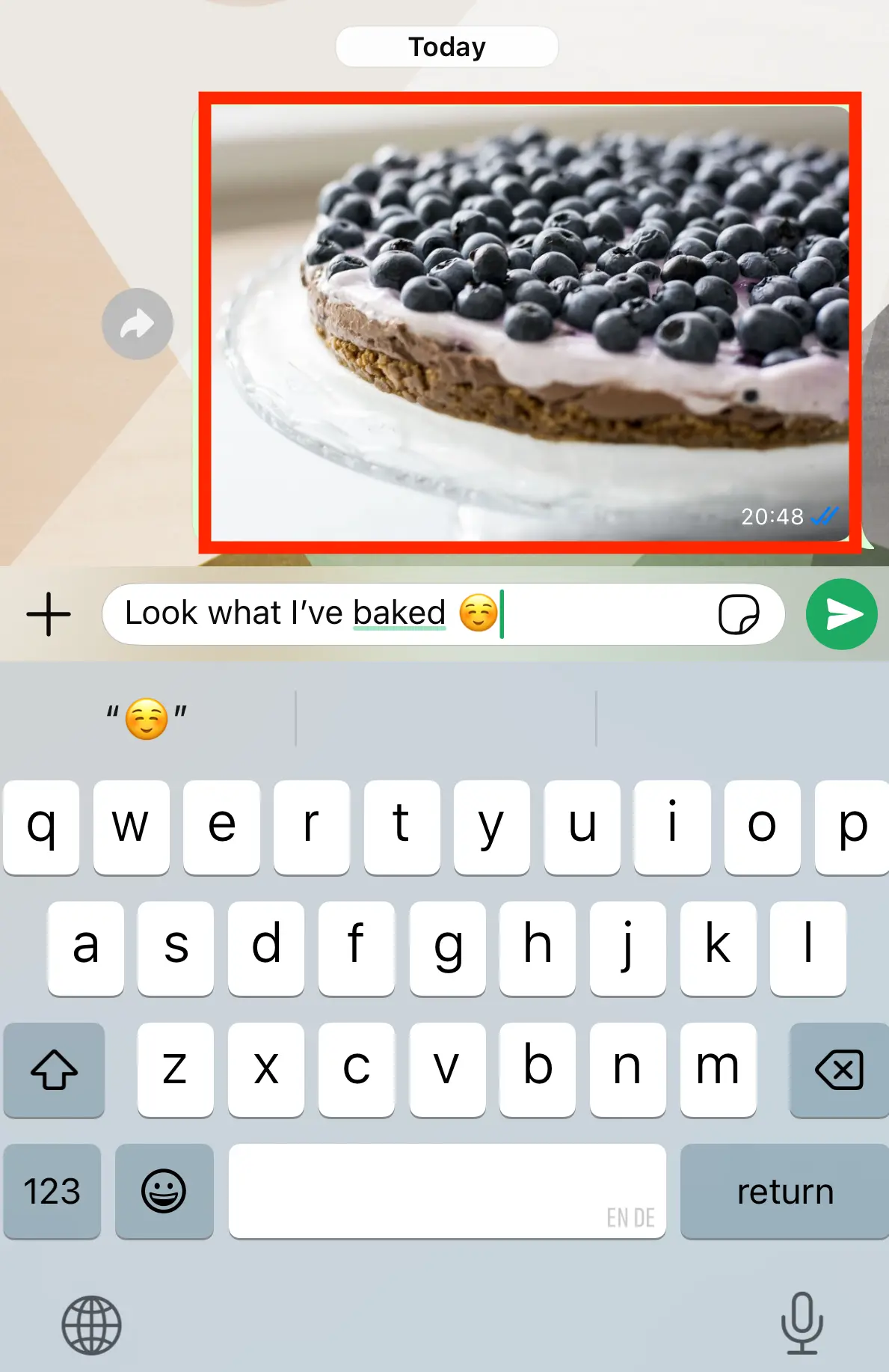
Step 2: Next, the image is enlarged on your display. Select the share icon at the bottom left.
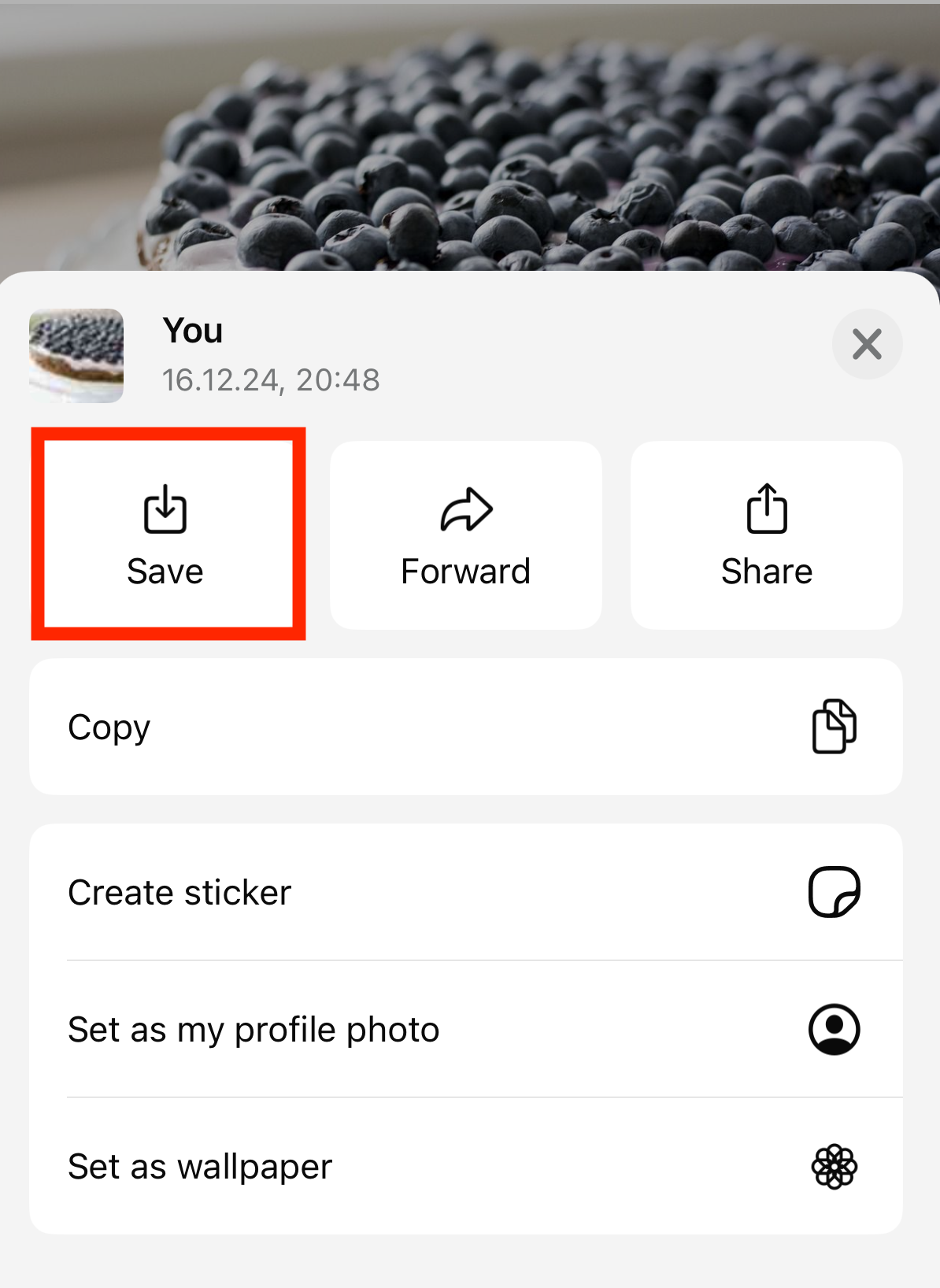
Step 3: You’re now presented with several different options. Tap “Save” and the image will be saved to your iPhone “Photos” app.
Once your WhatsApp images are downloaded to your smartphone, you can edit or print them. Or you could permanently back up your photos by using storage media such as cloud storage, memory cards, external hard drives, or the internal one on your PC or laptop.
Our articles on saving WhatsApp status videos and saving WhatApp audio may also interest you.
- Build trust with email matching your domain (you@yourbrand.com)
- Free domain included to get your brand online instantly
- Work smarter with AI writing support
Reviewer

Jeanna Raffa
With over 18 years of experience in online marketing, Jeanna Raffa possesses extensive expertise in digital marketing. Since 2020, her focus has been on providing practical information regarding email, office, and cloud storage solutions.