How do you set up Instagram Shopping and create an Instagram store?

With Instagram Shopping, you can sell your products directly through an Instagram Business or Creator account. To set it up, your Instagram account must be linked to a Facebook Page within a Meta account, and a product catalog must be created in the Meta Commerce Manager. Your Instagram store and its product catalogs are then managed through the Commerce Manager.
- Sell on social media in minutes
- Manage it all from one platform
- Works with any product or service
What is Instagram Shopping?
Instagram Shopping is a free Meta feature that lets you showcase and sell your products directly on Instagram. At its core, it’s a native shop integration in which products are displayed directly in your Instagram profile as well as in posts, Reels, and Instagram Stories via product tags and stickers.
Setup is completed by linking your Instagram account to a Facebook Page within a Meta account and creating a product catalog in the Meta Commerce Manager. There, you can centrally manage product images, descriptions, prices and links. In most cases, purchases are processed through your online store’s checkout. The availability of native checkout features depends on the country and your store configuration and may change over time.
Instagram Shopping therefore plays a central role in social commerce and complements strategies such as social selling and influencer marketing, as products can be discovered and purchased directly within the usage context.

How much does Instagram Shopping cost?
Use and setup of Instagram’s Shopping feature are generally free of charge. Costs only arise, for example, if you run ads that direct potential customers to your store. Transaction fees depend on the checkout system you use and should be reviewed in Meta’s current payment terms.
In the relatively rare cases where the in-app checkout is used, Meta retains platform and payment processing fees, which can be viewed in the financial reports within the Commerce Manager. Chargeback or payment fees also apply only to sales processed directly through Instagram.
- Get online faster with AI tools
- Fast-track growth with AI marketing
- Save time, maximize results
How to enable Instagram Shopping
Follow these steps to create your own Instagram store and increase the visibility of your products.
Step 1: Check requirements for merchant eligibility
Before setting up your Instagram store, review Facebook’s or Meta’s eligibility criteria. The following requirements must be met:
- Make sure you comply with Meta’s policies and commerce guidelines.
- Your Instagram store may only feature physical products (not services) that are directly linked to your business and your own website or online store.
- Both your products and your business location must be based in a market supported by Facebook.
- Your Instagram Business account and online store should be trustworthy, transparent and designed with customers in mind.
According to Meta’s current commerce eligibility policies, Instagram Shopping may only be used to sell approved physical goods. The following items, among others, are not permitted:
- Services and digital products
- Alcohol, tobacco, and nicotine products
- Weapons, ammunition, and dangerous items
- Prescription drugs and prohibited health products
- Illegal, counterfeit, or unlicensed products
Step 2: Set up Meta Business Manager
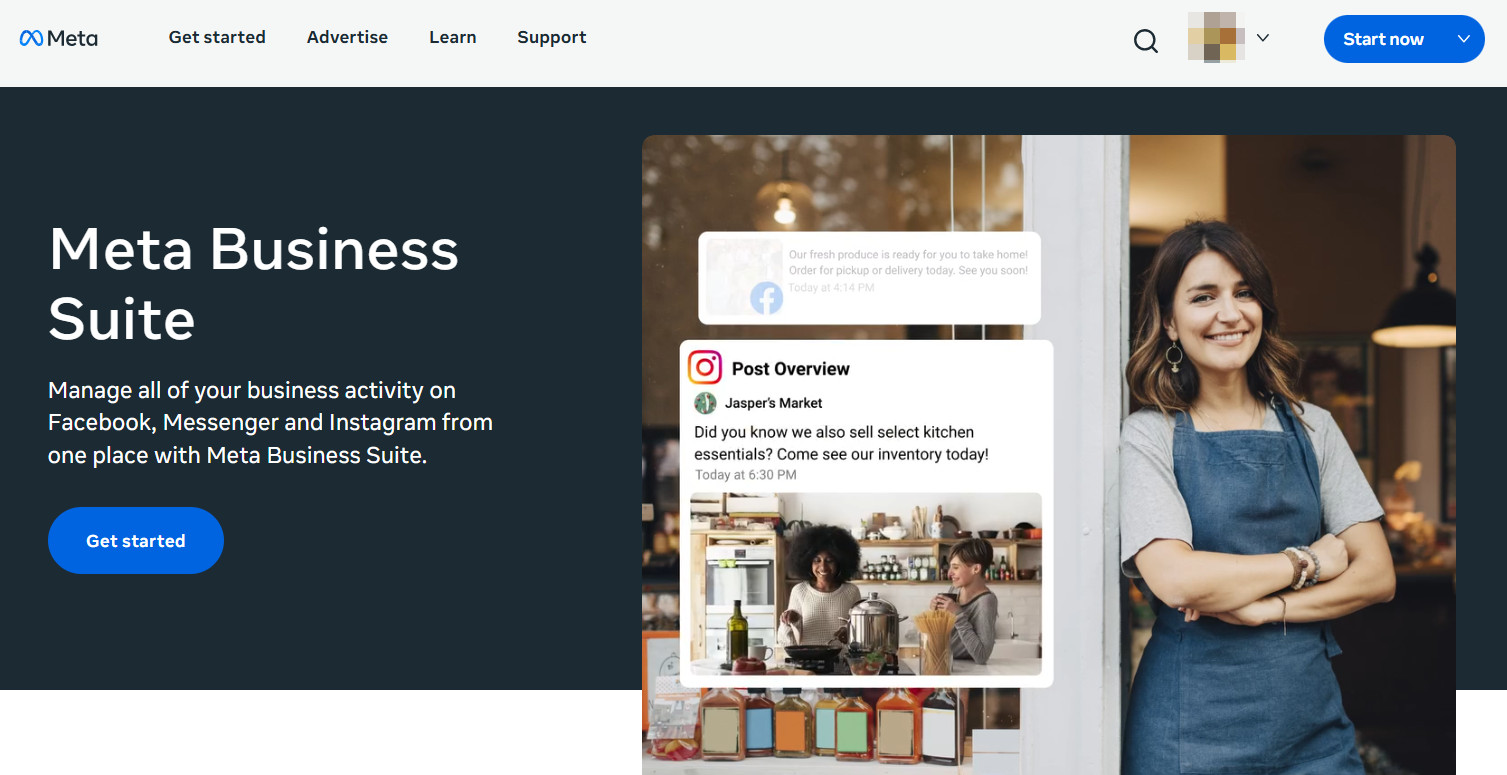
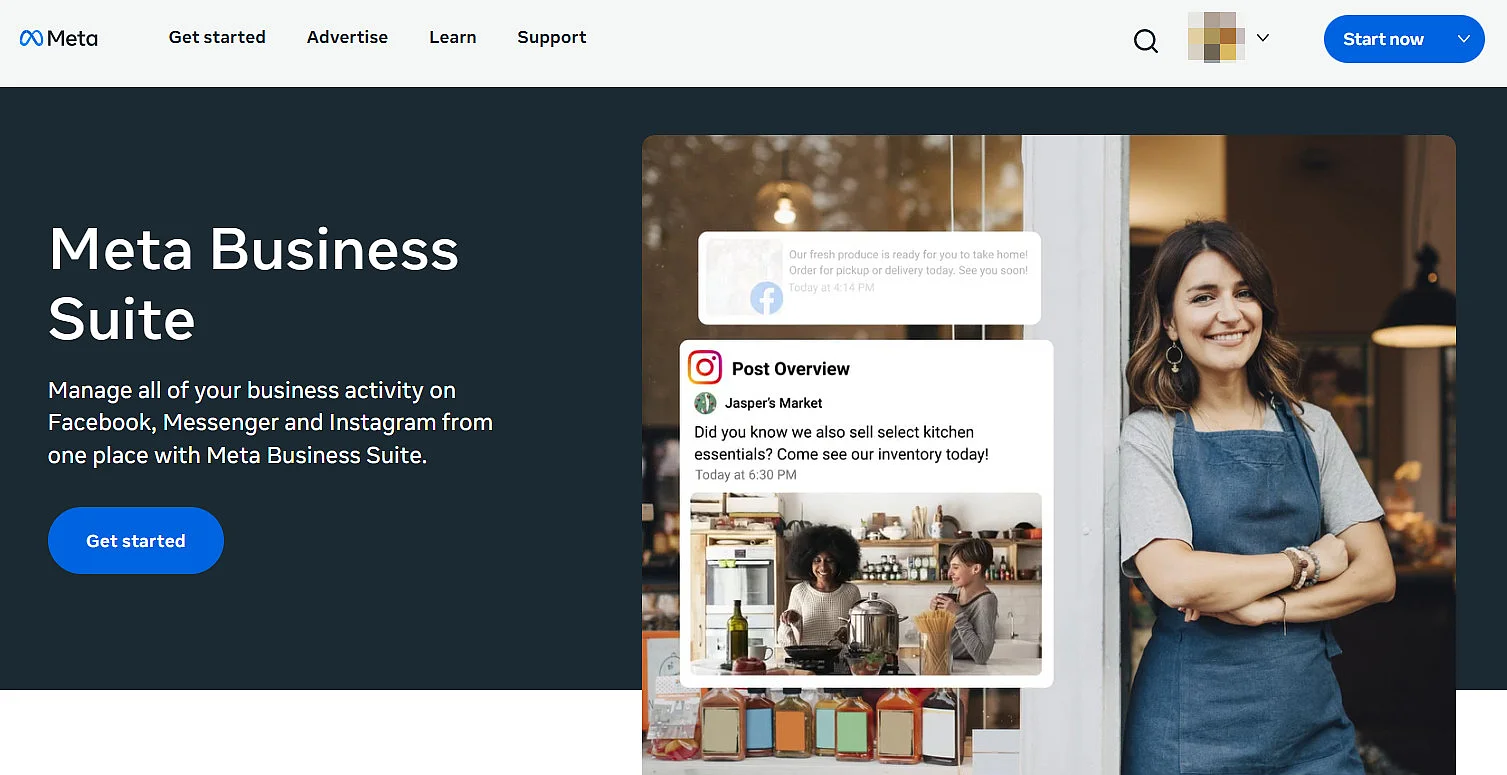
Meta Business Manager is Meta’s central management platform for businesses. It’s required to use Instagram Shopping, Commerce Manager, ad accounts, and access permissions professionally.
- Open the Meta Business Suite in your browser.
- Log in with your Facebook account.
- If you don’t yet have a business account, follow the prompts to create a business portfolio and enter your company details.
- Go to “Settings” and open “Business settings”.
- Under “Accounts → Pages”, click “Add” and select “Create a New Page.”
Step 3: Create an Instagram business account
If your Instagram account is not yet a Professional account, you first need to switch account types and connect it to a Facebook Page.
Step 1: Go to your profile, tap the three-line menu icon and select “Settings and activity” or “Settings and privacy”, depending on the app version.
Step 2: Scroll to “Account type and tools” and tap “Switch to professional account.”
Step 3: Choose a Business account, select the appropriate category and confirm your contact details.
Step 4: Connect your Instagram account to a Facebook Page by following the prompts during setup or by going to “Account type and tools” and selecting “Connect to Facebook Page.”
Step 4: Onboarding and setting up Instagram Shopping
Begin setting up your Instagram store in Commerce Manager, or import it from your existing store platform through Facebook. This allows your product listings, including all relevant details, to sync automatically with your Instagram store. The following e-commerce platforms, among others, support product imports:
- Shopify
- WooCommerce
- Magento
- BigCommerce
- CommerceHub
- Feedonomics
- OpenCart
You can check the Meta Business Partner Directory to see which partner platforms are currently supported. In Commerce Manager, you’ll select the preferred checkout method for completing sales and choose your sales channel. Then, you can decide whether your store will be used exclusively for Instagram or also for Facebook. Afterward, you can either link an existing product catalog to your store or create a new catalog by adding products with their prices and descriptions.
Before Instagram approves your store and product tags for Instagram Shopping, Meta typically requires verification of your website domain. This step confirms that you are the legal owner of the domain linked to your product details and checkout links. Without domain verification, Meta may delay or reject the store setup process.
Make sure your Instagram store includes clear business contact information, a compliant Privacy Policy, and transparent Terms and Conditions. You should also provide detailed information about your return and refund policy. Missing or incomplete disclosures may result in rejection of your store or potential legal issues under applicable federal or state laws.
Step 5: Activate the store and have it reviewed by Instagram
Once your store and product catalog are set up in Commerce Manager and connected to your professional Instagram account, you can submit your account for review. Approval typically takes a few days, and you can check the review status at any time in Commerce Manager. After approval, you’ll be able to tag products in Instagram posts using the “Tag Products” option and add product stickers in Stories and other eligible formats.
With Meta Verified, there is also a paid verification program that offers businesses additional premium features on Facebook and Instagram. These include, among other things, a visible badge, improved support, additional visibility, and in some regions advanced shop tools.
Data privacy when using an Instagram store
When selling through Instagram Shopping and Facebook in the United States, businesses must comply with applicable federal and state privacy laws as well as Meta’s platform requirements. Unlike the EU, there is no single comprehensive federal privacy law. Instead, regulations such as the California Consumer Privacy Act (CCPA/CPRA) and other state privacy laws apply when personal data is collected or processed.
This includes situations such as tracking user interactions, redirecting users to an online store, or using tools like Meta Pixel and the Conversions API. Businesses must provide a clear and accessible Privacy Policy explaining what data is collected, how it is used, and whether it is shared with third parties.
Depending on the state and the type of data processing involved, companies may also need to:
- Provide consumers with the right to opt out of the sale or sharing of personal data
- Offer rights of access, correction, or deletion
Failure to comply with applicable privacy laws may result in regulatory enforcement actions or platform restrictions.
If you use tracking or marketing tools, make sure your website clearly explains how cookies and similar technologies are used. Depending on applicable state laws, you may also need to provide a visible opt-out mechanism for targeted advertising or data sharing.
Consumer protection and advertising transparency
In addition to privacy requirements, U.S. businesses must comply with federal and state consumer protection laws. The Federal Trade Commission (FTC) prohibits deceptive or misleading advertising and requires transparent pricing and clear disclosure of sponsored or promotional content.
Companies must ensure that product information, prices, seller details, and advertising content are presented clearly and accurately. Misleading claims, hidden fees, or unclear labeling may result in regulatory action or platform sanctions.
4 tips for using Instagram Shopping effectively
Instagram Shopping doesn’t work effectively on its own. To attract new Instagram followers and convert them into customers, it should be supported by additional marketing measures. These include optimizing your Instagram bio, running targeted Instagram ads, and monitoring performance with professional tools for Instagram analytics.
Use the following tips to get the most out of Instagram Shopping.
Tip 1: Maintain a consistent style
Whether you sell hardware, fashion, or art, tailor shopping stickers and your shopping feed to your style, your brand, and your business profile. Be transparent and address your target audience professionally, for example with testimonials, reviews, or a detailed value-for-money breakdown.
Tip 2: Use Instagram ads
Instagram ads can now be linked directly to product tags from your Instagram store. This lets you tag products in feed, story, or reel ads and guide users straight to the relevant items. Shopping ads are especially effective for building reach, targeting new audiences, and driving purchase intent.
Tip 3: Use captions to work with the algorithm
The Instagram algorithm pays attention to how many users read captions and which hashtags perform well. Optimized captions also improve your profile’s ranking and visibility on Instagram’s Explore page. Use helpful, explanatory, or interesting captions for posts in your shopping feed and include hashtags.
Tip 4: Use high-quality images and designs
Unfortunately, many users automatically perceive shopping posts as ads and may simply scroll past them. To capture attention, use high-quality product images and maintain a consistent visual identity for your store. At the same time, ensure that labels, product names, and prices are accurate and error-free.
Reviewer

Melissa Senn
Melissa Senn has been with IONOS since 2016 and focuses on the areas of websites, e-commerce, social media, and AI in the Digital Guide. As a digital strategist, she draws on her extensive SEO and GEO experience to translate complex technological trends into practical content.