

How to install and configure WordPress with NGINX

You can install WordPress very easily on a lean and performant NGINX server. If you’re already familiar with the CMS, you’ll know that installation and configuration can be done very quickly as long as you know how.
- Great premium TLDs at affordable prices
- Simple registration & transfer
Why should you use WordPress with NGINX?
Many WordPress installations run on Apache servers, but this doesn’t have to be the case. If you want to create your own WordPress site, you can also use NGINX as your web server instead. One of the benefits is that NGINX servers are generally considered to be particularly lean because they have low hardware requirements and hardly need any memory. At the same time, the web server can handle a lot of traffic. This makes NGINX a good Apache alternative for WordPress.
You aren’t sure whether you want to implement WordPress with NGINX? Our Nginx vs. Apache comparison article may help you decide between the two web server solutions.
What requirements must a server meet?
NGINX has low hardware requirements, which makes it particularly suitable if you’re starting out with a small project since this is the kind of configuration you need. If you use a flexible cloud server, you can add more resources over time. To publish a WordPress website, in addition to the web server, you also need your own domain and an SSL certificate to ensure a secure connection.
You need the following basic requirements before installing:
- your own server
- your own domain
- a SSL certificate
Are you still looking for the right address for your WordPress website? At IONOS you can easily register a domain. You also get an SSL certificate included.
Once you have this infrastructure (usually just a single contract is needed with your hosting provider), you can start the installation. For this you need four different software components:
- NGINX: the actual web server
- MySQL: a database that stores the content of your WordPress site, among other things
- PHP: the scripting language that enables dynamic elements on your website
- WordPress: the content management system helps you define the look of your website and manage the content.
All the software components you need for your own WordPress installation are available for free. We explain how to install and properly configure each component.
Step by step guide to installing WordPress with NGINX
Installing WordPress is done (according to the manufacturers) in just 15 minutes. In addition, you also need to install NGINX, the database and PHP, but that also just takes a few minutes. We guide you through the installation from installing the web server to the first time you log into your WordPress site.
We use Ubuntu as the operating system in this tutorial. As always when it comes to installations with Linux, you should ensure that the system up to date. Here are all the commands that need entering into the Ubuntu terminal:
sudo apt update
sudo apt upgradeThe IONOS Setup Wizard can help make your work even easier. It takes just three steps to install WordPress. In the Hosting for WordPress plan from IONOS, all the prerequisites are already in place, including high-performance infrastructure.
Step 1: Install NGINX
First, we install NGINX on the system:
sudo apt install nginxThe server is now installed and running. To test if everything worked, simply check the status:
sudo systemctl status nginxExit the status display by pressing “Q” (like Quit) on your keyboard.
Step 2: Install MySQL
Next, you need to install a database. WordPress works with both MySQL and MariaDB. We decided to use the classic MySQL even though they both fared equally as well in the MariaB vs. MySQL comparison.
sudo apt install mysql-serverAgain, you can test if the installation has worked by checking the status:
sudo systemctl status mysqlThe database is now installed, but it still needs to be configured. To do this, first log in:
sudo mysql -u root -pNow you are in the MySQL area, which is where you can create a new database for your WordPress installation:
CREATE DATABASE WordPress CHARACTER SET utf8mb4 COLLATE utf8mb4_general_ci;And here is where you also create a new user including password for this database and assign the required rights. You’re free to choose the username and password:
CREATE USER 'user'@'localhost' IDENTIFIED BY 'password'
GRANT ALL PRIVILEGES ON WordPress.* TO 'user'@'localhost'Now leave MySQL again:
EXIT;Step 3: Install PHP
The last step before you install WordPress is to install the PHP scripting language. For this you need only one command, which then automatically installs the latest PHP version:
sudo apt install php-fpmDuring the installation process, you will also see which version is installed on your system. With this information, you can then verify that PHP is working correctly. In our case, version 8.2 was installed. If you already have a newer version, you must adjust the command accordingly:
sudo systemctl status php8.2-fpmIn order for PHP to work with the MySQL database, install the following extension:
sudo apt-get install php-mysqlWith this command, you’ve installed the LEMP stack on your system. Just like with a LAMP server the letters L, M and P stand for Linux, MySQL (or MariaDB) and PHP. While LAMP uses an Apache server, LEMP uses the NGINX web server, pronounced like “EngineX”.
Step 4: Install WordPress
Now you can install WordPress. This can also be done directly via the Ubuntu terminal. First, however, create a folder so that you can install the content management system afterwards. It is recommended to name the folder with the domain name. This way it makes it easier to keep several websites apart later on. So create the appropriate folder and then change to this one:
sudo mkdir -p /var/www/html/example.com
cd /var/www/html/example.comNow it’s time to download the latest version from the official WordPress site and unzip the file:
wget https://wordpress.org/latest.tar.gz
tar -xvzf latest.tar.gzSince the web server needs to make changes to the folder, you must give NGINX the appropriate authorization:
sudo chown -R nginx: /var/www/html/example.com/Step 5: Customize the WordPress configuration file
You need to configure WordPress so that the CMS can work with your LEMP server. To do this, go to the WordPress directory and create the sample configuration file wp-config.php. Then open the file:
cd /var/www/html/example.com
sudo cp wp-config-sample.php wp-config.php
sudo nano wp-config.phpYou do not have to perform these steps from the command line. You can also use Ubuntu’s file manager and the pre-installed word processor to customize the configuration file. Note, however, that you may then not have the necessary rights to make changes.
You still need to adjust the file, which you can do by changing the following lines in the document:
/** The name of the database for WordPress */
define( 'DB_NAME', 'Your database name' );
/** Database username */
define( 'DB_USER', 'The created username' );
/** Database password */
define( 'DB_PASSWORD', 'The password you set' );
/** Database hostname */
define( 'DB_HOST', 'localhost' );We set the required information for this in step 2. In our case the database is called “WordPress”, the username is simply “user” and the password we have simply set as “password”. When you have entered your data, you can save the document and close it again.
Step 6: Set NGINX
Now you need to configure NGINX for WordPress. To do this, create a new configuration file in the NGINX file folder:
sudo nano /etc/nginx/conf.d/example.com.confEnter the following code in the empty document:
server {
    listen 80;
    root /var/www/html/example.com;
    index  index.php index.html index.htm;
    server_name  wordpress.example.com;
    client_max_body_size 500M;
    location / {
        try_files $uri $uri/ /index.php?$args;
    }
    location = /favicon.ico {
        log_not_found off;
        access_log off;
    }
    location ~* \.(js|css|png|jpg|jpeg|gif|ico)$ {
        expires max;
        log_not_found off;
    }
    location = /robots.txt {
        allow all;
        log_not_found off;
        access_log off;
    }
    location ~ \.php$ {
         include snippets/fastcgi-php.conf;
         fastcgi_pass unix:/var/run/php/php8.1-fpm.sock;
         fastcgi_param SCRIPT_FILENAME $document_root$fastcgi_script_name;
         include fastcgi_params;
    }
}Make sure that you enter the correct path to your WordPress document at the beginning of the file. After that you can check the source code.
sudo nginx -tYou should get an indication that the syntax is ok and the text was successful. Finally, restart the server to make sure that all changes can take effect.
sudo systemctl restart nginxStep 7: Log into the WordPress dashboard
Now you have everything installed and you can start designing your WordPress website. To do this, launch a browser and access your domain. In this tutorial, we have set WordPress as a subdomain under “wordpress.example.com”. So you would need to visit the appropriate subdomain, which is where you will be greeted with the first page of the setup wizard.
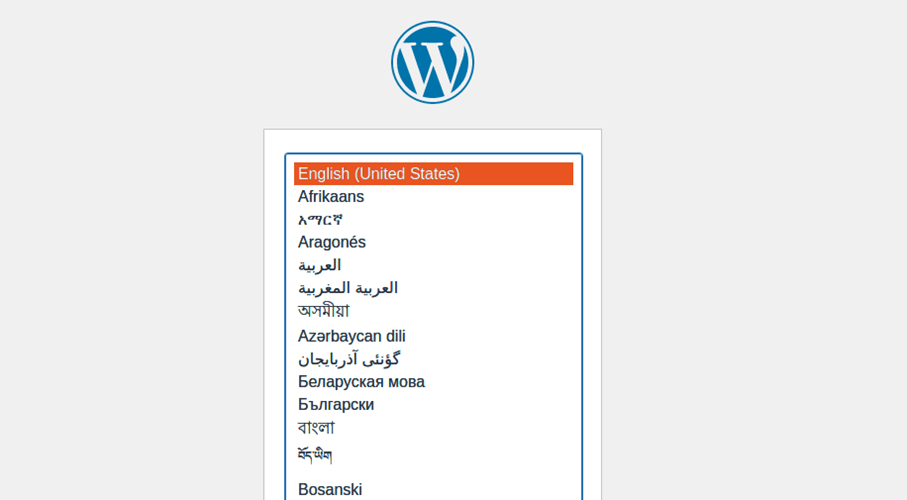
On the next page, enter the name of your website, create a first user and assign a password. You will need the last two pieces of information to log into the backend afterwards. You will also be automatically redirected to this login screen once the setup is complete.
Now log in and start designing your website just how you want it. Your first tasks include choosing a WordPress theme, installing the WordPress plugins and creating a WordPress menu.
- KVM based dev servers for developers
- Scalable to enterprise cloud level
- Pay-as-you-go, per-minute billing
Reviewer

Julia Hertler
With over 18 years of experience in content marketing, Julia Hertler has deep expertise in digital communications. For the past 10 years, she has specialized in the areas of domains and hosting at the IONOS Digital Guide, making complex technical topics easy to understand.