

How to add JavaScript to WordPress

For security reasons, standard users usually cannot embed JavaScript in WordPress. However, if you want to make your website more interactive, scripts are a fast and convenient solution. We’ll show you the options you have in order to work with JavaScript in WordPress.
- Great premium TLDs at affordable prices
- Simple registration & transfer
When does it make sense to add JavaScript to WordPress?
WordPress is a classic content management system that separates content and design. Basically, this strict separation is practical and makes sense — administrators can manage the technical and visual aspects, while authors can focus entirely on the content design. In principle, blocking JavaScript and other scripts for normal backend users in WordPress is a sound concept, especially since it minimizes the risk of malicious code.
A suitable web address is just as important as the choice of a suitable content management system. Register your individual domain today and benefit from advantages like a free SSL / TLS certificate or a domain lock.
If interactive content is to become an integral part of content design, there’s practically no way around using JavaScript. Various audio and video players only work with the appropriate script. The same also applies to many third-party forms that are used, for example, for lead generation. If you want to rely more on other interactive elements such as chats, surveys or knowledge tests, you should definitely add JavaScript to WordPress.
Available options to embed JavaScript in WordPress
There are several ways to enable users of WordPress to add JavaScript. Among the best and simplest solutions are the following:
- Disable script tag filtering
- Embed JavaScript in WordPress headers
- Embed JavaScript in WordPress footers
- Enable JavaScript with a WordPress plugin
Are you still looking for a suitable hosting environment for your WordPress project? With Hosting for WordPress from IONOS, you get access to powerful, fail-safe hardware with fast SSD storage, caching and CDN.
Option 1: Disable script tag filtering
You can disable the default script tag blocking for all users and the entire WordPress project. However, you should only disable this security feature if all authorized users are experienced with scripts. Otherwise, you increase the risk of malicious code resulting from rogue scripts.
To turn off script tag filtering, the first step is to add the following line to the wp-config.php configuration file:
define( 'CUSTOM_TAGS', true );After that, extend the functions.php theme file with the following entry:
function add_scriptfilter( $string ) {global $allowedtags;$allowedtags['script'] = array( 'src' => array () );return $string;}add_filter( 'pre_kses', 'add_scriptfilter' );Afterward, all users can add JavaScript to WordPress by including the appropriate script tags in the desired location on a page.
You can also read about the basic procedure for embedding JavaScript in HTML in the Digital Guide.
Option 2: Embed JavaScript in WordPress headers
Don’t want to create the option to embed JavaScript in WordPress for all authorized users? You can also work with manual script integration via headers. With this method, the code must be inserted manually in the functions.php, so that individual permissions can be set.
If you want to include a script for the entire website in the header, for example, the code for a tracking tool, add the following input to the theme configuration file:
function wpb_hook_javascript() {
	?>
		<script>
			// JavaScript-Code
		</script>
	<?php
}
add_action('wp_head', 'wpb_hook_javascript');Of course, you can also embed the desired JavaScript code into a single page. You just need the ID of the desired page, which you specify in the context of a simple “if” statement to do this. For the WordPress page with the ID “5”, for example, the appropriate entry in functions.php looks like this:
function wpb_hook_javascript() {
	if (is_page ('10')) {
		?>
			<script type="text/javascript">
				// JavaScript-Code
			</script>
		<?php
	}
}
add_action('wp_head', 'wpb_hook_javascript');Before adding global JavaScript code to your project, be sure to create a WordPress backup!
Option 3: Embed JavaScript in the footer of your WordPress project
Instead of integrating JavaScript via the header of your WordPress website, you can also place the scripts in the footer. In this case, replace the “wp_head” parameter with “wp_footer”:
function wpb_hook_javascript() {
	?>
		<script>
			// JavaScript-Code
		</script>
	<?php
}
add_action('wp_footer', 'wpb_hook_javascript');Like the previous variant, scripts can only be embedded in individual pages by adding an “if” statement and specifying the ID:
function wpb_hook_javascript() {
	if (is_page ('10')) {
		?>
			<script type="text/javascript">
				// JavaScript-Code
			</script>
		<?php
	}
}
add_action('wp_footer', 'wpb_hook_javascript');Plugins are an elementary part of WordPress, but which extensions are worthwhile? In the Digital Guide, you’ll find articles on the various categories including the most popular plugins:
Option 4: Embed JavaScript with a WordPress plugin
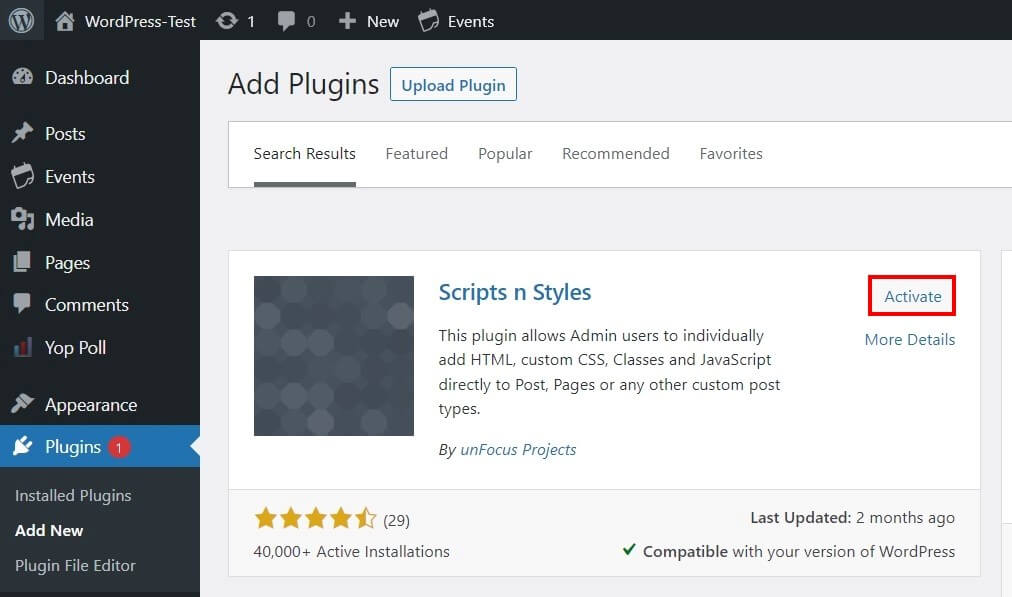
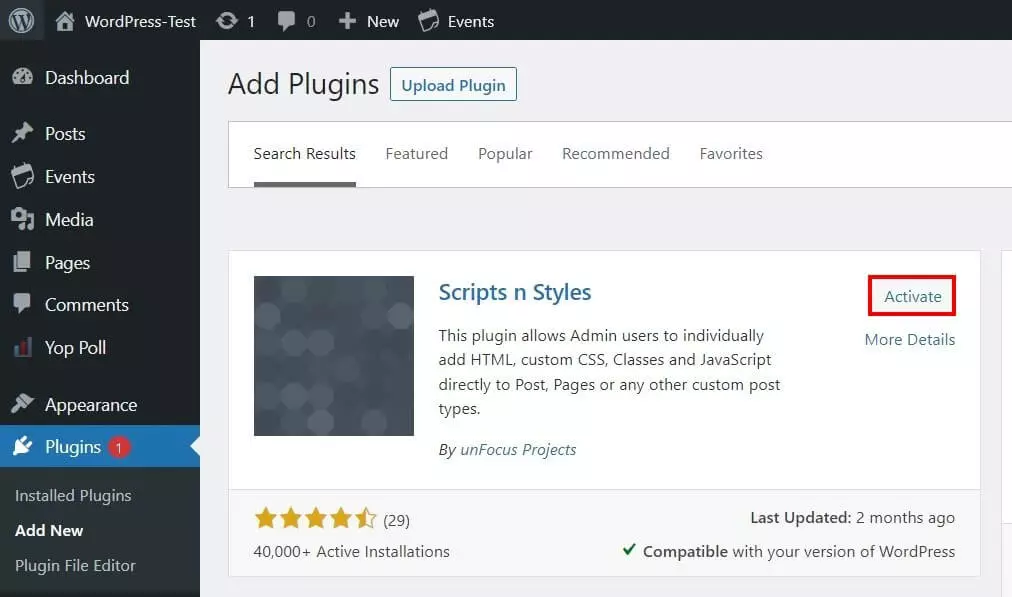
If manual theme file customization isn’t possible or is too complicated for you, you can also fall back on WordPress plugins to add JavaScript to your project. One of the most popular extensions for this is Scripts n Styles. You install the script plugin as follows:
- Log in to the WordPress backend.
- Select “Plugins” and then “Install” in the side menu on the left.
- Search for “Scripts n Styles” and press “Install Now” on the matching search result.
- After the installation, click “Activate”.
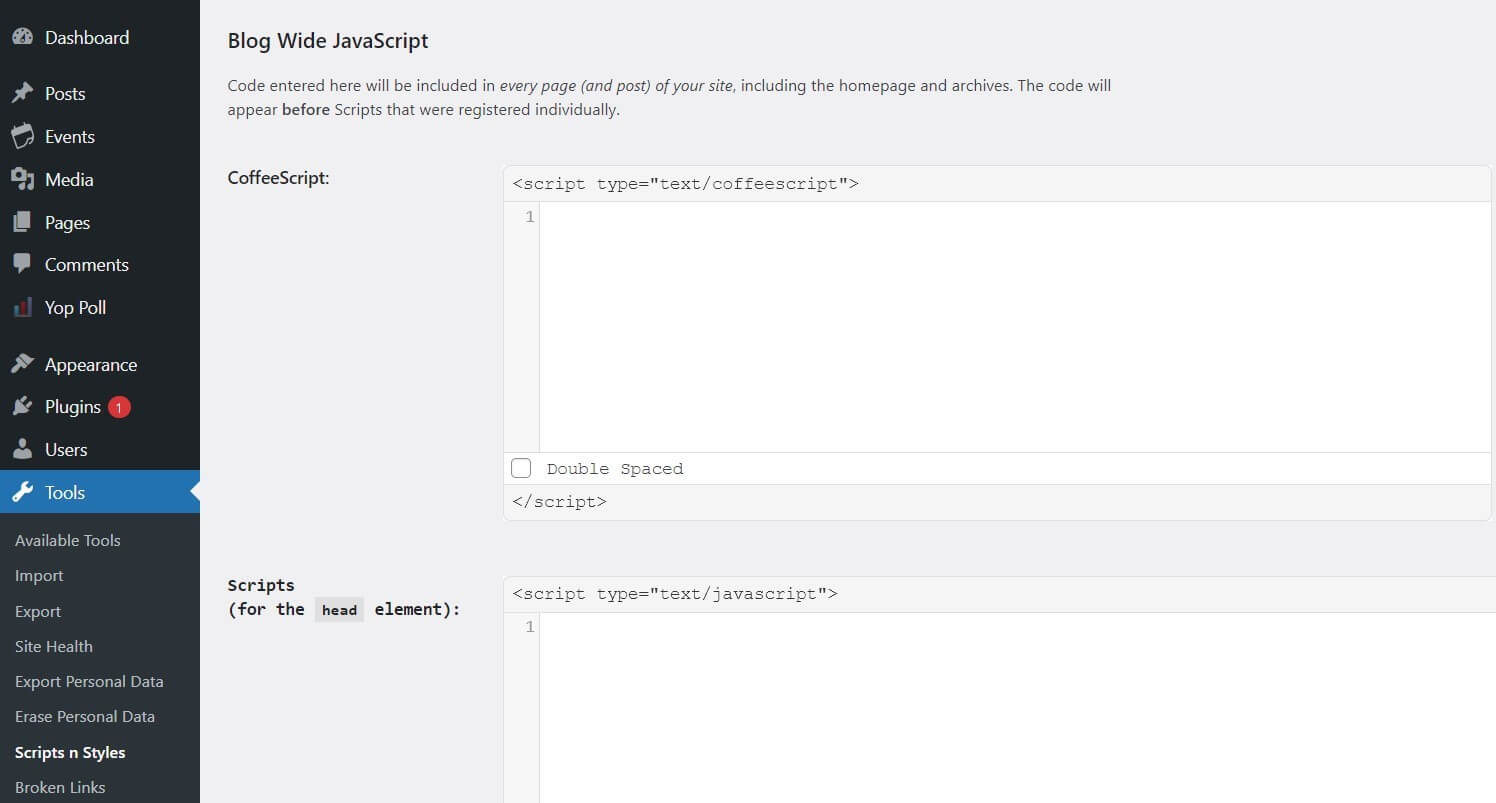
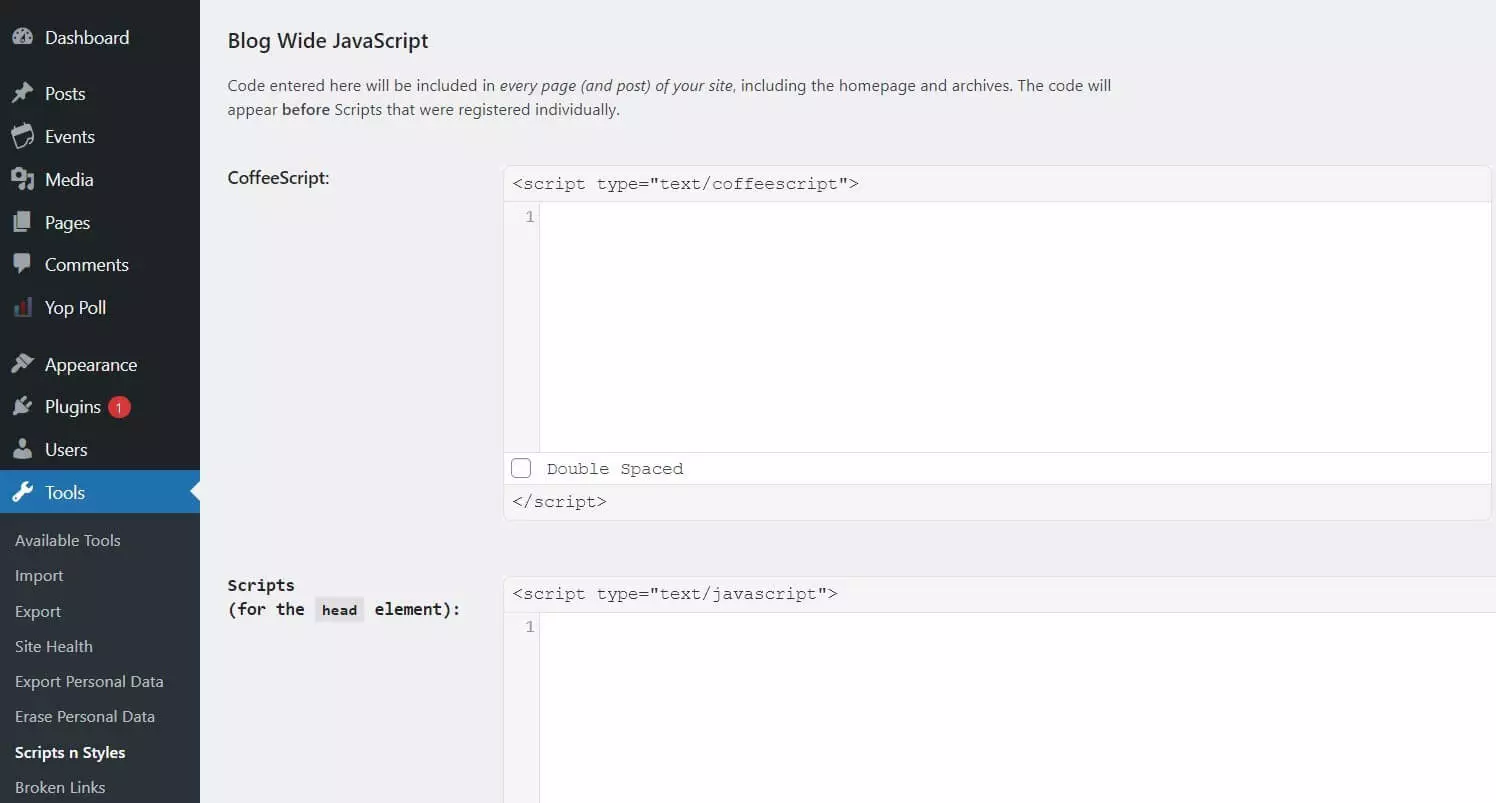
After installation, you can find the WordPress JavaScript plugin in the “Tools” section of the side menu on the left. When you access the extension’s menu, you can choose to embed snippets in HTML, CSS or JavaScript in your WordPress project. For JavaScript, you have three options:
- CoffeeScript
- Scripts in the header (“for the head element”)
- Scripts in the footer (“end of the body element”)
You can add more interactivity to your WordPress project with JavaScript code. If you want to give all users the option to include scripts, you can disable script tags or use a plugin. Alternatively, users with access to functions.php have the option to embed code in headers or footers.
Reviewers

Melissa Senn
Melissa Senn has been with IONOS since 2016 and focuses on the areas of websites, e-commerce, social media, and AI in the Digital Guide. As a digital strategist, she draws on her extensive SEO and GEO experience to translate complex technological trends into practical content.

Julia Hertler
With over 18 years of experience in content marketing, Julia Hertler has deep expertise in digital communications. For the past 10 years, she has specialized in the areas of domains and hosting at the IONOS Digital Guide, making complex technical topics easy to understand.