

How to turn off push notifications

Are you getting too many push notifications? Maybe even from apps where you never consciously activated notifications? Keep reading to find out how to turn off push notifications on your phone or in your browser.
A brief guide on how to stop push notifications
In your browser
- Search for “Notifications” or “Push Notifications” in your browser settings.
- Remove the websites that you don’t want to receive notifications from.
For Android apps
- Enter “Apps” in the settings.
- Change the notification settings for the app in question.
For iOS apps
- Search for “Notifications” in the settings.
- Change the notification settings for the app in question.
What are push notifications?
Push notifications provide you with new information or messages from apps and websites. They often take the form of a short text on the lock screen of your smartphone. Push notifications are usually accompanied by a sound and/or vibration, so that you’re aware of their arrival.
Why turn off push notifications?
Statistics show that in 2021, users had an average of 40 apps on their smartphones, including messaging services, shopping apps, games, lists, exercise apps, and more.
If you turn on push notifications for every app, you likely won’t be able to keep track of all the updates. This is the main reason why you might want to turn off push notifications for some apps.
How to stop push notifications in your browser
Turning off push notifications is relatively simple. In browsers, push notifications are usually tied to specific websites. Some websites ask you on your first visit whether you want to get updates from them in the form of push notifications. You might have accidentally clicked yes or changed your mind about who you want updates from.
So how to disable these push notifications? For Chrome, simply follow these steps:
- First go to your browser’s settings.
- Navigate to the “Privacy and security” menu.
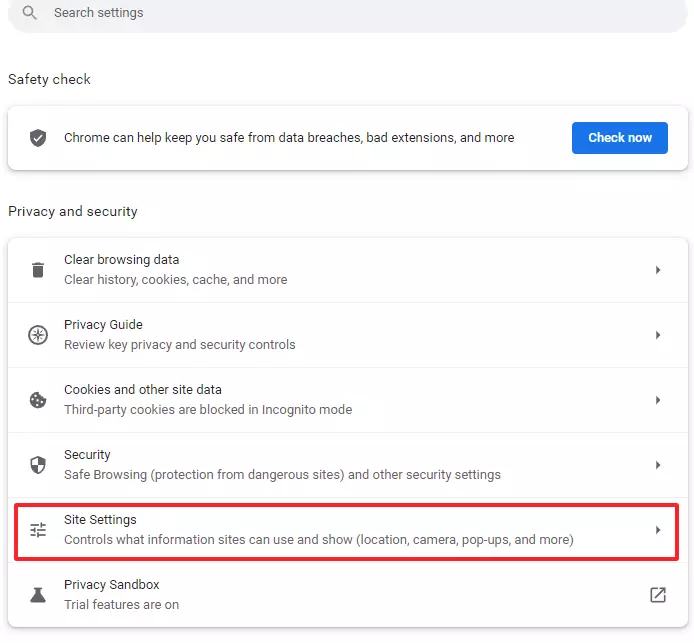
- Then click on “Site Settings”.
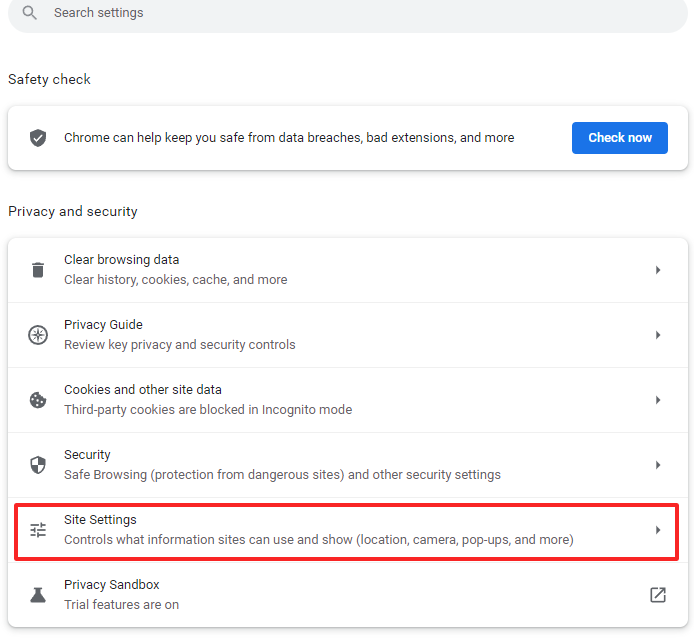
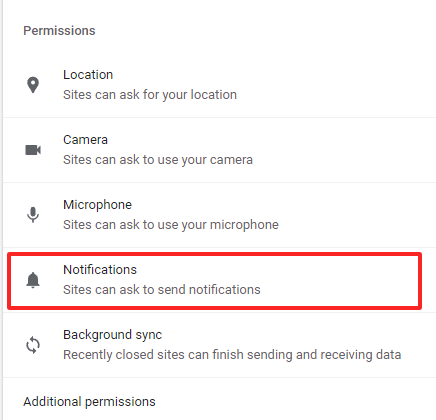
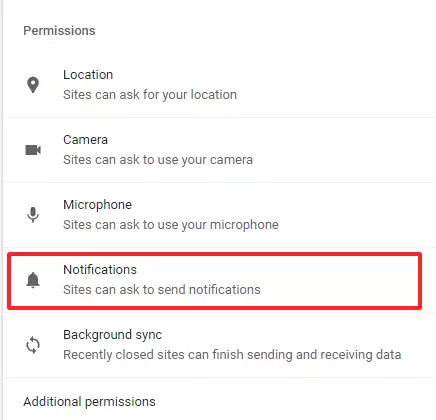
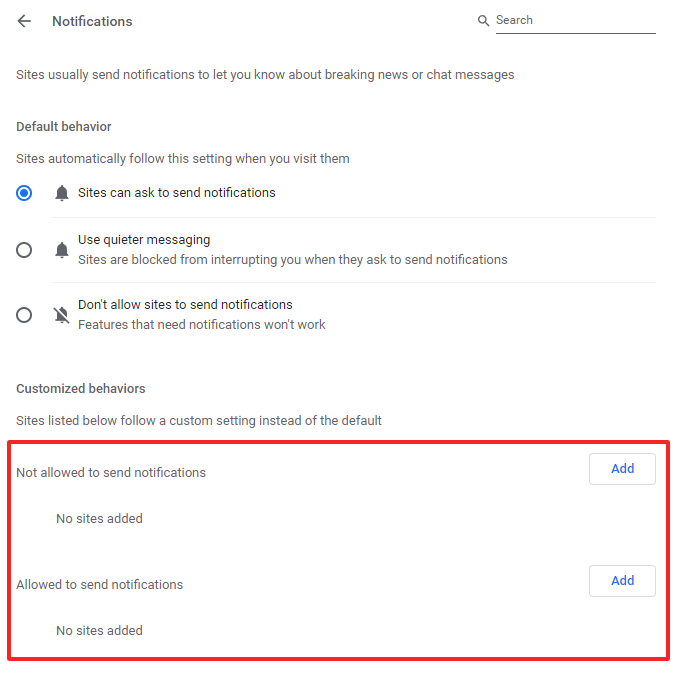
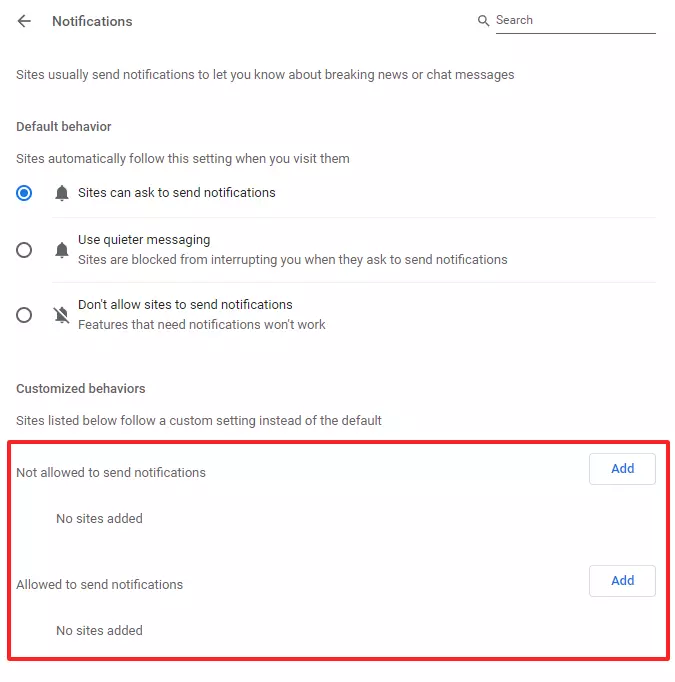
- Once you’re in Site Settings, click on “Notifications”. This is where you can deactivate push notifications for certain sites or all sites.
- The websites that are and aren’t allowed to send you notifications are listed on this page. Click on the three dots to the right of the website names to remove the sites that you’d no longer like to receive notifications from. Alternatively, you can add websites to the list of sites that aren’t allowed to send notifications using the “Add” button.
JavaScript is required for push notifications to work in the browser. When you deactivate JavaScript, push notifications are automatically disabled.
You’re looking for a hosting solution for your website or need an upgrade? Take a look at web hosting by IONOS.
How to turn off push notifications in apps
Turning off push notifications in Android
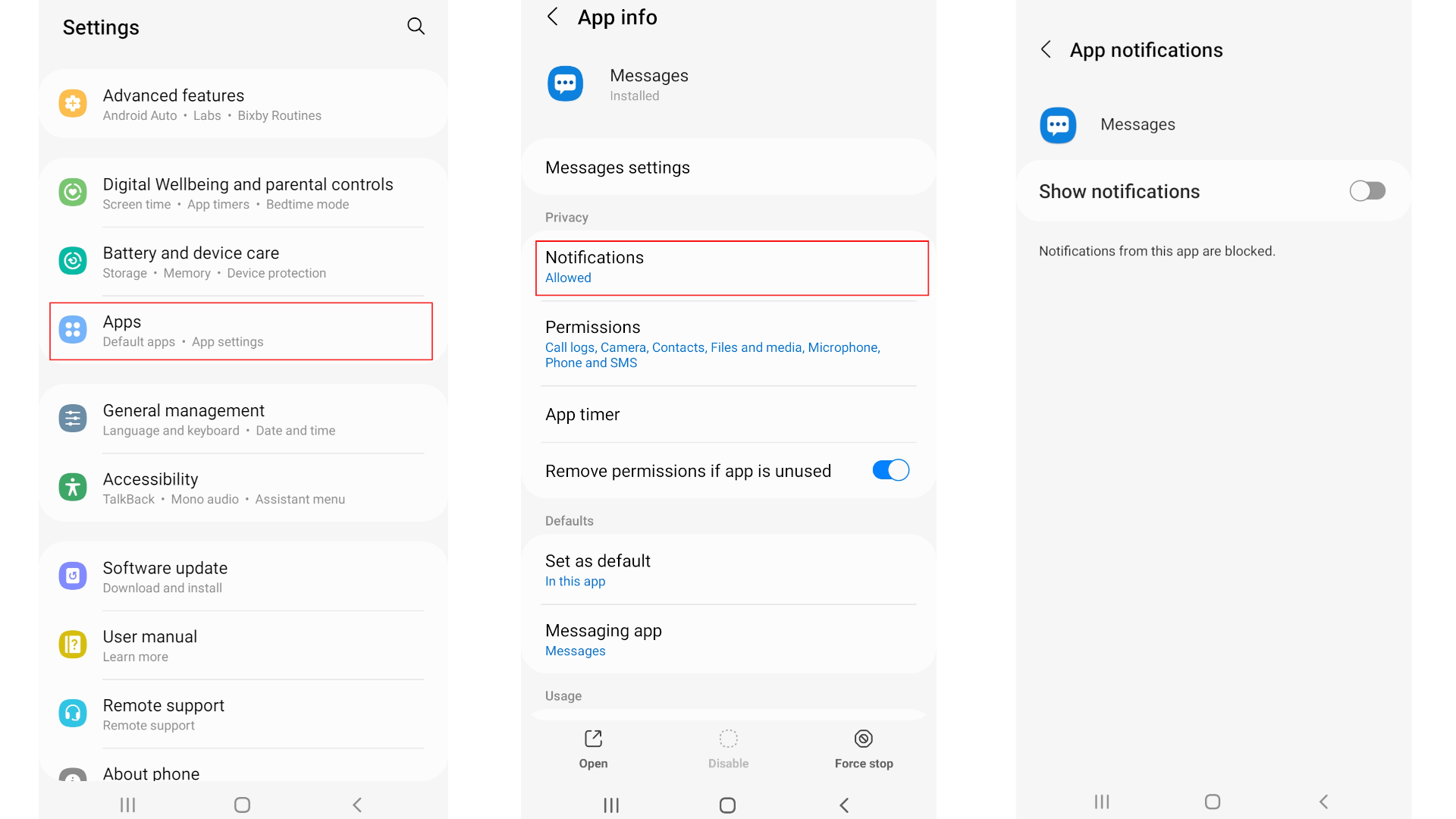
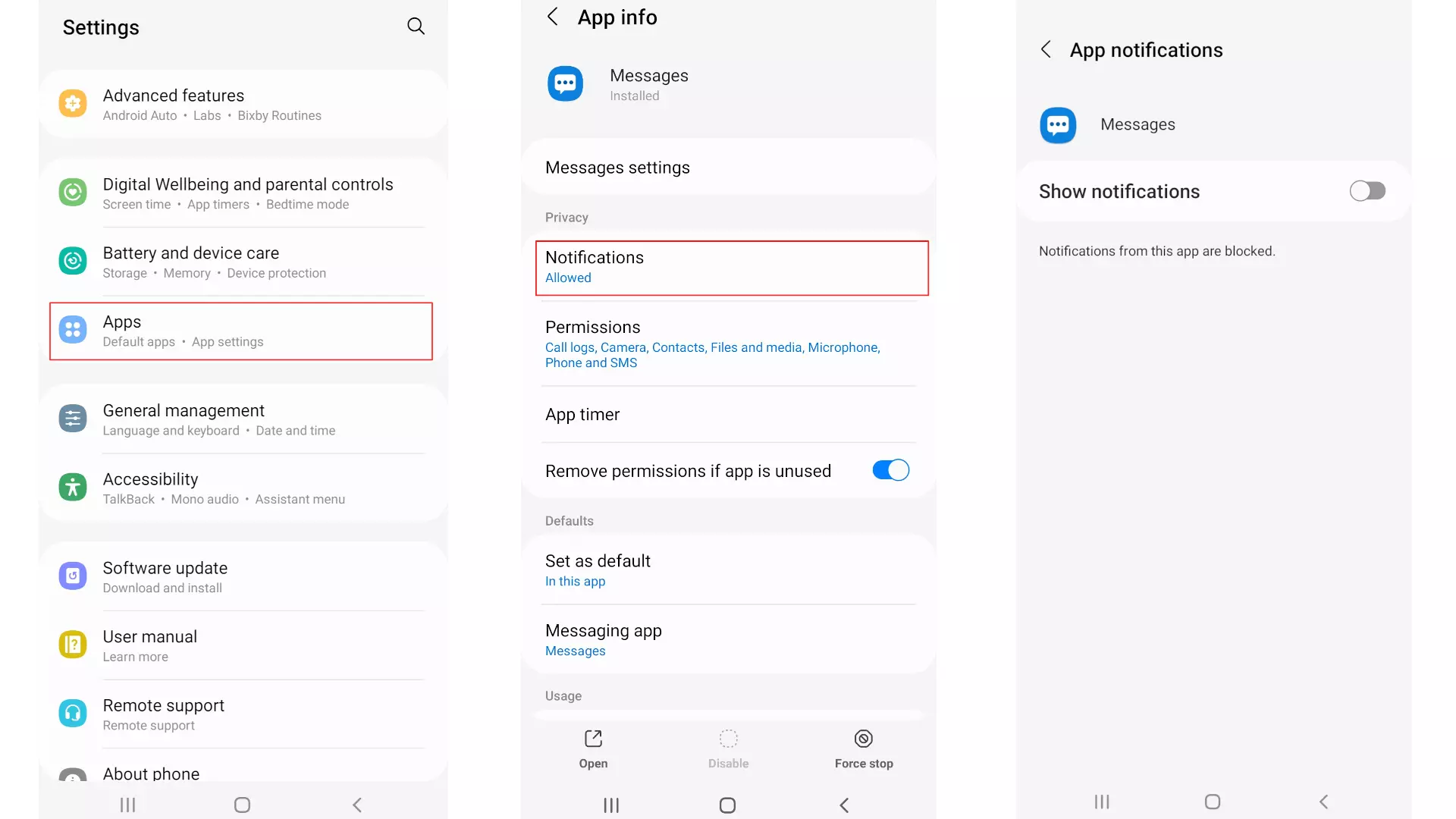
On Android smartphones, you’ll have to turn off push notifications app by app. Follow these steps:
- Go to the settings in your phone.
- Once you’re in the settings, look for “Apps”.
- Choose the app that you’d like to deactivate notifications for.
- Open the “App settings”, and then go to “Notifications”.
- Use the toggle at the top of the screen to activate or deactivate push notifications for the app. If you want to deactivate, the button should be on the left.
Turning off push notifications in iOS
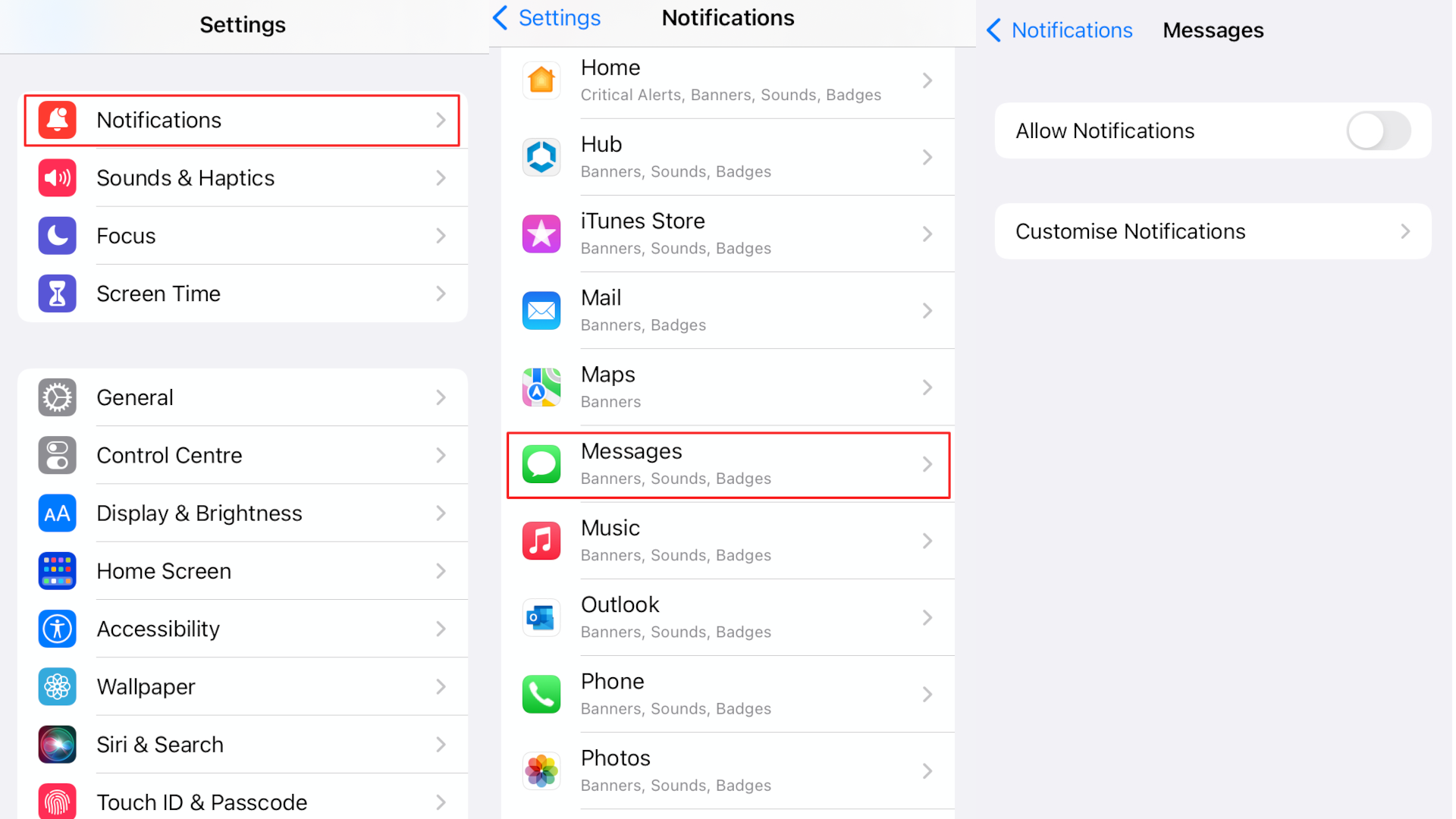
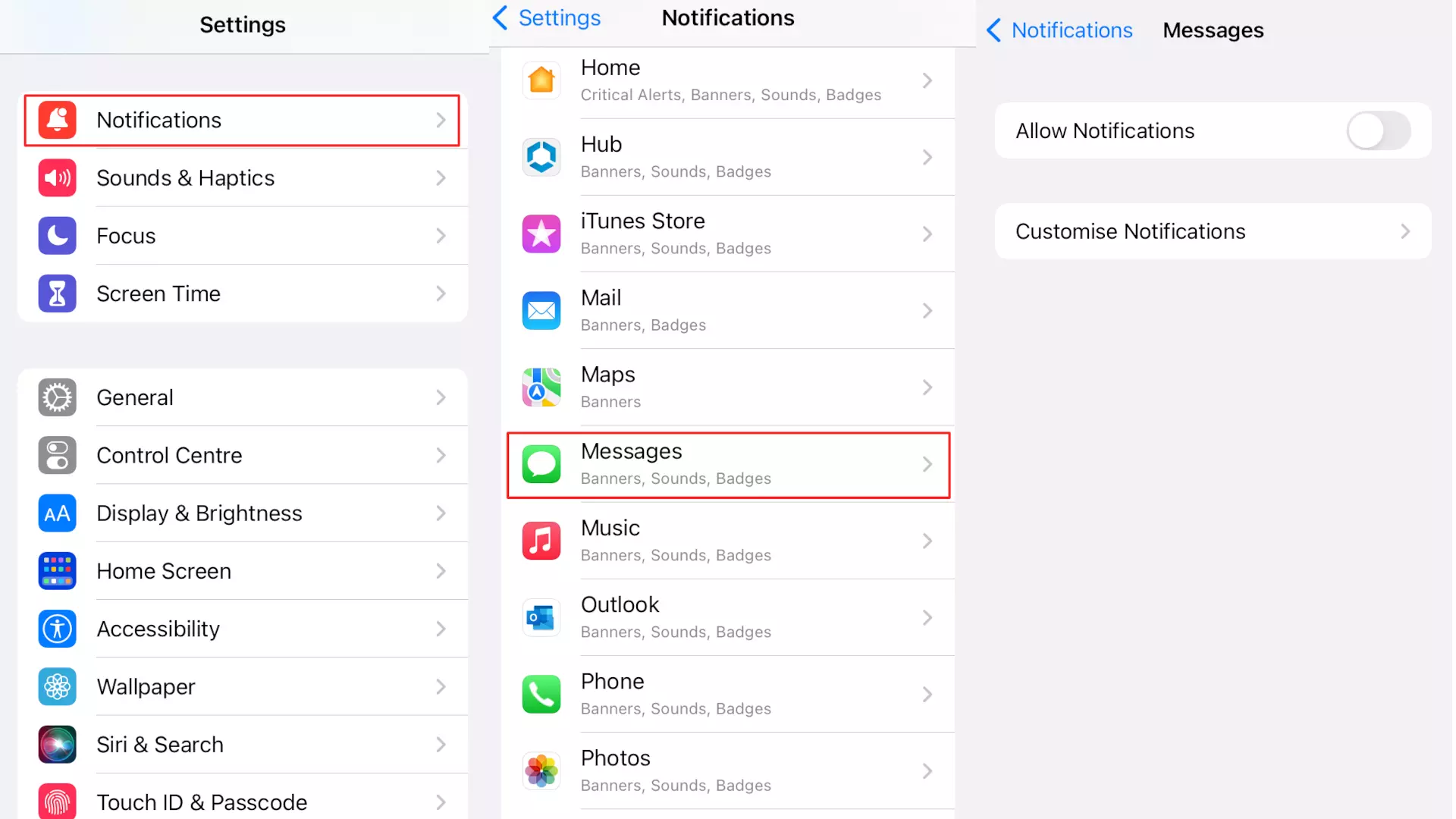
On Apple devices, you can turn off notifications in the device’s settings under “Notifications”. Do as follows:
- Go to the settings on your device.
- Then navigate to the menu item “Notifications”.
- Choose the relevant app from the list under “Notification Style”.
- At the top of the screen, you’ll see a toggle labeled “Allow Notifications”. Tap on the toggle to deactivate notifications. If notifications are deactivated, the button should now be on the left.
In both Android and iOS, you can also choose how you would like to be alerted to notifications. This includes whether notifications are shown on your lock screen, whether they’re accompanied by sounds, and more.
How can I protect my privacy?
In general, apps use a variety data to send push notifications, including cookies and sometimes even location data.
Since notifications often entail saving and processing cookies, you should be sure to delete cookies regularly and always double check which permissions you’ve granted to apps. You can also disable cookies in your browser across the board to prevent your data from being saved.
There are also a number of apps and browser extensions that anonymize your browser activity, thus making it harder for websites to accumulate targeted data about what you’re doing online. Find out more in our article “What is cyber security?”.
With IONOS’s website builder, you can make your own website in a design of your choosing. Businesses can use MyWebsite Now to set up a business website, including a domain, email address, professional designs and photos, SEO functionality, and much more.
Reviewers

Melissa Senn
Melissa Senn has been with IONOS since 2016 and focuses on the areas of websites, e-commerce, social media, and AI in the Digital Guide. As a digital strategist, she draws on her extensive SEO and GEO experience to translate complex technological trends into practical content.

Julia Hertler
With over 18 years of experience in content marketing, Julia Hertler has deep expertise in digital communications. For the past 10 years, she has specialized in the areas of domains and hosting at the IONOS Digital Guide, making complex technical topics easy to understand.

Christian Heldmaier
Christian Heldmaier is an experienced online marketing and SEO specialist from Karlsruhe. He has been working as an SEO Manager at IONOS since July 2020.