

How to transfer Google Authenticator to a new phone

Google Authenticator generates six-digit codes that you use to log in to your Google account and other web apps. Migrating the app over to a new smartphone is easy. Learn how to move the Google Authenticator to your new phone using a new phone number or your existing one.
Quick tutorial: Transfer Google Authenticator to a new phone
- Transfer to a new cell number:
- Deactivate the app on your old phone by clicking on the app until you see the trash symbol in the upper right corner of the display.
- Click the symbol to confirm the removal process.
- Set up Google Authenticator on your new phone.
- Transfer with existing cell number:
- On your previous phone, select “Transfer accounts - Export accounts” from the app menu. A QR code will appear.
- Install the app on your new phone, select “Import accounts” and “Scan a QR code” in the menu and scan the QR code on your old smartphone.
Move Google Authenticator to new phone: step by step
The following step-by-step instructions describe how to transfer the Google Authenticator app to your new phone with a new number. If you want to keep your existing number, the transfer process is slightly different. In that case, skip to the instructions in the next paragraph.
Before you turn off your old phone or delete the Authenticator app, set up an alternative two-factor authentication in your Google account, for example, by sending an SMS or calling the new cell number. Otherwise, you run the risk of locking yourself out of your account.
- Open the Google Authenticator app on your previous phone.
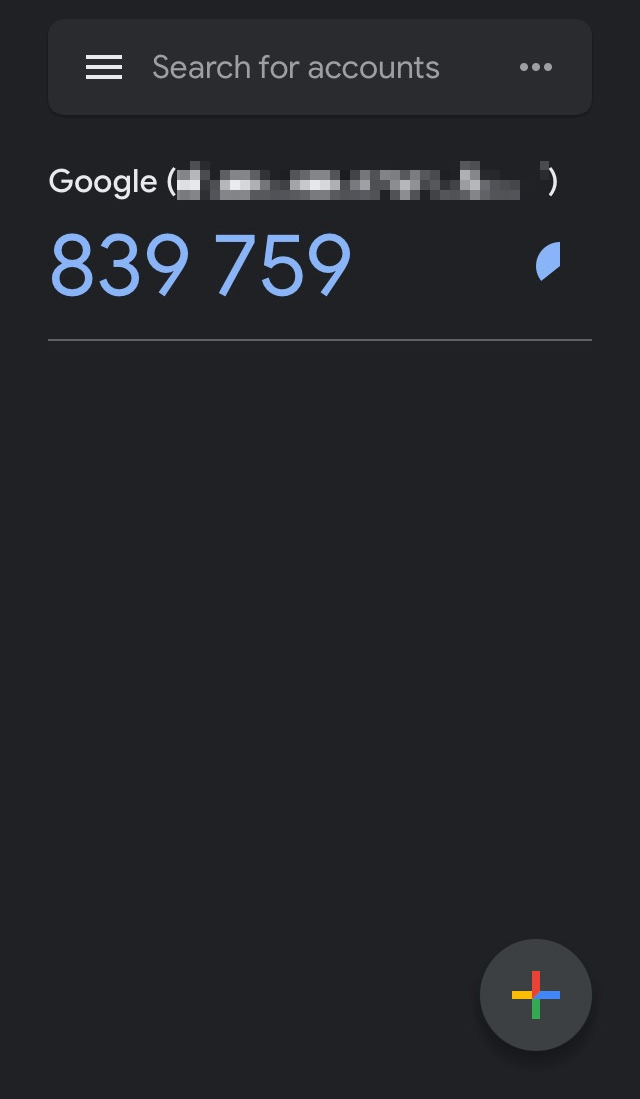
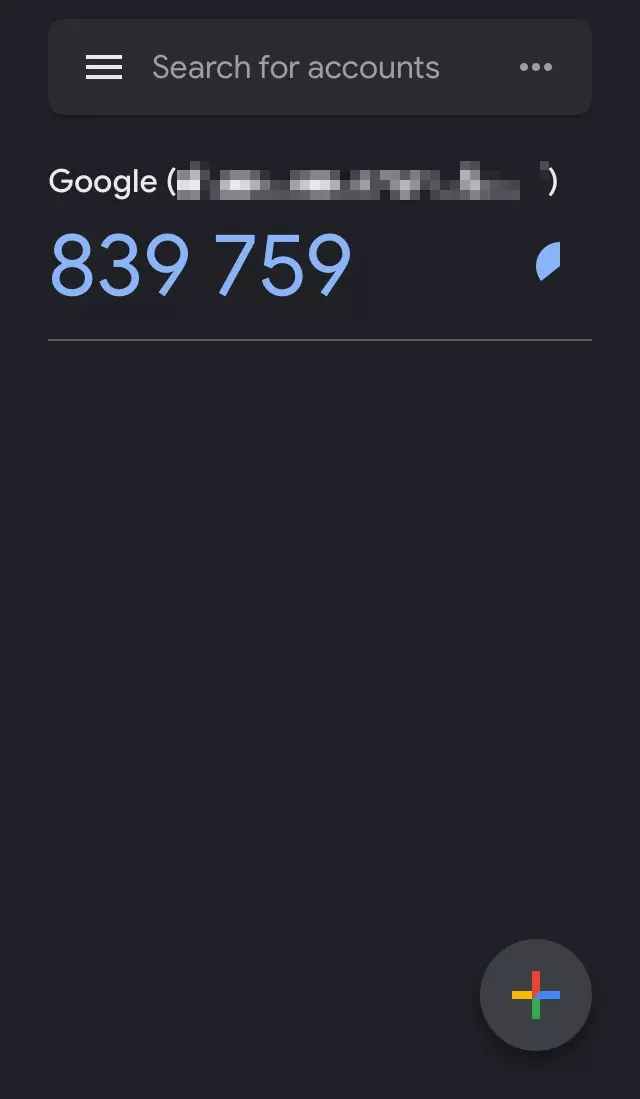
- Tap and hold the code displayed until the trash icon appears in the top right of the screen. Tap on the symbol.
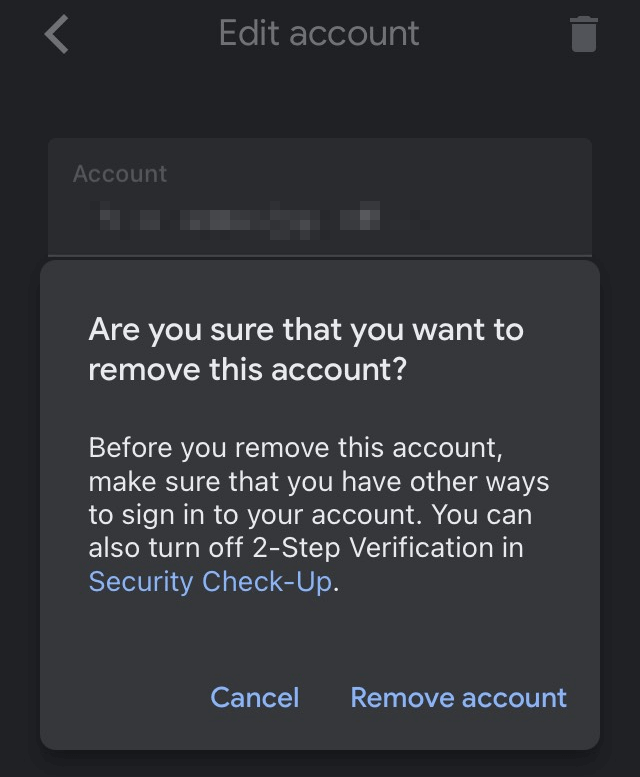
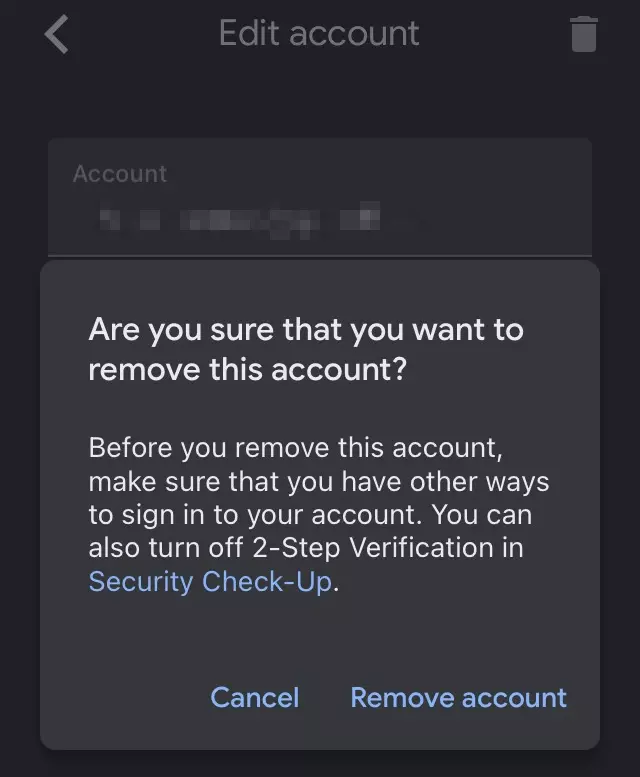
- Confirm deletion of the current account by clicking “Remove account” in the pop-up window.
- On your new phone, download the app and set up the Google Authenticator app again.
Transfer Google Authenticator to new phone using existing number
Migration of the Google Authenticator is even easier if you’re keeping your existing phone number:
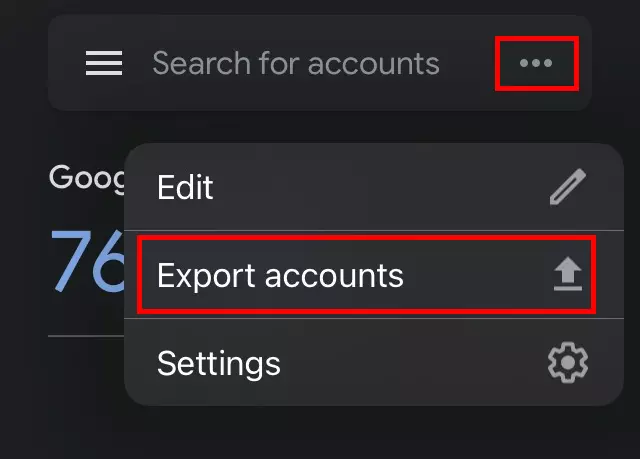
- Open the app on your old phone and click on the three-dot menu in the top right.
- Select “Export accounts” from the menu options.
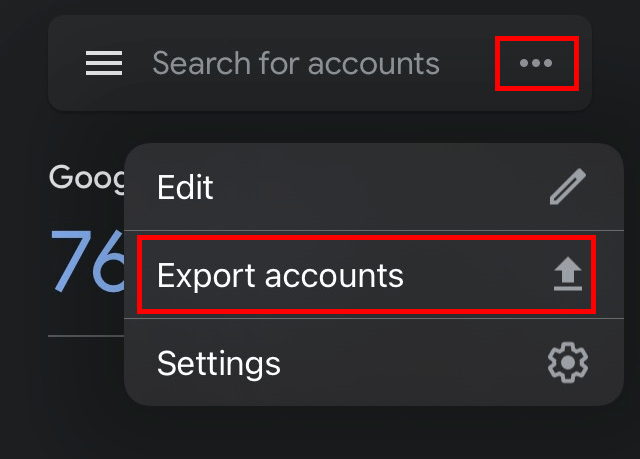
- A QR code is shown.
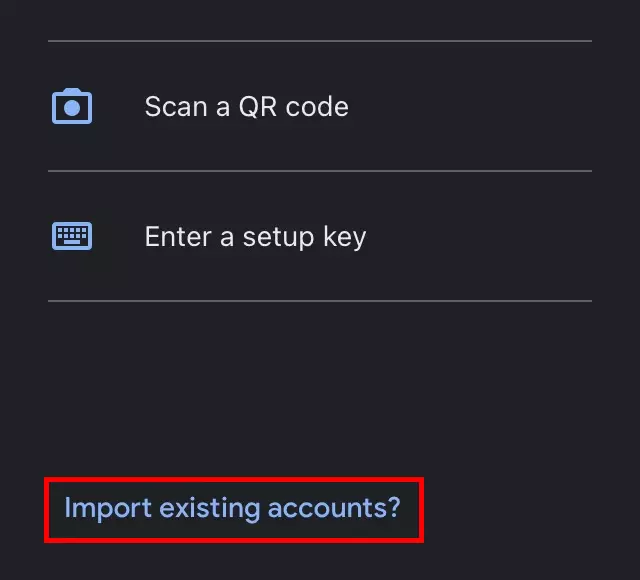
- Download the Google Authenticator app to your new phone and click “Import existing accounts?” directly on the home screen or in the menu, then click “Import accounts” and finally “Scan a QR code”.
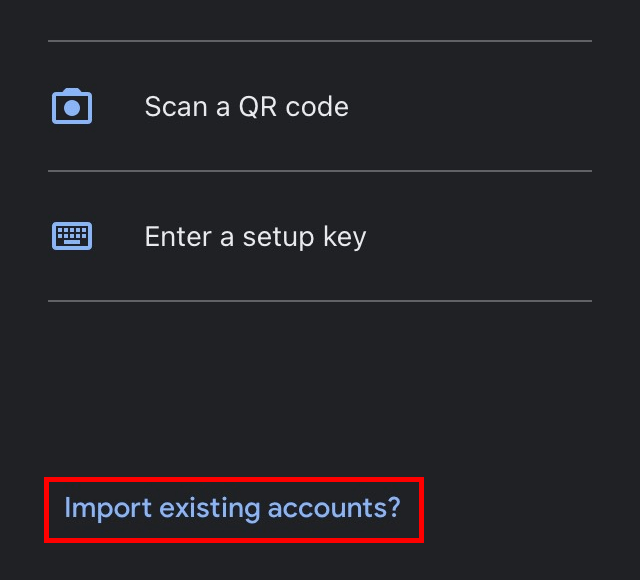
- Use your new phone to scan the QR code displayed on your old smartphone.
The two methods to transfer the Google Authenticator app to a new phone work for migrating when switching between iOS and Android and vice versa too.
Reviewer

Christian Heldmaier
Christian Heldmaier is an experienced online marketing and SEO specialist from Karlsruhe. He has been working as an SEO Manager at IONOS since July 2020.