

The best Google Analytics alternatives

Even though Google continues to reign when it comes to search engines and online marketing, it doesn’t mean that as a website operator you’re necessarily bound to this service. There are actually many programs similar to Google Analytics available. One thing is clear: every webmaster needs a professional web analysis tool they can use to optimize their own website and monitor all relevant key figures. We will introduce you to some good Google Analytics alternatives, highlighting usability, cost, functionality, and privacy.
Why Google Analytics alternatives make sense
In terms of its functionality, there’s not much to object to when it comes to using Google’s tracking tool: the features on offer keep their promises, and the delivered results provide webmasters with detailed information on which parts of their web projects needs optimizing, and which are already successful. In addition, the service can be used free of charge.
Nevertheless, Google Analytics also has its weaknesses: for example, the time spent on a page is only taken into account if the visitor clicks on another page. If the visitor closes their browser instead, Google Analytics will display a duration of zero seconds. In addition, the data provided is rarely accurate to the minute as is the case with many comparable tools. There are also numerous browser plugins that block Google Analytics – or JavaScript, on which the tool is based.
However, the biggest disadvantage of using Google’s website analysis tool is the fact that all information collected about visitors is stored on the company’s servers. For this purpose, the software transmits the user information received via cookies directly to Google. Only after several years does the internet giant delete this data from its servers, which are located in the USA and are therefore subject to less strict data regulations compared to some countries. Whether and how Google processes this user data is unclear. It’s possible that it will be used primarily to adapt the search algorithm being used.
Through the analysis results, Google can directly link users to their Google accounts if they have one. In theory, the company can track every step the user takes as long as they visit sites that use Google Analytics. In summary, the following disadvantages of the industry leader speak in favor of using a Google Analytics alternative:
- Transmits all data to Google
- User data stored for years
- Retention time only measured if users visit another webpage
- Analysis data is not accurate to the minute as with comparable services
- Evaluation of social networks and mobile traffic is not optimal
- Various browser plugins block Google Analytics
Matomo
Matomo (formerly Piwik) is an open source project and can be downloaded on the official website. The advantage it has over Google is that is that all Matomo data is saved on your own server, which is good for data protection. The program is therefore hosted independently and means that you have complete control of your data.
Matomo’s range of functions is similar to that of Google’s, but there are some areas where a compromise needs to be reached. There is no import function for reports, which exists with Analytics. A free program code usually means more extensions and plugins developed by the community, which is the case with Matomo. This is why you can use plugins to expand many of the missing functions. Due to the complex configuration and expansion possibilities, however, the program quickly becomes confusing and the menu navigation could be a little more intuitive.
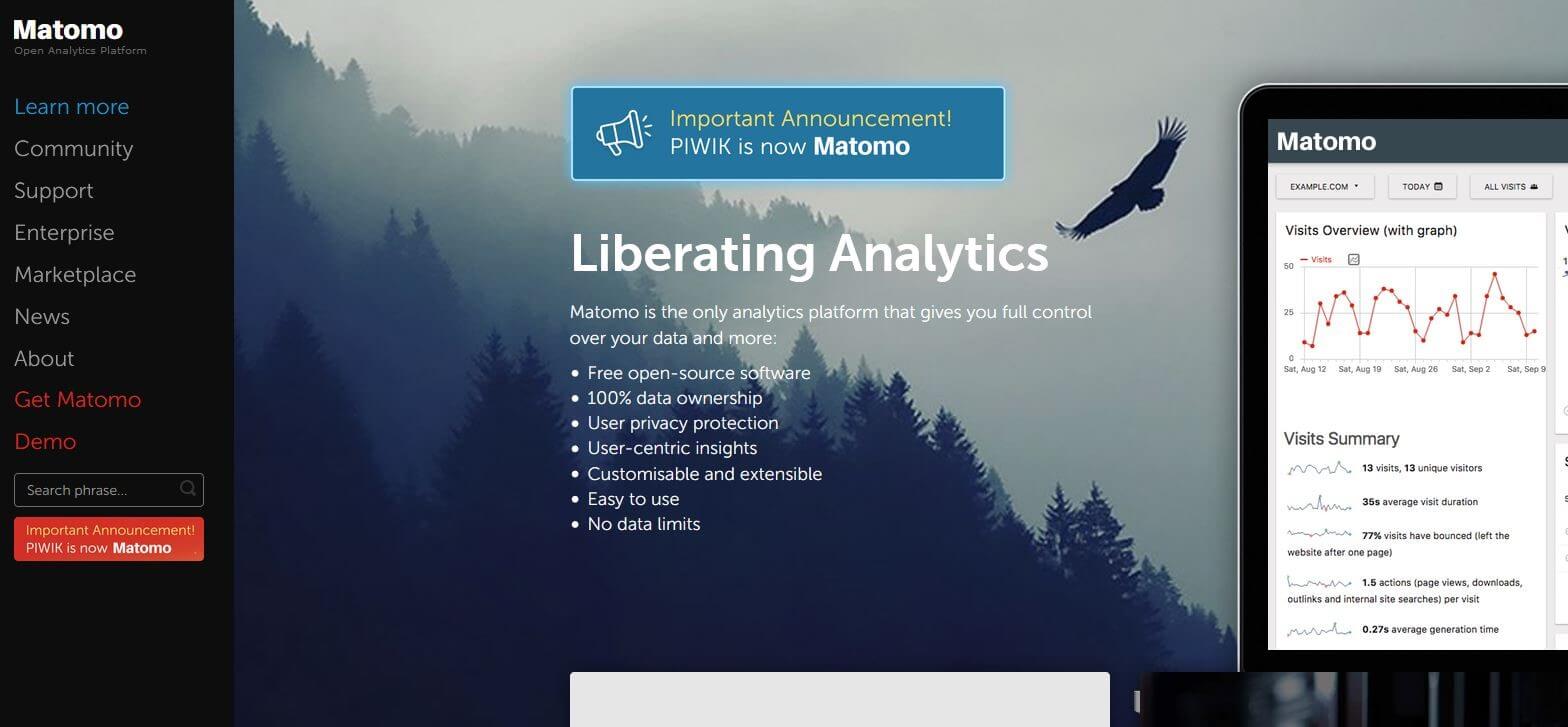
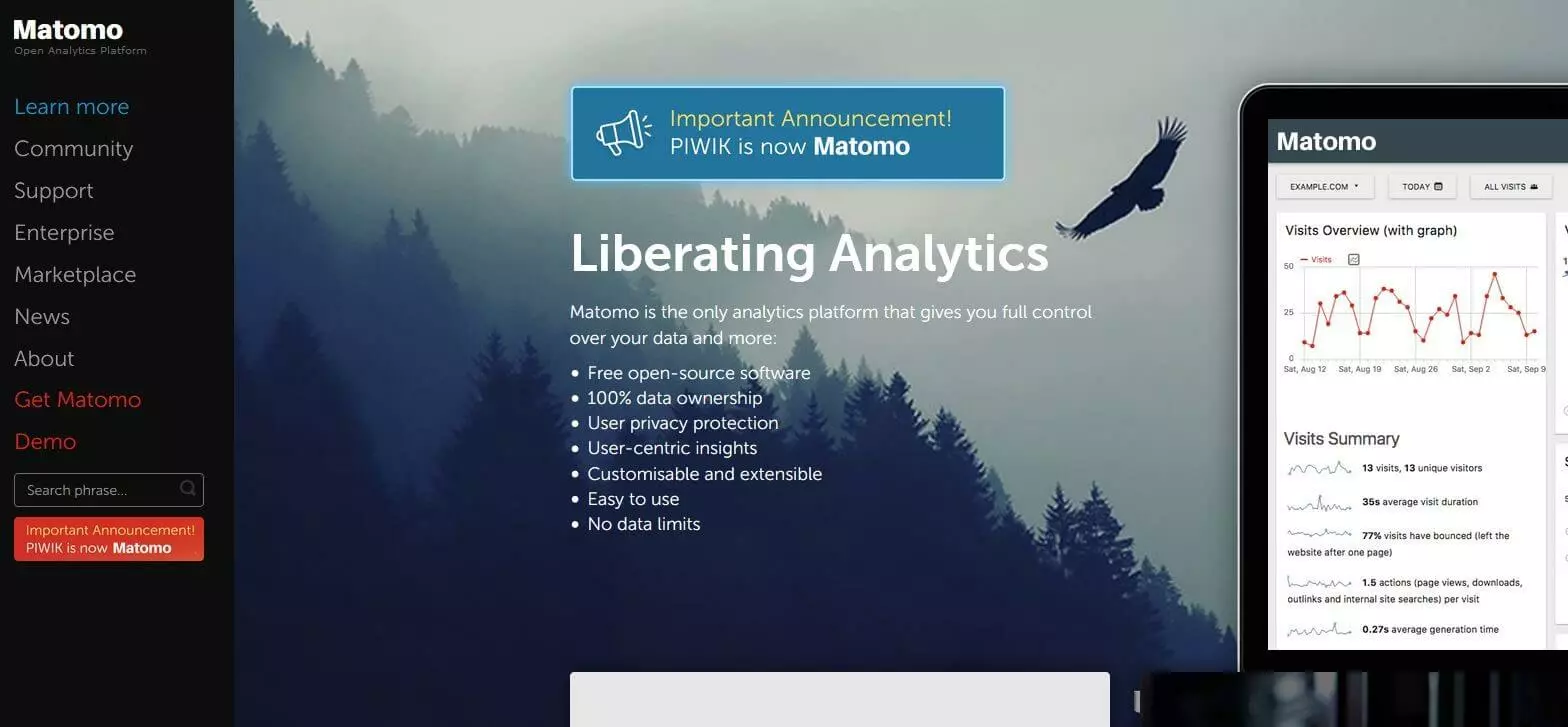
Just like with Google Analytics, you also need to build a tracking code into your website in order to retrieve the statistics with Matomo. There is a special campaign and target tracking for e-commerce available.
| Advantages | Disadvantages |
| Data protection (data on own servers) | Complex configuration options |
| Open source solution | Unstructured menu navigation |
| Expandable with plugins | Less precise analysis tool than Google |
Open Web Analytics
Another alternative to Matomo when it comes to open source alternatives for Google Analytics is Open Web Analytics. The structure, layout, and functionality are very similar to Google’s. There is an integrated heat map function. When a user clicks on the map, website operators can see how users react and behave depending on the design of the landing page. You can also define e-commerce goals and get specific statistics on how to use the site conversion and user-defined results.
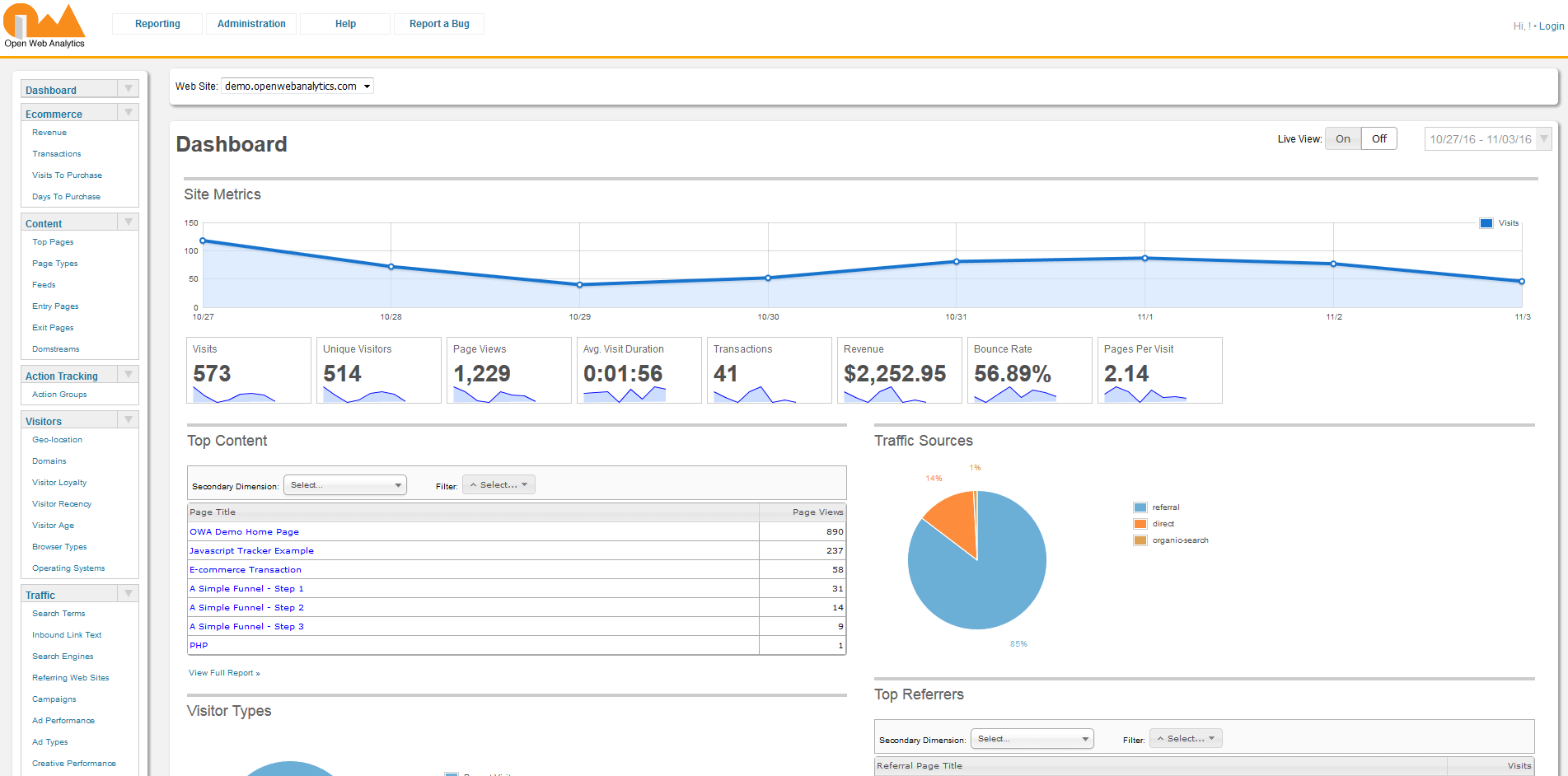
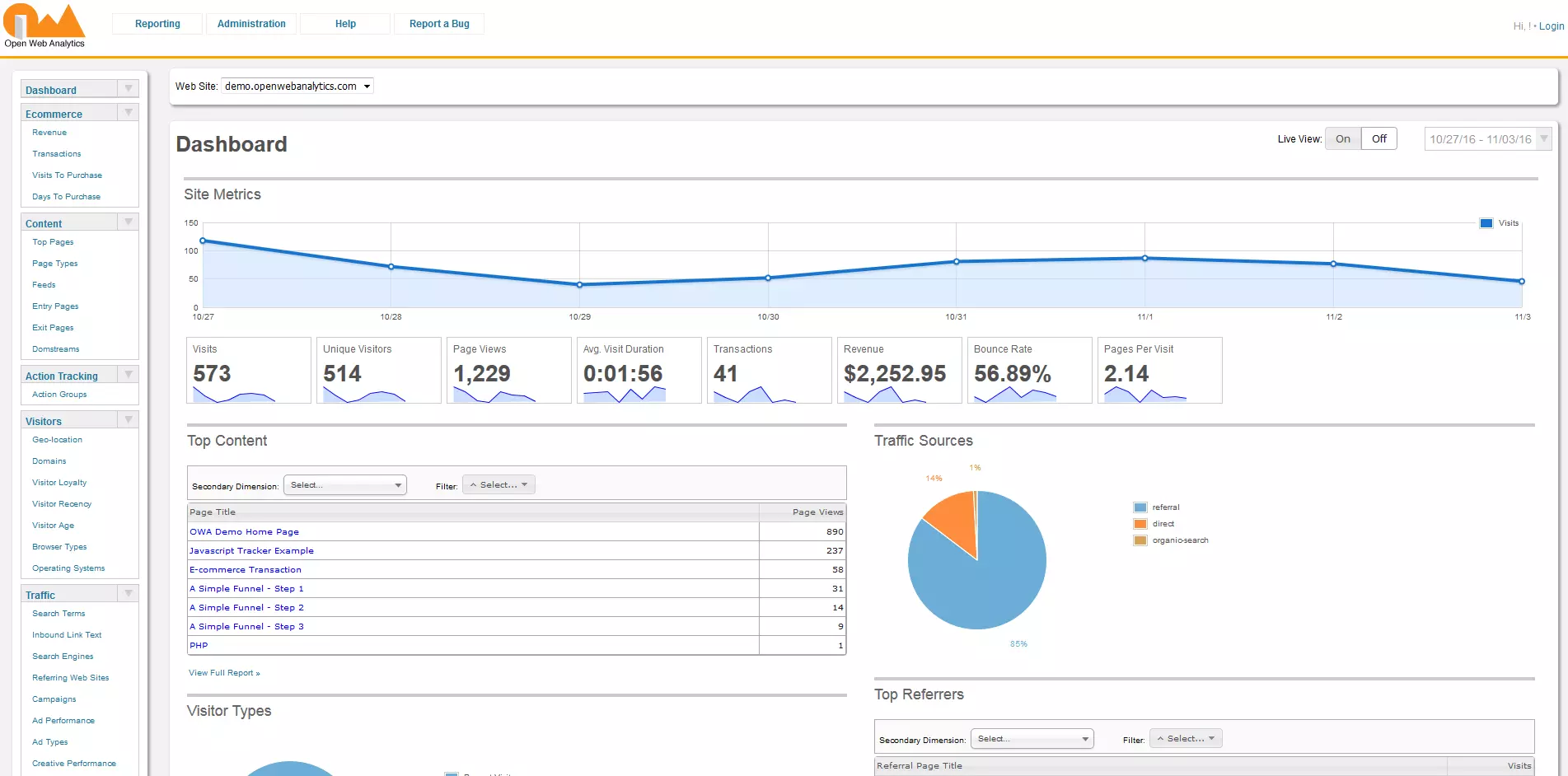
Open Web Analytics is available free of charge and there are no restrictions regarding the amount of data sets and the number of websites you want to test. When it comes to the app’s performance, Piwik is the better Google Analytics alternative. Further cons are how unreliable the development process is, and that updates are rare and irregular.
| Advantages | Disadvantages |
| Free | Poor performance |
| Heatmap function | Slow development |
| Irregular updates |
Clicky
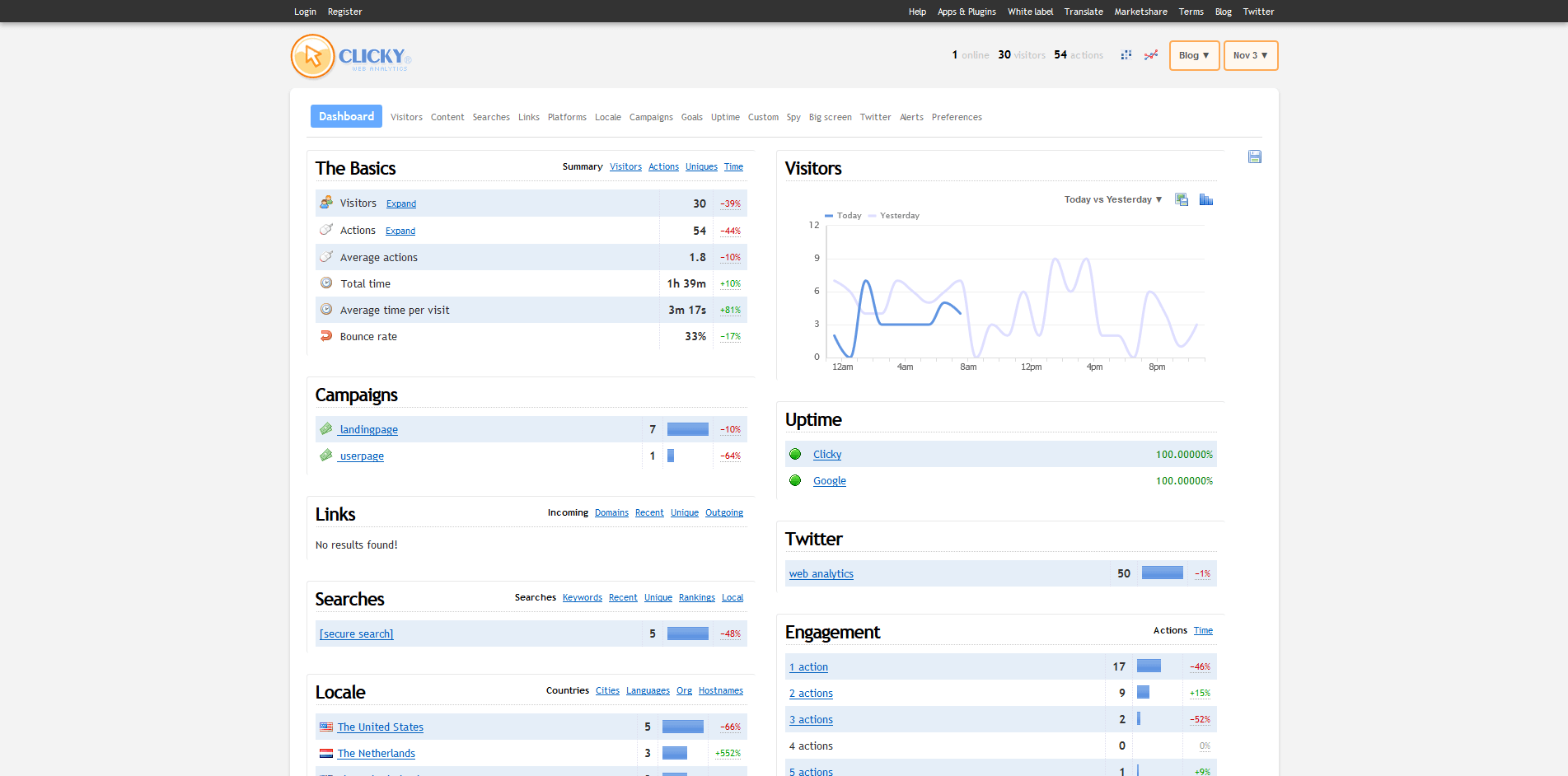
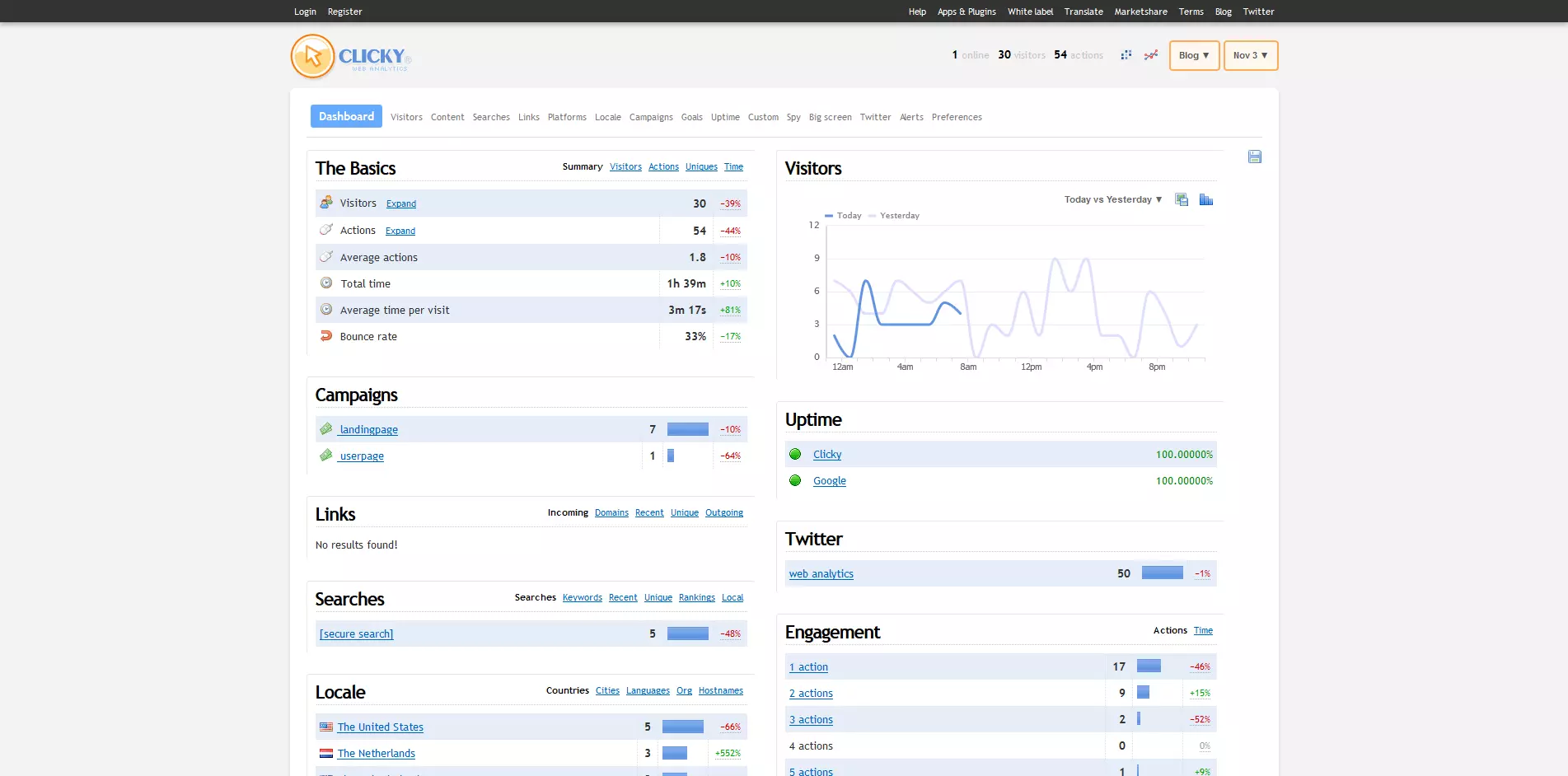
Another free option as an alternative to Google Analytics is Clicky. The free account provides users with general analysis and tracking features (limited to 3,000 page views per day). The analysis of real-time data is very clear in the individually customizable dashboard. API access is also available for retrieving data in your own applications. In the basic version, Clicky’s simple design provides the most important functions at a glance. If you want more functions, you have to pay for them. They include heat maps, split tests, and uptime monitoring (from Pro Plus onwards). You can only export data if you’re willing to pay the monthly fee of around $10.
| Advantages | Disadvantages |
| Simple and clear dashboard | Limited functions in the free version |
| Good, free solution for small websites | Fee-based for large websites with over 3,000 visitors daily |
| Detailed real-time analysis |
Mixpanel
With Mixpanel, you get more than just simple webtracking. In addition to comprehensive real-time analysis, the tool offers a very detailed customer-journey analysis, which means whatever needs optimizing is broken down to the last detail, should you require it. Webmasters can use the program for websites as well as for mobile pages and apps. A practical data segmentation function reduces the complexity of the analysis by automatically analyzing data based on specific questions.
Mixpanel is a member of the EU-US Privacy Shield, which regulates the protection of personal data coming from EU member states to the US.
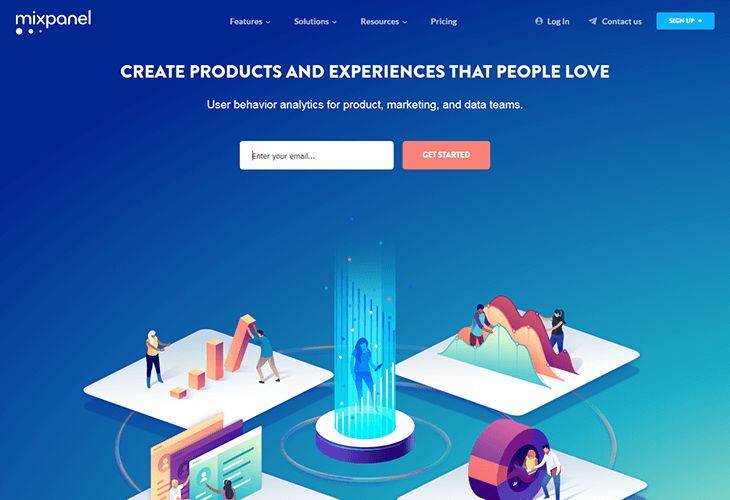
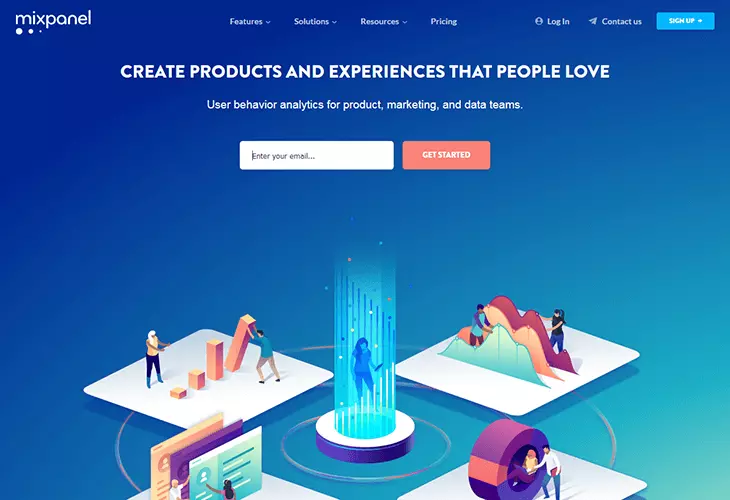
Mixpanel is a powerful Google Analytics alternative for very large web projects with a wide reach. Well-known customers include Airbnb, Spotify, and Uber. In addition to the impressive amount of functions available, users also receive a high-quality interface. There is a free account for smaller web projects. The Freemium model is free for websites with a data volume of 25,000 “data points” per month (1 data point = 1 view, download, etc.). However, the functionality of this free version is significantly limited (including the number of possible users and projects). Packages start at around $100 per month.
| Advantages | Disadvantages |
| Huge range of functions | Free output is severely restricted |
| Automatic data retrieval possible | |
| High-quality interface | |
| Free for small projects |
Piwik PRO
The Google Analytics alternative Piwik PRO, released in 2013, is not an alternative Piwik/Matomo successor, but rather an independent spin-off from the open source project, with the focus being on the Enterprise segment. Among other things, the extended Analytics Suite contains professional modules like a tag manager, a customer data platform (CDP), and a consent manager for managing stricter data regulations. Piwik PRO can be used both in the cloud and on its own servers (on premises), with both variants providing complete control over the data.
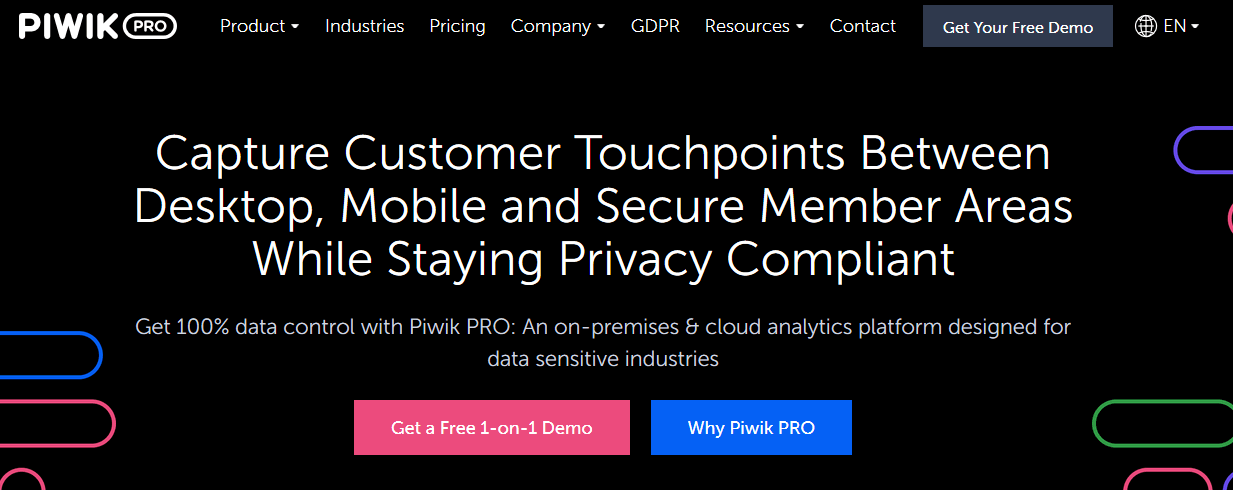
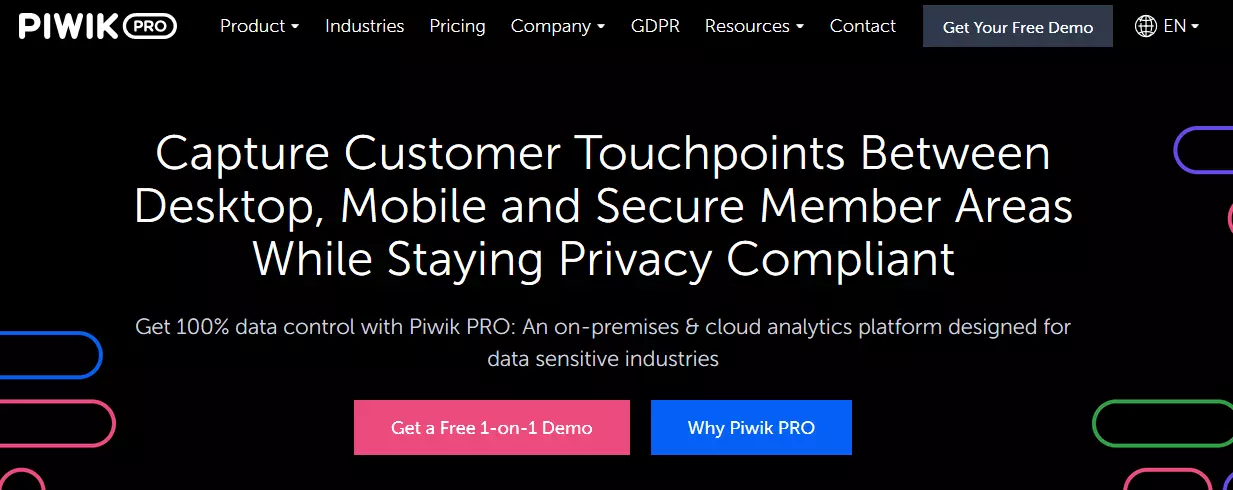
As a business solution, Piwik Pro doesn’t come cheap – you have to contact the provider for a concrete offer. In addition to the analysis and customer management tools, all packages also include extensive support. This is characterized by individual user training, e-mail, and telephone consulting as well as professional onboarding.
| Advantages | Disadvantages |
|---|---|
| Hosting possible on own servers | No free edition available |
| Consent manager for managing stricter data regulations | |
| Extensive customer journey features |
Chartbeat
The browser-based web service, Chartbeat focuses on website analysis in real time. All important information about visitors and visitor behavior can be found in the clear dashboard in the live view. Testing options and optimization options are also available. By linking site analysis and social media monitoring and management, the tool stands out from the others, and puts emphasis on the involvement of social channels such as Facebook and Twitter.
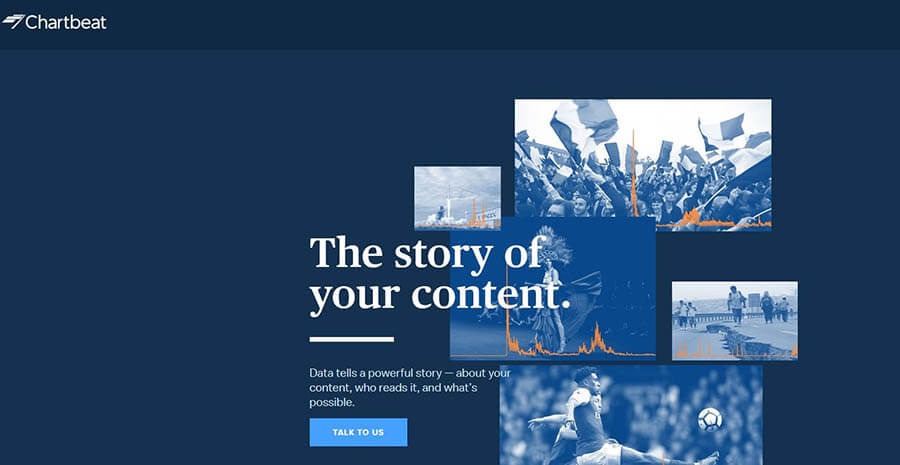
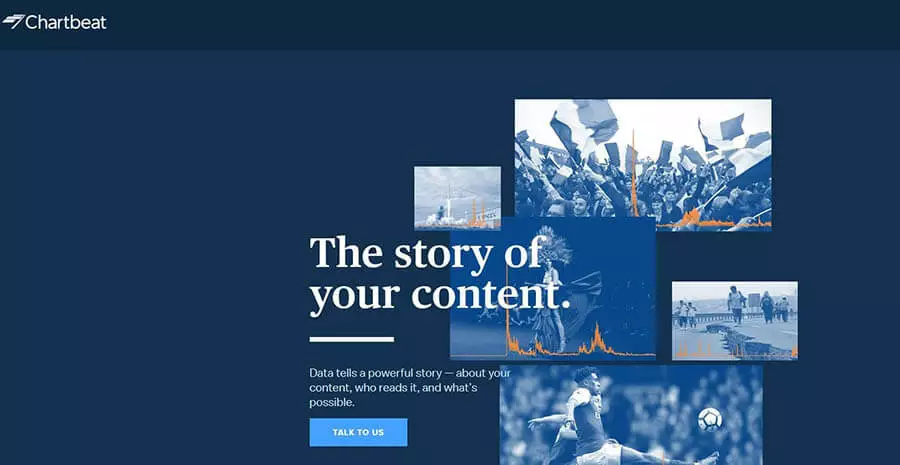
After a free trial, you will have to pay a monthly fee of around $10 to use Chartbeat.
| Advantages | Disadvantages |
| Mobile apps available | More suitable for sites with high traffic |
| Detailed real-time analysis | |
| Social media integration |
Adobe Analytics
As part of the Adobe Marketing Cloud, the US software company also offers a web analytics solution. However Adobe Analytics, which was originally known as “Omniture”, is more than a classic analysis tool for websites; it offers by far the most functions when it comes to the Google Analytics alternatives. In addition to web analysis, the Adobe solution also integrates social analytics, personalization and testing, campaign management, advertising expenses optimization, and content management.
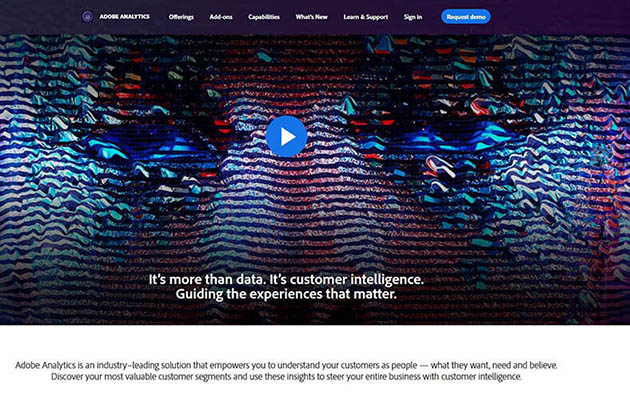
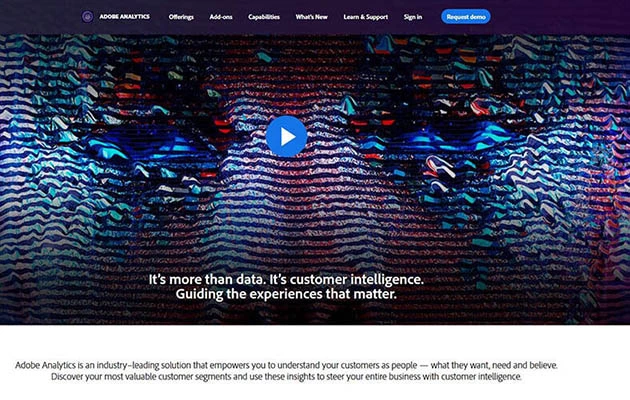
Despite there being so many features, the dashboard manages to remain intuitive and can be customized. Special features of Adobe Analytics include real-time problem and opportunity detection, social media integration, and a data work bench that marketers can use for analysis, whether they’re offline or online. To find out how much this Google Analytics alternative would cost, you need to get in touch with them to request the prices.
| Advantages | Disadvantages |
| Huge range of functions | No visible prices |
| Predictive analytics | No free version for small websites |
| Business solution |
Inspectlet
What Inspectlet offers isn’t quite an exact alternative to Google Analytics since its focus is different, but it nevertheless proves to be interesting for many website operators. The tool makes sure that the website visitor is the center of the analysis, which enables you to see your website through the eyes of the user. Numerous features are available for this purpose, including detailed recordings of the movements on your website such as eye tracking and scroll heat maps, as well as form analysis. In addition, A/B tests can also be carried out with this software.
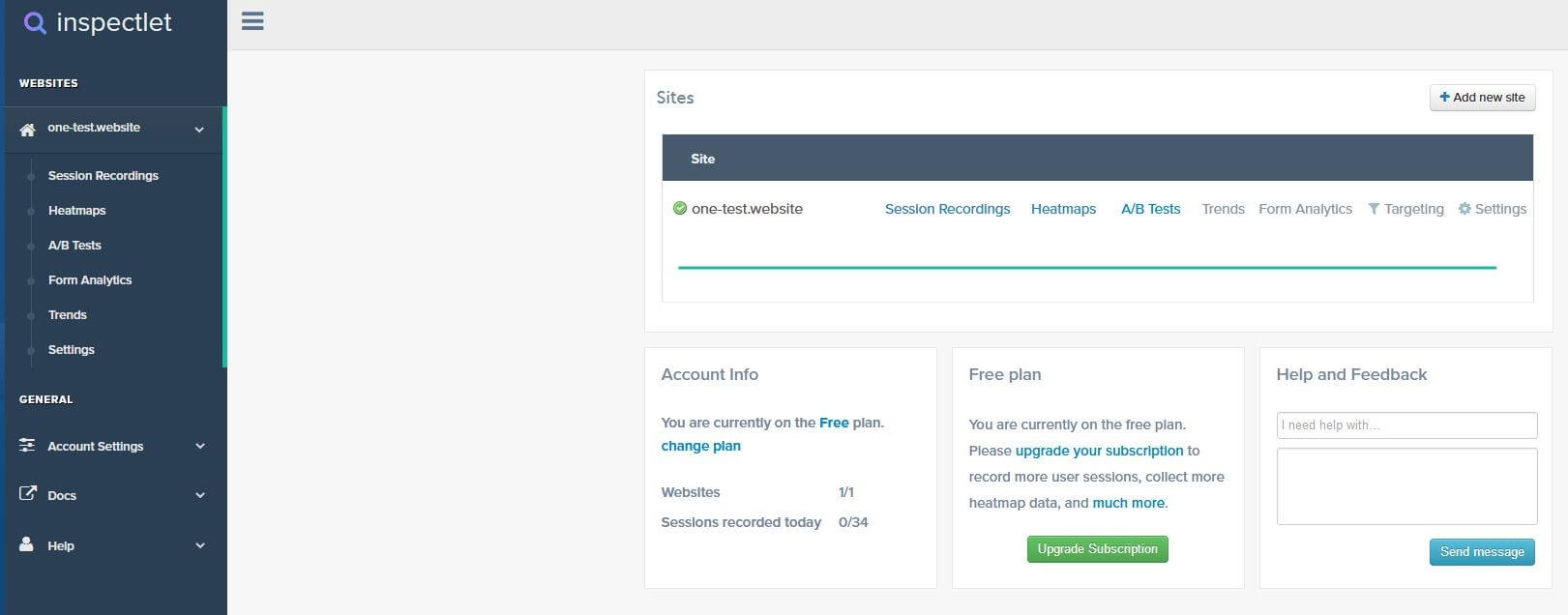
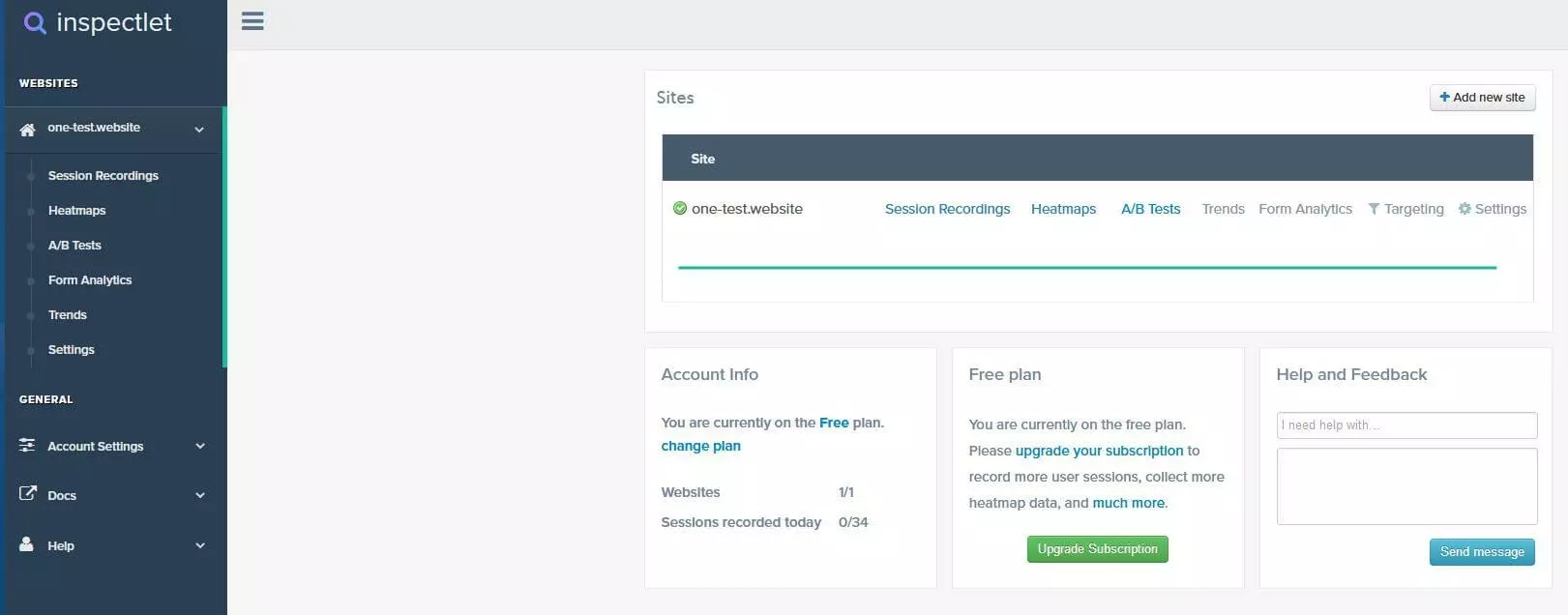
Inspectlet is free of charge for up to 1,000 sessions and 1,000 A/B test views per month, but the manufacturer also offers various packages starting at approx. $40. It’s more a case of additional software, rather than a replacement for Google’s analysis software. It can also be used together with other tools like Matomo without any problems.
| Advantages | Disadvantages |
| Visitor-oriented analysis tool | Not a fully adequate Google Analytics alternative |
| Free up to 1,000 sessions per month |
StatCounter
The penultimate option when it comes to alternatives to Google Analytics, is StatCounter. With StatCounter you get simple analysis software with similar functions to the “original”. The tool is free up to a certain number of page views (500 per month). Google AdWords campaigns can be integrated, which is very practical. StatCounter is basically a good entry-level solution for small sites that don’t want to make a big investment, but are looking for a solid alternative to Google Analytics. The dashboard, however, is quite unclear and the whole layout isn’t very attractive.
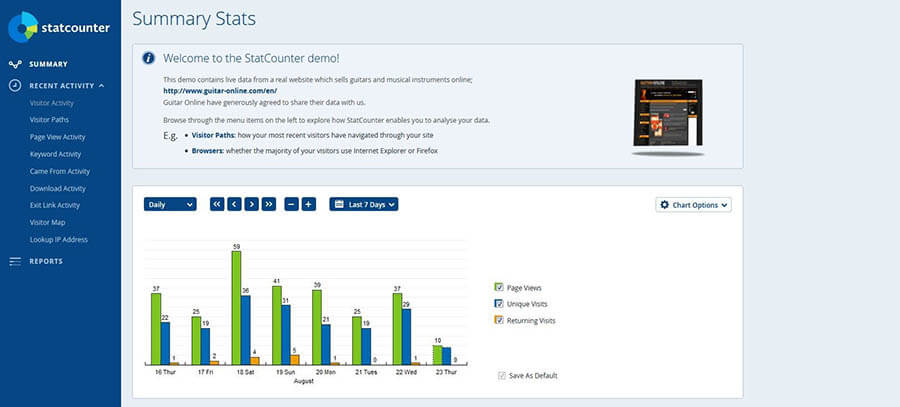
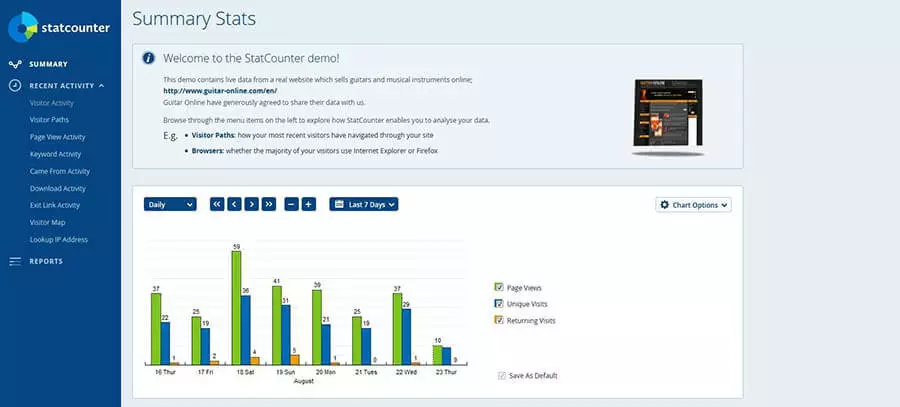
| Advantages | Disadvantages |
| Free up to 500 page views per month | Interface not very attractive |
| Simple beginner tool |
An overview of the Google analytics alternatives
Our overview shows that there are plenty of good alternatives to Google Analytics. You can keep track of your web statistics and use the information to analyze and optimize your website without feeling like you’re obliged to use the market leader. If you want to keep full control of your own data and also search for a fully-functional and free alternative to Google Analytics, the Matomo open source program is certainly a good choice. Other tools have some very interesting features and provide valuable insights, but first make sure they take data protection seriously.
| Provider | Price | Advantages | Disadvantages | Data protection |
| Matomo | Free | Open source Data protection Many extensions | Complex structure | + + + |
| Open Web Analytics | Free | Open source solution Practical extra functions e.g. heat maps | Unreliable support and development Poor performance | + + + |
| Clicky | Free for up to 3,000 page views per day, then $10 per month | Detailed real-time analysis Simple and clear dashboard | Limited functions in the free version | + |
| Mixpanel | Freemium model, large websites from $100 a month | Many functions Automatic data retrieval High-quality interface | Expensive solution beyond Freemium model | + |
| Piwik Pro | Fee-based, prices only on request | Hosting on own server possible Consent manager, various customer journey features available | No free basic versions | + + + |
| Chartbeat | Free trial, then $10 per month | Detailed real-time analysis Social media integration | More suited to sites with high traffic | + |
| Adobe Analytics | Fee-based, prices only on request | Huge range of functions Can be linked with marketing cloud and numerous other areas | Expensive Non-transparent price model | + + |
| Inspectlet | Free up to 1,000 sessions | Supplementary tool Visitor-oriented web analysis | Not a full-fledged Google Analytics alternative | + |
| StatCounter | Free up to 500 page views a month | Generous Freemium account | User interface isn’t very intuitive nor appealing | + |
Reviewer

Melissa Senn
Melissa Senn has been with IONOS since 2016 and focuses on the areas of websites, e-commerce, social media, and AI in the Digital Guide. As a digital strategist, she draws on her extensive SEO and GEO experience to translate complex technological trends into practical content.