

What is MAC spoofing?

Every device that’s connected to a network possesses a worldwide, unique, and physical identification number: the Media Access Control address, or MAC for short. This burned-in address (BIA) is virtually etched to the hardware by the manufacturer. Users are not able to change or rewrite the MAC address. But it is possible to mask it on the software side. This masking is what’s referred to as MAC spoofing.
-
MAC addresses: distinct hardware addresses identify network interface controllers (NIC) such as LAN cards or WLAN adapters, and are used to identify devices in local networks. Every MAC address includes 48 bits, or 6 bytes, and is arranged in the following pattern: 00:81:41:fe:ad:7e. The first 24 bits are the manufacturer code assigned by the Institute of Electrical and Electronics Engineers (IEEE), and the following 24 bits are the device number defined by the manufacturer.
-
Spoofing: in the network terminology, spoofing refers to the various methods which can be used to manipulate the fundamental address system in computer networks. Hackers use this method of attack to conceal their own identity and imitate another. Other than MAC addresses, other popular targets for spoofing attacks are the internet protocol (IP), domain name system (DNS), and address resolution via Address Resolution Protocol (ARP). Basically, spoofing is a resolution strategy for troubleshooting – but in most cases, it’s used for the infiltration of foreign systems and illegal network activities instead.
Reasons to mask your own MAC address
Theoretically, every network device in the world is identified by a MAC address. But not every user wants this transparency on the internet. One reason to mask your MAC address is for the protection of privacy – for example, in public WLAN networks. This legitimate use of MAC spoofing is in opposition to the illegal activities, where users change MAC addresses to circumvent access restrictions and security measures or imitate the identity of another network device.
Anonymization
Some users prefer to hide the identity of their device behind a false MAC address in order to protect their privacy. One reason is because MAC addresses sent over public LAN or WLAN networks are usually unencrypted. Every user on the network can then track which devices are registered in the network, read out the respective hardware addresses, and use them for illegal activities. Hackers use this opportunity to surf anonymously. Generally, the MAC address of another network device is imitated to take advantage of its access rights and shift the blame for illegal activities to another user.
Identity theft
To protect IT systems from internal and external dangers, administrators sometimes implement security measures that restrict access to the LAN to authorized devices. At the network level, linking elements such as Ethernet switches via port security provide the opportunity to filter network data traffic on the OSI layer 2. Switches can separate big networks into smaller segments. Once a connection has been established from one segment to another, the intermediate coupling element checks the MAC address of the sender device and matches it with an administrator-created whitelist. If it’s an unknown address, the switch blocks the respective port and stops the communication attempt. WLAN networks can also restrict access to known network devices using MAC filters. But MAC spoofing enables hackers to get around security measures like this. In reality, MAC whitelists offer very little protection. Masking the hardware addresses of individual computers behind authorized network users requires nothing more than a manual configuration of the network settings on the respective operating system. Linux, Mac OS X and Microsoft Windows all allows users to establish LAN connections without requiring a MAC address. By contrast, hardware addresses from WLAN cards using Windows cannot easily be manipulated.
Licensing terms
Sometimes software applications are restricted to a certain number of devices. This is only possible on systems whose MAC addresses have been given in the license agreement. If one of the devices has to be replaced due to a hardware issue, then the software can’t be used with the new device. Some users get around this restriction by rewriting the new hardware address in the software so that it matches the one listed in the license, but this approach isn’t recommended. A provider could classify this type of MAC spoofing as a fraudulent use of services and take legal action. Instead, licensees should contact their provider and ask about the possibility of a hardware exchange. If MAC spoofing is used to imitate an authorized device to gain access to paid software applications or online services, it’s always considered a legal offense.
How does MAC spoofing work on Windows?
To mask a MAC address, you just need to access the network settings on the Windows control panel and define a new identification number in the software. The operating system will now send data packets with the user-defined MAC address in the local network. The following step-by-step tutorial explains MAC spoofing using Windows 7. The configuration on other Windows versions follows the same general pattern, but the details may vary.
Determining the current MAC address
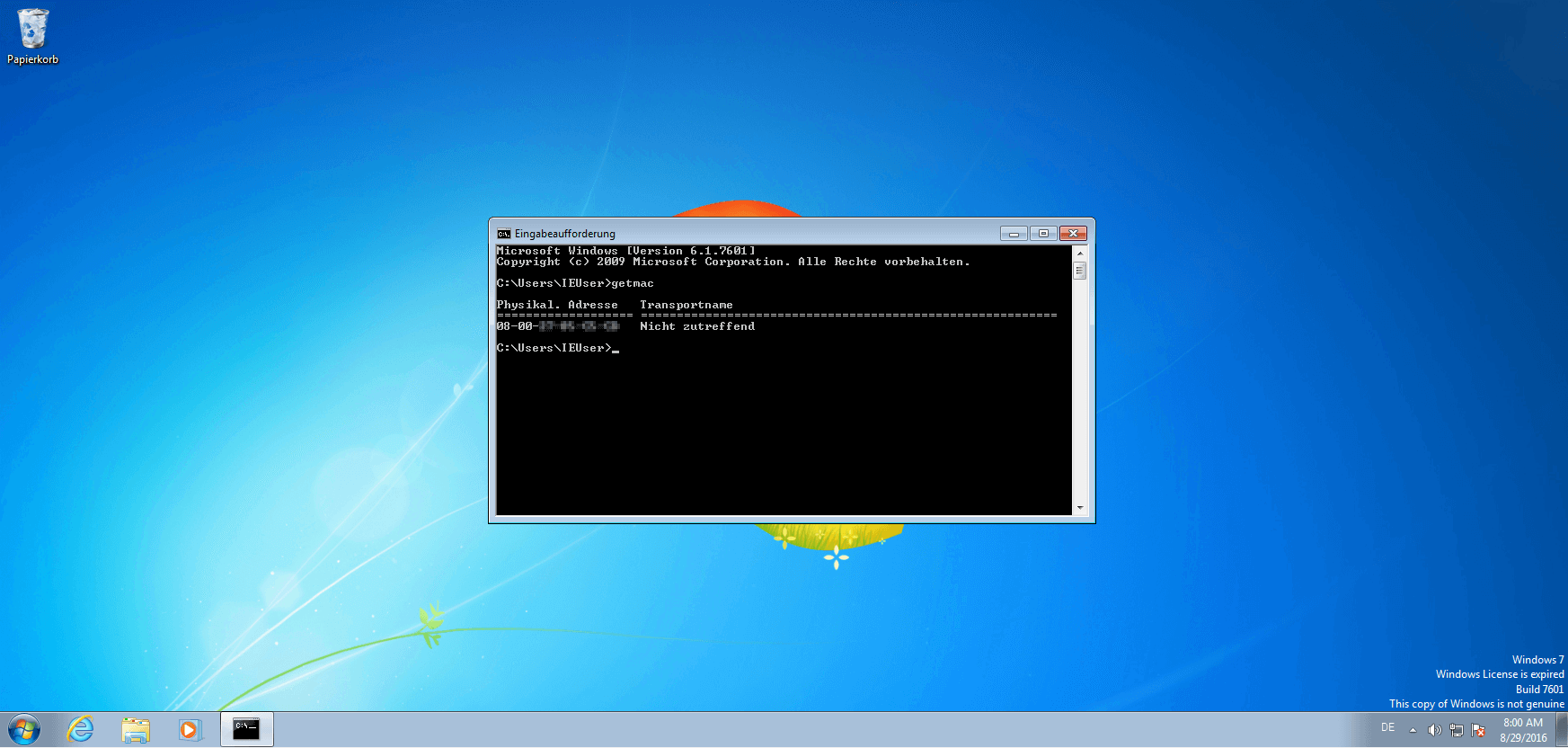
Before you customize the MAC address in the software of your network card, you should determine the address assigned by the manufacturer and keep it on hand. To do this, you take the following steps: Open the Windows menu by clicking the start button and type the letter sequence cmd into the search bar in the lower right corner. As a search result, the operating system suggests the Windows console cmd.exe.
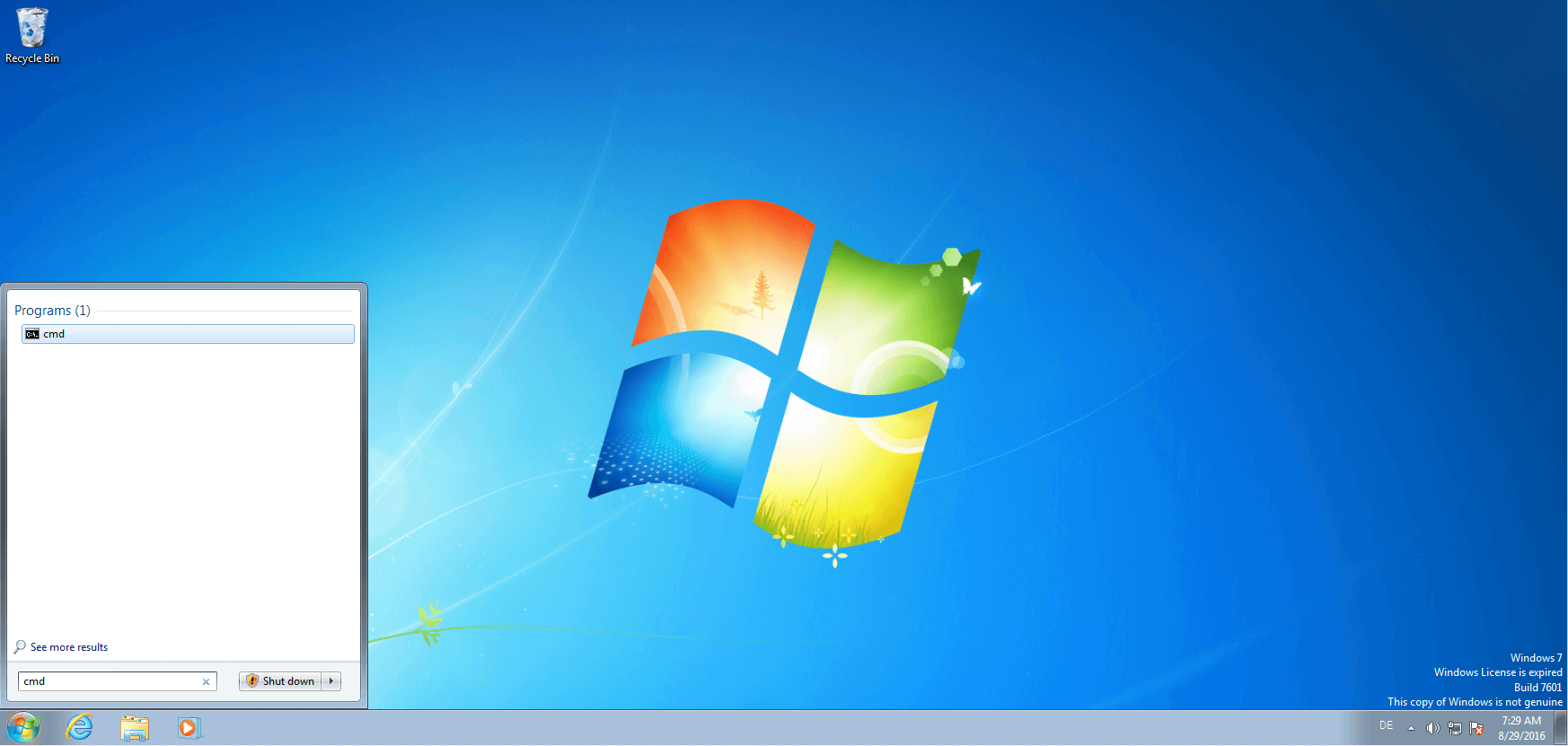
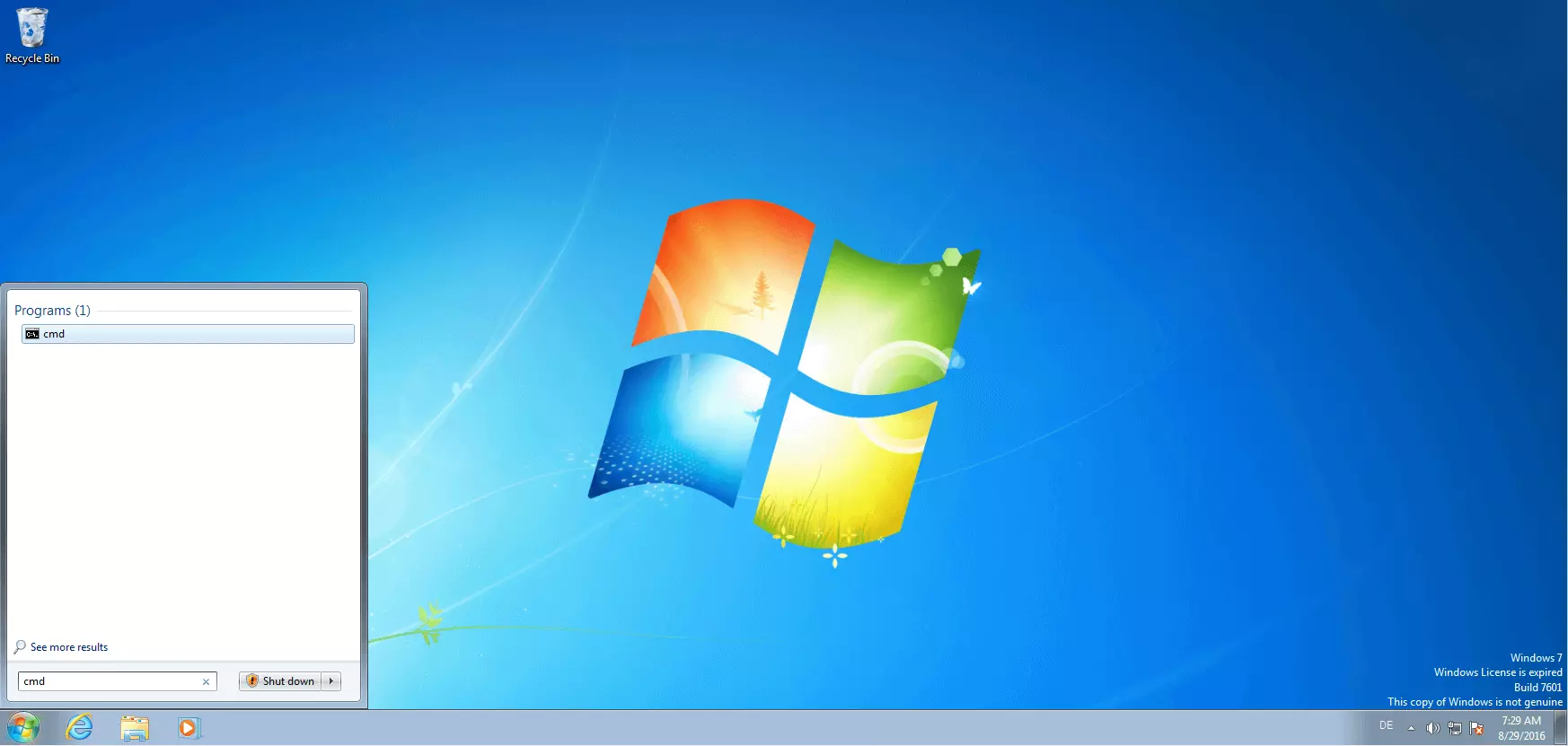
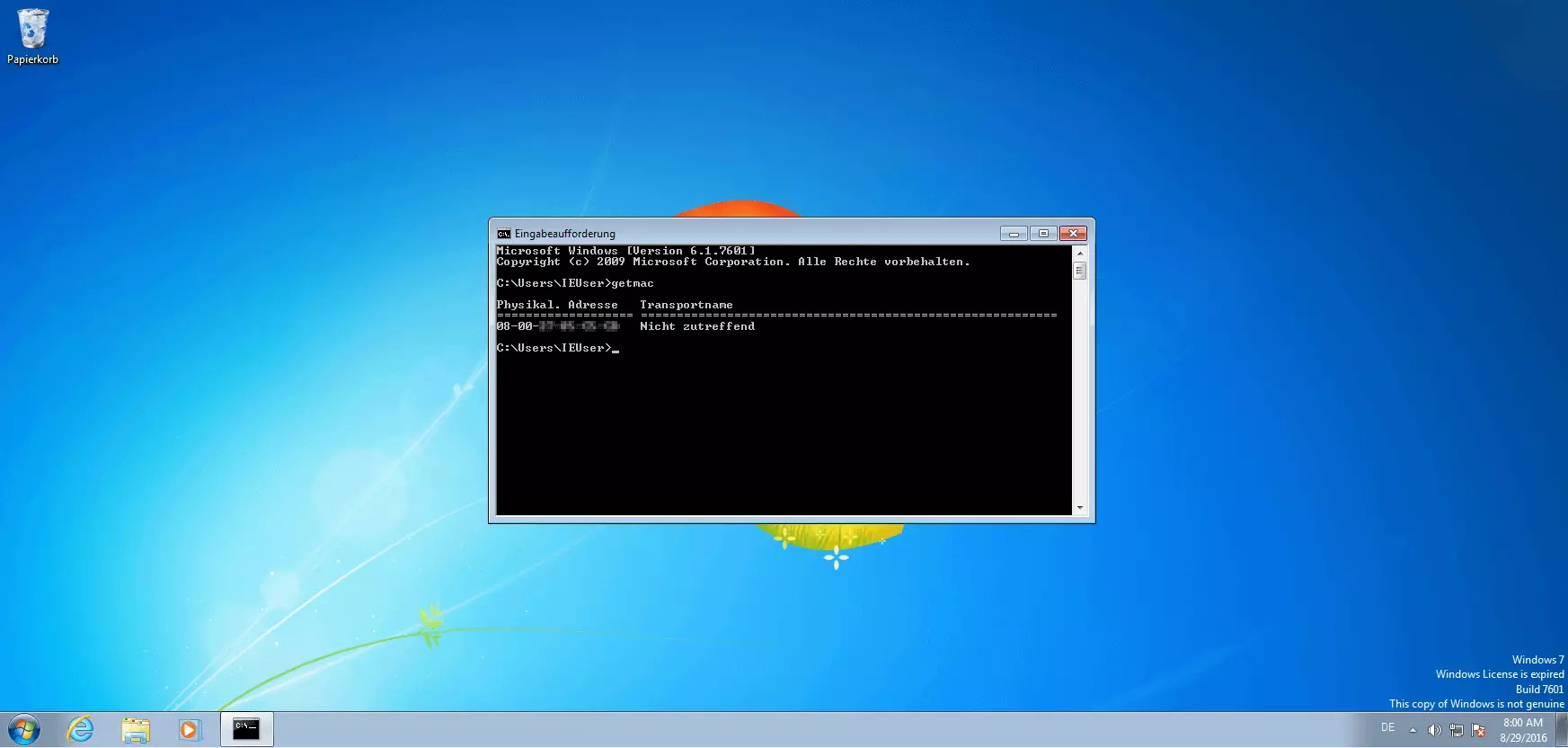
Start the program by double clicking the program name or confirm the selection by pressing the enter key. This will open a black console window: the Windows command prompt. Directives entered into the Windows console in the form of commands from the keyboard. To release the MAC address from your network card using the console, type the command getmac in the line marked by a blinking underscore in the command prompt and confirm by pressing the enter key.
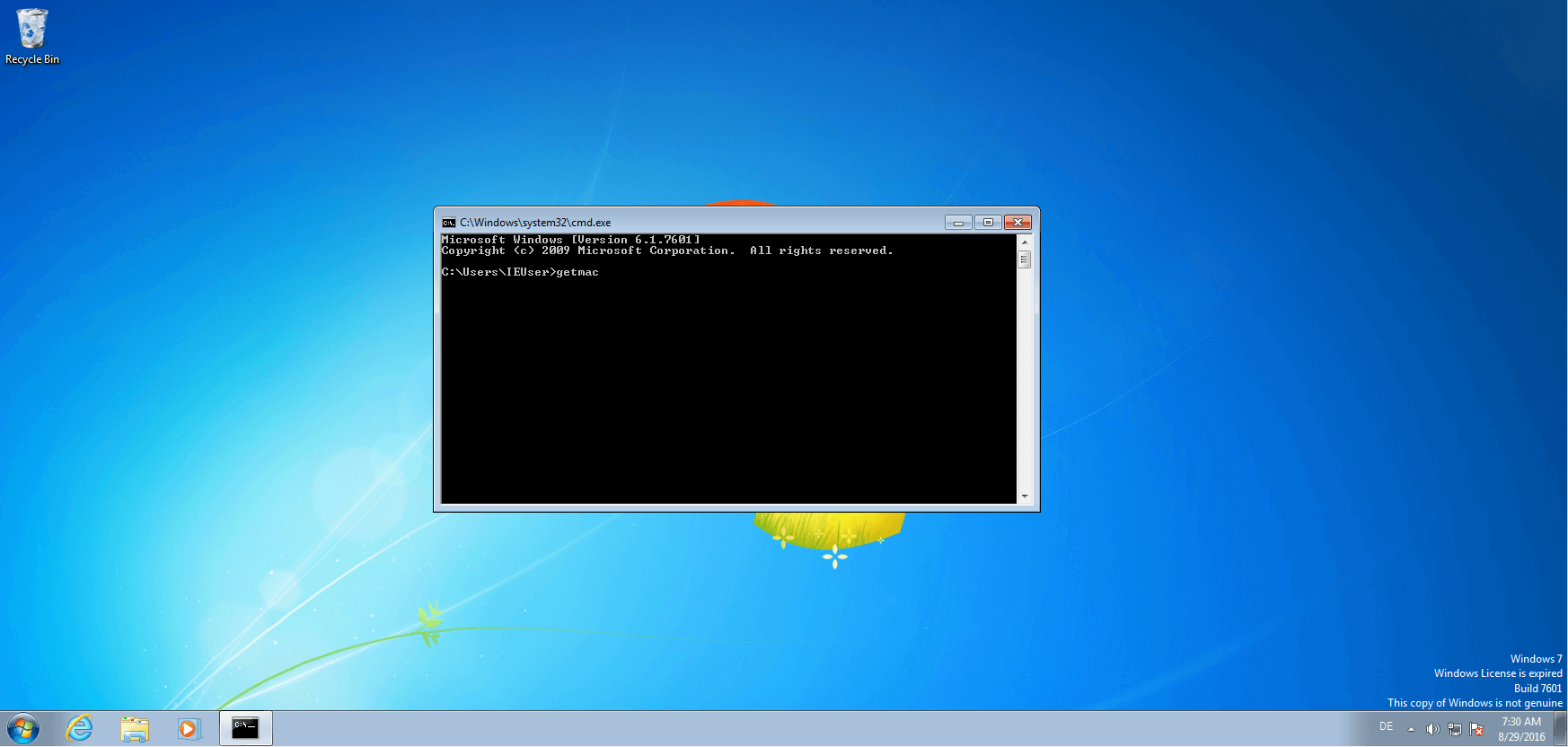
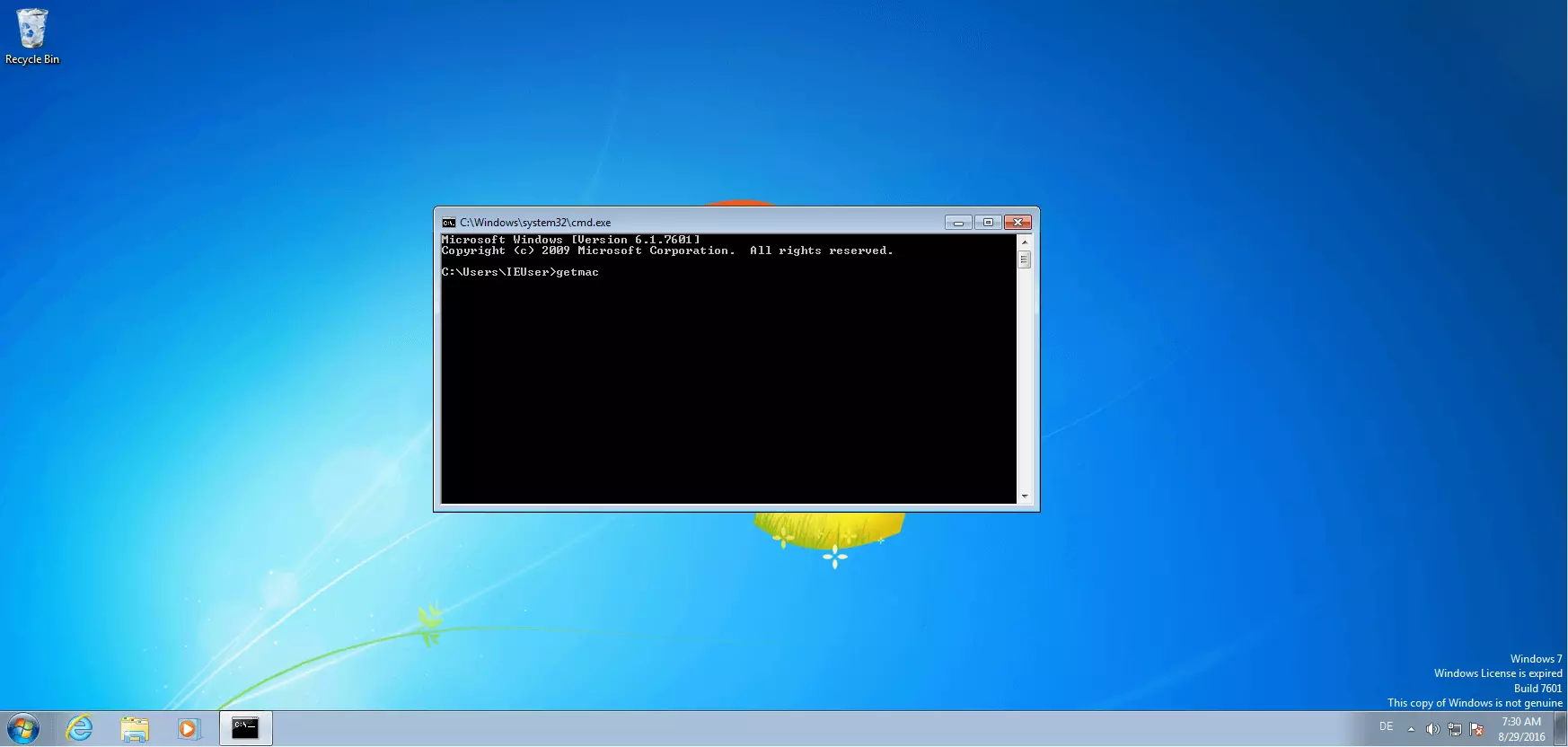
Write down the character sequence that’s displayed in the console window under “physical address”. This is the MAC address assigned by the manufacturer. You will need this to reset the configuration to the default setting.
Change the MAC address in the network settings
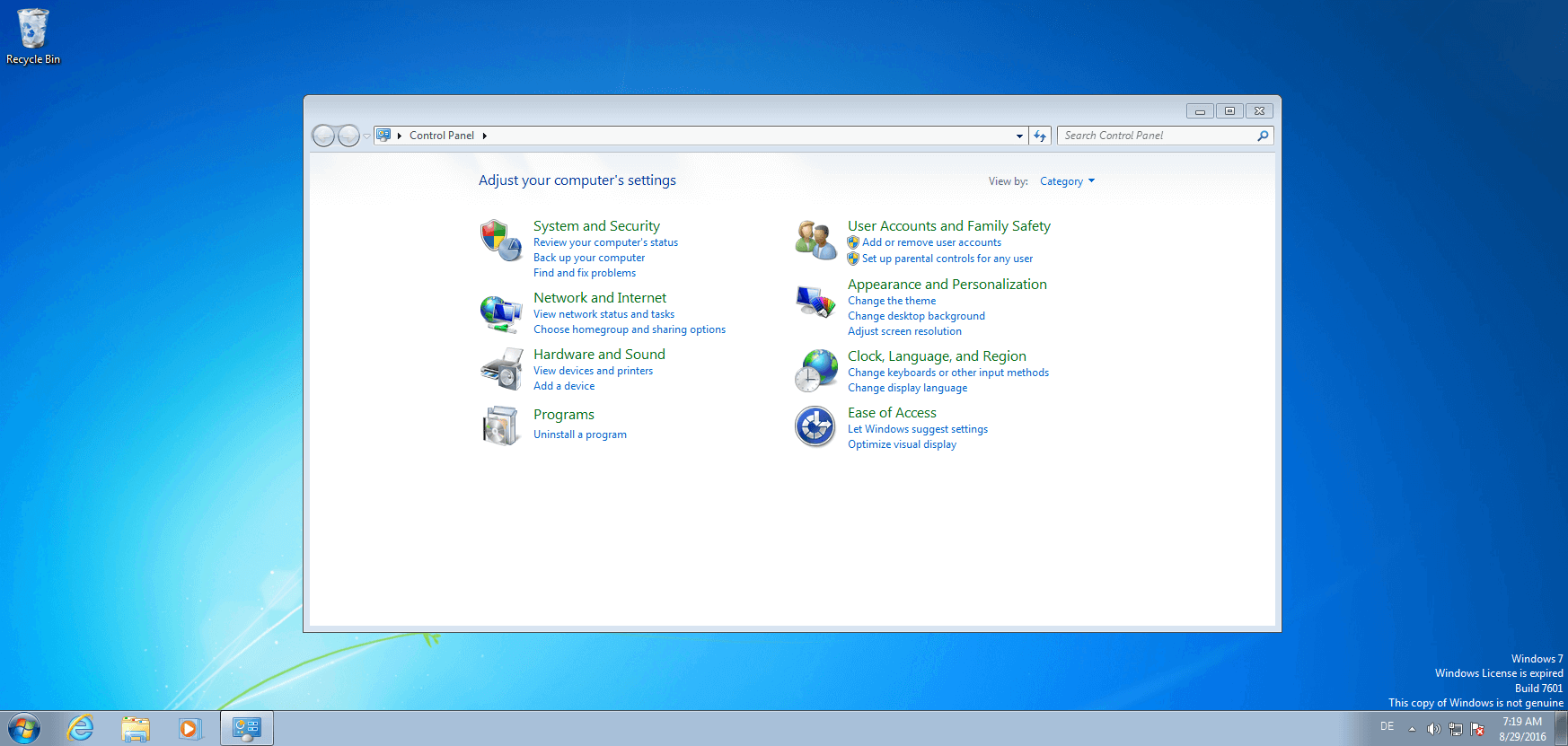
Alteration of the MAC address in Windows happens in the network settings. To get there, access the Windows menu by clicking the start button. In the right-hand column, locate the “control panel”.
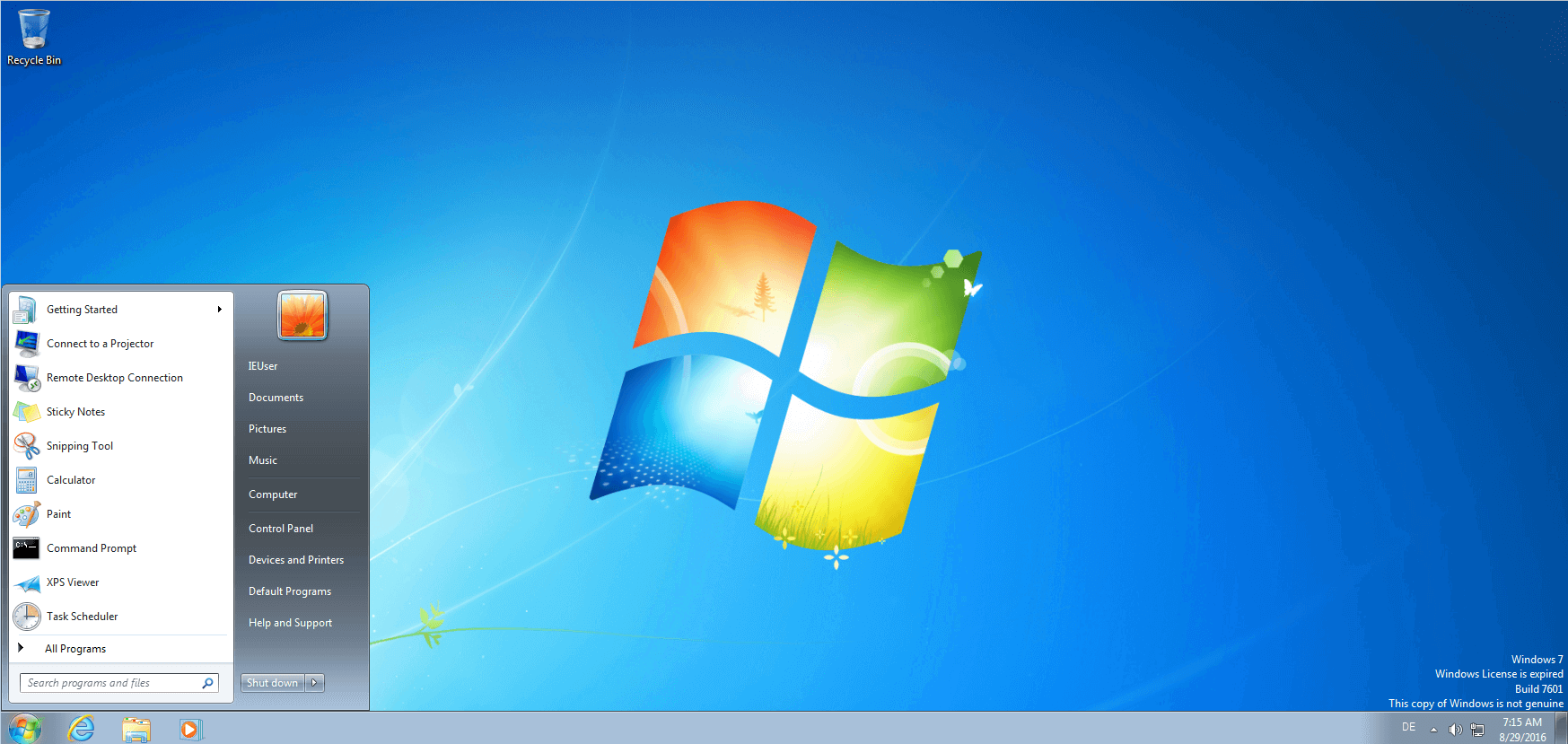
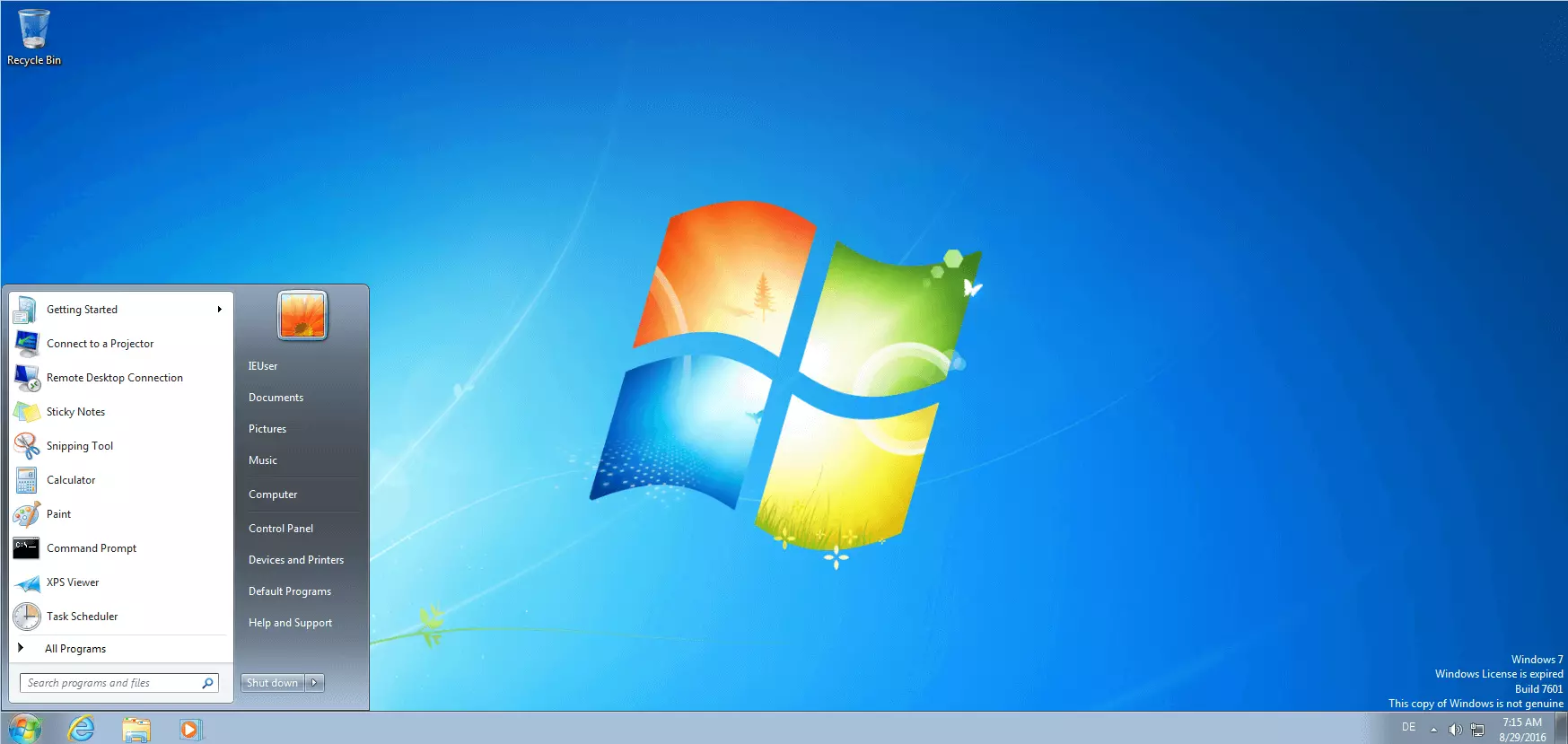
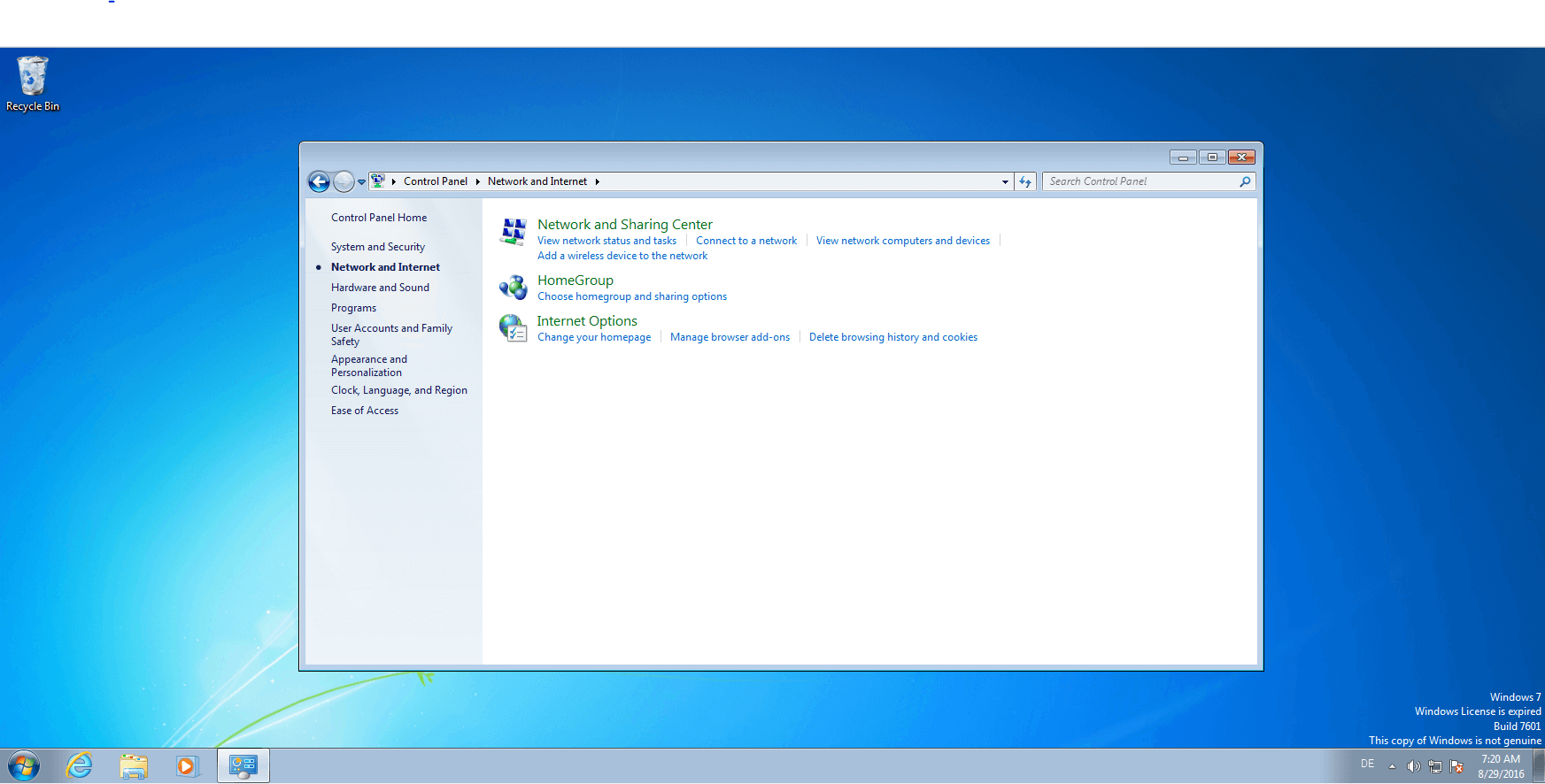
In the Windows control panel you have the option to customize all of the settings on your computer. The system network settings are found in the section labeled “Network and Internet”.
This opens a submenu with three options. Click on “Network and Sharing Center” to display the basic information about your network.
The window shows a general overview of all of the network connections that are linked to your computer. Click on “Change adapter settings” in the list on the left-hand side to access the settings on the network card.
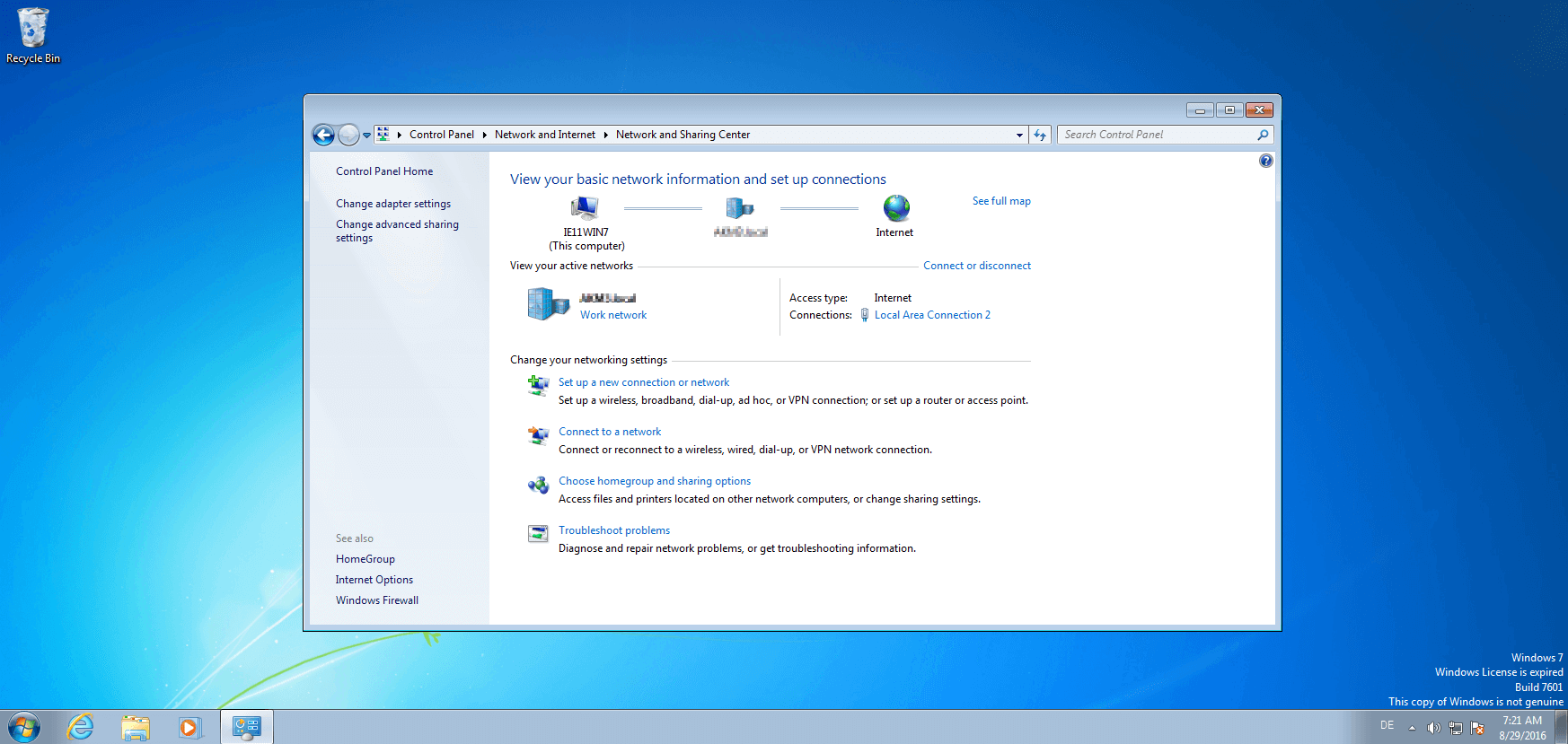
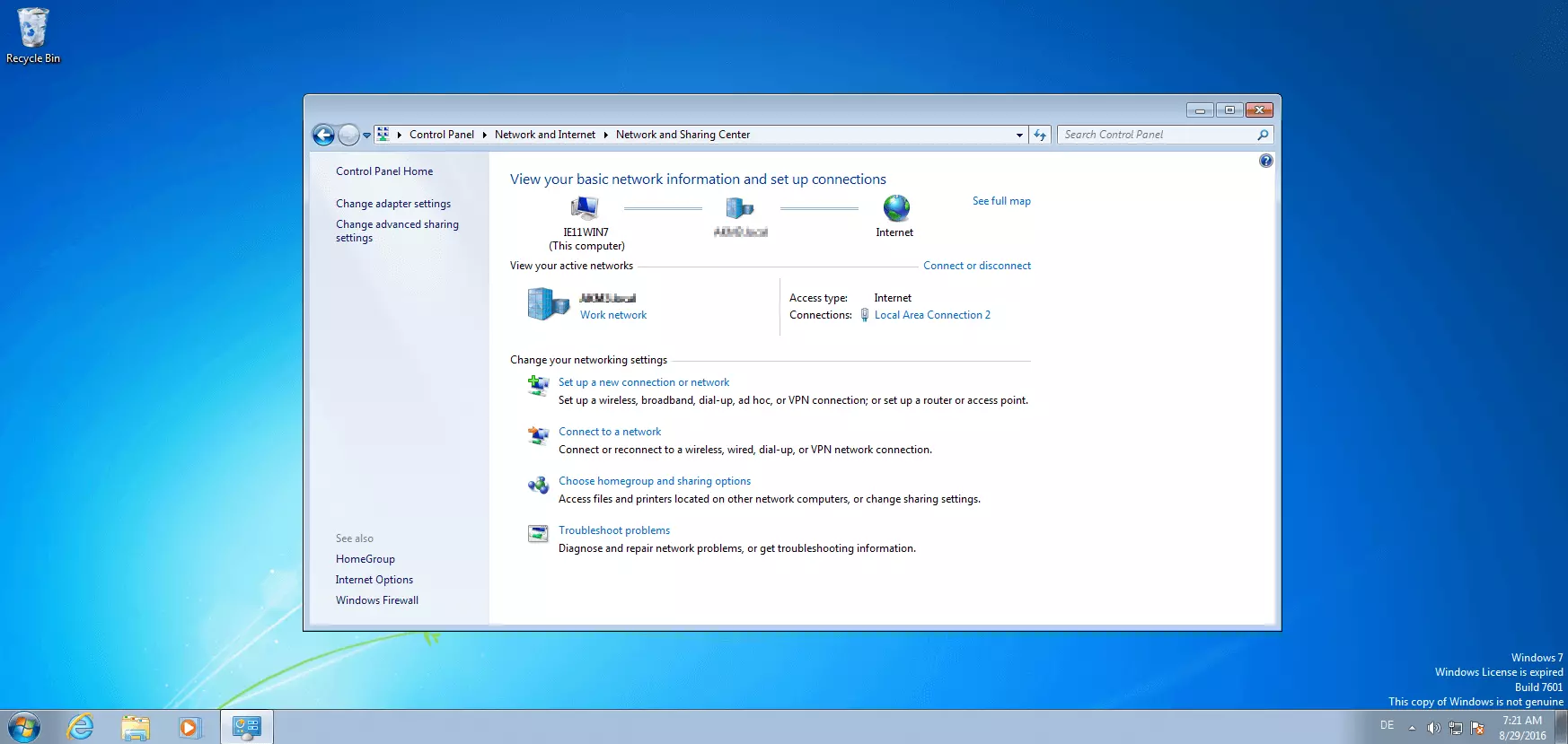
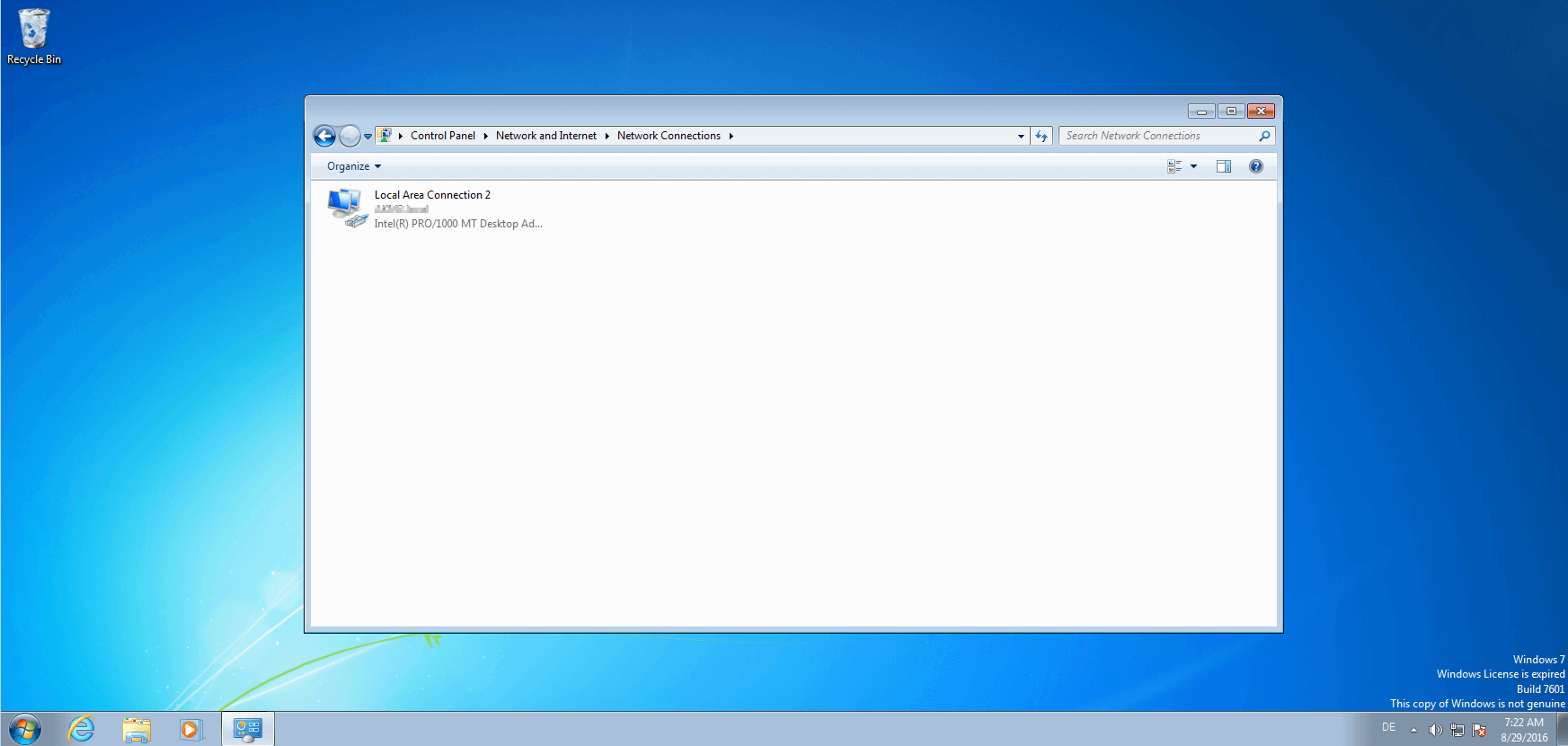
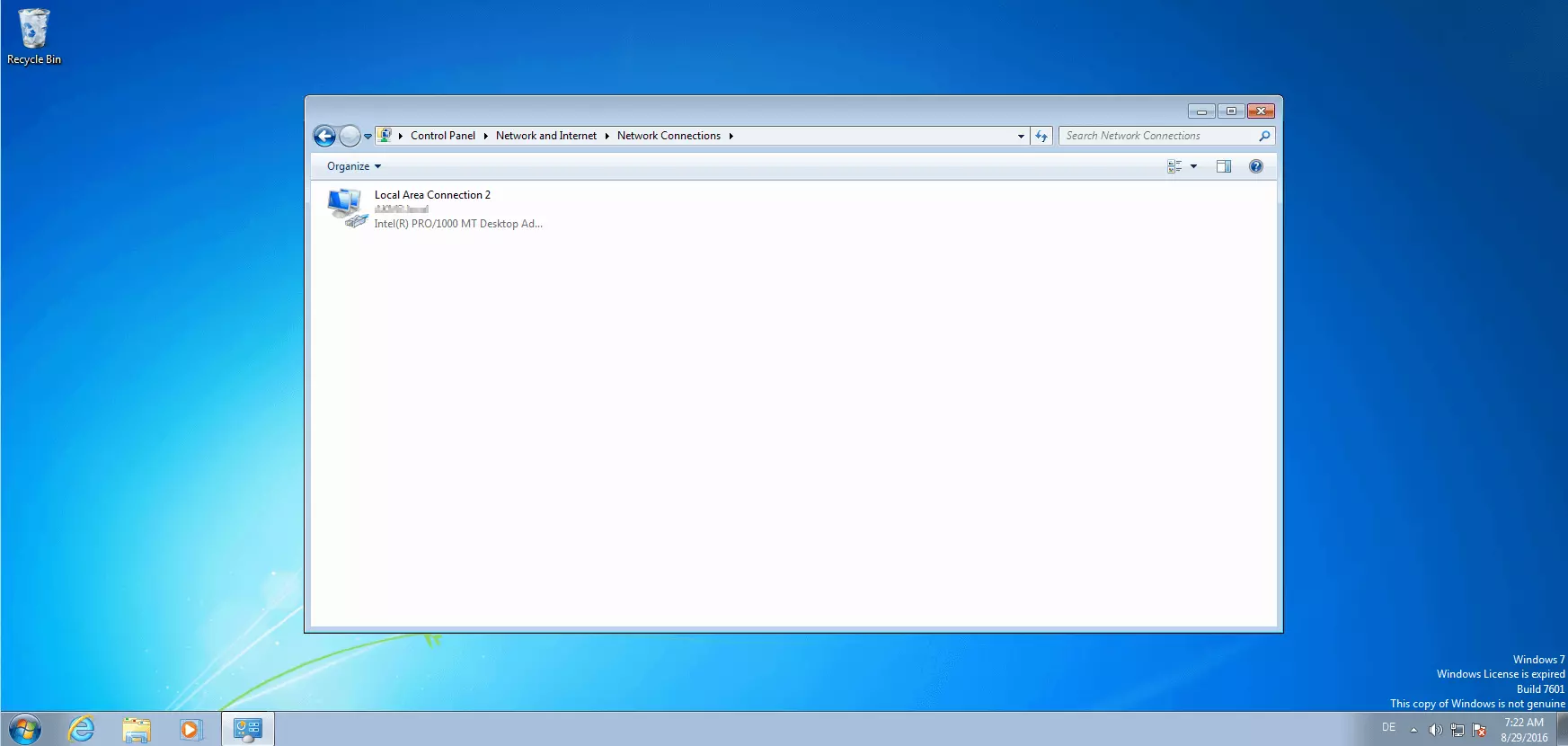
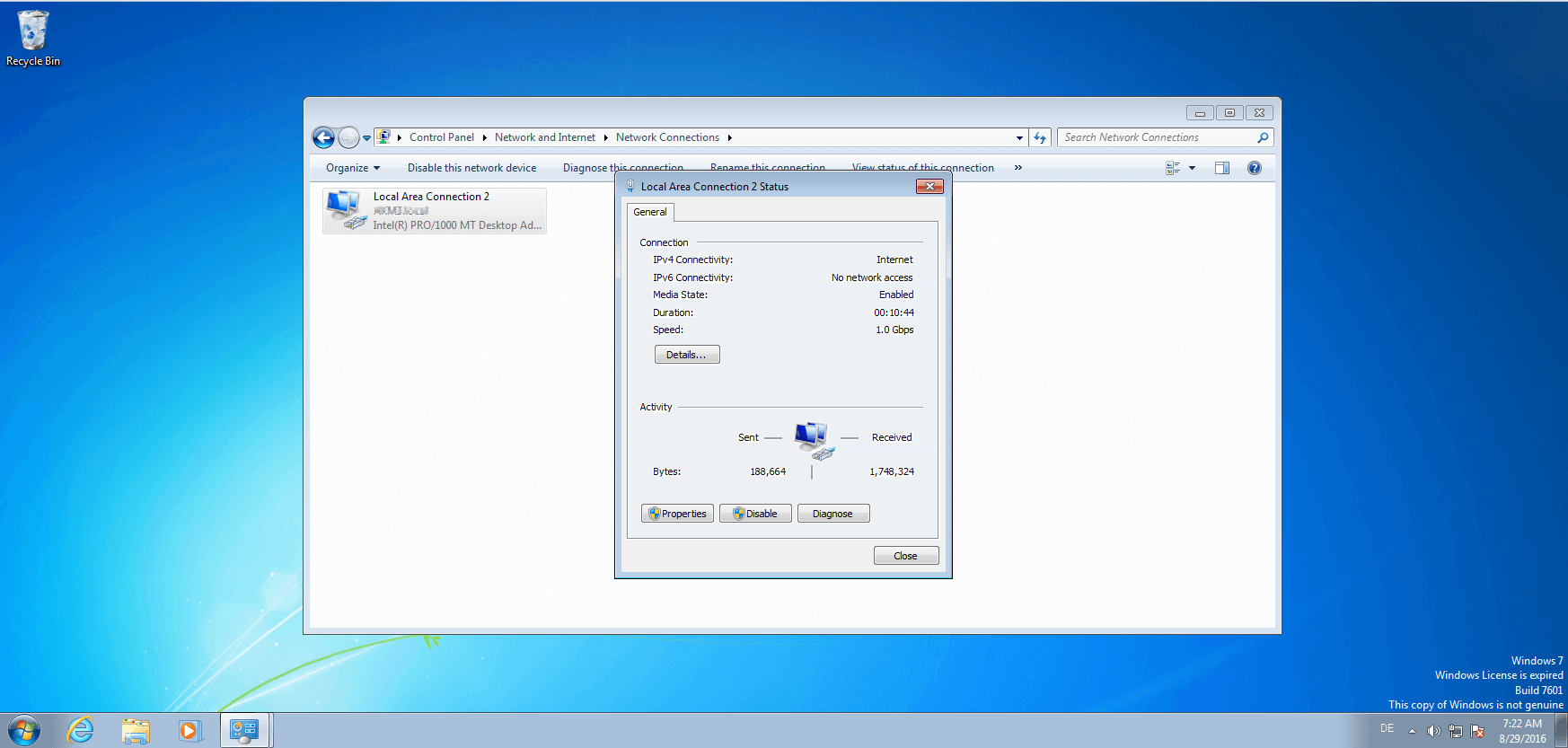
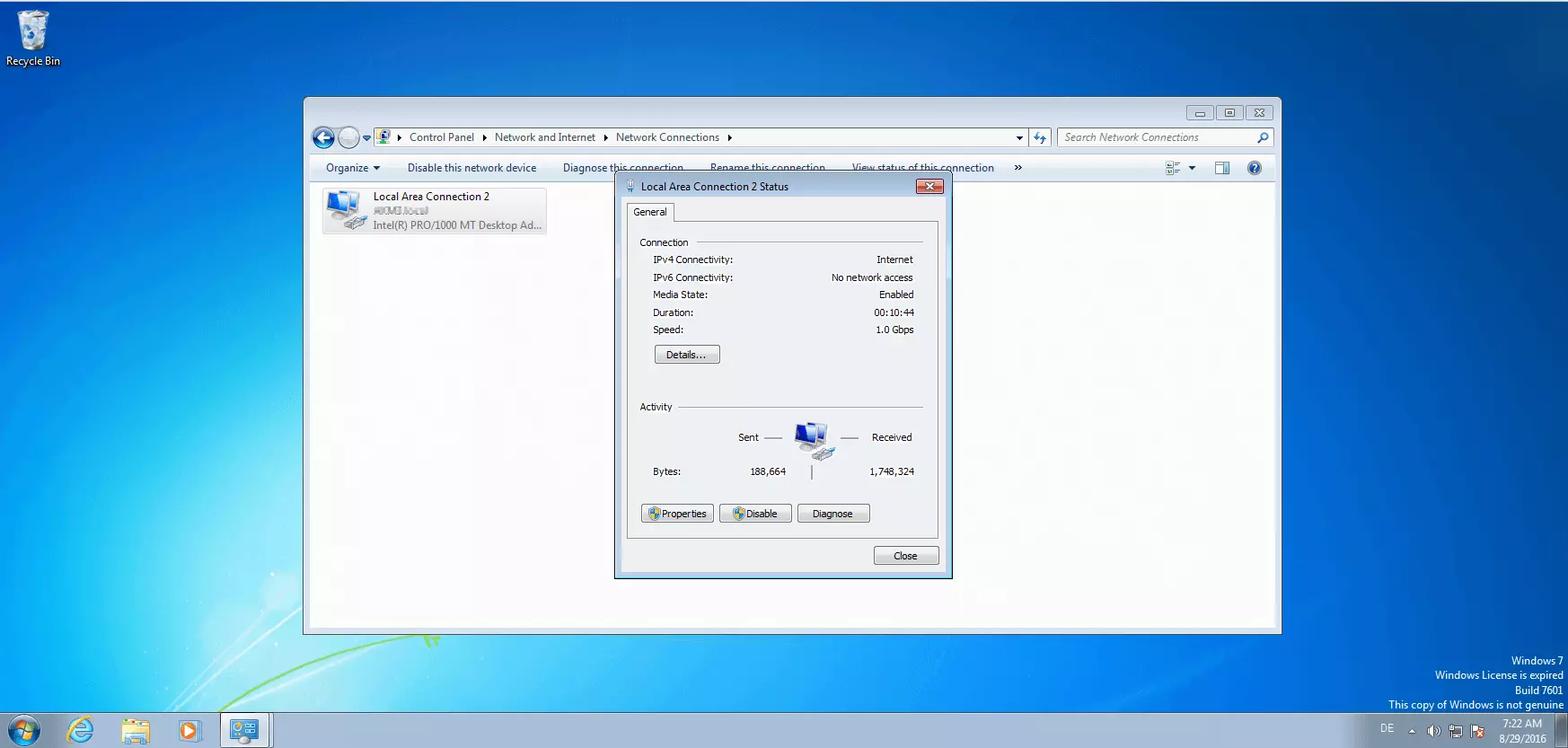
In the overview, select the network card that you would like to reconfigure. In the example system here, the LAN connection “Local Area Connection 2” is established via the “Network card Intel(R) PRO/1000 MT Desktop Adapter”. Double click on the desired connection to open a window with status information.
Click on the “Properties” button. The protective shield icon shows that you can only change adapted settings with administrative access. If you are working in another user account, the system asks for an administrator password via the user account control.
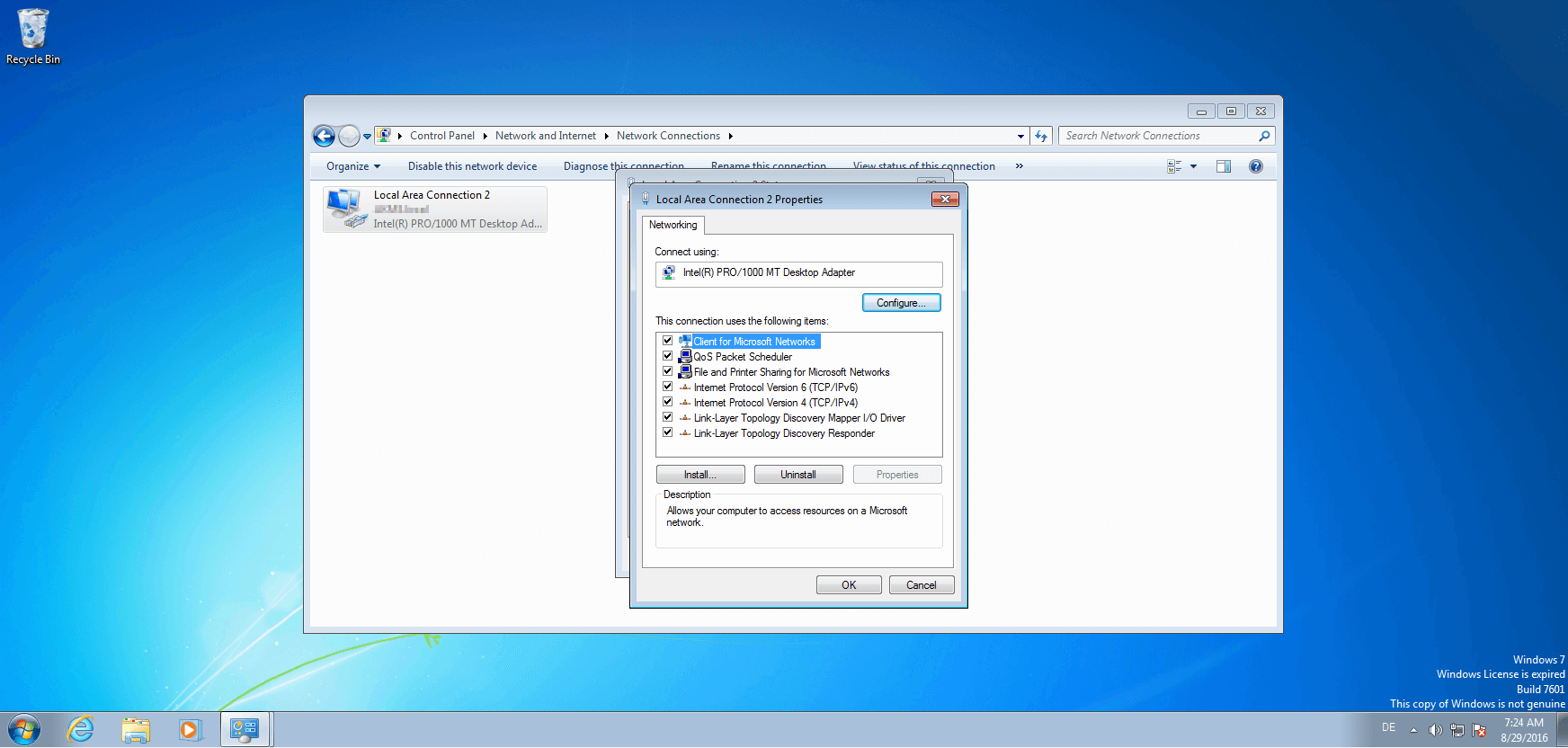
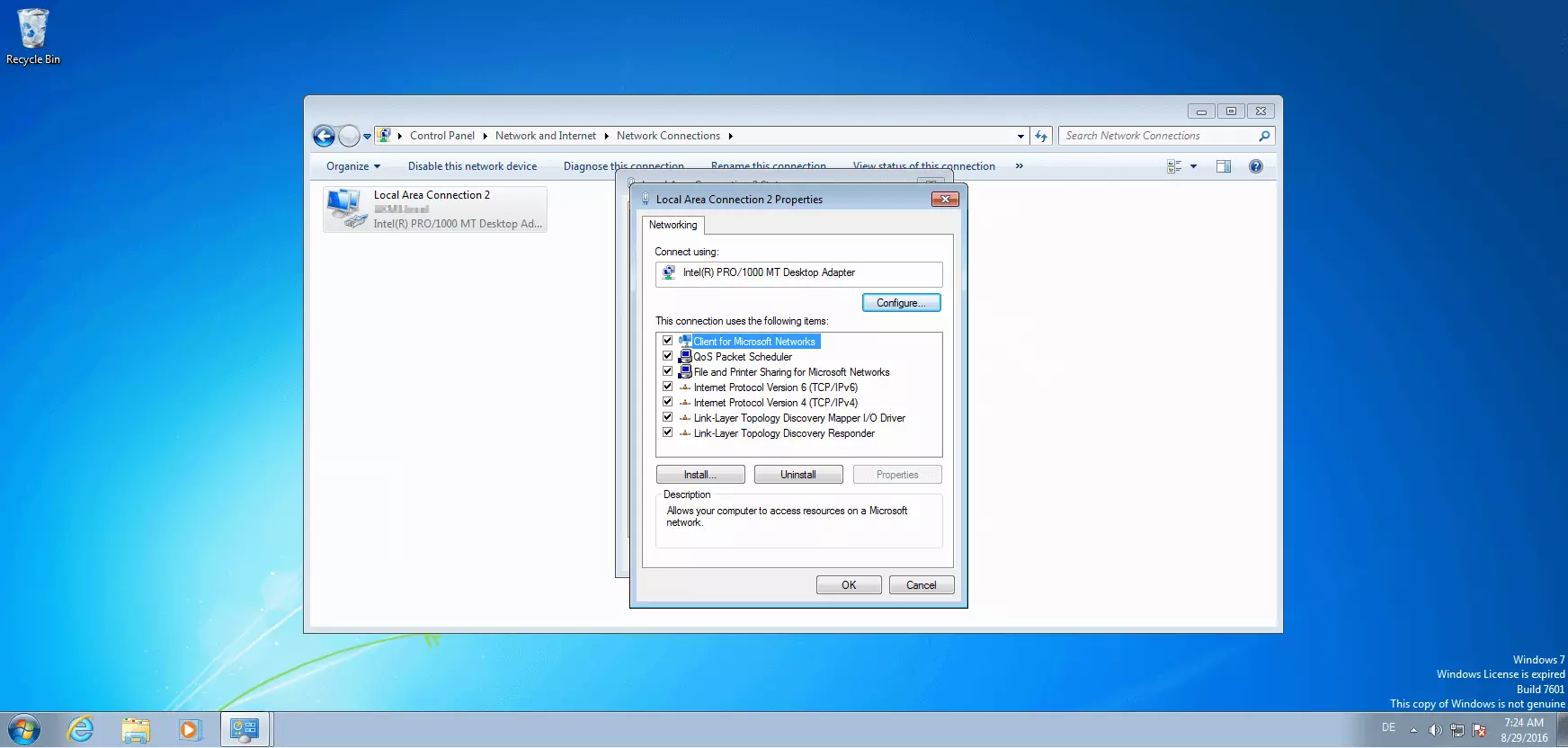
If you have the necessary access rights, a new window will open listing the network card as well as clients, protocols, and drivers of the connection. Click on the “Configure” button to open the settings menu for the network card.
This opens a window with five tabs. Click on “Advanced” and under properties select the “Locally Administered Address”.
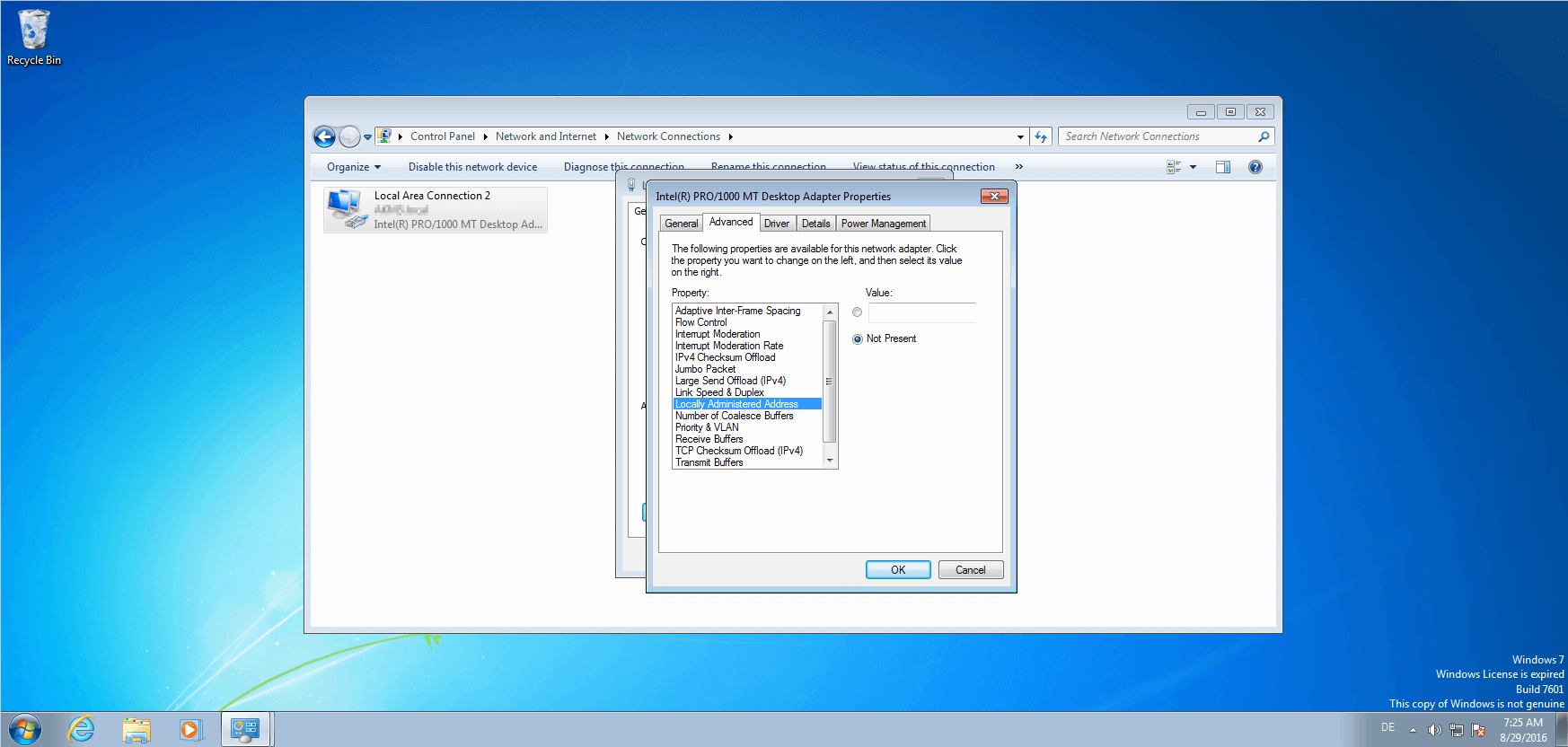
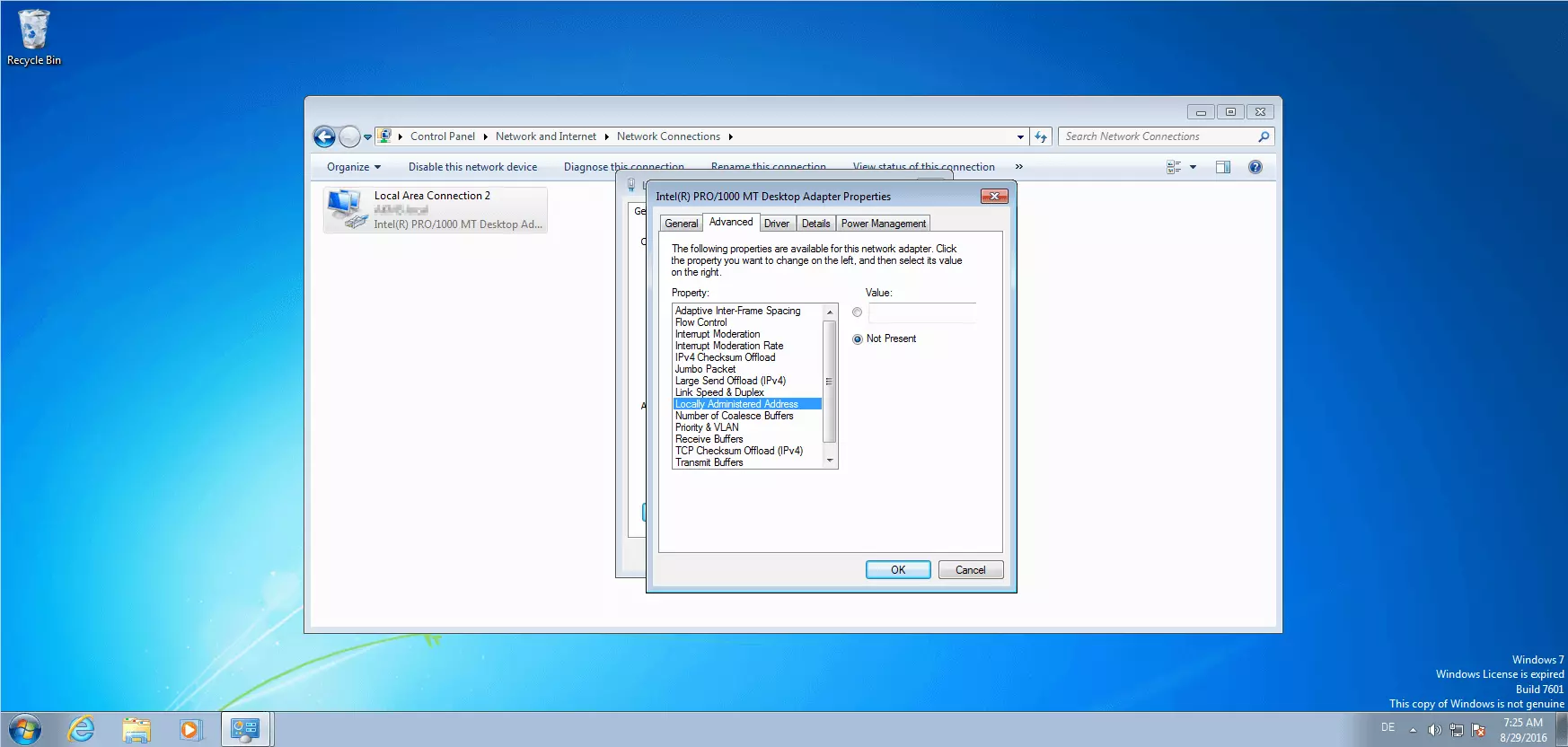
The Locally Administered Address (LAA) is a MAC address assigned to the software, which is linked to a network card and so replaces the address given by the manufacturer – including the Universally Administered Address (UAA). To define an LAA, switch the selection on the right from the standard “Not Present” option by clicking on “Value” and then entering any 12-character string of hexadecimal digits.
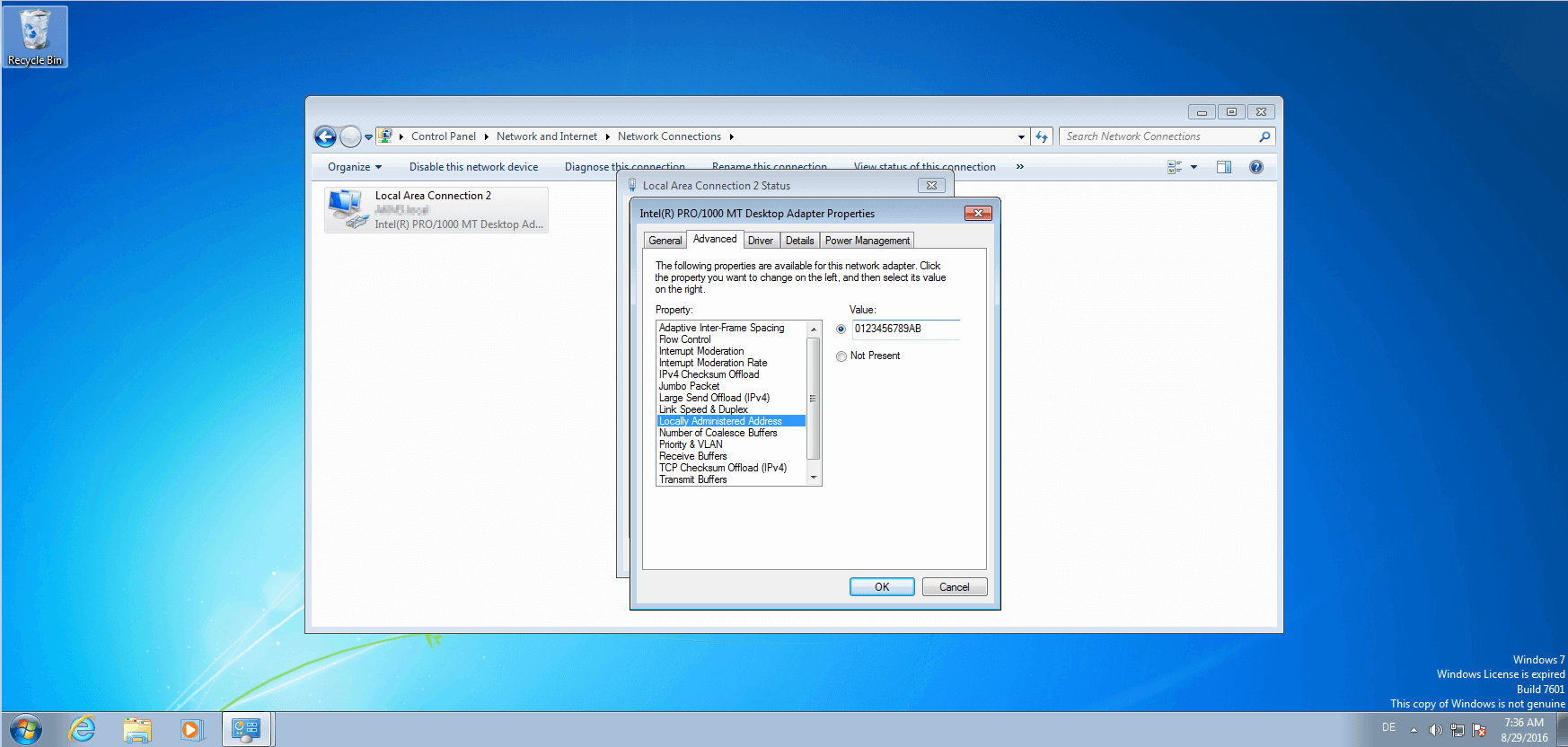
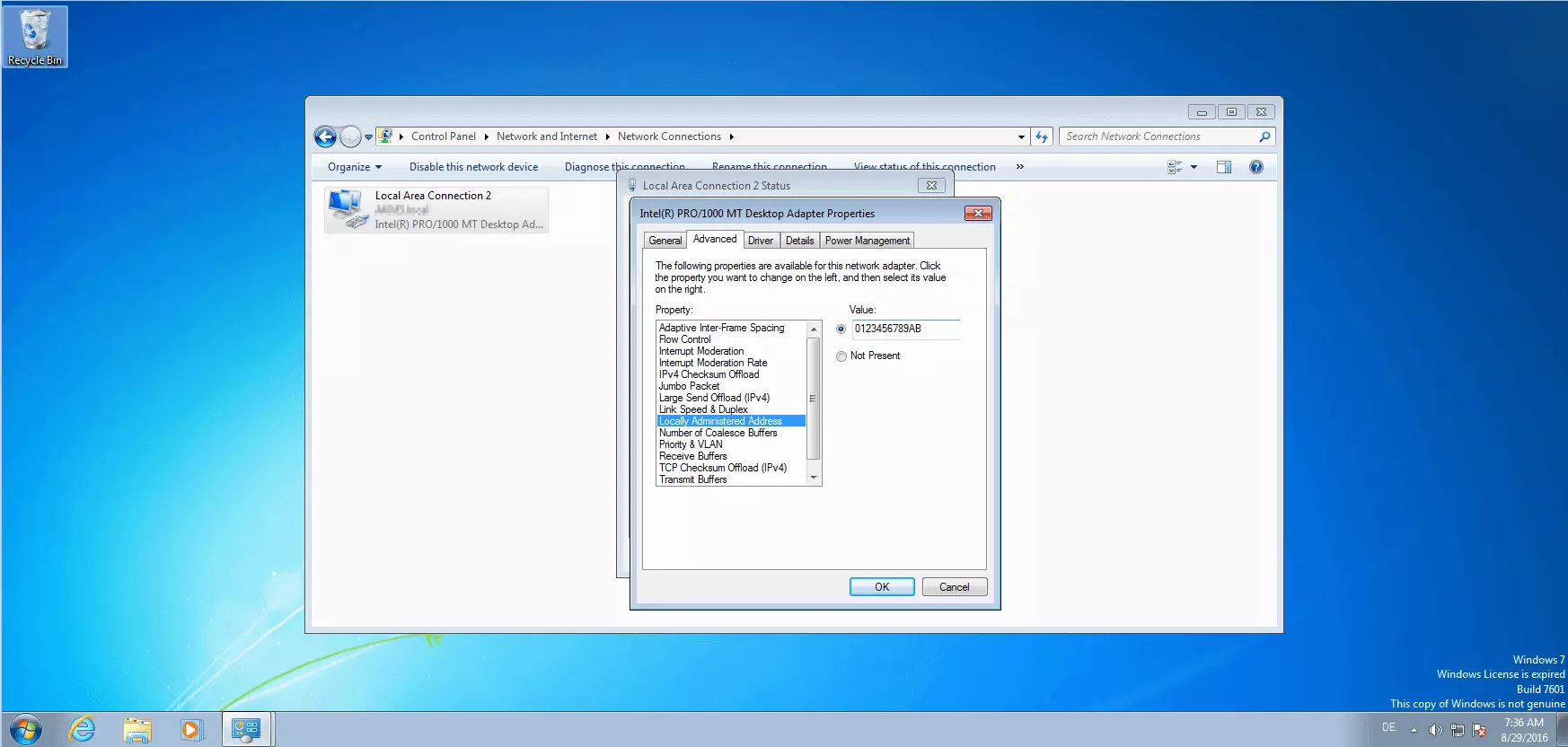
As soon as you confirm your settings by clicking OK, your network card disconnects from the LAN and builds a new connection using the custom LAA.
Change the MAC address in the registry
As an alternative to the network settings, Windows users have the option to change the MAC address using the registry. This option is only recommended for experienced users, though. To access the Windows registry, enter the command regedit into the search list and start the registration editor. Then, navigate to the following entry: HKEY_LOCAL_MACHINE\SYSTEM\CurrentControlSet\Control\Class\{4D36E972-E325-11CE-BFC1-08002BE10318} Here you’ll find a row of consecutively numbered subfolders (0000, 0001, 0002, etc.). Find the folder whose DriverDesc entry contains the name of your network card. If the NetworkAddress entry is found in this folder, edit it by right-clicking on the entry and selecting the “Change” function from the context menu. Enter the desired MAC address here. If no corresponding entry is available, you can create one with right-click > “New” > “String”.
MAC spoofing software
Instead of changing the MAC address manually using the network settings or the Windows registry, users can employ free software solutions like Technitium MAC Address Changer or Windows 7 MAC Address Changer.
-
The Technitium MAC Address Changer allows users to easily manage network cards through a clear user interface. The Freeware tool offers an overview of all connections, displays the current MAC addresses of the hardware in use, and includes a function that allows you to change it with the push of a button. The original identifier is stored in the tool as well as the altered MAC address. An integrated generator creates randomly generated suggestions on request. Technitium MAC Address Changer is available for Windows 7, 8, and 10 and runs 32-bit and 64-bit versions. As soon as user settings are made in the software interface, the program writes the corresponding values in the Windows registry. Manual intervention is eliminated, and so the risk of jeopardizing the stability of the system with incorrect entries is too. All settings can be returned to their initial state by pressing the “Restore Original” button.
-
The Win7 MAC Address Changer runs differently on Windows Vista and Windows 8, as the name would suggest. The Freeware software offers a similar range of functions as the Technitium MAC Address Changer. The MAC spoofing follows four steps: Selection of the network card, selection of the operating system, selection of the desired MAC address, and confirmation of the settings using the “Change” button. The Win7 MAC Address Changer also supports users with a “Randomize” button. The “Reset to Default” button restores the default settings.
Just like with manual MAC spoofing, use of these programs doesn’t change the physical address. The operating system simply pretends that the user-defined Locally Administered Address is the Universally Administered Address.
Reviewer

Christian Heldmaier
Christian Heldmaier is an experienced online marketing and SEO specialist from Karlsruhe. He has been working as an SEO Manager at IONOS since July 2020.