

0x803fa067 | How to fix this Windows activation error

When an error occurs in Windows, it’s usually described with a short message that doesn’t provide very much information. The message also includes an error code consisting of an eight-digit hexadecimal identifier. This code helps developers and administrators find a clear technical description of the error on the Microsoft website. However, the description is not very helpful for ordinary users who simply want to fix the error. We’ll explain how to troubleshoot error code 0x803fa067, which can appear when you upgrade from Windows 10 Home to Windows 10 Pro.
- Great premium TLDs at affordable prices
- Simple registration & transfer
What is Windows activation?
A Windows license can only be used on one PC. The activation process stores your PC’s unique hardware data on a Microsoft server and assigns a specific Windows product key to that particular device. Personal data is not collected during this process. Activation is mandatory and has nothing to do with software registration, which is voluntary.
If Windows is not activated, a notification will appear at the bottom right corner of your screen, asking you to activate the product. Simply follow the prompt and enter the product key you received with your Windows license in the input field on the screen. Sometimes the activation prompt will only appear in the Settings app. The Home and Pro editions of Windows 10 are installed with the same installation media. The product key determines which features are activated and which are not.
When does error 0x803fa067 occur?
If Windows 10 Home is installed on your PC and you purchased a product key for the Windows 10 Pro edition, proceed as follows to activate it:
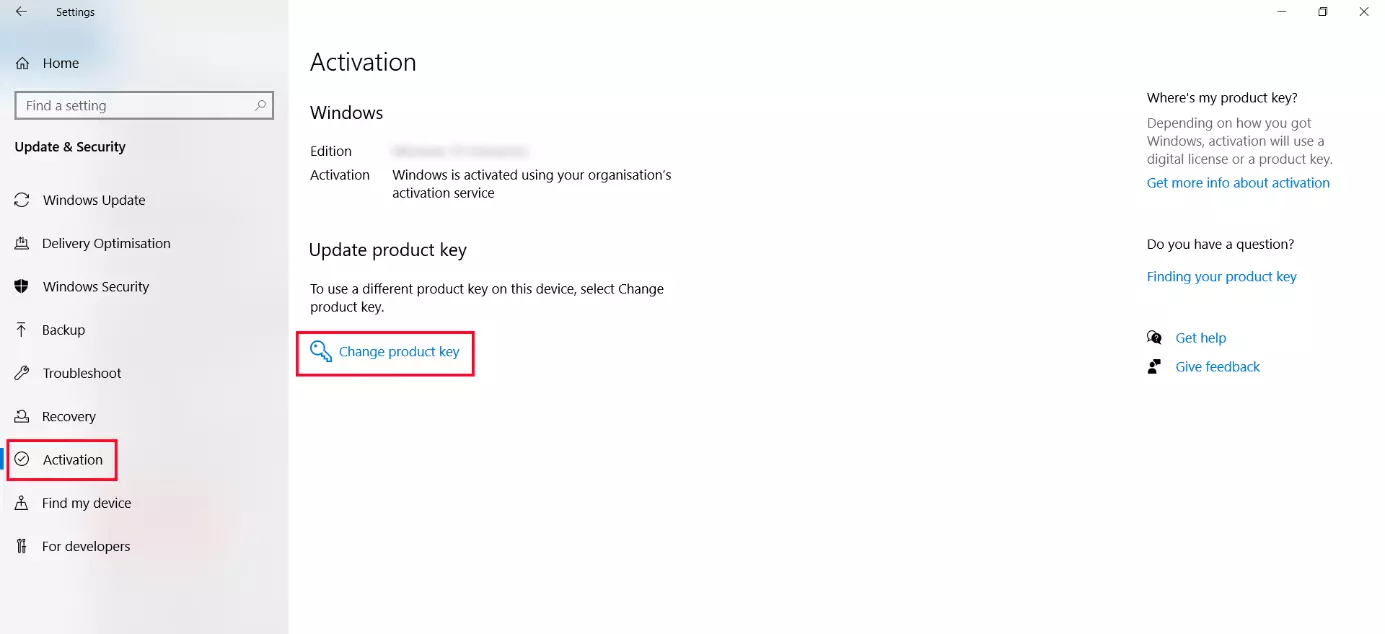
- In the Windows Settings app, go to “Update & Security” and open the “Activation” page. On this page, you’ll see a product key link. Start by clicking this link.
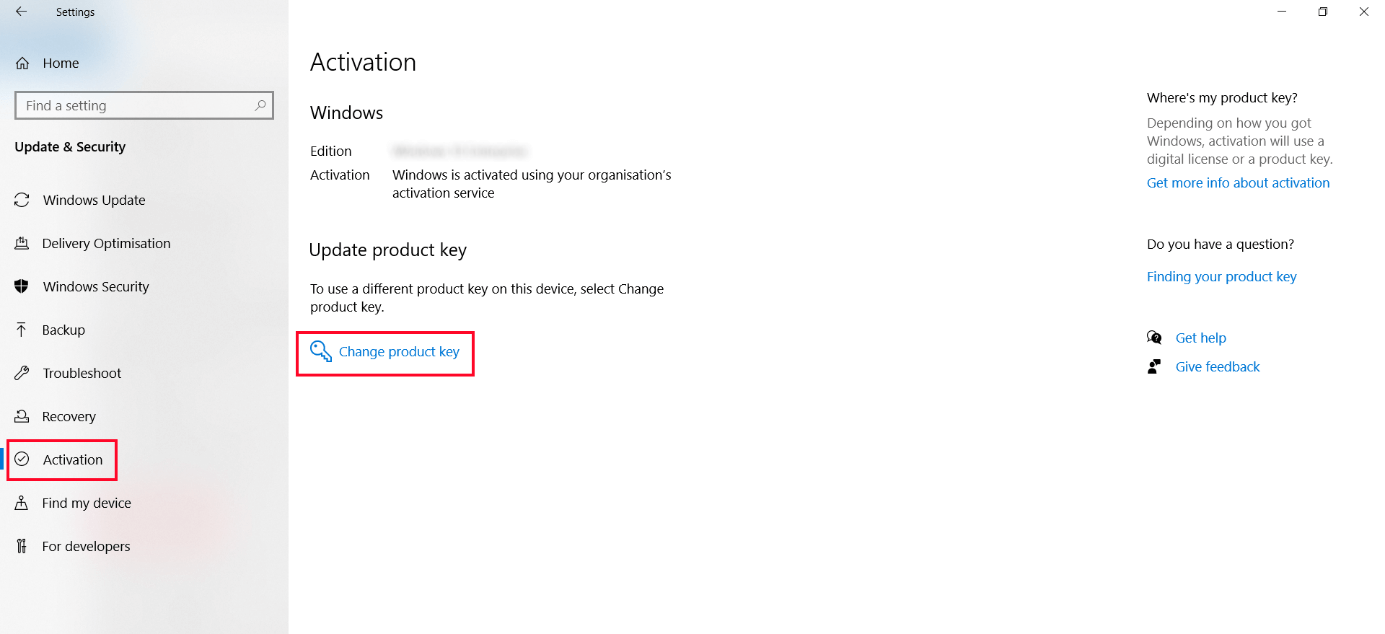
- In the next window, enter the product key that you received when you purchased your Windows 10 Pro edition.
- Finally, click Start: Additional features of Windows 10 Pro will be activated. This can take some time and then the system will restart.
Windows will display error code 0x803fa067 during this process if it fails to activate your new Windows edition.
Avoiding activation error 0x803fa067 by activating offline
If error 0x803fa067 appears, you can use the following simple trick to upgrade to Windows 10 Pro: Before clicking “Start” in the last window, disable your network connection. To do this, disconnect the network cable from your PC or turn off an active Wi-Fi connection. Next, click the button to start the upgrade. Once Windows automatically restarts and the upgrade is completed, reconnect your device to the network. If successful, you won’t get the 0x803fa067 error.
Activating Windows by phone if the 0x803fa067 error persists
Like previous versions of Windows, Windows 10 can be activated by phone if the online activation fails, although the phone number and activation form are now harder to find. Proceed as follows to activate by phone:
- Right-click the Windows logo in the taskbar to launch the Start menu. Select Command Prompt or Windows PowerShell.
- Enter the command “slui 4” and press Enter to run the command.
- In the menu that appears, choose your country. A toll-free number and a non-toll-free number will be displayed. The toll-free number doesn’t work from a cell phone, so if you don’t have access to a landline, you have to use the non-toll-free number.
- You’ll be connected to an automated voice system. When prompted, enter the installation ID shown on the screen using the keypad of your phone.
- You’ll then receive a confirmation ID from the automated phone system. Enter this ID on your PC to activate Windows 10. After a short time, the activation notification will disappear.
Reviewers

Melissa Senn
Melissa Senn has been with IONOS since 2016 and focuses on the areas of websites, e-commerce, social media, and AI in the Digital Guide. As a digital strategist, she draws on her extensive SEO and GEO experience to translate complex technological trends into practical content.

Christian Heldmaier
Christian Heldmaier is an experienced online marketing and SEO specialist from Karlsruhe. He has been working as an SEO Manager at IONOS since July 2020.