

Alternatives to Evernote: A comparison of digital notebooks

Whether you use notepads, sticky notes, or scraps of paper, most people make notes and to-do lists or note down appointment information only to lose them straight away. A useful tool to combat this is a digital notebook. Using one of these means that you can view all your notes at any time, and also access them on the go using your smartphone or tablet. If you don’t know much about digital notebooks, you will soon find that Evernote is one of the most popular, widely used digital notebooks in the world. The downside: the most interesting tools and features are only included in the paid version. If the freeware version of Evernote is not good enough, there are other alternatives you can try out. This overview will help you discover alternatives to Evernote.
OneNote: an all-rounder for Windows users
OneNote is a great alternative for those who have a lot of meetings, go to school, study regularly, or just benefit from note-taking in their everyday life. It is also the most widely used digital notebook worldwide. The biggest advantage: Microsoft offers the software in the Microsoft Microsoft 365 package, and is available to download for free. Even though Evernote offers the full range of functions in the fee-based package, the Microsoft freeware has the same range of tools and features as the paid Office version. This makes Microsoft’s OneNote an affordable, strong Evernote alternative.
The OneNote app is also available free of charge for macOS, iOS, Apple Watch, Android and Linux.
OneNote’s other major advantage is clarity. Like Evernote, you can save your notes in individual books, which can then be turned into a variety of tabs. There, you can create countless other pages and notes. The simple operation also allows you to manage your various notebooks individually in personal topics without a long familiarization period. Labelling your respective books and pages according to topics allows users to orient themselves quickly.
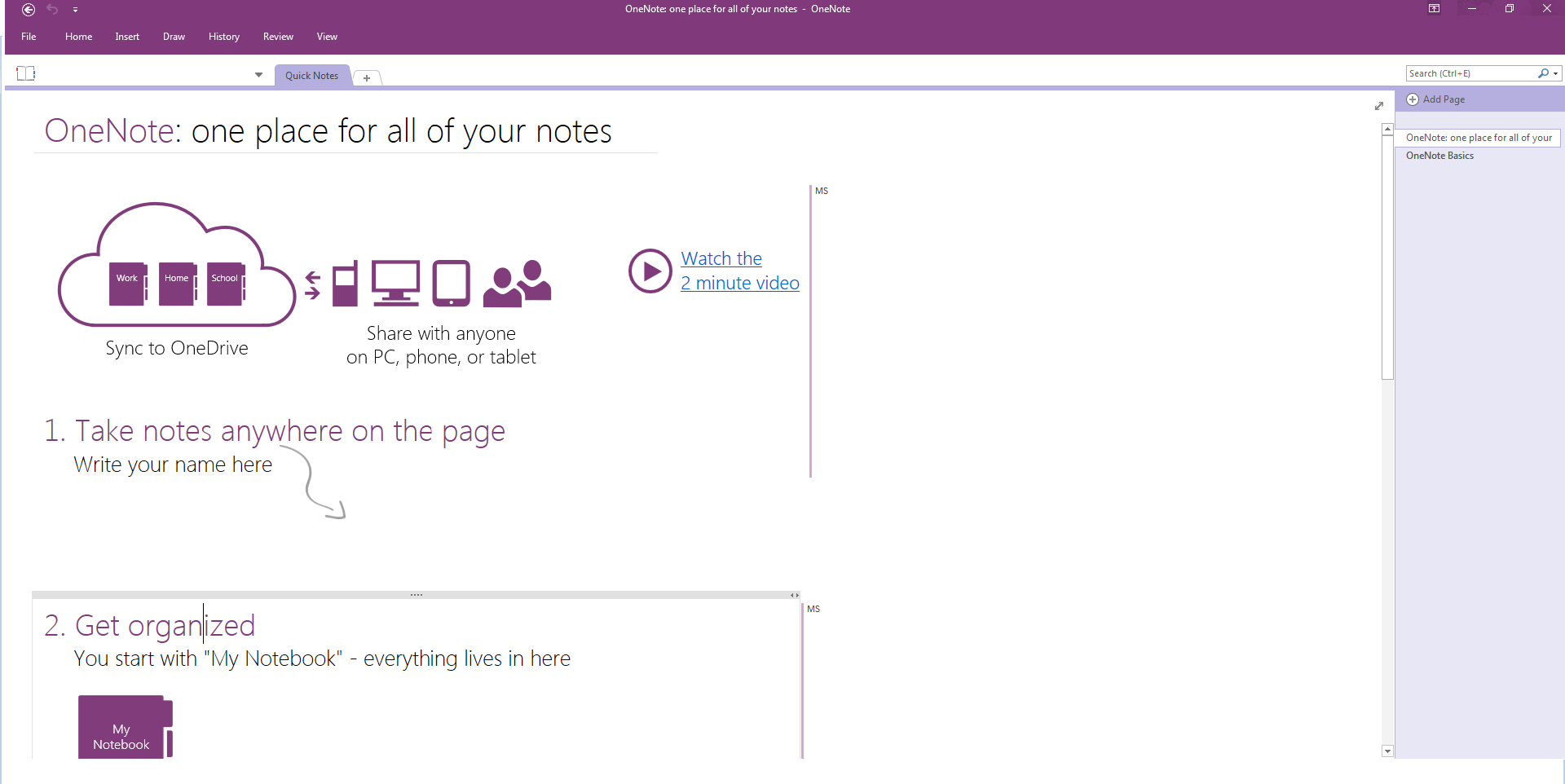
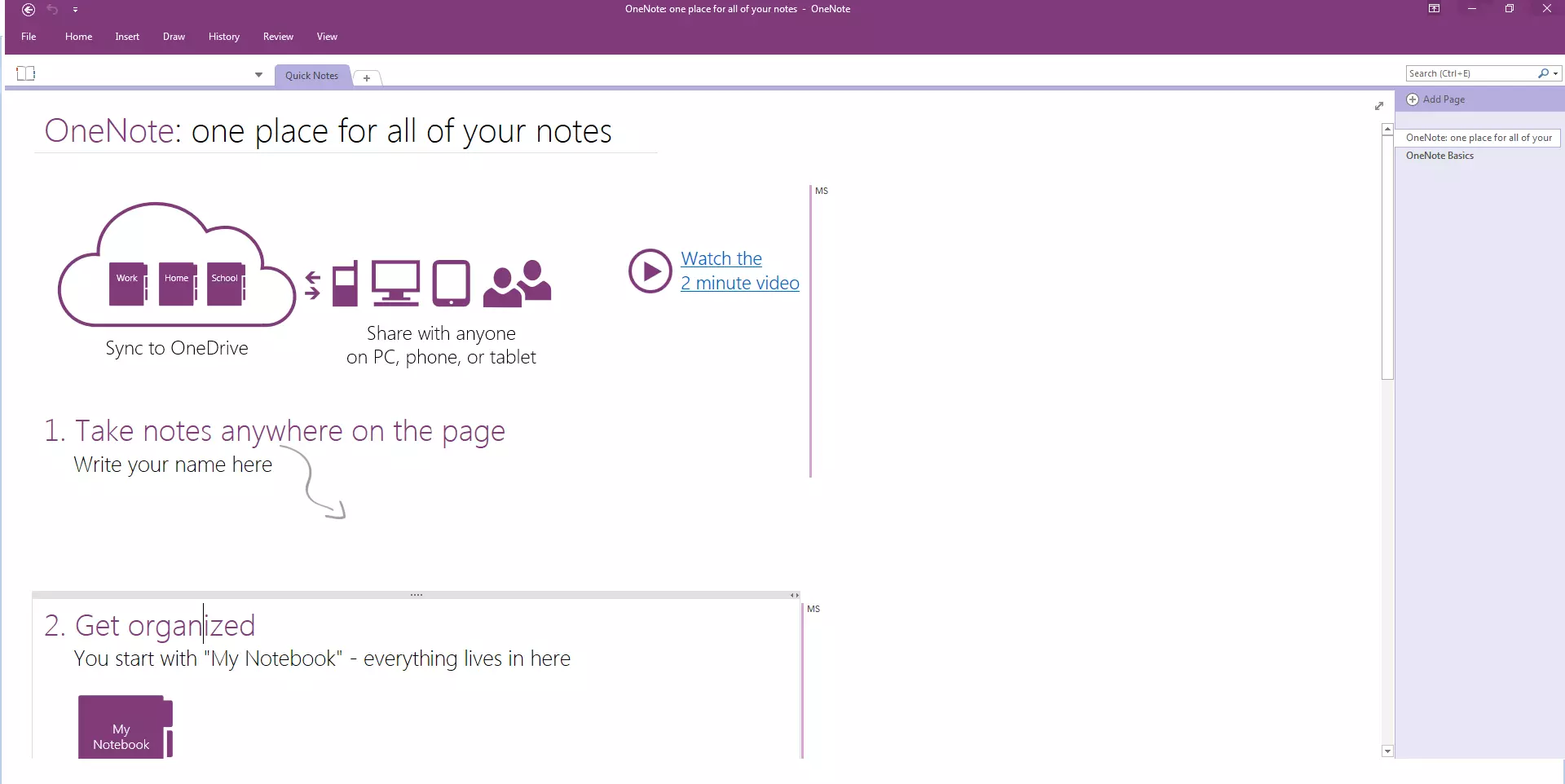
Microsoft’s OneNote is similar to Evernote in terms of text formatting, drawing, and multimedia. With text formatting, you have all the tools (font size, font, color selection, etc.) at your disposal, which you will recognize from word processing programs such as Word. To draw, you can use predefined shapes like circles, rectangles, or arrows, or just draw shapes yourself. However, the program remains limited to essential tools.
If having professional drawings is a priority for you, you can also use a graphics program.
When it comes to multimedia, OneNote goes even one step further: Not only can you include images, graphics, and screenshots in your notes, but you can also insert your own recorded voice messages or videos with the click of a mouse. Print your notes directly or save them in Word or PDF format. Another handy thing: you can place your notes wherever you want them. Whether left, right, up, down, or center – there is plenty of room on the whiteboard for your notes. In addition to the spell check, the integrated search function is especially useful. You can also share your notebooks with your coworkers or friends via e-mail and invite them to create and share notes. This works through your free cloud account, where all your notes are stored. Microsoft offers each user 5 GB of free space for this reason. Microsoft 365 subscribers can increase their storage to a total of 1 TB.
To access the cloud, you’ll need to register for a free account with OneDrive.
In terms of security, OneNote has some great aspects: you can protect your notebook from unauthorized access with a password. Since your notes are accessible through the cloud, you can sync OneNote to other platforms with the appropriate apps. For example, you can use the program with your other devices, like your smartphone, tablet, or iPhone on the go. Your shopping list is always available at your fingertips.
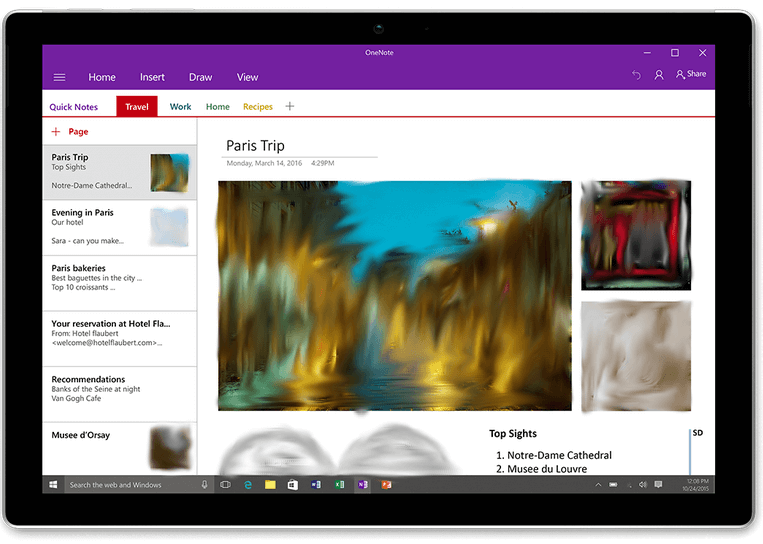
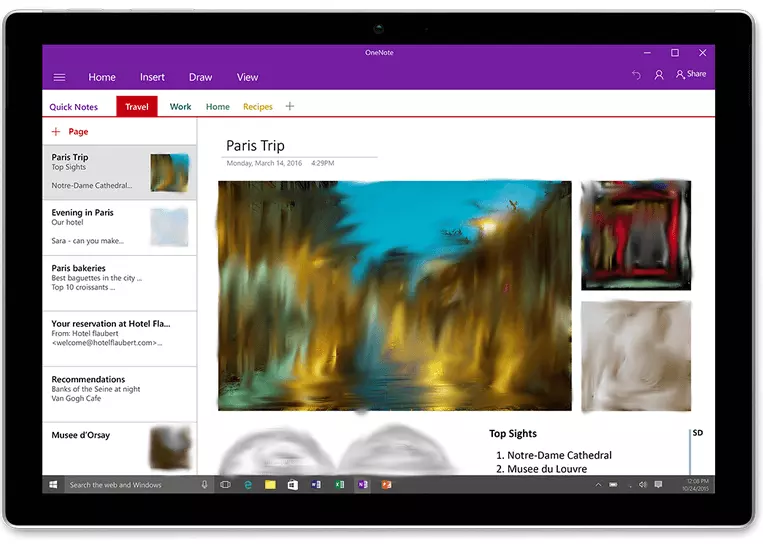
Disadvantage: OneNote is a real all-rounder, but is particularly well suited to Windows users. On platforms like Linux, macOS, Android, and iOS the OneNote app is available, but sometimes the functions are limited. Mac users, for example, cannot use the direct audio or video recording for their notes. Many users also complain about occasional synchronization errors. Another disadvantage: You can only share entire notebooks with colleagues or friends, not individual notes. PDF documents can neither be edited nor commented on. The search function on Evernote is much better, thanks to the hashtags.
Although OneNote has a lot of good aspects, the program is particularly beneficial to Windows users. Other operating systems can’t take advantage of all OneNote benefits. If you are not a Windows user, you will have to settle for a slimmed-down version.
| Advantages | Disadvantages | |
|---|---|---|
| ✓ Free of charge, includes all features and tools as the paid version | ✗ OneNote apps for iOS and macOS are only available with limited features | |
| ✓ Clear, easy to operate | ✗ Occasional synchronization errors with non-Windows systems | |
| ✓ Automatic storage in the cloud | ✗ Only whole notebooks can be shared with other users | |
| ✓ Integrated search function | ✗ PDF files cannot be edited or commented upon | |
| ✓ Includes the Fast Notes feature | ||
| ✓ Multimedia: drawing function, direct audio, excel spreadsheets, graphics, PDF files, task lists, and voice files with just one click | ||
| ✓ Share with Friends and Invite Friends features | ||
| ✓ Password protection | ||
| ✓ Web-based | ||
| ✓ Integration with Microsoft Office; compatible with macOS, Android, iOS |
NixNote: the Evernote alternative for Linux users
The digital notebook NixNote (formerly known as NeverNote) has been specially developed for Linux users. Since Evernote does not support this operating system, NixNote is considered the perfect alternative for Linux users. The software is also completely free and fully synced to Evernote.
This Evernote client is not just for Linux users, it’s also compatible with Windows users.
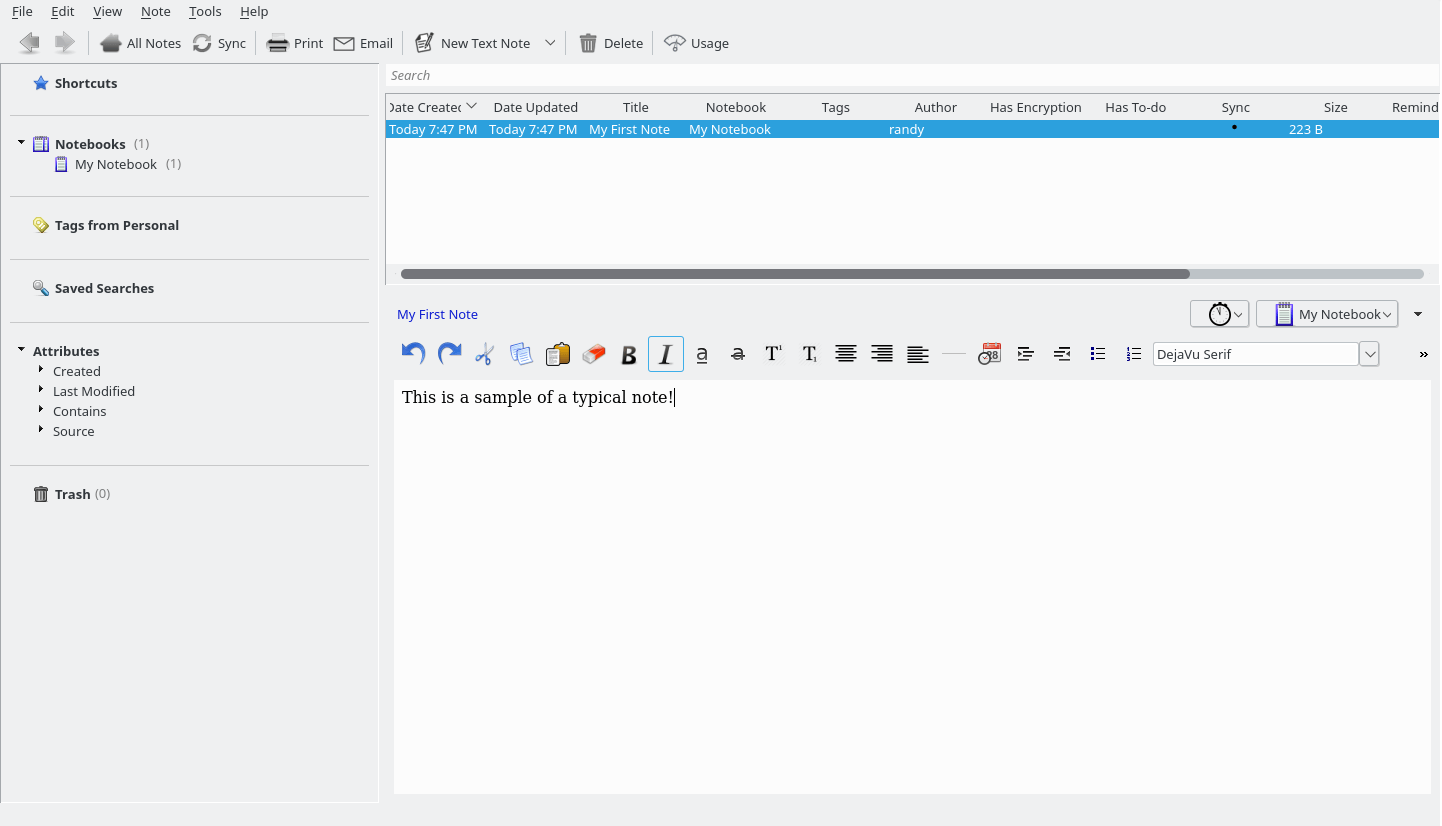
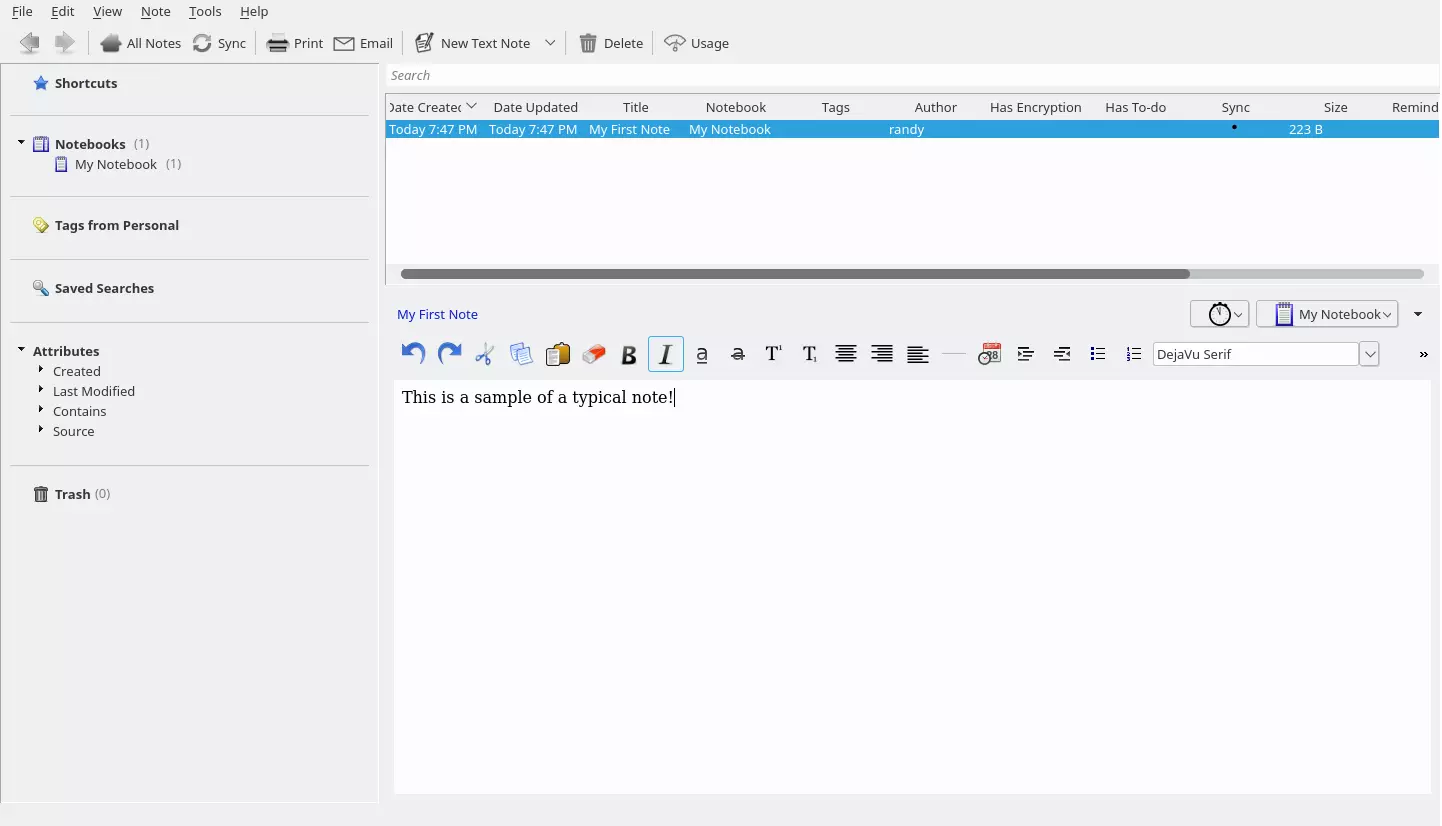
In terms of clarity, text formatting, and multimedia, NixNote and Evernote are extremely similar. Even at an initial glance, users are immediately reminded of Evernote: you can create as many notebooks as you want, and keep notes chronologically in individual folders. For each note, you can also assign keywords or tags, which help you find corresponding tags. You can also add pictures, videos, audio recordings, or documents to your notes. However, you cannot comment on or edit PDS documents using NixNote.
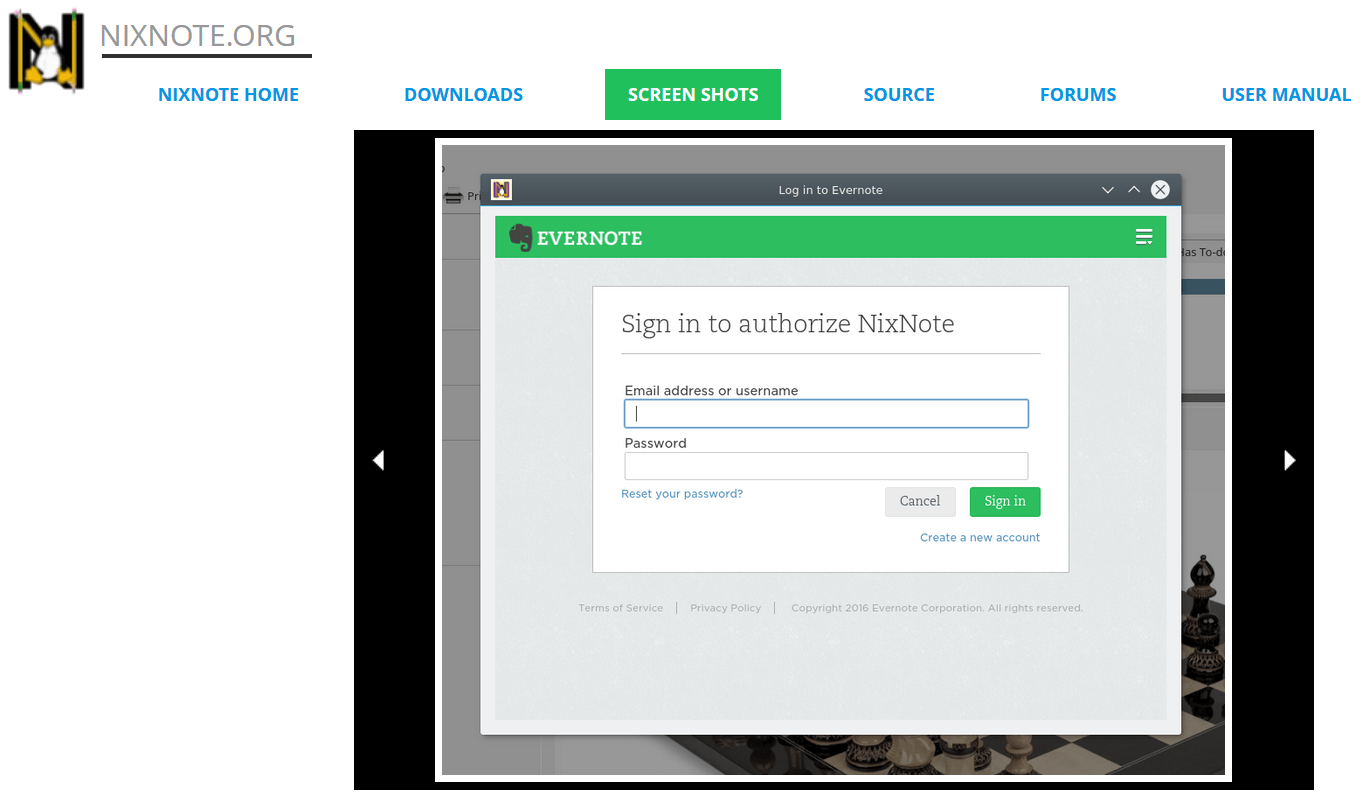
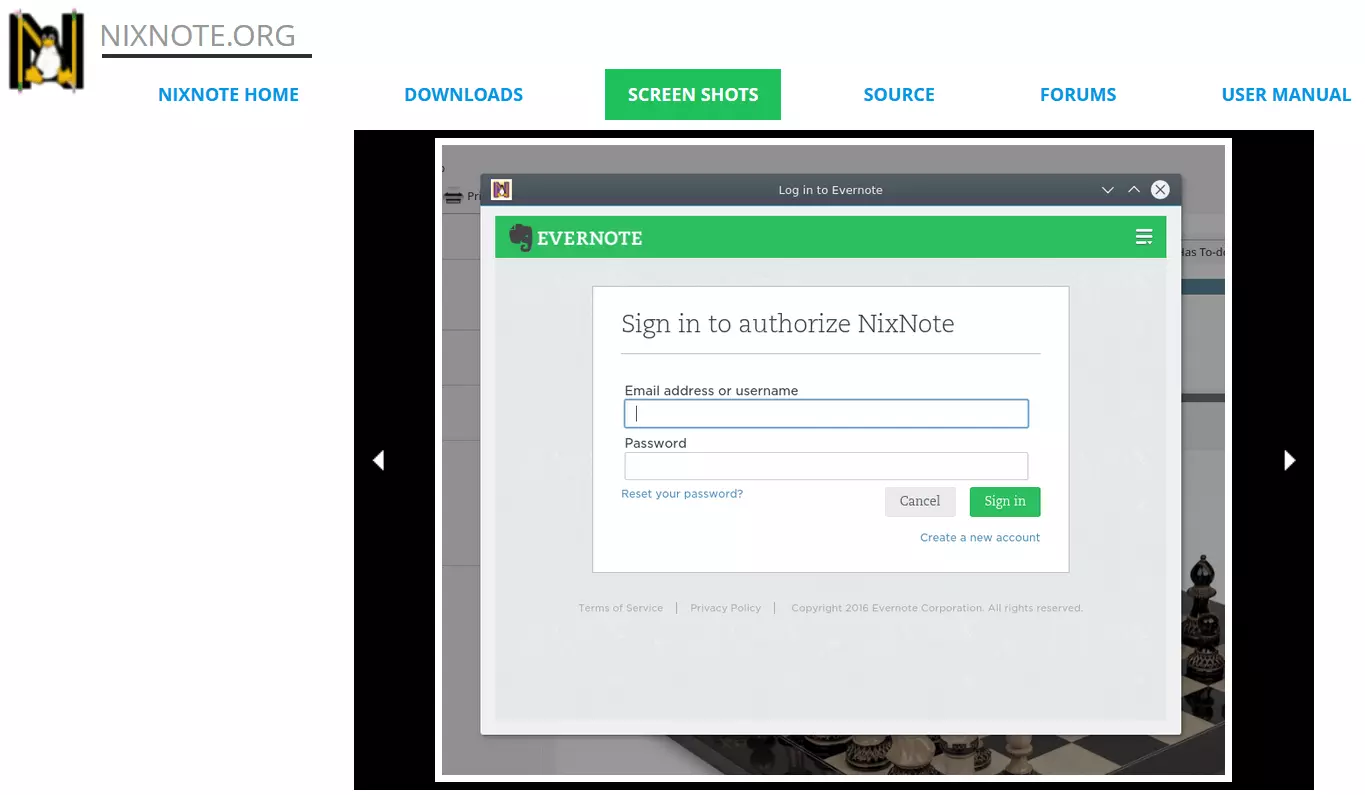
You do have the option to connect your own NixNote database with the original Evernote. This is particularly interesting for those who work mainly with Evernote and use NixNote for Linux systems. Other admirable features of NixNote’s include the reminder and e-mail functions. In the forum you will find a number of tips and tricks as well as assistance.
Disadvantages: As similar as NixNote and Evernote are, there are still some differences. One of the most obvious of these is the limited functionality. While Evernote lets you share and comment on social media, add a passcode lock to apps, or search inserted images for text, NixNote does not. The popular freehand drawing function is only available with the original version. While the Evernote client is reliable overall, synchronization errors do sometimes occur. Additionally, NixNote is only available in English.
| Advantages | Disadvantages | |
|---|---|---|
| ✓ Free of charge | ✗ Fewer functions and features than Evernote | |
| ✓ Compatible with Linux and Windows | ✗ Freehand drawing is not available | |
| ✓ Can by synchronized with Evernote | ✗ Occasional synchronization errors | |
| ✓ Integrated search function (search through notes using tags) | ✗ PDF files cannot be improved or commented on | |
| ✓ Multimedia: photos, spreadsheets, PDF and Office files, audio and voice messages | ✗ Only available in English | |
| ✓ Reminders | ||
| ✓ E-Mail function |
Google Docs: start collaborative projects
Whether it’s presentations, organizations, or research purposes, you can use Google Docs to work with several people at the same time on one project. The free, web-based online service offers a variety of interesting features which help you save time. Here, we will explain what makes this Evernote alternative so special.
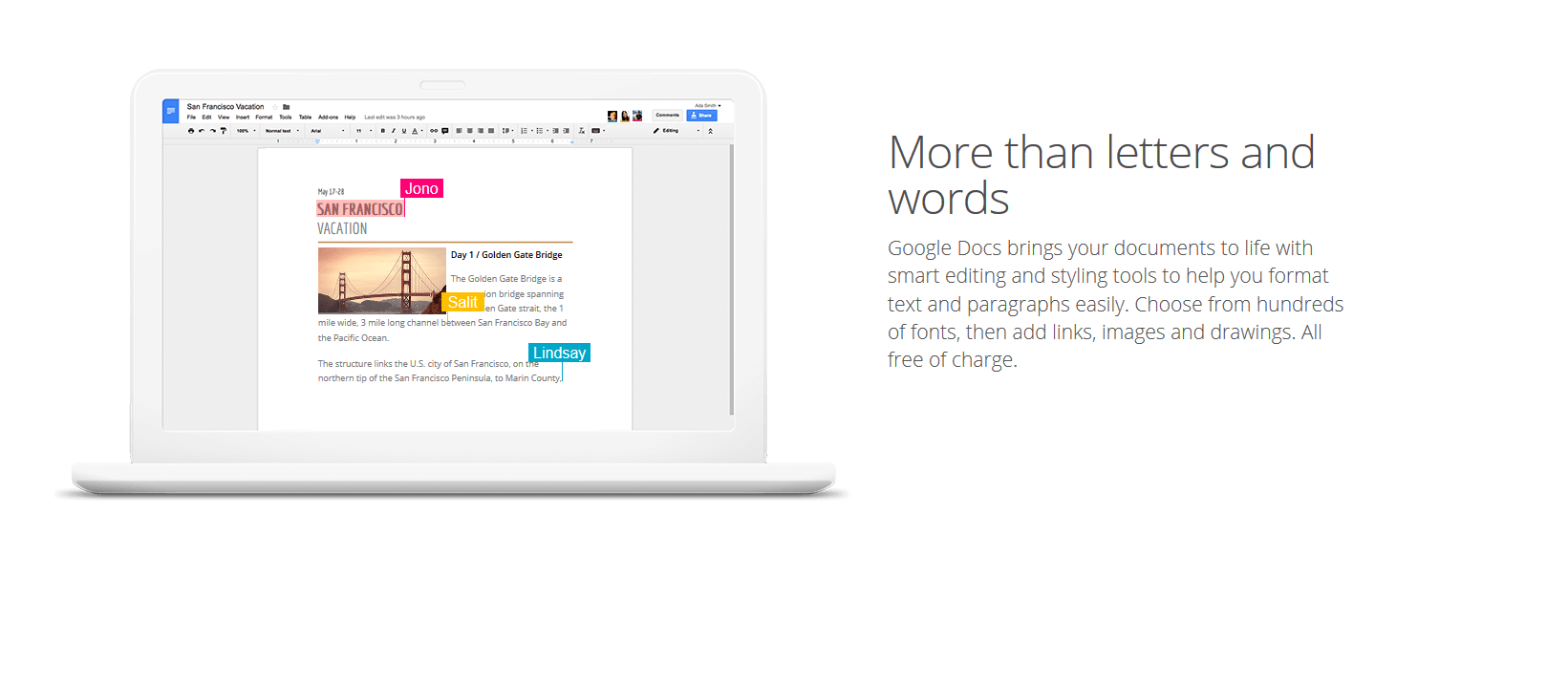
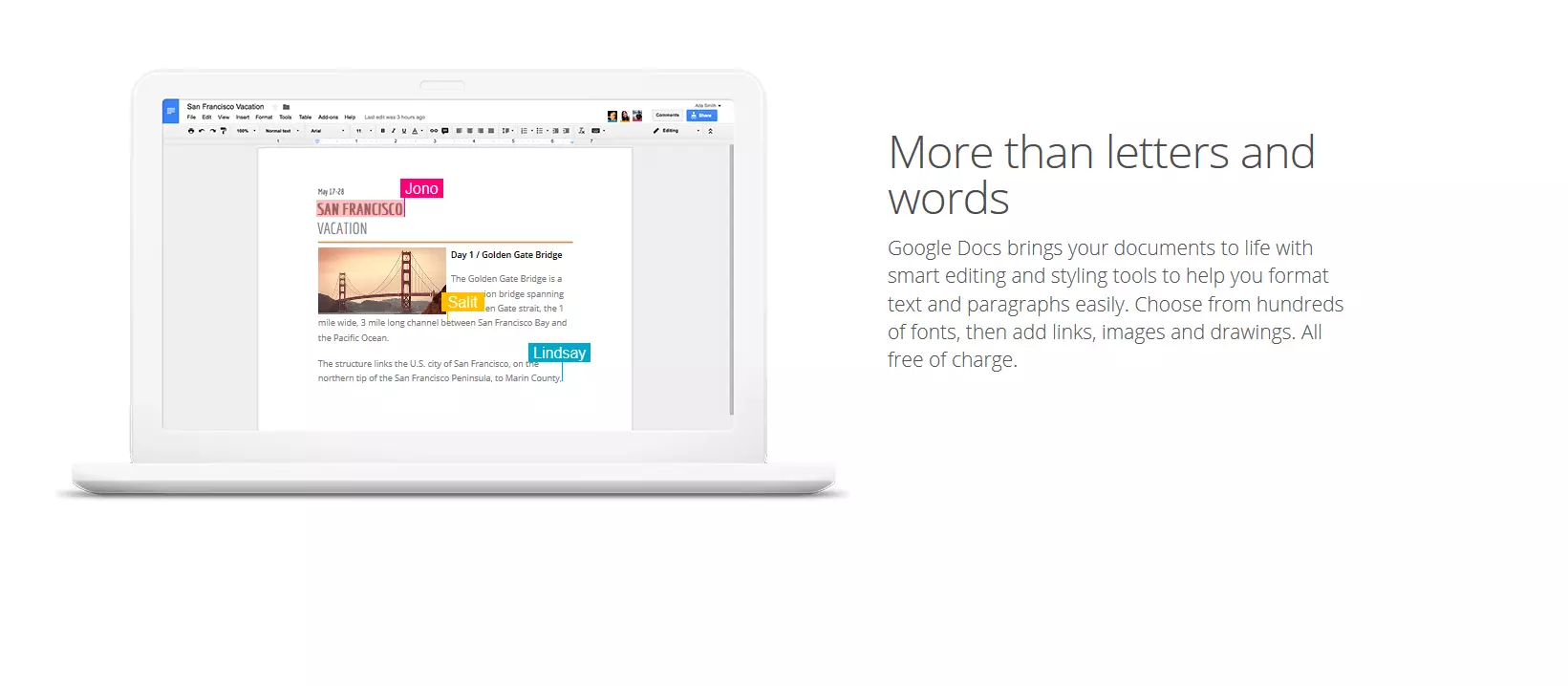
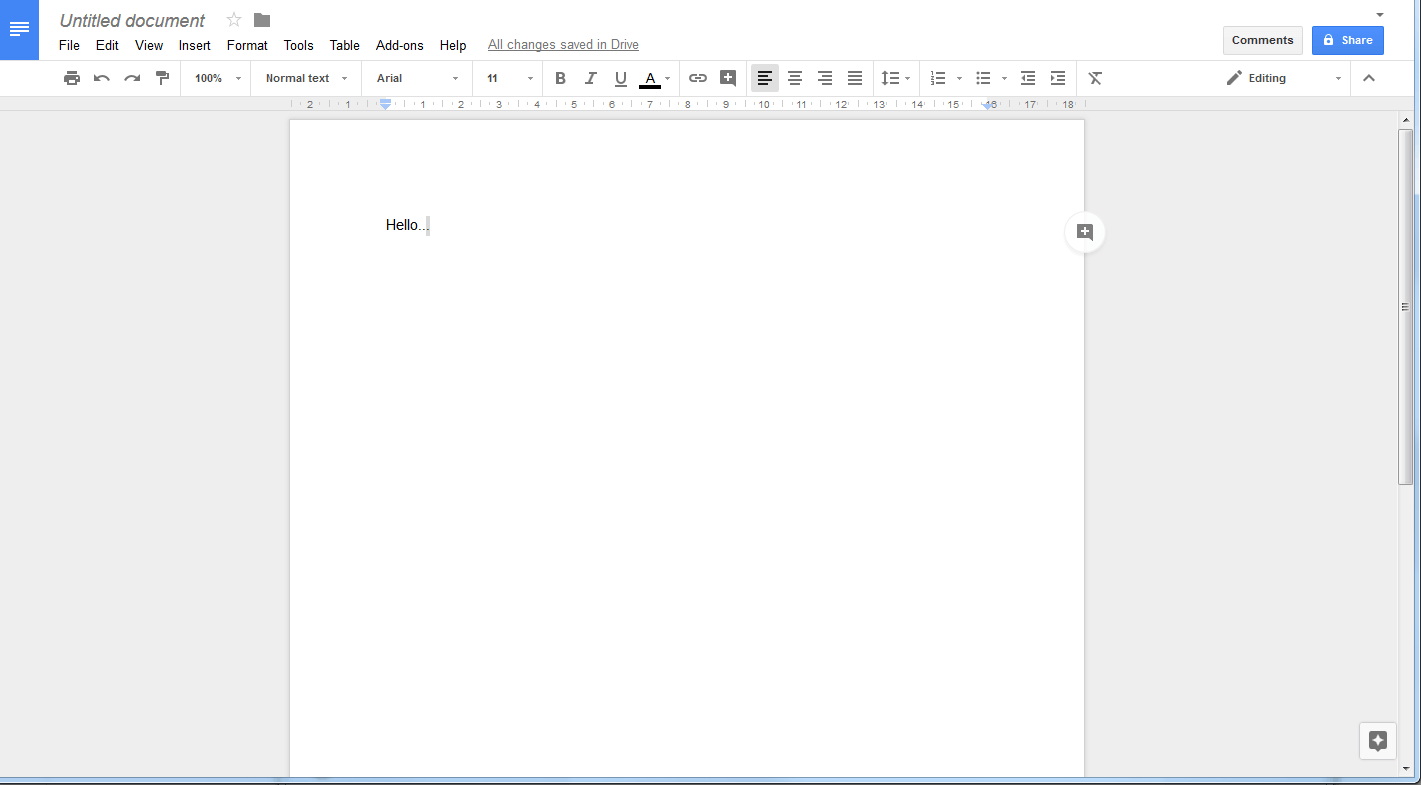
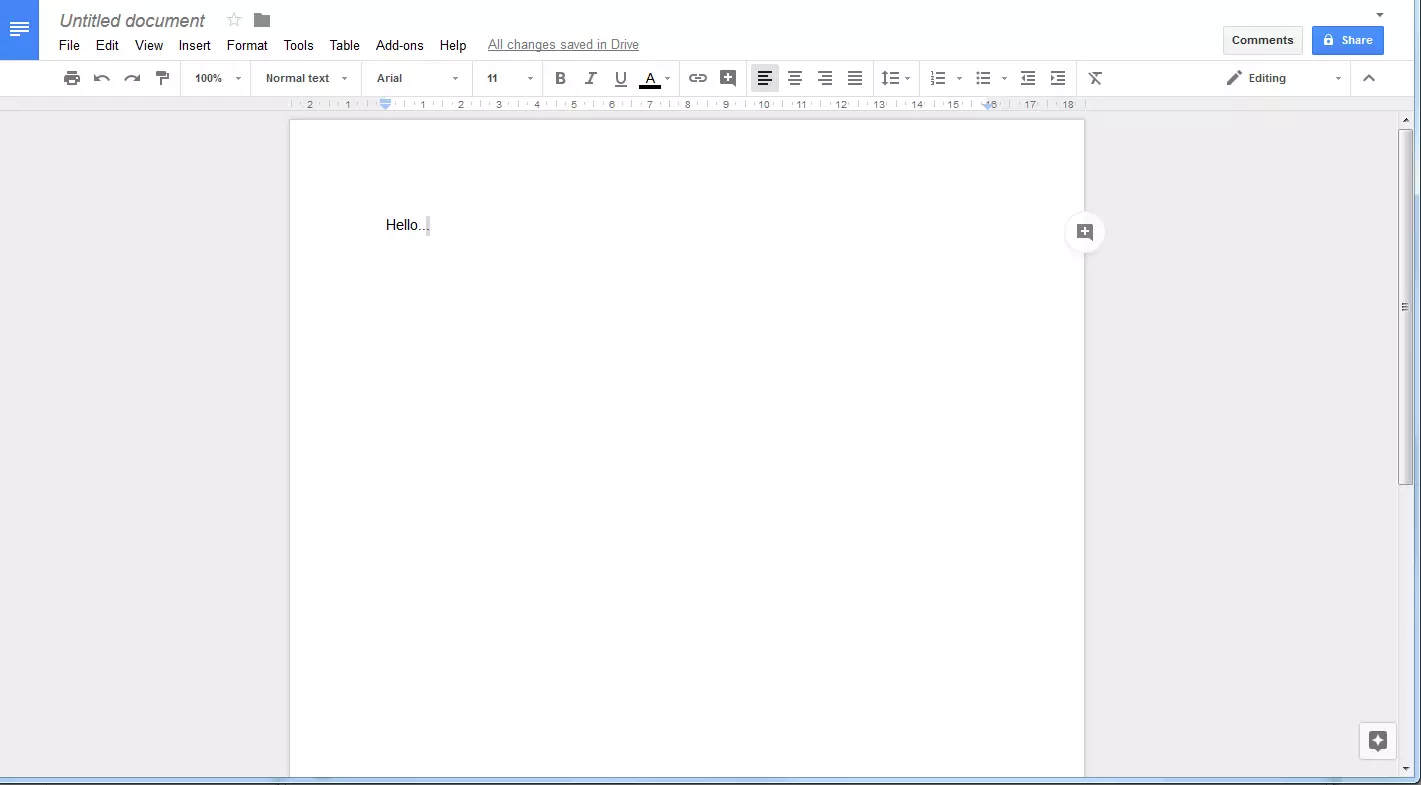
What immediately stands out: Google Docs offers a comprehensive text editing tool. There are various tools available, which are recognizable from Word. From the huge variety of font sizes and styles, through different layout options to an extensive color palette, everything is there. You can then download the text document as a Word, OpenOffice, RTF, PDF, HTML, or ZIP file. In terms of multimedia, Google Docs is also versatile: In addition to text documents, you can also insert tables, pictures, drawings, as well as video and audio files. All changes are automatically saved and can be viewed in the history at any time (sorted by date).
With Google Docs, multiple people can work on one document at a time and communicate with each other through comments. The only requirement is a Google account.
But that’s not all! Google Docs offers a number of interesting tools and features that are way ahead of other digital notebooks. The voice function is also especially useful, and allows you to create and edit your text by voice input. All you need to do is to speak the text into the computer microphone and the text will appear on your screen immediately. This feature will work with almost all languages and saves the user a lot of time. Voice commands, like “select paragraph” or “go to the end of the line” however, only work in English.
Make sure that your microphone is enabled during voice input. This feature can only be used with Chrome.
Another useful tool is integrated web research. Click on the “Explore” tool and you can begin searching through the internet directly through Google Docs. The information you are looking for is filtered for you, and will appear in the right-hand column of your document with a short description and a reference to the source. For further information, you will be redirected to the corresponding website after just one click. In addition, you have the opportunity to search directly for bibliographies, pictures, or quotations.
Google Docs is compatible with Windows, Android, macOS, and iOS. Synchronization between devices works by means of the in-house cloud Google Drive. This will provide you with 15GB of storage space available for free. However, to use Google Docs, you’ll need a Google Account.
This video will illustrate how Google Docs works:
 To display this video, third-party cookies are required. You can access and change your cookie settings here.
Disadvantages: Google Docs, as well as other online office applications, have a big drawback because they only work with an internet connection. The voice input feature is only available in the Chrome browser. In addition, the voice input it not always error-free, so it may take several attempts. Overall, Google docs is more suitable for larger projects than for quick notes.
| Advantages | Disadvantages | |
|---|---|---|
| ✓ Free of charge; available in different languages | ✗ Online office application | |
| ✓ Clear, relatively simple operation | ✗ Not suitable for quick note-taking | |
| ✓ Group collaboration is possible | ✗ Voice input feature is only possible in the Chrome browser | |
| ✓ Comment function | ✗ Voice commands are only possible in English | |
| ✓ Voice input function | ||
| ✓ Integrated web search | ||
| ✓ History recorded |
Stickies: digital stickynotes as reminders
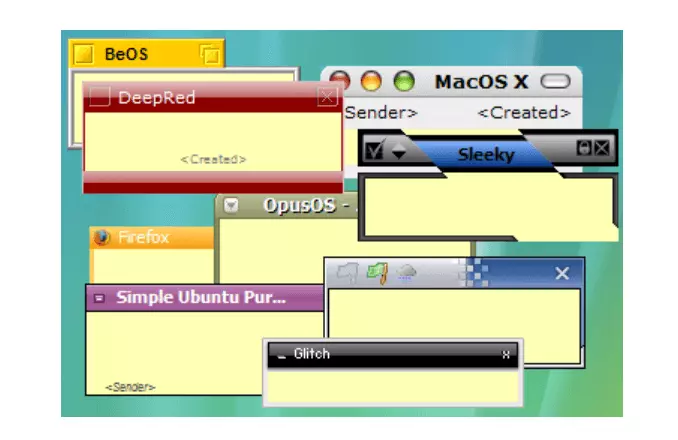
If you need to be reminded about appointments or important to-do’s, then Zhorn Software Stickies can help. With Stickies, you can create digital sticky notes that can be attached directly to your desktop, like a post-it. Turn your PC into a whiteboard and have your notes displayed on the right hand of the screen after you start. This helps keep track of all your appointments or tasks, and makes Stickies an innovative alternative to Evernote!
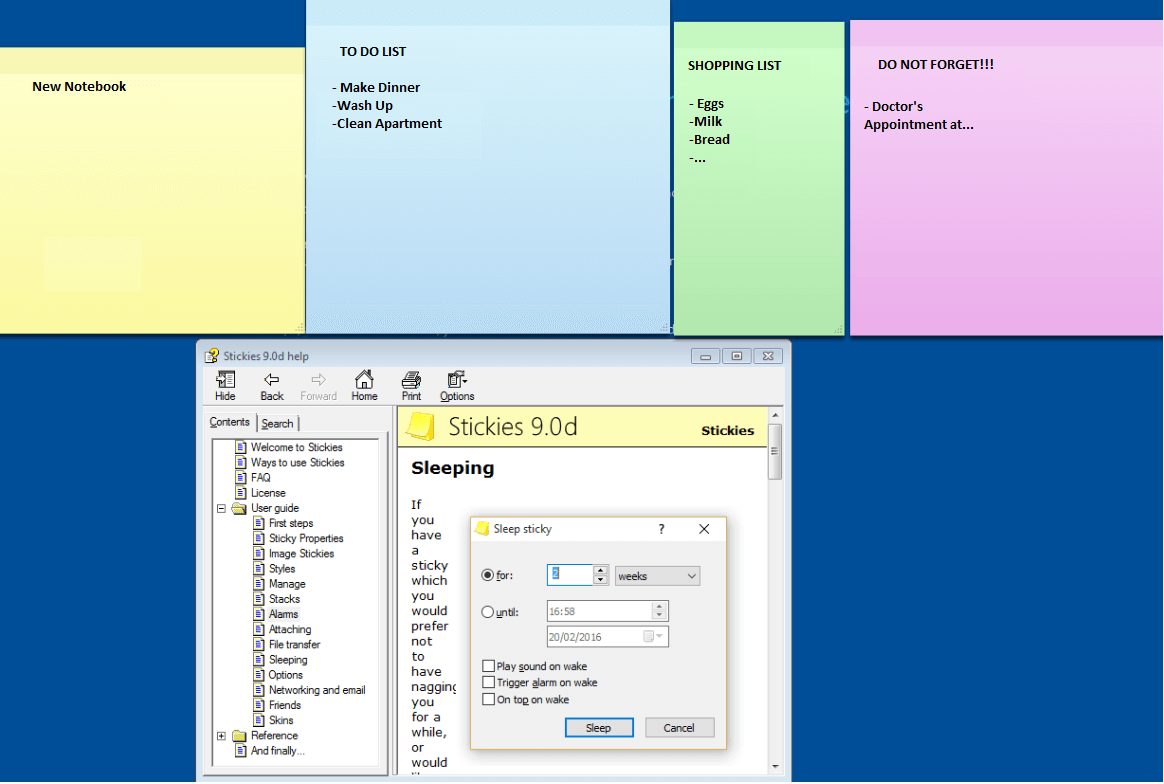
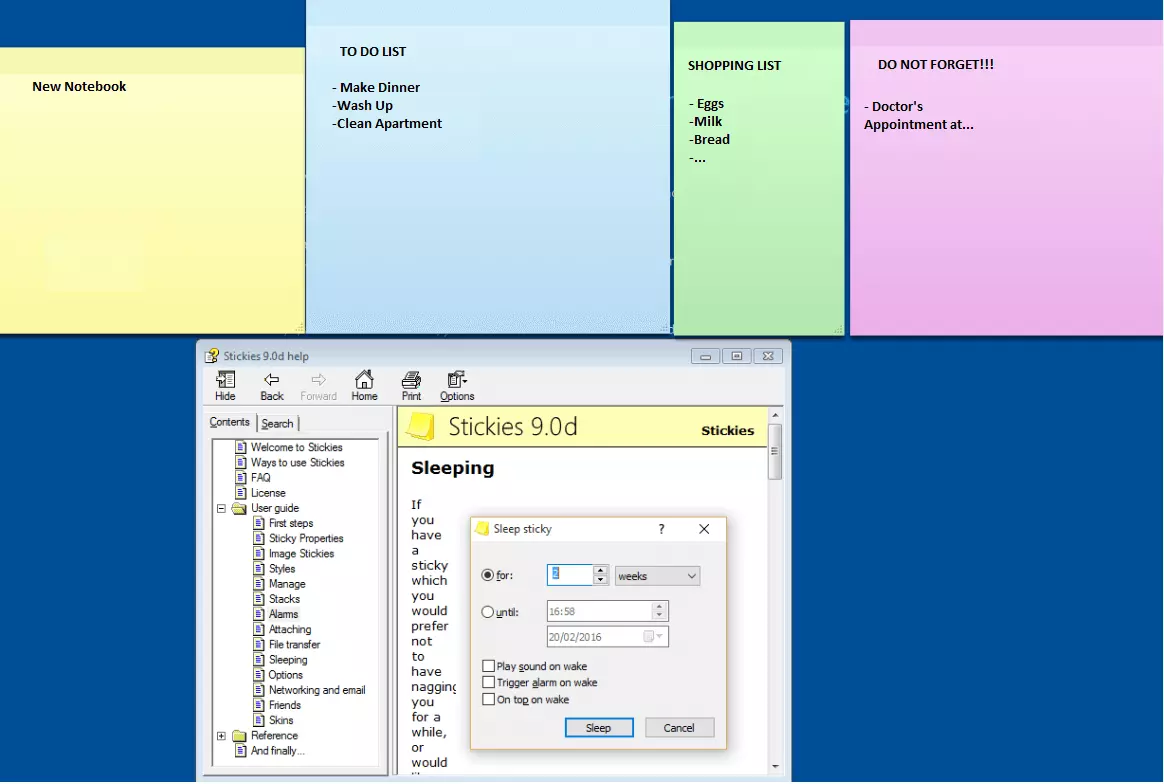
However, Stickies has a lot more to offer than classic sticky notes. The reminder function draws your attention to particularly important notes using a small audio alert. Additionally, the software offers the option of putting individual notes in the “sleep mode” for a certain time, thereby making them invisible. If you only require notes for a specific application (like your e-mail inbox), you can link them together. If you do this, the virtual sticky notes only become visible when you start the corresponding program.
Other interesting features include Scoop (search function using hashtags) or Stickies Stamper (countdown timer). More information can be found here.
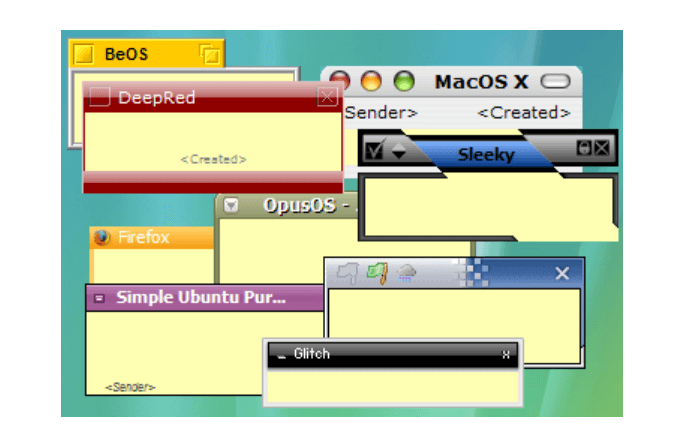
Using this program can be quite challenging. You will have to go through the context menu every time you want to create a new note, which you can access by right-clicking the mouse. Then you select the color, font or font size, and set the reminder to sleep mode. All these settings can be changed individually through the menu. An attachable toolbar, like those found in other notebooks or Microsoft Word, does not feature here.
When it comes to multimedia, Stickies’ options are also somewhat limited. Stickies is mainly designed for creating quick notes in text format, which can be quickly removed like classic sticky notes. Therefore, extensive file attachments are unusual and sometimes cumbersome to create. However, at the expense of your PC memory, you can incorporate pictures, video, or sound recordings in your notes. It is also possible to forward your notes by e-mail. Disadvantages: Even if there are benefits to digital sticky notes thanks to their simple structure, the functions are not nearly as extensive as Evernote or OneNote. Operating the program can sometimes be a little awkward, as previously mentioned. Additionally, you cannot create individual folders: Stickies creates individual, virtual notes, which are useful as quick, entertaining reminders. Another disadvantage of this program is that the Stickies version of Zhorn software is only compatible with Windows XP, Vista, Windows 7, and Windows 8.
There are other products out there that offer the post-it format for different operating systems: for example, pin’em up or Gnome Tomboy. Google also has its own version of a pinboard app called Google Keep.
| Advantages | Disadvantages | |
|---|---|---|
| ✓ Free; available in multiple languages | ✗ Fewer functions than OneNote or EverNote | |
| ✓ Other versions of Stickies from other vendors are available for all platforms (different manufacturers to choose from) | ✗ More suitable for short, spontaneous notes | |
| ✓ Reminder function | ✗ Operation can be cumbersome | |
| ✓ Sleep mode | ✗ No individual folders | |
| ✓ Mailfunktion | ✗ No cloud system | |
| ✓ Additional tools available (e.g. hash-tag search function or Countdown timer) | ✗ Zhorn Software Stickies are only compatible with Windows | |
| ✓ Chic design (colored post-its) |
Proud: the digital organizer
Proud is a task manager that you can use to organize your entire daily schedule. The app coordinates all tasks for your day, week, or year. This helps you keep track of important dates. However, the app does much more than just create simple to-do lists: Proud lets you set your own personal goals and monitor your productivity or time management. This app would make a suitable Evernote alternative for any workaholic who craves organization.
Proud works seamlessly on all Apple devices, like the iPhone, iPad, MacBook, or Apple Watch.
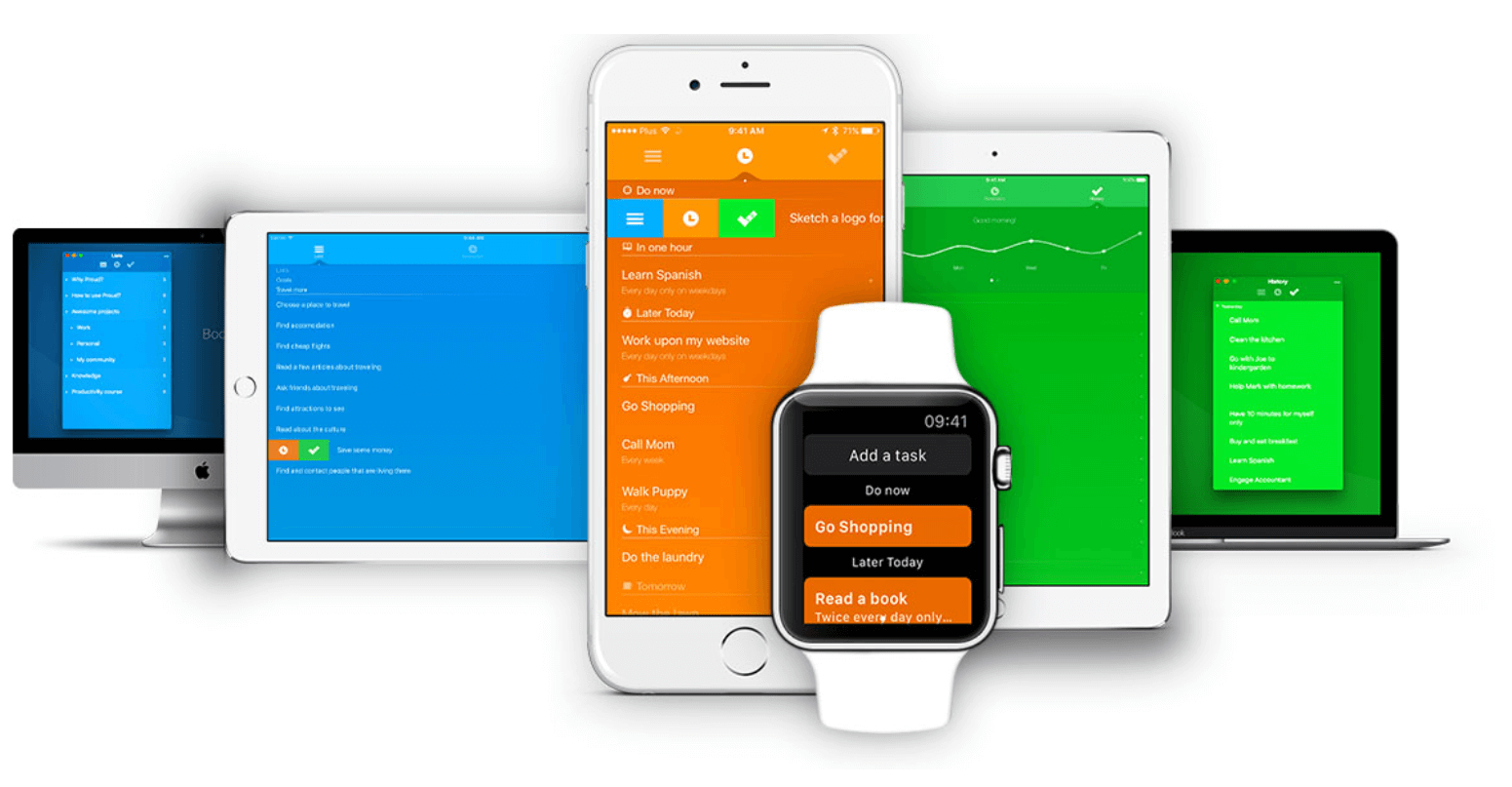
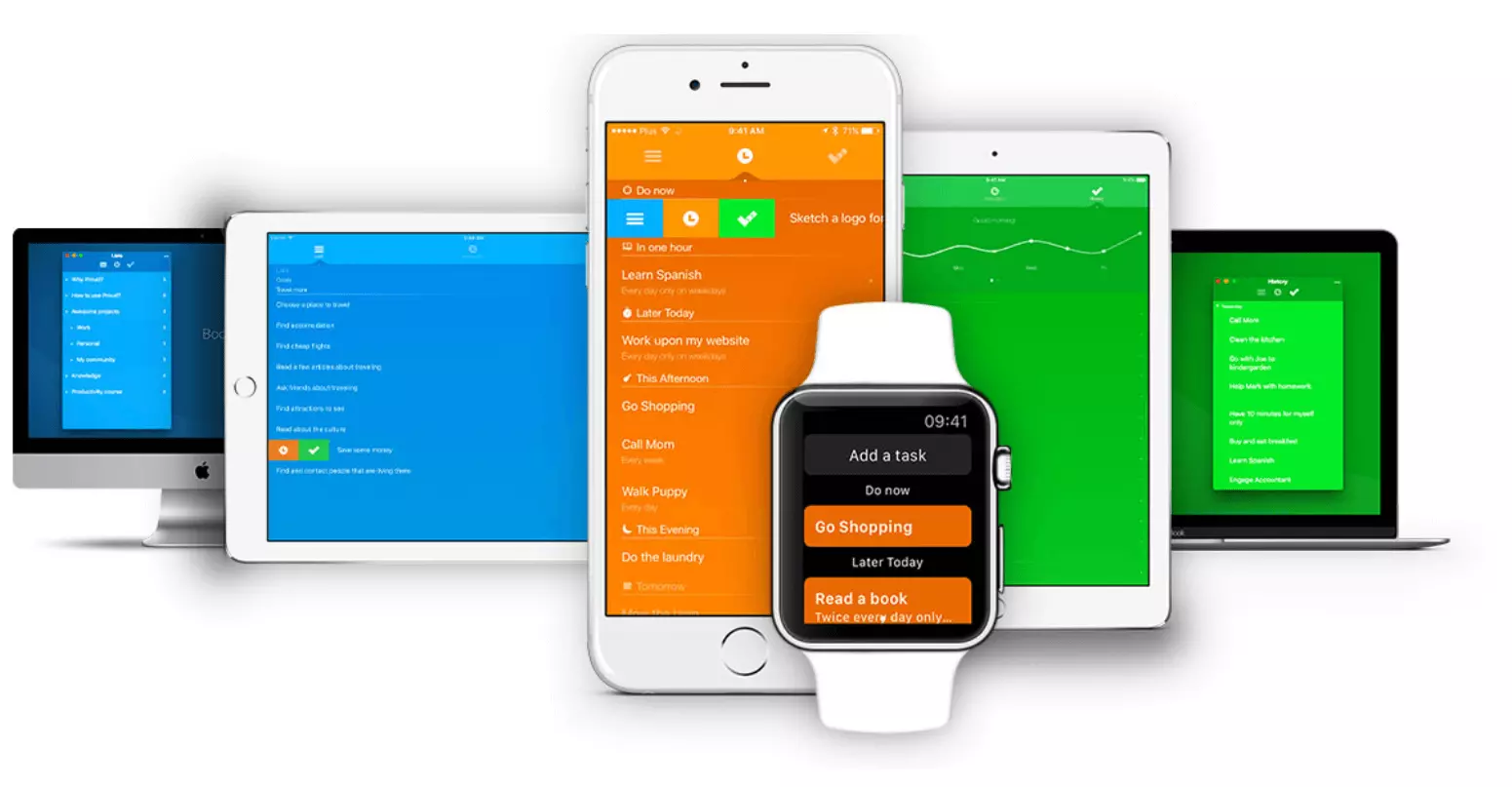
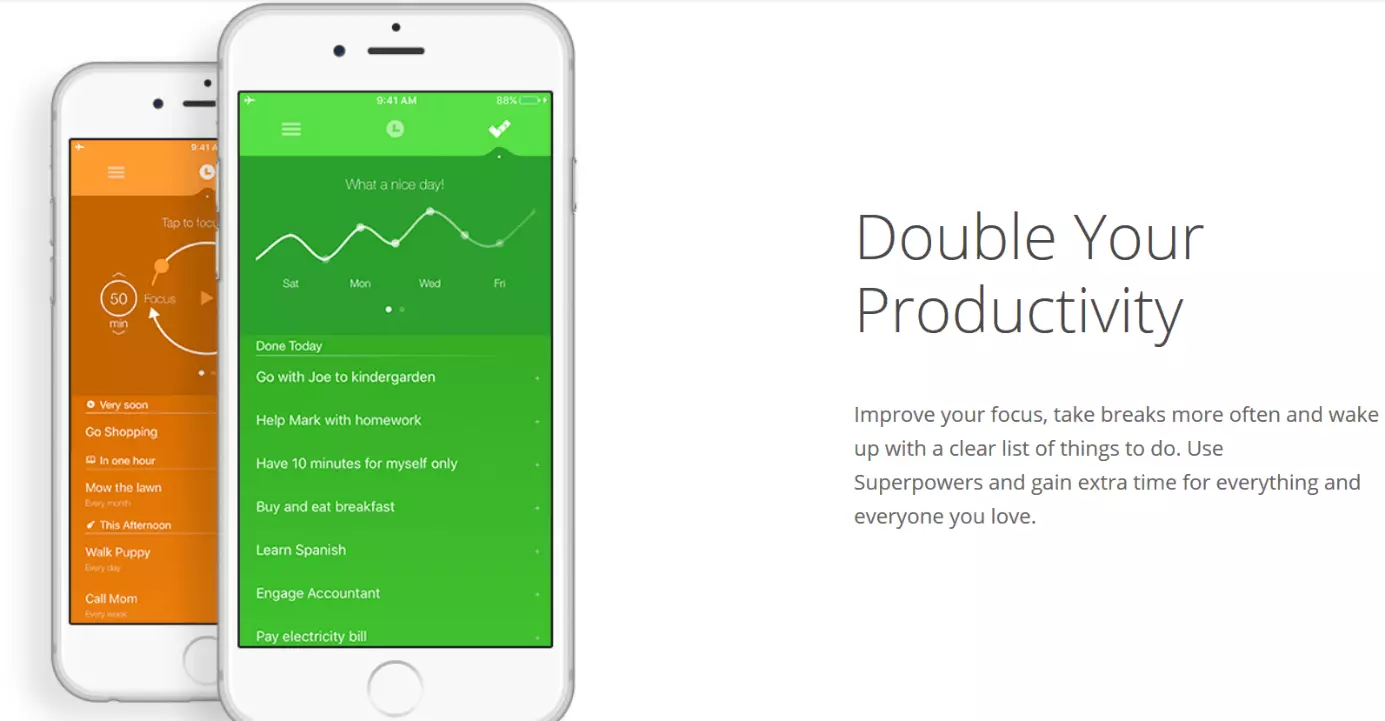
At first, Proud looks like an ordinary task manager. Your tasks are gathered up in to-do lists, which you can then easily manage. Operation is kept simple – there are three big categories: task lists, the timer, and completed tasks. All three areas are differentiated by color and each have a specific function.
As well as to-do lists, the app also allows you to take general notes to jot down your ideas.
First, create your tasks or notes and organize them into lists. You can create as many lists as you like and summarize them thematically. Next, you set the exact timescale for your tasks, with a deadline to complete them. You enter the date and either specific or vague time goals, and can include periods for break times. The timer will remind you when your tasks should be finished and when it is time for a break. If you need more time for a task, you can expand the selected time span (superpower function).
If the tasks become too stressful, the Destress function is at your side. Get out of your work craze and head to the cinema or go for a jog to clear your mind. While you are doing this, Proud will remain in standby mode.
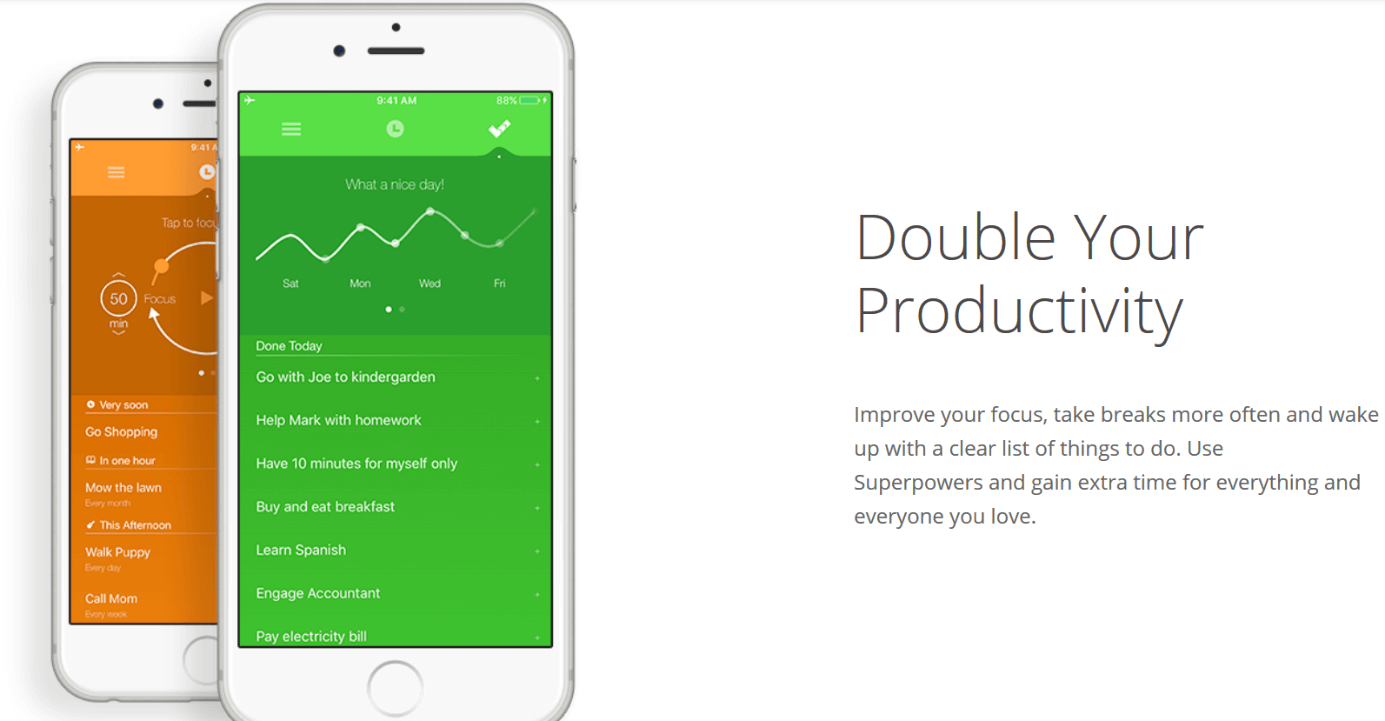
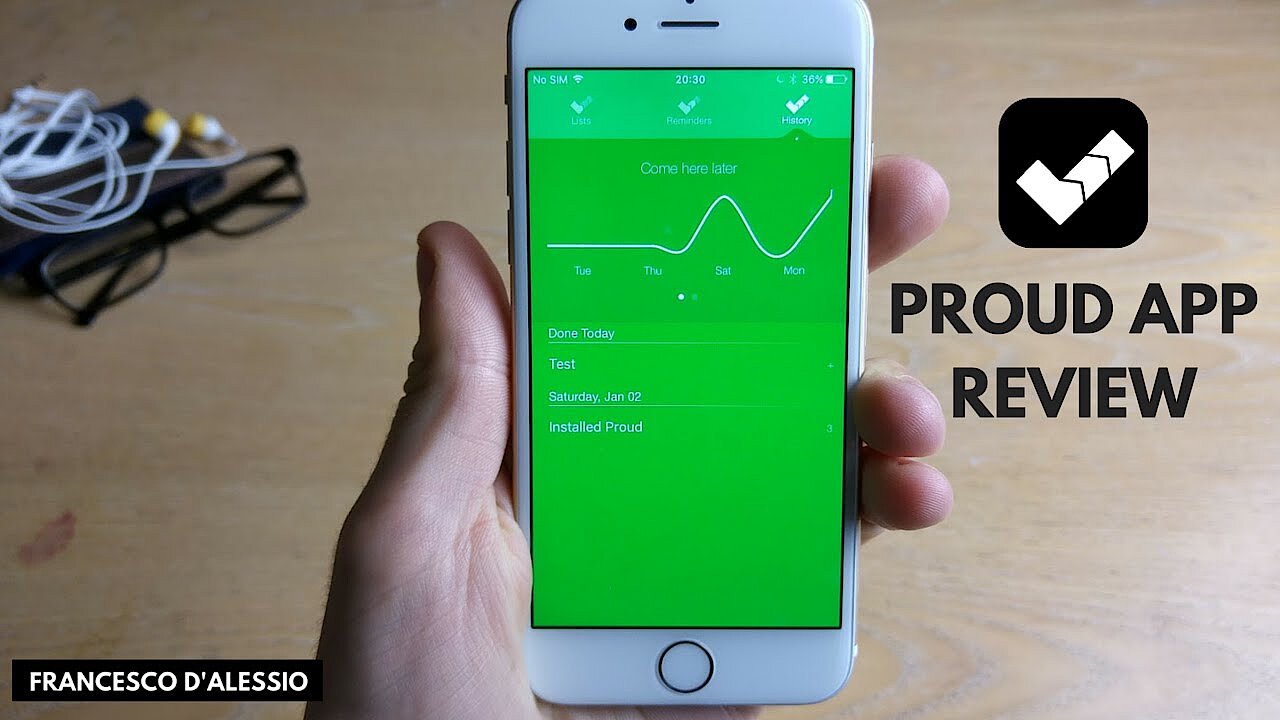
Once your task is complete, it will be moved to the completed task area, where you can find a history of all the entries you’ve ever made (“travel back in time”). At the same time, a chart is created to show you how productive you’ve been in a given time. The app uses animations and sounds to try to motivate and reward you for completing tasks. Other interesting features include the share function for social media and password locking. Proud is available in several languages.
More information about Proud can be found in this video:
 To display this video, third-party cookies are required. You can access and change your cookie settings here.
Disadvantages: Proud is an extremely strong option for the organizationally-inclined, however it comes at a price. For every Apple device you own, you have to buy the app separately, and it is twice as expensive for Mac users as for iPhone or iPad users. Additionally, Proud is less well equipped in terms of multimedia than Evernote or OneNote. Overall, the app is intended more as an organizer than an actual notebook.
| Advantages | Disadvantages | |
|---|---|---|
| ✓ Synchronization with all Apple devices is possible | ✗ Fee paying; only available for Apple users | |
| ✓ Available in multiple languages | ✗ Fewer multimedia features than Evernote or OneNote | |
| ✓ Clarity; simple and fast operation | ✗ More suitable for tasks and spontaneous notes, less so as a comprehensive notebook | |
| ✓ Simple structure: task lists, timers, completed tasks | ||
| ✓ Space for individual settings | ||
| ✓ Memory function, date reminder function | ||
| ✓ Destress function | ||
| ✓ Share lists function | ||
| ✓ Password lock | ||
| ✓ Back history, including diagrams | ||
| ✓ Animations and sounds | ||
| ✓ Chic design (various background motifs available) |
Notebook: have your notes available everywhere
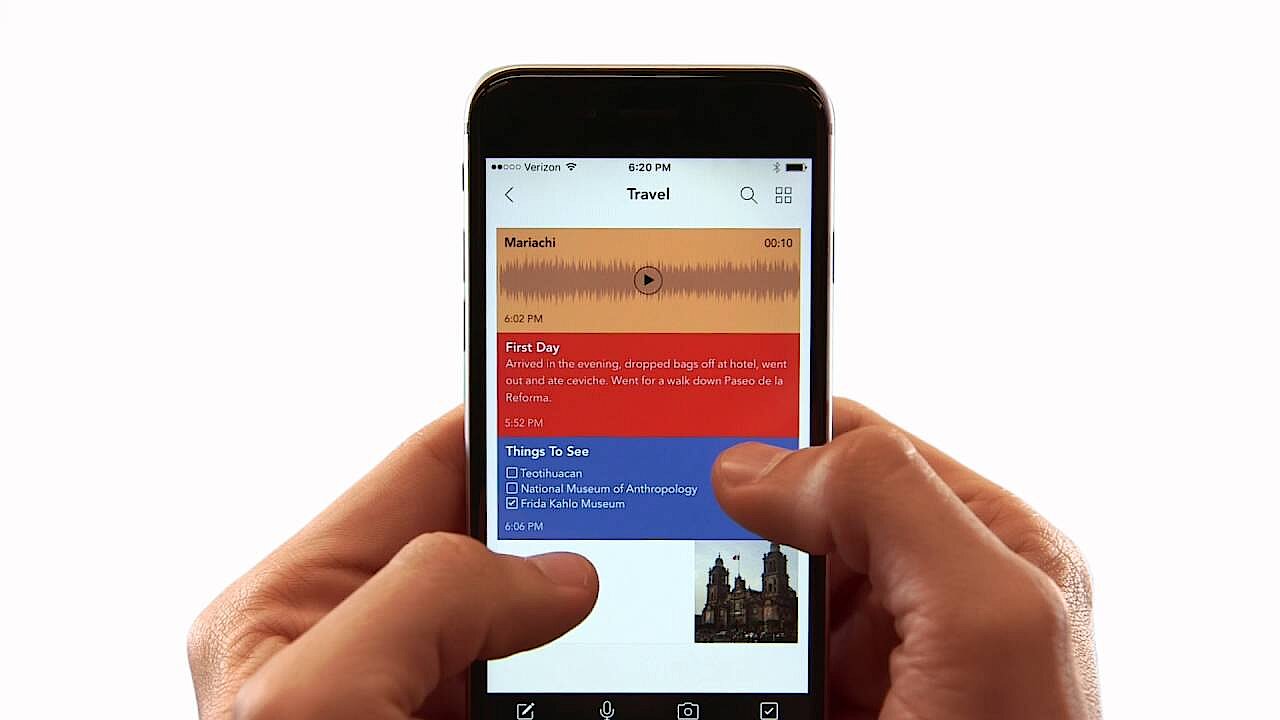
What Proud lacks, Notebook offers: Write or record your notes, create checklists, add pictures to your notebook, video – or audio recordings – with Zoho’s notebook, you can capture your notes and thoughts in a variety of different ways. In addition, the app is completely free or charge and ad-free!
Notebook is available for Windows, Android, macOS, and iOS, and can be synchronized with all devices.
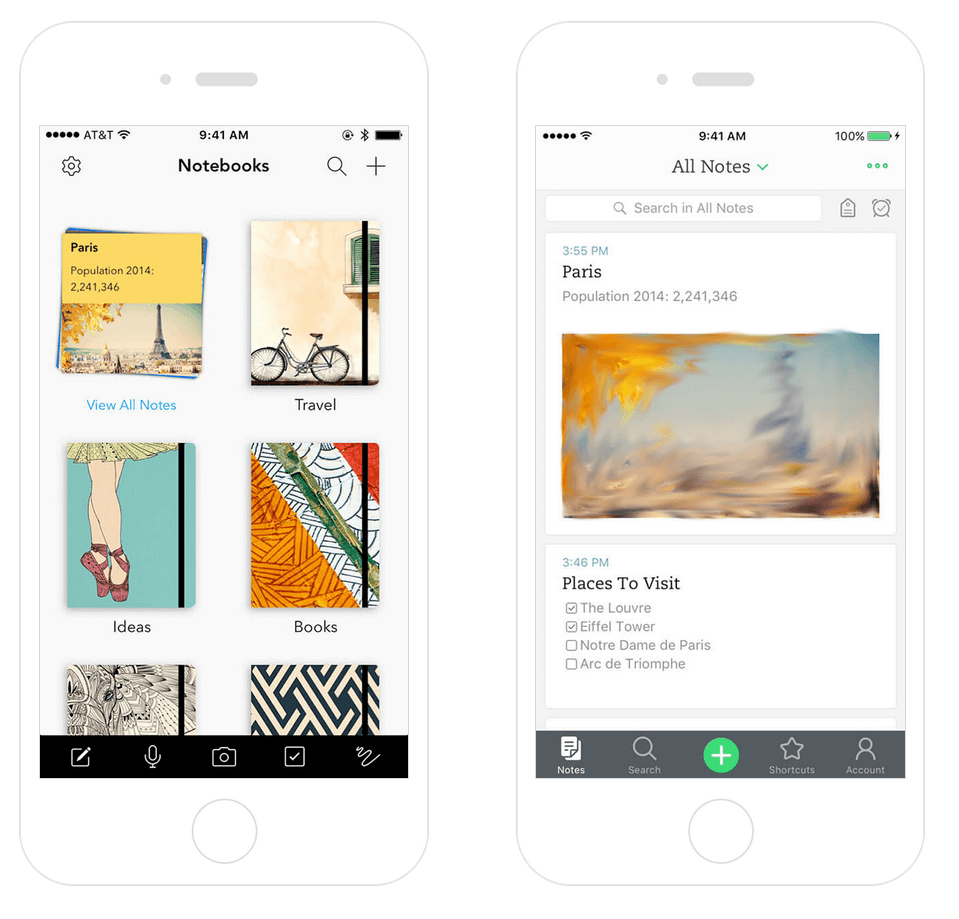
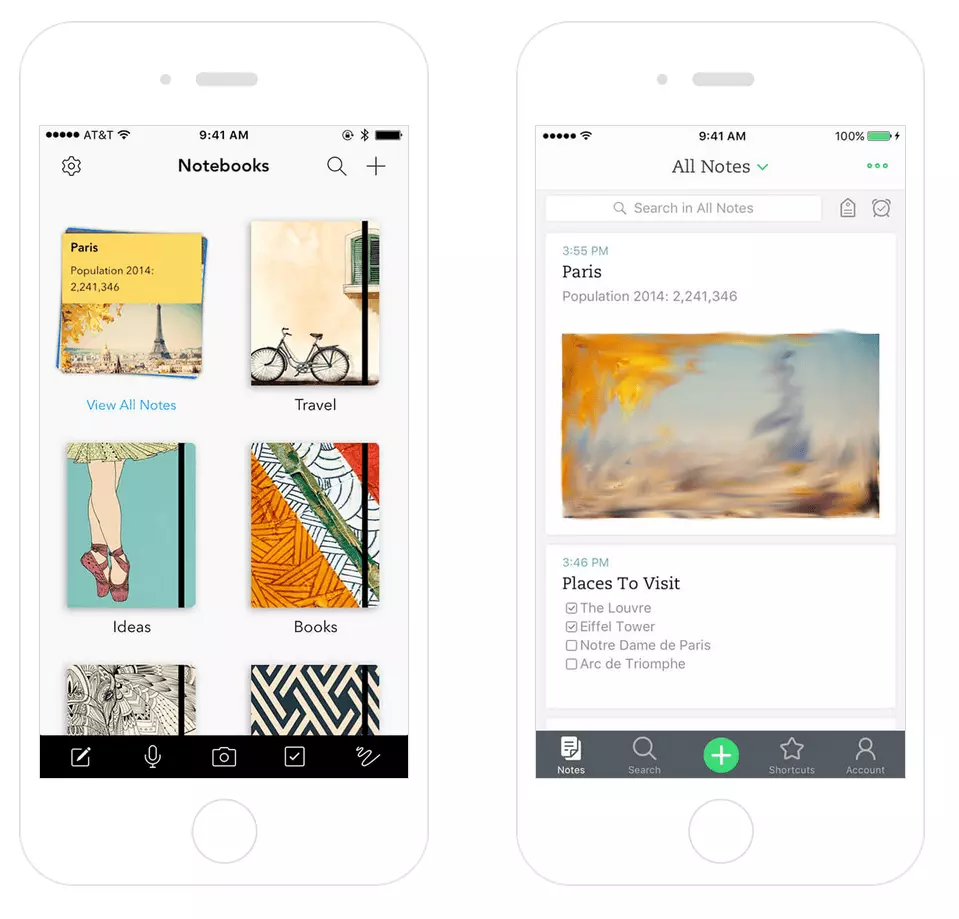
Notebook’s strongest features are structure and clarity. Like Evernote and Onenote, you can also organize your notebooks into books, which in turn can then be allocated to different topics. Individual notes, as well as entire groups, can be moved around as much as you like. The integrated search function helps you find your notes without a long search. In terms of multimedia, Notebook does well: write down your thoughts in textual form, create to-do lists to check off, or insert pictures, video or audio recordings. The drawing function is especially popular. It offers you a wide choice of colors, as well as different brushes. There are no limits to your creativity. You can also share your notes or entire notebooks directly by e-mail or social media. Working together will colleagues and friends is also still an option.
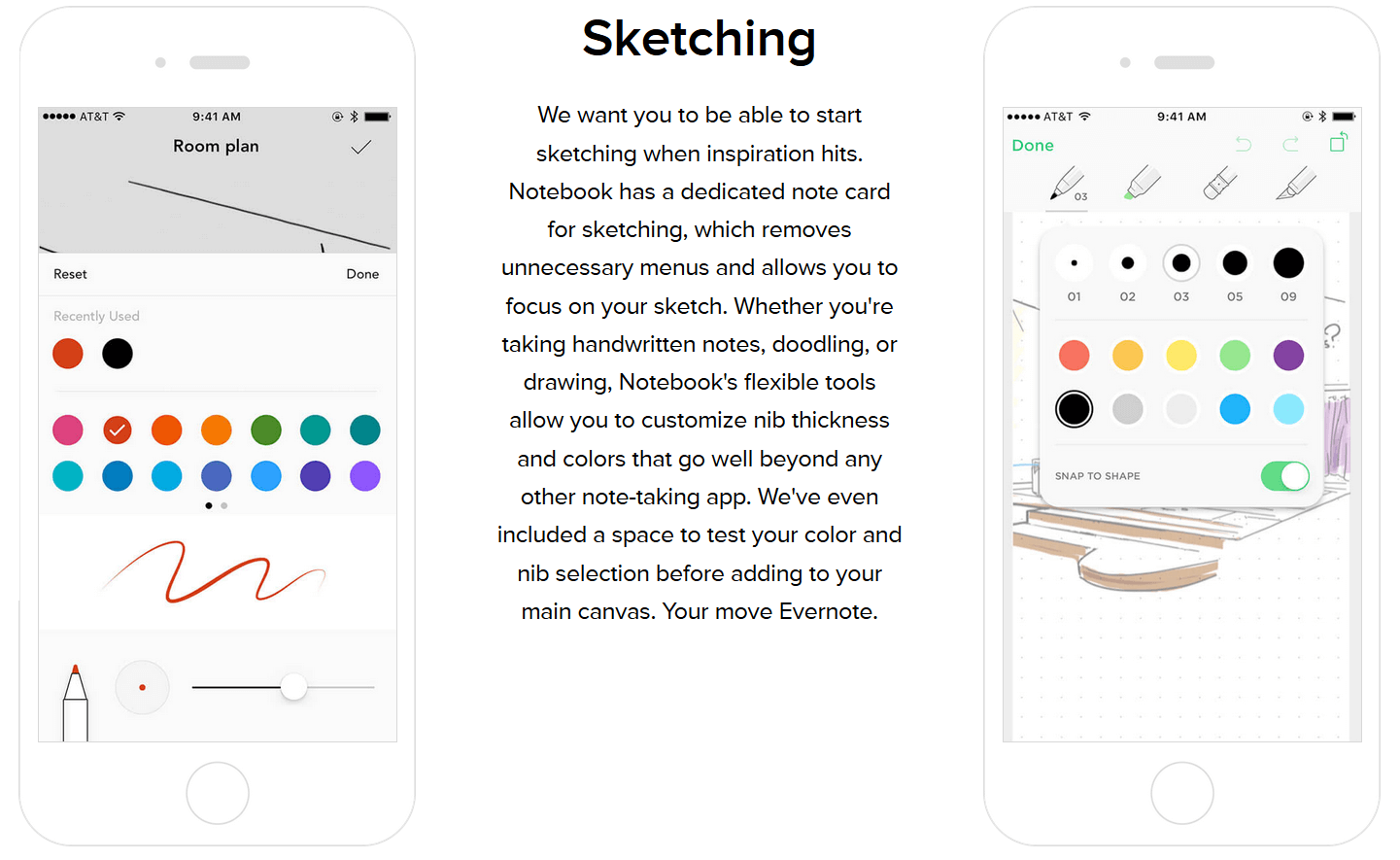
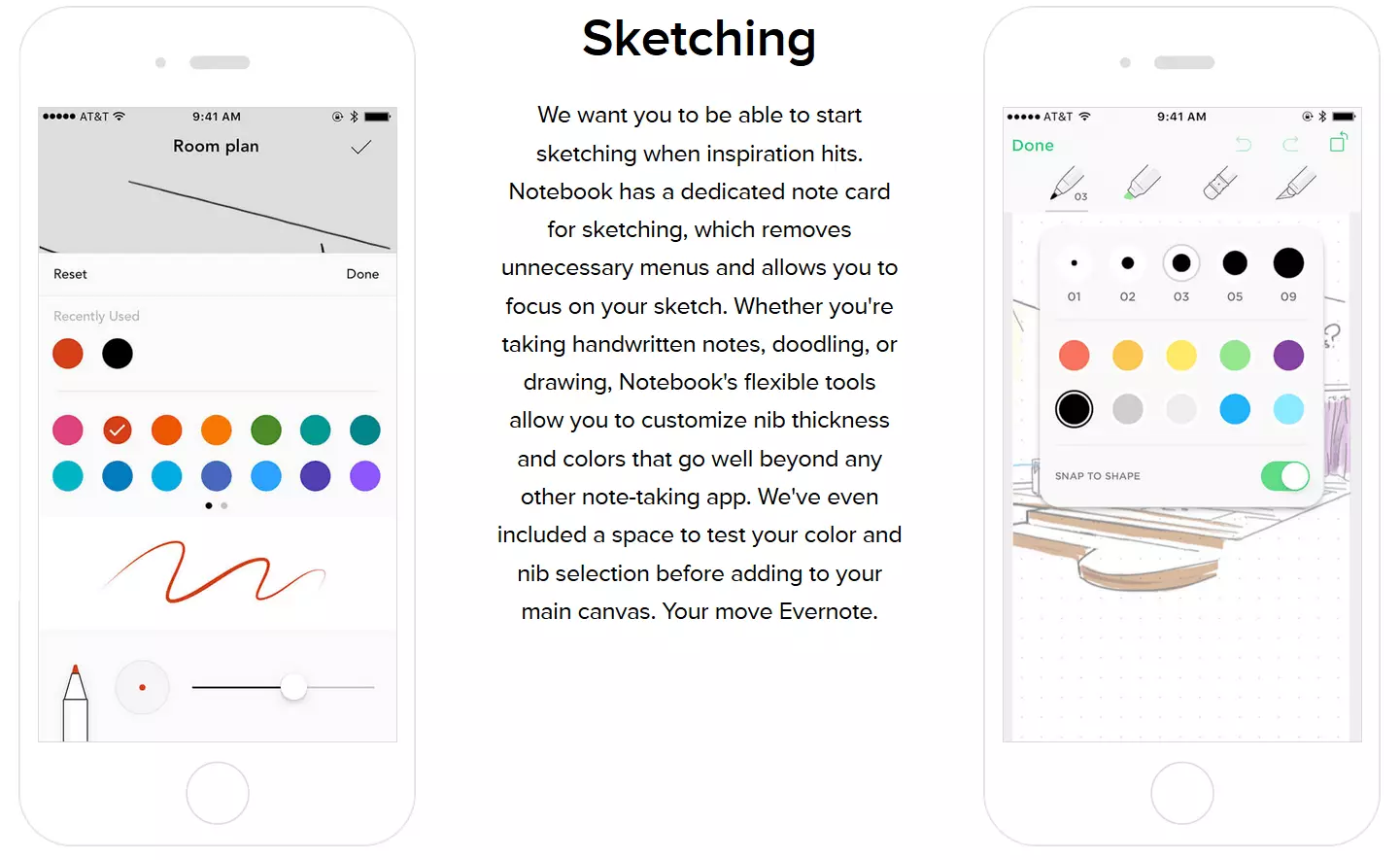
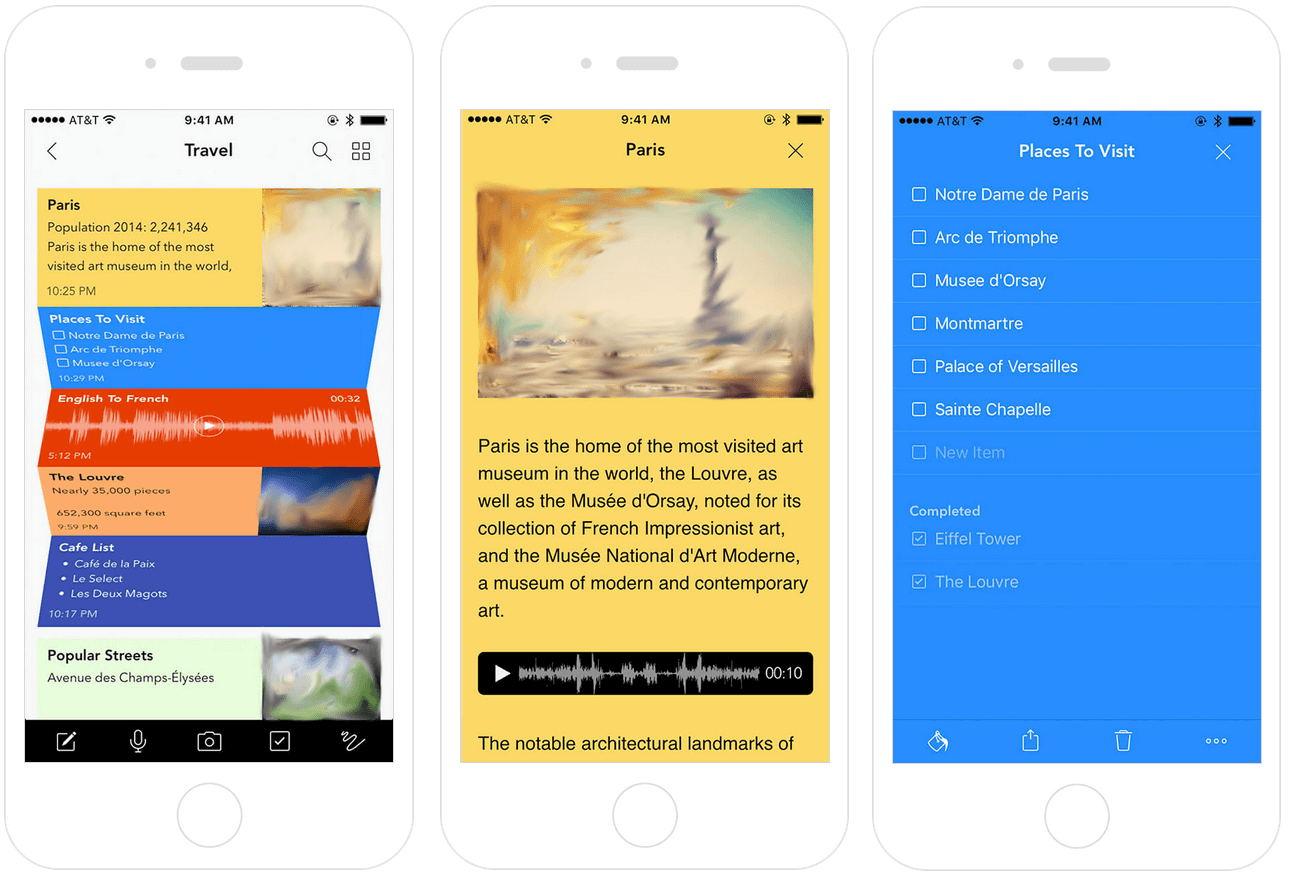
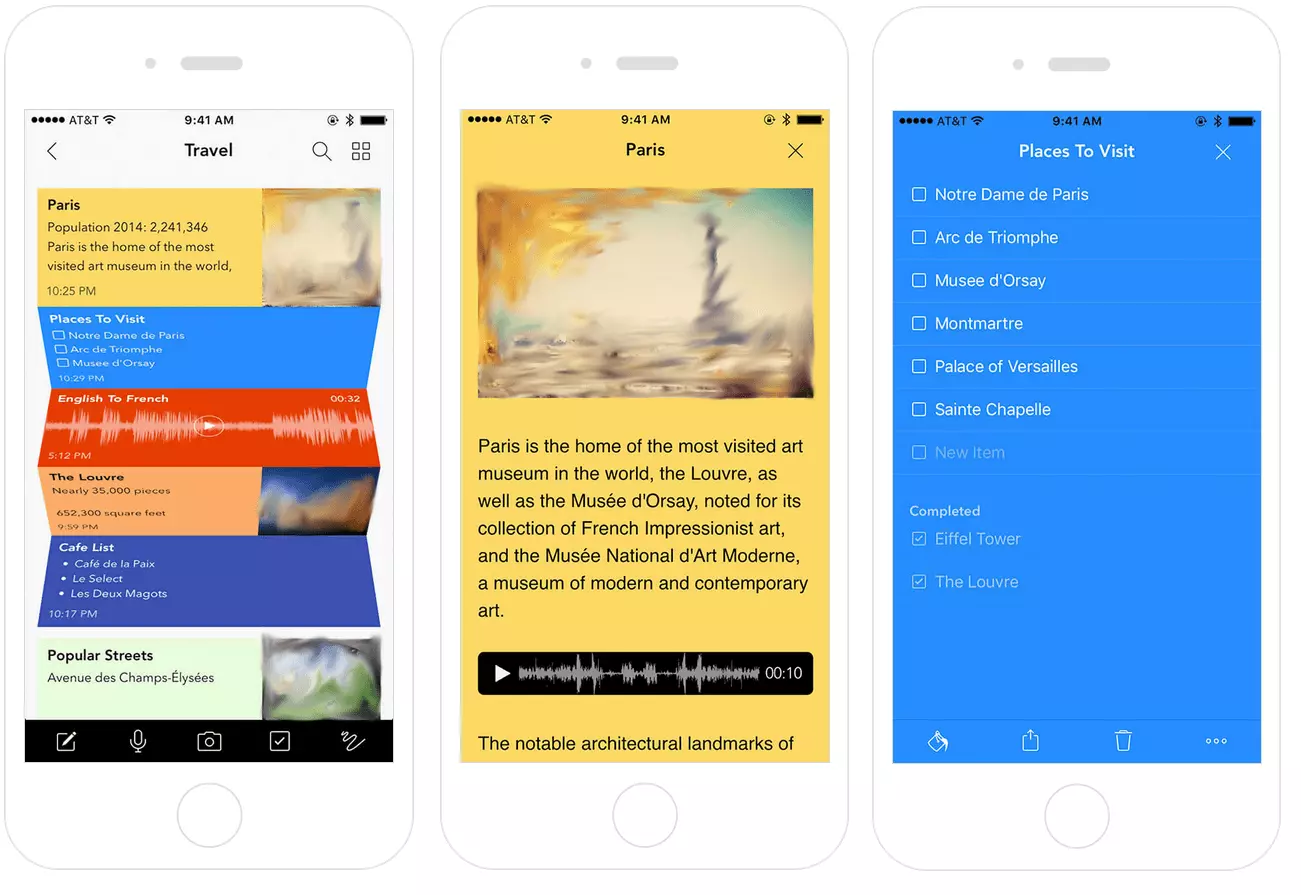
Another interesting feature is the Zoom Out function, which lets you put your notes in a stack. A password lock protects your notebooks from unauthorized access. Last but not least, the app also impresses with its eye-catching design.
Tips and tricks for using Notebook can be found in this video:
 To display this video, third-party cookies are required. You can access and change your cookie settings here.
Disadvantages: Although many notebook users are enthusiastic, the app has some weaknesses. These include the missing reminder function, occasional synchronization errors, the lack of a web application, and the fact that PDF documents cannot be edited or commented on.
| Advantages | Disadvantages | |
|---|---|---|
| ✓ Free, available in multiple languages | ✗ No memory function | |
| ✓ Clarity; easy to use | ✗ Occasional synchronization errors | |
| ✓ Multimedia: text form, drawings, video and audio recordings | ✗ PDF files cannot be edited or commented | |
| ✓ Zoom out feature (quick browsing) | ✗ No web application | |
| ✓ Group work is possible | ||
| ✓ Integrated search function | ||
| ✓ Share function (e-mail, social media) | ||
| ✓ Password protected | ||
| ✓ Available in multiple languages | ||
| ✓ Chic design |
Alternatives to Evernote: a comparison of their features and functions
| Features/functions | Evernote | OneNote | NixNote | Google Docs | Stickies | Proud | Zoho Notebook |
|---|---|---|---|---|---|---|---|
| Free vs. paid | Free and paid versions available | free | free | free | free | free | free |
| Compatible with Windows, Linux, macOS, Android, iOs | Synchronization on all devices with the premium version | Mainly compatible with Windows | Linux and Windows | Not compatible with Linux | Windows; Other manufacturers to choose from | macOS, iOS | Windows, Android, macOS, iOS |
| Free version includes all the features | - | ✓ | ✓ | ✓ | ✓ | - | ✓ |
| Cloud storage | Free: 60 MB, Premium: 10 GB | OneDrive: 5 GB, Paid users: 1 TB | e.g. Dropbox: 2 GB | Google Drive: 15 GB | - | iCloud: 5 GB (free) | unlimited |
| Clarity and easy operation | ✓✓ | ✓✓✓ | ✓✓ | ✓✓✓ | ✓ | ✓✓✓ | ✓✓✓ |
| Wide range of text formatting tools | ✓✓ | ✓✓✓ | ✓✓ | ✓✓✓ | (✓) | (✓) | ✓ |
| Share content with other users | ✓ | ✓ | - | ✓ + comment function | - | ✓ | ✓ |
| E-mail Uploau | - | ✓ | ✓ | ✓ | ✓ | ✓ | ✓ |
| Save content from the web | ✓ | ✓ - Automatic source verification | ✓ | ✓ - Integrated web research | ✓ | ✓ | ✓ |
| Integrated search functions | ✓ | ✓ | ✓ | ✓ | - | - | ✓ |
| Multimedia features | ✓✓ | ✓✓ | ✓✓ | ✓✓✓ | (✓) | ✓ | ✓✓✓ |
| Edit and comment on documents | (✓ - Only in the Premium version) | - | - | ✓ | - | - | - |
| Additional tools (add-ins and add-ons) available for free | ✓ - e.g. MailButler | ✓ - e.g. OneNote Web Clipper | ✓ - e.g. Webcam Notes | ✓ - e.g. Lucidchart Diagrams | ✓ - e.g. Scoop | - | ✓ - e.g. Web Clipper |
More information about Evernote and other interesting Evernote alternatives can be found in this article.
Reviewer

Jeanna Raffa
With over 18 years of experience in online marketing, Jeanna Raffa possesses extensive expertise in digital marketing. Since 2020, her focus has been on providing practical information regarding email, office, and cloud storage solutions.