

How to encrypt and sign your emails with S/MIME

With S/MIME, emails can be encrypted so that only the intended recipient can read them. The recipient’s public key is used to encrypt the message, and the corresponding private key can decrypt it. S/MIME certificates can be easily imported into mail clients.
What is S/MIME?
In RFC 1847 from 1995, two security enhancements for the email standard MIME (Multipurpose Internet Mail Extension) were specified: the multipart/signed format for signing messages and the multipart/encrypted format for their encryption. Four years later, the IETF (Internet Engineering Task Force) released the MIME extension S/MIME—described in RFC 2633—a standard supporting the aforementioned signature format.
For encryption, the method uses its own solution application/pkcs7-mime. You can freely choose whether an email with S/MIME should only be encrypted, only signed, or if both operations should be applied.
S/MIME encryption and signing are possible with all common email clients, such as Microsoft Outlook, Thunderbird, or Apple Mail. A well-known alternative that supports both multipart/signed and multipart/encrypted is OpenPGP defined in 2007.
- Professional data and security protection
- Secure encrypted email with SSL/TLS
- Email protection on any device thanks to firewalls and spam filters
- Daily backups, daily protection
How do S/MIME encryption and signing work?
S/MIME is based on an asymmetric encryption method and therefore utilizes a key pair consisting of a private key and a public key. While the public key is shared with all email contacts, the private key is only accessible to the user. It is needed both to send encrypted emails in combination with the recipient’s public key and to decrypt received messages. With an S/MIME certificate, the email client can generate and exchange keys—this certificate can be obtained from various providers.
For email encryption to work, each S/MIME message is prefixed with header information that provides the receiving client with the necessary details for capturing and processing the content. This includes, among other things, the content type—such as “enveloped-data” for encrypted data—the corresponding filename (e.g., smime.p7m for signed or encrypted data), or the encoding format. A possible header of an encrypted email might look like this:
Content-Type: application/pkcs7-mime; smime-type=enveloped-data; name=smime.p7m
Content-Transfer-Encoding: base64
Content-Disposition: attachment; filename=smime.p7m
S/MIME signing, which can be automatically attached when composing an email, is practical for several reasons: It provides the recipient with the public key for secure communication, allowing them to send you messages with encrypted content. Additionally, the signature proves that the email was actually sent by you. Unlike PGP, adding a signature does not result in cryptic characters appearing. If the receiving email client detects inconsistencies when verifying the received signature, the legitimacy of the message is not confirmed, allowing the user to deduce potential data manipulation.
If no digital signature is used, the public key can also be shared in other ways, such as by publishing it on a key server, on your own website, or by passing it in file form on an external storage medium.
How to obtain an S/MIME certificate for your email communication?
As already mentioned, using S/MIME requires a certificate (X.509). In principle, it’s possible to create one yourself—however, you first need to generate a root certificate. Additionally, all communication partners must import this root certificate before the actual key exchange can begin. The much easier and more straightforward solution is to purchase a certificate from an official certification authority. Typically, the available certificates are classified into the following three classes:
- Class 1: The certificate created by the certification authority ensures the authenticity of the specified email address.
- Class 2: The certificate ensures the authenticity of the specified email address and the associated name. Additionally, the company is verified if relevant. Verification of the information happens through third-party databases or ID copies.
- Class 3: Class 3 certificates differ from Class 2 certificates in that the applicant must personally identify themselves.
If you want to encrypt your emails with S/MIME and are looking for a certificate, you should never lose sight of its core function: It is meant to secure your email communication by preventing the interception and manipulation of message content. For this reason, it is of utmost priority to choose a provider known for reliability and trustworthiness.
A recommended service, whose certificates are reportedly trusted by 99 percent of all email clients, is Sectigo (formerly Comodo). The certification authority, primarily known for high-quality SSL certificates, offers certificates for private use (starting at $24.50 per year), enabling secure end-to-end email encryption with S/MIME.
- More efficient email management
- User-friendly interface that conserves time
- Integrated translation options
How to set up S/MIME in your email program
To integrate the email security procedure into your email client, you’ll logically need the S/MIME certificate first—finding a provider is thus the first step to a secure mailbox. Next, you’ll need to create a personalized certificate and install it. While the exact process varies slightly, it is generally similar across providers. After installation, configure the email program to use S/MIME by accessing the integrated certificate. Typically, the setup process concludes with restarting the client, after which specific features for manual or automatic encryption and signing of messages are activated.
In the following sections, you will find detailed instructions for setting up S/MIME on the desktop systems Windows and macOS as well as on the mobile systems iOS and Android.
Setting up S/MIME on Windows
If you want to use S/MIME technology on a Windows PC without investing in Outlook or Microsoft Office, you can turn to the free alternative Thunderbird, which, like the Firefox browser, comes from Mozilla. If you haven’t installed the client and set up an account yet, you should do so first. Then proceed as follows to activate S/MIME encryption and signing for this account:
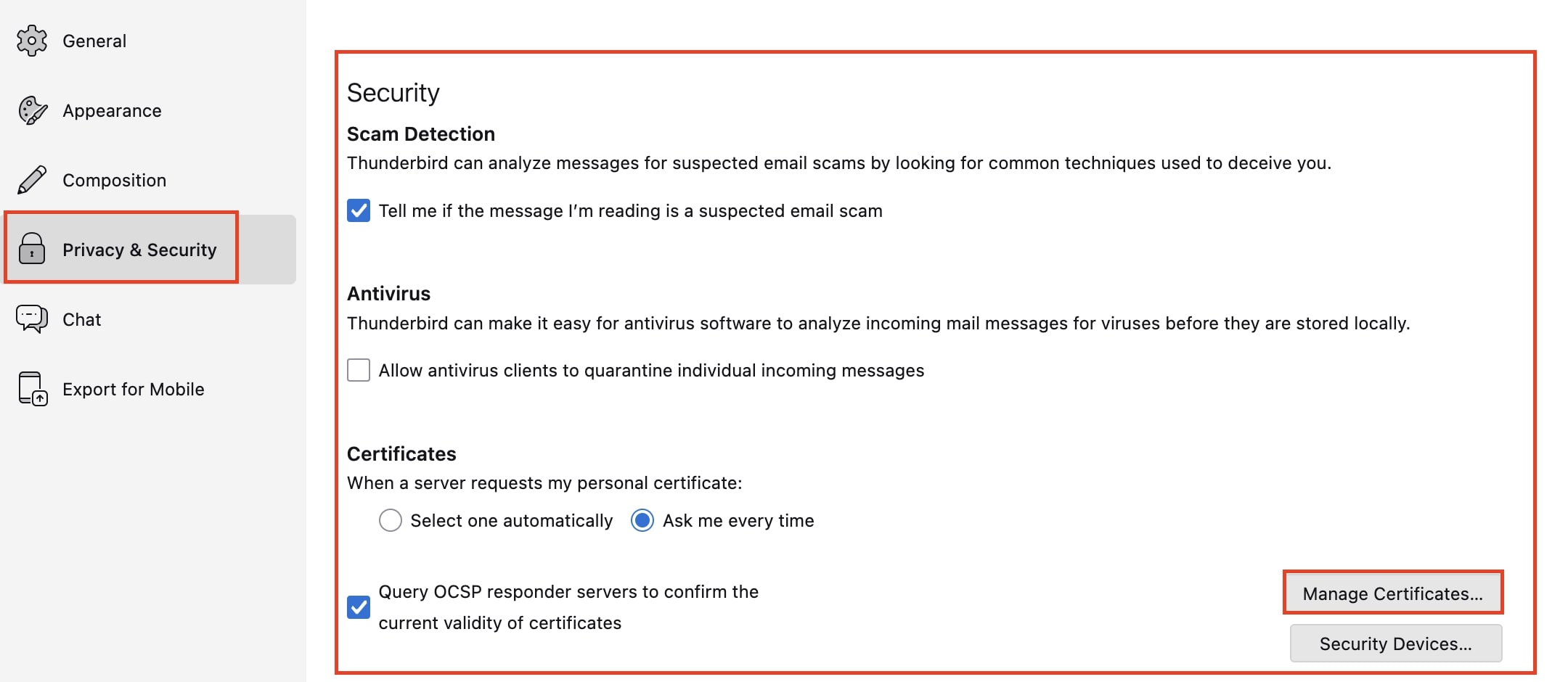
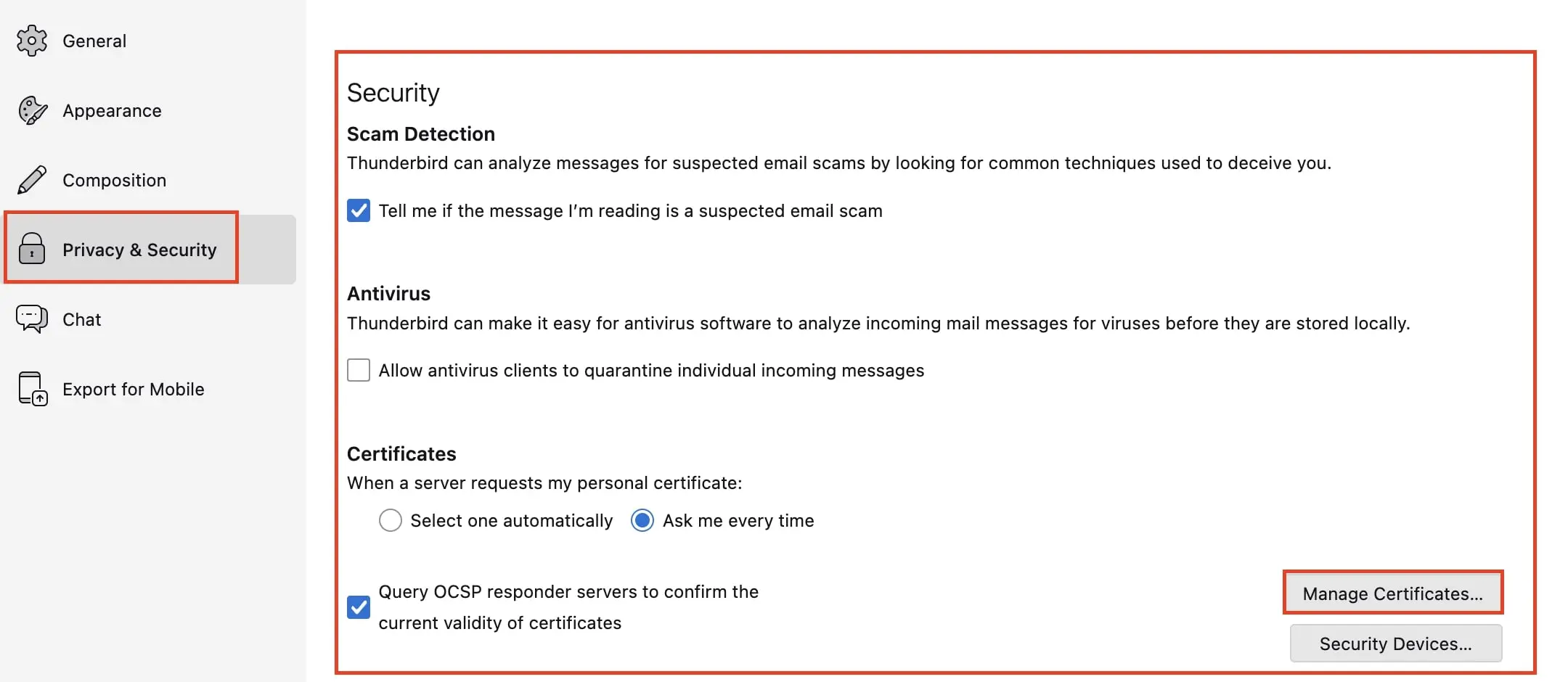
- After obtaining your certificate from a provider of your choice, start Thunderbird and open the Settings as the first step. Under the menu item “Privacy & Security,” you will find “Certificates.” Click the “Manage Certificates…” button.
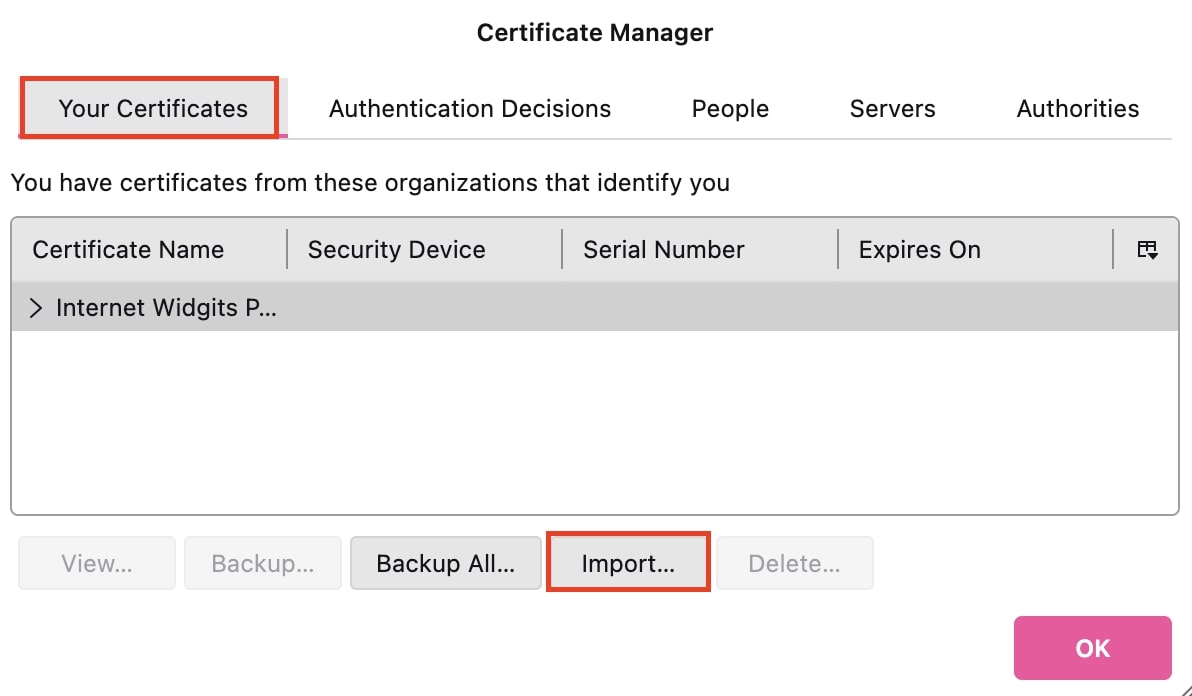
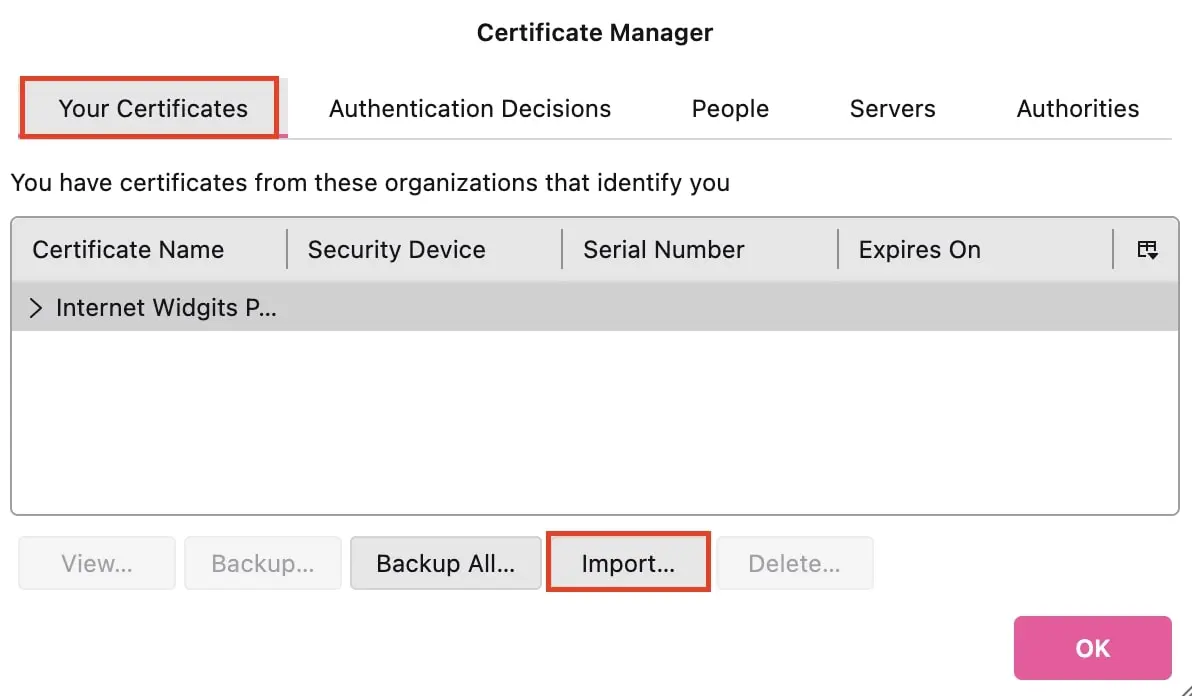
- You will enter the certificate management menu. Select the tab “Your Certificates” and import the certificate you received and saved from your provider by clicking “Import…” and selecting it. Then enter the password you received from the provider to complete the process.
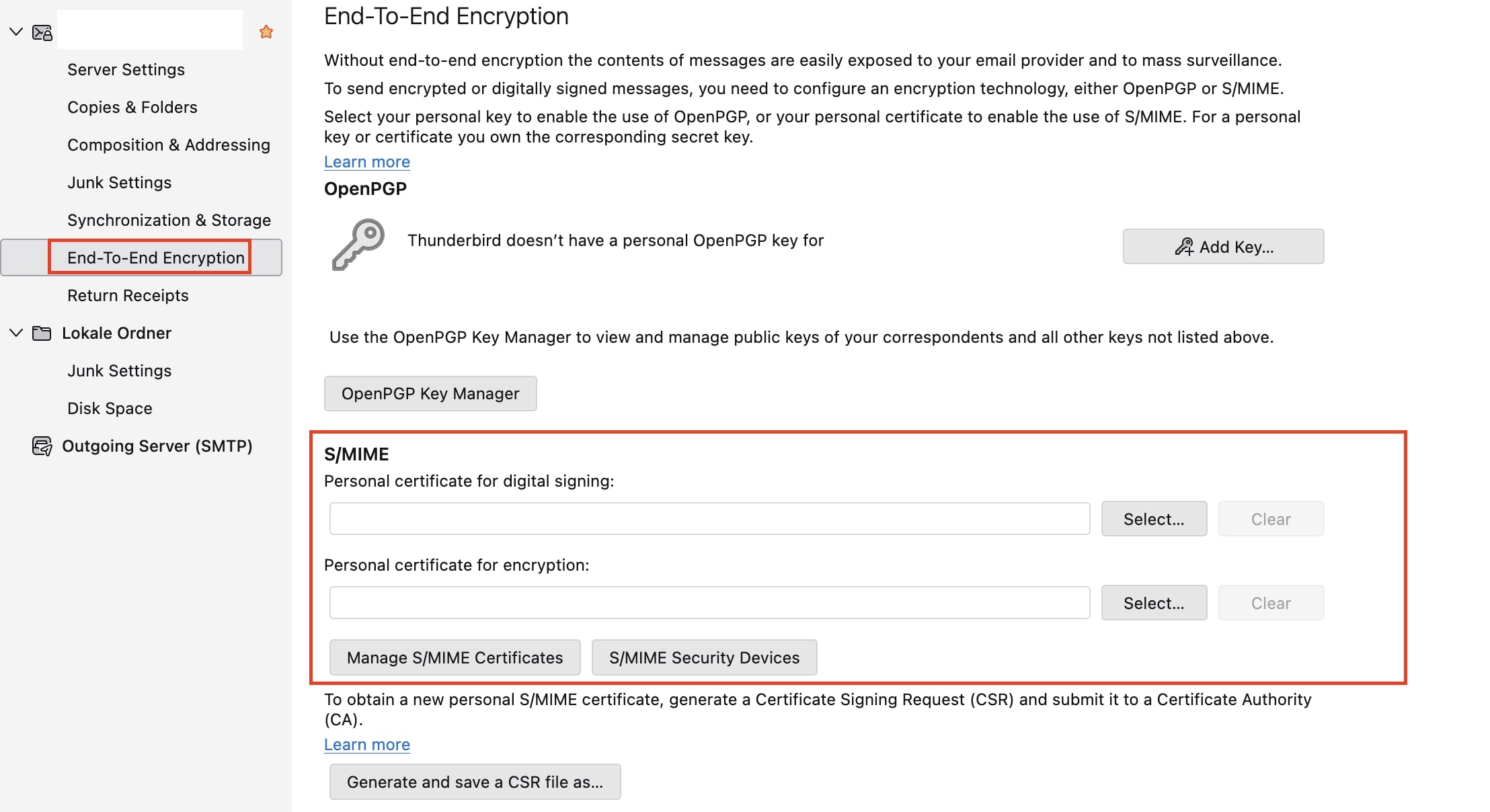
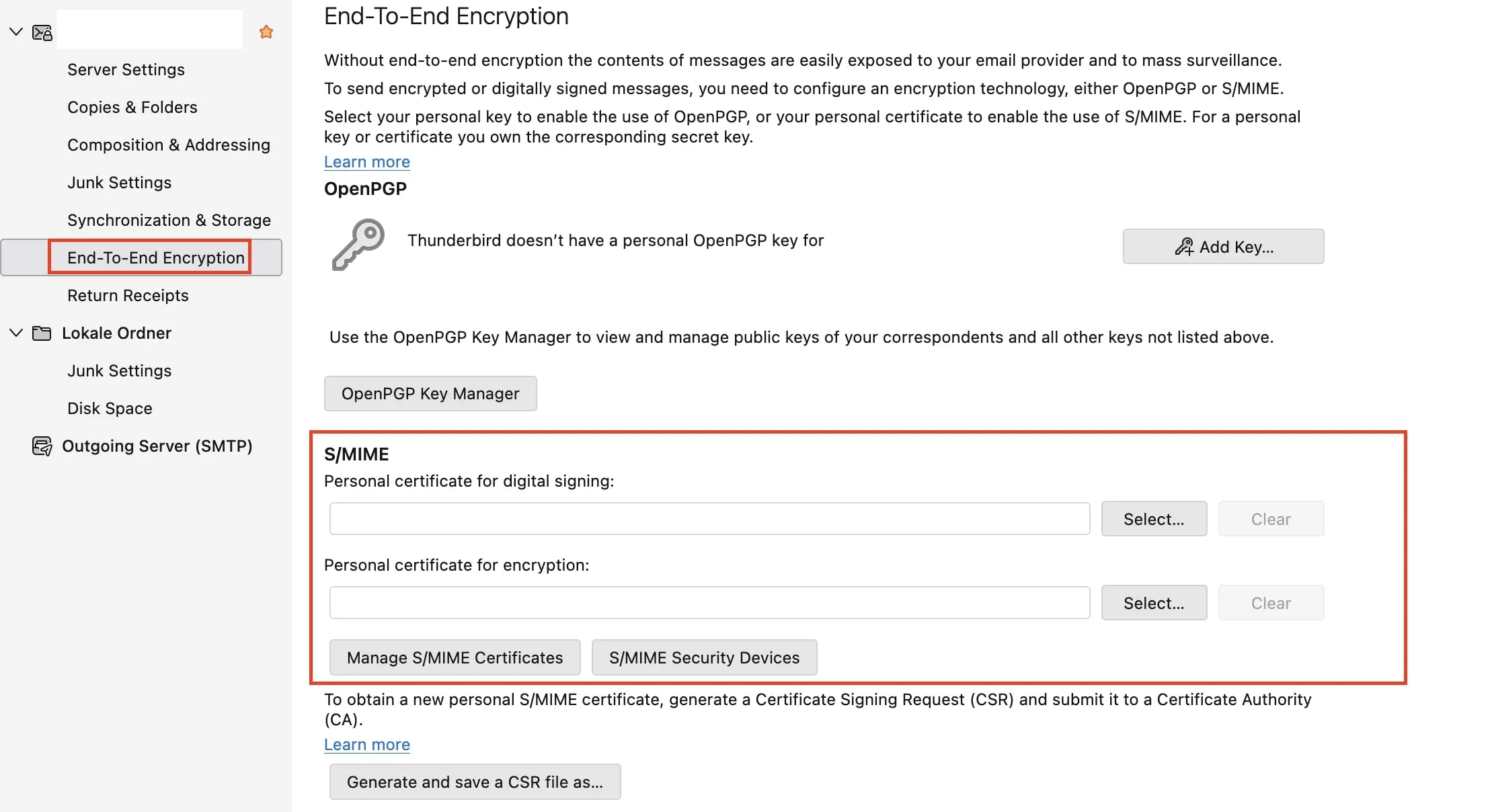
- Now navigate to the account settings of the email account for which you want to set up encryption. Click on the menu item “End-To-End Encryption.” Here, you’ll find an entry for S/MIME and can select the certificate you just imported for signing and encrypting your emails by clicking the “Select…” button.
- When you then compose an email, you can individually enable or disable the processes through the S/MIME button in the toolbar and also decide whether to use S/MIME for encrypting, signing, or both:
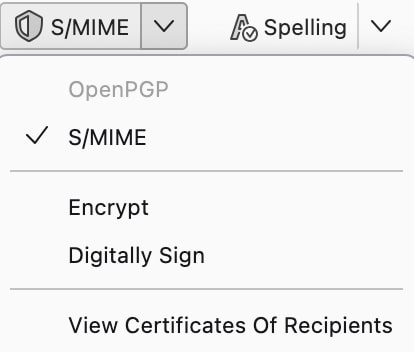
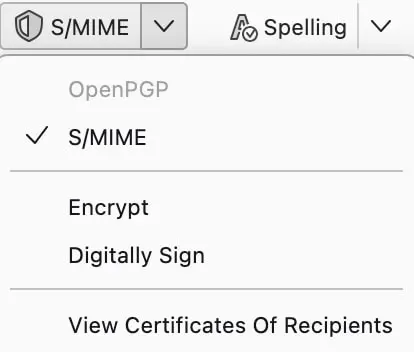
Regardless of whether encryption and signature are added manually or automatically in Thunderbird, you should keep in mind that the subject line remains readable.
Setting up S/MIME on macOS and iOS
Apple devices come with the built-in mail client, which allows you to encrypt and sign emails with S/MIME right from the start. If you have an email account, you can directly create a certificate with your provider without needing to install another program. The procedure does not differ from that on Windows: you visit your provider’s site, and the certificate is created based on your personal data. Then, proceed as follows to install the certificate and set up S/MIME encryption:
- Open the email sent by your provider and download the certificate to any folder. The received file can be opened directly on macOS with a double click to add it to the Keychain Access. If you want to use S/MIME on your iPhone or iPad, you can send it to your mobile device via email.
- After installation, you just need to start or restart Apple Mail to integrate the encryption and signing process.
- You can now test S/MIME by sending yourself an encrypted and signed message. Open Apple Mail and create a new email. Select the email account for which an S/MIME certificate is stored in the Keychain in the “From” field. Two icons will now appear in the email header: a checkmark for the signature and a lock for the encryption.
Configuring S/MIME for your Android device
Android, like Windows, does not have its own client for integrating S/MIME. However, there are various apps that support the method and can be downloaded from the Google Play Store. Among the free solutions is the open-source app FairEmail (the ad-free Pro version is paid). As in the setup of S/MIME encryption and signing on Windows and macOS, you first need a valid certificate, which you can create in the manner already explained. The next steps are as follows:
- To import your created certificate, first open the “Encryption” menu in the app settings. Scroll to “S/MIME“ and press “Import private key”.
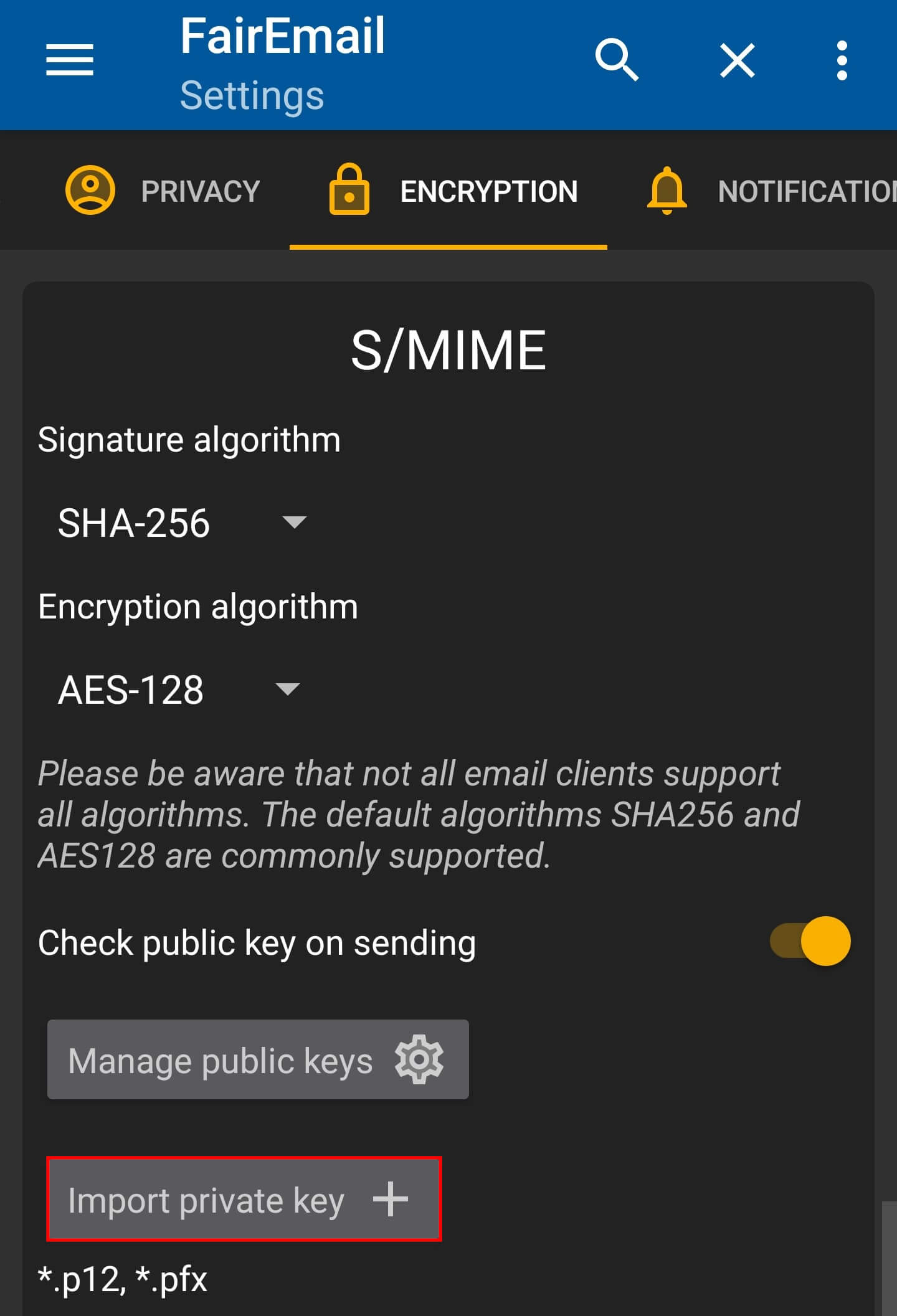
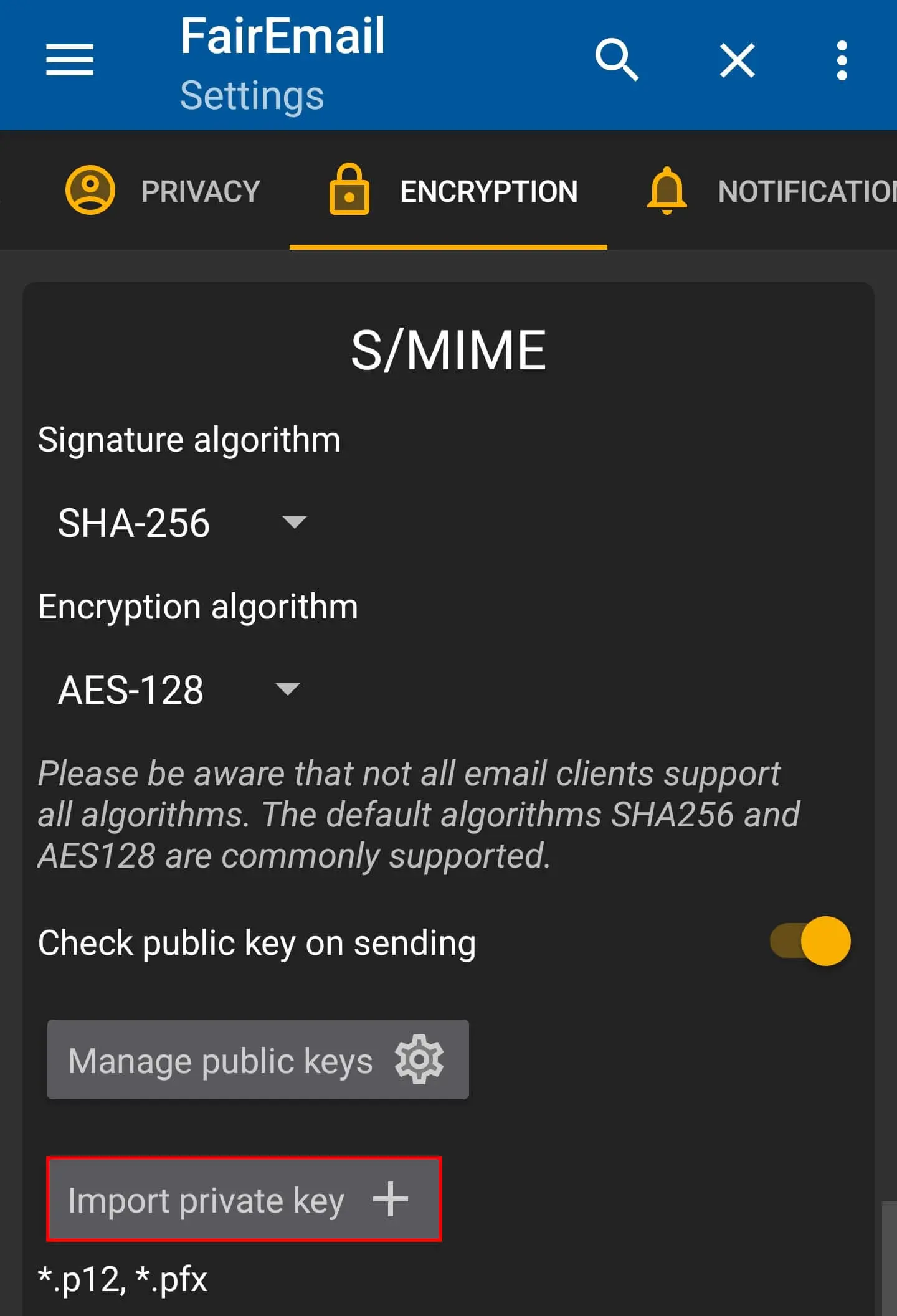
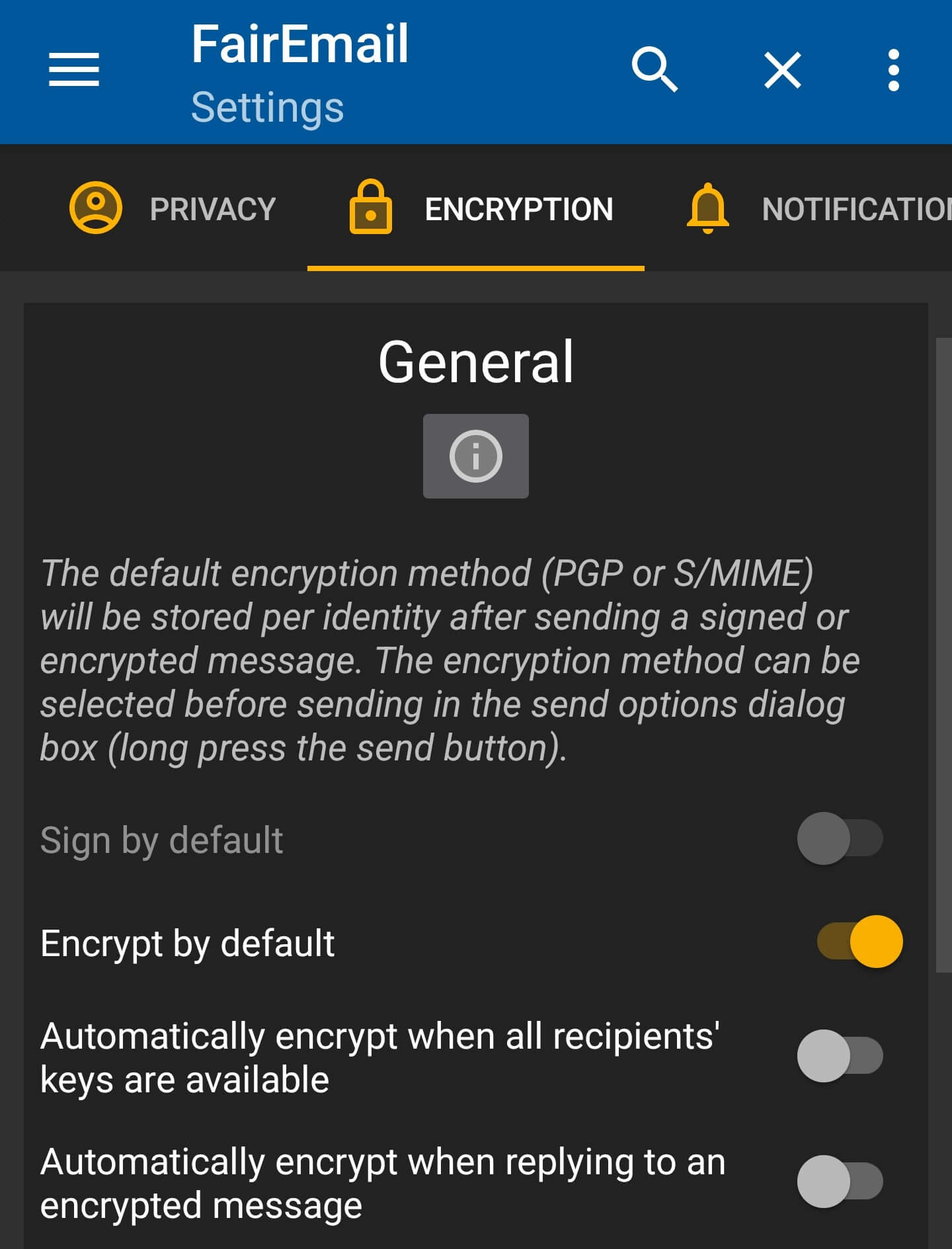
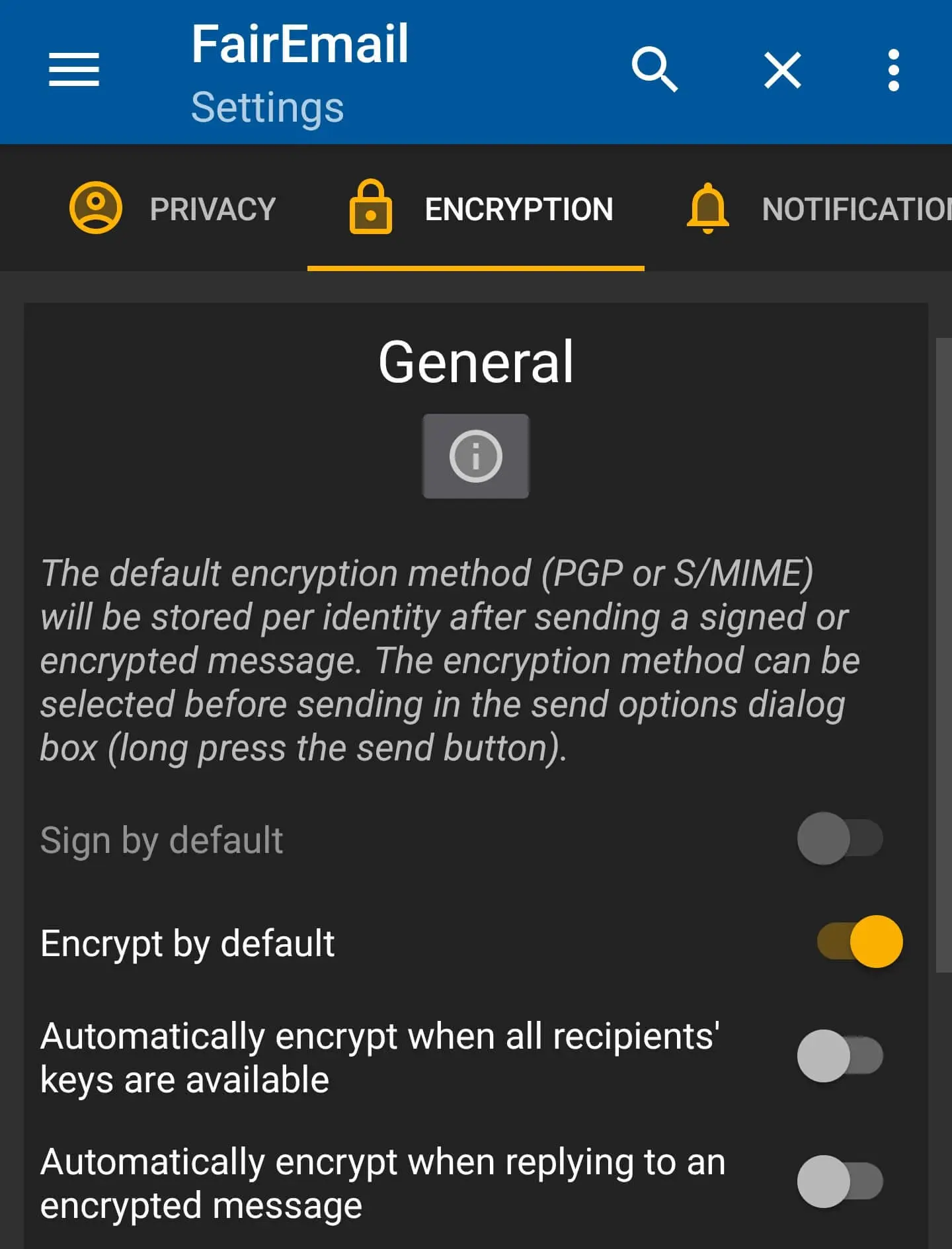
- In the same menu, specify which signature algorithm and encryption algorithm should be used. Then, at the top of the encryption menu (“General”), you can set when your messages should be encrypted—e.g., by default or when replying to a received encrypted message.
- When you now compose messages, encryption and signature are automatically added—provided you chose this option in the previous step. Otherwise, you can use the previously mentioned buttons at the end of the message window to activate the protection mechanisms.
- Personalized email address
- Access your emails from anywhere
- Highest security standards
Reviewers

Melissa Senn
Melissa Senn has been with IONOS since 2016 and focuses on the areas of websites, e-commerce, social media, and AI in the Digital Guide. As a digital strategist, she draws on her extensive SEO and GEO experience to translate complex technological trends into practical content.

Jeanna Raffa
With over 18 years of experience in online marketing, Jeanna Raffa possesses extensive expertise in digital marketing. Since 2020, her focus has been on providing practical information regarding email, office, and cloud storage solutions.