

How to create a Joomla website step by step

If you want a professional web project that offers maximum flexibility and can be scaled at any time, you should opt for a content management system like Joomla. We explain the requirements for using this open-source application and how to create a Joomla website in this article.
- Fast page loads while cutting costs by 60%
- Keep your site open 24/7 with 99.99% uptime
- Never run out of space with unlimited storage
What is Joomla?
Joomla is a content management system released in 2005, known for its user-friendliness. With a short training period and basic knowledge, you can operate the software. Once you’re familiar, you can start creating a Joomla website. The CMS is licensed under the GNU-GPL and is written in the scripting language PHP.
For data storage, Joomla uses the relational database management system MySQL by default. As the open-source application has been one of the most popular open-source solutions for website management for years, there are already thousands of extensions for both front and backend, mostly developed by the very active community.
Joomla is suitable as a CMS solution for dynamic web projects of various sizes. By using shop components like VirtueMart, it’s even possible to set up and operate an online store based on Joomla.
How to set up and install Joomla
Before creating a website with Joomla, you’ll need to set up the right prerequisites. Start by selecting a suitable hosting environment to store both Joomla and, later, your website’s data. Decide whether you want to host the CMS and your site on your own server or with a hosting provider. Next, choose your website’s address and register your preferred domain.
With checker tools like the Domain Check from IONOS, you can verify if your desired address is still available.
Step 1: Install and set up web server and database
Once you have arranged the hosting and completed the domain registration, you can focus on installing the software components required for the operation of the content management system:
On one hand, you need a web server that supports PHP (which also needs to be installed on the server) and can be accessed via FTP. It is recommended to set up an Apache web server.
On the other hand, you need a database management system where Joomla stores the data of your created website. MySQL is an excellent solution for this, so it is best to download the installation files of the Oracle application from the MySQL website. There is a difference between the paid commercial “MySQL Enterprise Edition” and the free open-source “MySQL Community Edition”.
If you’re using a Linux distribution as the operating system on your server, you can typically install Apache Web Server and MySQL directly via the package manager.
- Get online faster with AI tools
- Fast-track growth with AI marketing
- Save time, maximize results
Step 2: Download and install the latest Joomla version
If the web server and database are running, visit the Joomla website and download the installation files for the latest version of the content management system.
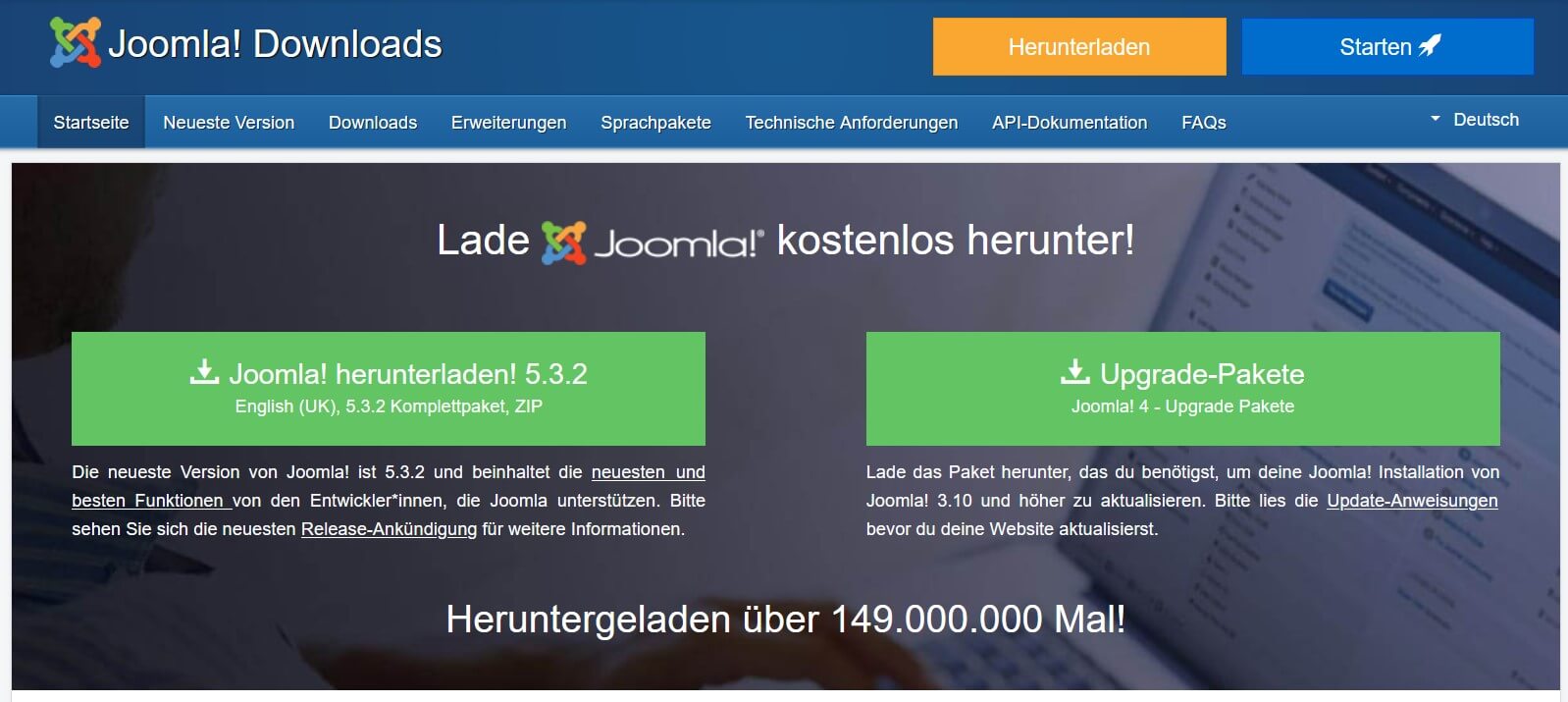
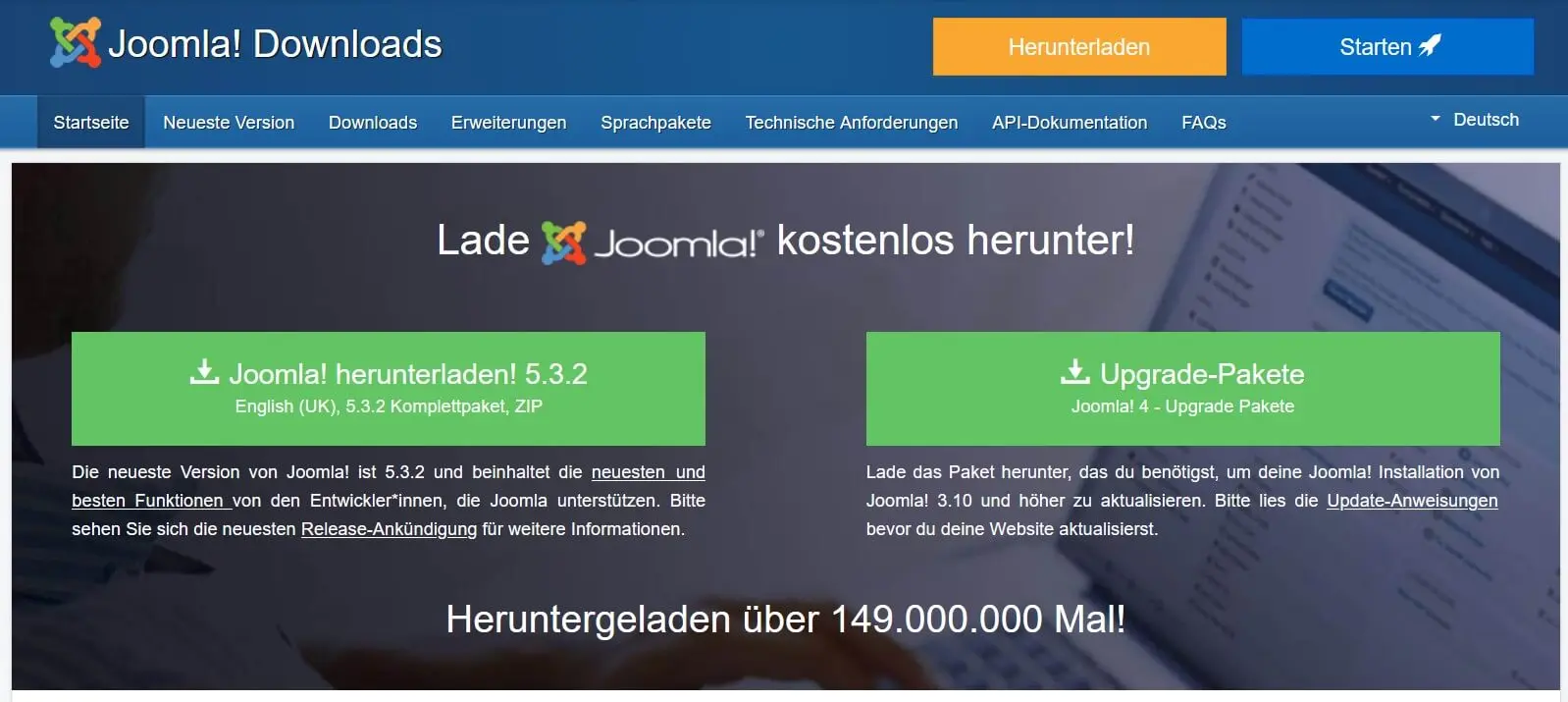
The downloaded file is an archive file that you can either extract locally before transferring it to the web server using an FTP client like FileZilla, or alternatively after the FTP upload. It’s important that the included Joomla program files, after unzipping, are located in the public root directory, typically called public_html or htdocs.
To start the installation of Joomla, access the web installer via your preferred browser by entering your domain or the local storage location (http://localhost/path-to-joomla-folder) of Joomla. Initially, Joomla will prompt you to make some basic settings—starting with language selection. However, the CMS should already automatically select the appropriate language version—based on the language chosen for the browser. Additionally, the following fields need to be filled out:
- Name of the website: Here, you specify what you want your Joomla website to be called, although you can change the name at any time later in the global configuration.
- Username: By default, the CMS uses the name “admin” for the Super User, which you should change at this point.
- Password: Set a secure password for the admin access, keeping in mind that this user account has maximum access to both the front end and back end.
- Email: Joomla requires a valid email address linked to the admin account. This is needed, for example, if you want to change the password.
Once you’ve filled out the configuration page, the next step is the database configuration menu. Enter the requested information for database type, server name, and login there and click on the install button one more time to finish.
If you host Joomla with a provider, there might be an option for an installation assistant for the content management system (including web server and database). IONOS, for example, offers a quick and free 1-click installation of Joomla and other CMS like WordPress or TYPO3 via the Cloud Panel in the customer account.
How to create a Joomla website for beginners
As a classic CMS, Joomla provides two levels for editing website content: the frontend, where you can make changes directly on the visible pages, and the backend, where you configure the core functionality, design, and overall management of your site. When you begin creating a Joomla website, you’ll naturally start in the backend. This beginner-friendly tutorial walks you through the initial administrative steps and shows you how to set up a simple Joomla site and add your first content.
Step 1: Log in to the Joomla backend
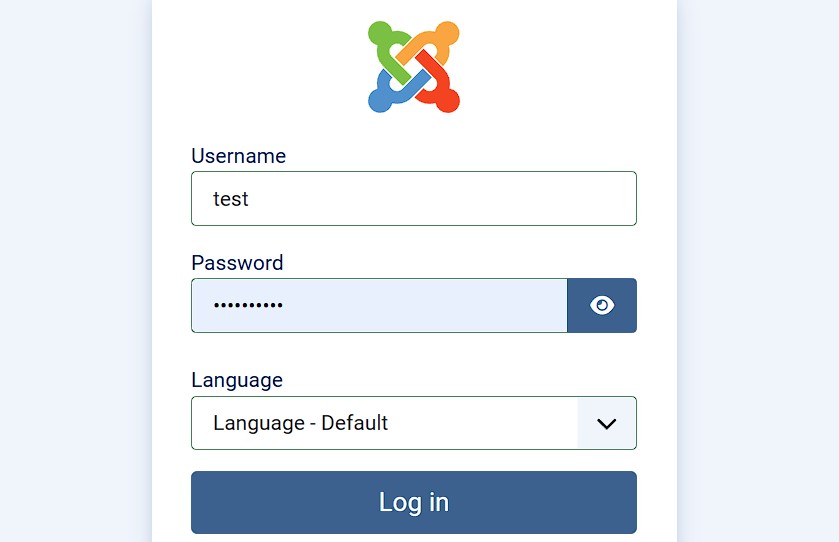
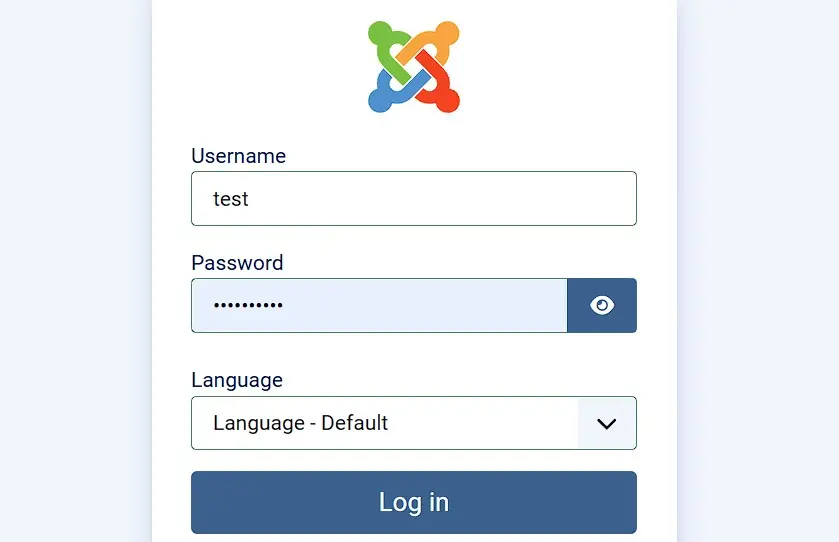
You can work in the backend (and also in the frontend) directly through your preferred web browser. After linking your chosen domain to Joomla, simply enter the address http://www.name-of-your-website.com/administrator into the browser’s address bar to open the backend login page. Replace the placeholder name-of-your-website.com with your actual domain name. On the login screen, enter the admin credentials you created during installation, then click the login button to access the backend.
Step 2: Change global Joomla settings in the configuration menu
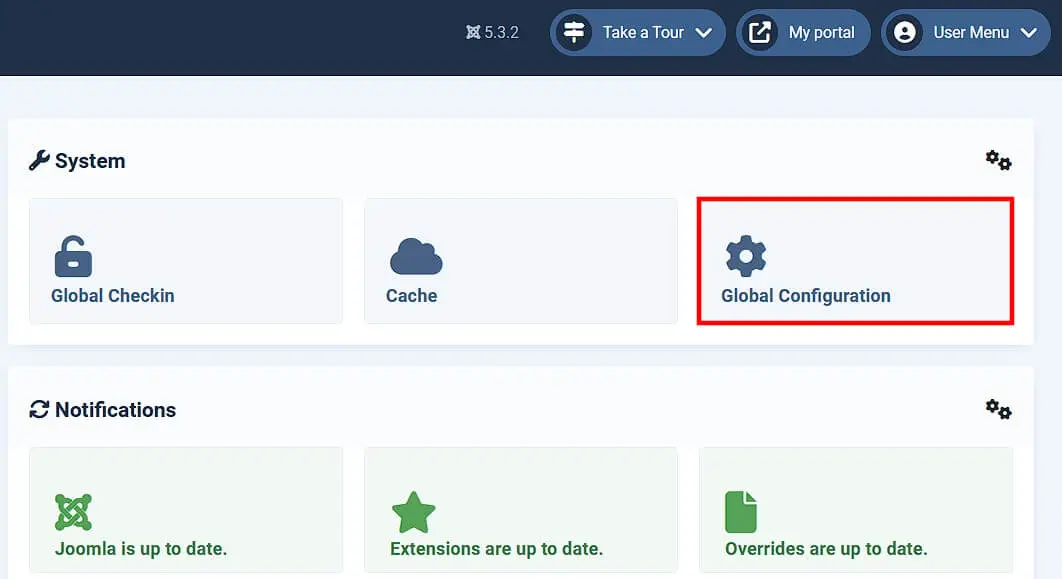
After logging in, you’ll enter the Joomla dashboard, which provides an overview of the key data for your website and activities within the content management system. Here, you can see which versions of the operating system, PHP, and database you are using or how many visitors are currently on your site. Additionally, you can observe which user accounts are logged into the backend or frontend and what changes were recently made to the web project. From the dashboard, you can also access the CMS options menu, where you can adjust the basic settings of your Joomla website. You can open it via the “Global Configuration” button:

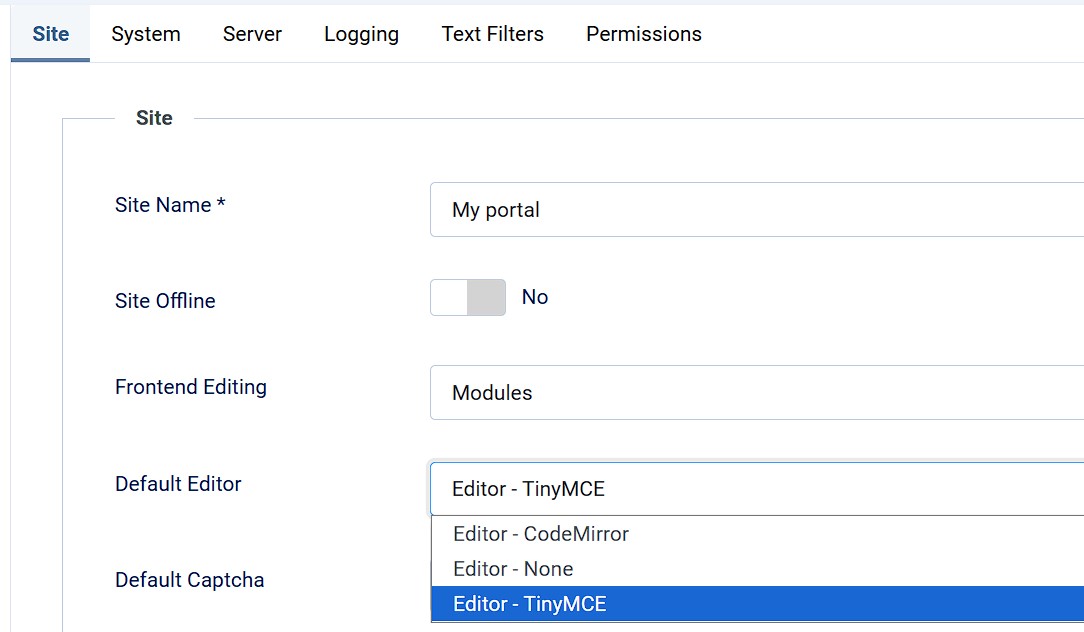
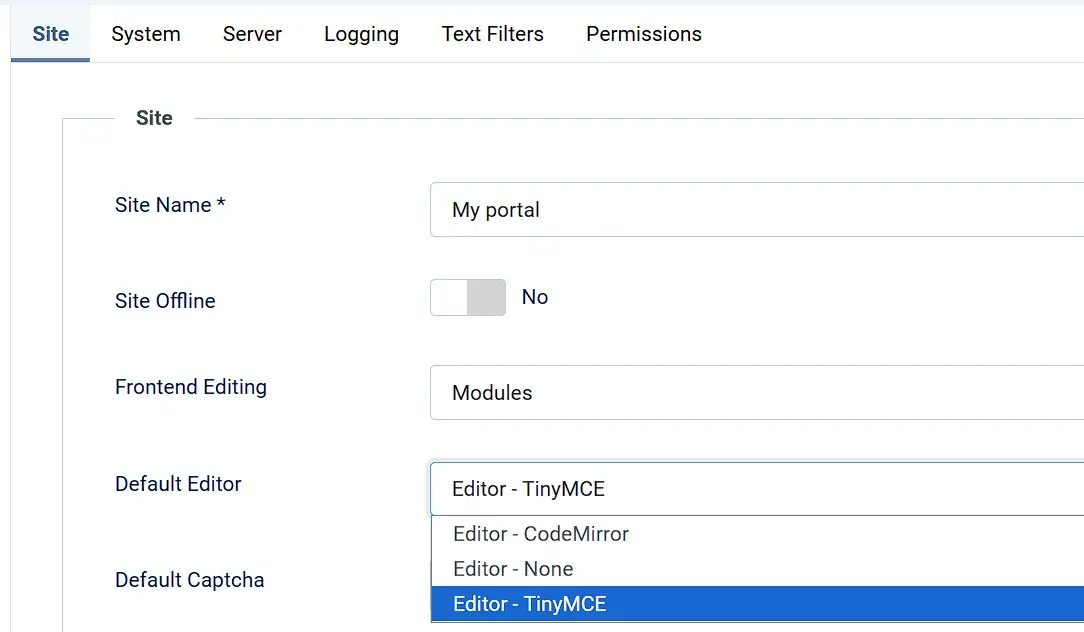
In the “Site” tab, you will find settings already familiar from the installation, such as the website name, global metadata, or the switch for the offline mode of your web project. You can also specify which editor you want to use for working in Joomla: By default, the WYSIWYG editor TinyMCE is selected—alternatively, the simple code editor CodeMirror is available. However, with the appropriate extension, popular editors like ARK Editor or JCE can also be integrated.
Settings for indexing and search engine optimization are also possible: In the “Robots” field, you can specify whether search engine crawlers should index HTML pages (index) or not index them (noindex), and whether they should follow (follow) or not follow (nofollow) the links. The other tabs in the configuration menu allow for the following settings:
- System: Under “System,” you can make settings for caching, debugging, and session management.
- Server: In this menu, you will find all the essential options for managing the web server, and you can activate or deactivate, for example, FTP, HTTPS, or a proxy server.
- Logging: In the “Logging” menu, you can adjust the log directory and make some additional settings for the Joomla logs.
- Text Filters: Through the text filter settings, you can determine which types of HTML elements each user group is allowed to use when using the editor.
- Permissions: In the “Permissions” menu, you can individually define the rights of different user accounts. Actions that can be defined include admin access, site login, creating, deleting, and editing.
Step 3: Manage user groups and add user account
After the installation, the admin account is still the only user account. However, depending on the type and scope of the web project, there are also other users who are involved in the management of the website or in creating content. Joomla therefore provides a predefined, hierarchical user schema that you can customize as needed. To do this, first click on “Users” in the left side menu and then on “Groups”:

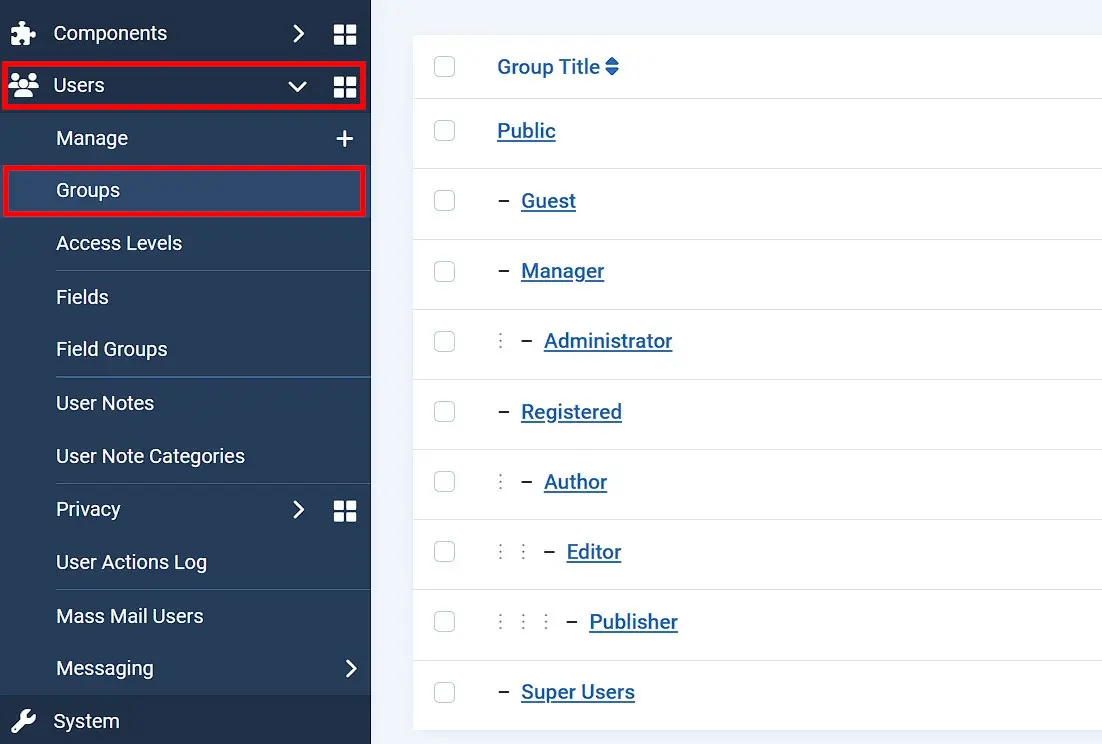
If you want to make changes to the user group schema, simply click on the desired group. Alternatively, you can completely remove groups by clicking “Delete.” To define the access capabilities of different user profiles, switch to the “Permissions” tab mentioned in the previous section under the “Global Configuration” menu. There, click on the group or subgroup you wish to edit and choose one of the following three settings for each access action:
- Inherited: Permission is taken from the configuration of the parent group
- Allowed: User group can perform the action independently of the parent group’s settings
- Denied: User group cannot perform the action regardless of the parent group’s settings
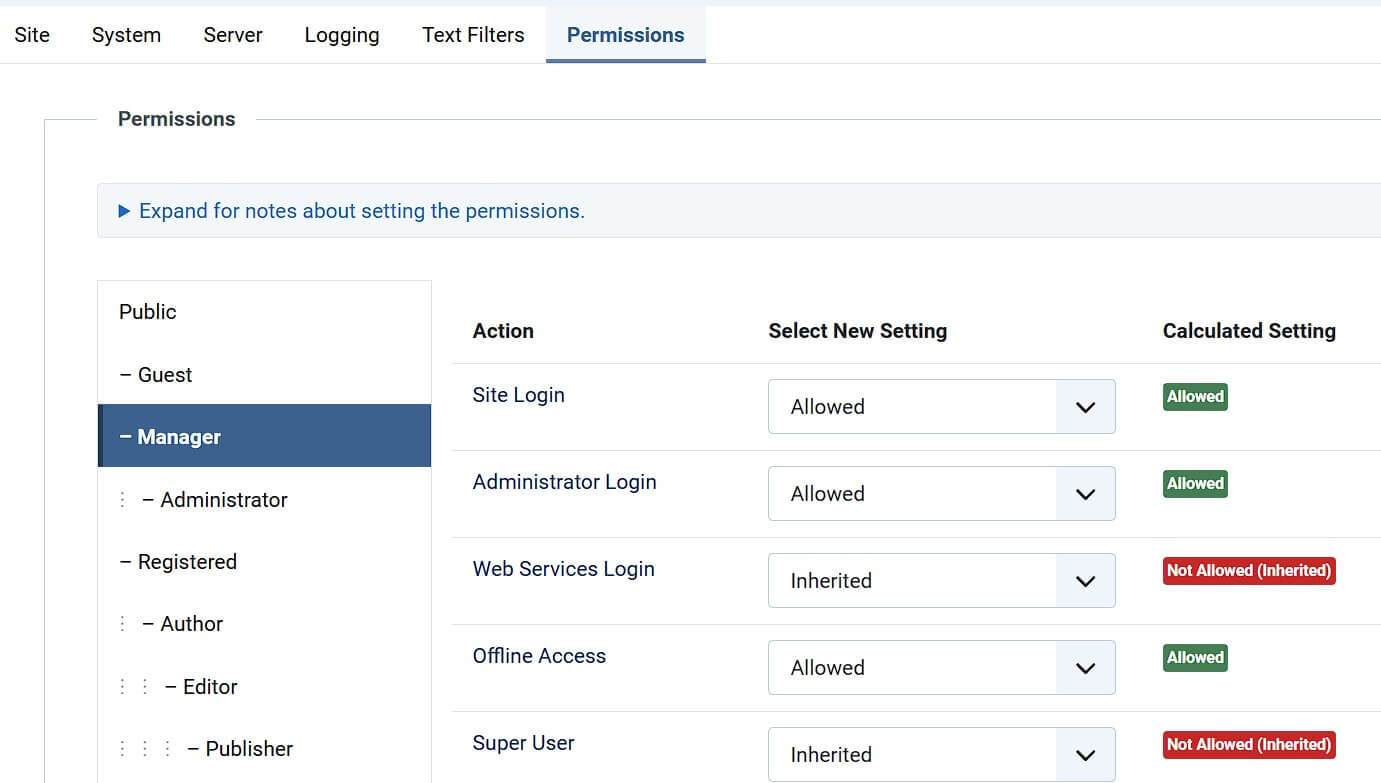
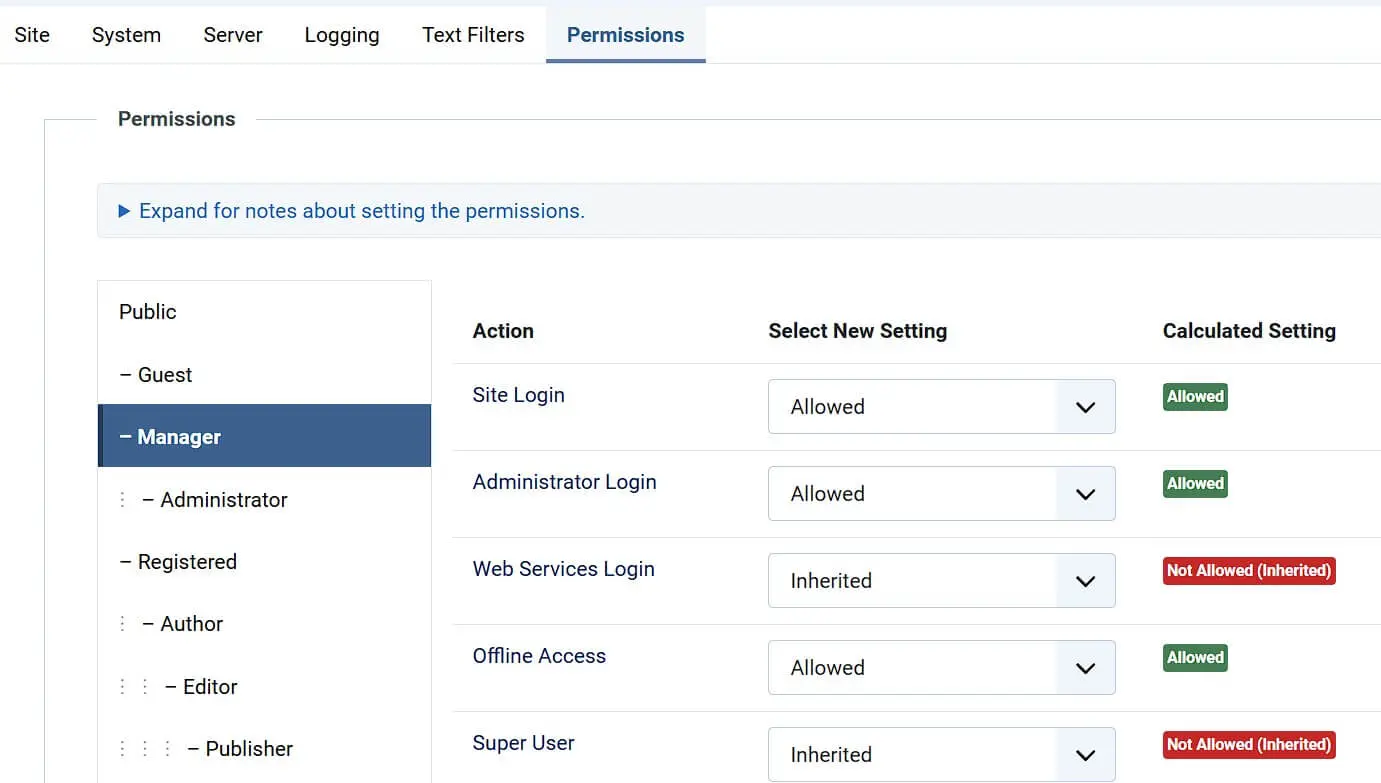
If the groups and assigned access rights meet your expectations, you can create new user accounts and assign them to the desired groups. To do this, expand the “Users” menu and click on the “New User” button (plus sign). There, you need to provide the new user’s name, username, and a valid email address, and in the “Assigned Groups” tab, indicate which group or groups this new user account should belong to. Finally, press “Save & Close” to create the account. It should now appear alongside the Administrator account (Super User) in the user listing.
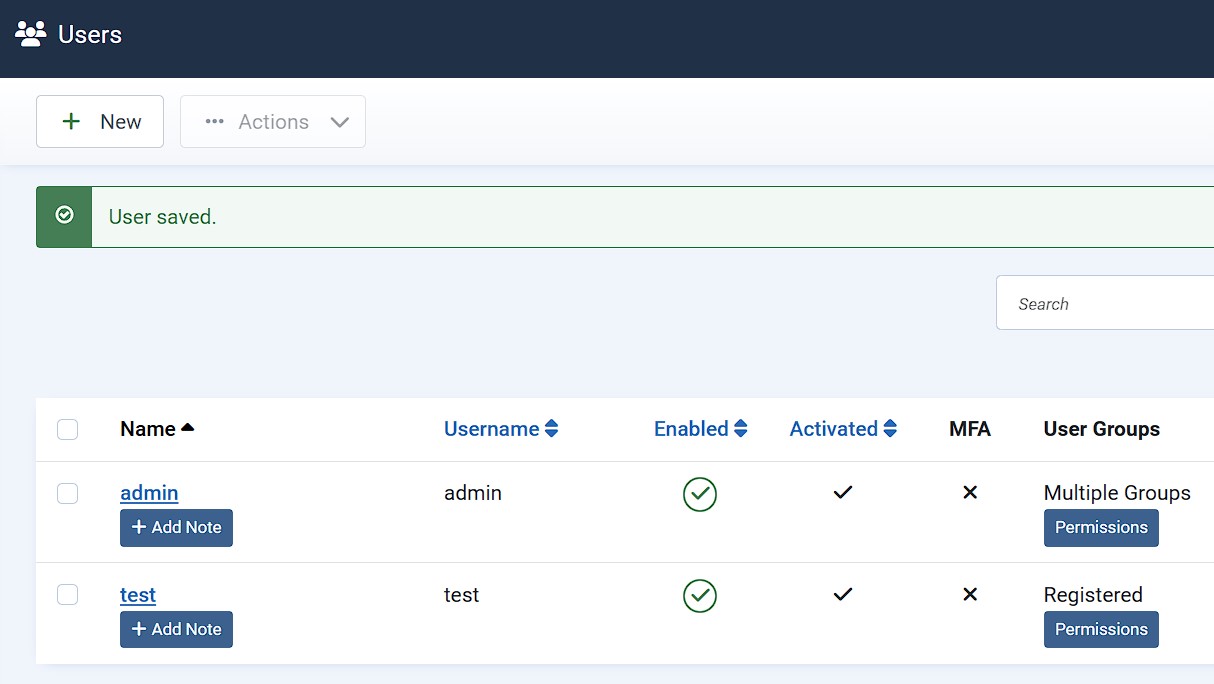
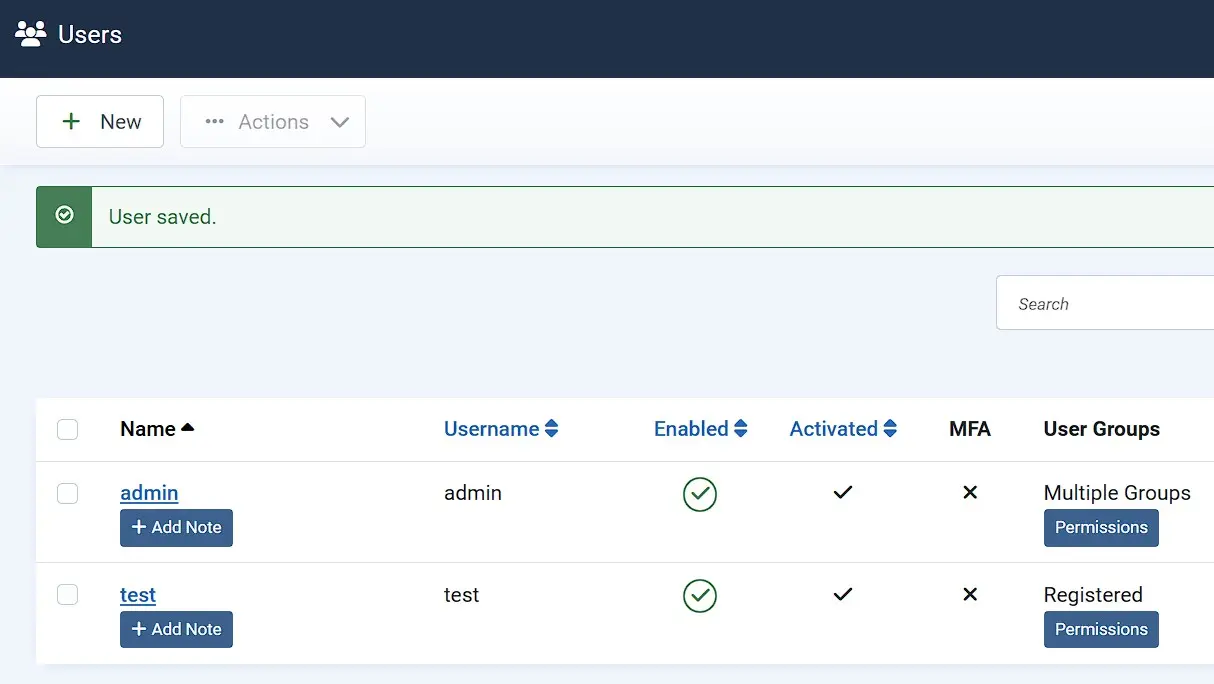
As soon as you have created a new user, they will automatically receive a confirmation email at the registered address. In this email, Joomla provides both the access link and the username, along with an automatically generated password or the password you entered during account creation. This can and should be changed after logging in, of course.
Step 4: Integrate your desired template for your Joomla website
When you create websites with a CMS like Joomla, you have the great advantage of having various design templates (often called themes or templates) available. In the basic version, Joomla provides the responsive templates Cassiopeia for the frontend and Atum for the backend. However, if you have another Joomla template in mind as the basis for your web project, you can integrate it at any time via the backend. To do this, first download the template and then implement it by clicking on “System” and then “Extensions” in the left side menu. Drag and drop the downloaded template file into the designated area, and Joomla will automatically start the installation.
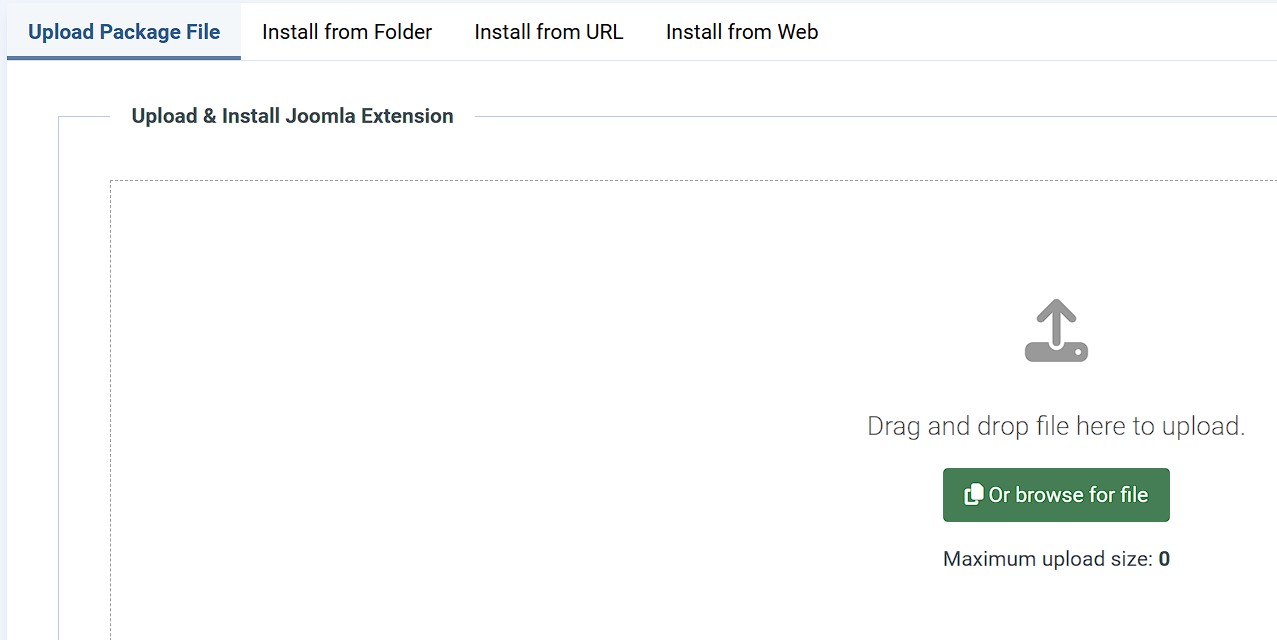
After the installation, you will find integrated templates under “System” -> “Templates”.
Step 5: Create a Joomla page and set it as the homepage
Pages of a web project are referred to as posts in Joomla. If you selected the appropriate option during installation, the placeholder post “Getting Started” already exists, and you can see its content when you access your website at this point. However, to finally create the first page of your Joomla website, click on “New Article” (under “Articles”) in the dashboard. Choose a title for the page and then use the editor to add the desired content. Using the “Format” button, you can perform common formatting such as headings, bold, italics, or paragraphs. Finally, click on “Save & Close” to generate the page.
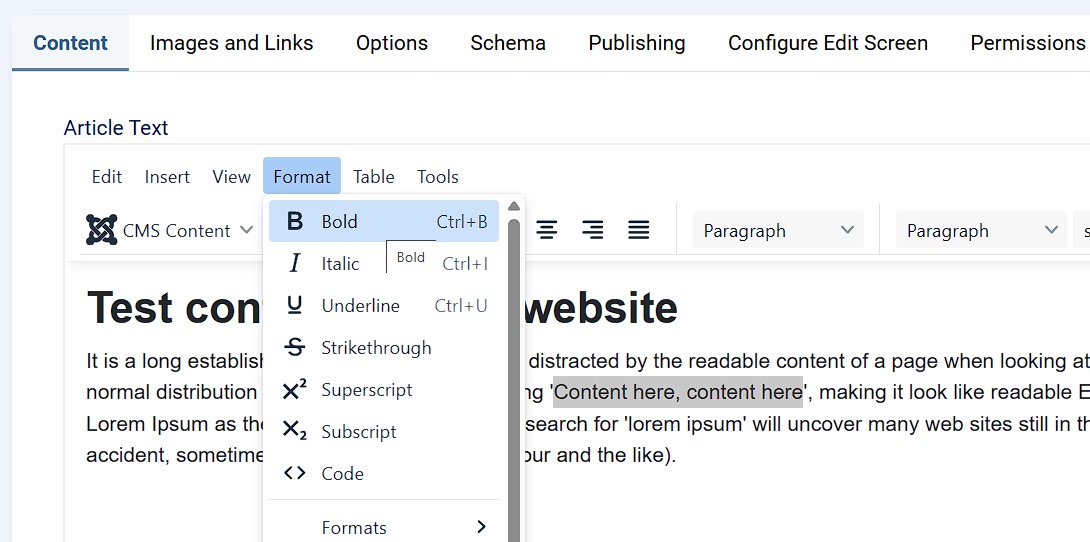

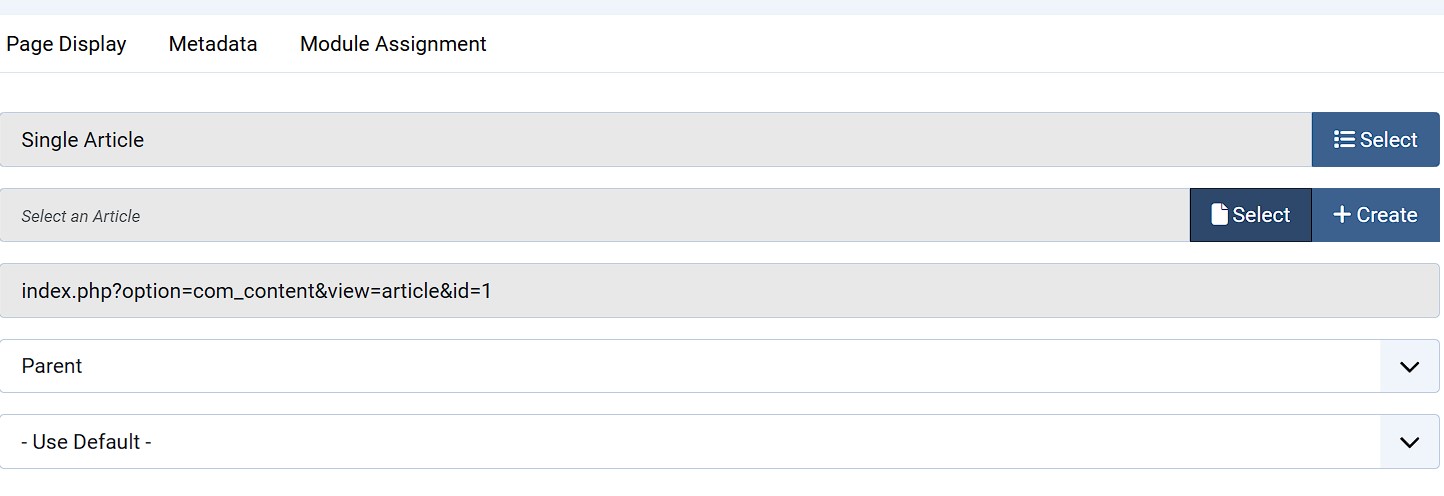
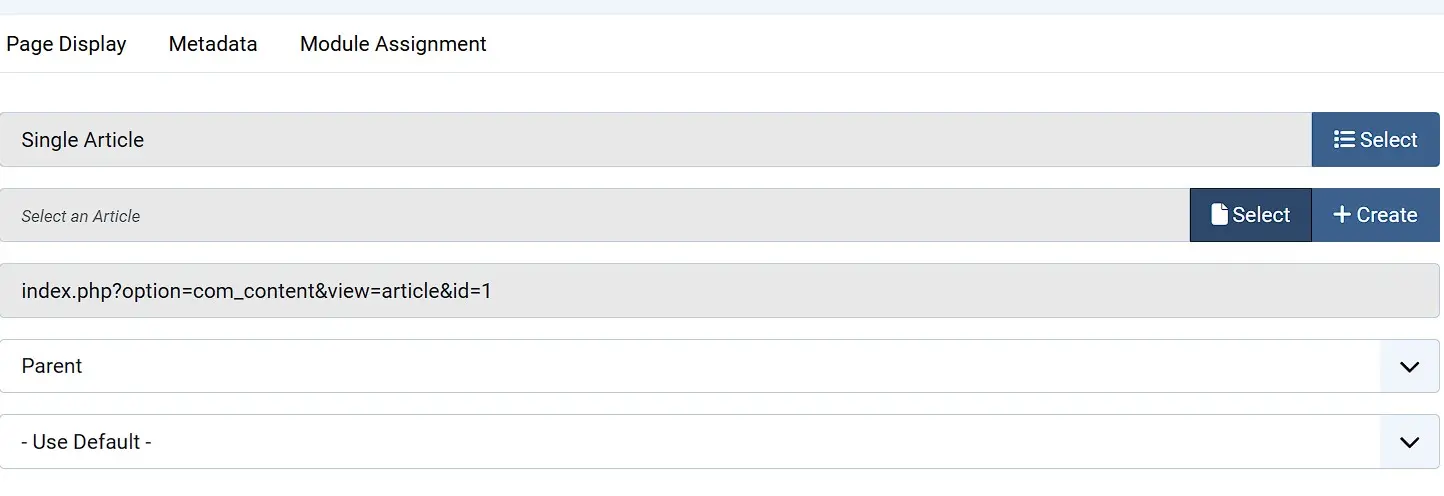
The created Joomla page can now be edited or deleted at any time under “Articles”. However, to make it the homepage of your web project, you need to switch to the “Menus” menu. First, click on “Main Menu” and then on “Home”. If you select “Single Article” as the menu item type, you can then make the previously created page the homepage under “Select Article”:
Step 6: Insert links into Joomla posts
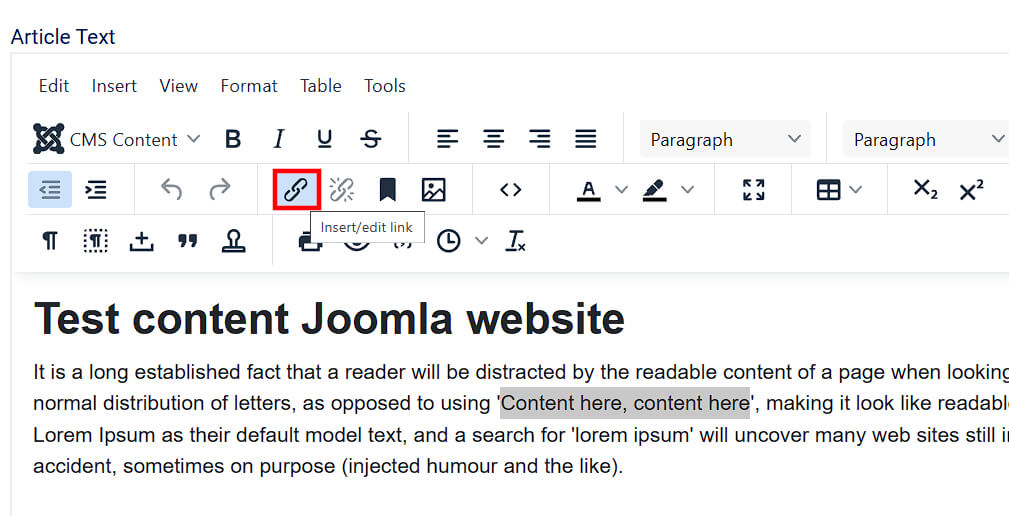
Links are an important part of successful websites because internal and external links increase the value of your offering and improve search engine ranking. Once you have the appropriate link material, you can incorporate it into your texts with just a few clicks: For external links, simply select the text portion to be linked and click on “Insert/edit link”.
For internal linking, press the “Article” button and then select the desired post from your Joomla project.
Step 7: Add images to your newly created Joomla homepage
Of course, you should also integrate images into your web project, as even the most interesting content attracts few readers without visual appeal. To enhance a post with photos and graphics, simply open it via the Articles menu and choose “CMS Content” and “Media” in the editor:
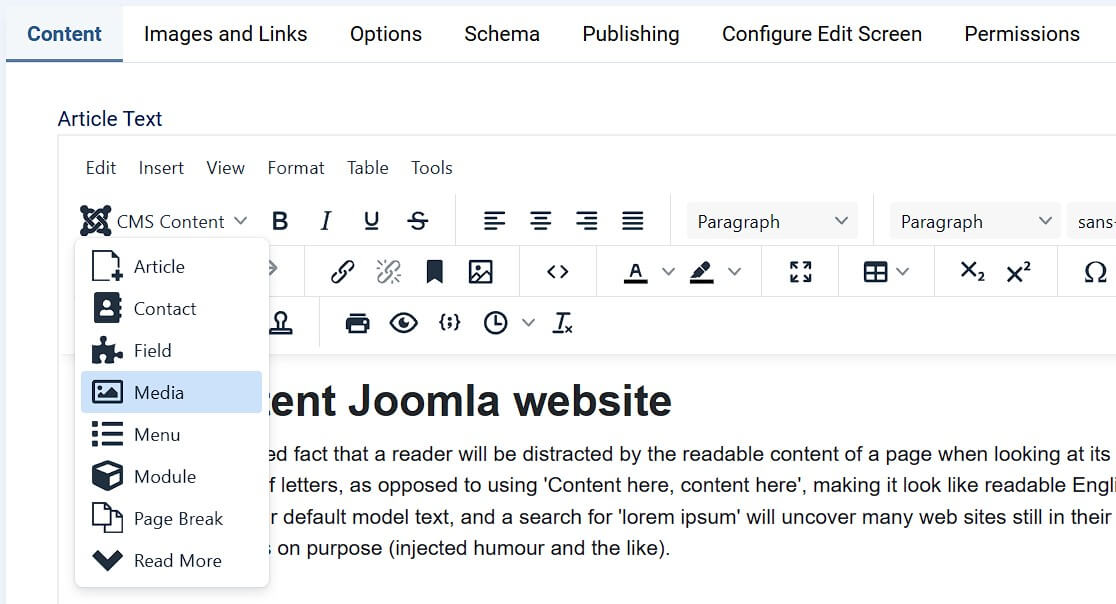
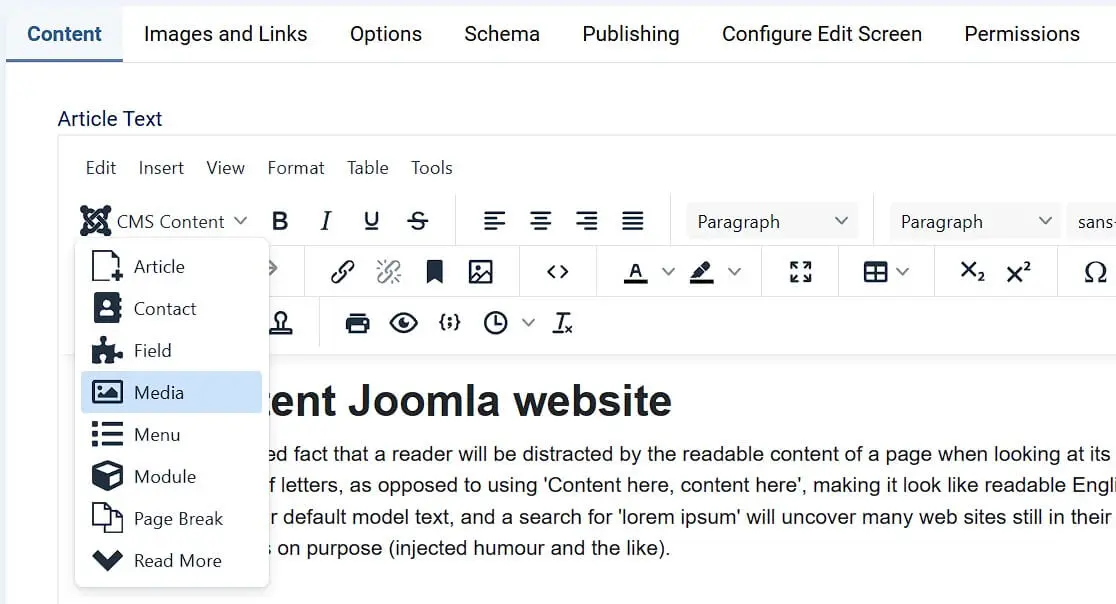
Joomla gives you access to some banners, headers, and sample images that you can freely use in your web project. If you prefer to use your own images, press the “Upload” button and specify the location of the image files.
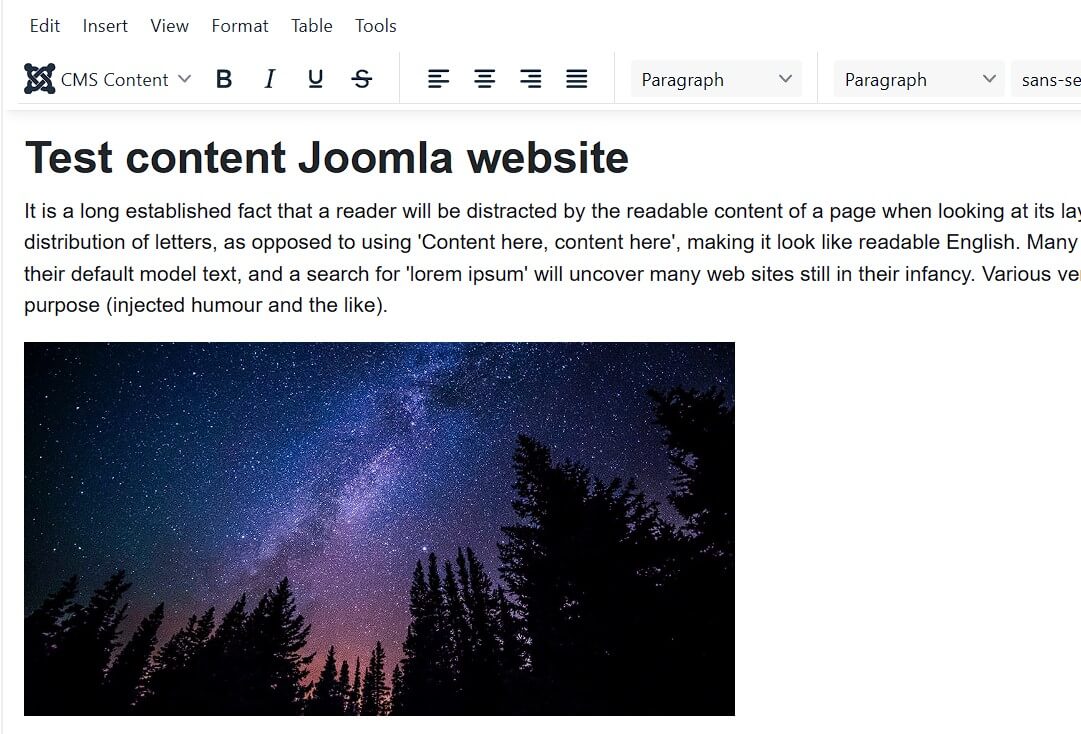
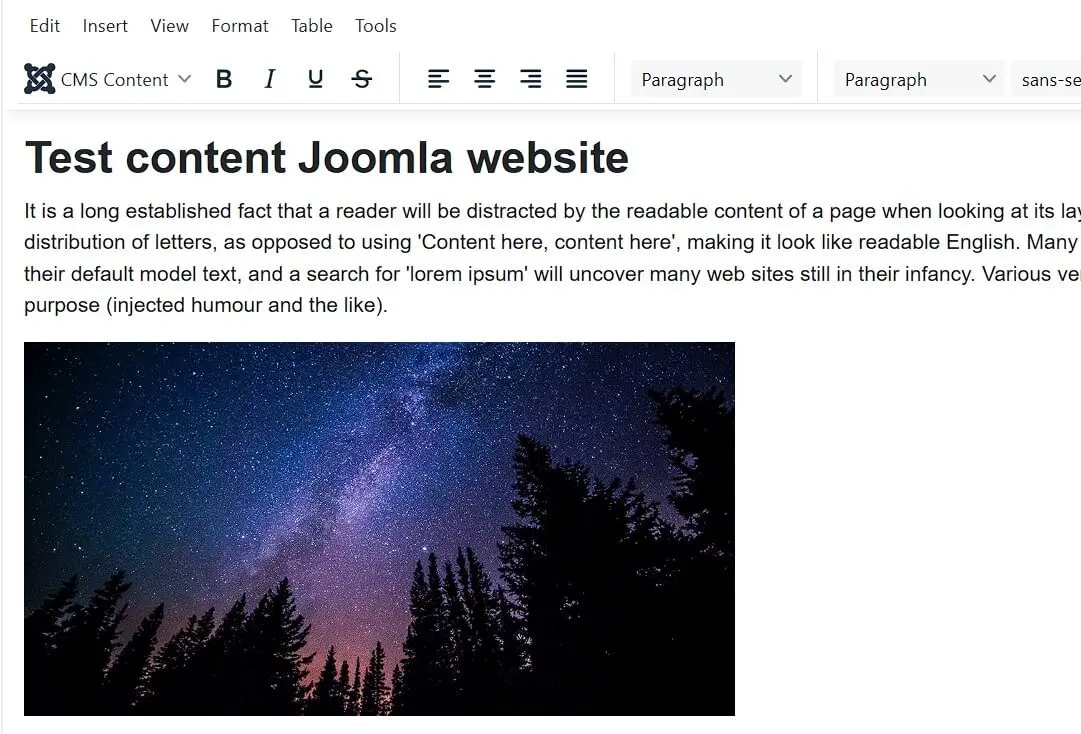
Click on the image you want to insert into the article and fill in the information for the image title or description. Finally, press “Insert Media,” and the image will appear in the desired position in the current post:
- Fast page loads while cutting costs by 60%
- Keep your site open 24/7 with 99.99% uptime
- Never run out of space with unlimited storage
Reviewers

Julia Hertler
With over 18 years of experience in content marketing, Julia Hertler has deep expertise in digital communications. For the past 10 years, she has specialized in the areas of domains and hosting at the IONOS Digital Guide, making complex technical topics easy to understand.

Christian Heldmaier
Christian Heldmaier is an experienced online marketing and SEO specialist from Karlsruhe. He has been working as an SEO Manager at IONOS since July 2020.