

How to enable and install Ubuntu SSH

If you didn’t enable the default OpenSSH server during the initial Ubuntu installation, you can add it at any time. Once OpenSSH is installed via the terminal, you can also adjust the Ubuntu SSH daemon’s configuration to suit your needs.
Try out your VPS for 30 days. If you're not satisfied, you get your money back.
How to install Ubuntu SSH server step by step
To enable secure remote access to a computer or server, SSH (Secure Shell) is essential. This security protocol incorporates three core elements that protect remote connections:
- Authentication of the remote endpoint ensures that you never contact the wrong party (whether client or server).
- Encryption of data transmission prevents unauthorized parties from reading the information.
- Ensuring data integrity makes transmitted data tamper-proof.
Linux distributions such as Ubuntu have long relied on the open-source OpenSSH suite to use SSH and to enable secure file transfers via SCP or SFTP.
By default, OpenSSH is not enabled in a fresh Ubuntu installation, which means you first need to enable Ubuntu SSH. Below, you’ll learn how to do this step by step and which configuration options are available once the Ubuntu SSH server is running.
If you set up an Ubuntu server and use the Ubuntu Server Edition for this purpose, you’ll have the option to enable Ubuntu SSH during installation.
Step 1: Open the terminal
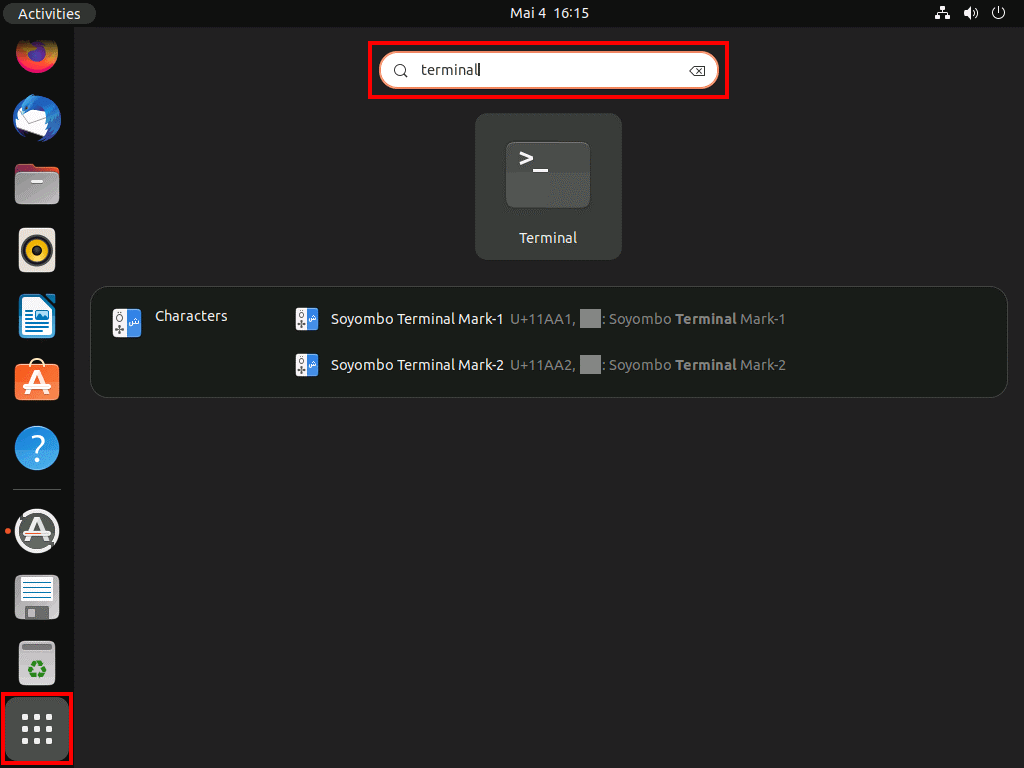
To install Ubuntu SSH via install or enable it, you’ll need the terminal—the Linux distribution’s command-line tool. Your first step is therefore to open this handy administration tool. The easiest way to do this is by using the keyboard shortcut [Ctrl] + [Alt] + [t].
Alternatively, you can start the terminal via the “Show Applications” menu by clicking the button of the same name and using the search function to look for “terminal”.
Do you want to set up secure SSH connections to a server or service? Create your SSH keys in Ubuntu yourself in just a few steps.
Step 2: Install the Ubuntu SSH service
With the Ubuntu install command for the SSH service, you can now install Ubuntu SSH (OpenSSH) in the command-line tool you opened. The command is as follows:
sudo apt install openssh-server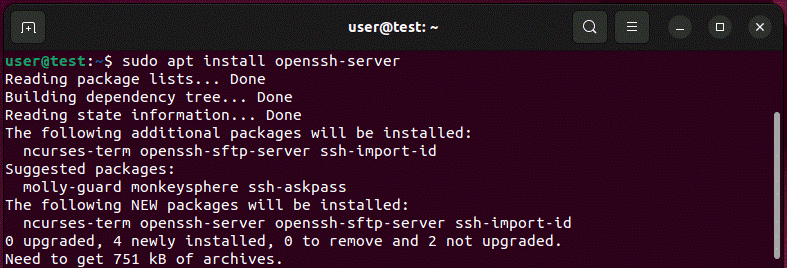
Enter your user password and confirm it by pressing Enter to start installing the Ubuntu SSH service.
Installing OpenSSH differs only slightly across the various Ubuntu versions. You can use the method described to install Ubuntu SSH both on SSH on Ubuntu 24.04 and on older editions.
Step 3: Check the status and enable the Ubuntu SSH server if needed
After installing Ubuntu SSH, you can use the following command to check whether the SSH daemon is running as expected:
sudo systemctl status sshIn the command output, the Ubuntu SSH service is running if you see the status “active (running)”. To ensure SSH is also available after every system reboot, the “Loaded” line should additionally show “vendor preset: enabled”.
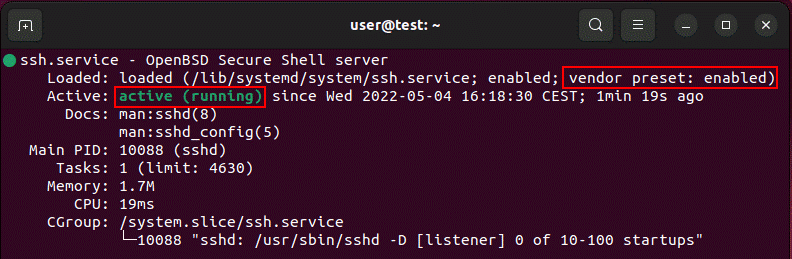
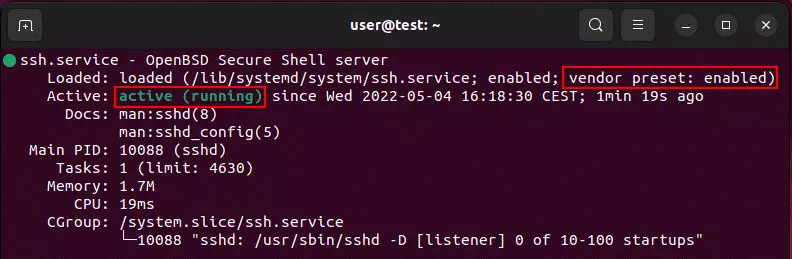
If the SSH service is still inactive and automatic startup on reboot isn’t enabled either, you can change this by entering two additional commands:
sudo systemctl enable ssh
sudo systemctl start sshPress “q” to exit the SSH status output and return to the command line prompt.


Step 4: Open the SSH port
To be able to connect to your Ubuntu system from anywhere via Ubuntu SSH, the network protocol port (default: TCP port 22) must also be open. Only then can you successfully establish a remote connection with SSH clients like PuTTY.
Ubuntu includes UFW, its own configuration tool for the built-in firewall. Set up a corresponding rule in this tool for SSH communication so that the port is open for incoming and outgoing data:
sudo ufw allow ssh

A closed port is often the reason SSH connections fail. There are also several other possible issues that can prevent secure SSH connections from being established. In general, you can fix SSH errors easily if you’re familiar with the most common causes.
Step 5: Configure the Ubuntu SSH server
The default OpenSSH configuration is already well suited for secure remote connections to your Ubuntu system. However, you can adjust the standard settings if you want to change the communication port, define a specific Internet Protocol version, or disable TCP forwarding.
All SSH-related settings for Ubuntu are managed in the central configuration file sshd_config. To apply changes, open this file using a text editor of your choice (for example, nano) as shown below:
sudo nano /etc/ssh/sshd_config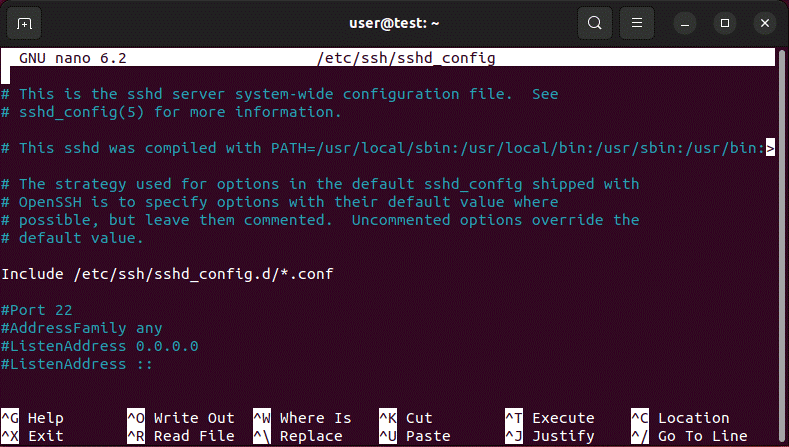
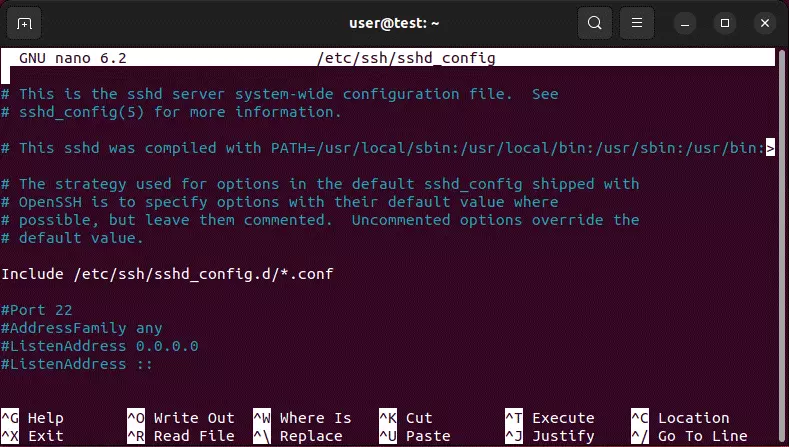
Adjust the contents of the configuration file to your needs and save your changes before closing it. Then restart OpenSSH so the changes take effect:
sudo service ssh restartSetting up Ubuntu SSH is worthwhile, especially if you plan to use an Ubuntu FTP server. This allows you to offer the secure FTP alternative SFTP mentioned earlier.
Reviewer

Christian Heldmaier
Christian Heldmaier is an experienced online marketing and SEO specialist from Karlsruhe. He has been working as an SEO Manager at IONOS since July 2020.