

How do I install Docker on Debian 11?

The Docker engine is native to Linux and can be used with different servers. We will explain how you can set up Docker on Debian 11 and tell you which types of server are suitable for which uses.
System requirements for installing Docker on Debian 11
When compared to virtual machines (Vms), Docker containers are lightweight and don’t require much in terms of hardware. However, for more complex uses, there will be a need for more storage space as well as additional resources. To install Docker on Debian 11, you must have the following minimum system requirements:
- Processor (CPU): x86-64 architecture, min. 2 GHz (single-core)
- Memory (RAM): min. 2 GB (if using Docker with GUI you need at least 4 GB RAM)
- Operating system: Debian 11 (Bullseye), user with root rights
- Kernel: 4.19 or higher, cgroup support, namespaces, overlay file system and seccomp filter
- Hard drive space: min. 20 GB
- Internet connection: to download Docker images and packages
Docker hosting: Dedicated vs. Cloud vs. VPS
You can rent different types of servers to use Docker on Debian 11. The provider fees depend on the hardware being used, the type of architecture and what kind of performance you need. Essentially, you can choose between three server types:
- Dedicated Server
- Cloud Server
- vServer/VPS
A dedicated server is exclusively used by you, which means it has some great advantages. Dedicated hardware is able to access more resources than a VPS or a cloud server. Whilst you will pay more, you will benefit from increased performance by having additional storage space, RAM and processor cores. Since you have complete control over your Debian server, you will be able to better protect the container environment from threats. On top of that, you will be able to set up user-defined tools and configurations.
A dedicated server from IONOS offers you a large amount of flexibility and performance for your enterprise solutions and is billed by the minute.
You can access cloud servers via networks. They are extremely scalable and are very seldom affected by outages. On top of this, you only pay for the time that you actually use the cloud server.
With a cloud server from IONOS you can run the Docker engine in a virtual infrastructure for little money.
Compared to dedicated hardware a virtual server splits the performance on a physical server system. A VPS is above all suitable for small or medium-sized containers.
With a VPS from IONOS you can benefit from Docker’s advantages for a fixed monthly price.
Usage examples for Docker on Debian 11 and compatible IONOS servers
To find the right server, you often need to spend lots of time researching your options. Even if you are already aware of the different server types that IONOS offers, it is sometimes difficult to find the right offer. To make it easier for you we have summarized three typical usage possibilities and explain which IONOS server is best suited to them.
| Use case | Server recommendation | Alternative server recommendation |
|---|---|---|
| Small websites or databases, development and testing of simple applications. | VPS M | Cloud Server S |
| Continuous integration and continuous deployment (CI/CD), large websites, microservice architecture | Cloud Server M | VPS L |
| Enterprise solutions, high-traffic websites, backup solutions for large amounts of data | AR6-32 SSD | Cloud Server XL |
Step by step guide: How to install and use Docker on Debian 11
As soon as you’ve chosen your server solution you can begin with the installation. Below we will explain how to set up Docker on Debian 11.
To make sure that you are using the latest version of Docker, you should get the installation package from the Docker repository. Open the terminal in your Debian system and execute the commands listed below.
Step 1: Update the package list
First update the package index of the repository that is already installed:
$ sudo apt updateStep 2: Install the necessary packages
In the next step you can install additional package dependencies for the Docker installation:
$ sudo apt install apt-transport-https ca-certificates gnupg2 software-properties-commonStep 3: Add the GPG key for the Docker repository
Use the command “curl” to download the GPG key from the official Docker repository. This ensures that the Docket package is coming from a trusted source.
$ curl -fsSL https://download.docker.com/linux/debian/gpg | sudo apt-key add -Step 4: Add the Docker repository
You can now start the Docker repository in APT sources which contains a list of all repositories.
$ sudo add-apt-repository "deb [arch=amd64] https://download.docker.com/linux/debian $(lsb_release -cs) stable"Step 5: Update package list
Since you’ve added a new repository, you will now need to update the package index again so that the information in all the repositories is up to date.
$ sudo apt updateStep 6: Check cache policy
Open the cache policy to ensure that the available installation packages have been downloaded from the official Docker repository and not from Docker.
$ apt-cache policy docker-ceStep 7: Install Docker
You can now install Docker with the following command:
$ sudo apt install docker-ceStep 8: Test the Docker status
To check that Docker is actually working, you can view the status by entering the following:
$ sudo systemctl status dockerStep 9: Use Docker command
With the command “docker” you can execute commands in Docker. In addition to this primary command, you can enter options, suboptions and commands.
$ docker [option] [command] [arguments]Step 10: Show the list of subcommands
You can view the list of subcommands by executing the “docker” command in the terminal.
$ dockerHere you can see a selection of the subcommands supported by the “docker” command:
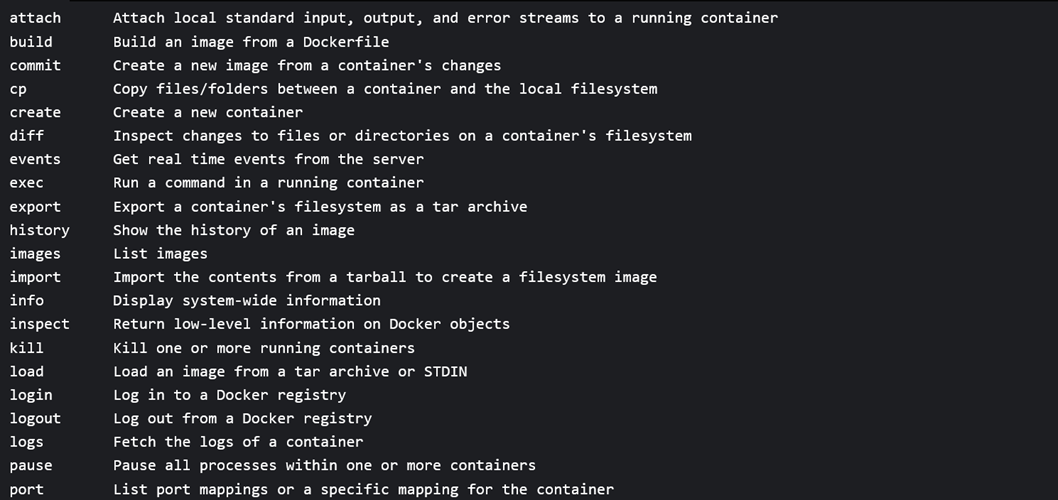
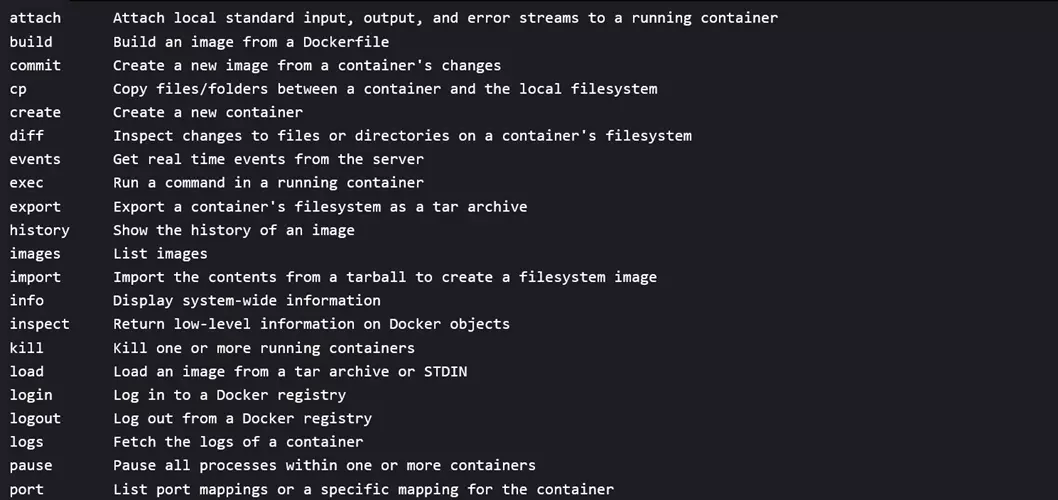
The containers are created by a docker image which is available on the Docker hub. By using the subcommand “pull” you can download the image. There is a container included on the base of the image. To execute the command in a container, you need to use the command “docker run” and enter the corresponding image in the command row.
Use our guides to find out how you can install Docker on Ubuntu 22.04 and Docker on Ubuntu 20.04.
Options: Run Docker without root rights
For security reasons, it is sometimes a good idea to run Docker without root rights when it has been installed. To do this you can set up a group in your system called Docker and add users. This is the command you will need:
sudo groupadd docker
sudo usermod -aG docker $USERNote that “$USER” is just a place holder that needs to be replaced with the corresponding username.
Reviewer

Christian Heldmaier
Christian Heldmaier is an experienced online marketing and SEO specialist from Karlsruhe. He has been working as an SEO Manager at IONOS since July 2020.