

Is DisplayPort better than HDMI?

When comparing HDMI to DisplayPort, no major differences jump out immediately. But a closer look reveals details that may speak for or against one of the two digital interfaces. It all depends on what you wish to use them for.
What are the differences between DisplayPort and HDMI?
The two digital interfaces HDMI and DisplayPort look similar and are usually located next to each other on modern graphics cards. The abbreviation HDMI stands for “High-Definition Multimedia Interface” and describes a wired interface for the digital transmission of image and sound signals. Ethernet connections are also included. The founders primarily intended it to be used for consumer electronics.
Manufacturers using HDMI are required to pay an annual license fee. The current version is HDMI 2.1a (January 2022). Different sizes are available including the HDMI standard, mini-HDMI and micro-HDMI. The latter, for example, is used in compact cameras that can be connected to monitors or TVs.
DisplayPort was first created in an effort to reduce the size of large VGA or DVI connectors for laptops and tablets while also enabling digital signal transmission. Its aim was to improve the digital connection of computers.
DisplayPort is standardized by the Video Electronics Standards Association (VESA) and license-free. The current DisplayPort version is 2.1 (October 2022). In addition to the standard version (see picture), this digital port exists in different variants: as Mini DisplayPort (introduced by Apple) and as Thunderbolt (Apple and Intel). This is a backward-compatible, universal data interface, similar to USB or FireWire.
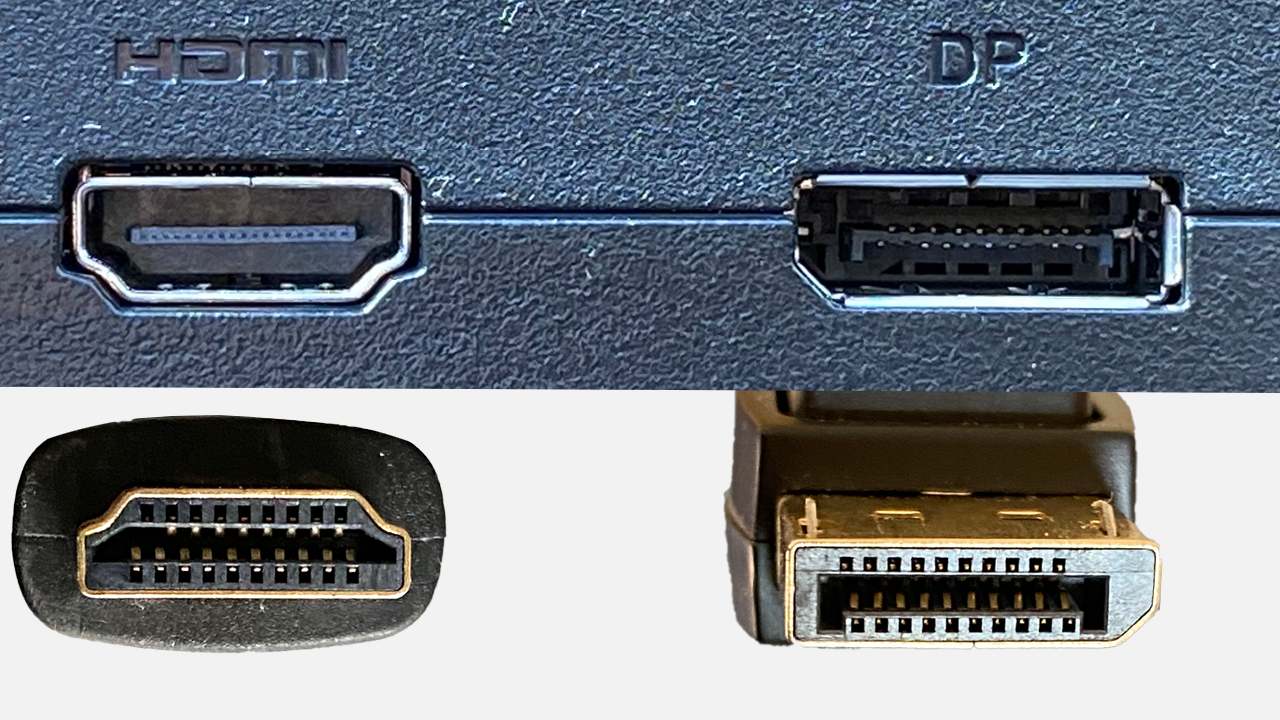
Accidental insertion of the wrong cables is impossible due to the design of the plugs and sockets. But there are other differences between HDMI and DisplayPort. Let’s take a look at their features.
What are the advantages of DisplayPort?
DisplayPort was developed to digitally connect monitors with computers. This involved high transfer rates of up to 240 hertz. An AUX channel in the DisplayPort connection enables bidirectional operation between the end device (monitor) and a PC (graphics card) for plug-and-play. The G-Sync (Nvidia) and FreeSync (AMD) methods are supported, which allows graphics cards to communicate directly with the monitor, delivering a perfect picture and making tedious adjustments no longer necessary. This mutual synchronization makes the DisplayPort an interesting option for gamers.
Using the latest DisplayPort version, impressive transfer rates of up to 77.37 gigabits per second are possible. A transmission of 8K resolutions—i.e., 8,192 × 4,320 pixels—at 60 hertz and a color depth of 12 bits per color channel without compression is possible.
The daisy chain function lets you connect several monitors in series. But monitors will need to be equipped and configured with a DP-Out port for this to work. Here, the multi-stream transport (MST) of the display port is used which is only compatible with Windows computers right now. You can read more about connecting and configuring multiple monitors to a computer in our articles “Dual monitors for a laptop” and “How to set up dual monitors in Windows 10 and 11”.
You can use additional channels of the DisplayPort for touch-sensitive screens, USB connections, cameras, microphones and other hardware. In addition, DisplayPort connectors have an optional locking mechanism as a safety feature. Barbs are used to release the connector upon the press of a button.
What are the advantages of HDMI?
So how does HDMI compare to DisplayPort? HDMI tends to be used more widely because it was designed for consumer electronics. TVs, beamers, game consoles and about every PC monitor have at least one HDMI port. HDMI allows you to easily connect a PC to a TV to view videos or images on a larger monitor. The entire signal path is digital. There’s no conversion from analog to digital signals, reducing transmission losses.
In accordance with the HDMI Licensing Administrator, HDMI products are not to be labeled using version numbers. Instead, verbal labels such as “HDMI Standard” or “HDMI Ultra High Speed” should be used. A cable for HMDI 2.1, for example, would be labelled “Ultra High Speed HDMI Cable” on the cable jacket.
HDMI 2.1a offers a resolution of 8K at 60 hertz or 4K at 120 hertz but transfer rates of only up to 42 gigabits per second. The FreeSync (AMD) synchronization option between graphics card and monitor is also supported by the current HDMI specification.
A maximum cable length of 10 meters shouldn’t be exceeded with HDMI. Longer lengths can cause transmission problems. However, if special HDMI fiber optic cables are used, up to 100 meters are possible.
HDMI vs. DisplayPort: Which one is better for gaming?
Gaming places high demands on the transmission speed between PC and monitor (and on the sound output). After all, high frame rates, i.e., a high number of frames per second (fps), must be transmitted smoothly to larger monitors with higher resolutions. This is especially true for high-resolution action games and shooter or flight simulators that use photo-realistic displays at resolutions of 4K.
This is where DisplayPort shines. Its automatic synchronization between graphics card and monitor is a serious advantage. The image information adapts dynamically to the requirements of the game or simulation so that a smooth screen experience is guaranteed.
While HDMI has caught up, it doesn’t quite reach the performance parameters of DisplayPort just yet. Older PC games tend to work well with HDMI. However, low resolutions may be problematic for gaming. With Moorhuhn and Co. it’s hard to get around the settings on the monitor (OSD) and the graphics card.
Manufacturers of graphics cards are constantly optimizing their products, so it’s worth considering upgrading your graphics card driver in addition to staying up to date on how HDMI or DisplayPort can improve playback performance.
There’s no winner when comparing HDMI and DisplayPort. Which connector you choose will depend on what you intend to use it for. DisplayPort is recommended for action-packed video games and for photo-realistic video playback in high resolution.
Reviewer

Christian Heldmaier
Christian Heldmaier is an experienced online marketing and SEO specialist from Karlsruhe. He has been working as an SEO Manager at IONOS since July 2020.