

What is IF AND in Excel and how to use it

One of the most useful tools for running calculations in Excel is the IF AND formula. The nested formula enables you to make precise queries that check numerous criteria and deliver immediate results. Keep reading to find out how Excel’s IF AND function works and which contexts it can be used in.
- Office Online
- OneDrive with 1TB
- 24/7 support
The instructions below can be used in the Microsoft 365 version of Excel as well as versions 2021, 2019 and 2016.
What is Excel’s IF AND formula?
The IF AND formula is a combination of the IF function and the AND function. The IF function is used to evaluate whether a statement is true or false. You can set the conditions that a value needs to fulfill in order to be evaluated as true. When you add the AND function, you can add other conditions that need to be fulfilled in order for the value to be considered true. This makes the IF AND formula an efficient way to check data against several criteria.
The structure of the IF AND formula is as follows:
=IF(AND(something is true,something else is true),then_value,otherwise_value)Say you want to check whether the values in a dataset fulfill conditions A and B. The result C will be given as the output only if both of these conditions are met. Otherwise, the result D will be output. In the formula above, the element something is true corresponds to condition A and something else is true corresponds to condition B. The then_value is result C, and the otherwise_value is result D.
If you need a formula in which only one of the two conditions should be fulfilled, use the IF OR formula. Then you’ll get result C if either condition A or condition B is true; you’ll only get result D if both conditions are not fulfilled.
Example of how to use IF with AND in Excel
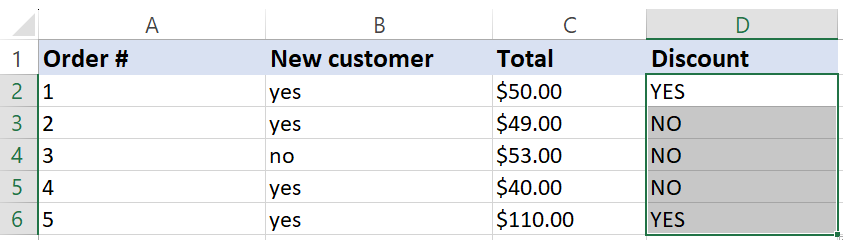
We’ll now walk through how this works using an Excel table with five orders. For each order, the total price in dollars is listed, alongside information about whether the order was made by a new customer (value yes) or an existing customer (value no). We want to use this information to calculate whether each order qualifies for a discount or not.
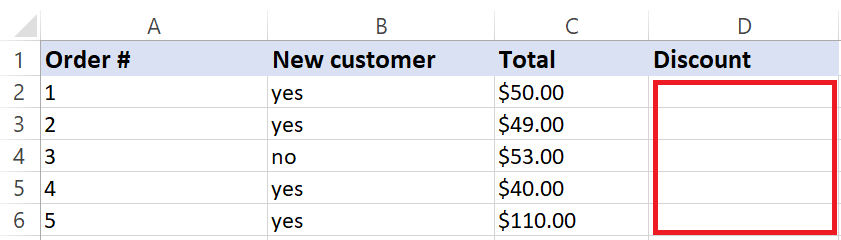
In order to qualify for a discount, an order must be placed by a new customer and have a total of at least $50. If an order was placed by an existing customer or has a total of less than $50, the customer will have to pay the full price. Thus, there are two conditions for receiving a discount.
In order to use Excel’s IF AND formula to check which orders receive a discount, click on cell D2 and insert the following:
=IF(AND(B2="yes",C2>49.99),"YES","NO")Insert the formula using the Enter key, and D2 will automatically be filled with the answer.
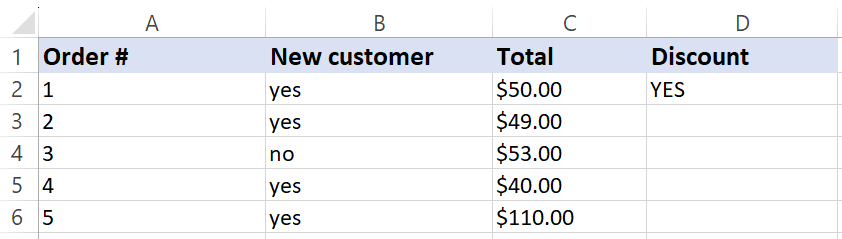
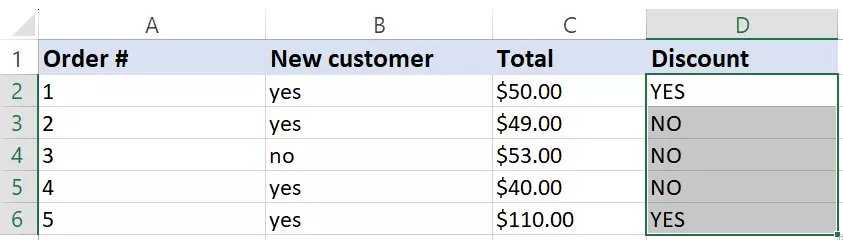
To receive an answer for the remaining cells, simply click on the green box and pull it down to the last relevant cell. Since the formula uses relative reference, cells B2 and C2 will automatically be changed to the corresponding cells for each row.
How to combine IF AND with other functions in Excel
One of the best things about Excel functions is that you can combine them freely in order to carry out complex and intricate evaluations of the data you have. In the following example, we’ll combine the IF AND function with the IF OR function.
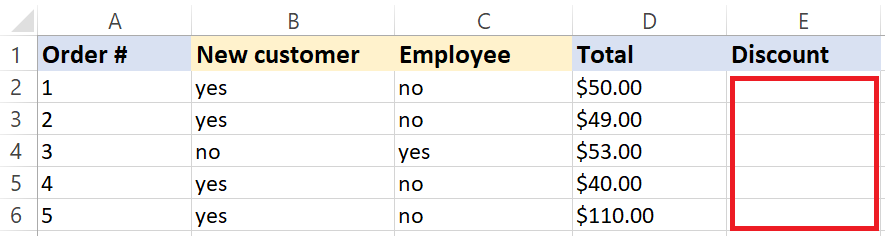
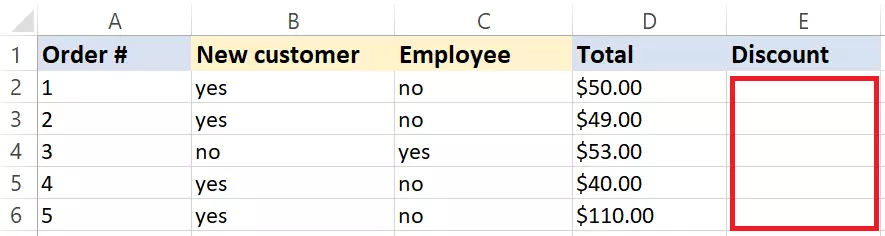
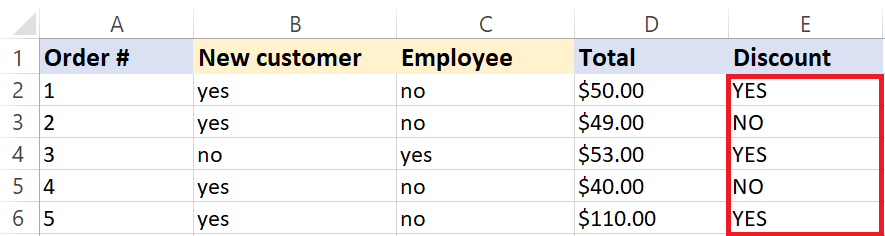
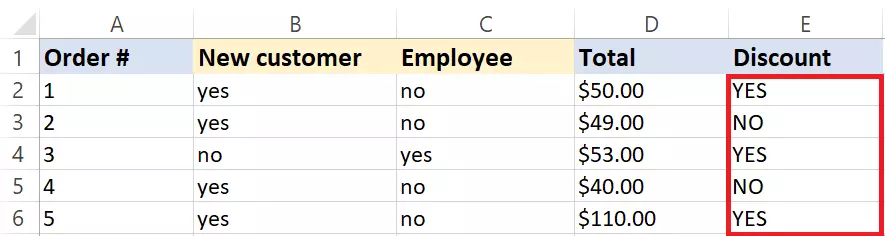
For this example, we’ll add an additional column to the table from above, which will list whether the order was placed by an employee. Just like new customers, employees receive a discount on orders of $50 or more. To qualify for a discount, either column B or column C needs to be marked with yes.
Insert the following formula to determine which orders receive discounts:
=IF(AND(OR(B2="yes",C2="yes"),(D2>49.99)),"YES","NO")The first spot in the IF AND formula is now filled with the OR function, which in turn contains two conditions. Only one of these two conditions needs to be fulfilled in order for an order to qualify for a discount. The second condition—the total price of an order must be at least $50—remains the same. After entering the formula and applying it to all cells, your table will look as follows:
In Excel, you can embed functions on up to 64 levels. However, nesting multiple IF functions can quickly become complex. In many cases, alternatives like the LOOKUP function or the INDEX function can be useful, although they do require additional reference tables.
Reviewer

Jeanna Raffa
With over 18 years of experience in online marketing, Jeanna Raffa possesses extensive expertise in digital marketing. Since 2020, her focus has been on providing practical information regarding email, office, and cloud storage solutions.