

Change the WordPress URL: Three methods to make it happen

If you transfer a WordPress instance to a completely new domain or move the installation to another directory, you need to change your WordPress URL. We present you three options so you can adjust the URL easily.
- Great premium TLDs at affordable prices
- Simple registration & transfer
WordPress address & website address: What is the difference?
With WordPress there are two different URL types. The WordPress address (site URL) covers all relevant WordPress files such as theme, plugins, and media files. Under this URL you can also reach the admin area of your WordPress installation.
The website URL (home URL) is the address where your website can be reached externally. Most of the time, the WordPress URL and website URL are one and the same address. However, large companies often outsource their WordPress address to another server to separate the installed applications from the actual website. But why should you want to change the WordPress URL?
Hosting for WordPress by IONOS offers best protection for your website thanks to Managed WordPress and optional Site Scan & Repair.
The most common reasons to change the URL on WordPress sites
Even though it is advisable to choose the URL as long-term as possible, there may be times when you want to change the WordPress URL:
- You are moving the WordPress site from a local server or test environment to the live site.
- In the future, the admin area should be accessible via a subdirectory. You reach the subdirectory by changing the WordPress site URL.
- You perform a WordPress domain migration. In this case, it is important that you set up redirects in WordPress to redirect the old pages to the new one.
- You have purchased an SSL certificate and convert your website to HTTPS. Again, you should set up a redirect from the old site using HTTP to the new one using HTTPS.
For detailed instructions on how to convert your WordPress website to HTTPS, please visit the IONOS Help Center. Don’t have an SSL certificate yet? Secure your website’s information now with a SSL Certificate from IONOS.
How to change the URL in WordPress
Below are three different ways to change the WordPress URL.
Change WordPress site URL in the admin dashboard.
The most common and easiest way to change the WordPress URL is to enter it directly in the admin dashboard. To do this, navigate to “Settings” > “General” in the admin area. There you will find the input fields where you can change the WordPress site URL or the website URL.

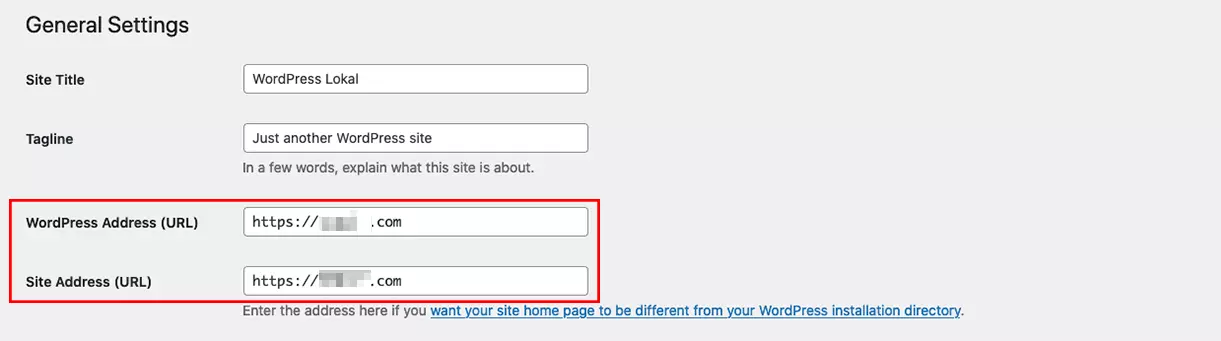
Usually, both URLs are identical. If you plan to put WordPress in a different directory, you only need to change the WordPress site URL - that is, the WordPress address. Note that when you click “Save”, the dashboard is accessible at the new URL. If a typo has crept into the new URL, you can use the wpconfig.php file to change the WordPress URL.
- Stress-free, no matter your skill level with easy AI tools
- Fully customizable with themes and plugins
- Hassle-free updating and less admin
Using the wpconfig.php to change the WordPress URL
A second variant to change the WordPress URL works via the wpconfig.php file. This is located in the main directory of the WordPress installation. The easiest way to reach the file is with a FTP client like FileZilla. A text editor can be used to edit the file. To change the WordPress URL, add the following code at the very bottom of the file:
define('WP_SITEURL', 'https://www.new-domain.com');
define('WP_HOME', 'https://www.new-domain.com');
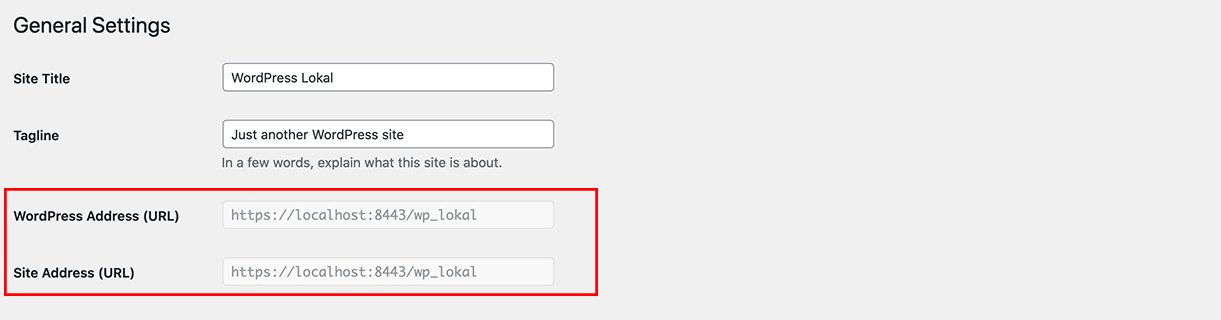
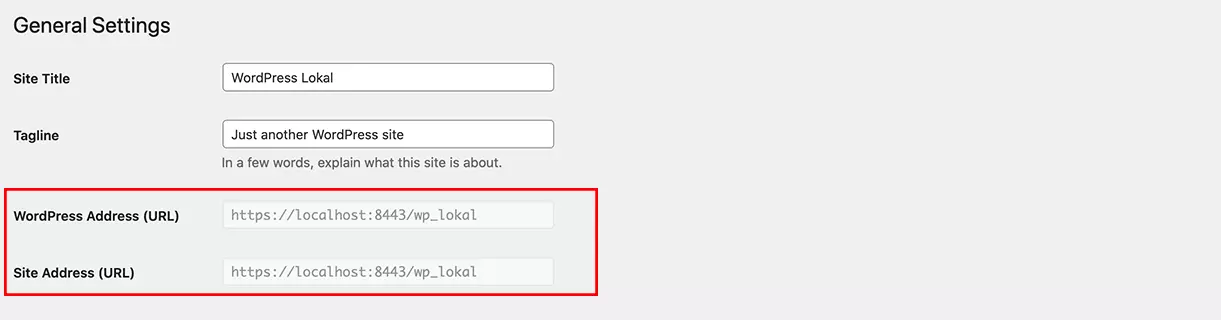
Once the changes are saved and the customized file is on the server, only the wpconfig.php file can be used to change the WordPress URL. The input fields in the dashboard are grayed out accordingly and not editable.
Change WordPress URL in the database
The third way to change the WordPress URL is through the database. To do this, log into the phpMyAdmin area. The record for the URL name can be found in the WordPress database in the first two rows under “wp_options”. Click on the domain name in the “option_value” column - an input field will open where you enter the new URL.
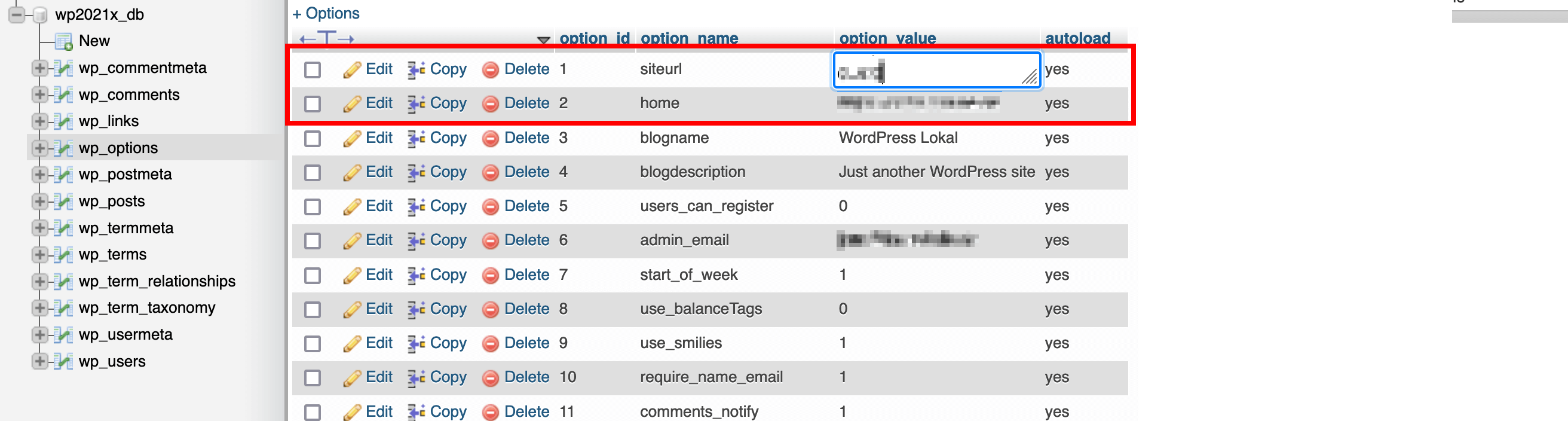
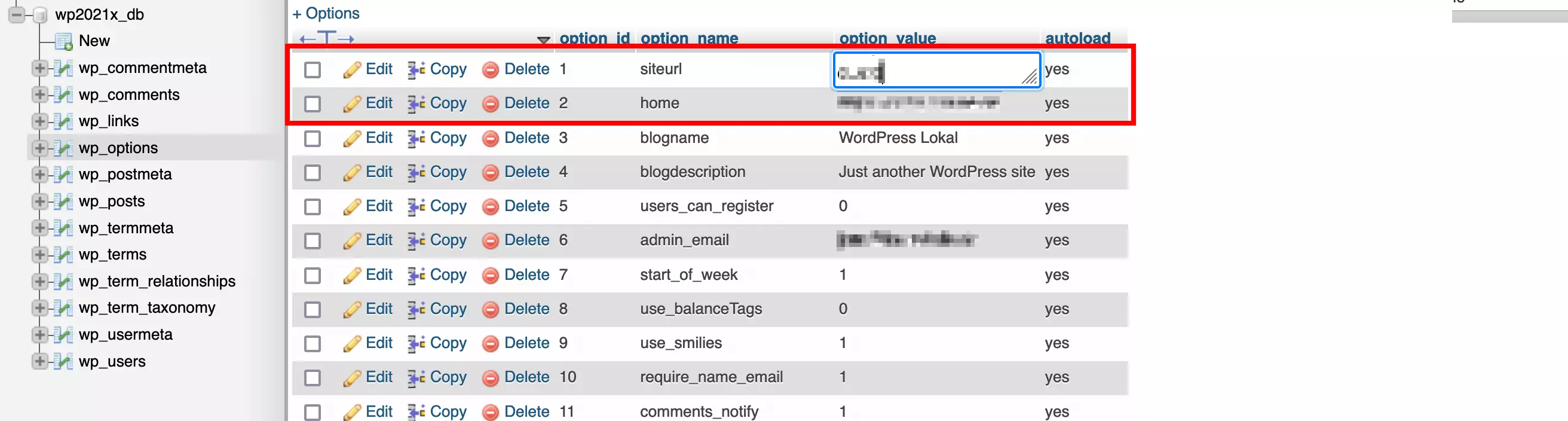
By clicking [Enter] or by clicking the mouse elsewhere, phpMyAdmin will automatically save the changes.
No matter which method you use - create a backup of your database and WordPress files before each change. If there are any errors in the new version, just display the previous version on the server and import the original database. The fastest way to create such backups is via a corresponding WordPress backup plugin.
With IONOS, you can register your desired domain quickly and easily.
In the IONOS Digital Guide, you will find many other interesting WordPress topics, e.g. WordPress cookie plugins, WordPress SEO tips for beginners, and WordPress shortcodes.
Reviewer

Julia Hertler
With over 18 years of experience in content marketing, Julia Hertler has deep expertise in digital communications. For the past 10 years, she has specialized in the areas of domains and hosting at the IONOS Digital Guide, making complex technical topics easy to understand.