

How to log in to WordPress: WordPress admin login

For non-professionals, it can be confusing when features differ between WordPress installations. In our WordPress login how-to guide, we explain how WordPress login works and what to look out for.
- Stress-free, no matter your skill level with easy AI tools
- Fully customizable with themes and plugins
- Hassle-free updating and less admin
What happens during the WordPress login?
With the login, the authentication as a registered user of the WordPress installation takes place. A logged in user has access to the WordPress dashboard, the central administration interface, often referred to as the “WordPress backend”. Let’s take a look at what the steps are from opening a browser window to entering the WordPress dashboard:
- Access WP admin login address in the browser:
The user accesses a WP admin login address in the browser. We will explain how the WP admin login address is composed later in this article.
- Transmission of user data on WP admin login page:
Once on the WP admin login page, the user enters the username and password in the form and sends them to the server.
- Redirection to WordPress dashboard:
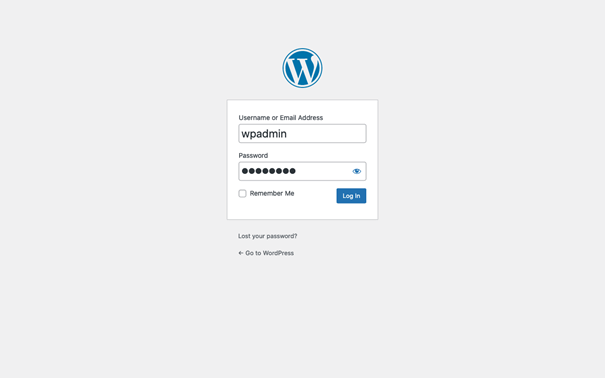
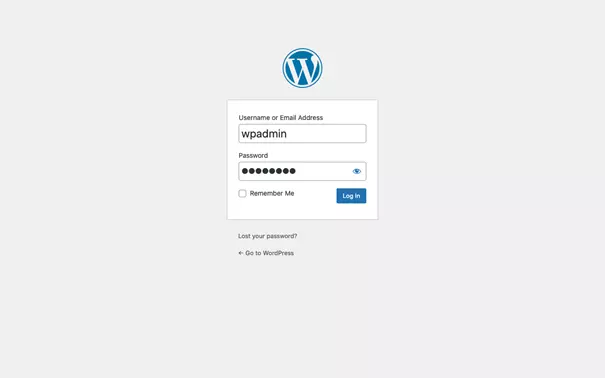
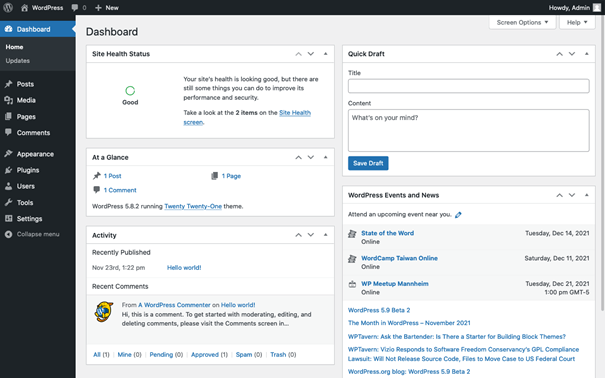
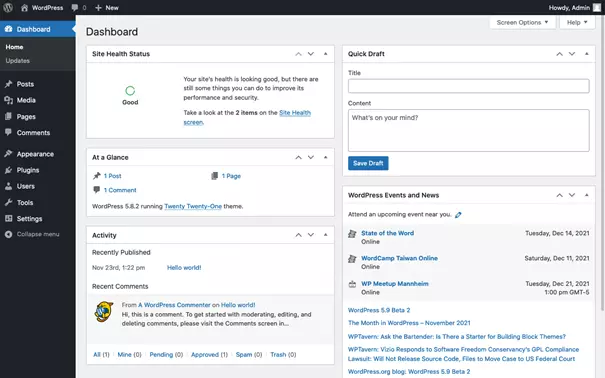
After authentication is complete, the user is redirected to the WordPress dashboard. In the process, a cookie is set that identifies the user to the system.
Each WordPress user is assigned a user role when logging in. Depending on the role assigned, limited options are available in the dashboard for accessing content and features. For example, an author does not have the rights to install plugins. We provide an overview of the default user roles found in WordPress:
| WordPress user role | Access rights |
|---|---|
| Super Admin | Can create sites and access all settings and content; only for multisite installation. |
| Administrator | Access to all settings and content of a site. |
| Editor | Can edit and publish content of any user. |
| Author | Can create and publish your own content. |
| Contributor | Can create own content, but cannot publish it. |
| Subscriber | Can edit own user profile. |
A user logged into WordPress is authenticated by cookie set in the browser used. It is therefore possible to be logged in with an incognito window, other browser, or additional device at the same time as multiple users in a WordPress installation. This is practical, among other things, to test a WordPress admin login for newly created user accounts.
With WordPress, as with other systems: Login is not the same as registration. This can be confusing as the terms are often used synonymously:
How do I find the WP admin login page?
The WP admin login page is the gateway to the WordPress dashboard. To access the login page, you need to know the WP admin login URL. Either type it in the browser’s address bar or click on a link that contains the URL. Fortunately, the structure of the URL follows a familiar scheme. So, the WP admin login page address can be easily determined as long as you know the WordPress site URL.
The WordPress site URL (WP_SITEURL) is the address where a WordPress site can be found on the web. Depending on the domain and the type of WordPress installation, there are several possible variants. Let’s have a look at some examples:
| Subdomain | Domain | Subdirectory | WP_SITEURL |
|---|---|---|---|
| — | example.com | — | http://example.com/ |
| www. | example.com | — | http://www.example.com/ |
| www. | example.com | /blog/ | http://www.example.com/blog/ |
| blog. | example.com | — | http://blog.example.com/ |
We show here all URLs with the HTTP protocol; in practice nowadays HTTPS is mostly used. This does not change the basic scheme.
If the WordPress site URL is known, the web addresses of WP admin login page and WordPress dashboard can be easily determined. In addition to the actual addresses of the two pages, there is a redirect in each case that can be used equivalently. If a user is not logged in and accesses the dashboard address, there is a redirect to the WP admin login page. In all cases, the address is called up in the browser to perform the WordPress login:
| WordPress admin area | WP_SITEURL + | Example |
|---|---|---|
| WP admin login page | wp-login.php | http://example.com/wp-login.php |
| Login forwarding | login | http://example.com/login |
| WordPress dashboard | wp-admin/ | http://example.com/wp-admin/ |
| Dashboard redirect | admin | http://example.com/admin |
Managed Hosting for WordPress from IONOS helps you to get the right performance for your WordPress website.
How to simplify the WordPress login process?
WordPress site users have to log in to get into the WordPress dashboard. To do so, they need the WP admin login page address or a link to click on. Not all users are technically savvy enough to figure out the URL themselves. Fortunately, there are some tricks to simplify WordPress login. We distinguish two approaches:
- Steps that a user can take on their own to simplify the WordPress login. These only affect the user in question.
- Steps that are taken by an admin to simplify the WordPress login. These affect the login for all users.
To log into WordPress more easily as a user
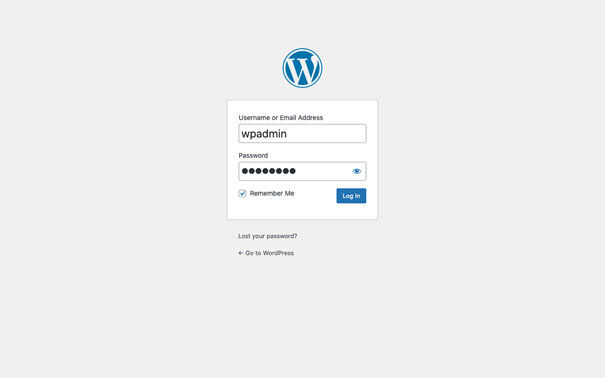
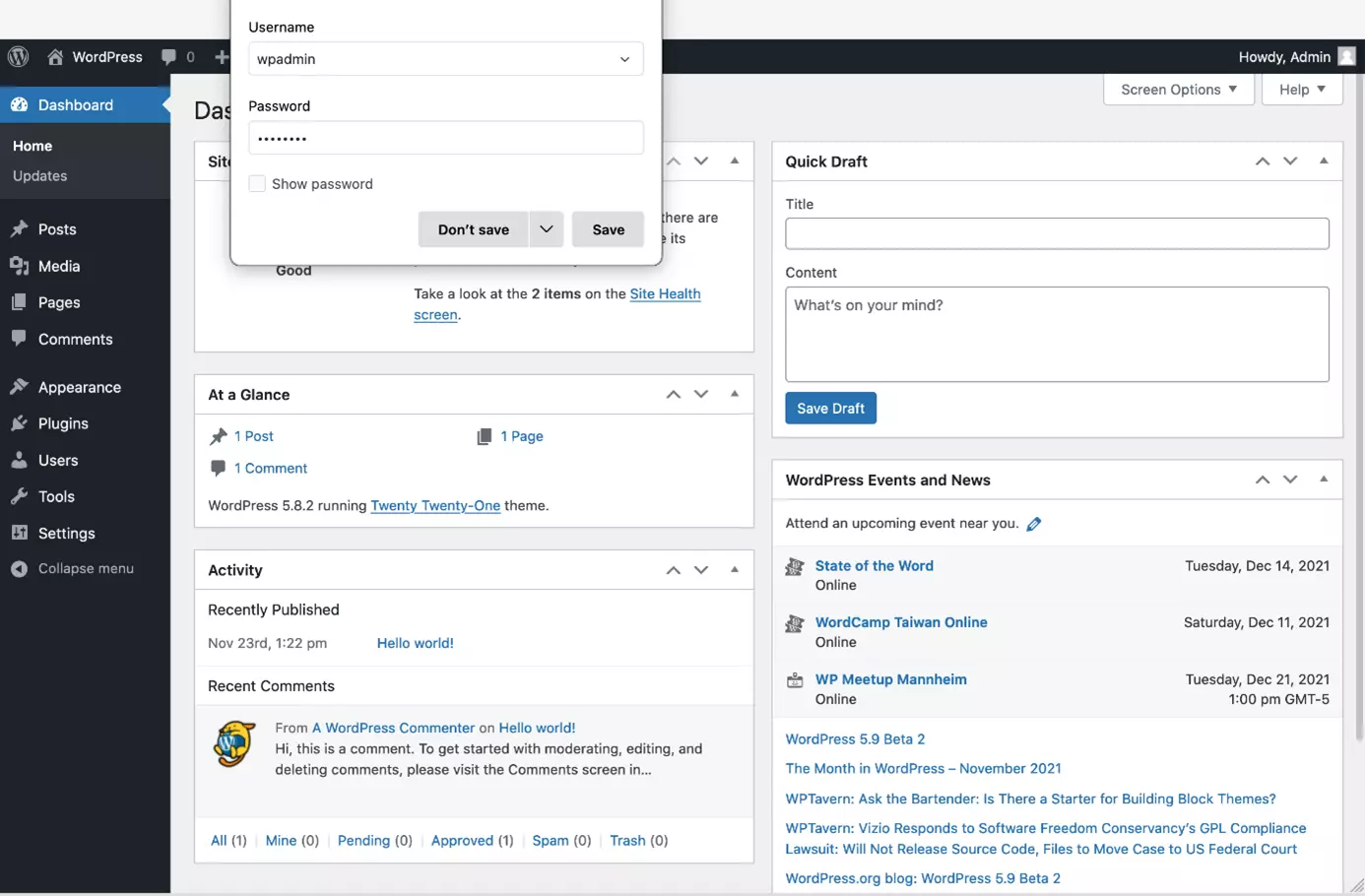
As a WordPress user, to simplify logging in with one’s user account, check the “Remember Me” box on the WP admin login page. This means that the authentication cookie is stored for some time. Within this time, no further WordPress login is necessary. It should be noted that this procedure only works in the same browser and only if the login is not done in an incognito window.
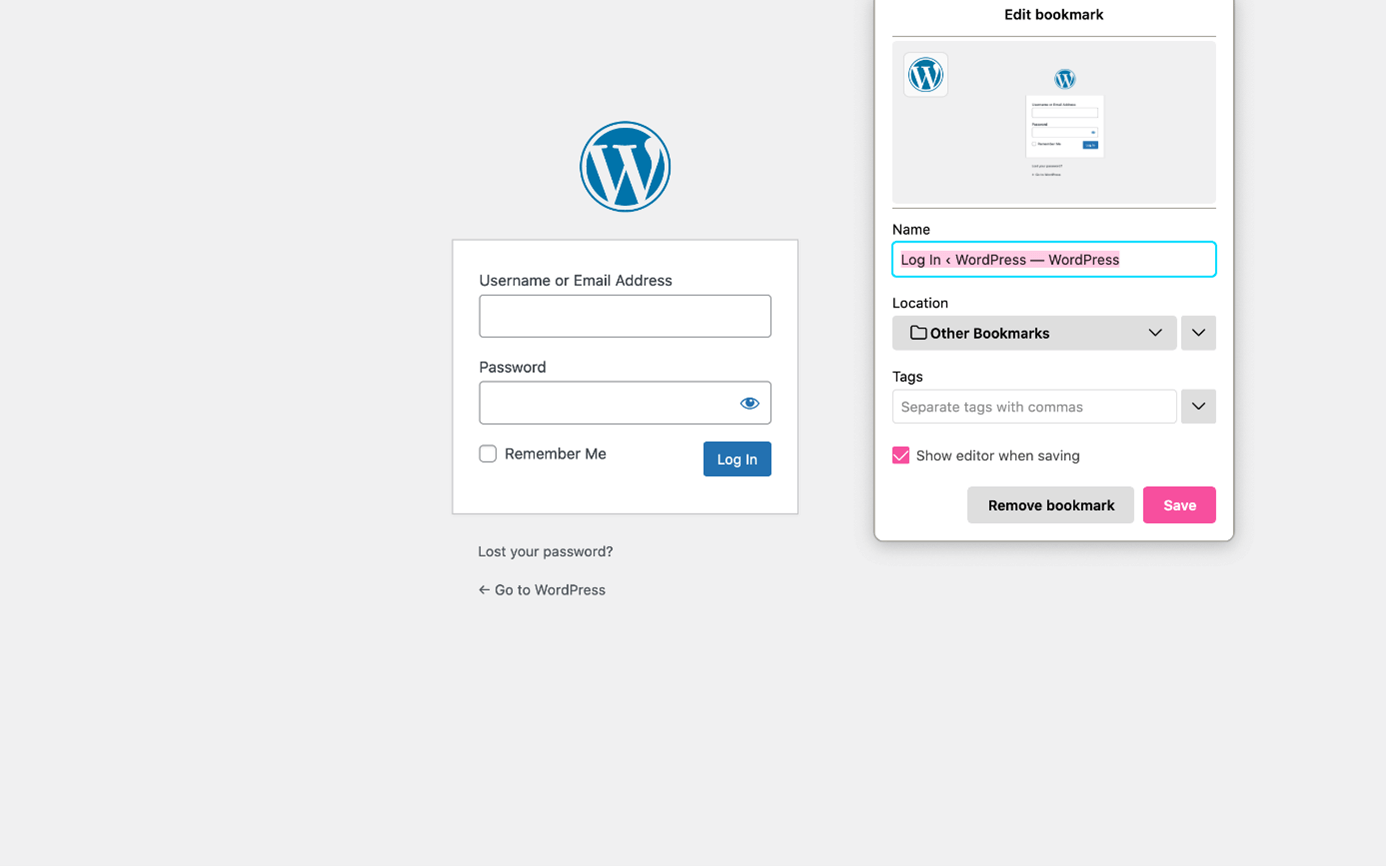
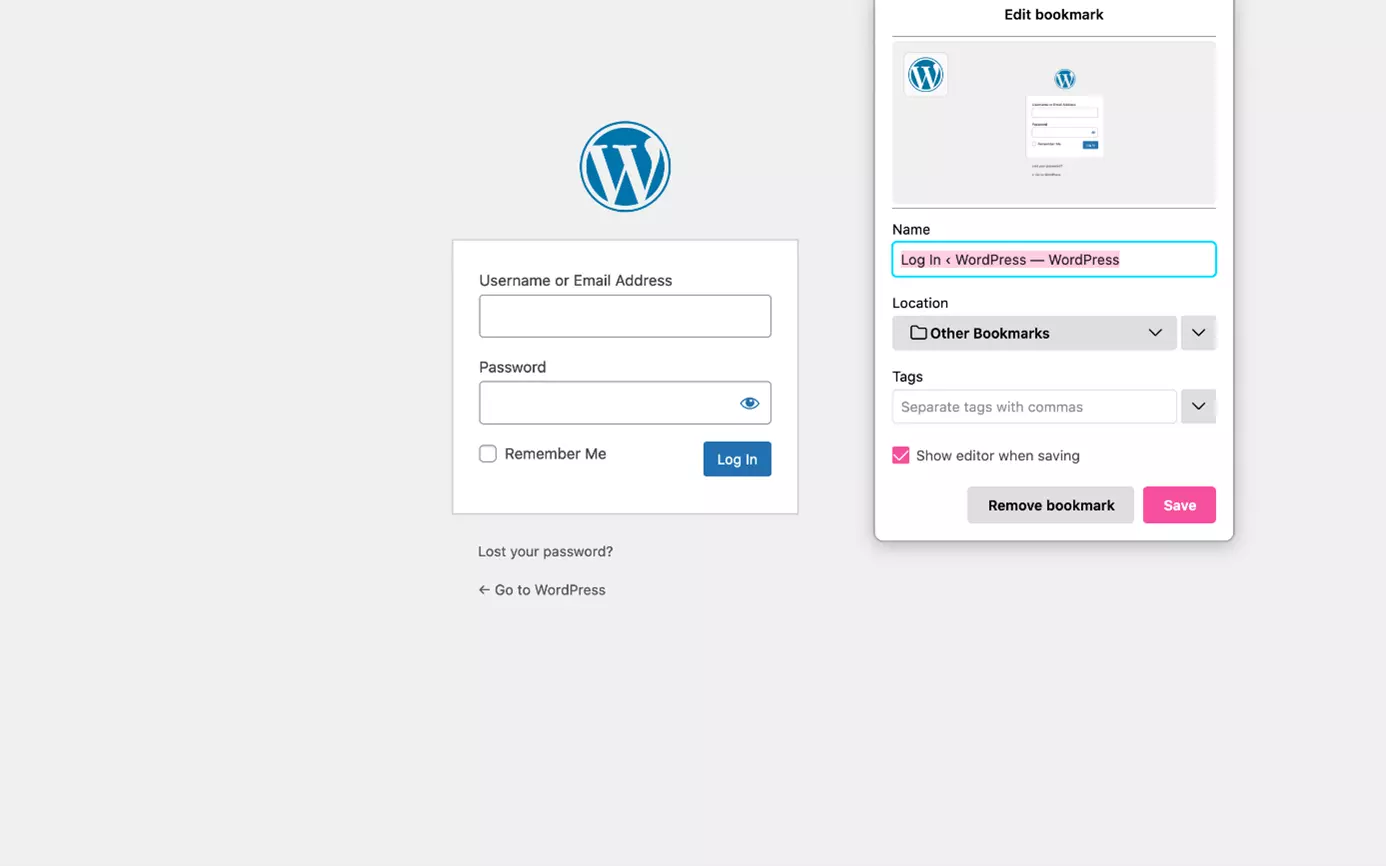
A simple trick that always works is to bookmark the WP admin login page in the browser. So the browser saves the URL under the title of the page. If you want to log in to WordPress again, you simply visit the page by clicking on it. So you don’t need to remember the URL. This is especially handy when using a WP admin login URL that is different from the initial one.
Entering passwords manually is extremely impractical. Instead, you can use a password manager, such as the one integrated in the Firefox browser. The browser remembers the combination of login URL, username, and password and enters the credentials when a known login URL is visited. This approach works particularly well in combination with a bookmark stored in the browser.

Simplify the WordPress admin login
Admins can simplify the login process for users in WordPress. Mostly this is done by placing the link to the WP admin login page in the front end of the website. This way, users only need to click on the link to get to the WordPress login. Let’s take a look at a few common approaches.
With the “meta widget”, WordPress provides a pre-made block by default that can be integrated into the layout of the site. The meta widget contains a set of “meta” links. In other words, these are links that are not based on the actual page content, but on the layer above it. The meta widget contains the following links:
- Link to WP admin login page
- Logout link
- Link to the posts feed
- Link to comments feed
- Link to WordPress.org
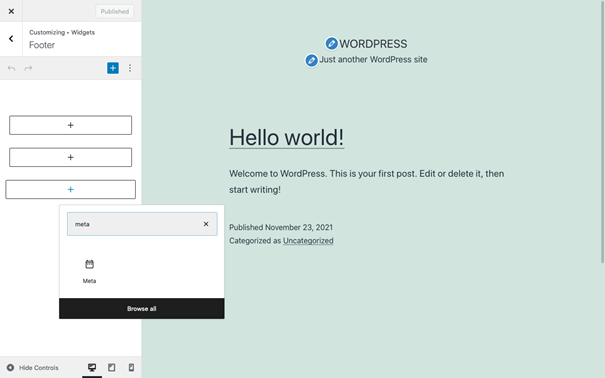
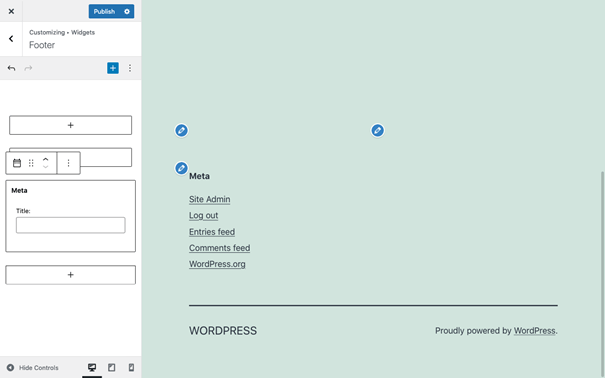
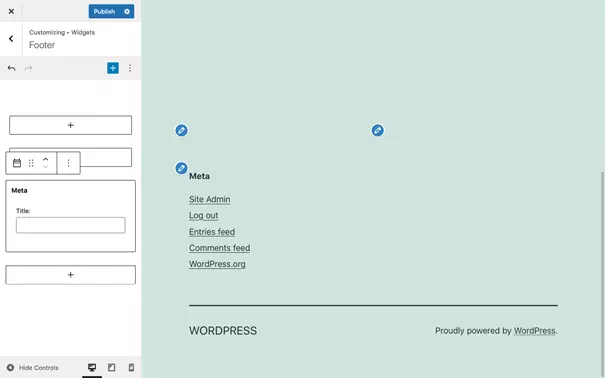
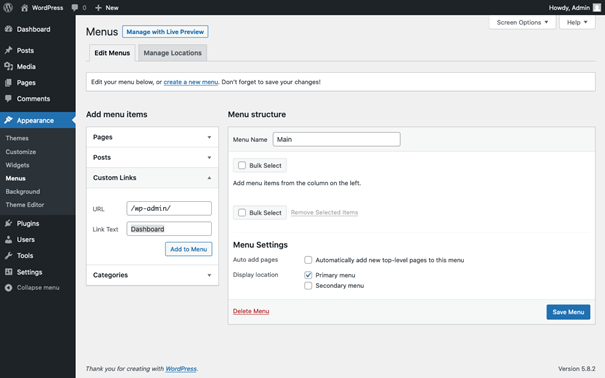
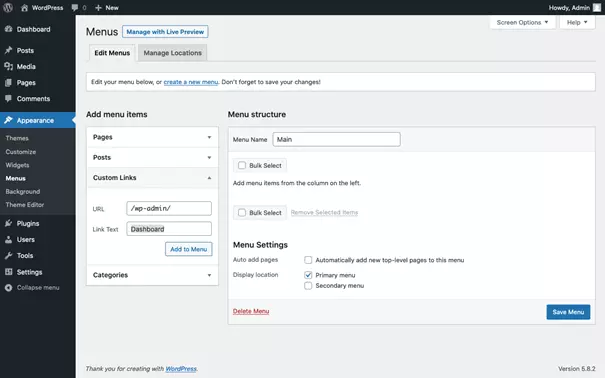
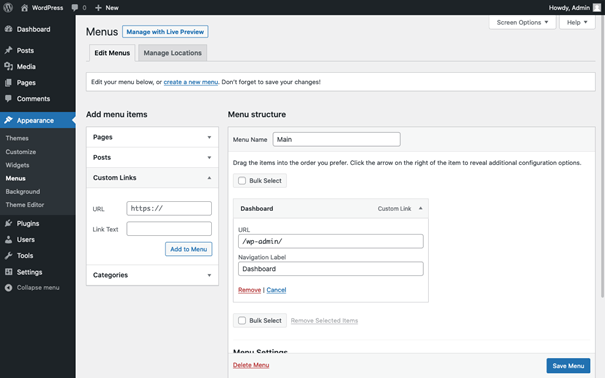
Even though the meta widget is handy and can be integrated quickly, it is not necessarily the best choice. If you only want to link the WP admin login page or the WordPress dashboard, it’s a good idea to place a link directly in the navigation menu or in the footer. To do this, insert the corresponding URL as an “individual link” in the respective navigation area. Users will get to the WordPress login or dashboard via the link.
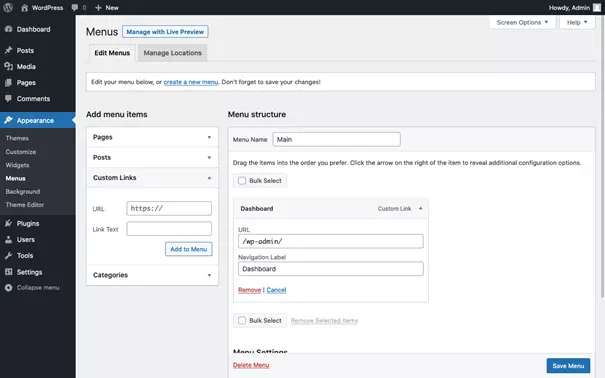
Especially for larger organizations, it’s a good idea to use single-sign-ons (SSO). SSO technology allows users to log in across multiple systems. Users log in centrally and are then logged into a number of systems. The particular process depends on the specific approach.
What to do if the WordPress login fails?
If the WordPress login fails, you are locked out as a user. It is then not possible to access the dashboard and publish or manage content. Furthermore, it is not possible to add users or install plugins or activate and deactivate them.
The public part of the WordPress site is still accessible for visitors. Therefore, a temporary loss of the login function is acceptable. However, it should not be a permanent condition, otherwise it will not be possible to provide the site with security updates. Let’s take a look at a few common scenarios where WordPress login could fail.
The password or username used is incorrect
Probably the most common WordPress login error is that the password or username was entered incorrectly. In most cases, it is enough to check the username and password and correct them if necessary. It should be noted that if the wrong password is entered more than once, the user account may be blocked. It is better to wait ten to twenty minutes and then try again.
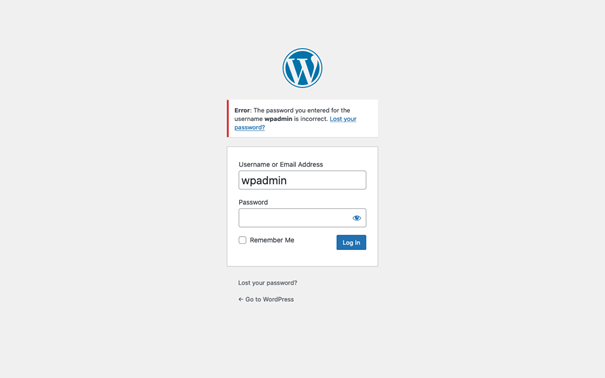
When using multiple virtual keyboard layouts, this error can quickly occur. For example, when using the English keyboard layout on a German keyboard, the letters [Y] and [Z] are reversed. Since the password is not visible while being entered, you often don’t notice this error. A quick and simple remedy to this is to write the password in a text document and copy it from there into the password field.
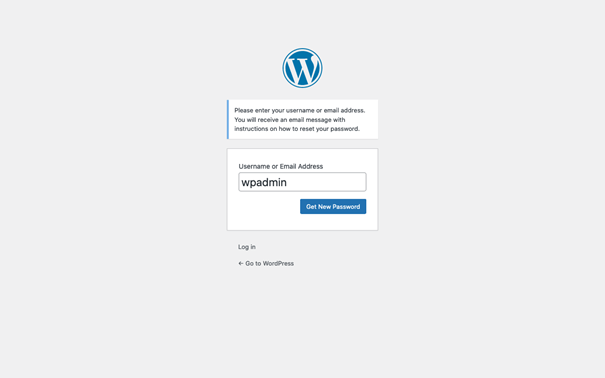
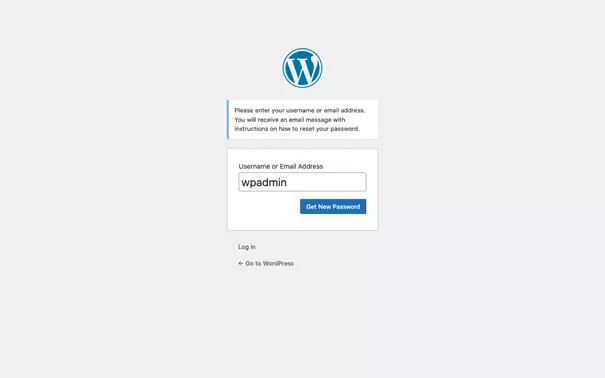
If a wrong password has been entered too often or the password has been lost completely, it is necessary to reset the password. On the WP admin login page there is a link to a corresponding page. There you enter the email address with which you are registered as a user with WordPress. You’re then sent an email with a temporary “reset password” link. However, this only works if WordPress and the server are configured correctly for sending mail.
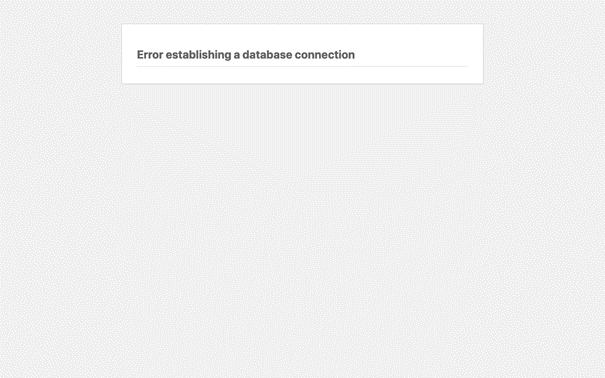
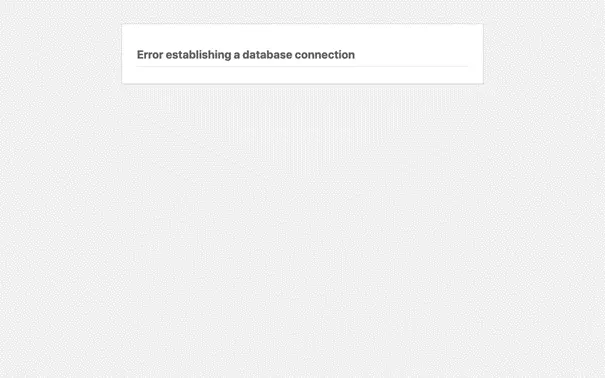
Error establishing a database connection
This infamous error message indicates a server error. The error occurs when the database is not accessible. There can be several reasons for this, for example, too many access attempts are happening in at the same time. The site is then no longer accessible – not even for visitors. The error may be temporary. If the error persists, it will not fix itself. Then the only thing that helps is to notify the admin to initiate rescue measures.
| Error occurs | Approach |
| Short term | Reload WP admin login page: after 1, 5, 20, 60 minutes. |
| Long term | Alert admin, initiate rescue actions |
| Sporadically | View log files to analyze errors; if necessary - optimize WordPress or make it faster, allocate more resources, or change hosting provider. |
Renamed the WP admin login page
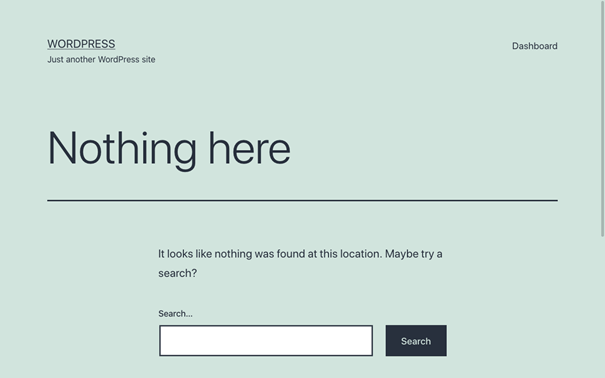
If accessing the WP admin login URL returns a “page not found” error, it’s likely that the WP admin login page has been renamed. This is a good idea in itself, as it allows “brute force” attacks to be stopped with little effort. However, users need to be informed about the new WP admin login URL. All bookmarks, links, and entries in password managers set before renaming must be renewed.
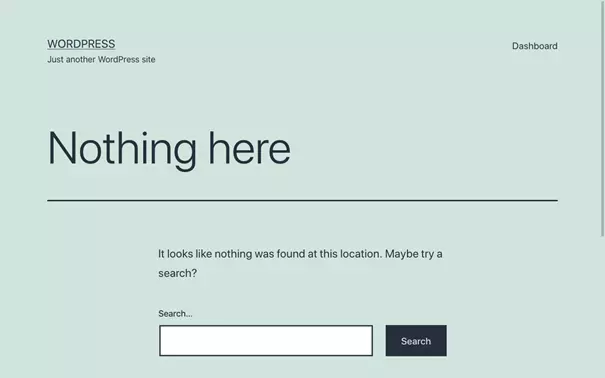
Usually, a WordPress security plugin is used to rename the WP admin login page. However, it may also happen that the WordPress installation has been corrupted. Thus, errors in the .htaccess file can also manifest themselves in the fact that the WP admin login page is not accessible. In this case, it is advisable to reset WordPress’s .htaccess file. However, caution must be exercised when doing so. Because improper changes to the .htaccess file can have a negative impact on SEO and on top of that expose sensitive page areas.
If the WP admin login page was renamed with a security plugin and the new WP admin login URL was forgotten, you are a bit stumped an admin. Since you cannot log in, it is not possible to deactivate the security plugin from the dashboard. However, as long as you still have access to the WordPress server, there is a trick: deleting or moving the plugin folder sometimes works. This will deactivate the plugin and restore the WP admin login page under the normal address. However, you need to know the name of the plugin for this to work.
If you have SSH access to the WordPress server, it is best to use the WordPress command line interface (WP-CLI). With the help of WP-CLI you can display a list of active plugins and their names. Plugins that rename the WP admin login page often contain one of the terms “Login”, “Hide”, or “Security”. Once you have identified a plugin as a candidate, you can deactivate it via WP CLI command. Alternatively, you can temporarily deactivate all plugins. Let’s look at the individual steps in detail:
- List active plugins:
wp plugin list --status=active- List plugins and filter them by candidates:
wp plugin list | grep -E --ignore-case 'login|hide|security'- Disable a specific plugin:
wp plugin deactivate <plugin></plugin>- Alternatively, deactivate all plugins:
wp plugin deactivate --all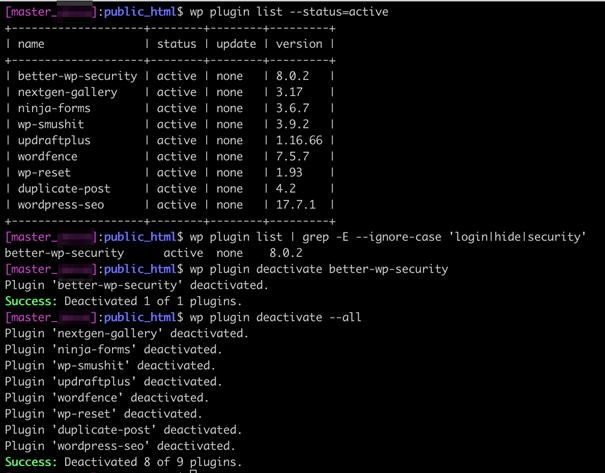
Other WordPress login errors
In addition to the relatively common errors already mentioned, there are a few other circumstances that can prevent WordPress login.
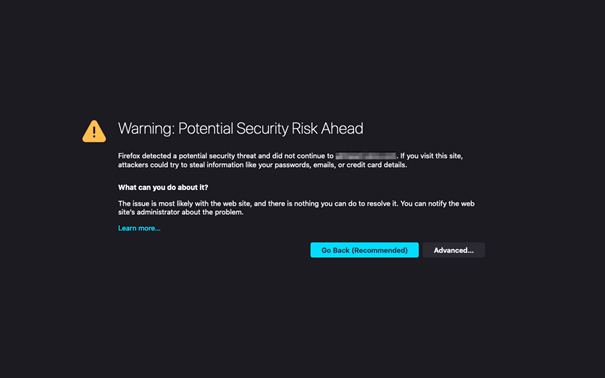
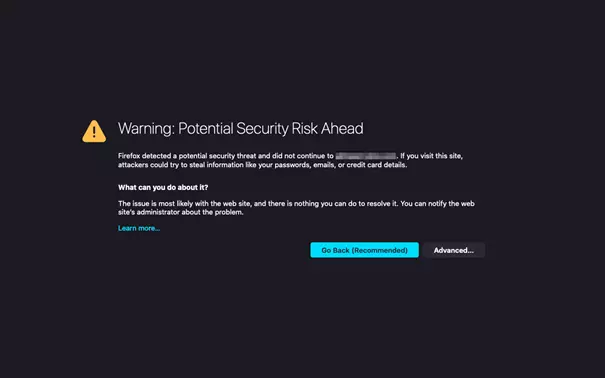
Admins usually configure the WordPress admin login to force logging in over a secure connection (HTTPS). This is because the WordPress login sends username and password to the server, and without HTTPS, unauthorized people could read the credentials. If the SSL certificate underlying the HTTPS connection has expired, the browser will refuse to load the WP admin login page. In this case, the SSL certificate must be renewed or replaced.
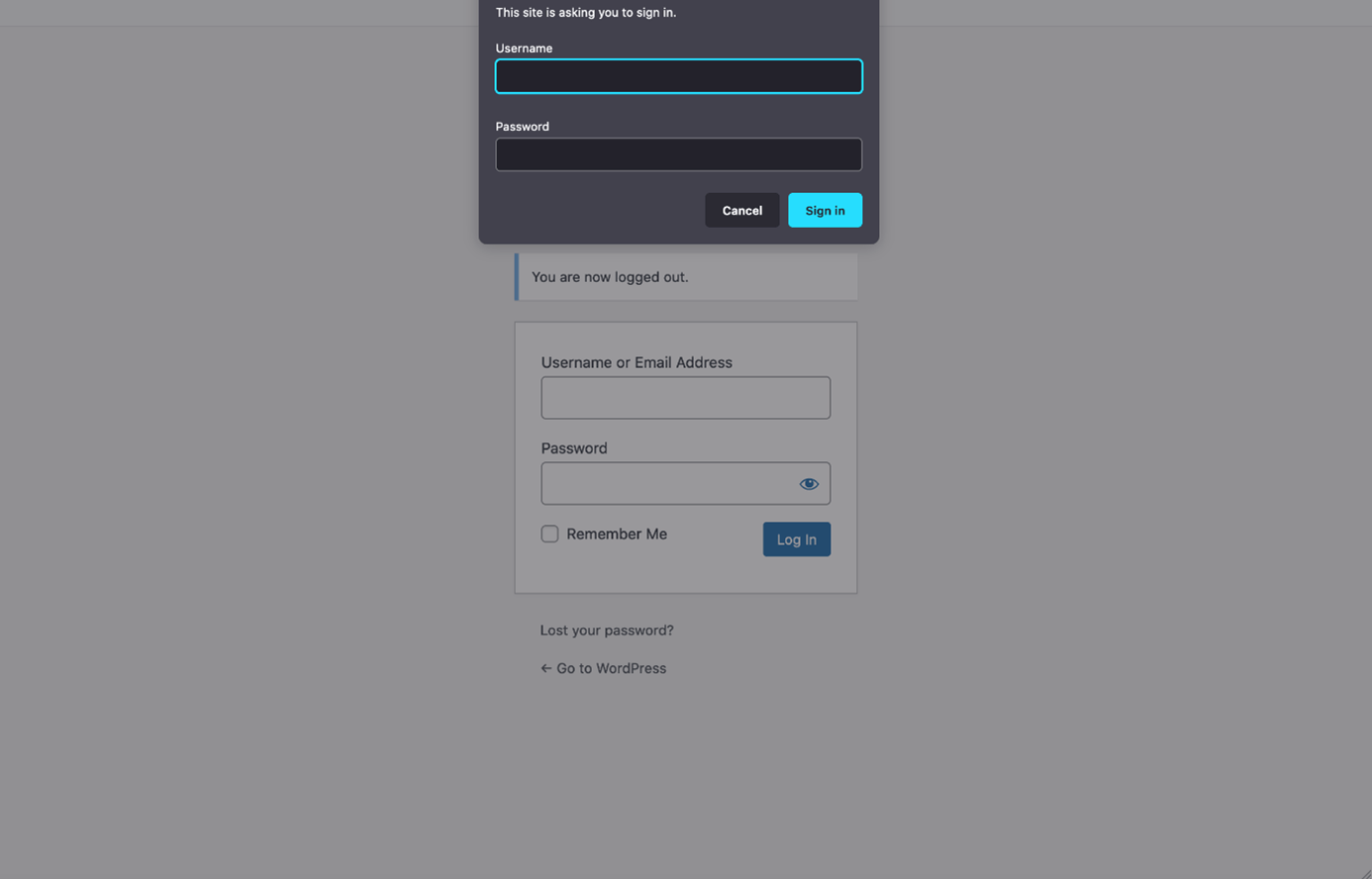
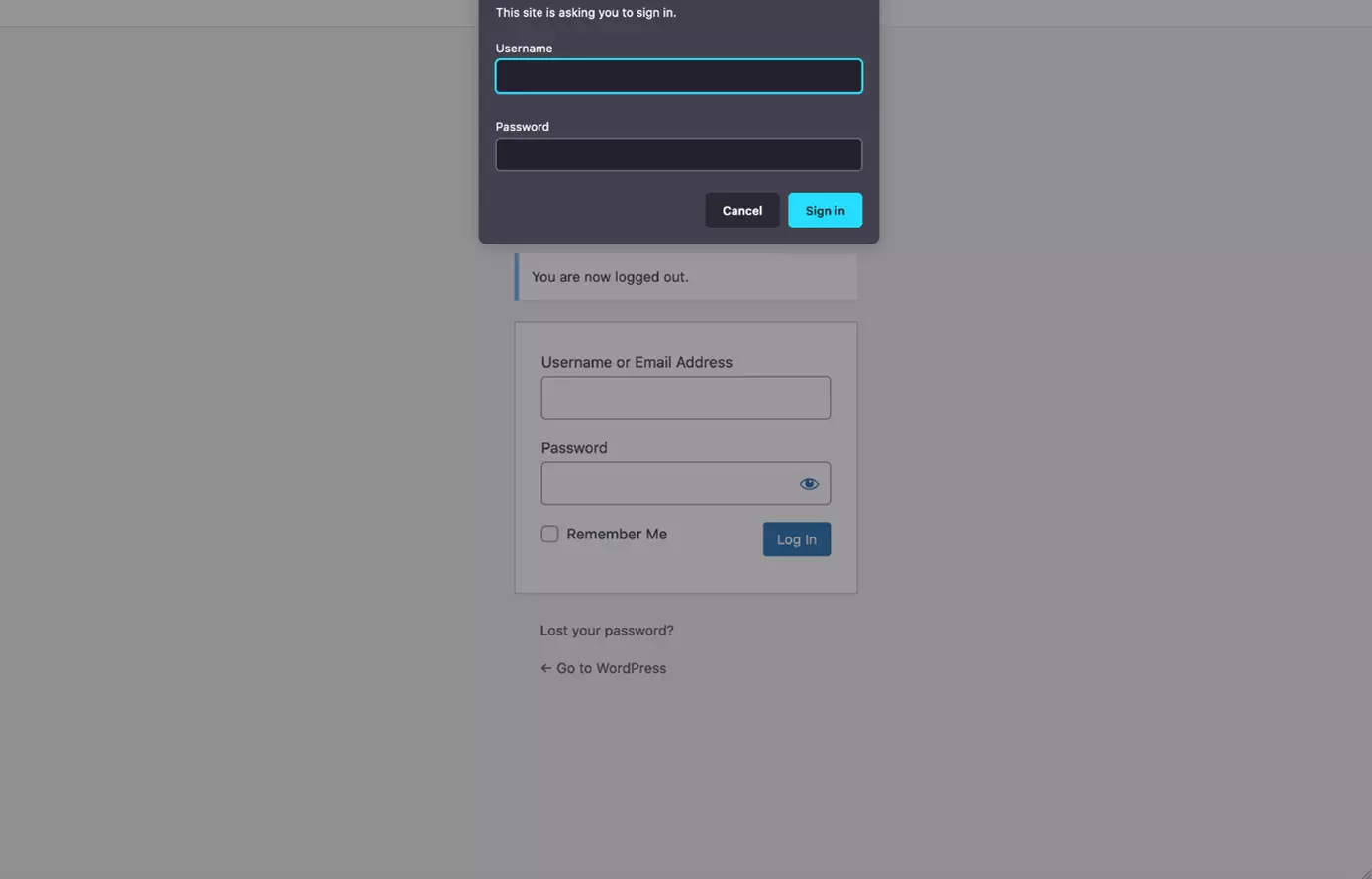
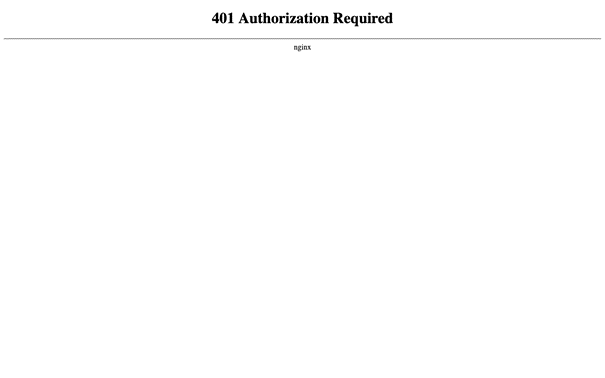
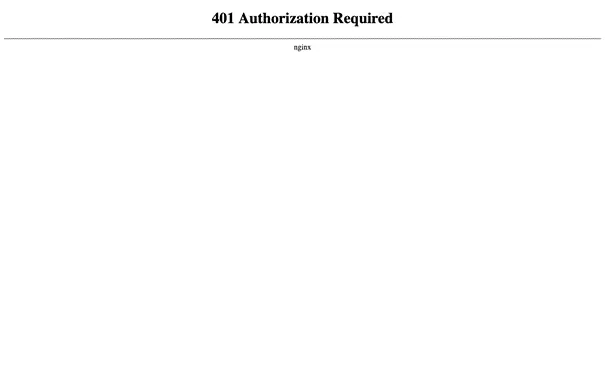
The WordPress login authenticates a registered user to WordPress. In some situations, additional server level password protection is set. This is usually configured via the .htaccess file. This is particularly popular for hiding staging sites or sites under development from public access and search engine bots. Attempting to access the site without correct user credentials will return a “401 Authorization Required” HTTP error.
Last but not least, WordPress login may fail if two-factor authentication (2FA) is active. Then, in addition to the WordPress password, another access permission is needed to log in. This can be, for example, a code provided on another device. Dedicated apps such as Google Authenticator, with which WordPress can be protected, as well as SMS-based solutions are available.
Starting your first WordPress website? In our special guide we show how to create WordPress sites.
Reviewer

Julia Hertler
With over 18 years of experience in content marketing, Julia Hertler has deep expertise in digital communications. For the past 10 years, she has specialized in the areas of domains and hosting at the IONOS Digital Guide, making complex technical topics easy to understand.