

How to create a WordPress Menu

Good navigation is the key to orienting visitors on a website. From a web usability point of view, an optimized menu structure is important for users to access the information they are looking for. It takes just a few steps to create a WordPress menu in the content management system.
- Great premium TLDs at affordable prices
- Simple registration & transfer
WordPress menu: here’s how to set it up
Once you’ve installed everything for your WordPress site, you can add a WordPress menu from the backend. Depending on the theme or child theme, the menu will be displayed at different positions. Usually, there is a main menu, often a footer menu, and possibly others for specific subpages. If the theme is based on responsive design, the menu automatically adapts to the corresponding screen width and the respective end device.
Enjoy the best website protection with Managed WordPress services and optional Site Scan & Repair with Hosting for WordPress from IONOS.
Step 1: Create a new WordPress menu
To create a WordPress menu, navigate to the dashboard > “Appearance” > “Menus”.
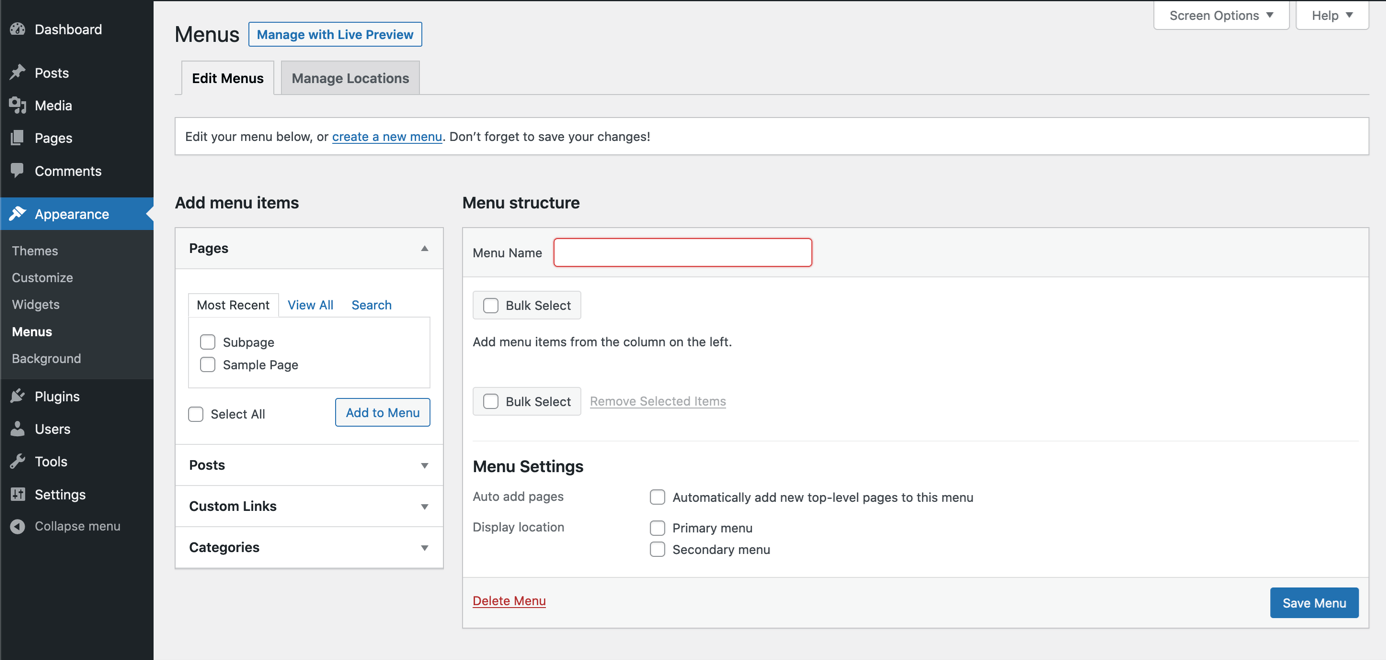
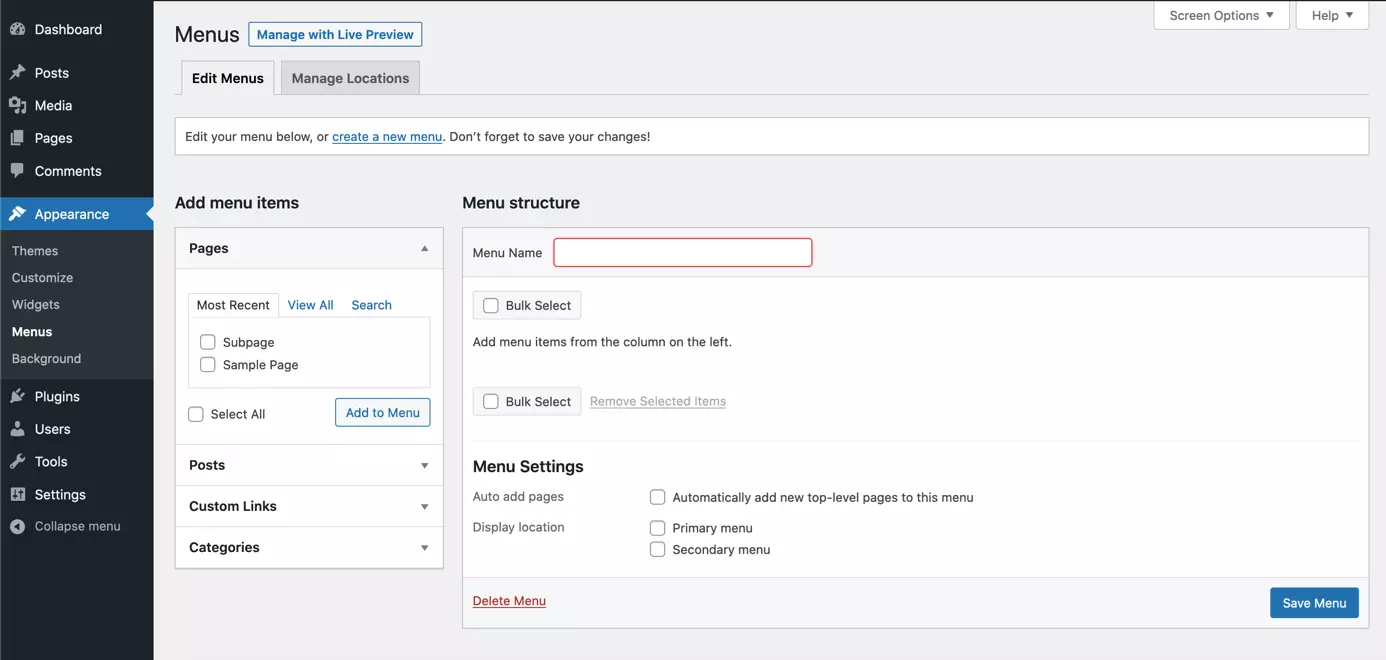
Assign a unique name for your menu in “Menu Name”. For example, “Main menu” for the primary menu. Then click “Save Menu” to create your first WordPress menu.
Step 2: Add elements to your WordPress menu
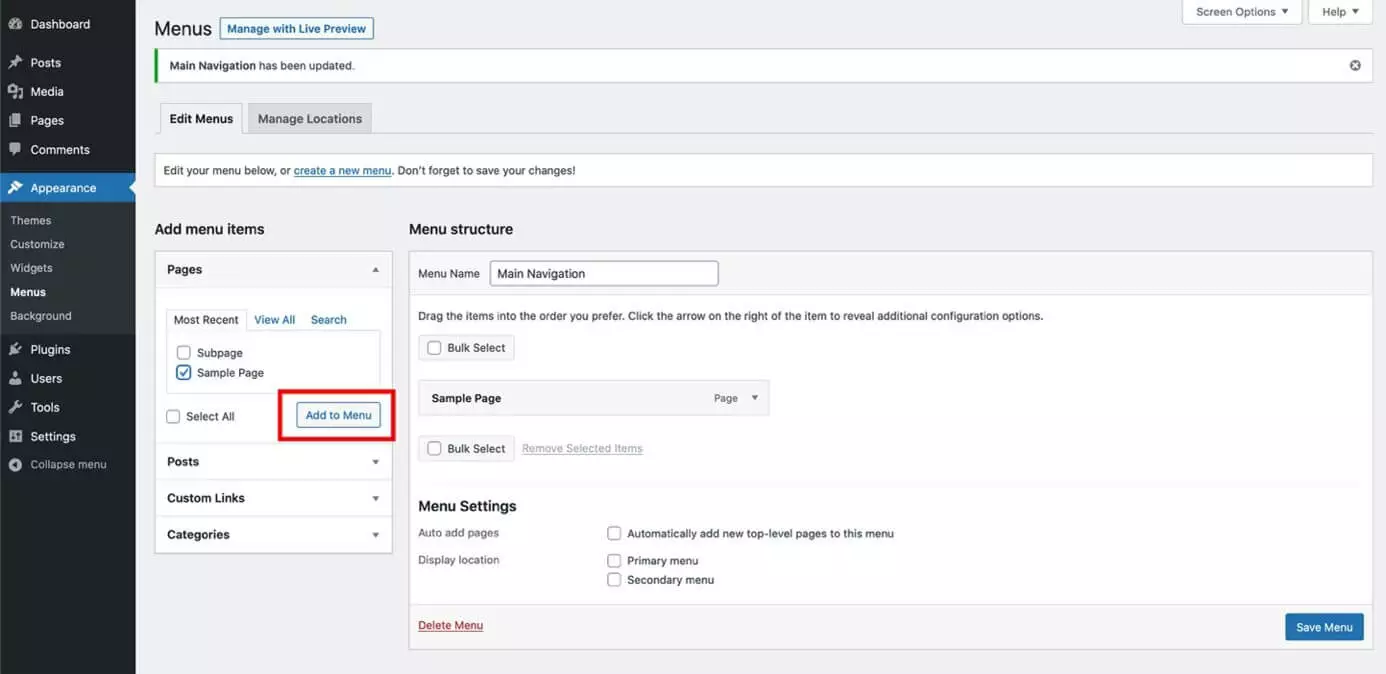
Now that you’ve created your WordPress menu, you can add elements to it. As a standard, you can link pages, content, web links, and categories. Depending on your chosen theme, you may be able to select additional menu items which WordPress will display on the left side under “Add menu items”. To add an element to a WordPress menu, select it and click “Add to Menu”.
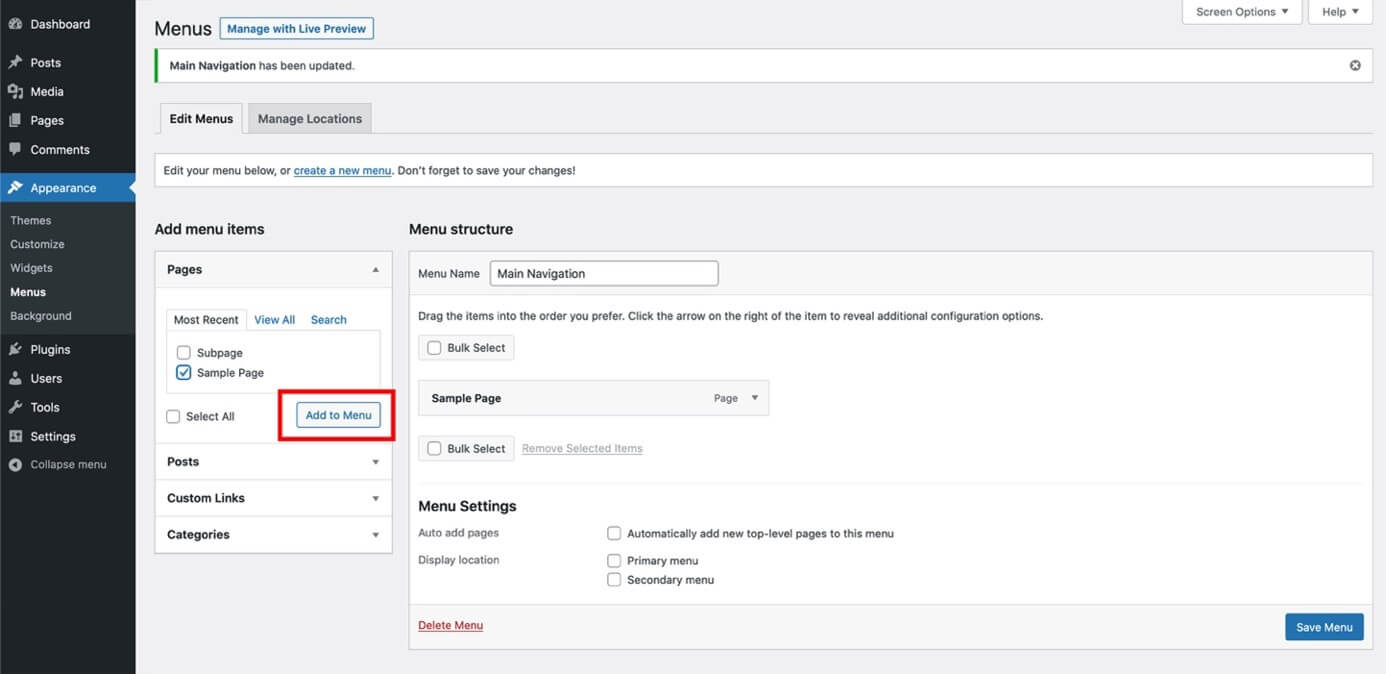
Step 3: Create WordPress menu: select order of elements
Now that all your chosen elements are integrated into the WordPress menu, use drag-and-drop to determine their order. To do this, simply hover the mouse over the element and drag it to the appropriate location while holding down the mouse button. If a page is a subpage, drag the element below the parent page slightly to the right and release the mouse button. That’s how you create multiple menu levels. Note, however, that not every theme displays an unlimited number of menu levels. In general, try to avoid too much nesting, otherwise the menu may be confusing.
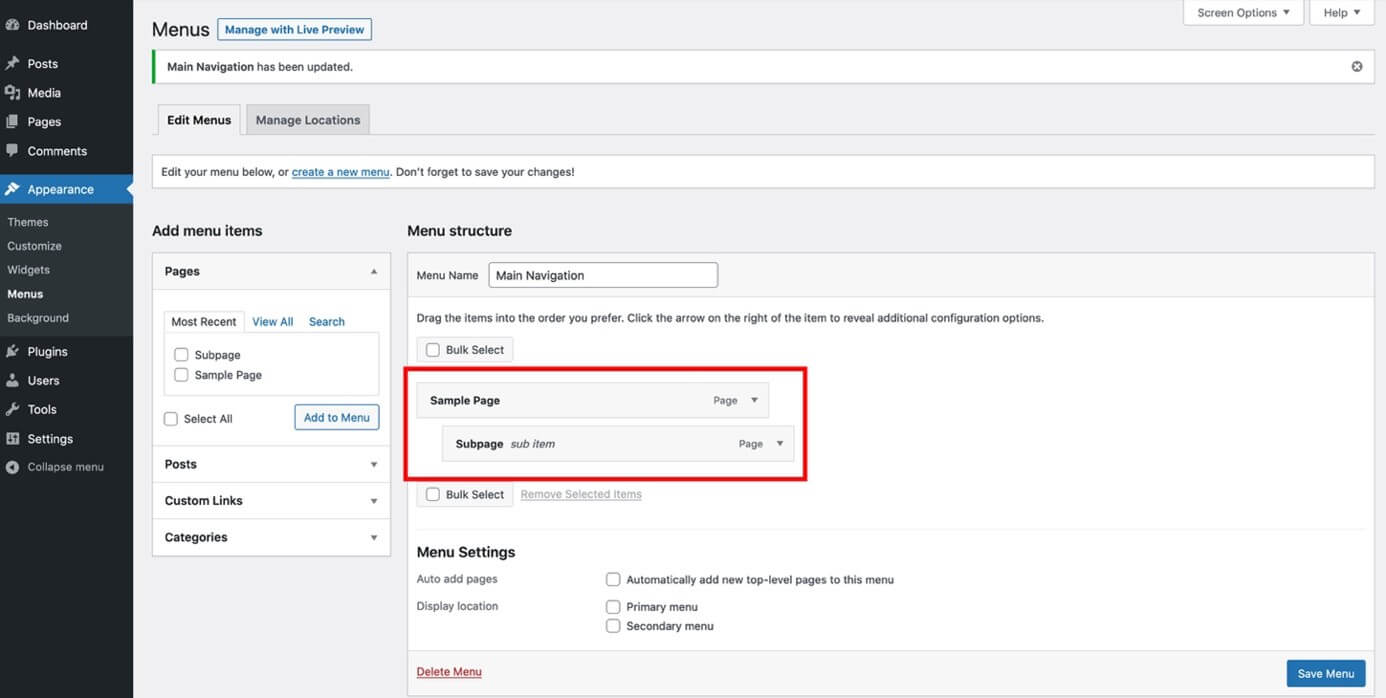
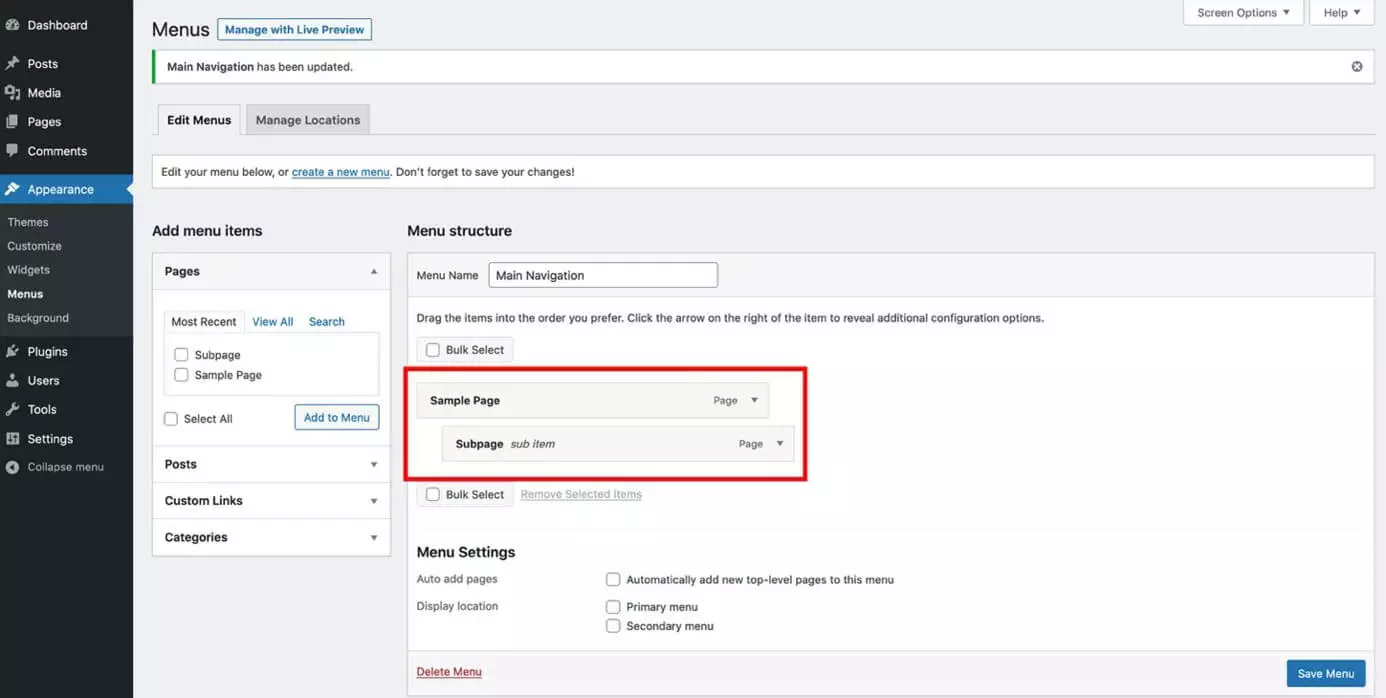
Don’t forget to hit “Save Menu” after you’ve defined the order.
Step 4: Adapt WordPress menu and remove elements
To adapt elements in the WordPress menu, click on the individual menu items to launch an editing panel. Below the name of the element, you can assign your own class to the menu item or remove the element among other things. A separate class is useful, for example, if you want the menu item to stand out visually from the other elements. If certain functions do not appear in the editing mask, click on “Screen Options” at the top right of the screen and activate the functions by clicking on the checkbox.
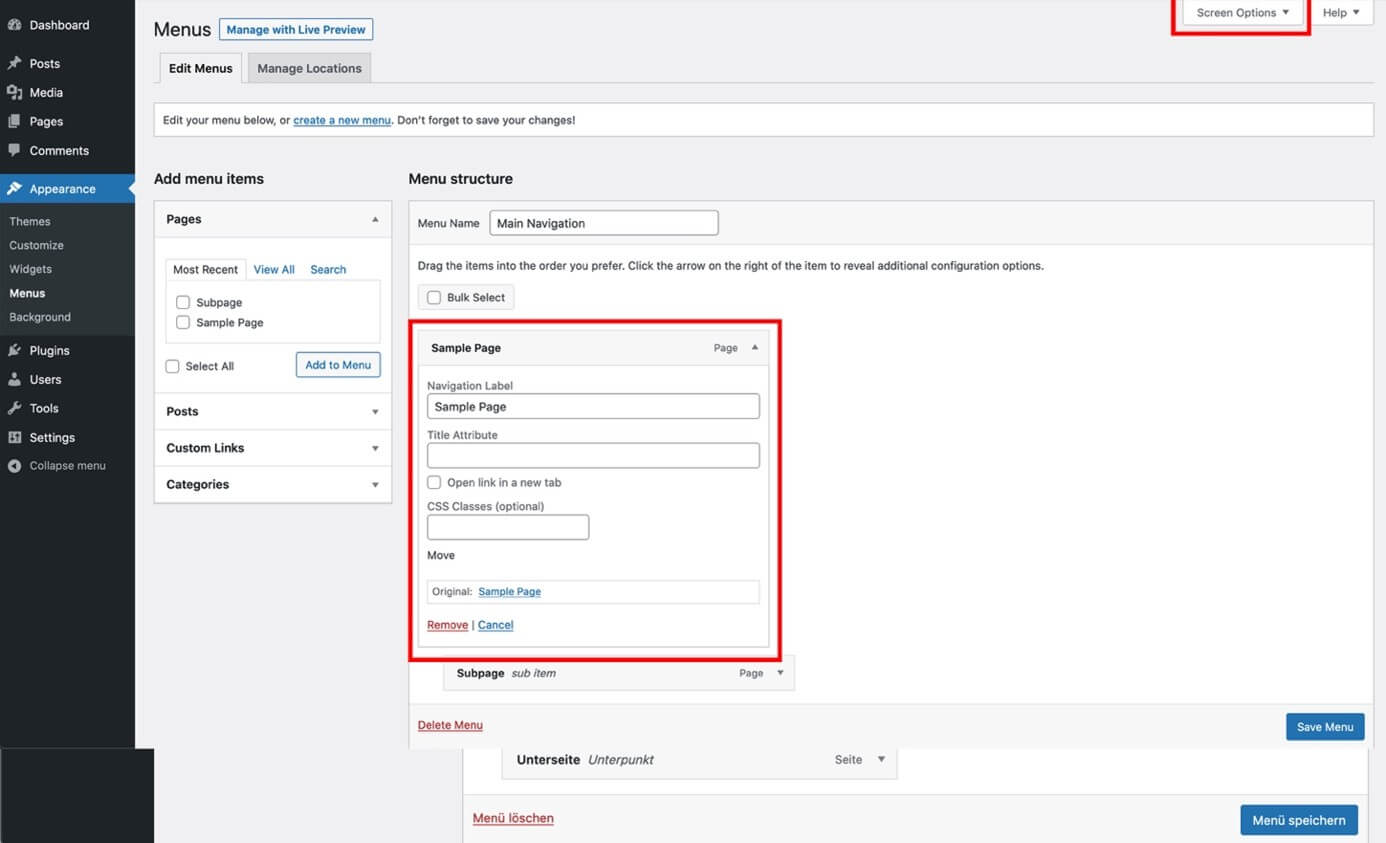
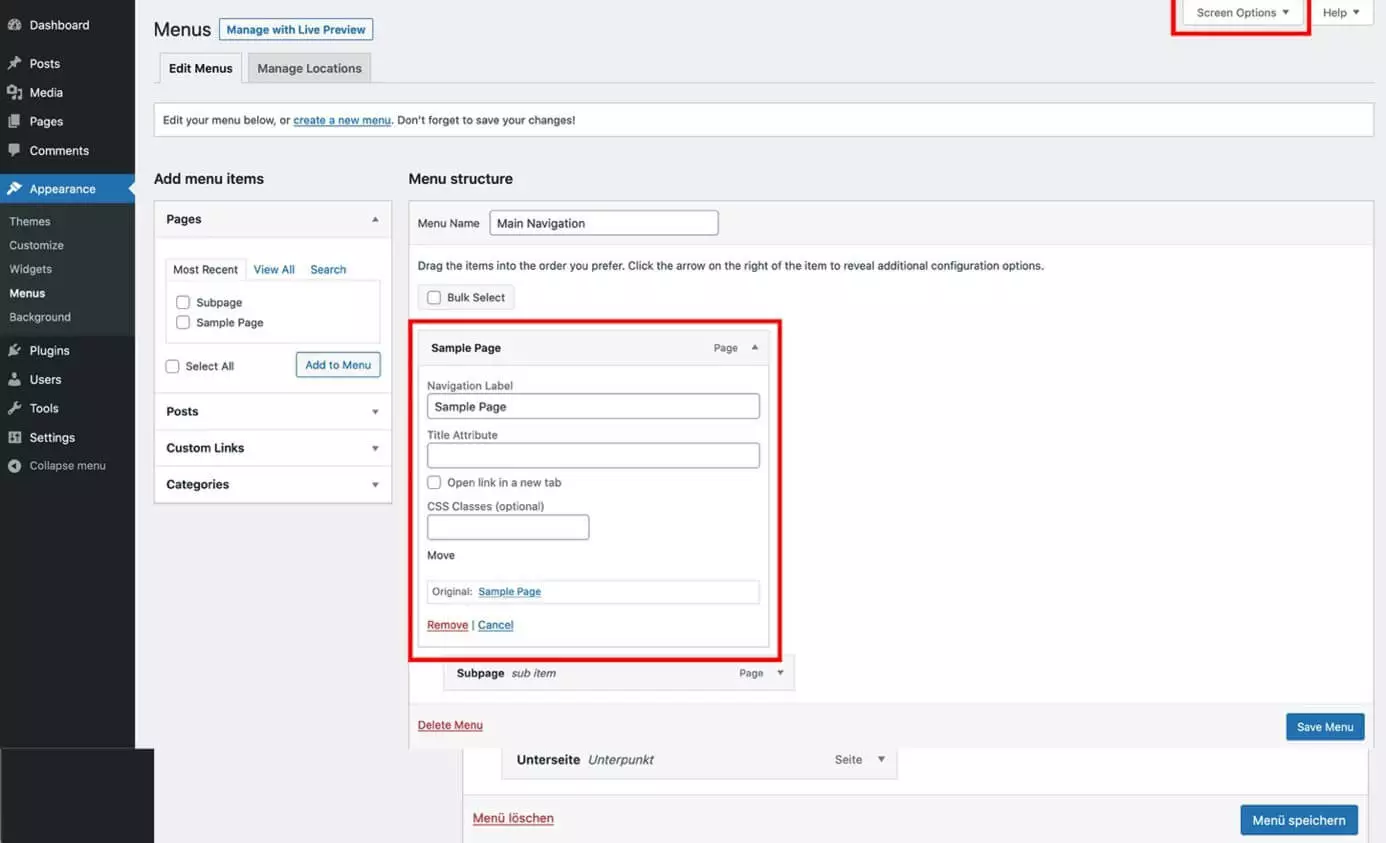
To delete the selected element, simply click on “Remove”. Then confirm your changes with “Save Menu”.
- Stress-free, no matter your skill level with easy AI tools
- Fully customizable with themes and plugins
- Hassle-free updating and less admin
Step 5: Create WordPress menu: theme location
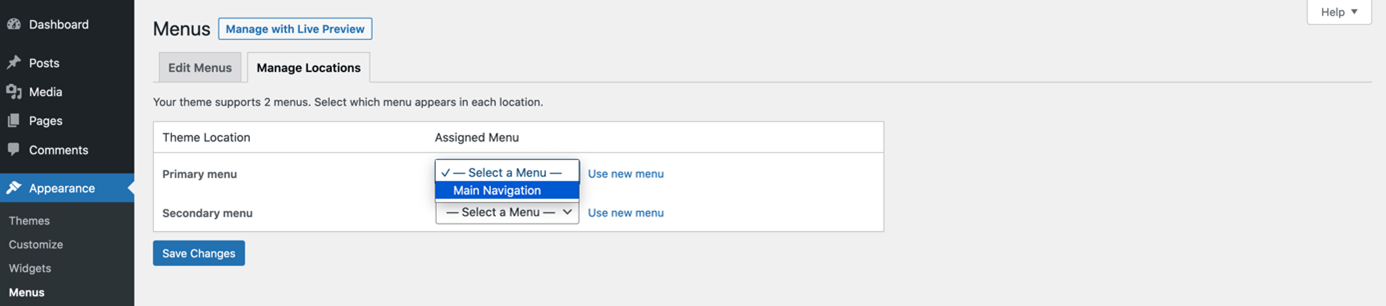
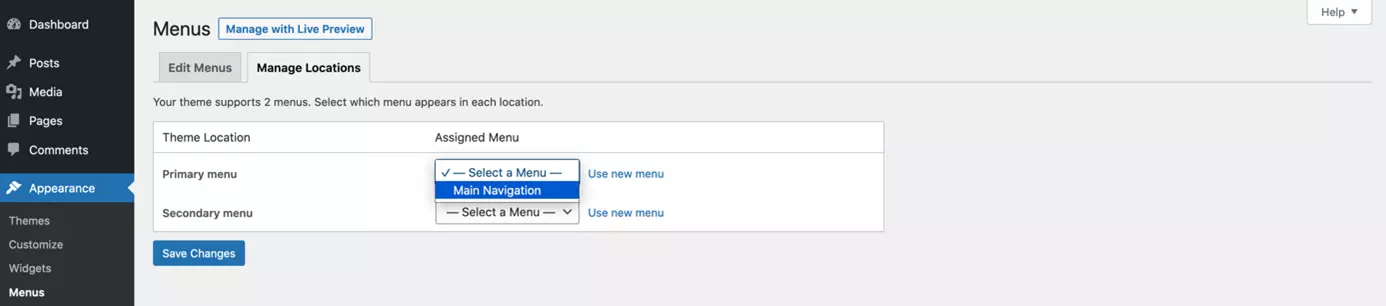
Once you’ve created a WordPress menu it will not automatically be displayed on your site. First, you need to decide where you wish to display the navigation panel. To do this, switch to the “Manage Locations” tab. Depending on the theme, WordPress lists various position options. Select the desired menu at the corresponding position and click on “Save Changes”.
Step 6: Delete entire WordPress menu
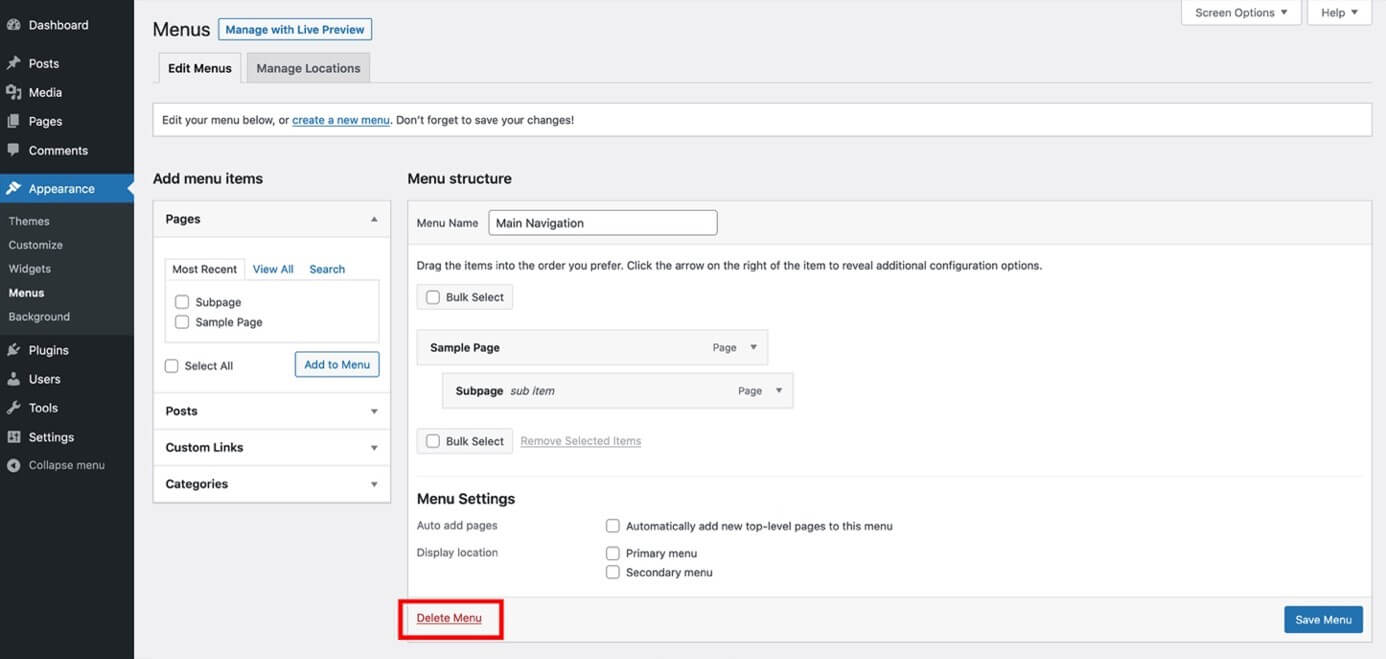
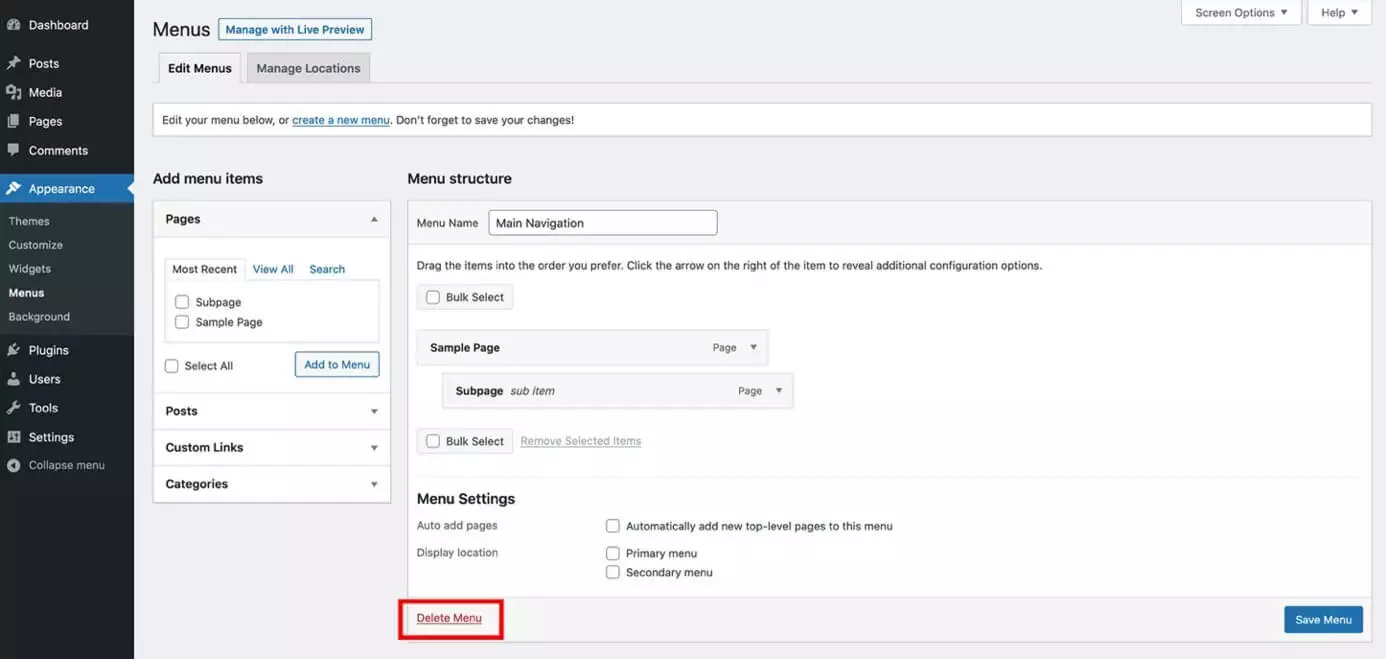
Sometimes, instead of creating a WordPress menu, you may want to delete one. That may be the case when you have several menu options and want to remove unused menus to keep a tidier overview. To do this, simply select the corresponding WordPress menu and click “Delete Menu”.
If you are using WordPress as a multi-site installation, you will find the option to create a WordPress menu in the dashboard of the respective website.
Want to create additional websites? Secure your additional domain with IONOS.
Creating a WordPress menu in the backend is just one option. You can access plenty of WordPress menu plugins for additional features.
Reviewer

Julia Hertler
With over 18 years of experience in content marketing, Julia Hertler has deep expertise in digital communications. For the past 10 years, she has specialized in the areas of domains and hosting at the IONOS Digital Guide, making complex technical topics easy to understand.