

How to set up your own Docker mail server step by step

A dedicated mail server gives you full control over your digital communications. This guide focuses on setting up your own mail server using Docker. It covers everything from requirements and security recommendations to a complete step-by-step tutorial. With Docker’s ready-to-use container stacks, like Docker mail server, deploying a secure and scalable mail solution has never been easier.
What is a Docker mail server?
A Docker mail server is a self-hosted email solution deployed in containers using Docker. It handles sending, receiving, and storing email while enabling full control over data privacy, security policies, and system configuration. Compared to third-party providers like Gmail or Outlook, a Docker mail server puts you in charge of your infrastructure — ideal for developers, privacy-conscious users, and small businesses.
Why use Docker for a mail server?
Using Docker to host your mail server has several key advantages:
-
Isolation and security: Docker containers isolate the mail server, reducing the risk of system-wide compromise and improving security.
-
Portability: Docker containers can be easily moved across environments, ensuring consistent setup between local and cloud servers.
-
Simplified deployment: Docker provides pre-configured stacks, streamlining the setup process and eliminating the need for manual configuration.
-
Scalability: Easily scale Docker containers to accommodate growing email traffic and changing resource requirements.
-
Version control: Specify Docker image versions to prevent compatibility issues and enable easier rollback if needed.
-
Consistency across environments: Docker ensures consistent configurations and setups across development, testing, and production environments.
- Highest security standards
- Automatic encryption with SSL/TLS
- ISO-27001 certified and geo-redundant data centers
- IMAP & SMTP
What are the requirements for running a Docker mail server?
This guide is for technically skilled users familiar with Linux and Docker who want a private and flexible email infrastructure. It’s especially relevant for developers, IT administrators, and small businesses.
To host your own Docker mail server, you’ll need sufficient hardware resources depending on the expected email traffic. A static IPv4 address is essential for smooth mail server interactions. Additionally, ensure proper DNS configuration, including MX, SPF, DKIM, and DMARC records. IPv6 support is also increasingly important for better compatibility and email reputation.
Current recommended technologies
- Docker image:
docker-mailserver/docker-mailserver:v13.2+ - Email protocols: SMTP (Ports 25, 587, 465), IMAPS (993), POP3S (995)
- Security standards: TLS 1.3, DKIM, SPF, DMARC, DNSSEC (if supported)
- Host OS: Ubuntu 22.04 LTS, Debian 12, or equivalent stable Linux distributions
You can simplify the entire process using Docker mail server, a popular open-source stack maintained by the community. It includes Postfix, Dovecot, rspamd, ClamAV, and optional LDAP integration — all in one container.
What should be considered when setting up a Docker mail server?
Security configurations overview
To protect your mail server, make sure to consistently apply security settings, including the following:
- Use up-to-date TLS certificates (at least TLS 1.2, ideally TLS 1.3)
- Set up and enforce SPF, DKIM, and DMARC policies
- Implement rate limiting and authentication via SASL
- Enable encrypted connections for IMAP/POP3 and SMTP
- Set up logging with tools like rsyslog and structured log rotation
Even with containerized setups using Docker, an independent security configuration is essential. Docker simplifies installation but does not replace system hardening through firewalls, strict user rights, logging (e.g., via rsyslog), and regular system updates.
General recommendations for setup
Setting up a Docker mail server requires technical expertise and thorough security configuration. Here are some key points to focus on:
- Choosing an appropriate Docker image and mail server stack (e.g. docker-mailserver/docker-mailserver)
- Configuring DNS records (MX, SPF, DKIM, DMARC)
- Securing the Docker host (firewall, Fail2Ban, encryption)
- Choosing the right administrative and monitoring tools
- Regular updates and backups (including Docker image updates)
- Configuring reverse DNS entries and IPv6 support
- Complying with legal requirements (e.g., GDPR, legally compliant email archiving)
What hardware is required?
To run your own Docker mail server, appropriate hardware is essential. The necessary performance depends on various factors, including how many emails are sent daily and how many people will be using the server. Docker containers are lightweight, but you still need to consider RAM, CPU, and storage. Additional performance may be required for extra services like backup systems or content scanners (e.g., spam or phishing protection). You will also need a static IPv4 address for smooth interaction with other mail servers — dynamic IPs can cause issues with email delivery.
Want to give your Docker mail server a personal, professional touch? A custom domain is essential for this. Register your personal domain with IONOS today and get an SSL/TLS certificate for your mail server on top!
When looking for a suitable environment for your Docker mail server, it’s important to consider what capacities need to be covered. A simple setup can handle a handful of emails per day, while a heavily used business mail server requires substantial RAM, CPU, and storage.
Whether Windows or Linux: Don’t forget to account for the resources needed for the underlying operating system.
| Mail server scenario | Hardware | Recommended IONOS plan |
|---|---|---|
| Simple home server with low traffic | 2 vCores, 8 GB RAM, 240 GB SSD | Virtual Server Cloud L from IONOS |
| Mail server for a small business (up to 1,000 emails/day) | 8 vCores, 16 GB RAM, 480 GB SSD | Virtual Server Cloud XL from IONOS |
| Enterprise mail server (over 50,000 emails/day) | 6 vCores, 32 GB RAM, 2 x 480 GB SSD RAID | Dedicated AMD Server from IONOS |
With a Dedicated Server, you gain access to enterprise hardware exclusively reserved for you. In contrast, vServers and Cloud Servers use virtualized resources shared with other customers — without any performance loss.
How to set up a Docker mail server step by step
In this tutorial, we’ve chosen the popular Docker container docker-mailserver.
This lightweight, open-source container (MIT License) offers a modular, ready-to-use stack for setting up your own mail server. It integrates all the essential components, such as an SMTP server, IMAP or POP3 server, optional spam and antivirus protection, and, if needed, an LDAP directory service.
Step 1: Get the Docker image
You can get the latest docker-mailserver image from the official Docker Hub directory or the official GitHub repository.
The recommended approach is to pull a stable release, such as v13.2, rather than using the :latest or :edge tags.
Run the following command to pull the image:
docker pull mailserver/docker-mailserver:v13.2
# or:
docker pull ghcr.io/docker-mailserver/docker-mailserver:v13.2Step 2: Configure docker-compose.yml
Next, you’ll need to configure docker-compose.yml to define the necessary services and volumes for your Docker container. Here’s an example configuration for your mail server:
version: '3.8'

services:
  mailserver:
    image: docker.io/mailserver/docker-mailserver:v13.2
    container_name: mailserver
    hostname: mail-server
    domainname: example.com
    ports:
      - "25:25"
      - "587:587"
      - "465:465"
    volumes:
      - ./docker-data/dms/mail-data/:/var/mail/
      - ./docker-data/dms/mail-state/:/var/mail-state/
      - ./docker-data/dms/mail-logs/:/var/log/mail/
      - ./docker-data/dms/config/:/tmp/docker-mailserver/
      - ./docker-data/nginx-proxy/certs/:/etc/letsencrypt/
      - /etc/localtime:/etc/localtime:ro
    environment:
      - ENABLE_FAIL2BAN=1
      - SSL_TYPE=letsencrypt
      - PERMIT_DOCKER=network
      - ONE_DIR=1
      - ENABLE_POSTGREY=0
      - ENABLE_CLAMAV=0
      - ENABLE_SPAMASSASSIN=0
      - SPOOF_PROTECTION=0
    cap_add:
      - NET_ADMIN
- SYS_PTRACEThis configuration ensures that your Docker container uses the correct ports for SMTP (25), IMAPS (993), and SMTP Submission (587), and that volumes are properly mapped for persistent data storage. Additionally, security features like Fail2Ban and Let’s Encrypt SSL are enabled.
You can find a complete list of configurable options in the Docker Mailserver official documentation.
Step 3: Open required ports
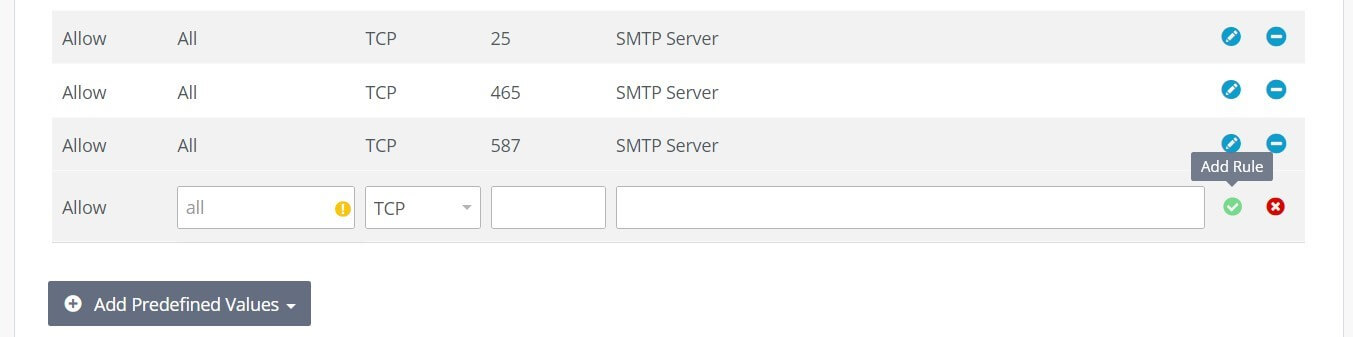
In your docker-compose.yml file, you’ll notice the SMTP server ports are listed (25, 465, and 587). These must also be opened in your server’s firewall to ensure smooth email traffic.
If you’re using a service like IONOS for hosting, you can easily open these ports via the Cloud Panel:
- Log in to the IONOS Cloud Panel.
- Go to the “Server & Cloud section.”
- Select the server you are using to host the Docker mail server.
- In the left-hand menu, click “Network” then “Firewall Policies.”
- Add firewall rules for TCP ports 25, 465, and 587.
Step 4: Configure DNS settings
In the next step, you need to ensure that the DNS service for your domain is correctly configured:
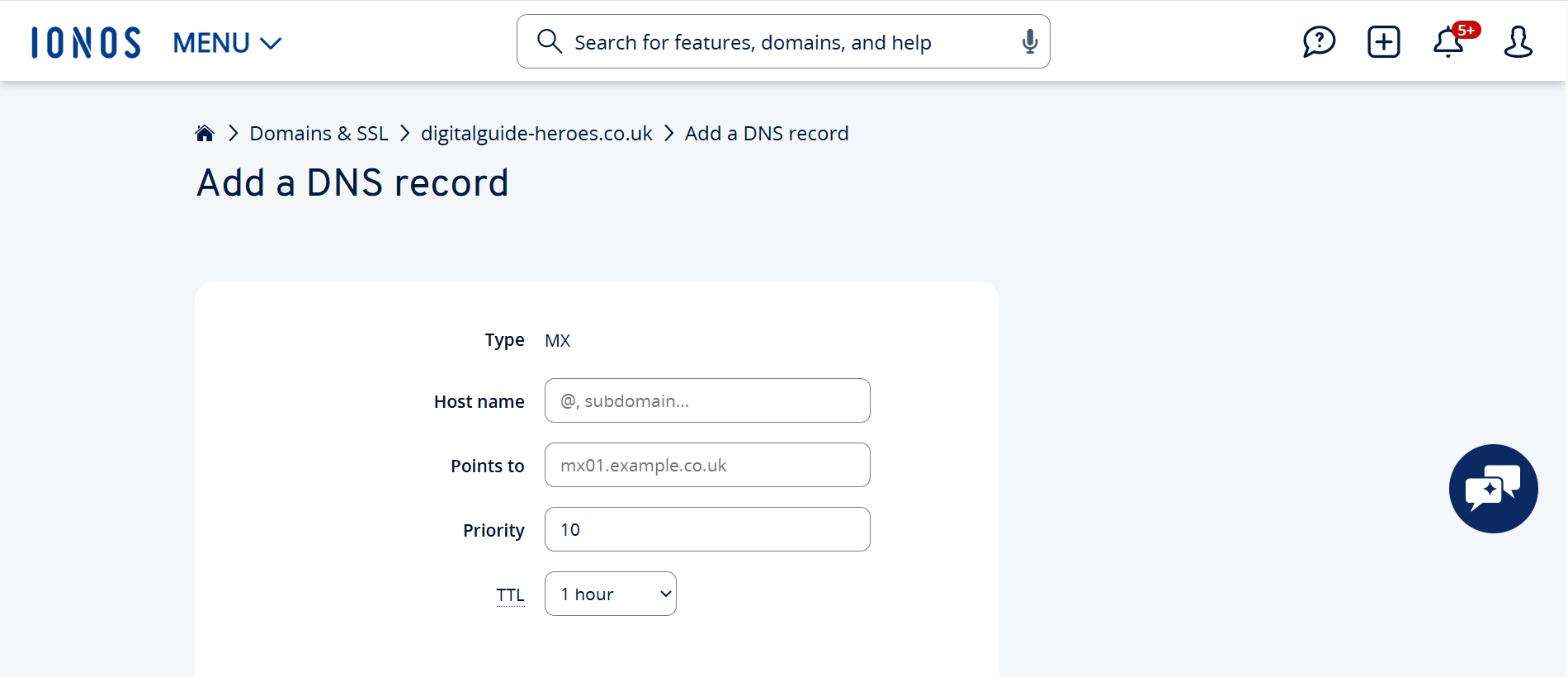
- MX Record: Points to the mail server (e.g.,
mail.example.com) that you defined underhostnameanddomainnamein yourdocker-compose.yml. - SPF Record: A TXT record for the domain (not for the hostname!), e.g.,
v=spf1 mx ~all.
~all stands for “Softfail” – alternatively, you can use -all if you prefer a stricter policy.
How to configure DNS in IONOS Cloud Panel:
- Log in to your IONOS Cloud Panel.
- Go to “Domains & SSL.”
- Find your domain and click the settings icon.
- Select “DNS.”
- Add the following records:
- MX Record: Target =
mail.example.com, Priority = 10 - TXT Record: Type = TXT, Value =
v=spf1 mx ~all
Finally, click on “Reset Domain” in the top menu to reload the DNS configuration and apply the changes. Confirm your entries by clicking “Reset Now” – this will only affect the updated DNS records, not the domain itself.
Want to securely archive your business emails in compliance with Canadian laws? With IONOS Email Archiving you can automatically archive selected mailboxes in a tamper-proof, legally compliant format.
Step 5: Generate DKIM keys
To increase the security of your mail server, you need to generate a DKIM (DomainKeys Identified Mail) record for your domain. This technique allows emails to be digitally signed, so receiving mail servers can verify their authenticity.
Use the provided setup.sh script in the docker-mailserver directory:
./setup.sh config dkimThe generated public key will be saved in the following file (assuming the volume was correctly mounted):
docker-data/dms/config/opendkim/keys/example.com/mail.txtOpen the file and copy its contents to create a TXT record in your domain’s DNS settings. The DNS record might look like this:
mail._domainkey.example.com. IN TXT (
    "v=DKIM1; h=sha256; k=rsa; "
    "p=MIIBIjANBgkqhkiG9w0BAQEFAAOC...continuedPublicKey...IDAQAB"
)- mail is the selector and can be named as you prefer (e.g.,
default,key2025, etc.). - If your DNS provider limits the length to 255 characters per string, you will need to split the key (as shown in the example).
- Make sure the record type is TXT and it applies to the full domain
mail._domainkey.example.com.
In addition to DKIM, you should also set up an SPF record and a DMARC record to ensure full protection against email spoofing.
Step 6: Start the server and create your first address
Start the configured mail server directly from the project directory with the following command:
docker-compose up -dThese instructions will help you securely and efficiently set up both modern container-based and traditional mail server environments.
- Highest security standards
- Automatic encryption with SSL/TLS
- ISO-27001 certified and geo-redundant data centers
- IMAP & SMTP