

How to use Gmail with a custom domain


Adding your own domain to an email address comes with some real benefits. It instantly builds trust, and when you’re emailing clients or colleagues, it looks a lot more professional than a standard @gmail.com address. In this guide, you’ll learn how to connect your Google account to a custom domain for a fully professional setup in just a few steps.
How to connect Gmail and a custom domain quick guide
- Register a custom domain for Gmail and create an address.
- Open the Gmail menu Accounts and Import.
- Enter the new address and SMTP server information.
- Verify the alternative Gmail address via the confirmation link.
- Select the desired sender address from the drop-down menu when composing a message.
- Build trust with email matching your domain (you@yourbrand.com)
- Free domain included to get your brand online instantly
- Work smarter with AI writing support
How to buy a custom domain for Gmail
First, you need a domain name that properly reflects your business. It could be that your preferred domain is already taken. If that’s the case, you can add a suffix to your name, such as “smith-carpets.com” or “carl-cleans-cars.com”. Additionally, other domain endings can be used to describe specific topics well, such as .fitness, .shop, or .design, and thousands more.
Buying a domain from IONOS example
You can purchase your own domain with IONOS in just a few clicks. Go to the official IONOS website and select the menu item Professional Email Address under Email & Office. Click on See plans to view the available plans for this service.
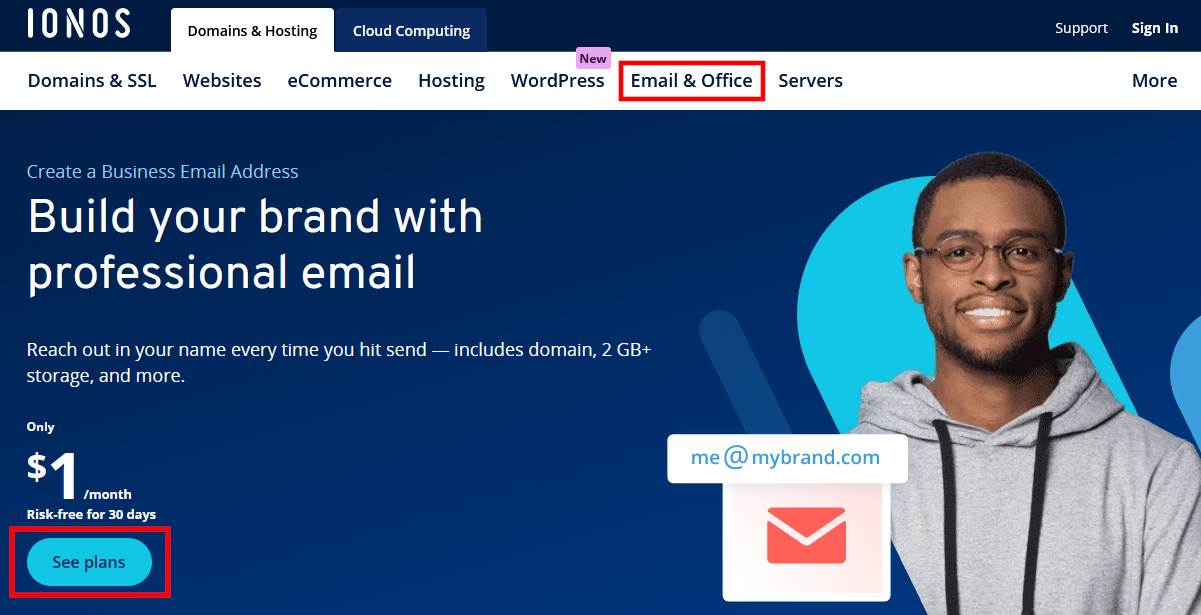
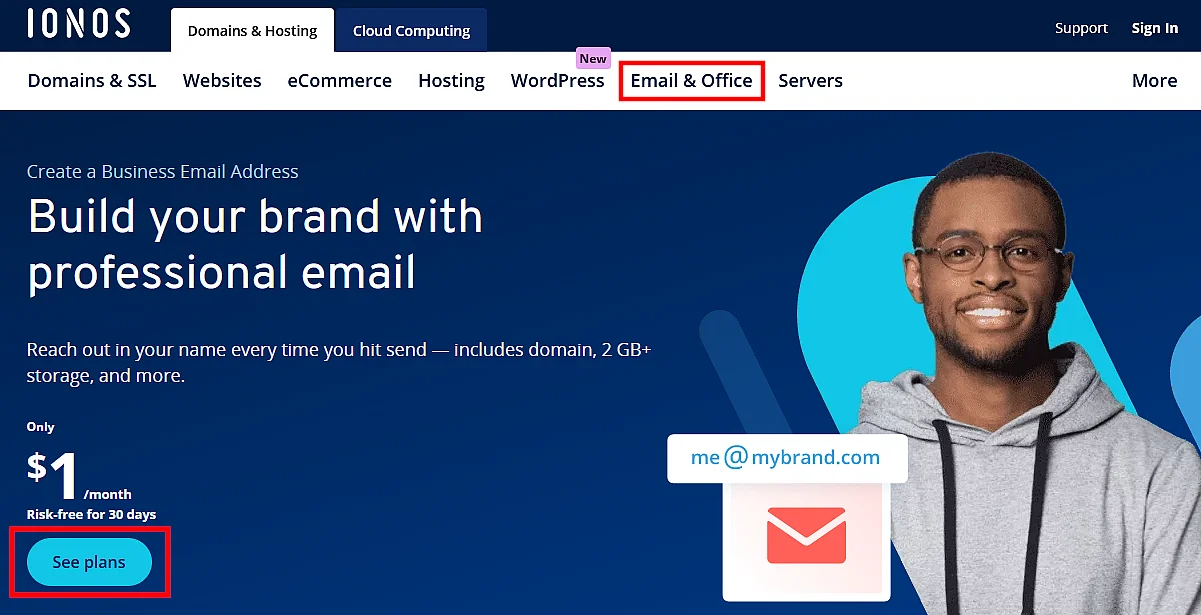
The “Mail Basic 1” plan should cover most use cases just fine. Along with a free domain, you get a spam filter and a mailbox with plenty of storage to get your professional setup off the ground (as of May 2026).
After you’ve decided on a plan, continue to the next step to choose your domain name.
The availability of your preferred domain name will be shown in real time. Once you’ve found a domain that’s free, you can complete the purchase.
In your IONOS customer account, create the desired email address under the domain you just bought by going to the Email tab. Another window will open in which you simply enter your preferred username before “@your-domain.com”. It is advisable to separate first and last names with a period; you can combine double names with a hyphen.
You will then see a confirmation, some security notes, and further down the page, a link to instructions for setting up your email in various email clients. Be sure to record the assigned password so you can later access the mailbox via the IONOS web mailer or an email client and retrieve the confirmation for linking it with Gmail.
- Build trust with email matching your domain (you@yourbrand.com)
- Free domain included to get your brand online instantly
- Work smarter with AI writing support
How to connect Gmail and a custom domain step by step
With your email domain fully set up, it’s time to configure your email address in your Gmail account. First, open the Google email service in your preferred browser and log in to your account.
To use your newly configured email address, access the settings by clicking the gear icon. Then, select See all settings to open the required submenu. Look for the Accounts and Import section.
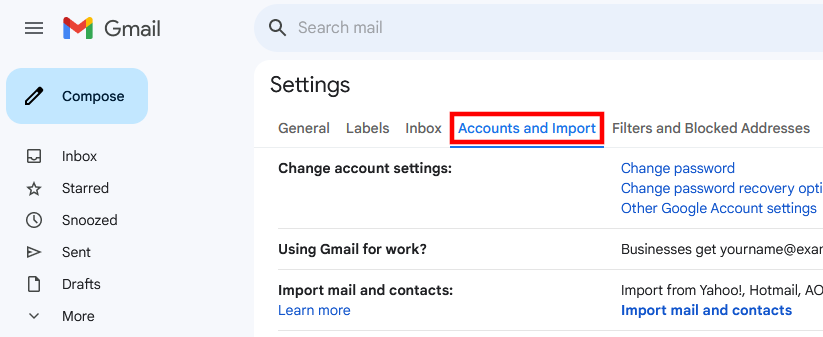
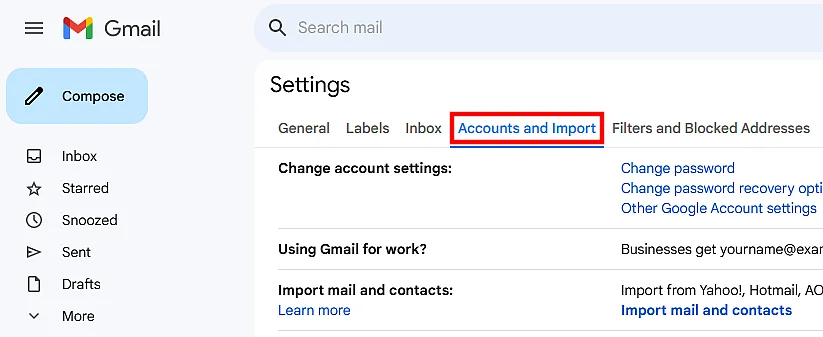
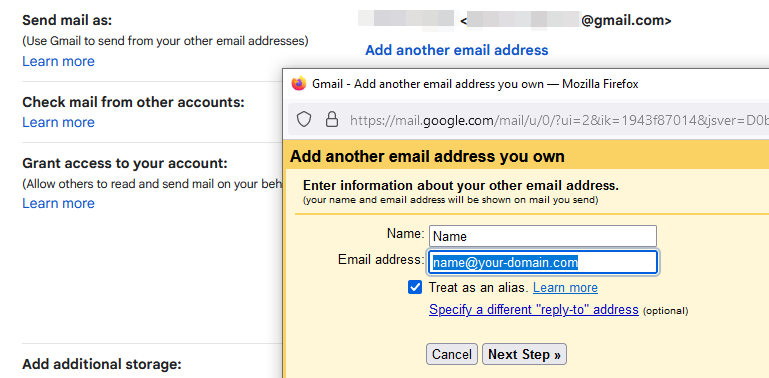
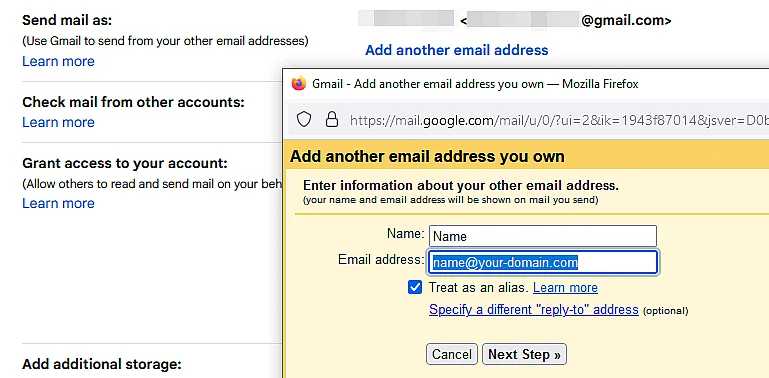
In the “Send mail as:” line, click on the Add another email address button. Gmail will then open a separate browser window where you can enter your desired name and the new email address under your own registered Gmail domain. Then click on Next Step >>.
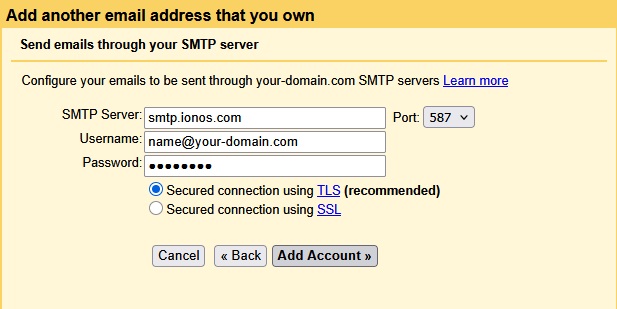
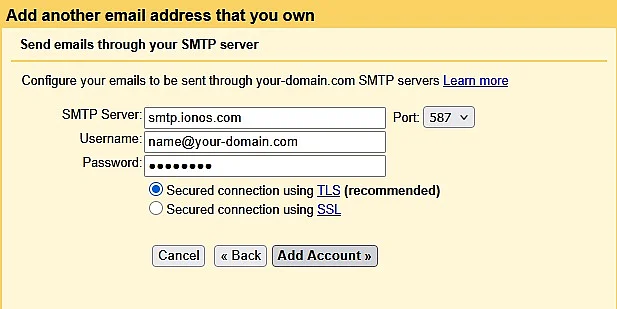
In the next step, you need to provide the necessary information for the SMTP server. The IONOS SMTP server address is smtp.ionos.com, and the outgoing port is 587. Enter your full (new) email address as the username. Use the password you created when setting up the email address. After entering all the details, click on Add Account >>.
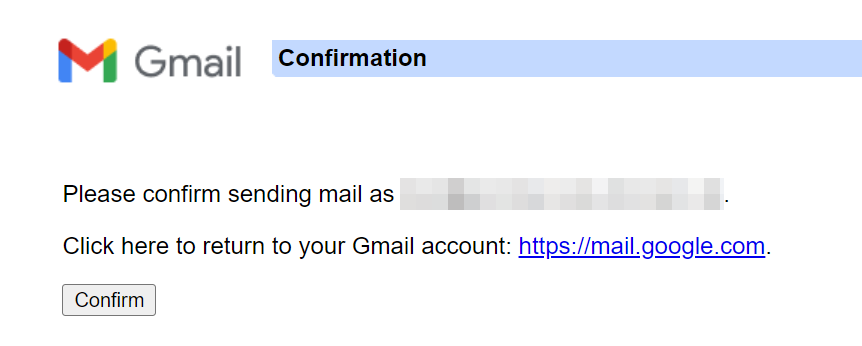
You will need to confirm the accuracy of this information. To do this, check the email Google sent to the address you wish to link. This email includes a confirmation link that you must click to complete the setup. Once this step is finished, you will receive a confirmation message in Gmail.
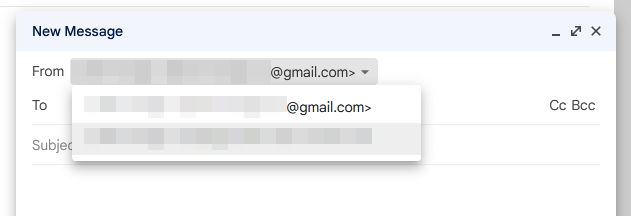
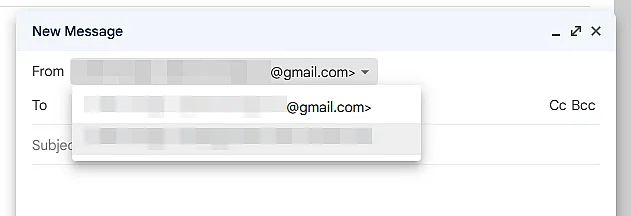
When composing a new email in Gmail, you can now access a drop-down menu in the sender field (“From”). This menu will display all available sender addresses, including your new Gmail address under your custom domain.
If you want to steer clear of Gmail altogether, you can also use one of the Gmail alternatives or delete your Gmail account.
Reviewer

Jeanna Raffa
With over 18 years of experience in online marketing, Jeanna Raffa possesses extensive expertise in digital marketing. Since 2020, her focus has been on providing practical information regarding email, office, and cloud storage solutions.