

Using MailChimp in WordPress: how it works

Thanks to its numerous plugins, the content management system (CMS) WordPress offers many opportunities to expand its features. You could manage orders from a WordPress online store as an administrator or be in charge of a whole community using just the dashboard. You can also use this practical CMS to push your e-mail marketing. Plugins can help you to create effective registration forms for your WordPress site. Connecting the CMS with MailChimp is a simple process. We explain to you how to achieve this MailChimp/WordPress partnership and what you have to do to create a form and integrate it into your site.
What is MailChimp?
The online service, MailChimp, lets you easily design newsletters, create e-mail marketing campaigns and measure how successful they are. The tool is also well known as the free version already offers many useful features – especially for small and medium-sized businesses. With the free version, however, you are limited in the number of newsletter subscribers and the number of mails you can send per month. In addition, there’s also a reference to MailChimp in the e-mails that you will have to put up with. The service is especially popular because of its ease-of-use; even beginners are able to get to grips with the program it next to no time. You can quickly implement the following actions using the software:
-
Designing newsletters: MailChimp provides numerous templates so that you can design your e-mails and newsletters exactly as you wish. However, it’s not a problem if you want to deviate from the templates. Elements such as images or text boxes can be accommodated or changed in the layout.
-
Planning campaigns: Newsletter campaigns can be started right on time via MailChimp. In addition, the e-mail service offers ready-made automation scenarios: follow-up e-mails after a purchase has been made, reminders to renew membership, or simply a welcome message.
-
Managing subscribers: Your newsletter subscribers are organized in lists. This makes it easier for you to plan your campaigns better and reach the correct recipients more easily.
-
Creating registration forms: Before you can organize subscribers in lists, they first need to sign up for your newsletters. MailChimp helps you to set up a registration form for your website or social media.
-
Personalizing content: So that the recipients don’t consider your e-mails as spam, it makes sense to personalize them. When you store the recipients’ names and genders on MailChimp, the recipient will automatically receive the correct title when addressed thanks to a placeholder.
-
Performing A/B tests: In order to find out which methods and content you can reach your recipients with, MailChimp enables you to carry out an A/B test. This means you can check regularly what is well-received by your subscribers and what isn’t.
-
Monitoring success: With analyses and statistics, you can measure and monitor how successful your campaigns are with MailChimp.
MailChimp isn’t the right solution for everyone: if you’re not set on using WordPress, you should also take a look at the competition!
WordPress and MailChimp: installation tutorial
In order to use MailChimp in WordPress, you first need a (free) account with a newsletter provider. Afterwards, you need to install the plugin ‘MailChimp for WordPress’ and then you’re able to create registration forms for your website. We explain in a step-by-step way how both services can be combined with one another.
Registering with MailChimp
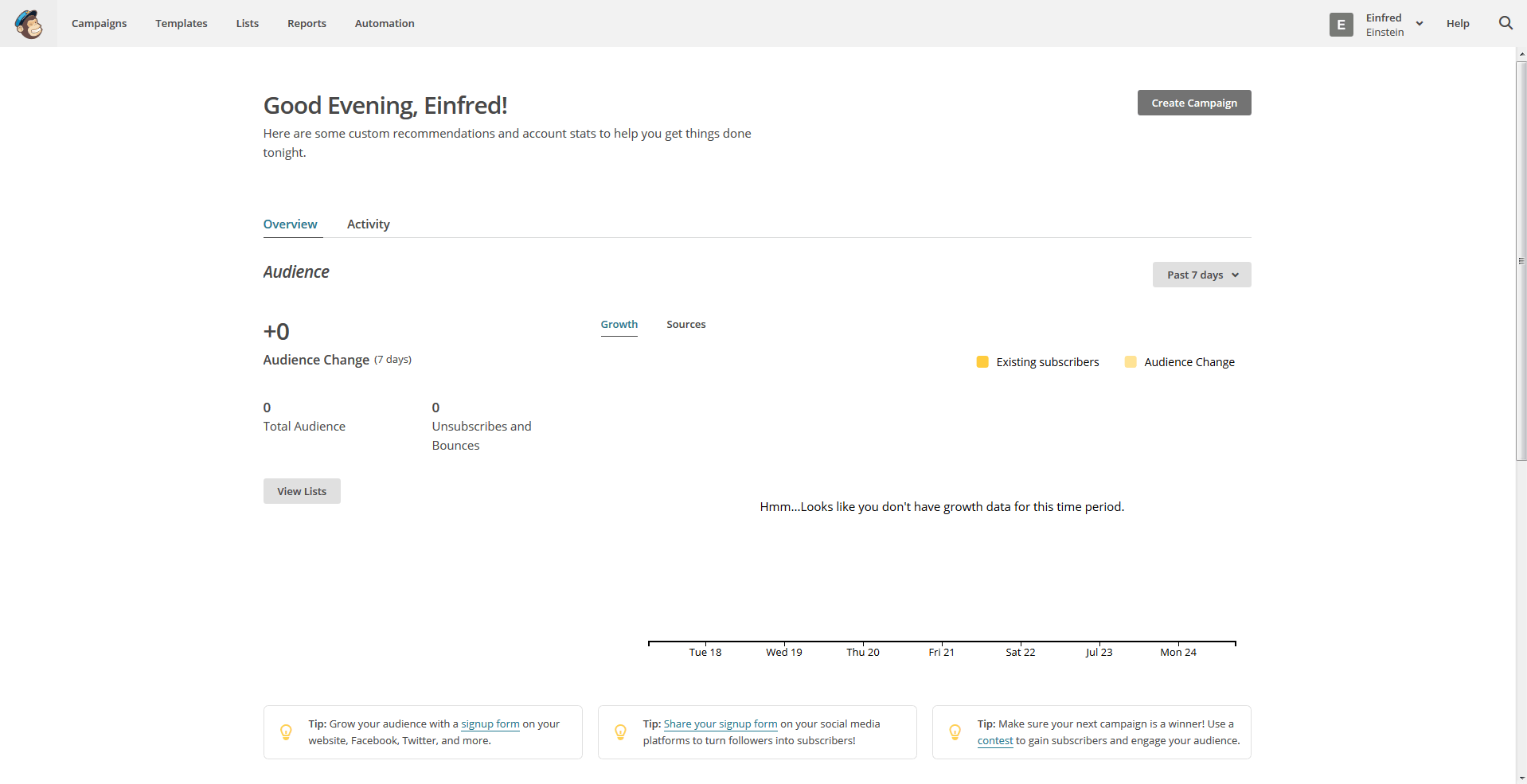
The platform for e-mail marketing offers a free version that should be more than enough for beginners. In order to be able to register, you only need an e-mail address for MailChimp, your full name, and your postal address. This information is important for your registration and also plays an important role when sending e-mails: with this information, MailChimp can display the proper sender in the newsletters. If you already know that you want to work with numerous lists, you can also choose to work with more lists. After setting up your account, MailChimp will automatically create the first list.
Installing the plugin in WordPress
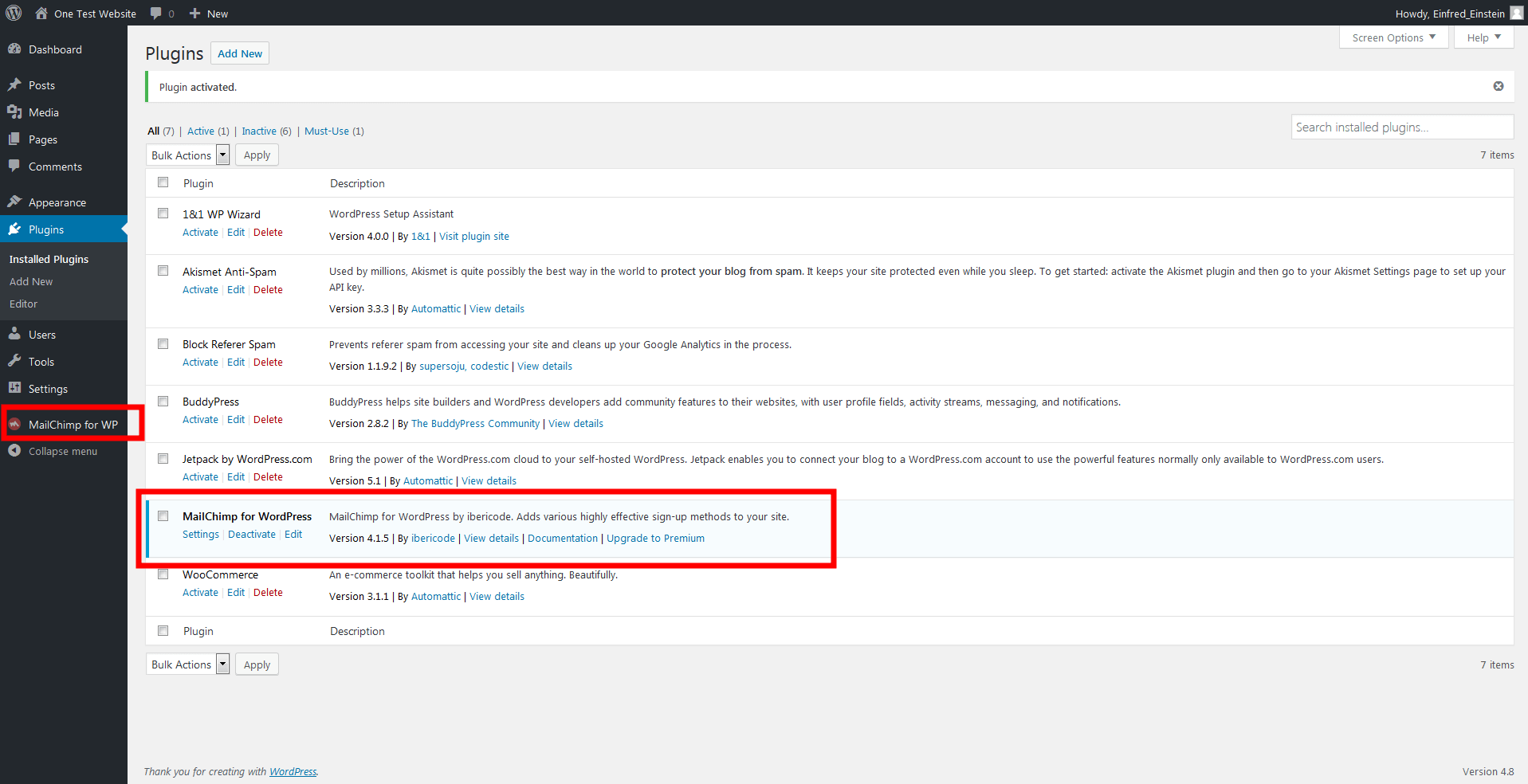
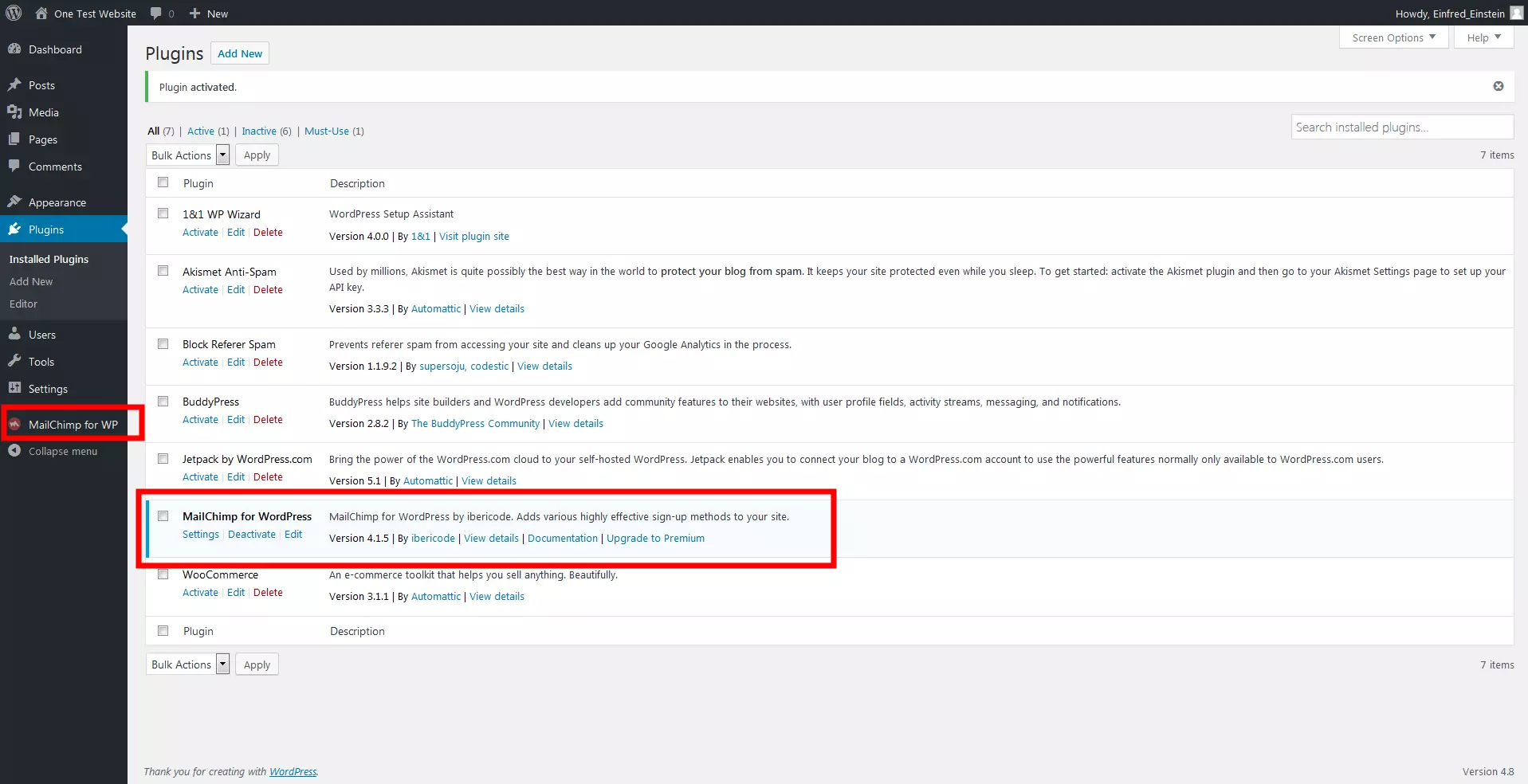
There are numerous plugins for WordPress: the most frequently used plugin at the moment is MailChimp for WordPress. This free extension can be added to the CMS with just one click. To find the plugin, simply search for ‘MailChimp’ in the available plugins overview. Don’t forget that plugins still need to be activated, which can be done with a further click.
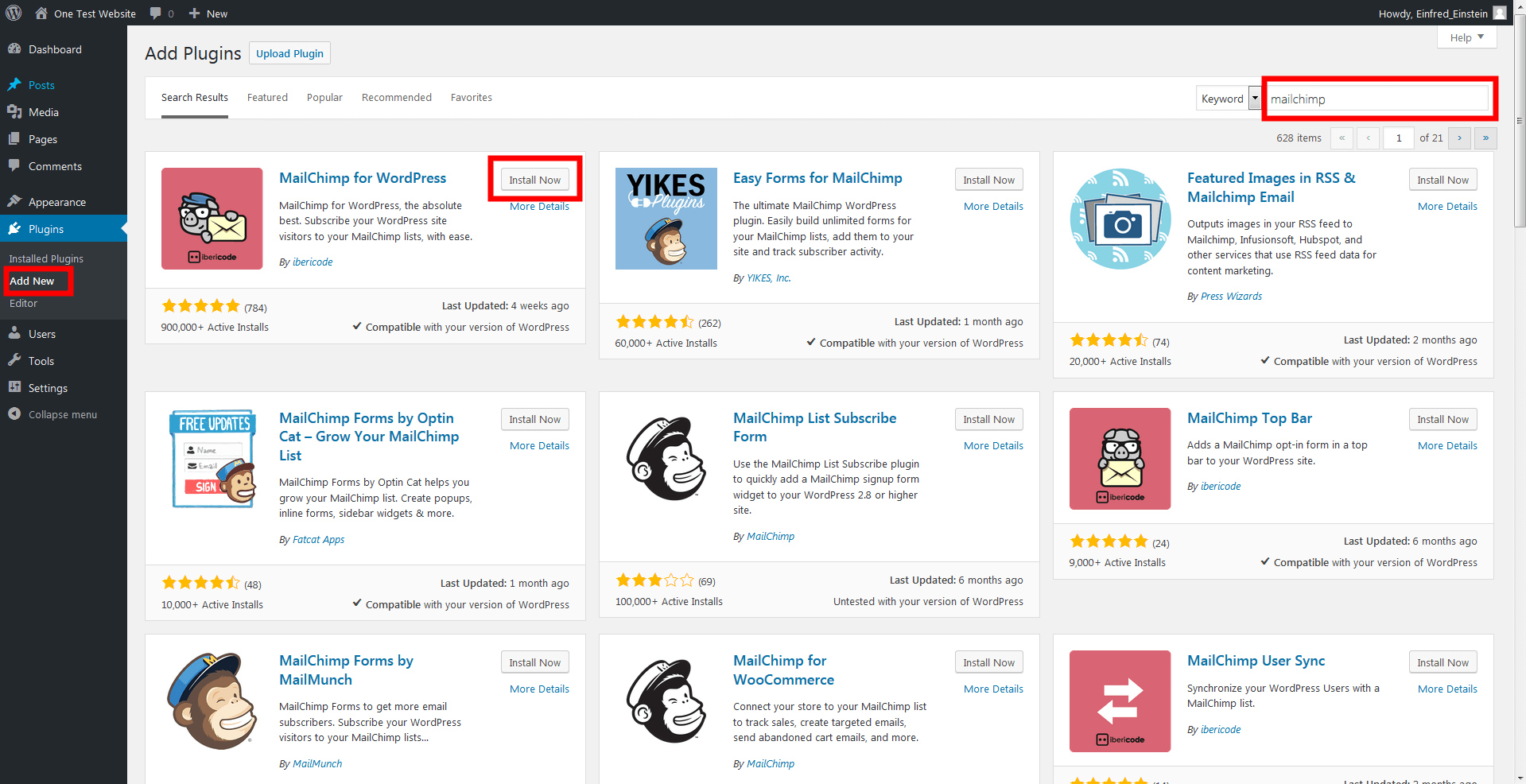
After installation, MailChimp for WordPress will appear under the added plugins. If you’ve already activated the extension, you can also access the configuration options for the plugin via the dashboard’s sidebar.
Linking MailChimp and WordPress with each other
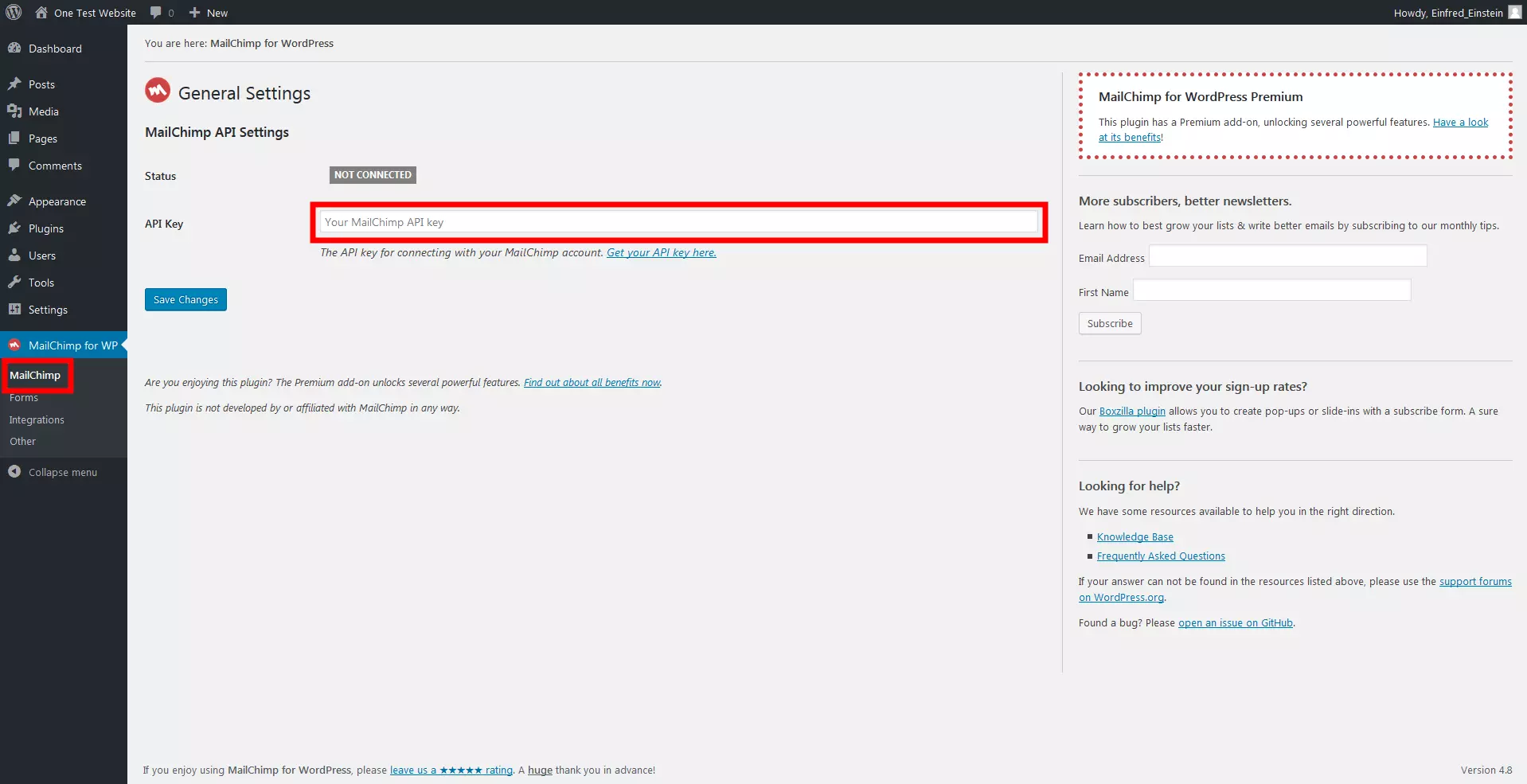
If you look at the plugin’s general settings, you will notice that the status still reads ‘NOT CONNECTED’: you must, therefore, link the newsletter service and the CMS. This is when an API key is needed.

An interface key like this one can be created via your MailChimp account settings. In the ‘Extras’ tab, you will find the menu item entitled ‘API keys’. By just clicking once, you can create an individual key. Here it’s also possible to monitor, organize, and stop API keys.
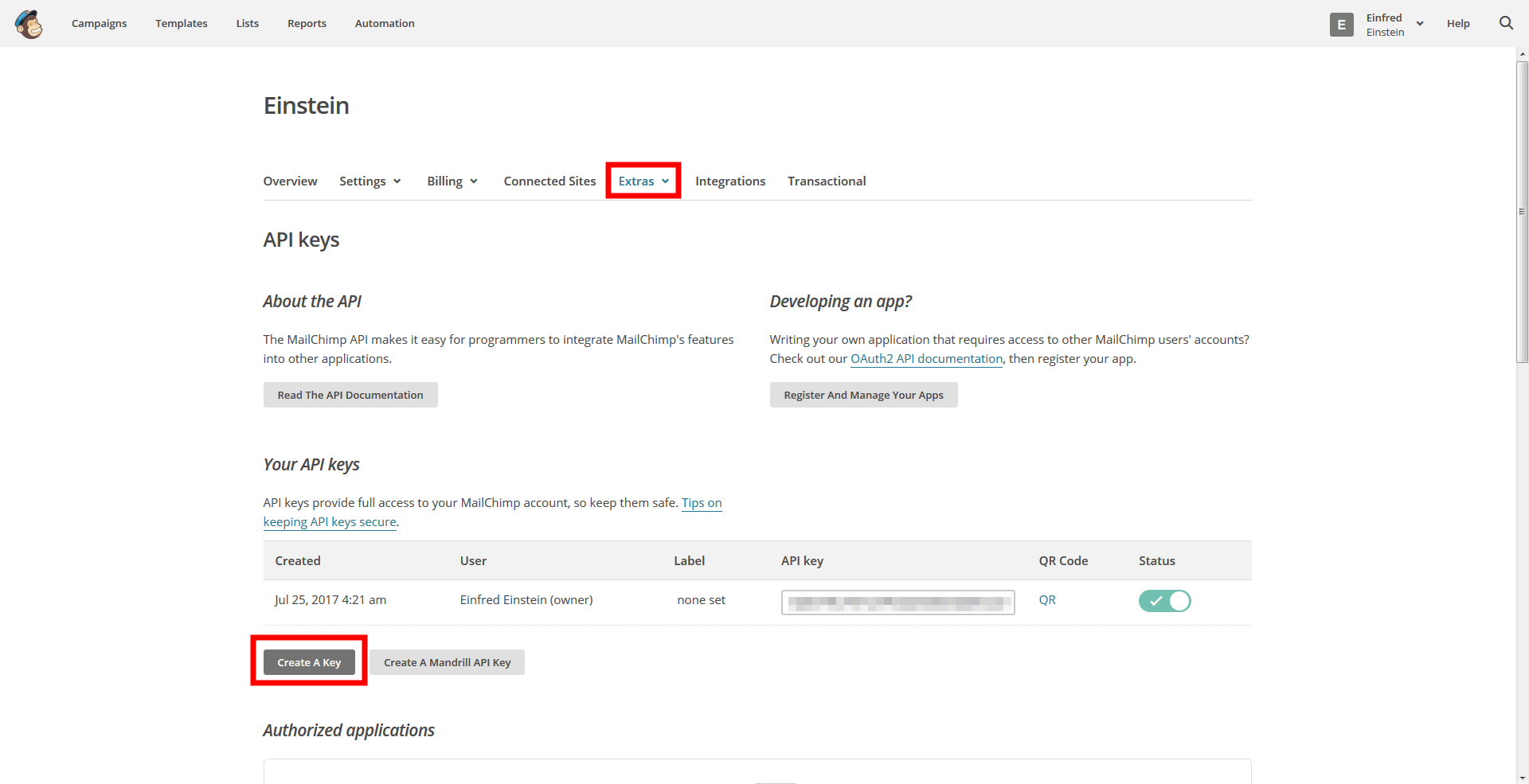
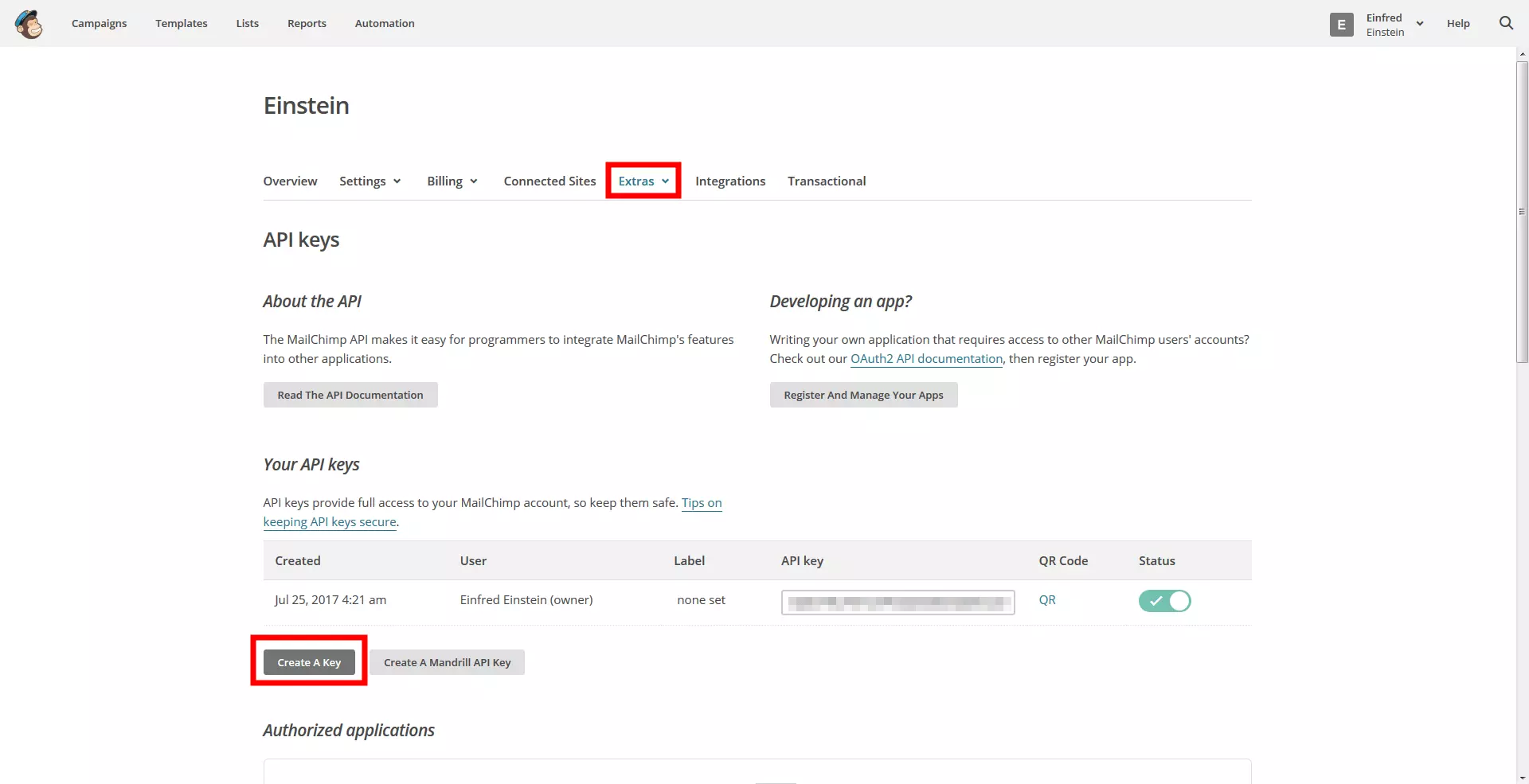
The key can be copied and pasted into WordPress. As long as you save the entry, the plugin will link itself with your MailChimp account. Then your various lists will be displayed.
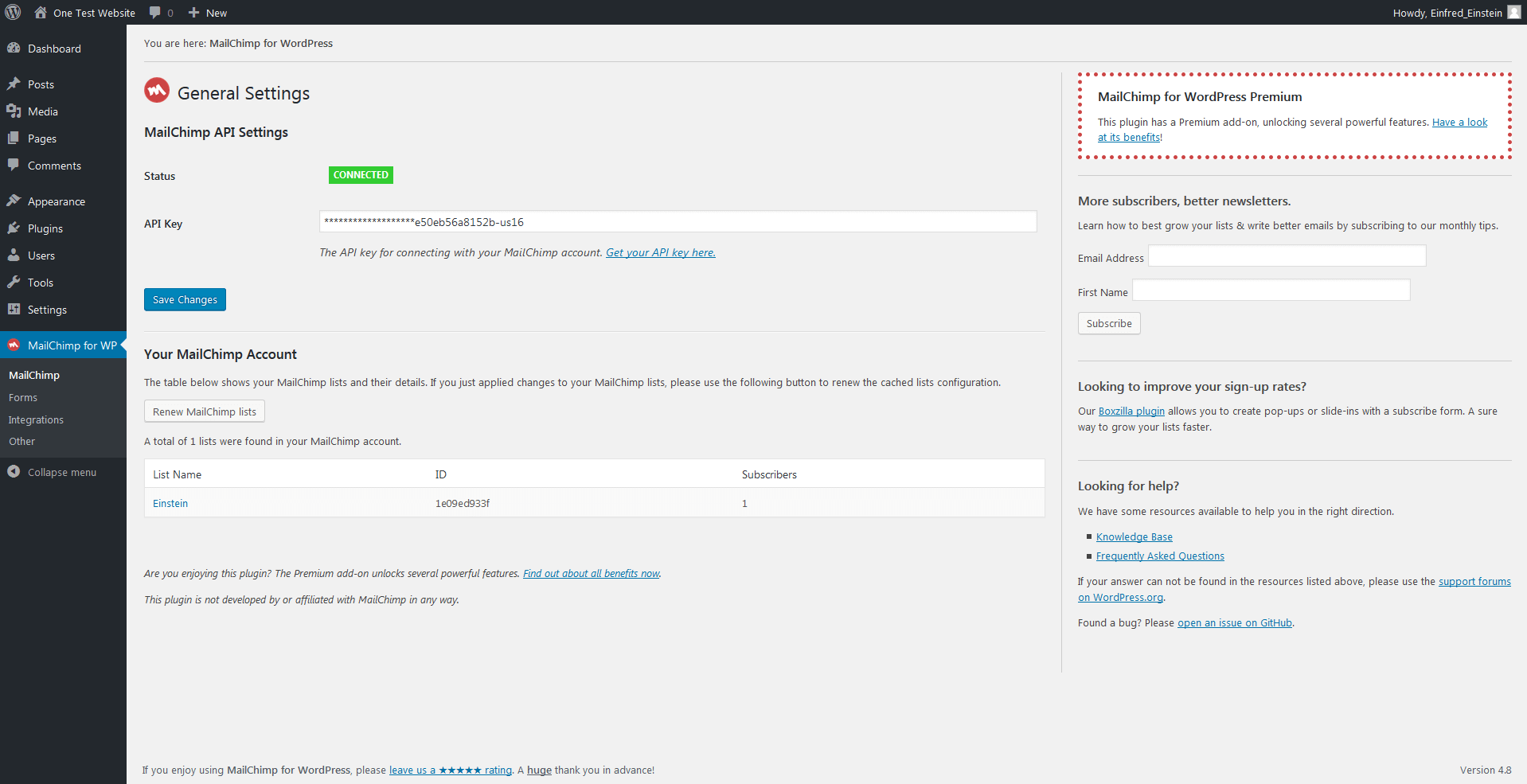
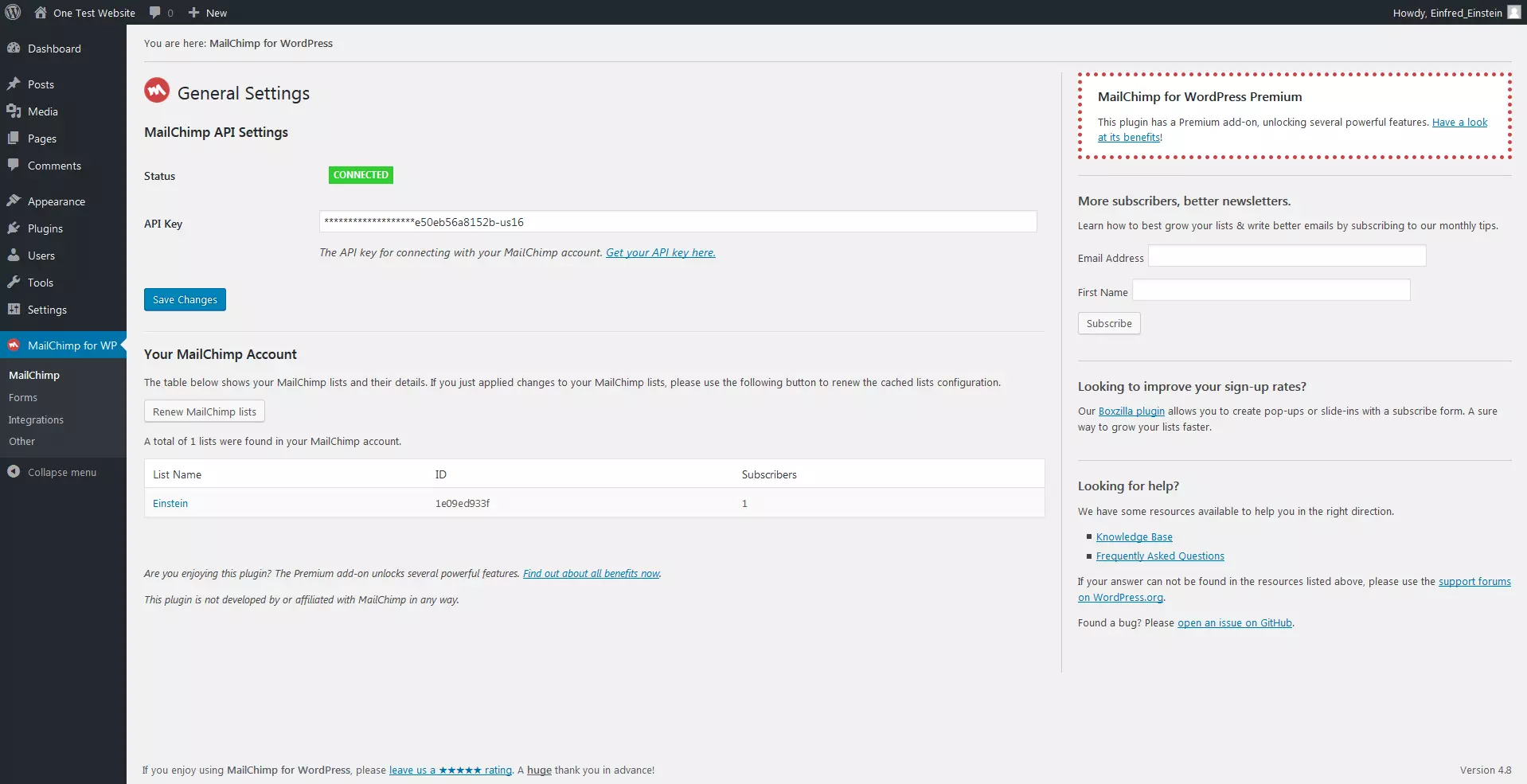
An API key should be protected just as with a password. With each individual key, information – yours and that of your subscribers’ – can be extracted from MailChimp. Therefore, you have to make sure that the keys stay private. Via MailChimp, you can see which app has used the API key and even at what time. If you are worried at any point, you can deactivate the key as a precaution.
Creating registration forms
After you have set up MailChimp and the plugin and linked them to one another, you can start to create a registration form. This can be done on WordPress directly.
Creating forms
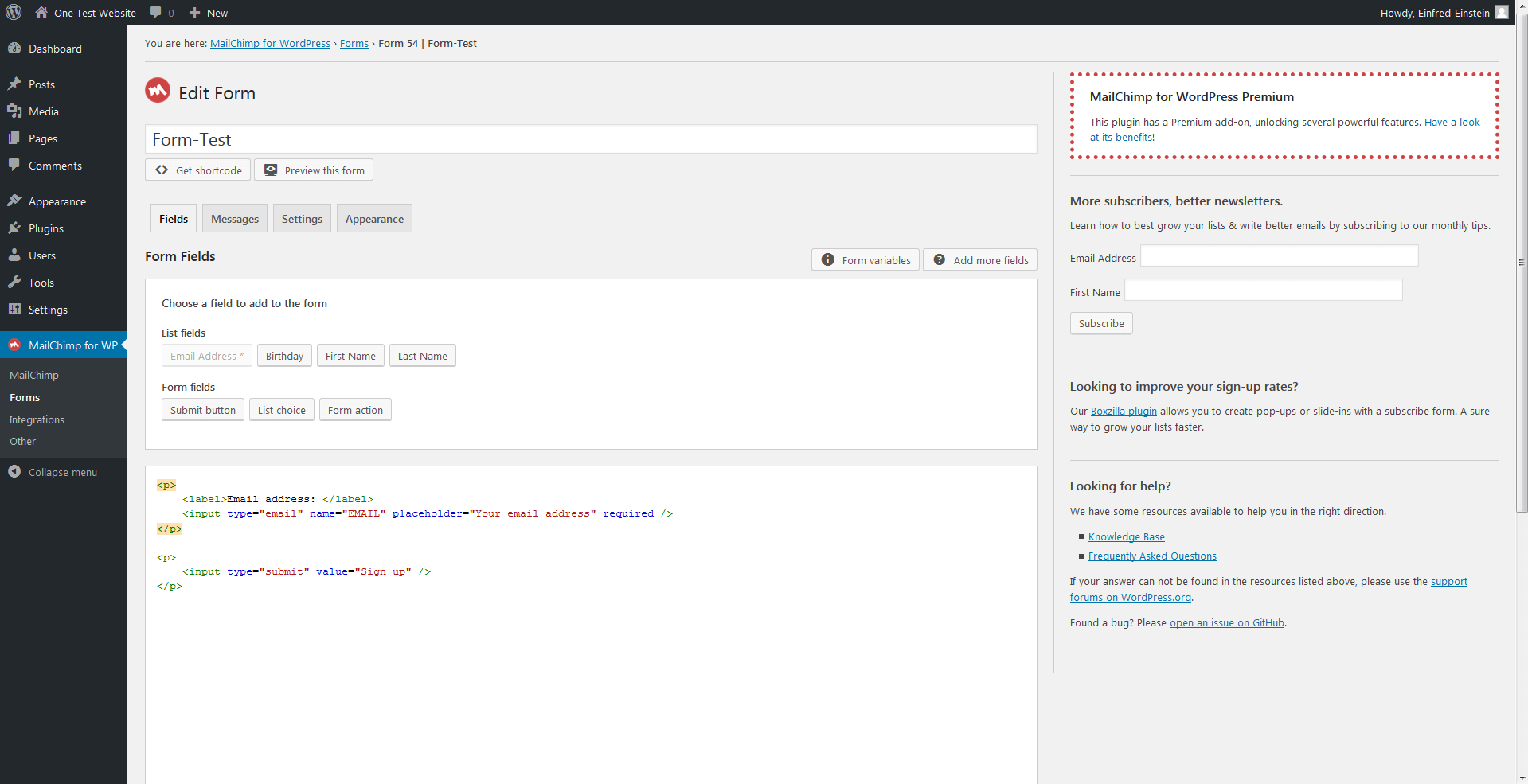
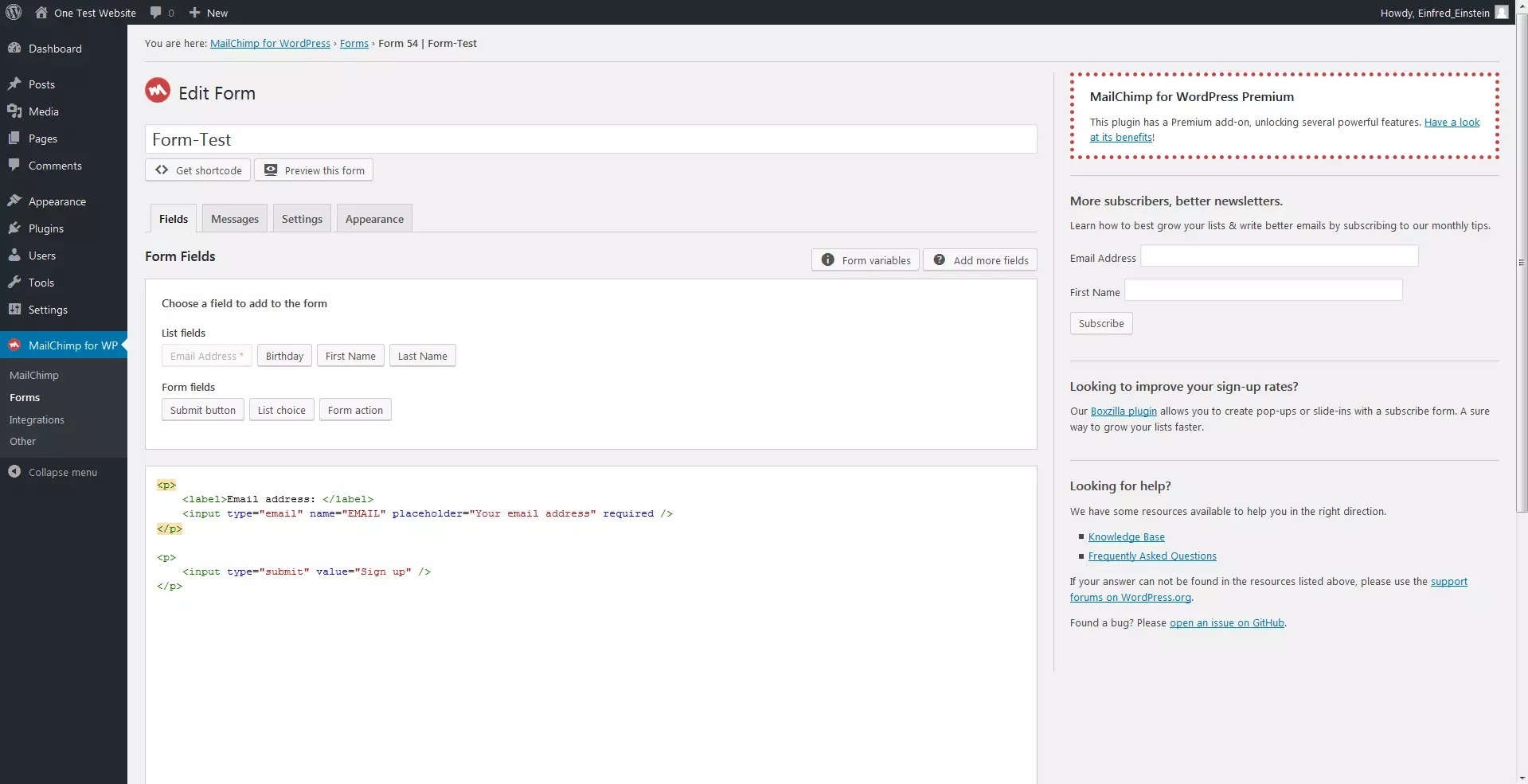
The plugin has lists and different fields available so that you can create forms as you please. In the initial variant, you have the option of asking for the e-mail address, name, and date of birth. Additionally, you can choose three different ways of adding potential subscribers to your form:
-
Submit button: If the user has filled out the form, they can send their subscription to you by clicking the submit button.
-
List choice: If you want to give potential subscribers the choice of which list they want to be added to, you have three options: a drop-down menu, radio buttons, or a checkbox.
-
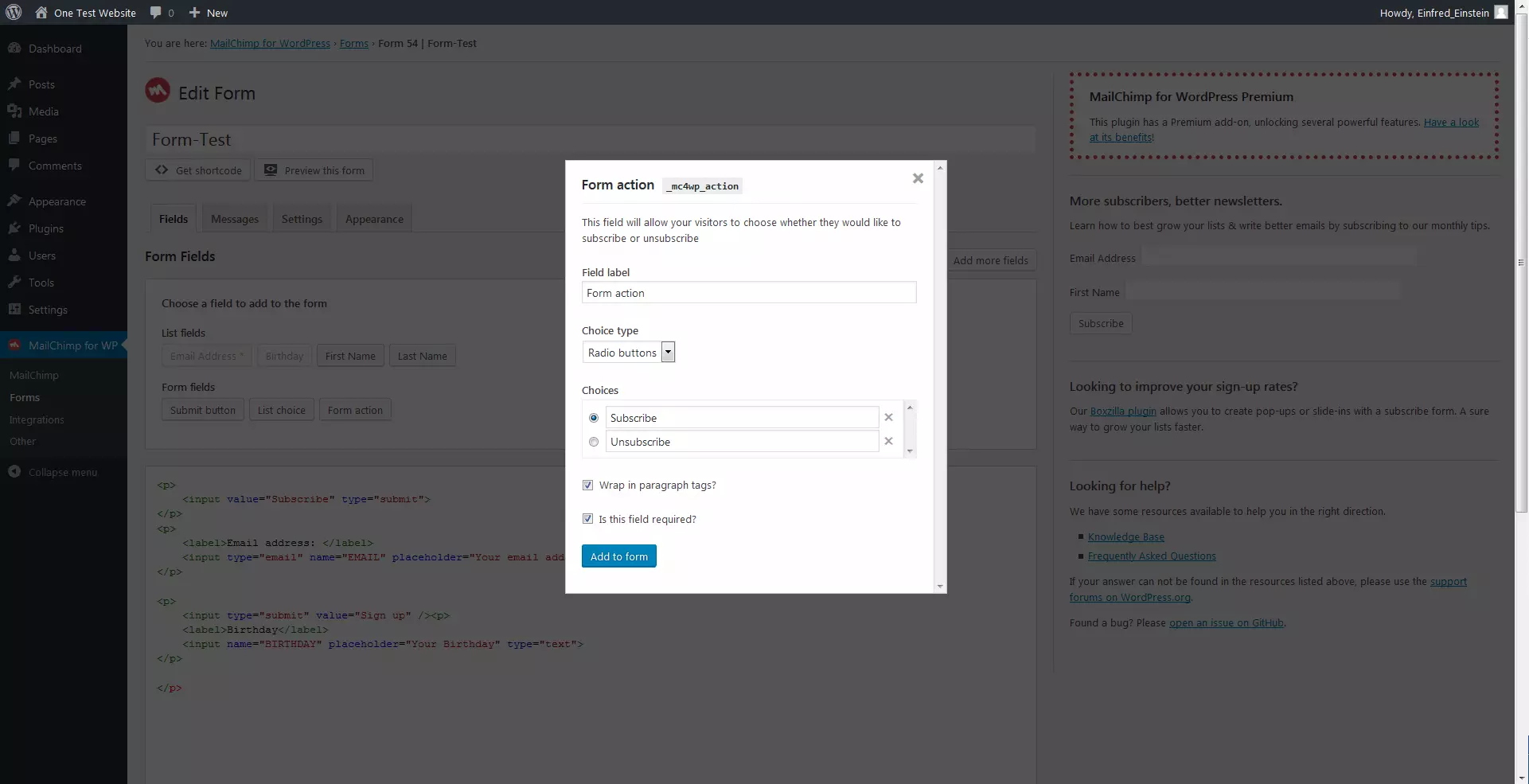
Form action: You can make it possible for users to subscribe and unsubscribe via a single form.
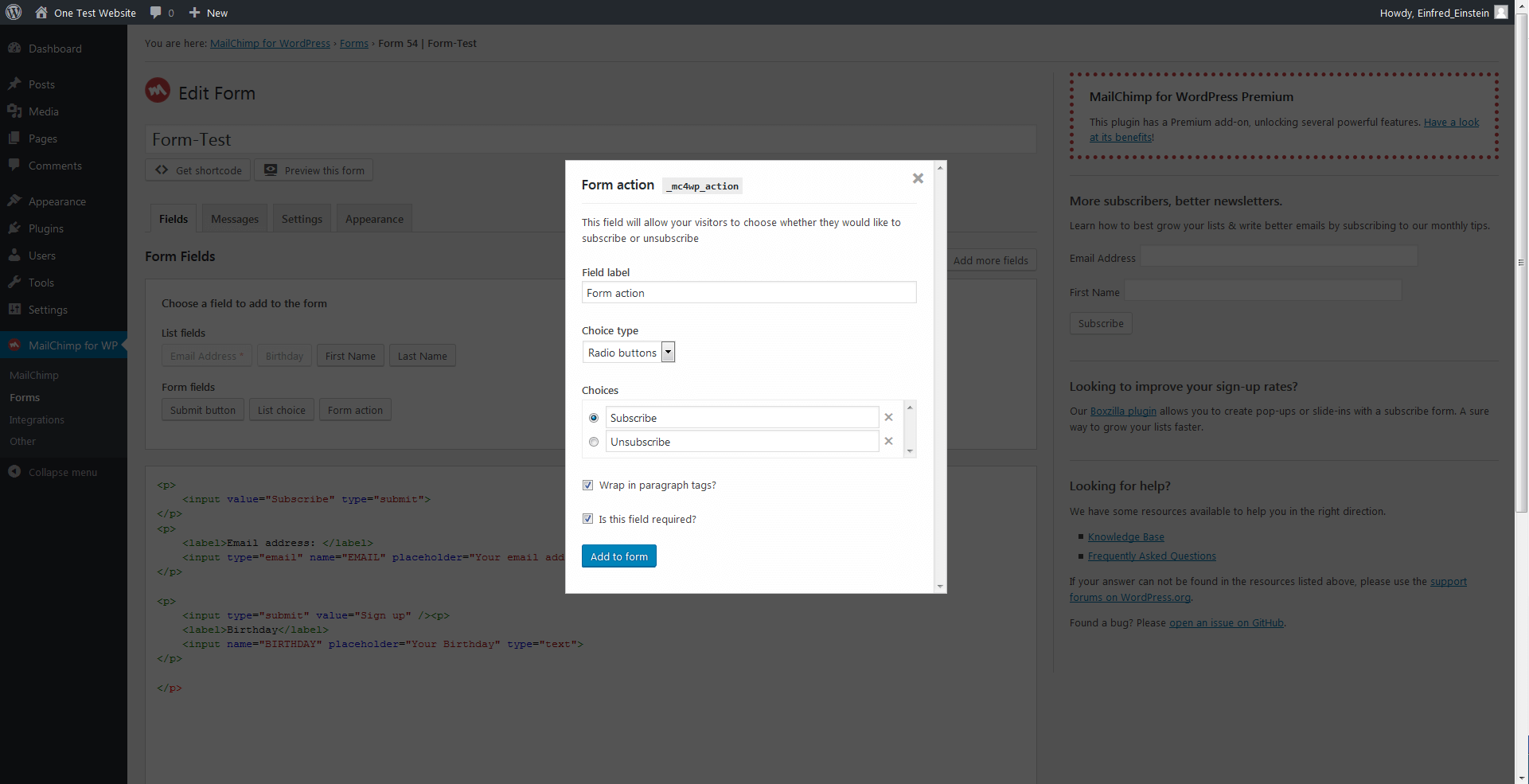
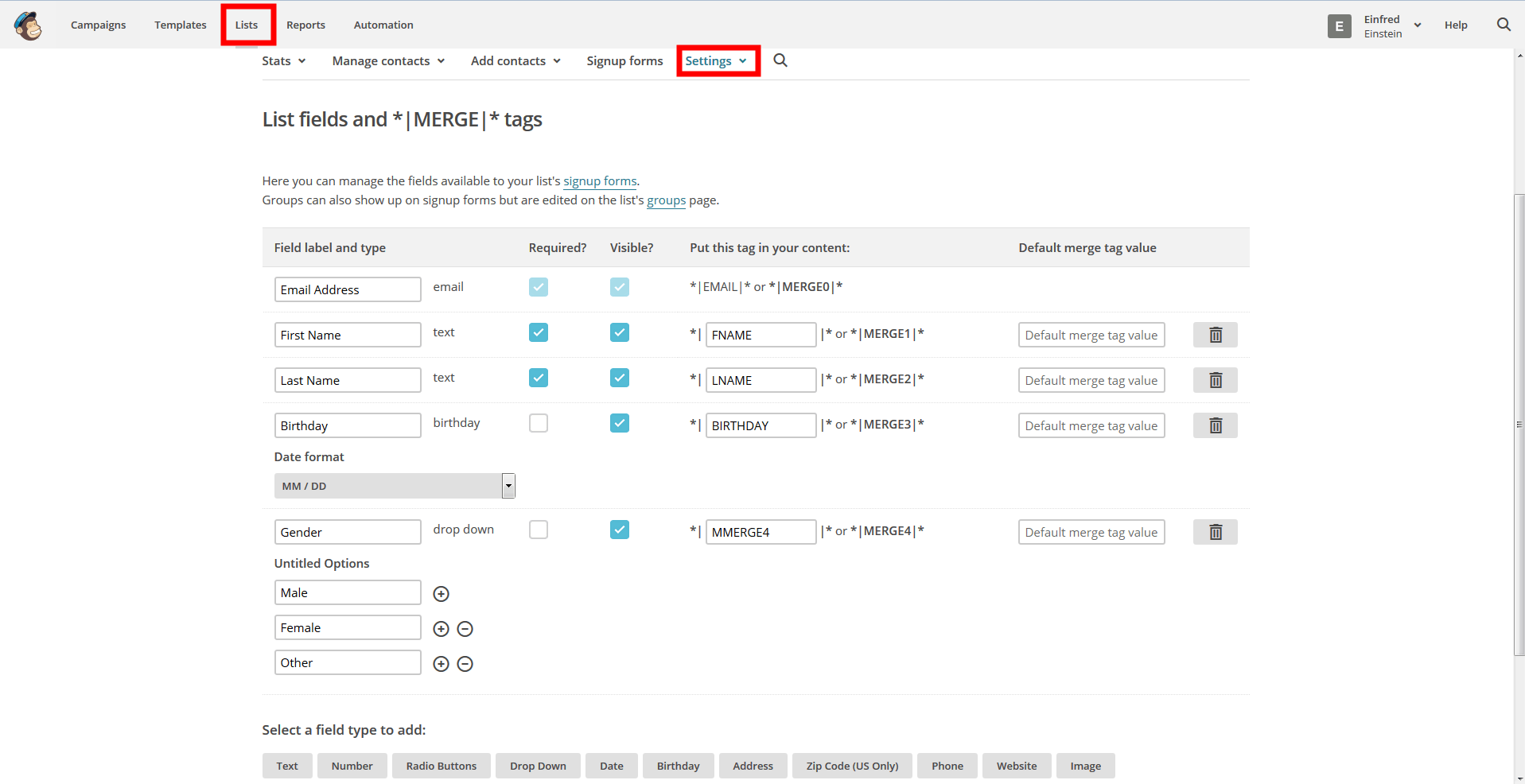
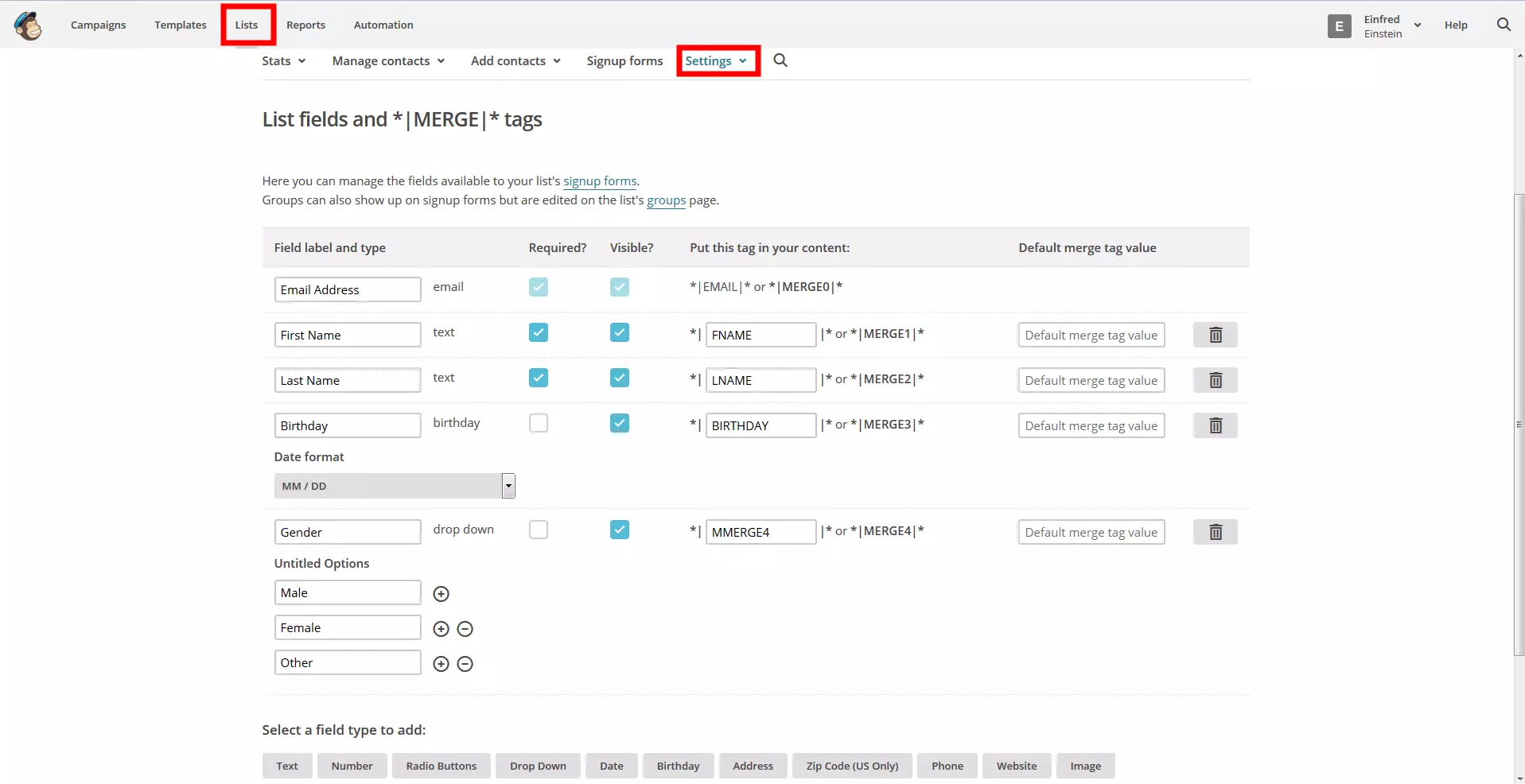
If you want to add additional fields in the form, you have to create them in MailChimp. Bring up the list that you want to work with and go to the settings of that particular list. This is where you can add further fields for postal addresses, telephone numbers, the subscriber’s gender, and so on.
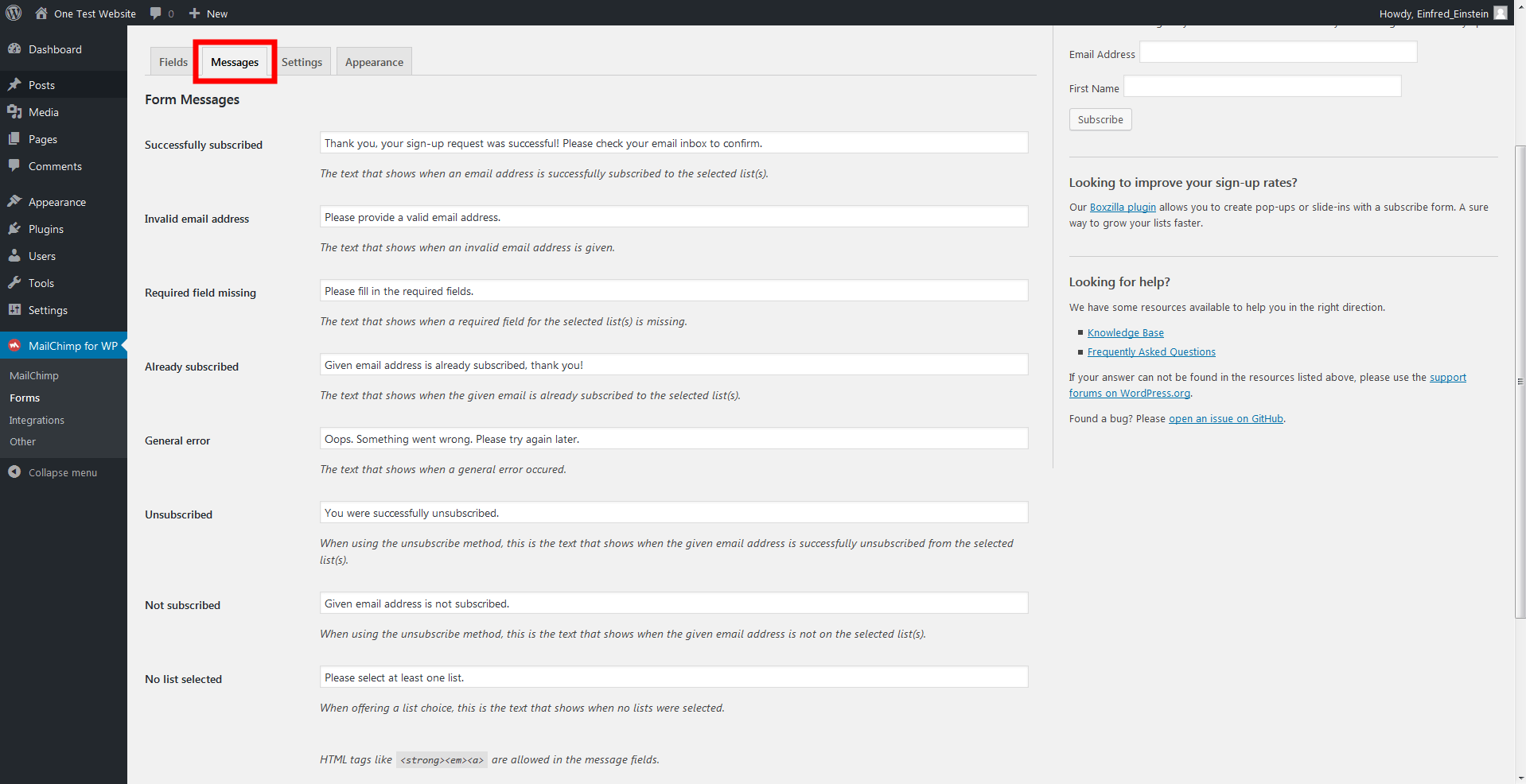
Save the changes in MailChimp and go back to the display with the WordPress plugins: there you can update the form fields and at your form at the end. This will appear as HTML code, which is how you can make changes in the source code. Furthermore, you can configure it so that the user receives a message after they have clicked on the register button. The plugin enables you to enter a suitable message (or use a default message) for every possible scenario. For example, this could be a thank you message after a successful registration, an error message if fields haven’t been filled out properly or accidentally left blank, or an indication that the entered e-mail address is already in use.
 Nuk2013Shutterstock
Under the form settings, you can answer the following important questions:
-
Using double opt-in process? You should definitely use the double opt-in process. This way, you can be sure that your subscribers have given their consent for receiving the e-mails.
-
Updating existing subscribers? If you want users to be able to update their data using the registration form, you should click on ’yes‘. This means that if a user tries to register their e-mail address, which is already on the list, they won’t receive an error message. Instead, the information relating to them (name, birthday, etc.) will be compared and changed if necessary.
-
Concealing the form after registration? After a user has subscribed, it doesn’t make sense for the registration form to continue being shown to them. With this option, you can hide the form after a user has subscribed.
-
Redirecting to the URL after a successful registration. A thank you message will be shown after a user has signed up for the newsletter. There is the option of automatically redirecting the user to another web page instead of them receiving this message. On the web page, you could write a special thank you note as well as presenting further information on your newsletter.
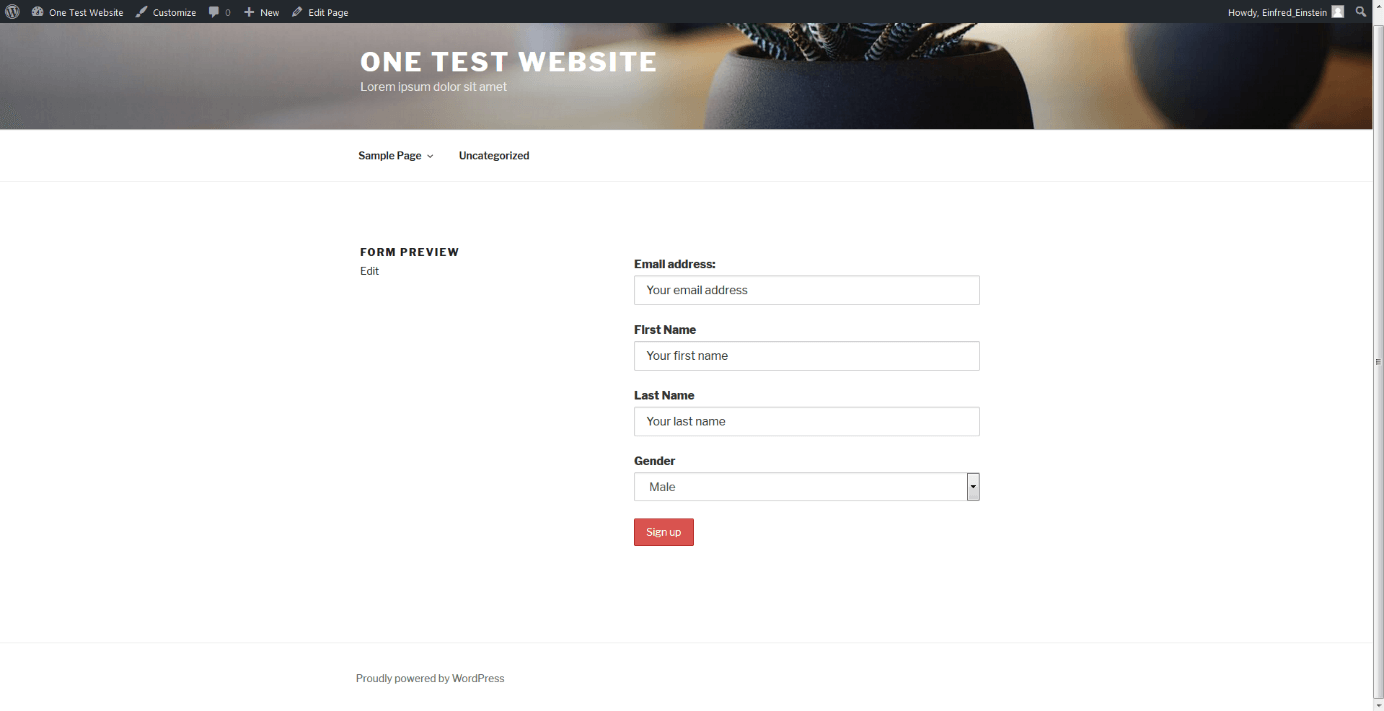
In the settings for designing the form, you can also change the theme of the mask. It’s not recommended, however, to change the specifications of the WordPress theme that you’ve chosen since this is how you add the subscription mask into the existing website. While you are carrying out the changes, you can preview how it looks at any time throughout.
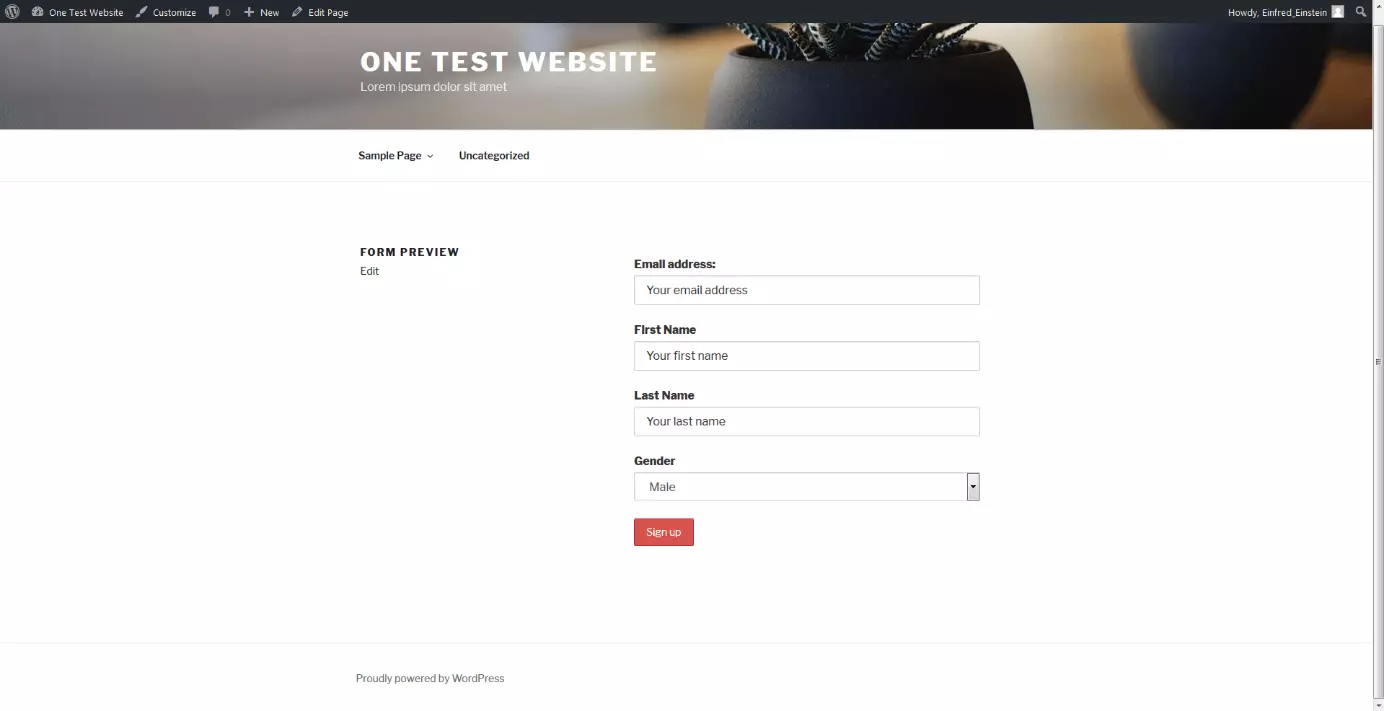
Integrating forms
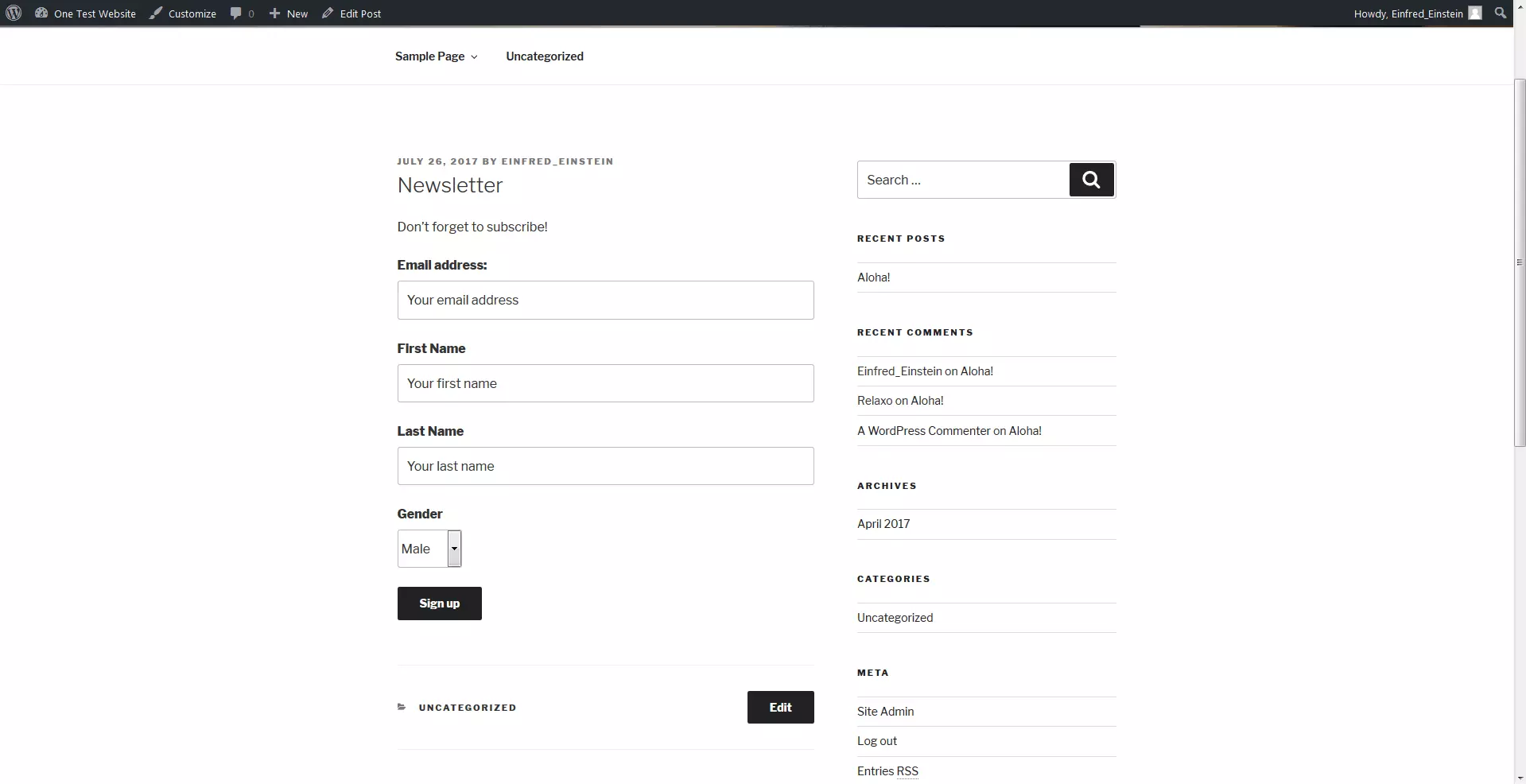
There are several possibilities for incorporating a registration form into your website. You just need to decide where you want to place your input mask. If you are planning on integrating the reference your newsletter in a post or on a page, then you will need this shortcode:
[mc4wp_form]you can create several forms with the premium version of MailChimp for WordPress. These will be equipped with an ID, which is also part of the corresponding shortcode.
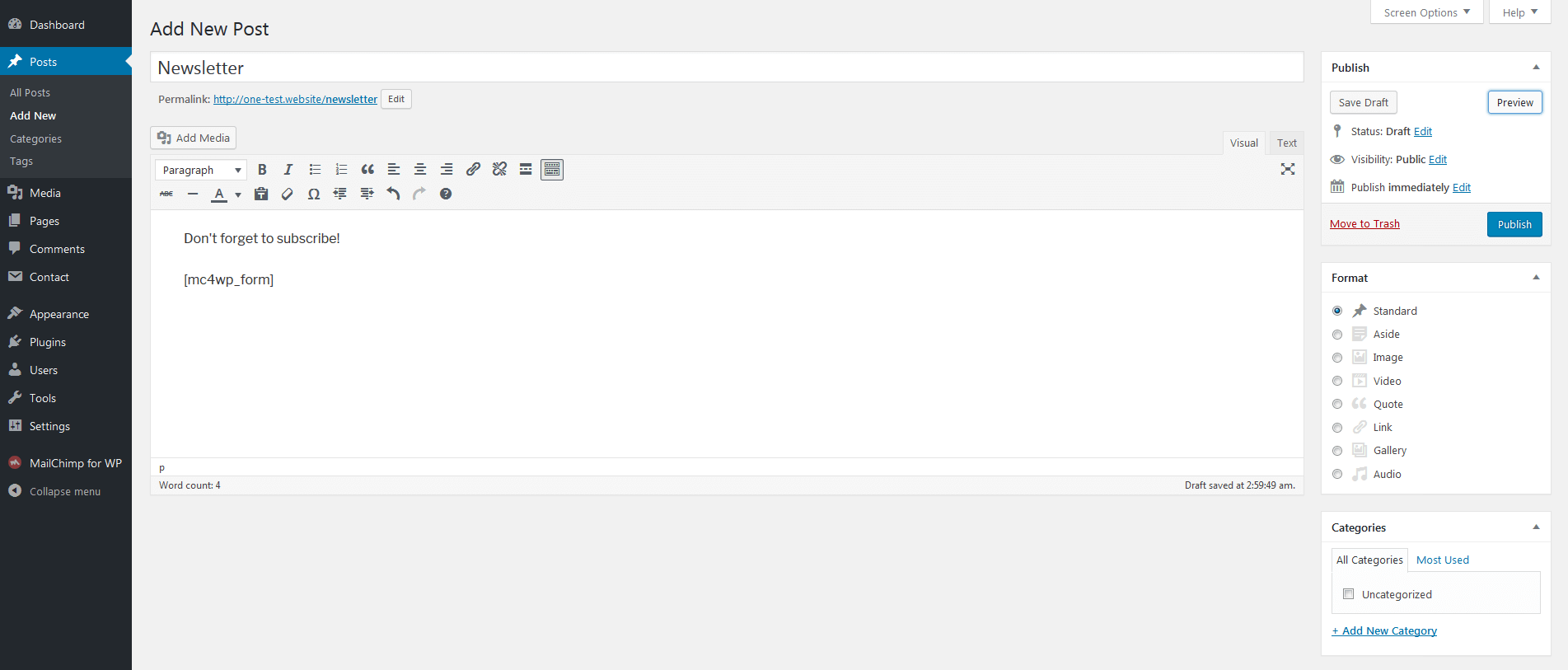
Just write the text for your web page and insert the shortcode where you want the form to be embedded within the text.
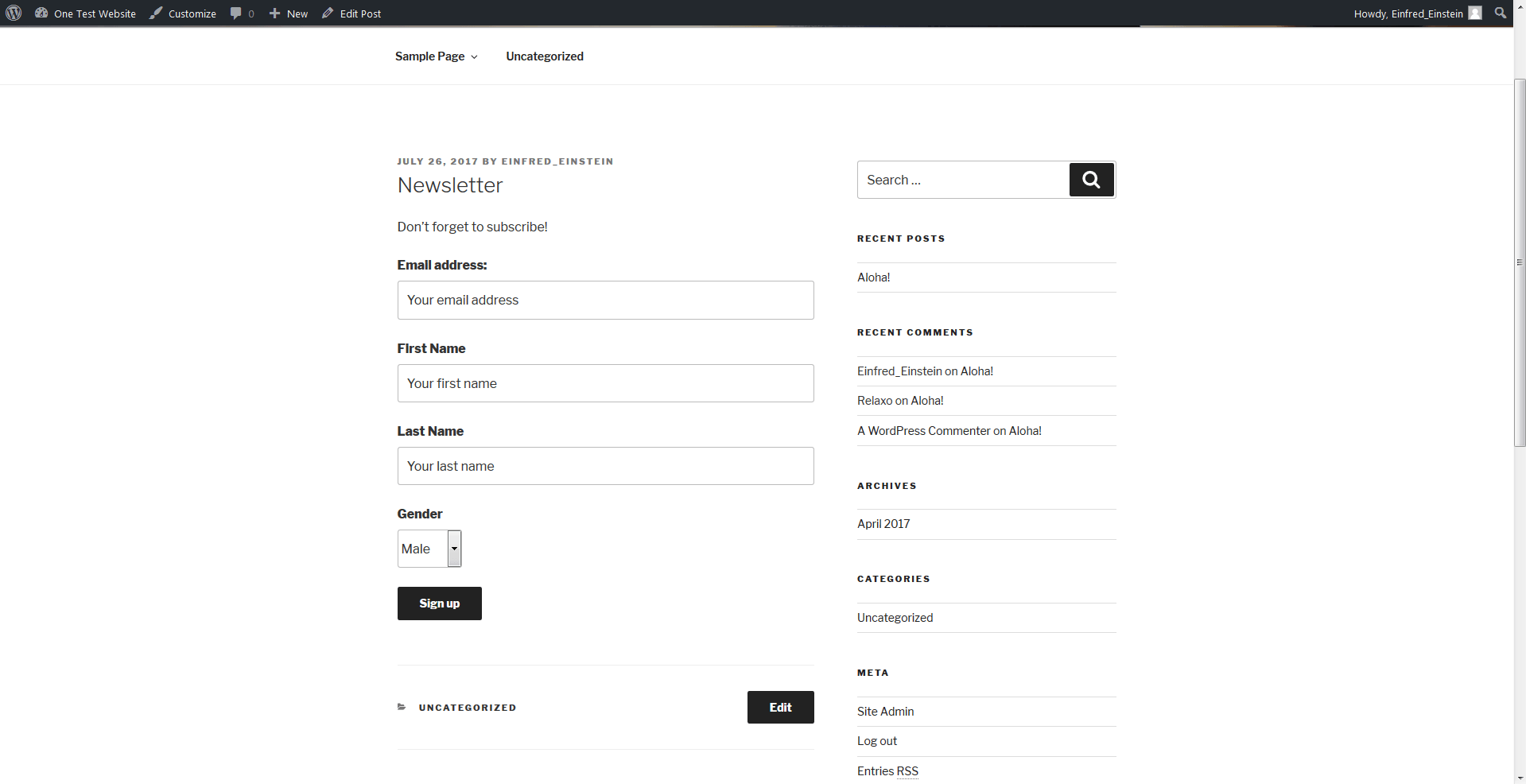
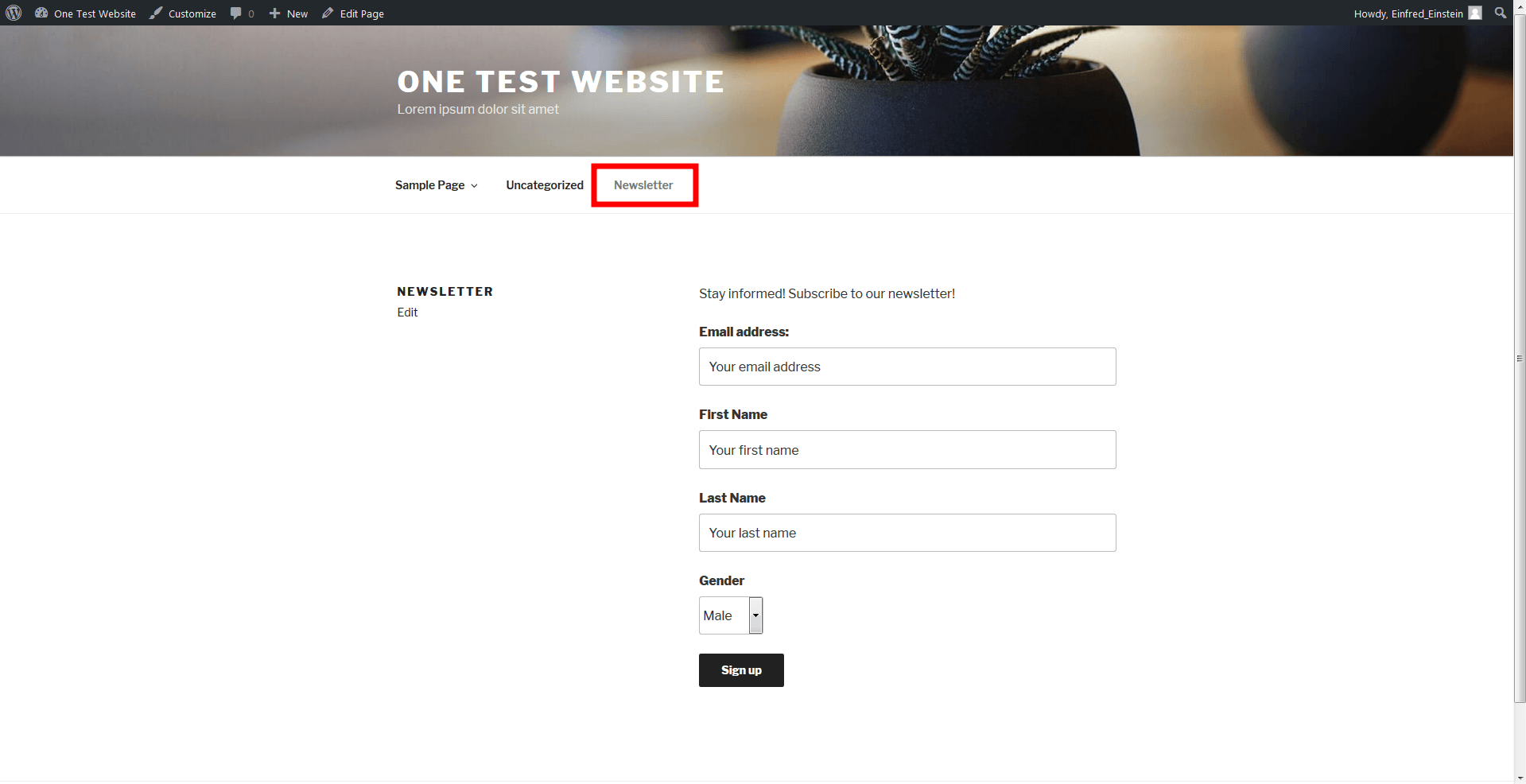
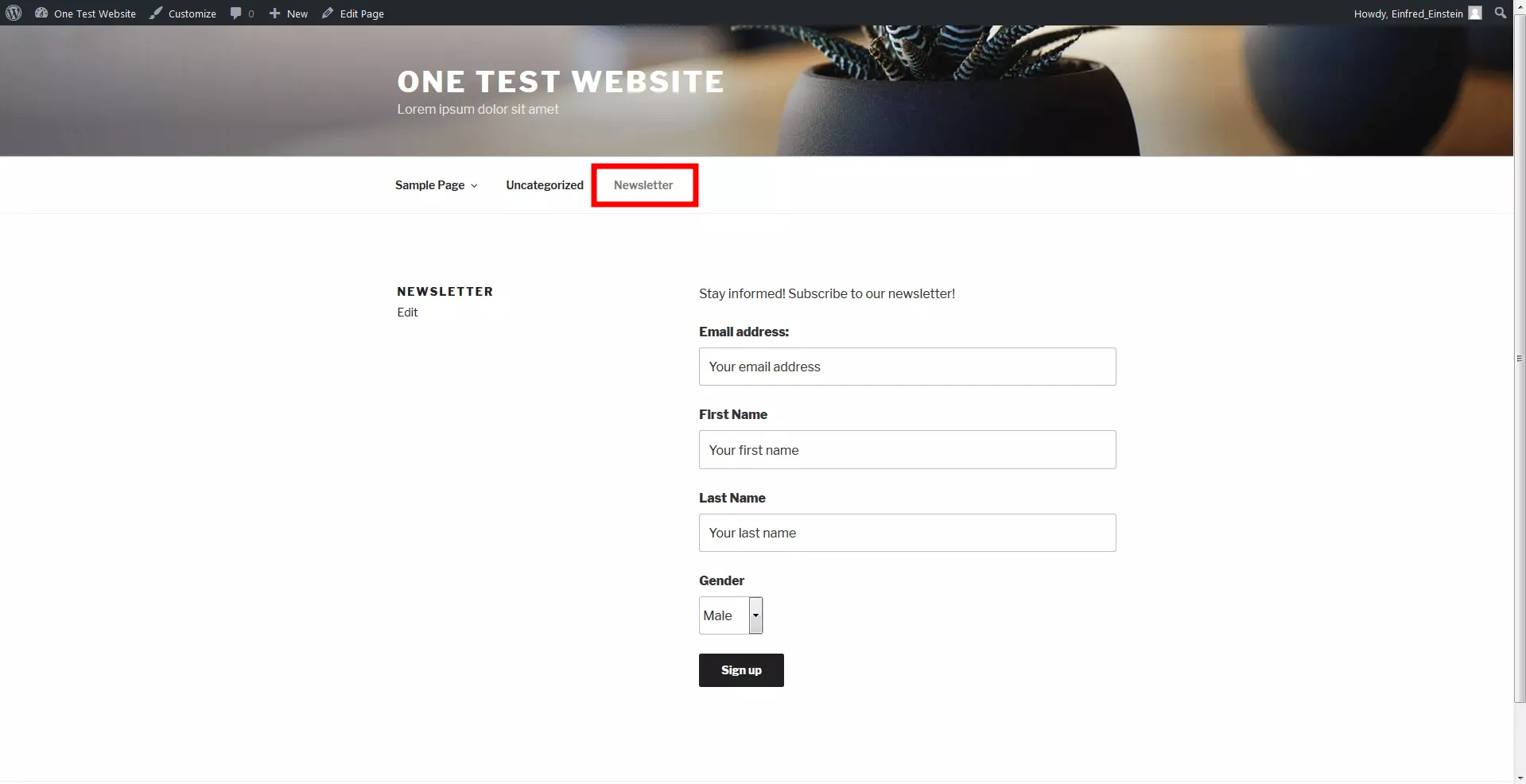
The same applies for pages: here you also need to enter the shortcode in the desired spot. The special subpage can also be placed in the website menu. By doing this, website visitors will always see the reference to the newsletter.
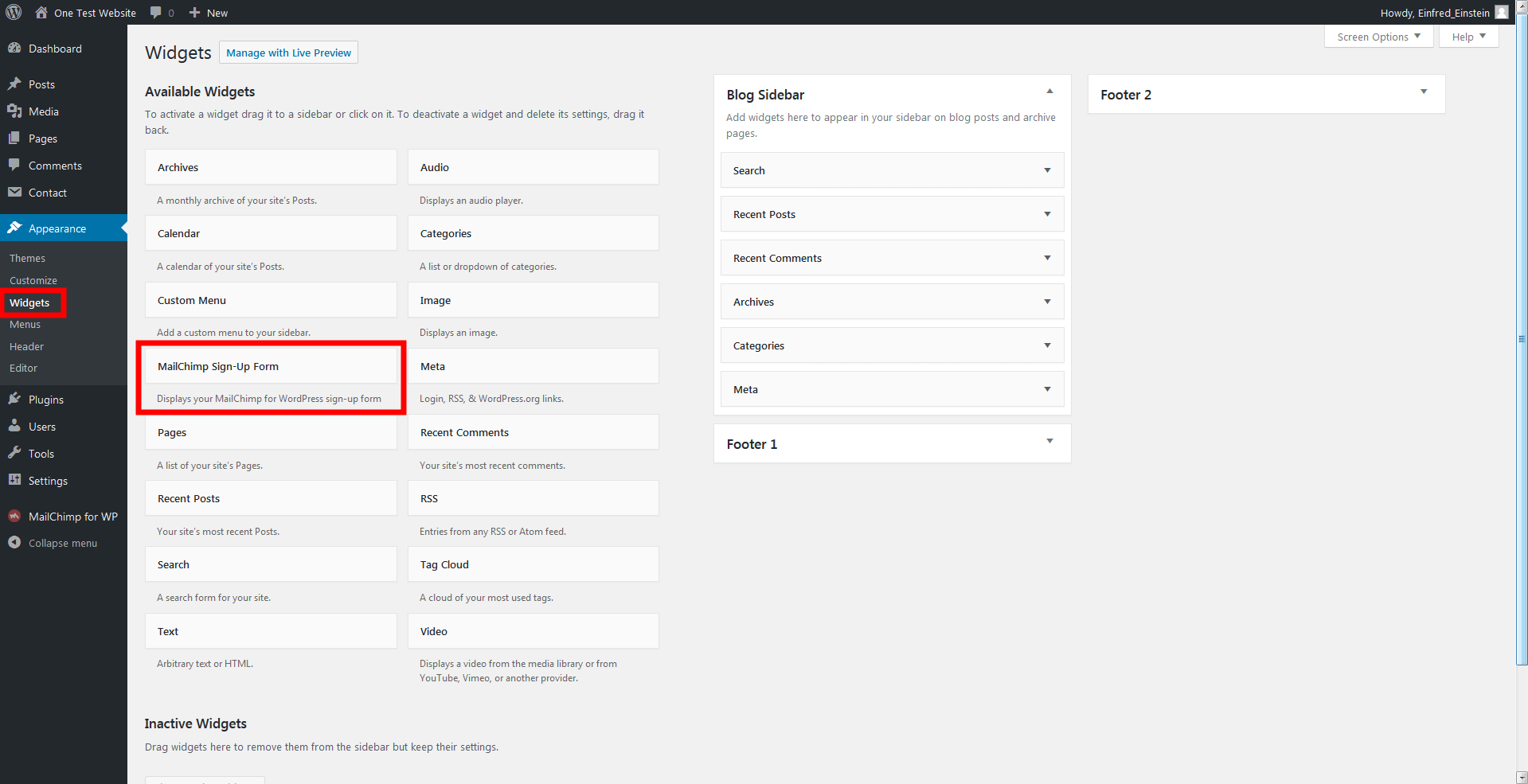
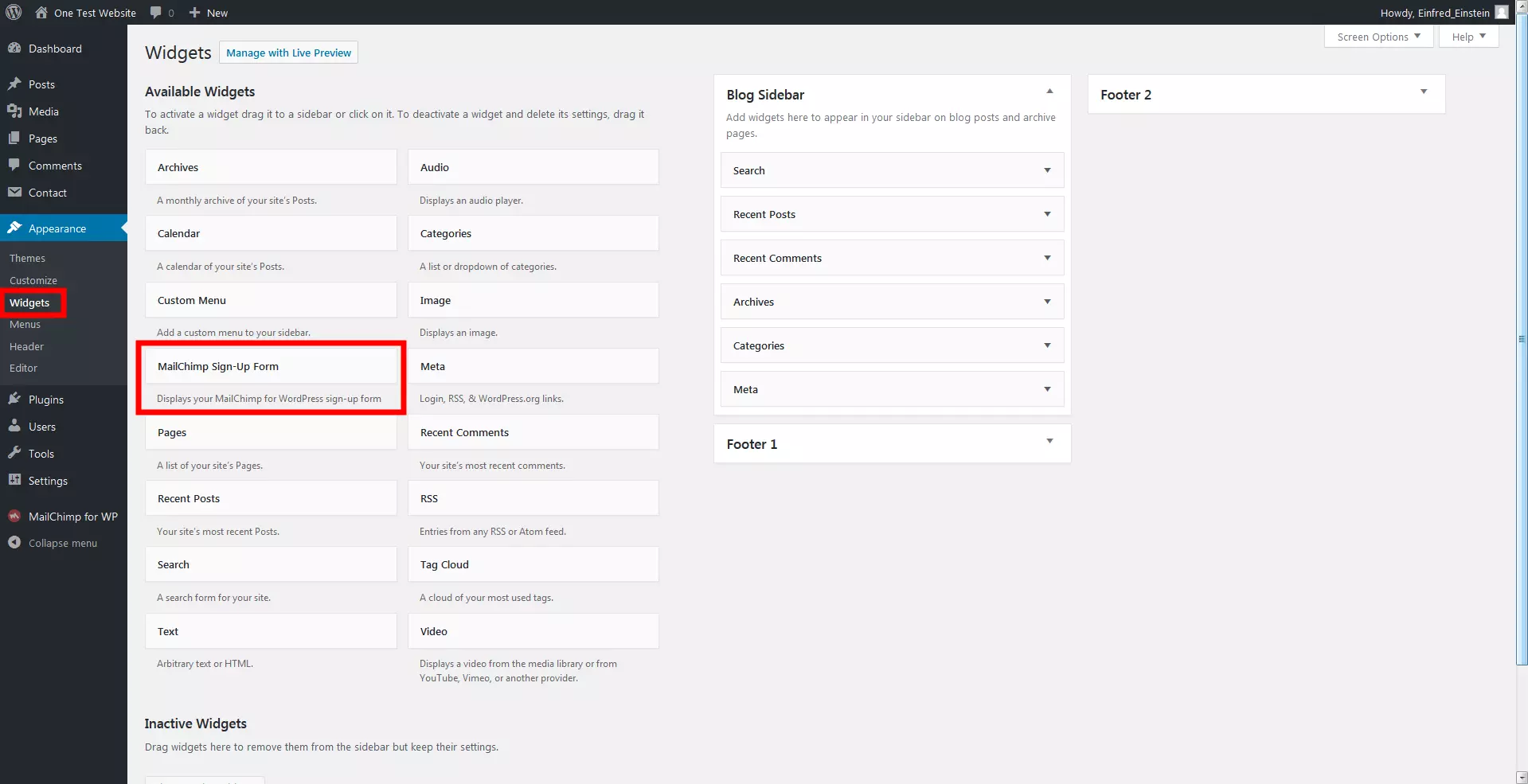
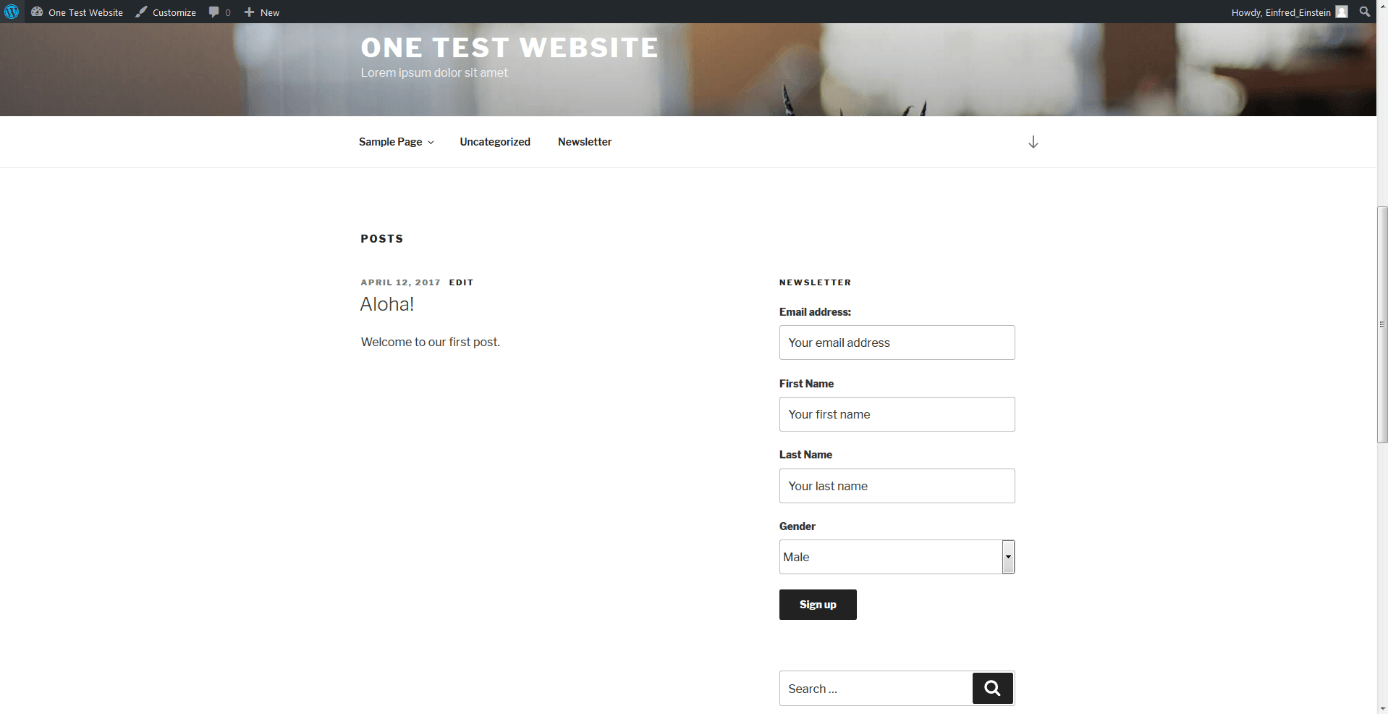
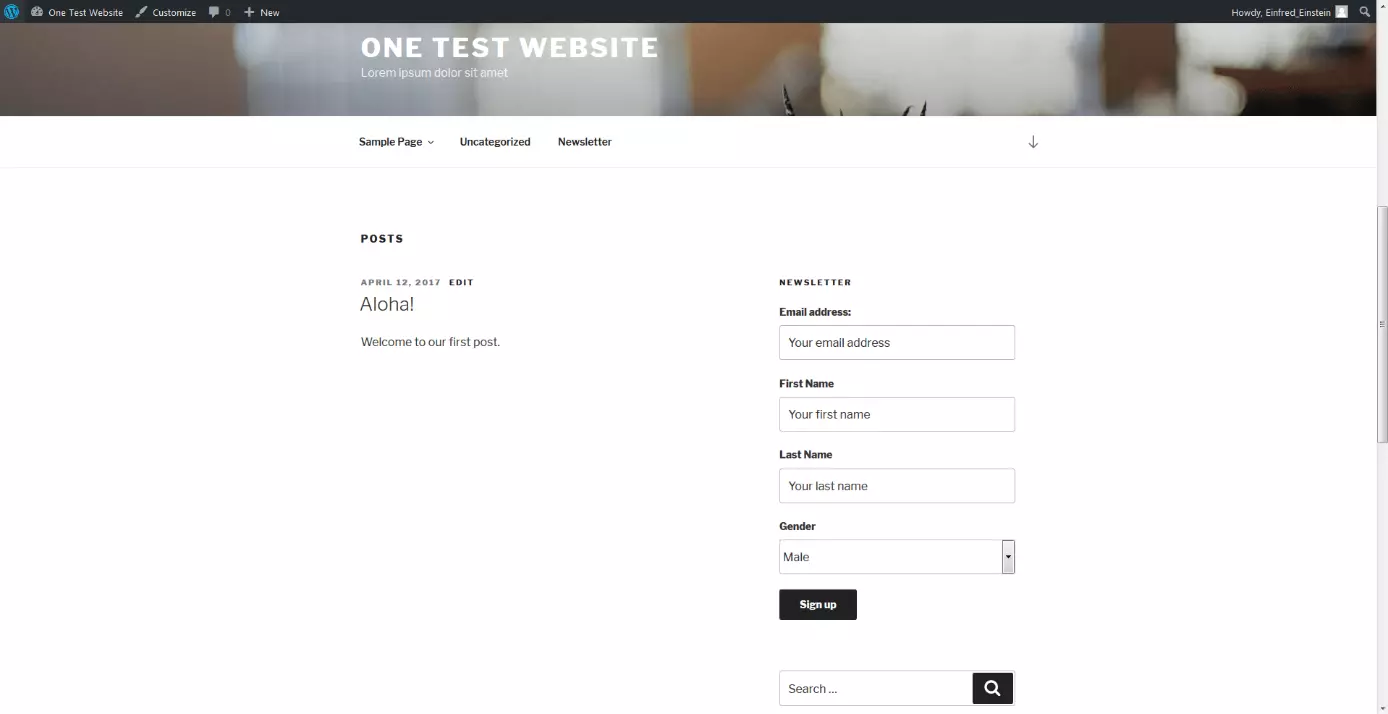
It can also be very effective if you place your registration form as a widget on your website. You can use the input mask either in the sidebar or in the footer. The plugin MailChimp for WordPress has already stored a widget containing your form. Just drag and drop it where you want it to appear on your site. Make sure that the order is the same in the backend as the order on the site.
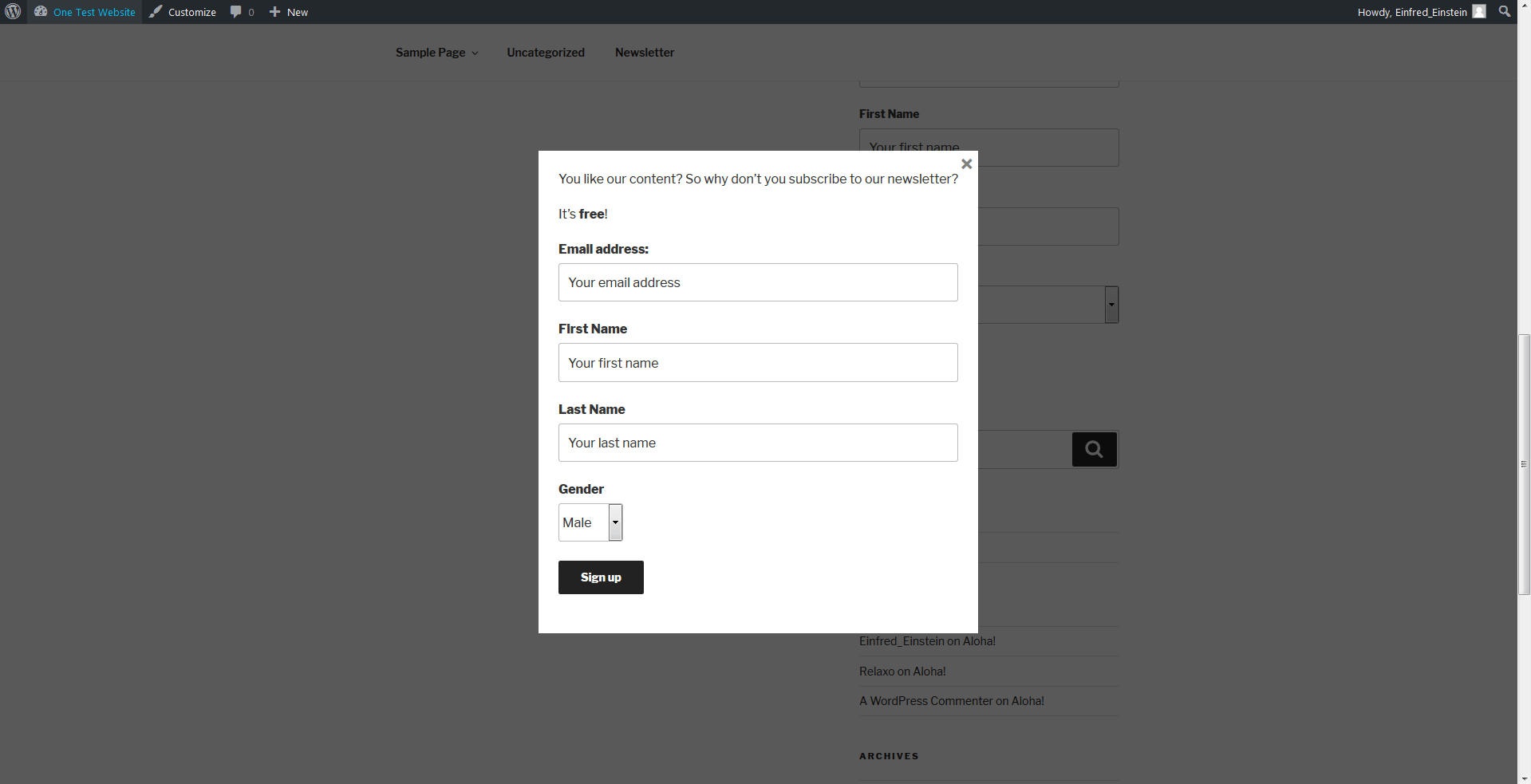
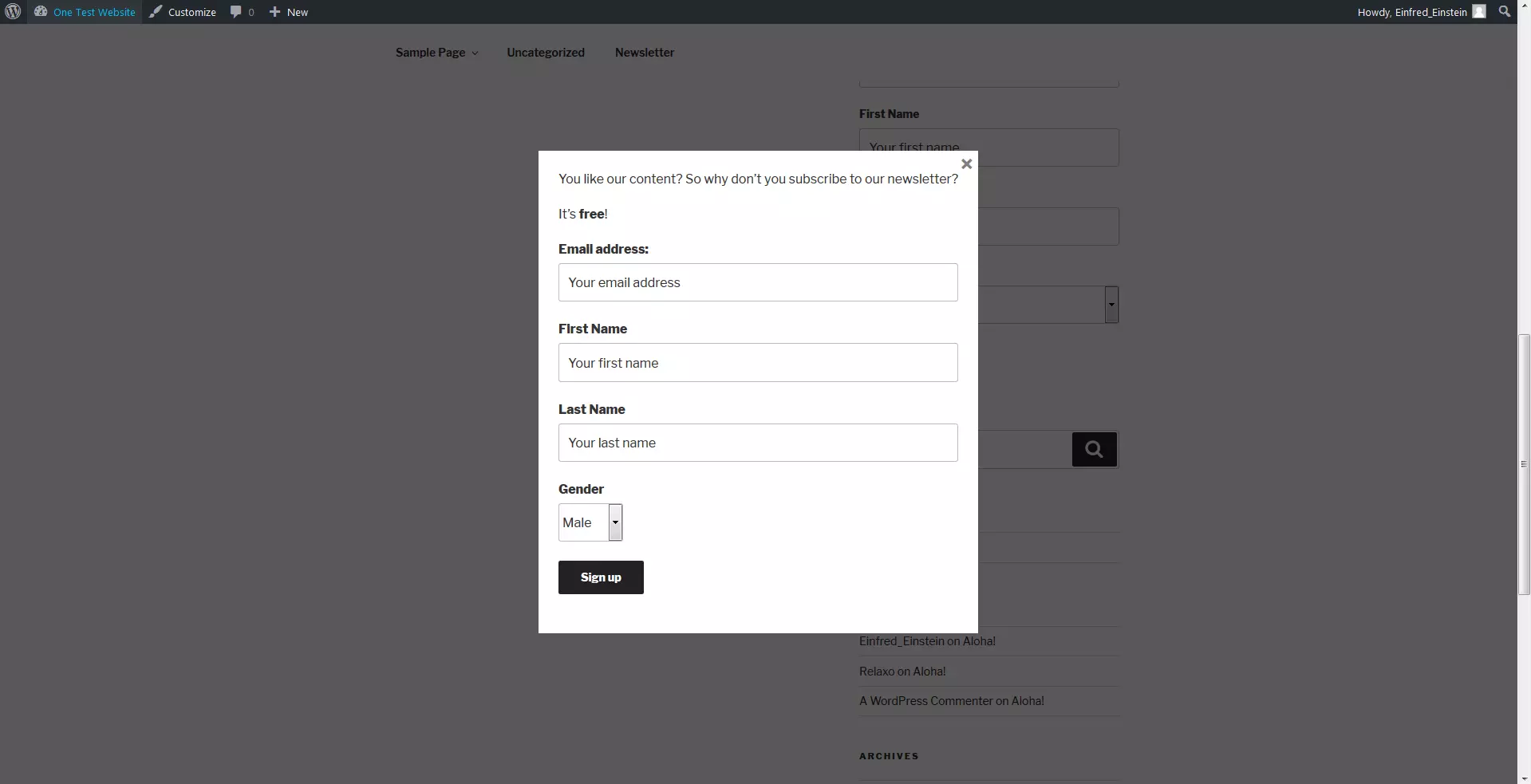
MailChimp for WordPress also works with other plugins. In order to make your application form even more appealing, MailChimp for WordPress works together with Boxzilla. With this additional plugin, you can have your registration form displayed as a page overlay. Again, there are several settings to choose from:
- As with pages and posts, you can add text and images to your form.
- The colors of the text, the background, and the frame can be individually adjusted.
- Specify which pages and posts you want the box to be displayed on.
- Decide where you want the registration form to appear on the screen.
- Should the overlay appear out of nowhere or edge its way onto the screen?
- In order not to ruin the display on smartphones or tablets, you can make sure that your overlay is only displayed from a certain screen size.
Using WordPress and MailChimp
Now you have created your registration form for your WordPress website: so now what? Users can now sign up for your service. Interested website visitors will enter in their personal information that you’ve requested. MailChimp gives you the option to decide yourself which fields are obligatory or not. Since you are likely to use a double-opt-in method, an e-mail with a confirmation link is automatically sent to the user. If the user confirms that they actually want to register for the newsletter, they will be forwarded to a page generated by MailChimp. A quick test will prove that the user is human, and not a bot, and they will then be added to the newsletter list.
to get people interested in your newsletter, you could offer some incentives. A few tips and tricks help to increase the amount of people on your e-mail list
You’ve now mastered the first steps towards successful e-mail marketing. Now you must also execute your campaigns. You should plan the subject of your newsletter up to the correct e-mail signature. It can also be quite challenging to create appropriate content for your newsletter. In any case, be sure to meet the requirements of your target group: then your e-mail marketing campaign will go down well with your customers.
Reviewer

Julia Hertler
With over 18 years of experience in content marketing, Julia Hertler has deep expertise in digital communications. For the past 10 years, she has specialized in the areas of domains and hosting at the IONOS Digital Guide, making complex technical topics easy to understand.