

What is a graphical user interface (GUI)?

The times when only scientists and software developers could use computers are long gone. Nowadays, almost anyone can use a PC or tablet – even without any significant technological knowledge. That is due to the development of graphical user interfaces – a type of user interface.
The first concepts of graphical user interfaces emerged in the 1970s at the company Xerox. Initial attempts focused on enabling the controlling of PCs with a mouse and keyboard – instead of exclusively text-based commands. Xerox Alto was the first PC with a GUI. Apple then followed in the 1980s with the Macintosh. Since the development of smartphones and tablets, the principles of graphical interfaces have progressed considerably. Today, displays can even be controlled with finger movements and gestures.
What is a GUI? A definition
The GUI is an interface between people and machines. The graphical interface aims to reproduce the code in the backend of a system in as user-friendly a manner as possible, simplifying its everyday application. Symbols and images are particularly important, since they are what enable universal applications independent of text. For instance, almost everyone knows what the Wi-Fi symbol looks like, even though the word itself is quite different in various languages.
A GUI – or graphical user interface – is an interface for using PCs, tablets, and other end devices. GUIs use graphical elements like symbols, menus, and images to simplify use for human users. Graphical user interfaces are used by both operating systems as well as individual applications. Almost every program for end users is supplied with a GUI nowadays.
How a GUI works
The GUI is a user interface that enables users to communicate with computers. This typically occurs using a mouse and keyboard, although control by touch and gestures is becoming more and more prevalent. When you move a computer mouse, the cursor displayed on your screen also moves. The signal of the device is sent to the computer, which translates it into a similar motion on the screen. If a user clicks on a certain program symbol in the menu, the corresponding command is issued and the program is launched.
Essentially, the GUI is a type of translator that communicates between people and machines. Without GUIs, you would need to control programs and applications by typing instructions into the command line. This would look as follows (the example opens the explorer):
C:\User\Me>start explorer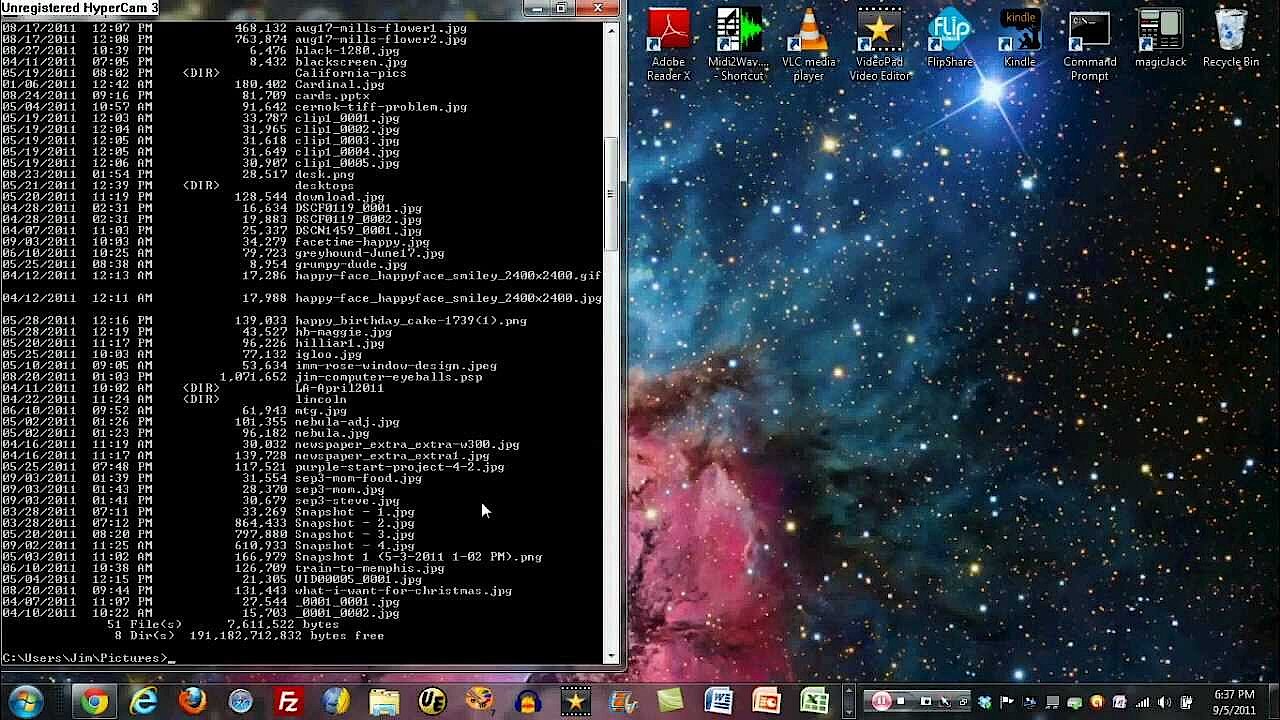 To display this video, third-party cookies are required. You can access and change your cookie settings here.
What are the elements of a GUI?
A graphical user interface combines visual design with programming functions. It, therefore, offers buttons, drop-down menus, navigation fields, search fields, symbols, and widgets. GUI developers prioritize user-friendliness. Typical GUI components include:
- Entry fields
- Windows
- Canvases
- Frames
- Buttons
- Write fields
- Text fields
The recycling bin is a good example of an element found in most operating systems. It’s represented by a trash can on both Windows and Mac operating systems. This allows the user to immediately recognize what the recycling bin is for: deleting documents and files.
When writing GUIs, developers utilize event-based programming since they’re unable to predict which actions the user will perform. For this reason, GUIs cannot be programmed linearly. They have to be written so that a command is only executed once the user provides the right signal.
If you’d like to program GUIs in Python yourself, there are plenty of useful resources available online, for example the Wiki guide to GUI programming.
What requirements should a GUI meet?
Above all, an effective graphical user interface should simplify the controls for the user. When designing such an interface, it’s important to ensure that the GUI facilitates intuitive use. However, this requires a good understanding of the needs and preferences of users. User experience-based design aims to offer the user with what they expect from the application. The following aspects should be kept in mind when developing a GUI:
- Simple interfaces: It’s advisable to get rid of any unnecessary design elements and choose simple and easy-to-understand labels.
- Purpose-based layout: Each page should be well-structured and each element should perform a clear function.
- Consistency: When using multiple elements and graphics, it’s important that all the individual elements are coordinated with each other.
- Design and typography: Design elements, colors, and text should be placed in the foreground or background depending on their respective purpose. Using suitable, easily legible font styles and sizes is also vital.
- User updates: A GUI should also provide information about errors and status changes.
What are the advantages and disadvantages of a GUI?
Graphical user interfaces have caught on because they offer users many advantages. But they do have some disadvantages. We point out the strengths and weaknesses of GUIs in the table below.
| Advantages | Disadvantages |
|---|---|
| Easy and user-friendly | Less flexibility: only preprogrammed instructions can be executed |
| Visually appealing design | System functionality cannot be adjusted or adapted |
| Even users with little technical knowledge can run simple applications with a GUI | GUIs need a relatively high amount of storage space in the system |
| Searching for documents and files is easy thanks to the visual display | GUIs are slower than interfaces based only on command lines |
| The system responds to instructions that the user can enter intuitively thanks to the visual format | It’s comparably difficult for the developers to create an intuitive GUI |
| Users can quickly and easily navigate to and from multiple applications | Some commands take longer to be executed |
The digital revolution would have been unthinkable without graphical user interfaces. GUIs enable even novice users to quickly get started with programs. Easy-to-understand symbols and explanatory text provide a high degree of user-friendliness.
Reviewer

Christian Heldmaier
Christian Heldmaier is an experienced online marketing and SEO specialist from Karlsruhe. He has been working as an SEO Manager at IONOS since July 2020.