

How to create unordered lists in HTML with the HTML tag

An HTML unordered list allows you to display content on your web pages in a clear, non-numbered format. In addition to the HTML <ul> tag, you’ll also need the list tag <li> for this element. With the style attribute, you can decide which type of marker should appear next to list items.
What are HTML unordered lists and what are they used for?
HTML unsorted lists (also referred to as unordered lists) are HTML elements used to create lists where the order of the elements does not matter. These practical lists are integrated using the HTML tags <ul>. The opening <ul> marks the start of the list and the closing </ul> marks the end of it. Each item in the list is placed between the HTML list tag <li>, and there is no limit to the number of items that can be included.
HTML <ul> lists are perfect for giving structure to various types of content, such as:
- To-do lists: Checklists, ingredient lists, task lists
- Features: Lists of product features or service attributes
- Links: Collections of links to external sites or social media profiles
- Tags: Lists of popular tags
- Price lists: Displaying the prices of services or products in list form
- Appointments: Structured display of upcoming appointments
The counterpart to unordered HTML lists is HTML ordered lists. These are characterized by numbered items that follow a specific hierarchy.
What is syntax of the HTML <ul> tag and how does it work?
If you want to insert an unordered list into HTML, you can do so in the <body> section of your web page. An opening <ul> and a closing </ul> tag mark the start and end of the list, and the individual list items are defined by an opening <li> and closing </li> tag. The basic syntax for an unordered list looks like this:
<body>
<ul>
<li>List item 1</li>
<li>List item 2</li>
<li>List item 3</li>
<li>…</li>
</ul>
</body>In this example, no specific marker is defined for the list, so HTML will default to the standard bullet point.
- Stay online with 99.99% uptime and robust security
- Add performance with a click as traffic grows
- Includes free domain, SSL, email, and 24/7 support
How to create nested unsorted lists in HTML
Although hierarchically structured lists are typically implemented using ordered lists, you can also create nested lists with HTML <ul>. To do this, simply embed additional unordered lists in an existing <ul> element. The following example shows how to create two nested lists:
<body>
<p><strong>Nested unordered list:</strong></p>
<ul>
    <li>Fruits
        <ul>
            <li>Apples
                <ul>
                    <li>Granny Smith</li>
                    <li>Gala</li>
                    <li>Fuji</li>
                </ul>
            </li>
            <li>Oranges
                <ul>
                    <li>Navel</li>
                    <li>Blood Orange</li>
                    <li>Mandarin</li>
                </ul>
            </li>
        </ul>
    </li>
</ul>
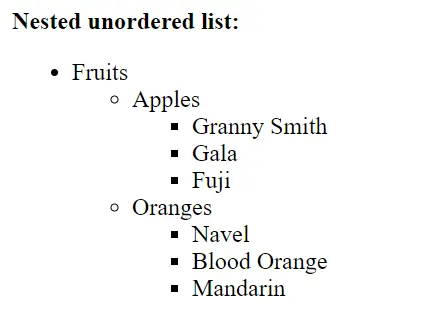
</body>The main category “Fruits” is divided into the subcategories “Apples” and “Oranges,” which further list various varieties. In a browser, it would look something like this:
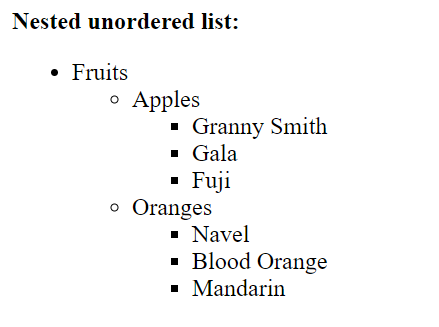
- ` elements are used in the example.
How to customize <ul> list symbols with list-style-type
Using the CSS property list-style-type, you can easily change the symbols used for unsorted lists in HTML. This can be applied via the HTML attribute style or with an external stylesheet. You can specify symbols such as:
list-style-type value |
Description |
|---|---|
disc
|
Filled circle; HTML’s default if style is not specified
|
circle
|
Unfilled circle |
square
|
Square |
none
|
No symbol |
Here’s how to specify unfilled circles using the example from the previous section:
<body>
<p><strong>Apples:</strong></p>
<ul style="list-style-type:circle;">
    <li>Granny Smith</li>
    <li>Gala</li>
    <li>Fuji</li>
</ul>
</body>For more comprehensive styling and reusability, it’s best to define CSS separately in a file or in the <style> tag in the <head> section. This ensures content and style are separated, making the code easier to maintain.