

How to use HTML forms to create forms for your website

HTML forms allow you to communicate easily and directly with your visitors. You can use various elements and attributes to adapt the forms to your needs.
What is an HTML form?
HTML forms are interactive forms for your website, allowing visitors to send you personalized data. The entered information is sent to the corresponding web server for processing. To integrate this type of interaction into your HTML documents, you need the HTML <form> tag. This HTML tag can be customized with various elements and attributes to suit your needs. You can use different input types such as text, numbers, email, passwords, buttons and checkboxes.
If you collect personal data on your website using an HTML form, you must explicitly state this in your privacy policy and ensure that the transmission is SSL/TLS encrypted.
- Stay online with 99.99% uptime and robust security
- Add performance with a click as traffic grows
- Includes free domain, SSL, email, and 24/7 support
What is the <form> element used for?
Thanks to the variety of input options provided by HTML forms, they can be used for many different purposes. These include:
- Contact forms for inquiries or orders
- Sign-up forms for accounts or newsletters
- Feedback forms
- Surveys
- Support and service ticket forms
- Login forms for accessing restricted areas of the site
Theoretically, almost any form of interaction between visitors and a website can be handled via an HTML form.
What is the syntax of HTML <form>?
HTML forms begin with an opening <form> tag and end with a closing </form> tag. Between these tags, you can include different elements and attributes, which we’ll explore in more detail later in this article. The basic syntax for forms is as follows:
<form> Elements </form>What elements can be used in an HTML form?
There are various HTML elements that you can use to customize your HTML form. Here’s a brief overview:
| HTML element | Description |
|---|---|
<button>
|
Simple clickable button |
<datalist>
|
Options for the <input> element presented as a drop-down list
|
<fieldset>
|
Group related data together |
<input>
|
Collects data; customized using the type attribute
|
<label>
|
HTML label creates a visible label |
<legend>
|
Caption or heading for the <fieldset> tag
|
<optgroup>
|
Groups <option> elements within <select>
|
<option>
|
Defines an option for <datalist> or <select>
|
<output>
|
Displays the result of a calculation or script |
<select>
|
Creates a drop-down list |
<textarea>
|
Defines a multi-line text field |
Common attributes for HTML forms
There are numerous HTML attributes that you can use to equip a form with different functions. The most important attributes include the following:
action: Specifies the URL the form data should be submitted toautocomplete: Indicates to the browser whether an input field should be auto-filledenctype: Defines how the data should be encoded when submitted to the servermethod: Specifies whether the data should be sent using theGETorPOSTmethodtarget: Defines where a linked document should be openedname: Assigns a name to the form, which can be used in JavaScript to access the formaccept-charset: Specifies the character encoding to be used when submitting the form data
Examples of HTML forms
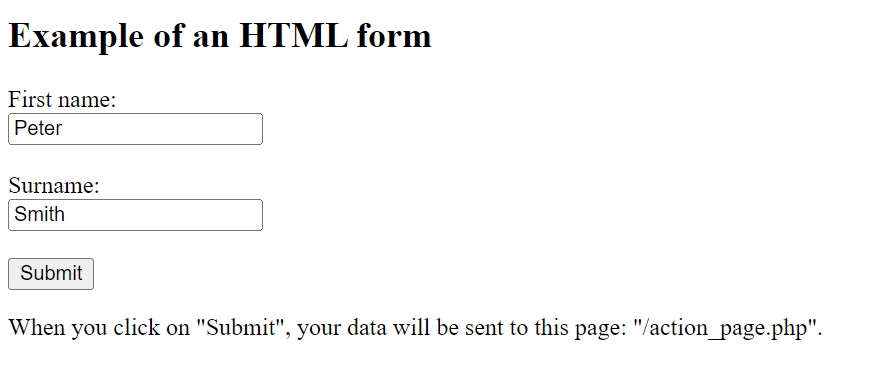
To wrap up, let’s demonstrate how HTML forms work with two examples. We’ll start by creating a simple form that allows visitors to enter their first and last names and submit the information. The code for this looks as follows:
<!DOCTYPE html>
<html>
<body>
<h2>Example of an HTML form</h2>
<form action="/action_page.php">
    <label for="first-name">First name:</label><br>
    <input type="text" id="first-name" name="first-name" value="Peter"><br><br>
    <label for="surname">Surname:</label><br>
    <input type="text" id="surname" name="surname" value="Smith"><br><br>

    <input type="submit" value="Submit">
</form>
<p>When you click on "Submit", your data will be sent to this page: "/action_page.php".</p>
</body>
</html>Here’s what the form generated from this code will look like on the website:

In another example, we use the <select>, <option> and <optgroup> tags to create a form field where users can select different cities from a drop-down list:
<!DOCTYPE html>
<html>
<head>
<title>Example of an HTML form</title>
</head>
<body>
<label for="city">Cities:</label>
<select id="city">
<optgroup label="United States">
<option value="chicago">Chicago</option>
<option value="denver">Denver</option>
</optgroup>
<optgroup label="France">
<option value="paris">Paris</option>
<option value="marseille">Marseille</option>
</optgroup>
<optgroup label="England">
<option value="london">London</option>
</optgroup>
</select>
</body>
</html>- Free Wildcard SSL for safer data transfers
- Free private registration for more privacy
- Free Domain Connect for easy DNS setup