

How to generate a Google Maps API key

Integrating Google Maps on websites or in apps can make your content look professional while providing a better user experience. But to do this, you need Google Maps API keys, which can be generated and used via your own Google account and the Google Maps developer page.
What is a Google Maps API key?
If you want to embed Google Maps features like the map into your website or apps, you’ll need API access. The application programming interface, abbreviated API, enables the exchange of data and cross-application use of Google Maps. But to use the Google Maps API, you need a one-time secret Google Maps API key.
The authentication key identifies authorized API accesses and authorizes error-free data exchanges to let you use Google Maps’ functions. Depending on how you integrate Google Maps, Google uses an API key to check if access has been authorized.
What are the advantages of integrating Google Maps?
Integrating Google Maps can support your website or app by making it look professional. In addition, Google Maps offers a variety of APIs with their own advantages and functions. Embedding Google Maps can also boost the discoverability of your business or other online services with its handy map feature.
If you want to embed Google Maps, then there’s the option to get Google Maps embedded in WordPress with or without a plugin. Either way, there’s a clear added value in terms of the user experience for your customers.
If you want to embed maps in your website, but don’t want to use Google Maps, why not try some Google Maps alternatives like Apple Maps, Waze, or Maps.me?
- DNS management
- Easy SSL admin
- API documentation
How to active Google Maps API
Before you generate and embed an API key, you first need to enable Google Maps APIs. The API key will apply to these and will enable the exchange of data and functions.
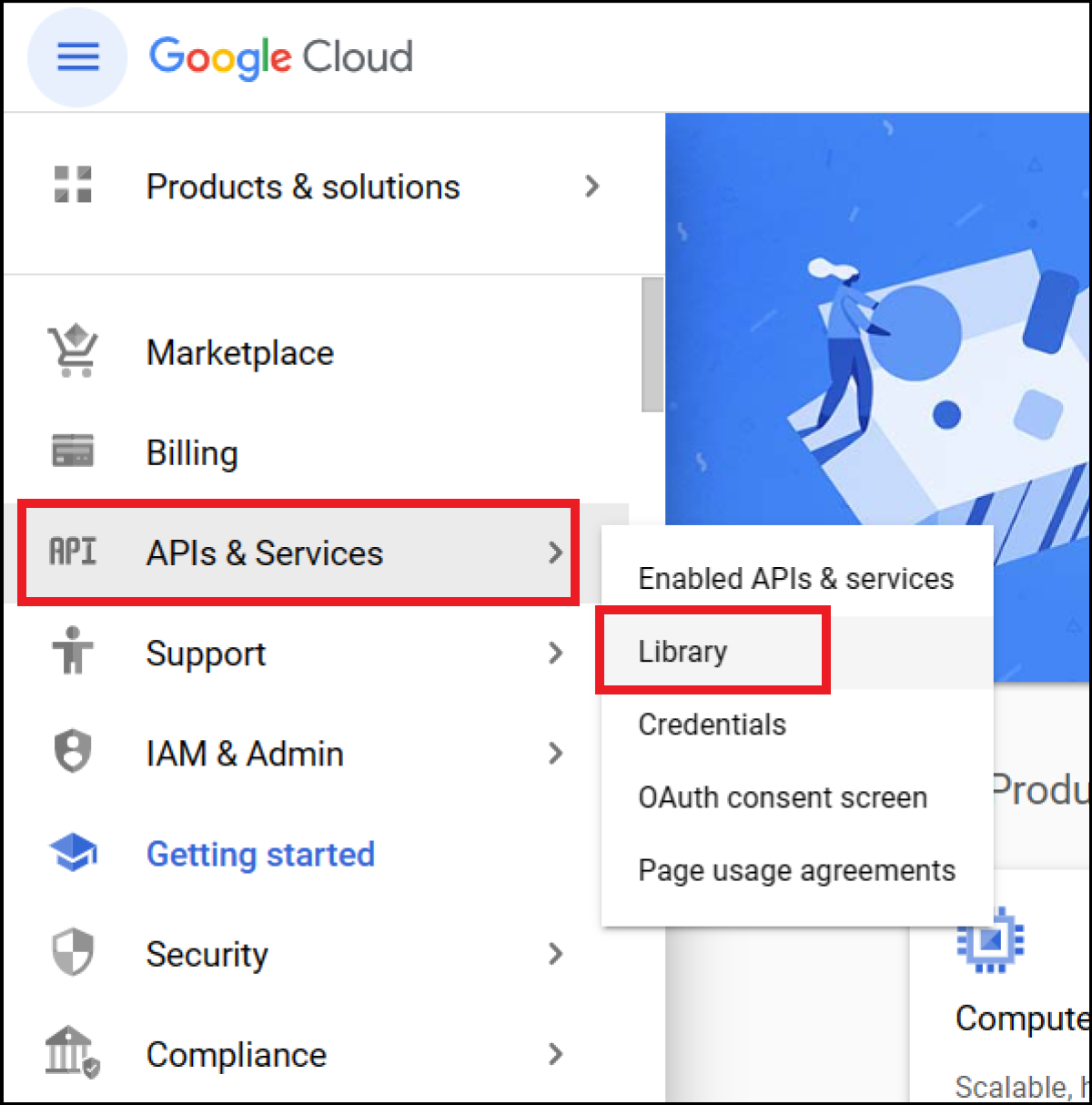
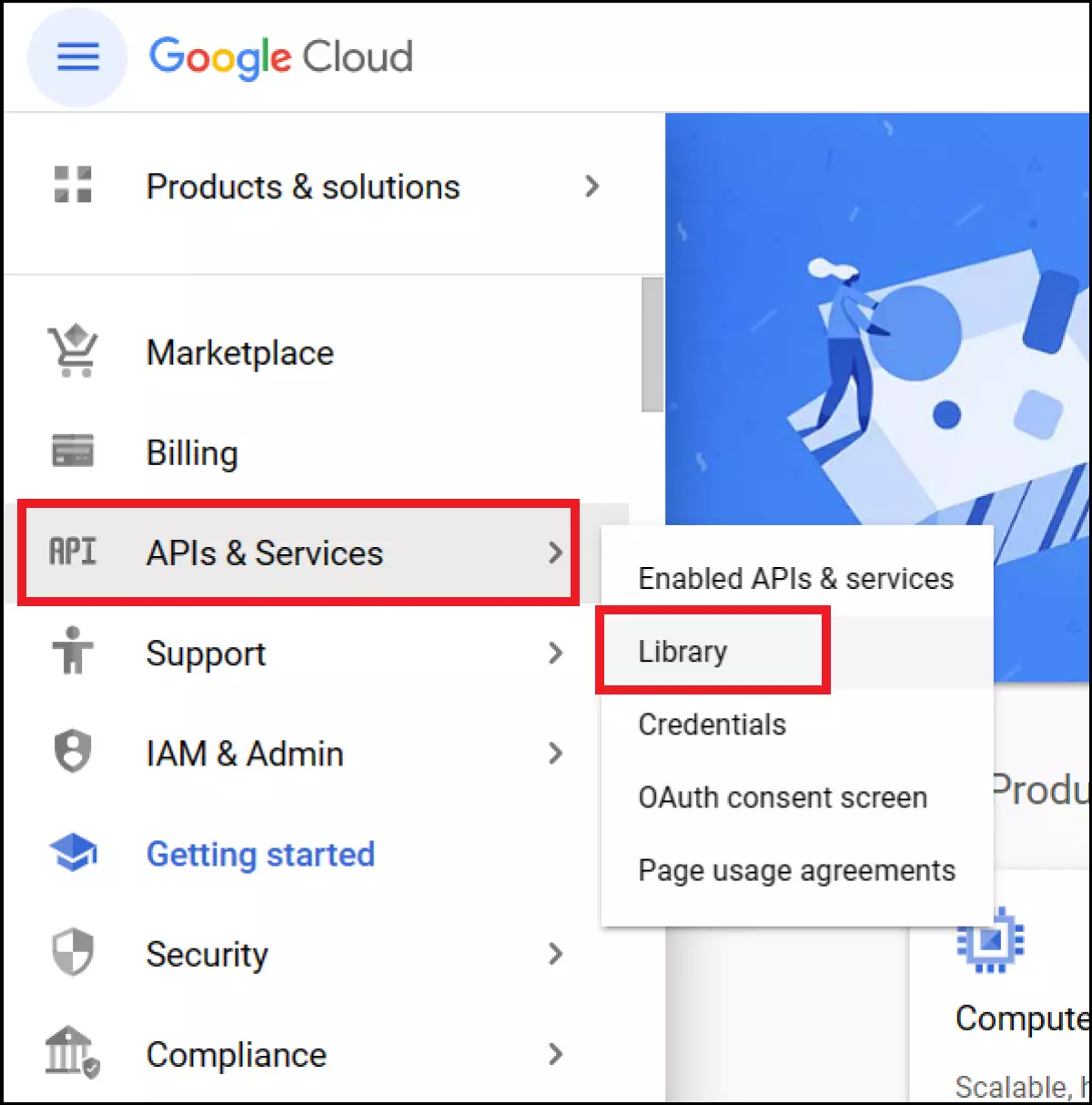
Step 1: Open the Google Cloud platform page and sign in. In the left-hand menu, choose “APIs & Services” and then “Library”.
Step 2: In the library, choose “Maps”. Here you’ll be able to get an overview of all available Google Maps APIs. These include:
- Geolocation API: To determine the location of visitors to the site.
- Maps Embed API: To embed a standard Maps map as an iFrame.
- Maps JavaScript API: To embed the map as JavaScript for more control and interactivity.
- Maps Static API: To embed a map as a static image.
- Places API: To find and display specific addresses on the map.
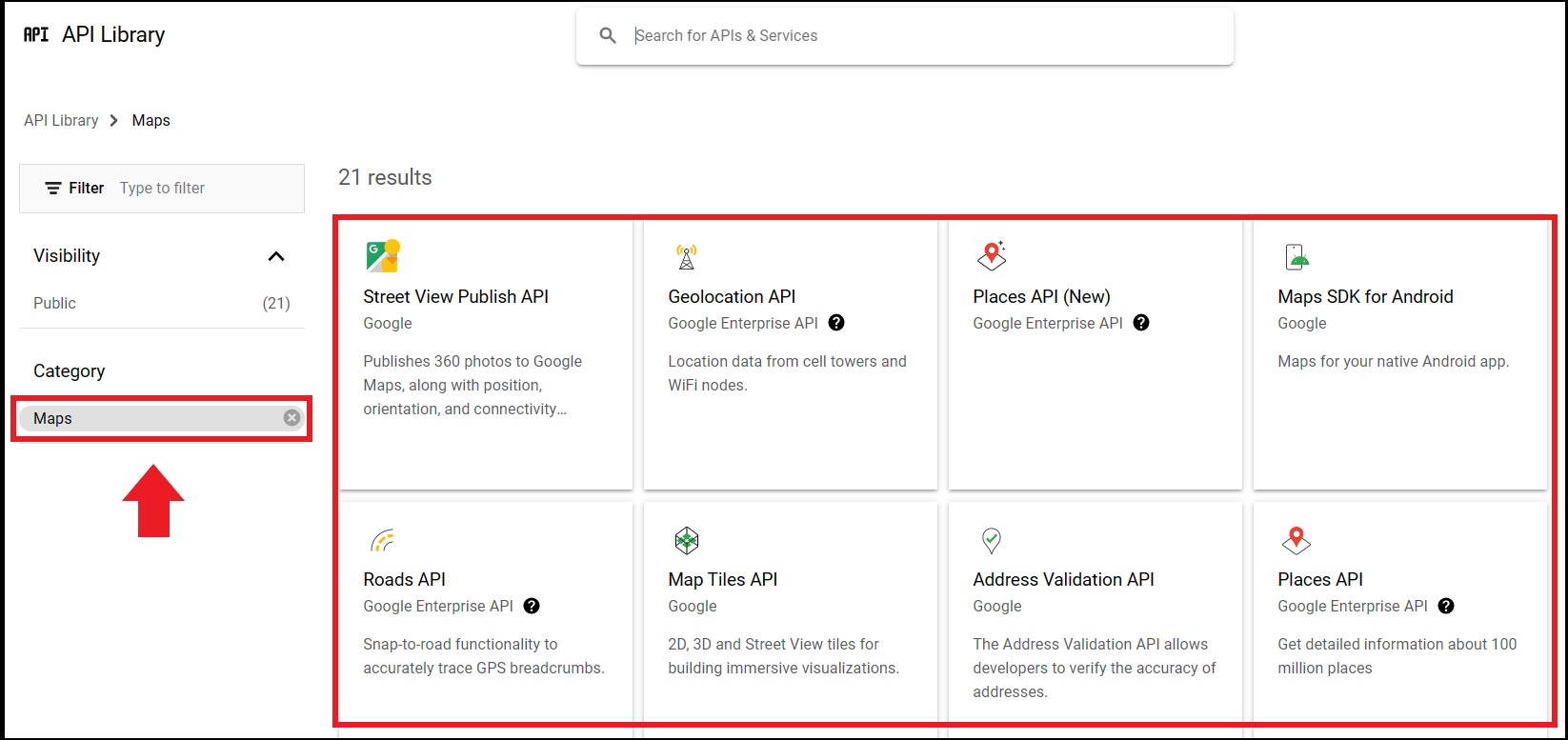
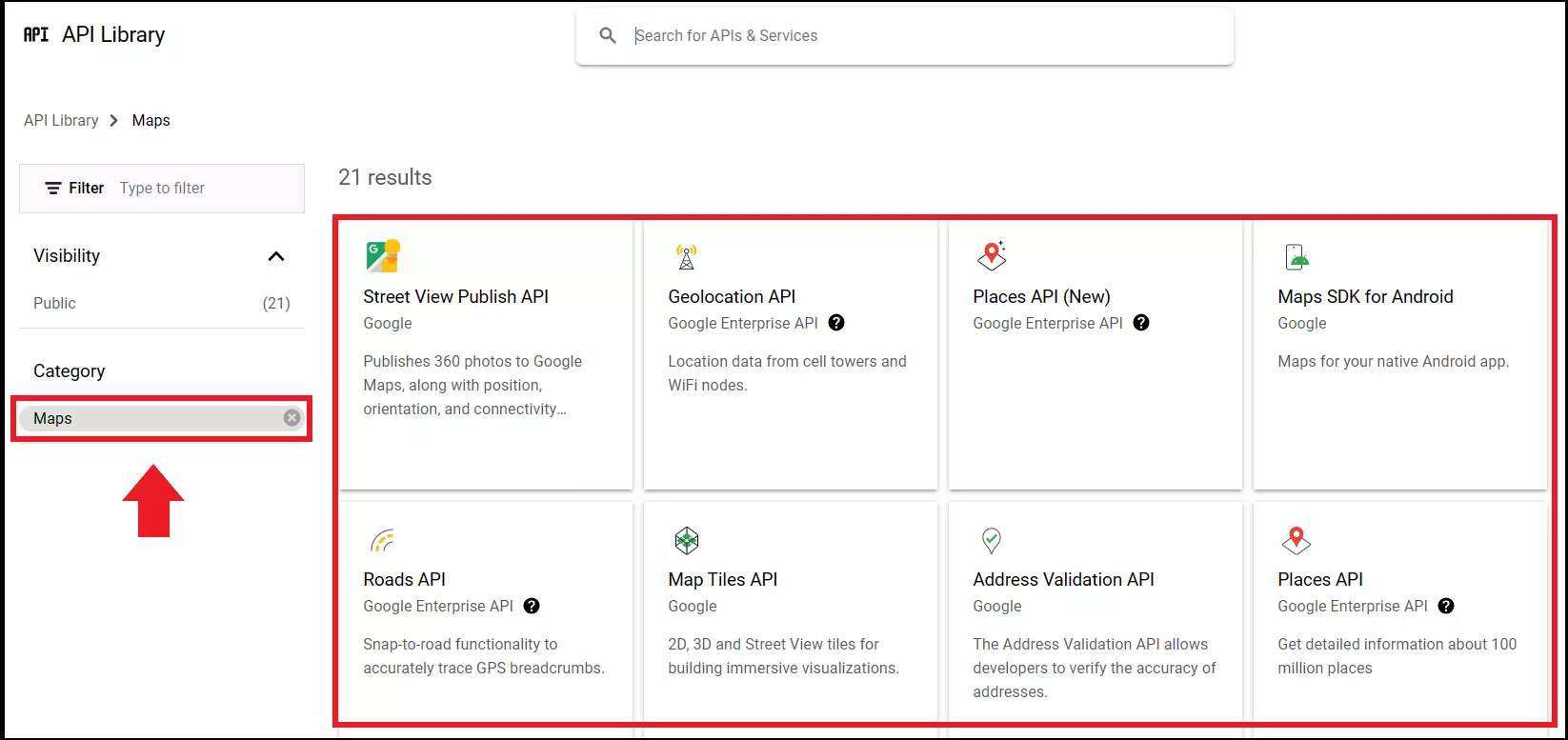
If the API you’re looking for doesn’t automatically show up in the library, you can use the search function.
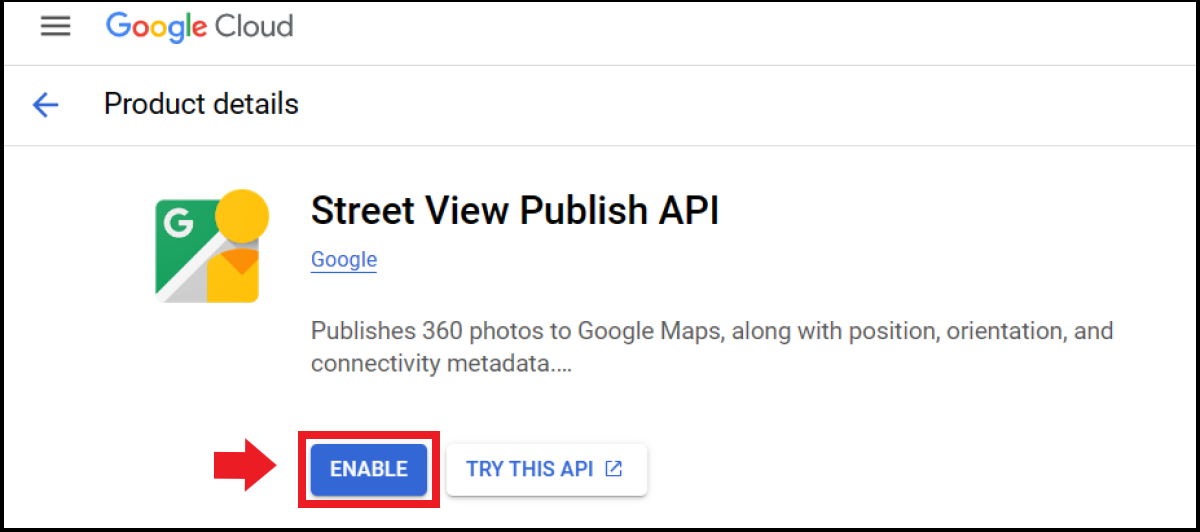
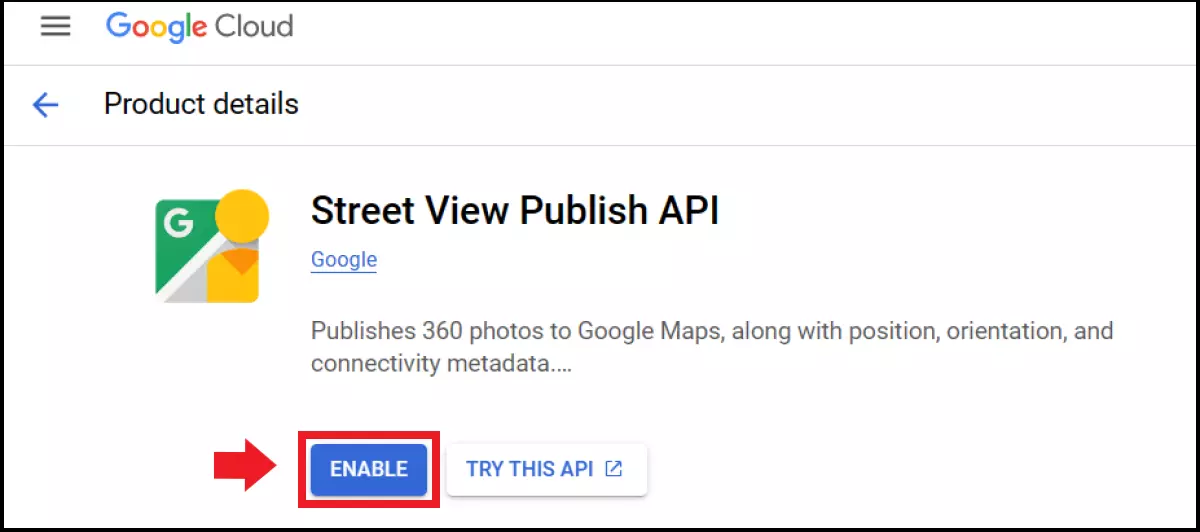
Step 3: Select an API and open the detailed view. Click on the “Enable” button.
Requirements for a Google Maps API key
To create an API key, not only do you need a Google account – you’ll also need your own billing account for the Google Maps platform. Even if you use Google Maps for free, a billing account is mandatory. You’ll also need to associate at least one API key with a project or service when embedding Maps.
Create a Google Maps API key
Step 1: Open the Google Cloud console and choose your project.
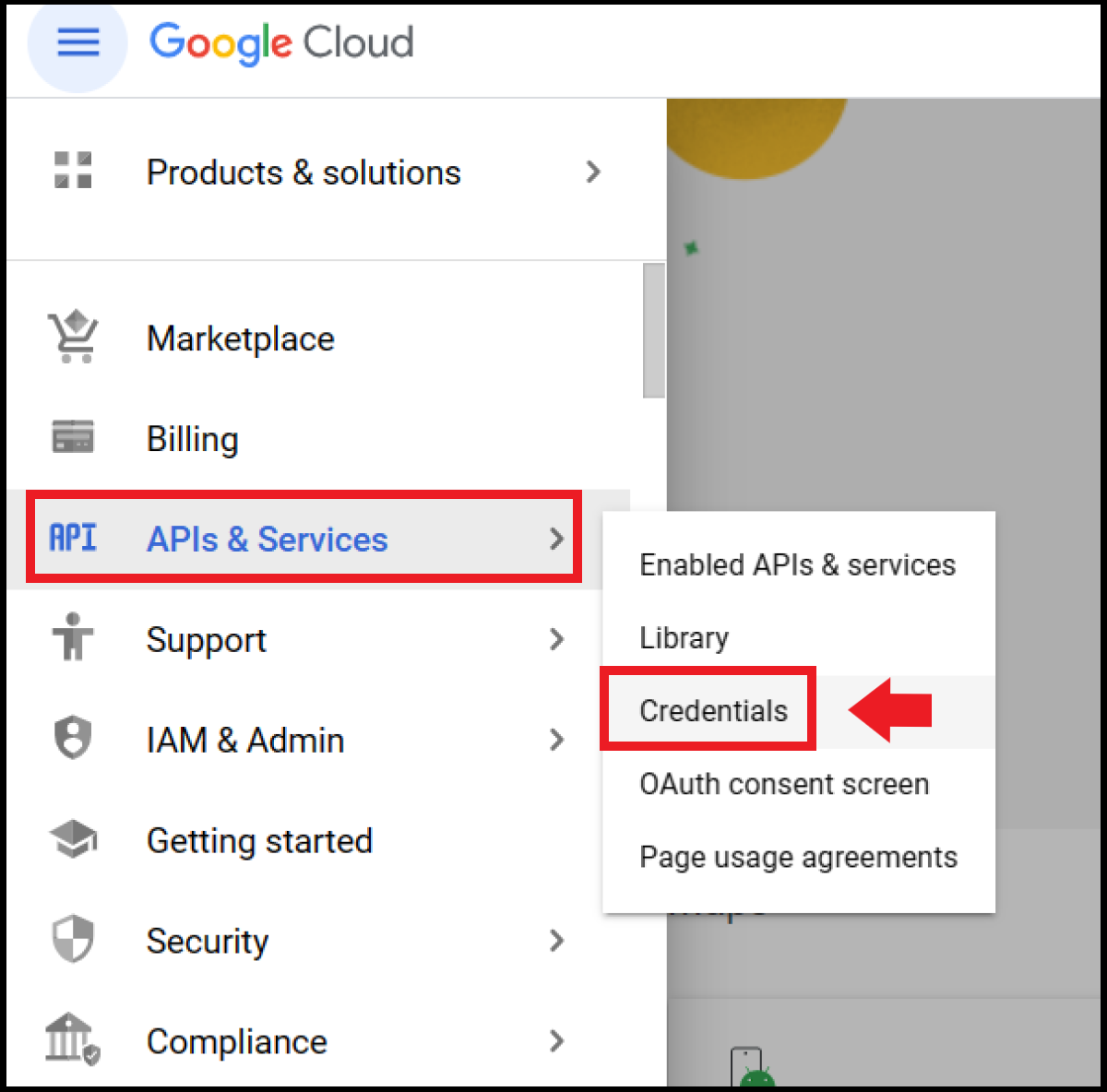
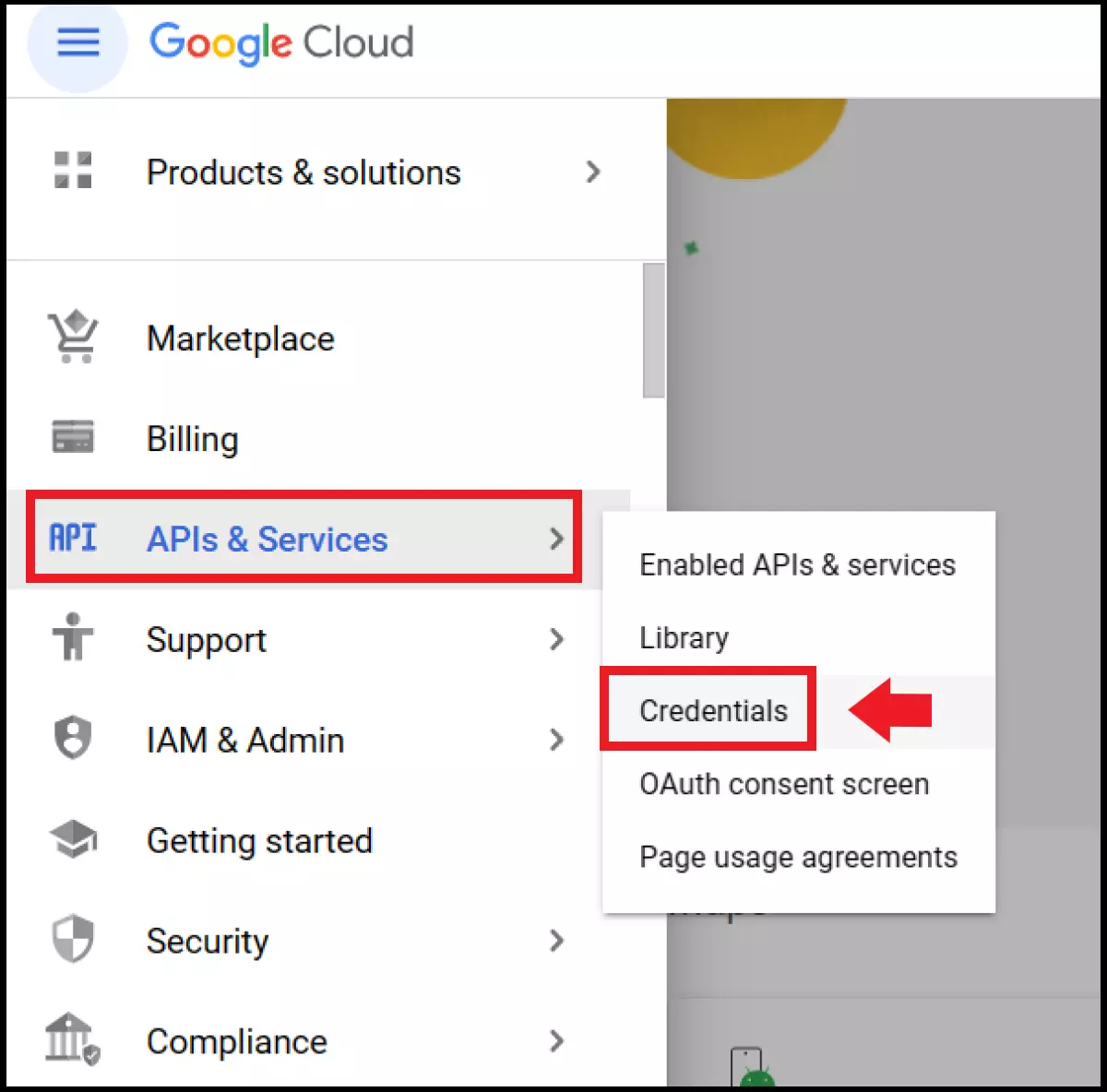
Step 2: You can either choose an existing project for the API key or create a new one. Go to the menu icon in the top left corner and choose “APIs & Services” and then “Credentials”.
Step 3: In the menu, go to “Create credentials” and then “API key”. Once the “API Key Created” window shows, you’ll see the created API key in the “My API Keys” field. You’ll also see the created key listed in the Credentials menu beneath any previous API keys. The API key can then be inserted into your code, plugin settings, or your CMS (content management system).
Keen to learn to create API keys for ChatGPT, Steam, OpenWeather, or YouTube as well? Then take a look at our guides on the following topics:
Restricting API keys for Google Maps
Once you’ve created an API key, Google already points out that you should restrict the API key. By restricting it, you prevent unauthorized services or people from using the key. To restrict the key, go to “Restrict key” immediately after creation. To restrict the key later, go to “Select project” in the Google Cloud console or “APIs & Services” in the menu in the top left and “Credentials”. Select the key here.
Possible restrictions include:
- Application restrictions
- Website restrictions
- API restrictions
Using the API key for Google Maps
To use the key, copy and paste it into HTML code, plugin settings, or the CMS in the appropriate place. To use a code snippet to embed Google Maps, you need to replace the “YOUR_API_KEY” section with the API key.
Reviewer

Julia Hertler
With over 18 years of experience in content marketing, Julia Hertler has deep expertise in digital communications. For the past 10 years, she has specialized in the areas of domains and hosting at the IONOS Digital Guide, making complex technical topics easy to understand.