

How to remove EXIF Metadata from Photos

The photos we upload to the internet often contain more information than we may be aware of. Information like date and time stamps and GPS coordinates corresponding to where the photo was taken are easy to find by those who know where to look. This makes it all the more important to know how to remove this kind of metadata.
Which metadata is attached to photos
Before we explain how to delete metadata, let’s take a quick look at the most common data types that can be saved with photos:
- EXIF data provides information about when and where a photo was taken. Aperture, exposure time, focal length, and ISO value are automatically saved by the camera as metadata.
- IPTC data is usually entered manually. Photographers often enter information such as copyrights, photo descriptions, and their own contact information as IPTC data.
- XMP metadata is inserted by Adobe. This includes different types of data like EXIF and IPTC in one container, making it easier for different apps to exchange metadata.
Windows: a fast and simple way to remove metadata
Metadata can be easily deleted in Windows. To do so, open the File Explorer and navigate to the photos in question. Select the photos, then right-click and select “Properties.”
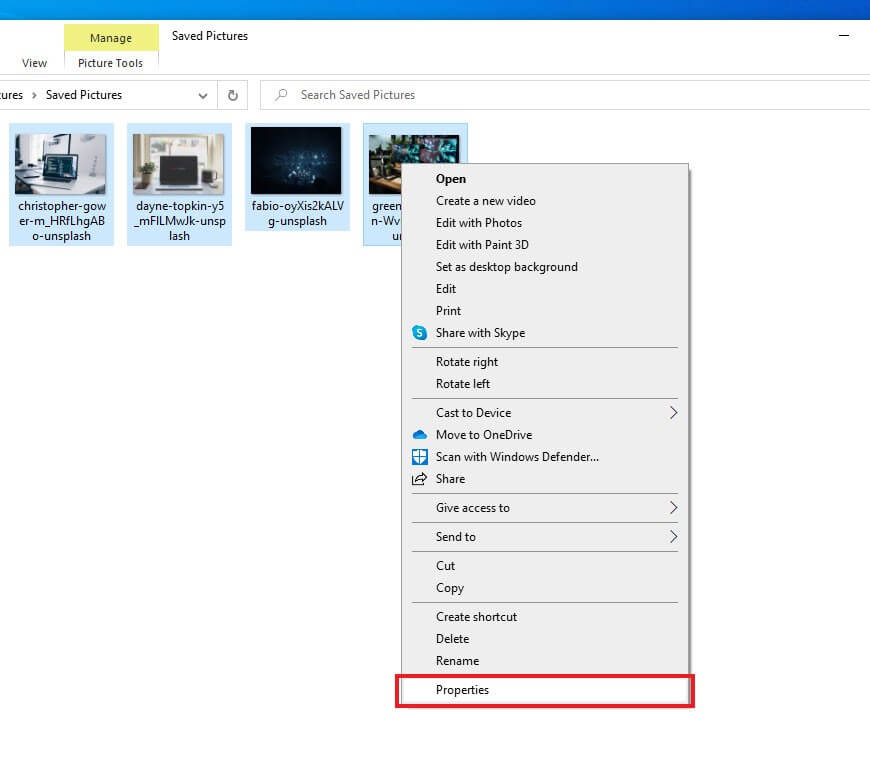
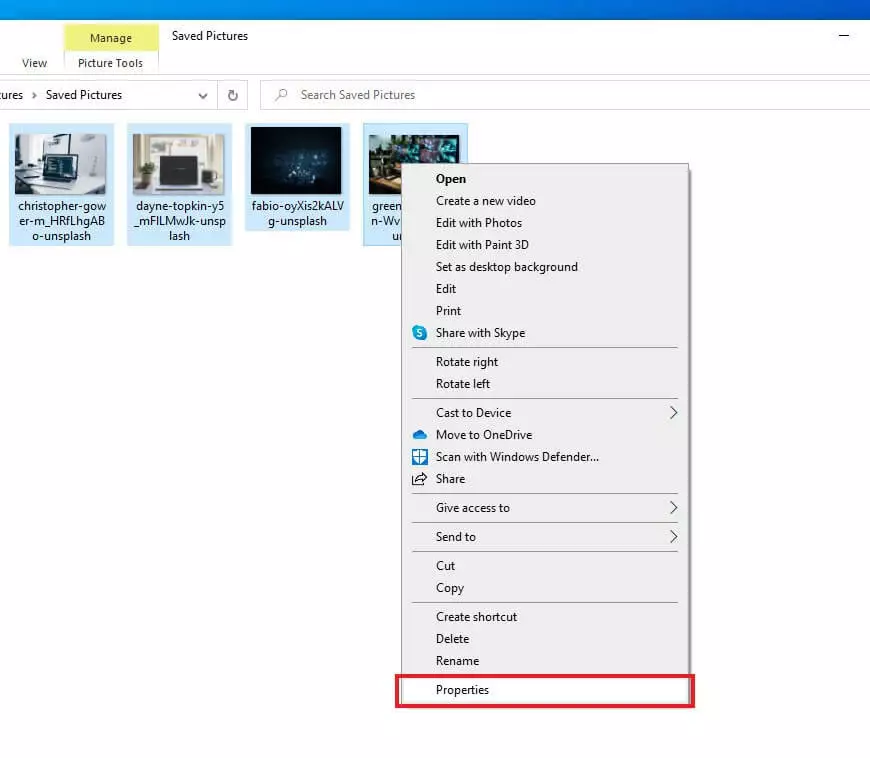
Once you’re in the “Properties” window, click on the tab “Details.” Then click on “Remove Properties and Personal Information” at the bottom of the window.
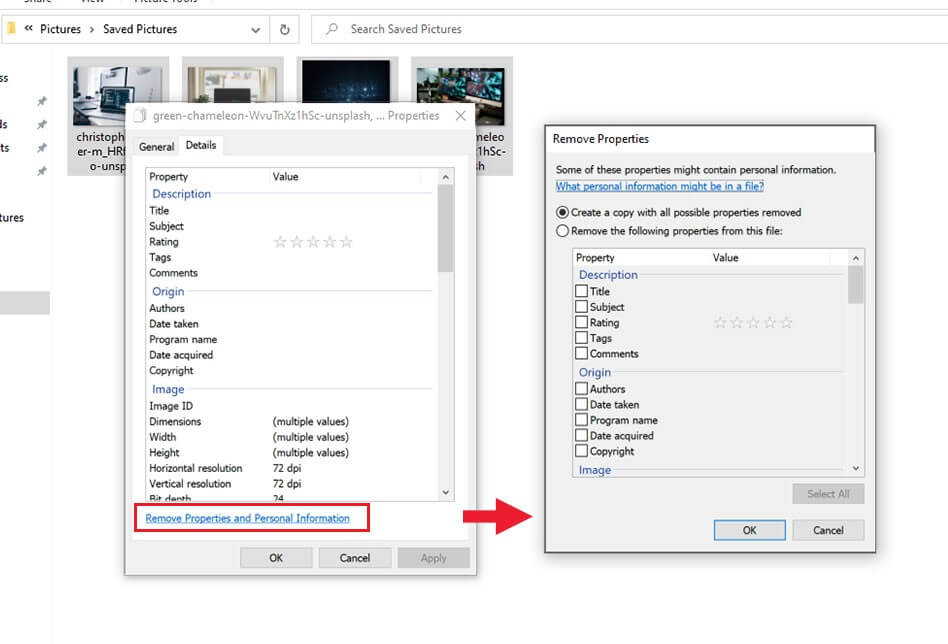
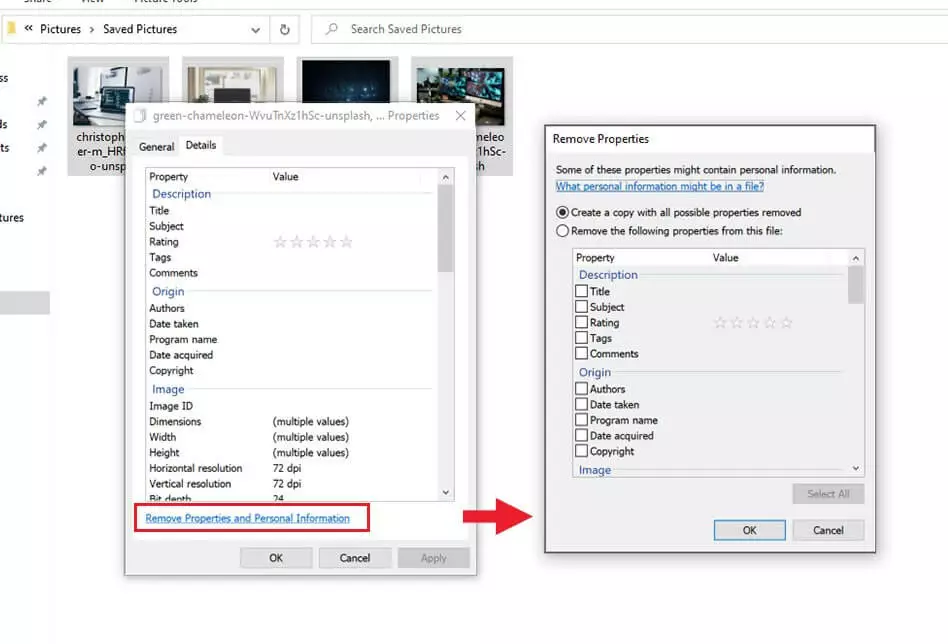
Here you have two options for removing EXIF data and IPTC data:
Make a copy of the photo, in which all data is removed. Delete the metadata directly in the original photo.
This solution using the Windows File Explorer is a good option for deleting data from your own photos every now and then. However, since there’s no way to automatically carry out this process for newly imported photos, it’s not a great long-term solution for anyone who needs to do it regularly.
Due to a technical error in Windows 7 and Windows 8, GPS data cannot be deleted using this procedure. If you try, you’ll get an error message.
How to remove metadata from photos on a Mac
For Mac users, the free app ImageOptim is the easiest way to delete data from you photos. Once you have the app open, simply drag and drop the photos into the window or use the plus symbol in the bottom left corner.
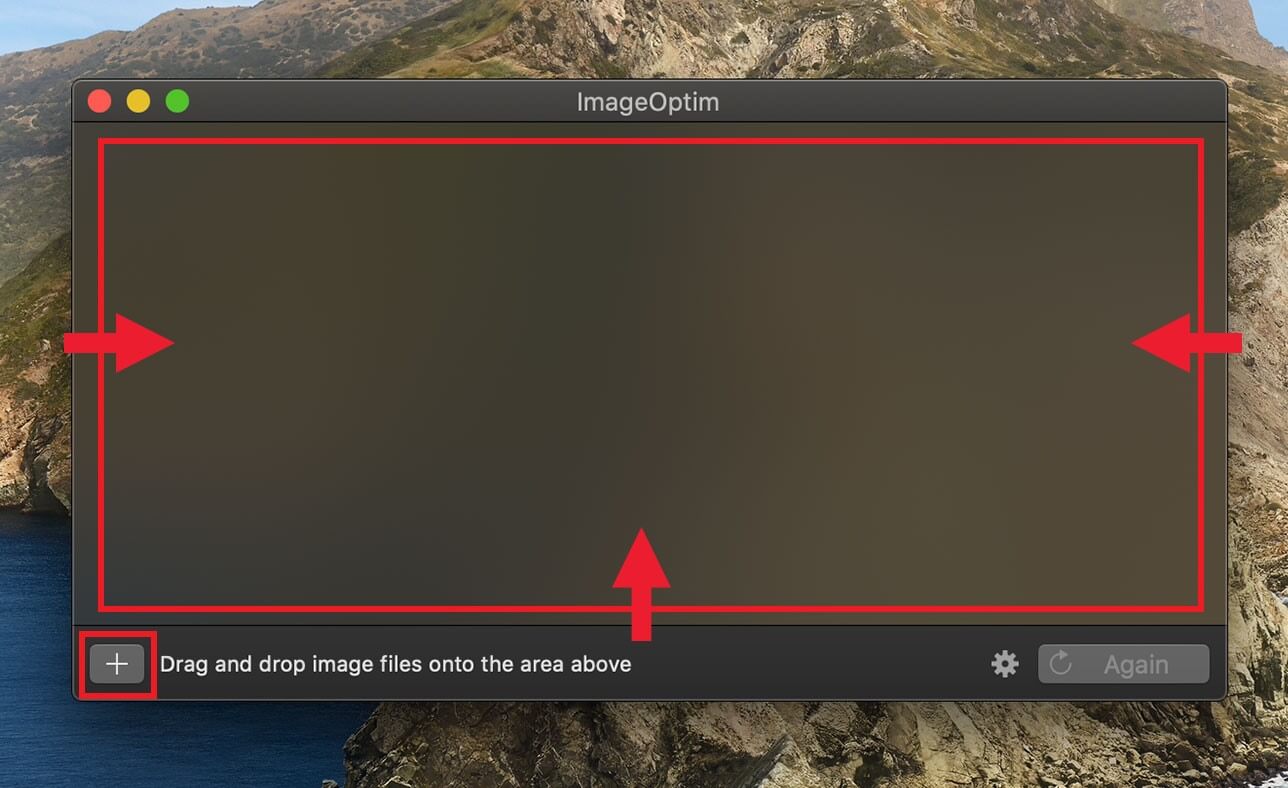
After you’ve inserted the photos, the app will automatically delete the metadata. The original files will be overwritten and replaced with the files that don’t contain metadata. The features of the app are simple. For example, you can adjust whether it should delete PNG and/or JPEG data, and whether an image should be compressed.
If you only want to delete selected parts of the metadata, consider using the pre-installed program “Preview.” GPS data can be quickly deleted using this app. Simply open the photo and press CMD + i to open the information window. If you see a tab for “GPS,” the photo contains GPS information. Simply navigate to this tab to delete the information.
ExifTool: the one-stop solution for removing metadata
The ExifTool is a flexible solution to regularly remove EXIF metadata from your photos. It works in Windows, Mac, and Linux, and is compatible with all conceivable image formats. The tool might be difficult for laypeople to operate, as it only works using the command line. However, professionals appreciate the program for its extensive analytical capacity. No other program shows as much metadata.
You can use ExifTool GUI to run the program on a graphic interface. Instead of typing code into the command line, you can delete metadata using your mouse. However, ExifTool GUI is only compatible with Windows 8.
Installation for Windows
- Download the executable Windows file (ZIP file) from the ExifTool website.
- Open the ZIP. There will be a file in it called exiftool(-k).exe. Rename it to exiftool.exe.
- Move the file exiftool.exe to C:\WINDOWS or another folder of your choice.
- Type “exiftool” into the command line, and the program will open.
Installation for macOS
- Download the files for MacOS (DMG file) from the ExifTool website.
- Double-click on the disk image to start the installation. Follow the instructions.
- Type “exiftool” into the terminal to start the program.
You can use ExifTool to create scripts that automatically delete the metadata from selected photos or to add certain data to your photos. If you frequently work with photos, this tool can save you a significant amount of work.
Save your photos in the HiDrive Cloud Storage by IONOS. You’ll save space on your computer and have access to your photos from anywhere.
Reviewer

Melissa Senn
Melissa Senn has been with IONOS since 2016 and focuses on the areas of websites, e-commerce, social media, and AI in the Digital Guide. As a digital strategist, she draws on her extensive SEO and GEO experience to translate complex technological trends into practical content.