
How to reset password in Windows 7

Experts recommend we change our computer passwords on a regular basis. A particularly important one to change is the password safe-guarding the operating system in use. Even though the biggest threat to data security comes from the internet nowadays, sensitive data can easily be stolen manually. This could result in other passwords or log-in information, private photos, and documents to fall into the wrong hands.
Find out how to change your Windows 7 password, in order to stay on the safe when it comes to protecting your operating system.
When should you change your Windows 7 password?
It is recommended to change your computer password at least once every three to six months. If you have connected to an unprotected, public Wi-Fi network, it’s important that you change your password immediately. You should also change your Windows 7 password if you hear any media reports of new data theft.
Microsoft discontinued official Windows 7 support on January 14, 2020. Technical support and security updates are no longer available for this product. One exception is the professional support which is available at a cost to companies until 2023. If you are not making use of this option, then switching over to a newer version of Windows is imperative. You can learn more about this in our detailed article on the discontinuation of Windows 7 support.
Creating a secure password can be difficult. A secure series of characters is best composed of uppercase and lowercase letters, numbers, and special characters. It is important to ensure that you are creating secure passwords and do not use them for multiple websites or computers. Password managers offer long-term protection for your passwords.
Windows 7 password reset: step-by-step
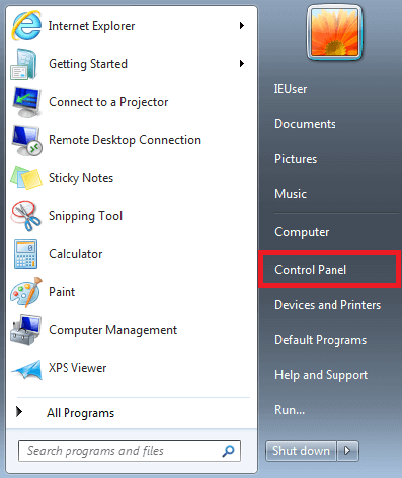
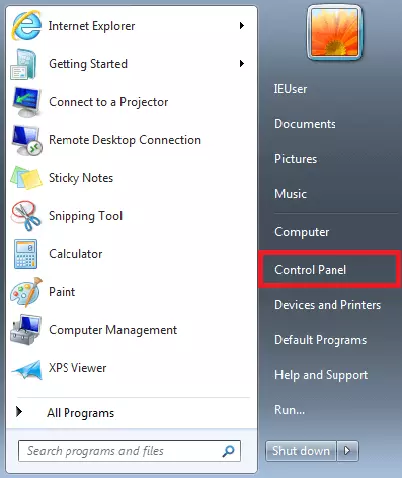
First, launch the start menu and then the Control Panel located in the list on the right-hand side of the menu.
Once the Control Panel window has launched, click on “User Accounts and Family Safety.”
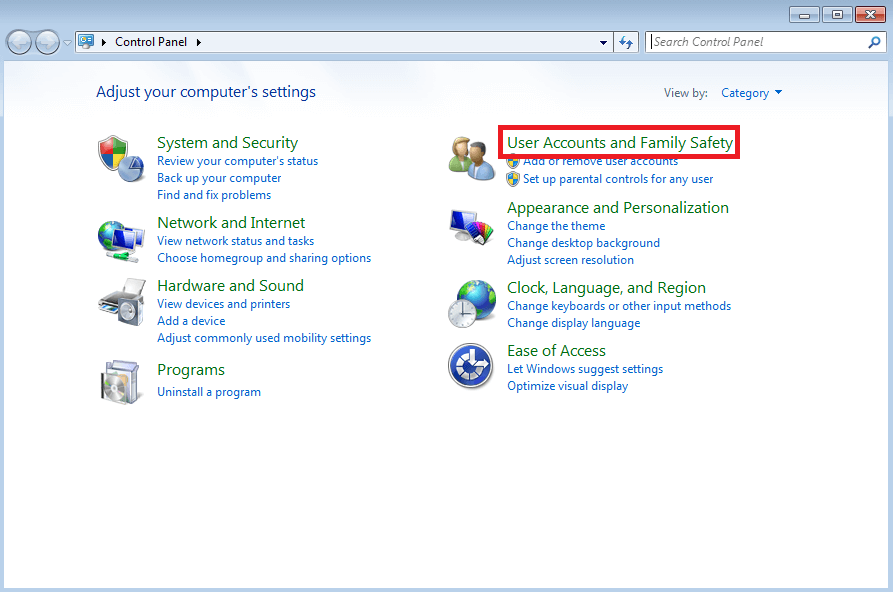
This submenu will contain a section named “User Accounts,” where you will find the relevant link called “Change your Windows password.” Simply click on the link.
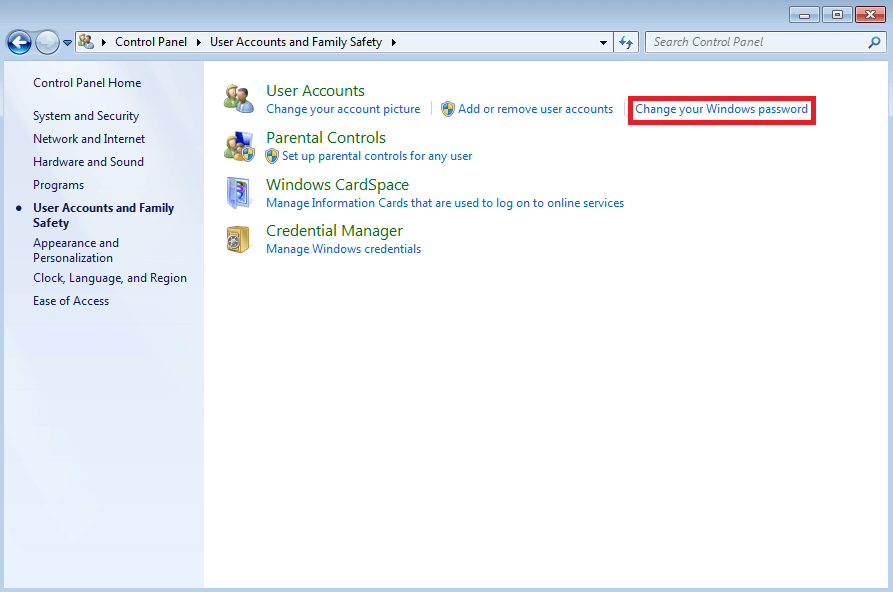
Windows 7 will then display an overview of your own user profile. This is where you can change account names, passwords, and even the picture linked to your account. Click on the first link called “Create a password for your account.”
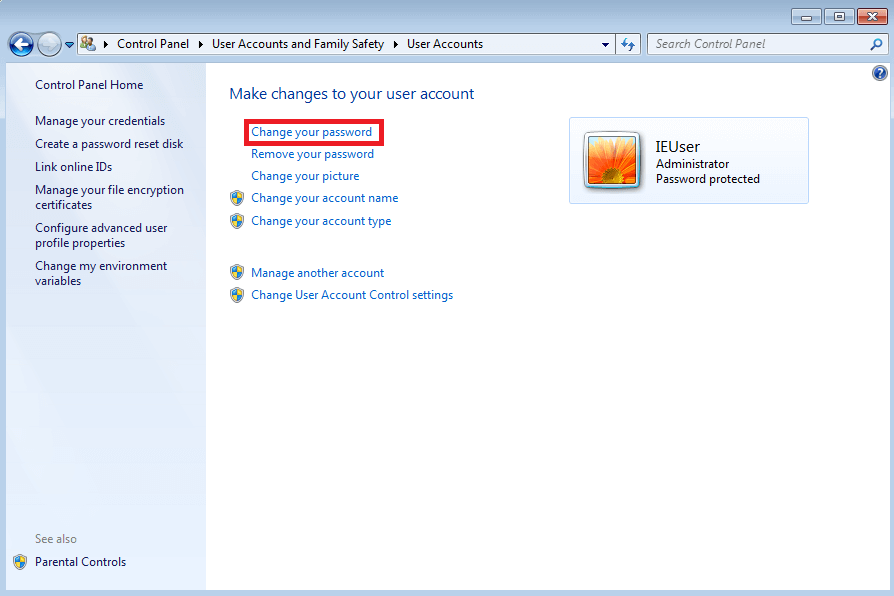
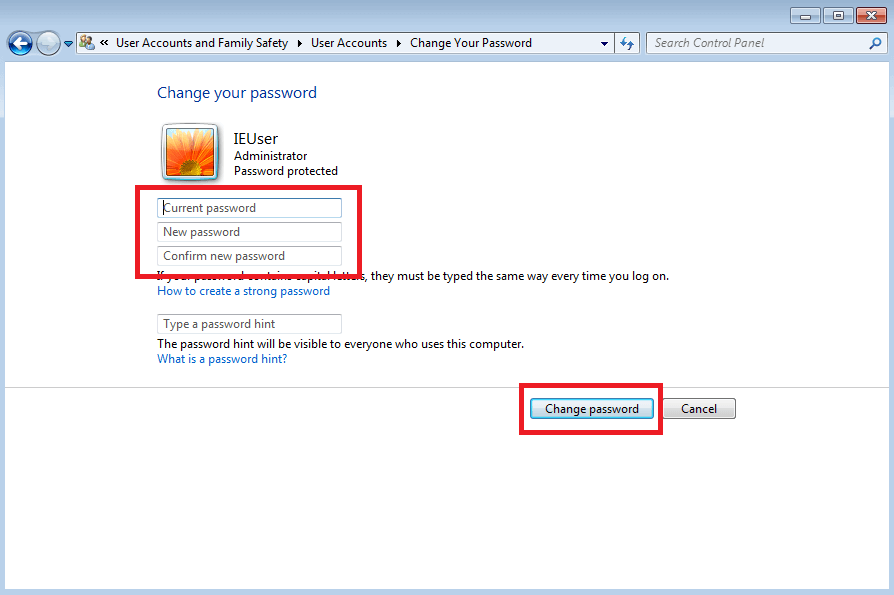
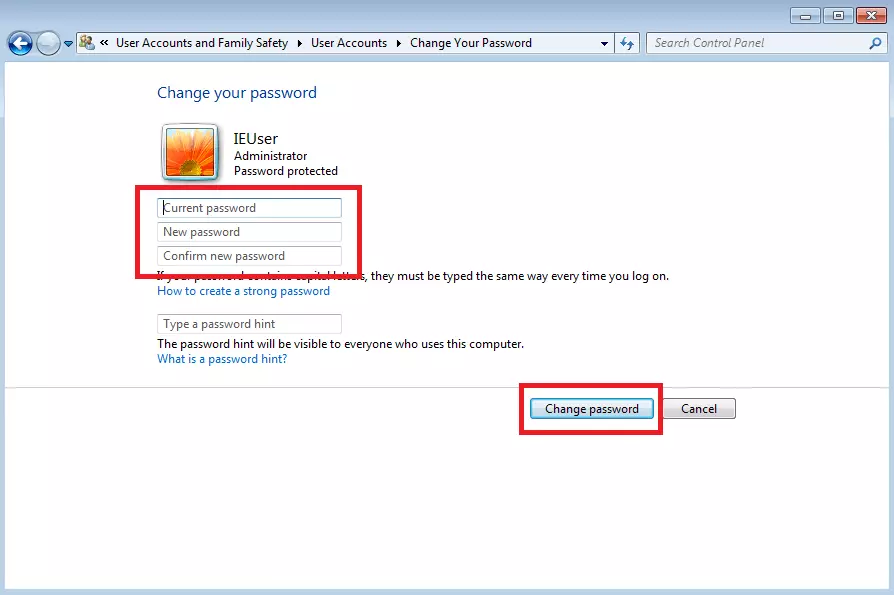
You will now be able to change your Windows 7 password in the following dialog box. In order to ensure that you have the authorization to continue with this step, the operating system will first ask you to enter your current password. You can also include a password reminder that can be shown when you enter your password in the future. Once you click on “Create password,” the changes to your password will be saved and the new Windows 7 password will become active immediately.