

What are some useful Rust cheats and console commands?

Cheats or console commands allow you to customize the gaming experience on your own Rust server. To make use of the available Rust console commands or cheats, you only need admin or mod rights on the server and the appropriate commands.
How can Rust cheats be used?
To be able to use cheats or console commands in Rust, you must either have your own Rust server and therefore be the admin of the server or have been granted the corresponding rights as a moderator. If this requirement is met, there are various ways to use the available Rust console commands and cheats:
- In-game console: The easiest way to enter Rust cheats is via the console in the game. You can access this at any time after you have connected to the server.
- Command line: If you host your own dedicated Rust server, you can also execute Rust console commands via the command line. You don’t need to be connected to the server as a player to do this.
- Admin tools: If you find entering commands via the console or command line too cumbersome, you can use third-party tools such as Rustadmin or Rust Server Manager instead. These applications offer graphical user interfaces for server management, including the option of executing console commands.
- NEW: VM cloning, load balancing, block storage, and more
- Ideal for agentic AI, LLMs, and automation at scale
- Free 24/7 expert support and 99.99%+ uptime
- Unlimited traffic and no setup fees
How do I open the Rust console?
Only a few steps are required to enter Rust cheats or console commands directly via the in-game console:
- Start Rust.
- Connect to the server on which you have admin or mod rights.
- Press the Function key [F1].
- The Rust console will open and you can enter the desired commands (press Enter).
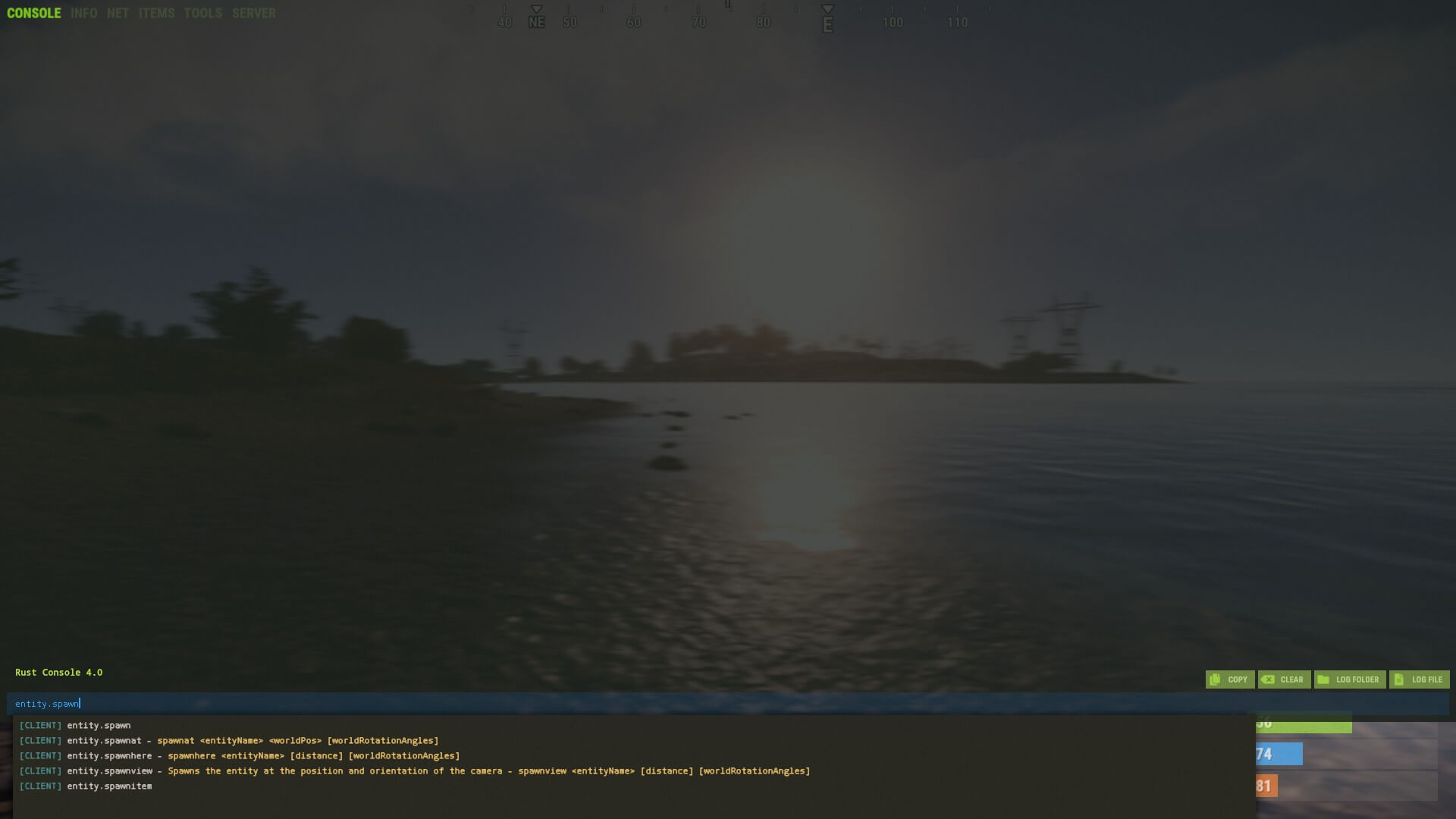
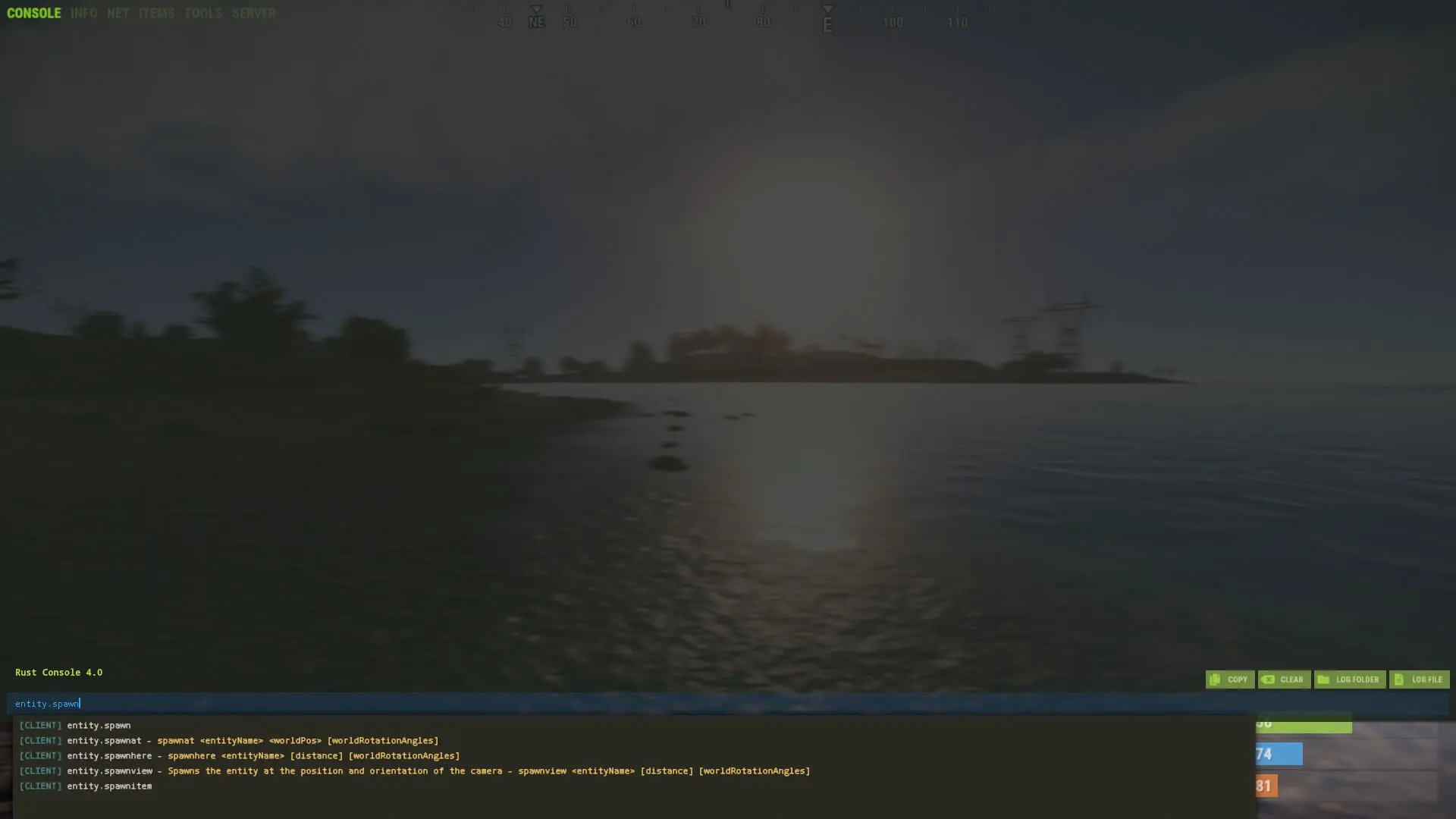
An overview of Rust cheat codes and console commands
In the following sections, we have summarized the most important console commands and cheats for Rust. To provide a better overview, the commands are divided into different categories.
Survival
| Cheat | Function |
|---|---|
god true |
Activates invincibility mode |
god false |
Deactivates invincibility mode |
falldamage.enabled false |
Deactivates fall damage |
falldamage.enabled true |
Activates fall damage |
drink VALUE |
Quenches thirst by the selected amount |
eat VALUE |
Satisfies hunger by the selected amount |
heal VALUE |
Heals the player by the selected amount |
refillvitals |
Fully replenishes the health, thirst and hunger bars |
fillwater |
Fills up all water containers in the player’s inventory |
Game world
| Cheat | Function |
|---|---|
env.time VALUE |
Defines the time of day (1-24) for the entire server |
env.progresstime false |
Pauses the progress of time so that the time of day no longer advances |
env.progresstime true |
Allows the time of day in the game to run normally again if it was previously paused |
airdrop.min_players VALUE |
Airdrops only take place if the specified number of players is online |
server.pvp true |
Activates PvP mode |
server.pvp false |
Deactivates PvP mode |
heli.call |
Starts the patrol helicopter event |
heli.calltome |
Starts the patrol helicopter event and spawns the helicopter at the player’s position |
weather.load VALUE |
Loads the desired weather type, e.g., clear (clear weather), rainheavy (heavy rain) or storm (stormy weather) |
weather.reset |
Resets the defined weather types and restores the default configuration |
crafting.instant |
Enables all players to craft items immediately |
crafting.instant_admins |
Enables all admins to craft items immediately |
crafting.timescale VALUE |
Sets the crafting duration of items to the selected value (e.g., 0.5 for a halved duration) |
Objects
| Cheat | Function |
|---|---|
entity.spawn ENTITY |
Spawns the desired entity at the player’s current position, e.g., entity.spawn chicken (chicken) or entity.spawn crate_tools (toolbox) |
entity.spawnitem ITEM |
Spawns the desired item at the current position of the player(s), e.g., entity.spawnitem ammo.rifle (rifle ammunition) or entity.spawnitem stone (stone) |
inventory.giveall "ITEM" VALUE |
Adds the desired item (e.g., "wood" for wood) in the desired quantity (e.g., 1000) to the inventory of all players on the server |
inventory.giveplayer USER "ITEM" VALUE |
Adds the desired item (e.g., "wood" for wood) in the desired quantity (e.g., 1000) to the inventory of the specified user |
ent kill |
Destroys the targeted object |
ent lock |
Locks the targeted object (e.g., a door) |
ent unlock |
Unlocks the targeted object (e.g., a door) |
ent who |
Shows the Steam ID of the person who placed the object |
ent auth |
Displays the authorizations for the targeted object (e.g., access rights) |
debug.repair_inventory |
Repairs all items in the inventory |
bradley.quickrespawn |
Respawns the Bradley APC at the starting position (does not create a second version) |
The list of available items and therefore the list of possible Rust console commands is long. The official Rust Wiki offers a comprehensive database including the respective console names of the items.
Teleport
| Cheat | Function |
|---|---|
teleport "USER" |
Teleports you to the desired player |
teleport2me "USER" |
Teleports the desired person to your current location |
teleportpos X Y Z |
Teleports you to the specified coordinates (X, Y, Z) |
teleport2marker |
Teleports you to the marker on the map |
teleport "ENTITY" |
Teleports you to a random entity of the specified type (e.g., "bear" to teleport to a bear) |
teleport2owneditem "USER" |
Teleports you to the nearest item belonging to the specified person |
Camera
| Cheat | Function |
|---|---|
debugcamera |
Activates or deactivates free camera mode (can be controlled using the arrow keys and W, A, S, D, etc.) |
bind TASTE debugcamera |
Assigns the command for activating or deactivating free camera mode to the desired key (e.g., bind p debugcamera (switch on and off with the [p] key) |
debugcamera_fov VALUE |
Sets the field of view of the free camera to the desired value |
debugcamera_targetbind |
Binds the free camera to a target object (e.g., an entity or a player) |
debugcamera_dollyforward |
Moves the camera closer to the target object |
debugcamera_dollyback |
Moves the camera away from the target object |
debugcamera_save NAME |
Saves the current camera setting under the specified name |
debugcamera_load NAME |
Loads the camera setting that was saved under the specified name |
debugcamera_clear |
Deletes all saved camera settings |
Recordings & cinematics
| Cheat | Function |
|---|---|
record NAME |
Starts a demo recording that’s saved under the specified name |
stoprecord |
Ends the current demo recording |
demo.play NAME |
Plays the specified demo recording |
cinematic_list |
Lists all available cinematic animations |
cinematic_play NAME |
Starts the specified animation, e.g., cinematic_play wave (character waves) |
cinematic_stop |
Stops all running animations |
list_cinematic_gestures |
Lists all available gestures (can be performed while moving and looking around) |
gesture NAME |
Performs the specified gesture |
Rust demos are saved in the “.\demos” folder in the game directory. By default, you’ll find your recordings under the following path: .\Steam\steamapps\common\Rust\demos
User administration
| Cheat | Function |
|---|---|
global.kick "USER" |
Kicks the desired player from the server |
global.ban "USER" |
Bans the desired player from the server |
global.unban "USER" |
Unbans the desired player |
global.mutevoice "USER" |
Switches off voice communication for the specified person |
global.unmutevoice "USER" |
Switches on voice communication for the specified person |
global.mutechat "USER" |
Blocks the selected person from chatting |
global.unmutechat "USER" |
Ends the chat block for the specified person |
global.moderatorid "STEAM ID" |
Gives a player the mod status (AuthLevel 1) |
Read how to find out the Steam ID in the following separate article.
Server administration
| Cheat | Function |
|---|---|
server.restart |
Restarts the Rust server with a 300-second warning |
server.stop |
Stops the Rust server |
global.save |
Forces an immediate saving of the current server progress |
server.maxplayers VALUE |
Limits the maximum number of players who can be online at the same time to the specified value |
server.writecfg |
Saves changes made to the server configuration |
server.readcfg |
Reloads the server configuration to apply changes without a complete restart |
Author

Christian Heldmaier
Christian Heldmaier is an experienced online marketing and SEO specialist from Karlsruhe. He has been working as an SEO Manager at IONOS since July 2020.