

How to fix the “Page Fault in Nonpaged Area” memory error

Critical errors like “Page Fault in Nonpaged Area” can occur for various reasons: Driver errors, incorrectly installed programs or updates, errors in the RAM as well as hardware problems. To fix the error and its cause, you’ll need to try different methods since there is no one-size-fits-all answer as to what caused the problem. We’ll present the solution methods.
The blue screen in Windows is one of the most well-known and, at the same time, most dreaded system errors. It’s also exaggeratedly called the “blue screen of death”. The so-called “Windows Stopcode” is a notice about system crashes caused by critical system errors. You’ll usually only see a blue screen, a sad smiley face and vague notices like “Page Fault in Nonpaged Area”. This really doesn’t help, because the causes can be errors in the software as well as in the hardware.
These are the most common reasons for the error message “Page Fault in Nonpaged Area”: incorrect system updates, problems with accessing the RAM, hardware errors in the SSD, hard disks, drivers or graphics card(s).
Solutions to the “Page Fault in Nonpaged Area” error
Normally, we would recommend that you first resort to proven means such as restarting the computer. However, since a blue screen indicates critical system errors, you should try the following solution methods immediately.
Solution 1: Repair system files with SFC and DISM
Critical system errors like “Page Fault in Nonpaged Area” can be caused by corrupt, damaged or missing system files. To check and repair these, Windows has the DISM (Deployment Image Servicing and Management) and SFC (System File Checker) repair tools. Both can be run as CMD commands from the command line as follows.
Step 1: Enter the Windows shortcuts [Ctrl] + [R] and [Ctrl] + [Shift] + [Enter] respectively. This way, you open the command prompt with administrator rights.
Step 2: First, type the command “sfc/scannow” and press [Enter]. The SFC tool will scan the system files and replace corrupt files with saved, intact copies.
Step 3: Then enter the following DISM commands and confirm each command with [Enter]: “DISM.exe/Online/Cleanup-image/Scanhealth” and “DISM.exe/Online/Cleanup-image/Restorehealth”.
Step 4: Restart the system.
- Great premium TLDs at affordable prices
- Simple registration & transfer
Solution 2: Clean up Windows update
Another reason for the blue screen is incorrectly downloaded, missing or corrupted update files. Windows offers the opportunity to clean up all saved update files that are no longer needed:
Step 1: Type “disk cleanup” into the Windows search line and open the app that appears.
Step 2: In the data cleanup menu, go to “Clean up system files”. From the list, select “Windows update cleanup” and confirm with “OK”. Also select “Temporary files” here. This will remove the corresponding files.
Step 3: Restart the system.
Solution 3: Reset Windows update components
If the error still occurs and is related to an update, another solution is to reset the update components in Windows to their original state. Call up the command line with administrator rights again by pressing [Ctrl] + [R] and [Ctrl] + [Shift] + [Enter].
Step 1: Enter the following commands and activate each with [Enter] to disable the update components:
- net stop wuauserv
- net stop cryptSvc
- net stop bits
- net stop msiserver
- ren C:\\Windows\\SoftwareDistribution SoftwareDistribution.old
- ren C:\\Windows\\System32\\catroot2 Catroot2.old
Step 2: Restart the components with the following commands and then reboot:
- net start wuauserv
- net start cryptSvc
- net start bits
- net start msiserver
Solution 4: Test the RAM
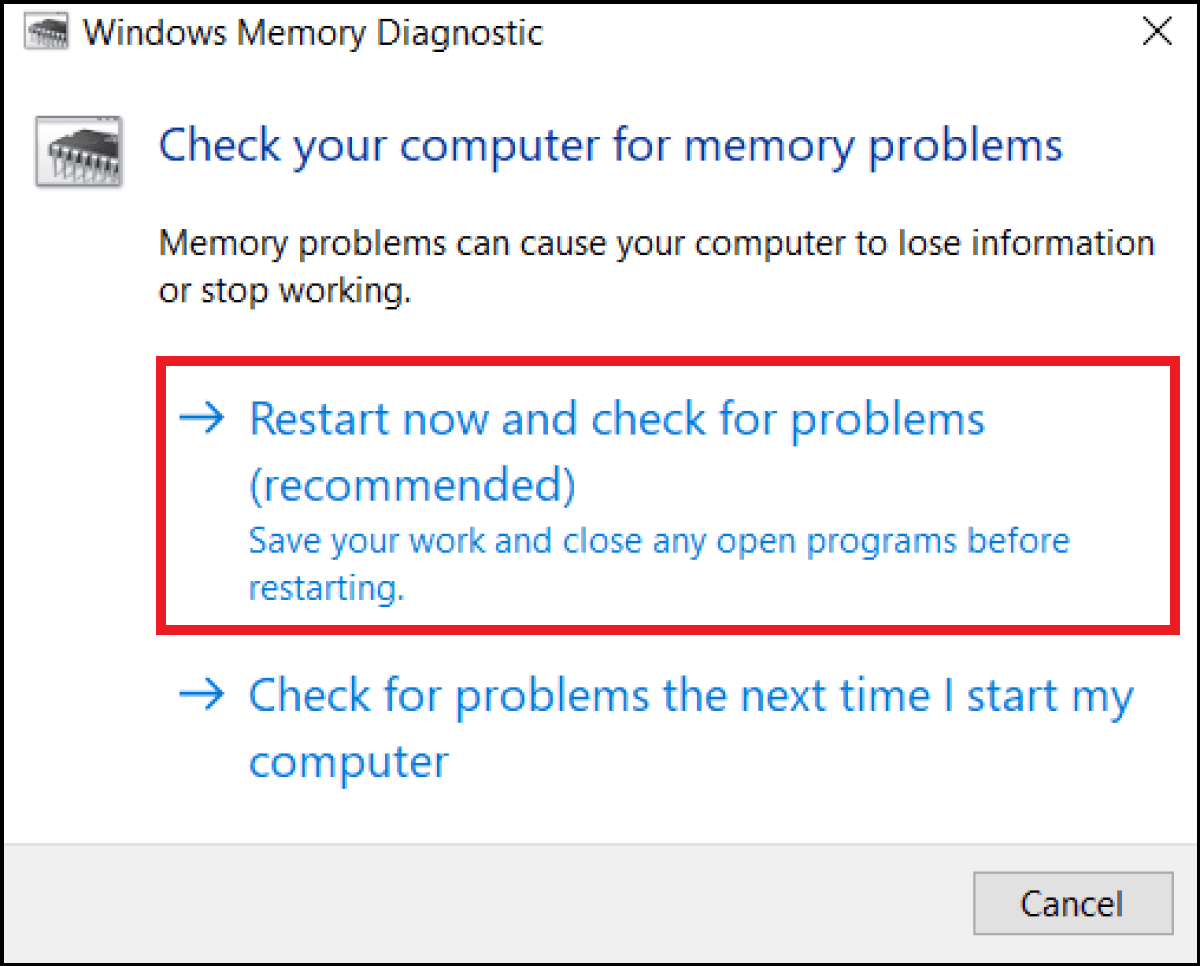
The RAM, i.e., the working memory of the computer, can also be a possible cause of the error. To check if the RAM is working correctly, Windows offers a RAM diagnosis:
Step 1: Open the command line with administrator rights and enter the CMD command “mdsched.exe”. Alternatively, you can also find the memory diagnostics by entering “memory diagnostics” in the Windows search line.
Step 2: The test takes about 30 minutes and scans the RAM for memory problems with the “Windows Memory Diagnostics Tool”. The results will be shown by Windows after a restart.
Step 3: If the RAM is actually defective, it can rarely be repaired. In this case, you’ll have to replace the RAM module.
Solution 5: Test the hard disk and memory for the swap file
A defect in the file system of your drives can also lead to the blue screen. Check them as follows:
Step 1: Start the command line as an administrator and enter the command “chkdsk C: /f /r /x”. This will test your partitions and repair any errors. In the example, “C:” stands for the C: partition. Therefore, you must adjust the letter each time until you have tested every partition.
Step 2: If your swap file is located on a different partition, check that partition as well with the above command. Make sure that your system partition and the partition for the swap file have at least twice as much free space as the amount of memory currently occupied.
Solution 6: Update the drivers
Outdated or non-updated drivers can also cause the system to crash. Check and update your drivers as follows:
Step 1: Type “device manager” into the Windows search line and open it.
Step 2: Go through the device list, expand the respective line and right-click on the corresponding device. The menu item “Update drivers” can be used to update the drivers of system-critical devices such as “graphics cards”, “drives”, “processors” or “network adapters”.
Step 3: You can also use a built-in Windows tool to check for driver problems. To do this, open the command line as an administrator and enter the command “perform /report”. After about a minute, you’ll receive a report on errors in your system, including any driver problems. However, Windows usually updates outdated drivers automatically by checking for new updates and then running them.
To fix the error, some advisors recommend disabling your antivirus software or your Windows Defender. However, we only advise you to do this if you actually suspect that newly installed antivirus software is responsible.
Solution 7: Reset to restore point or factory settings
If you have enabled the creation of restore points in Windows, you can restore your system to a point in time before the problem occurred. You can enable the restore function by going to “System and Security” > “Security and Maintenance” > “Restore” > “Advanced Recovery Tools” > “Configure System Restore”.
Follow these steps to reset Windows to a previous restore point:
Step 1: Open “Security and Maintenance” from the Windows search line and go to “Recovery”.
Step 2: Select “Open System Restore”. In the next window, confirm with “Next” and select a restore point from before when the blue screen occurred. In the following menus, confirm that you really want to reset the computer.
Alternatively, you can reset Windows 10 or reset Windows 11 by going to “Updates and Security” and to “Restore”. However, this will delete all apps and settings and / or all custom data. You are resetting Windows to factory settings, which can usually fix the problem as well.
Solution 8: Blue screen when you boot
If the system crashes while you’re booting it up, the above solutions won’t work. In this case, proceed as follows:
Step 1: Press [Ctrl] + [F8] during the boot. If the boot occurs too quickly, press the combination several times in succession early on.
Step 2: Go to “Troubleshooting” in the advanced startup options and select whether you want to uninstall installed updates or reset the system.
Reviewer

Christian Heldmaier
Christian Heldmaier is an experienced online marketing and SEO specialist from Karlsruhe. He has been working as an SEO Manager at IONOS since July 2020.