

How to install PostgreSQL on Ubuntu

The database management system (DBMS) PostgreSQL can be installed on Ubuntu 20.04 with just a few commands. Use this step-by-step guide, which takes you from installation all the way through to creating a database.
Requirements for an Ubuntu server with PostgreSQL
A simple database server with PostgreSQL doesn’t need a lot of computing power. Even a simple configuration will work well:
- 1 GHz CPU
- 2 GB
- 2 GB memory
Depending on the type of data you want to save, you may need to expand your hard drive space.
Before you choose a server, you should take a look at what other options you have. IONOS offers three different server types:
- Cloud server: The best scalability with minute by minute billing
- Dedicated server: The best performance with hardware reserved just for you
- vServer (VPS): Complete digitalization for more freedom.
Install PostgreSQL on Ubuntu
You can install PostgreSQL on Ubuntu 20.04 with just a few commands. To do that, you can use the Linux distribution terminal. You can open the console either from the program overview or the search field. Or you can simply use the keyboard shortcut [Ctrl] + [Alt] + [T].
You will need to learn some basic commands in order to use the terminal to its full potential. Find the most important in our article on Linux commands.
Step 1: Download and install PostgreSQL
As always, before you install Linux software you need to update the package manager. This ensures that the latest installation package is used.
sudo apt update
sudo apt upgrade
Enter this simple command to download and install the PostgreSQL package.
sudo apt install postgresqlYou now just need to confirm it. This will then install the DBMS.
Step 2: Activate PostgreSQL
Once you’ve installed the DBMS, you can start PostgreSQL:
sudo systemctl start postgresqlTo find out whether PostgreSQL is working properly, you can check its status:
sudo systemctl status postgresqlYou should see that that service is “active”. To quit the status display, press the [Q] key.
Step 3: Use PostgreSQL
Once installed, you’ll find a generic account in PostgreSQL called “postgres”. You can activate it by using the following command:
sudo -i -u postgresUbuntu will now act as if you were connected to the PostgreSQL account. From here you will be able to access the DBMS’ input prompt.
psqlThis part requires you to work with PostgreSQL. To display which connection is currently active, you can use the following command:
\conninfoTo leave the area you can use the following command:
\qStep 4: Create databases
Alongside the role “postgres” the system has automatically created a corresponding database. Your PostgreSQL server can, however, work with multiple databases at the same time. You can create a new database by using the following command, you can choose another name instead of “example”:
CREATE DATABASE example;Make sure you don’t forget the semicolon at the end when using this command.
To display which database you’ve created, you can use the following command:
\listThe short form “\l” (small L) will also work.
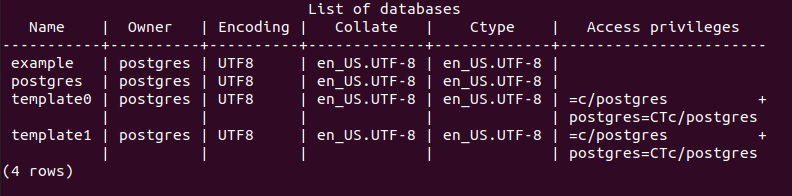
If you want to work directly in a database, you can simply select it. The active database will be displayed in the input row of the PostgreSQL console. To change the database, you can enter the following command and enter the name of the database you want to use:
\c example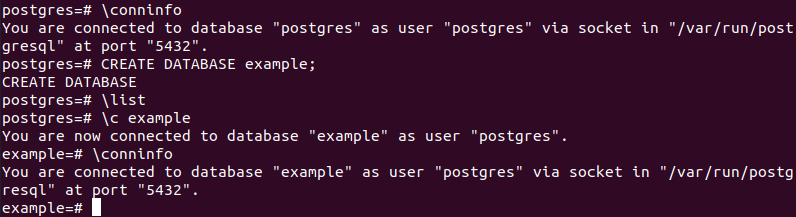
To delete a database, you can use the following code:
DROP DATABASE example;But be careful because you can’t go back if you change your mind. Use this command only when you have to and carefully consider if you really want to delete the database.
You can also use PostgreSQL on Windows. If you install PostgreSQL on Windows Server 2016, you will be able to take advantages of the benefits of the DBMS. Users who understand the Microsoft operating system better than the Linux one, should consider this option.
Reviewer

Christian Heldmaier
Christian Heldmaier is an experienced online marketing and SEO specialist from Karlsruhe. He has been working as an SEO Manager at IONOS since July 2020.