

How to find the Windows 11 product key

To use all features of the Microsoft operating system, you must activate it after installation. Microsoft establishes you as the owner of a valid license in that way. Product keys also assure Microsoft that you comply with the software licensing conditions. Since the introduction of so-called digital licenses, you just need the product key for verification. Find out when you need the 25-digit code and how to find your personal Windows 11 key.
- Great premium TLDs at affordable prices
- Simple registration & transfer
When do I need the product key for Windows 11 activation?
To activate Windows 11 on your device, you will need the 25-digit product key or a digital license, also known as a “digital entitlement” in Windows 11. Which options you need depend on how you originally obtained your copy of Windows 11.
Microsoft lists the following five scenarios and how you can find the Windows 11 key to activate the system in each case:
| Scenario | How to find the Windows 11 product key |
|---|---|
| Purchase a device that ships with Windows 11 | Product key can be found on the packaging or the certificate of authenticity |
| Buying a boxed copy of Windows 11 from an authorized retailer | The product key will be printed on a label on the inside of the package |
| Purchase a digital copy of Windows 11 from an authorized reseller | You will receive the product key in the confirmation email after purchase or by accessing a digital locker accessible via the merchant website |
| Purchase of a new or refurbished device with Windows 11 | Key is pre-installed, can be found on the packaging or on the certificate of authenticity on the device |
| Purchase Windows 11 from the Microsoft Store website | Product key is in the confirmation email |
| Signing a volume licensing agreement for Windows 11 or an MSDN subscription | Windows 11 key is retrievable via web portal for your program |
Aside from the scenarios described in the table above, sometimes you can activate Windows 11 using the digital license. This may be the case in the following situations:
- Free upgrade to Windows 11 from an eligible device running a genuine copy of Windows 7, Windows 8.1, or Windows 10
- Purchase an upgrade to Windows 11 Pro through the Microsoft Store app
- Purchase of the original Windows 11 software via the Microsoft Store app
- Upgrade to the latest Windows 11 Insider Preview from an eligible device
You can display the product key in older Windows editions too. Find out more about it in our guide on how to find the Windows 10 product key.
Here’s how to find the Windows 11 product key
The only instance in which you may want to find the Windows 11 product key manually is if you have not activated the operating system via a digital license, but used the product key instead. In that case, the following options are suitable using the command line or Windows PowerShell. The options are also not applicable if you use a tool to read the Windows 11 key.
Find the Windows 11 key: via command prompt
A quick and convenient way to find the Windows 11 key is to use the operating system’s command line – also known as the command prompt. The individual steps are as follows:
Step 1: Launch the command line by calling up the search function (magnifying glass icon), typing in the search term “cmd” and left-clicking the app of the same name.
Alternatively you can use the key combination , [Win] + [R], enter “cmd”, and launch the command line by clicking “OK”.
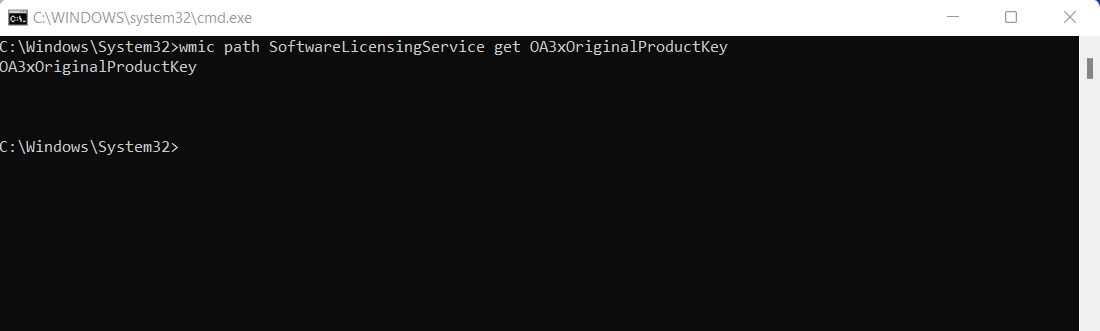
Step 2: Once you’ve launched the command line tool, enter the following command and confirm it by hitting Enter:
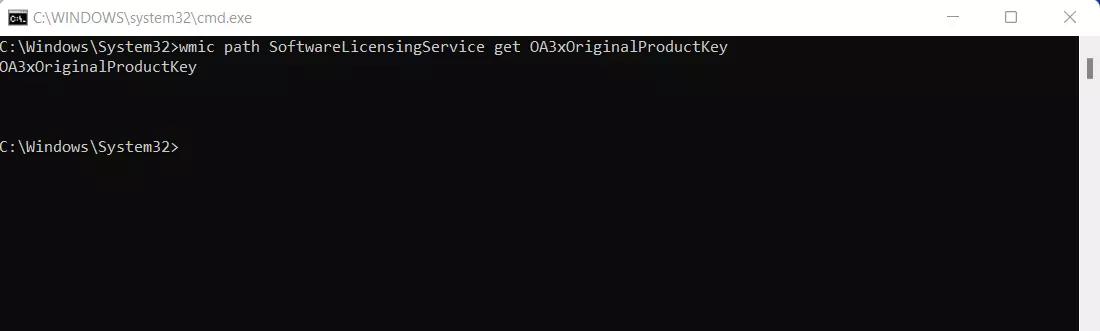
wmic path SoftwareLicensingService get OA3xOriginalProductKeyWindows 11 now reveals the product key. If two black lines are shown in the prompt it means that your Windows installation was activated via digital entitlement.
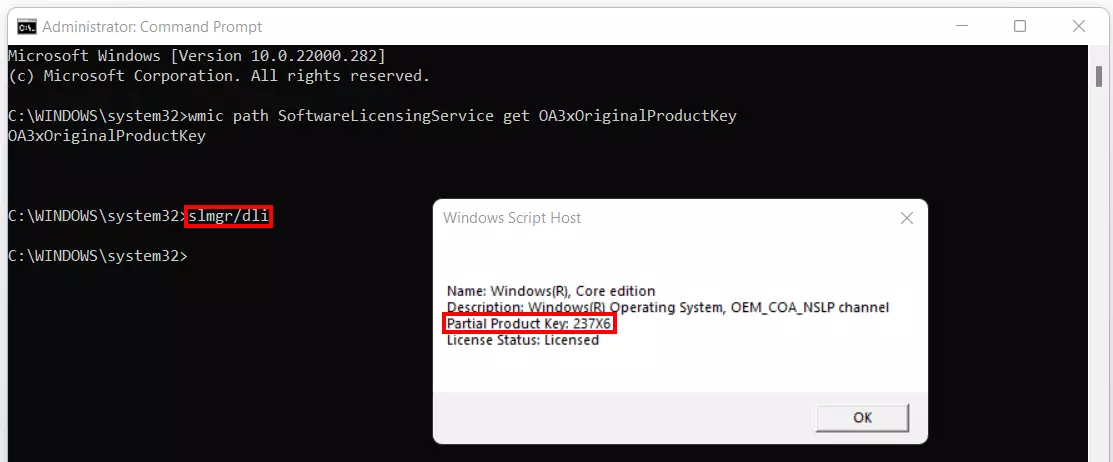
Step 3: If no product key is revealed, you can display the last five digits of your key in the command line window. Use the following command for this purpose:
slmgr/dli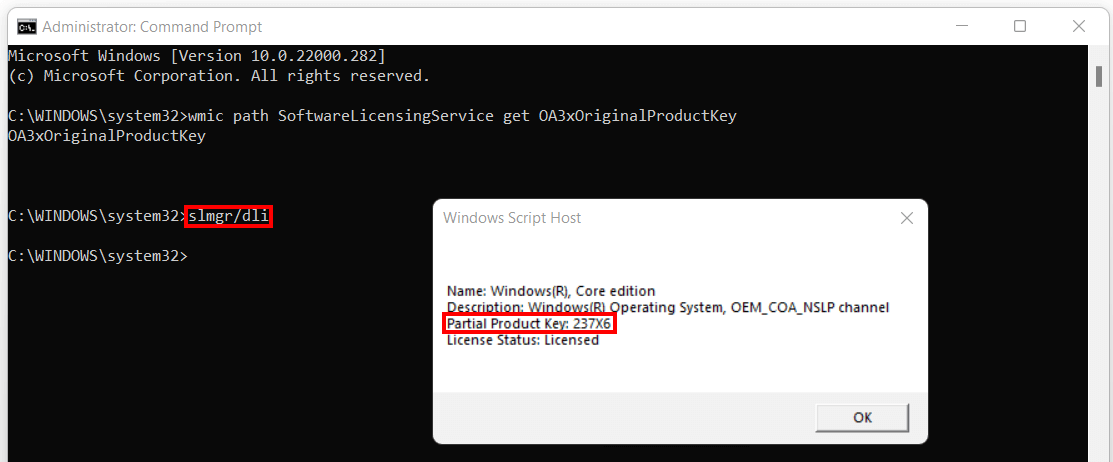
Find the Windows 11 product key via PowerShell
Another option to display the Windows 11 key is to query the “SoftwareLicensingService” class using the Windows PowerShell.
Step 1: Launch the Windows 11 search function by clicking on the magnifying glass icon and searching for “powershell”.
Step 2: Run the Windows tool by clicking on the search result of the same name. You can also start the application as an administrator.
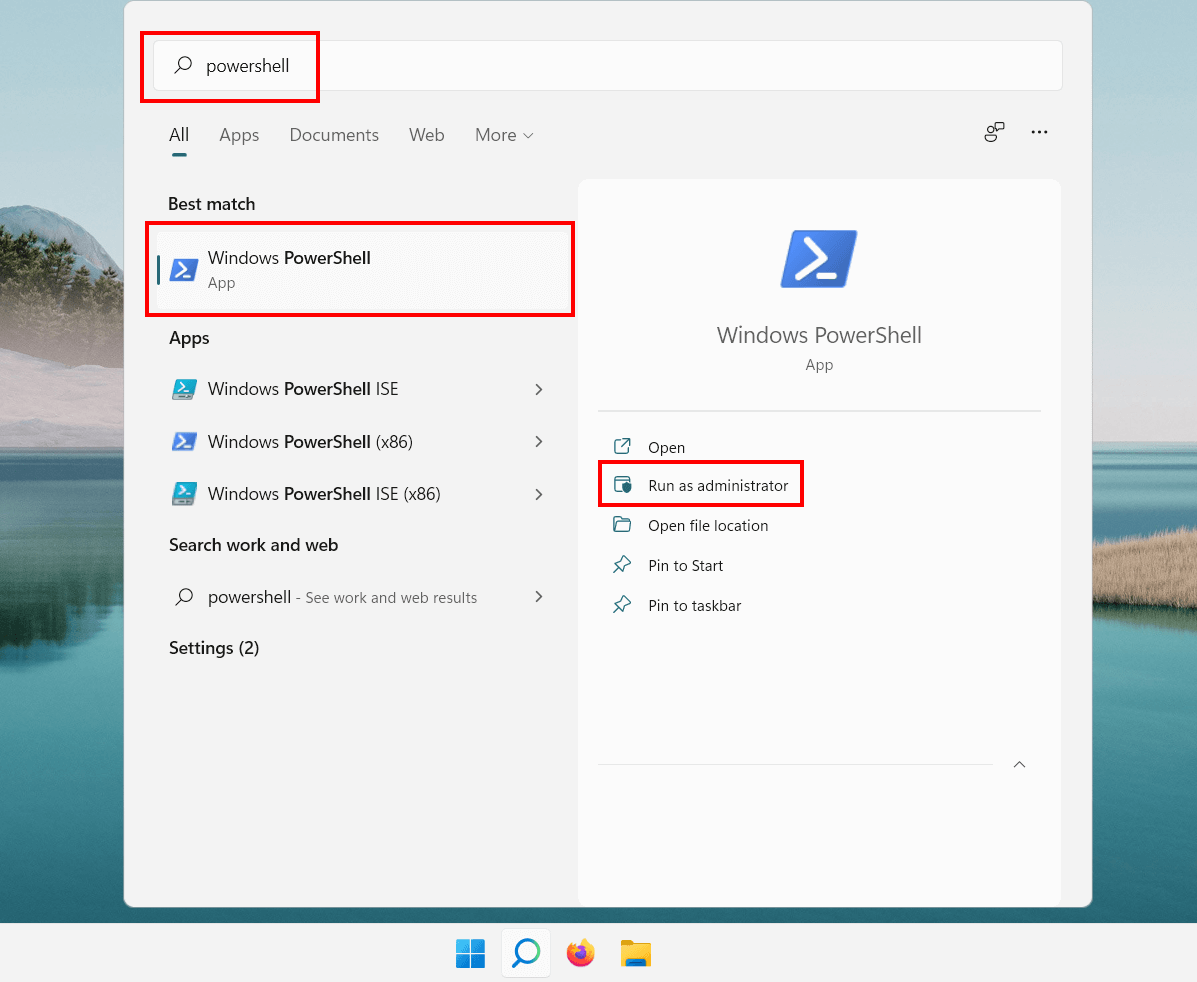
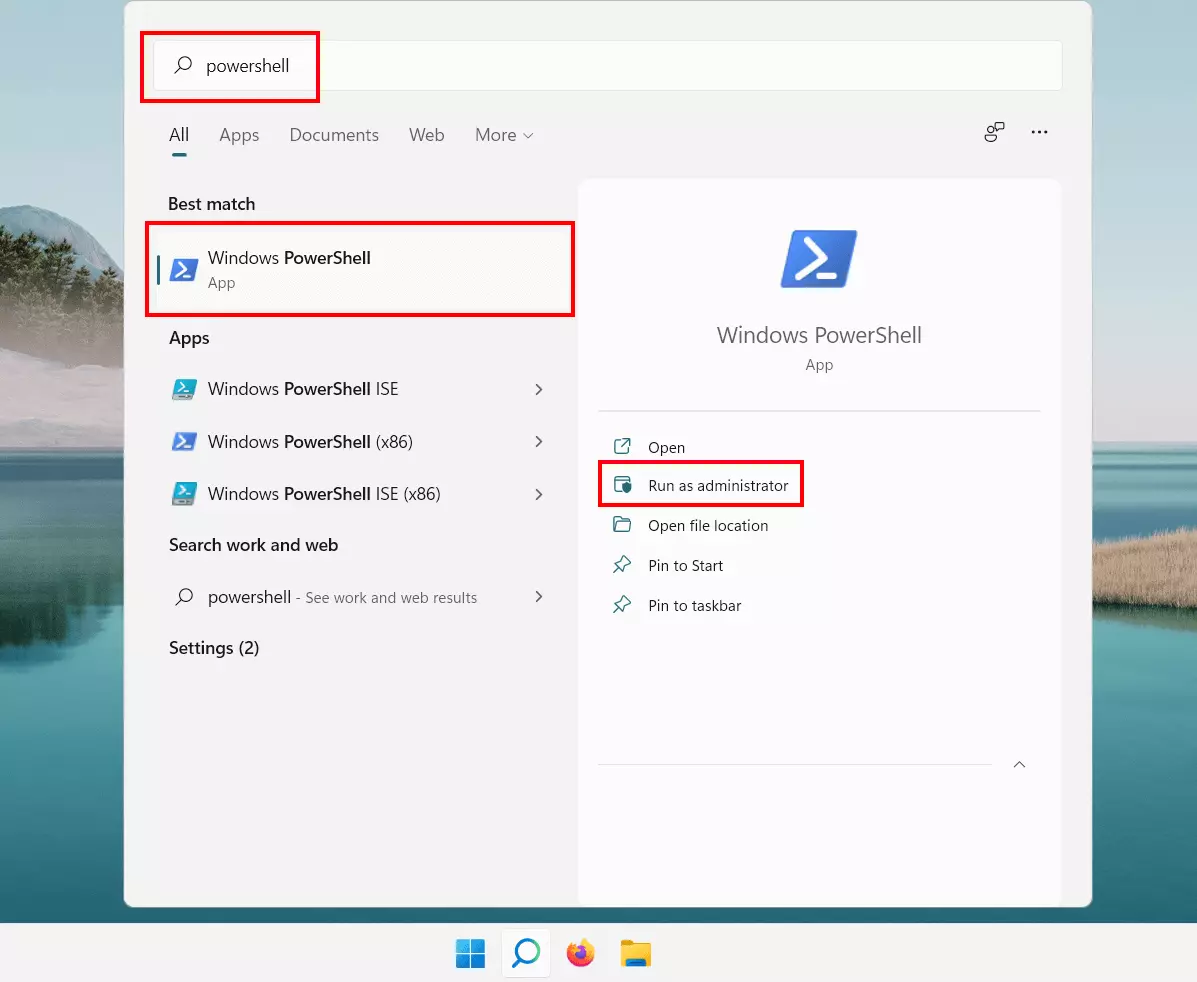
Step 3: Enter the following command in PowerShell and confirm it with Enter:
powershell "(Get-WmiObject -query 'select * from SoftwareLicensingService').OA3xOriginalProductKey"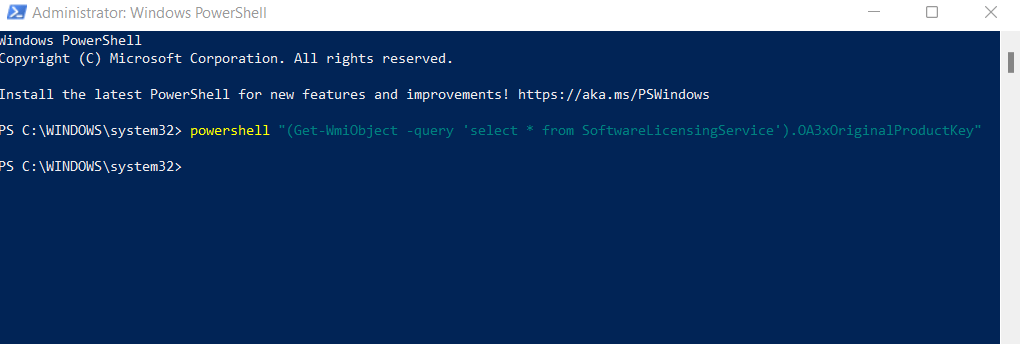
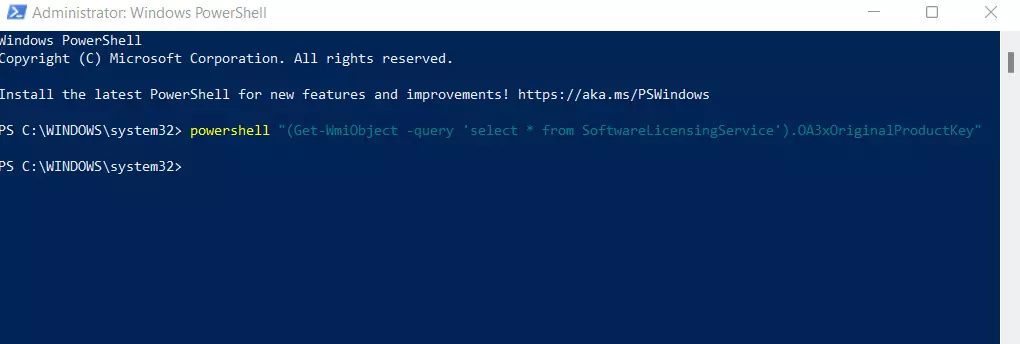
Windows 11 will display the license key of your installation, as long as it’s contained in the BIOS entries. Otherwise, PowerShell switches to the next input line as shown in the screenshot above – without displaying a key.
Want to screenshot windows or the entire screen in Windows? Find out how in our dedicated article on how to create screenshots in Windows 11.
Windows 11: Use third-party tools to find the product key
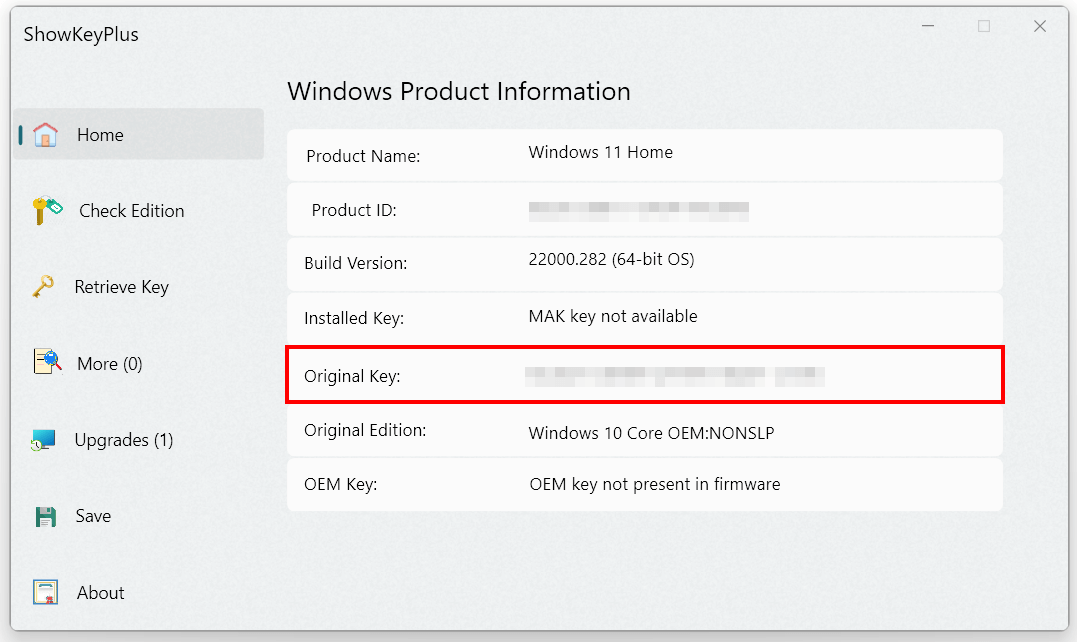
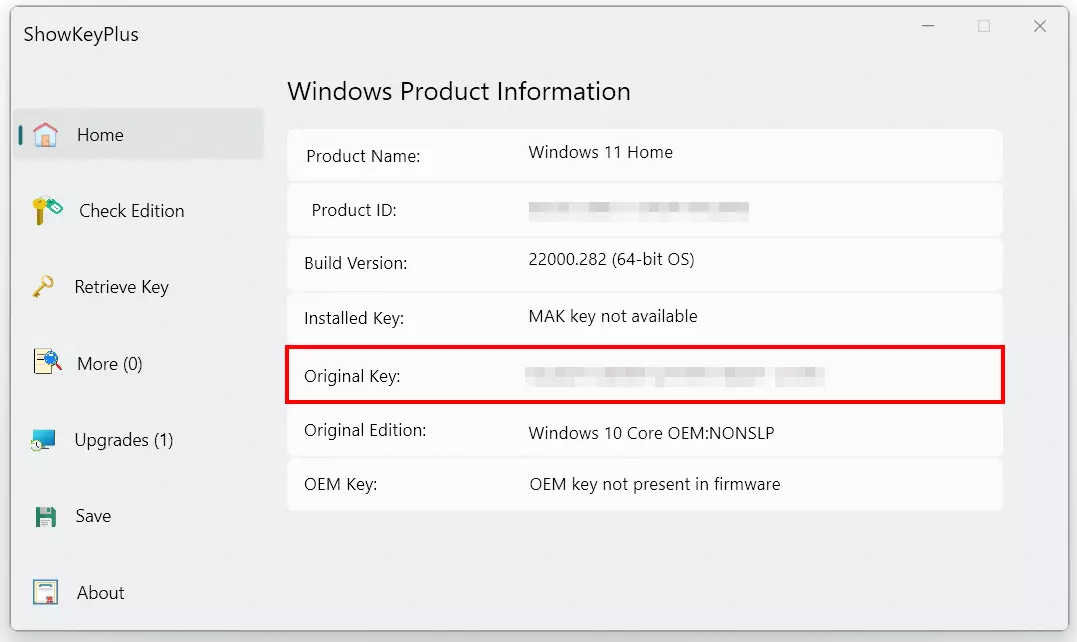
One other option to finding the product key is to use an external tool such as ShowKeyPlus from the official Microsoft Store. However, these tools do not offer a 100% guarantee that the key will be displayed.
Using ShowKeyPlus, you can find the Windows 11 product key as follows:
- Download the tool from the Microsoft Store website or the Store app.
- Install the application.
- Launch ShowKeyPlus from the app listing in the Start menu or directly from the Microsoft Store app.
- The start page of ShowKeyPlus summarizes information about your operating system, including the product key (in the “Original Key” line).
Want more tips and tricks about using Windows 11? Our guides explore the following topics:
Reviewer

Christian Heldmaier
Christian Heldmaier is an experienced online marketing and SEO specialist from Karlsruhe. He has been working as an SEO Manager at IONOS since July 2020.