

How to change the desktop background in Windows

To enjoy a little variety when staring at their screens day-in day-out, many Windows users change their desktop background theme. Read on to find out how to change the background theme in Windows 11 and Windows 10, what individual setting options there are, and how to set up a monochrome desktop.
- Great premium TLDs at affordable prices
- Simple registration & transfer
How to change a desktop background theme: quick tutorial for Windows 10 and 11
In Windows 10 you can adjust the background as follows:
- Launch Settings by clicking on the Start menu or using the key combination [Windows] + [i].
- Change the category to “Personalization”.
- Select “Background” and choose the image, solid color, or slideshow you wish to set as your desktop background.
- Select the desired color, image, or image folder. If you want to use a specific image, click on “Browse” and specify the location of the respective image file.
If you work with Windows 11, you can change the screen background as follows:
- Launch Settings by clicking on the Start menu or using the key combination [Windows] + [i].
- Change the category to “Personalization”.
- Select the entry “Background”.
- Select “Personalize your background” and choose the desired background (“Solid color”, “Image” or “Slideshow”).
- Choose a color, desired background theme or the respective image album for a slideshow. Click on “Browse photos” if you want to use an individual image file.
Prefer for Windows to load fewer applications on system startup? Take a look at the autostart modifications for Windows 11 or Windows 10 to exclude applications you no longer need.
Options for changing a Windows background theme
On Windows devices, you have three options to customize your desktop background:
- Images: Images are the most frequently employed option for desktop background themes. You could select a picture provided by Windows, download high-quality wallpapers, or insert a personal photo.
- Solid color: It doesn’t always have to be a picture. You could change your desktop background to a solid color. Windows provides a selection of colors or you can create your own.
- Slideshow: Don’t want to settle for a single image? You can set up a slideshow with any number of images. Just add them to the same folder for this purpose.
In principle, setting an image or slideshow for your desktop background is a simple process. Windows doesn’t have specific requirements when it comes to format either. Known image formats like JPEG or PNG are supported. However, those who value optimal arrangement of the selected image(s) should ensure the resolution of the image matches the resolution of the display.
You can view your current screen resolution in Windows as follows: “Start” > “Settings” > “System” > “Display”.
The resolution of the image and the screen do not need to match. The appropriate ratio of width and height is a more important consideration and can be adjusted using an image editing program. If, for example, the desired image section is smaller than the screen resolution, the “Fill” setting ensures that the image extends to the entire background.
Changing the desktop background: step-by-step tutorial
Adjusting the desktop theme in Windows is quick and easy. Any adjustments to settings can be undone again later, giving you plenty of freedom to experiment with different options. The following instructions will guide you step by step through the process of changing the background image or background color in Windows 10 and Windows 11.
Changing the background theme in Windows 11
You’ll find the menu for customizing the desktop background in the “Settings” in Windows 11 which you can access either via the button of the same name in the Start menu or by using the key combination [Windows] + [i].
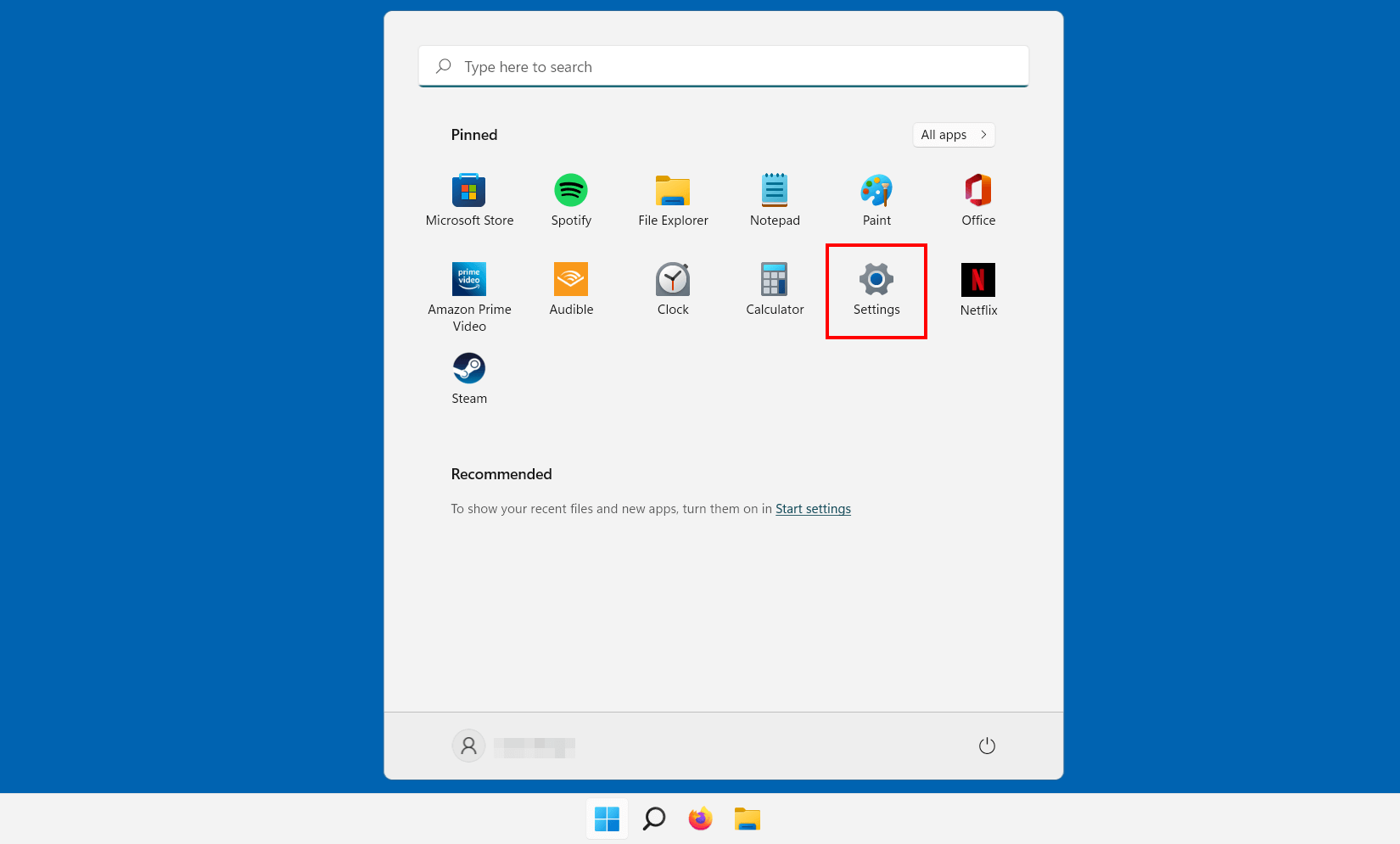
Switch to “Personalization” on the left side of the menu and select “Background”.
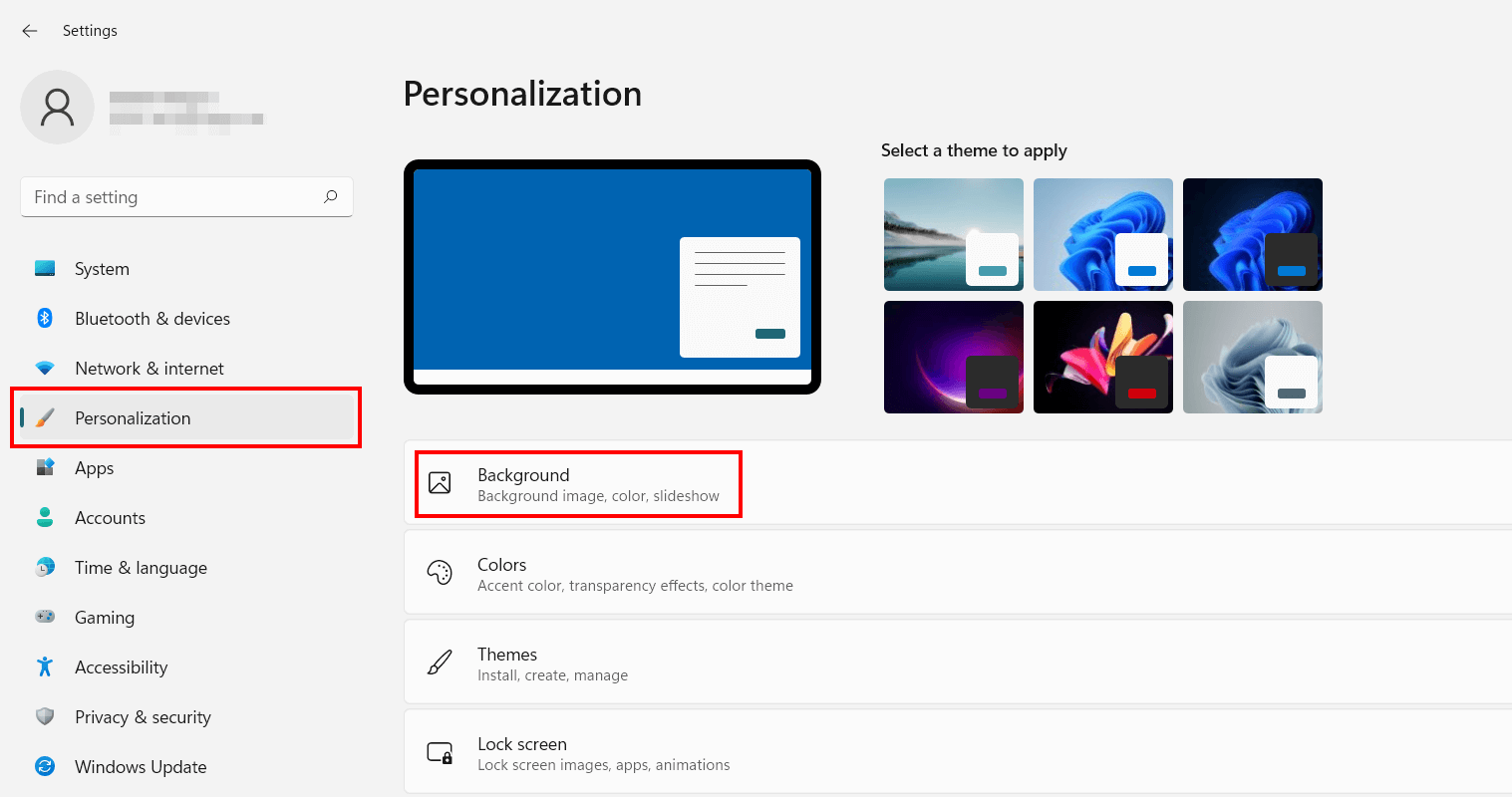
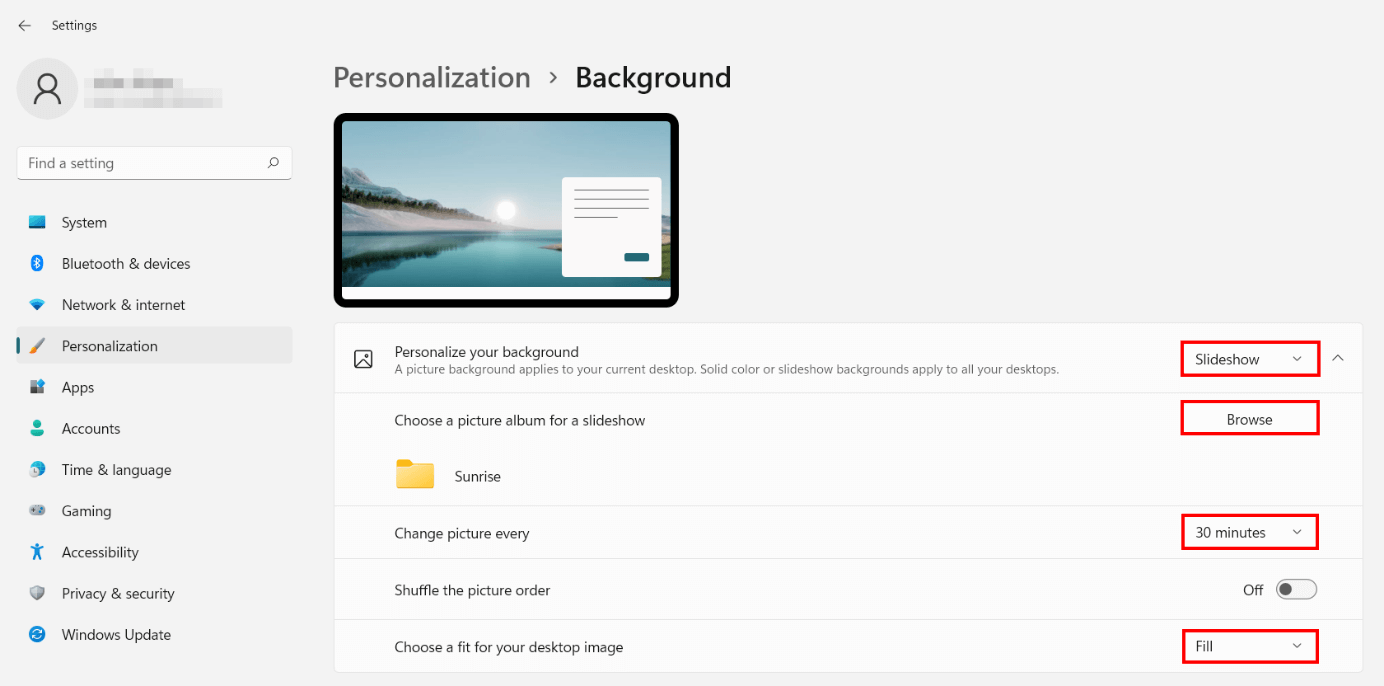
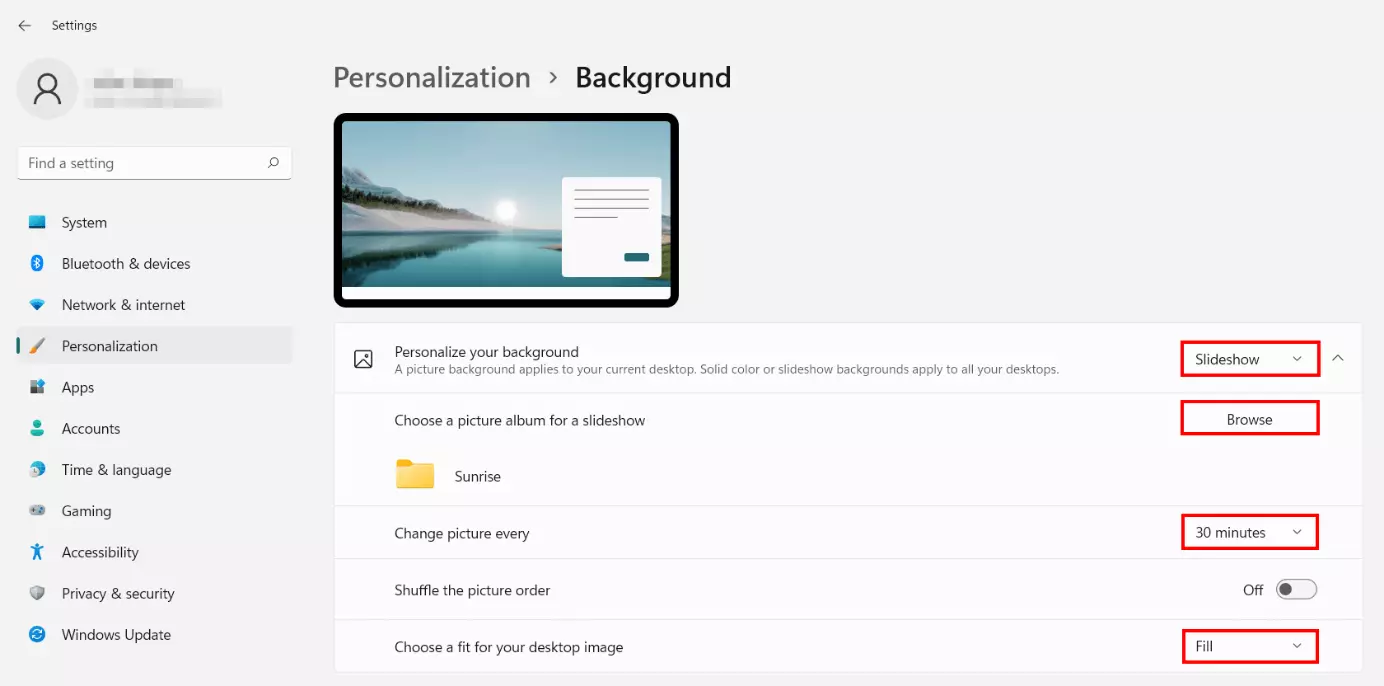
From the drop-down, below “Personalize your background”, select the image, slideshow, or solid color you wish to set as the background. Depending on your selection, you have various options to adjust settings.
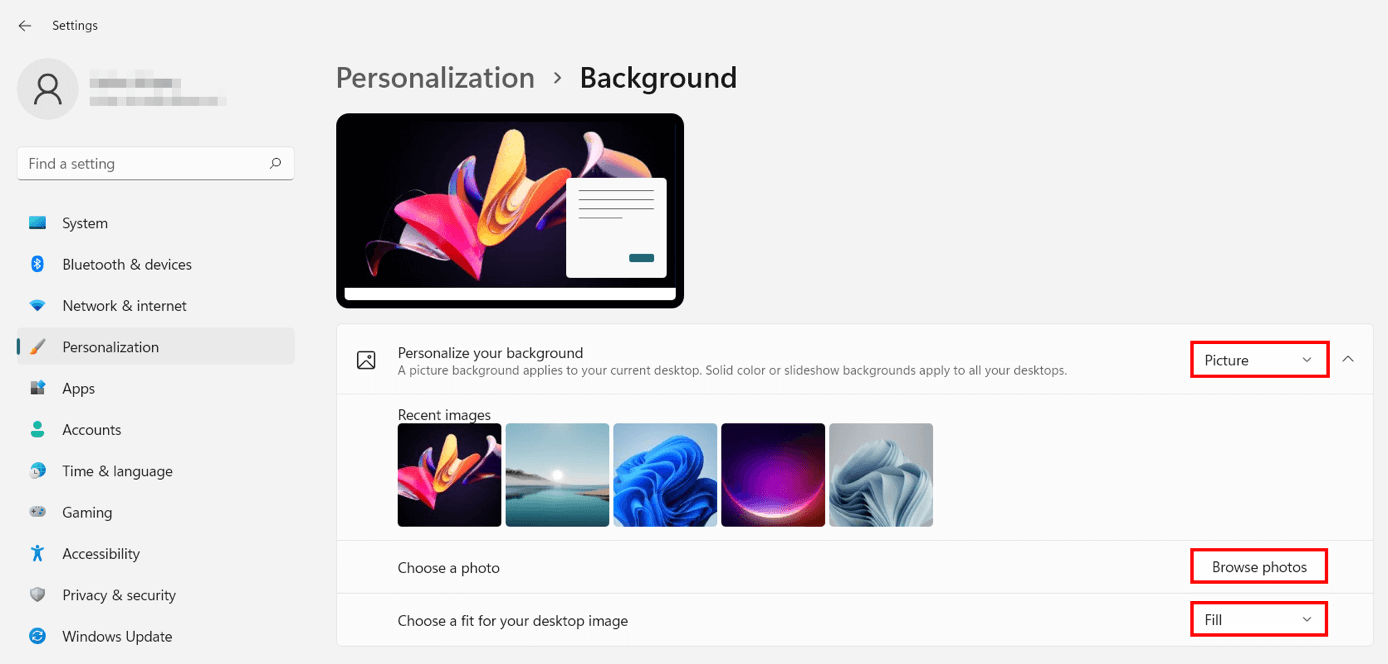
Customize Windows 11 desktop: set an image as background theme
Using the “Browse photos” button, you can add a background theme by specifying its location. Launch the drop-down menu via “Choose a fit for your desktop image” to define its arrangement. If the image should fill the entire screen, select the “Fill” option. Alternatively, you can center a photo by selecting “Centered” and select a separate background color to fill the space around it.
Customize Windows 11 desktop: set solid color as background theme
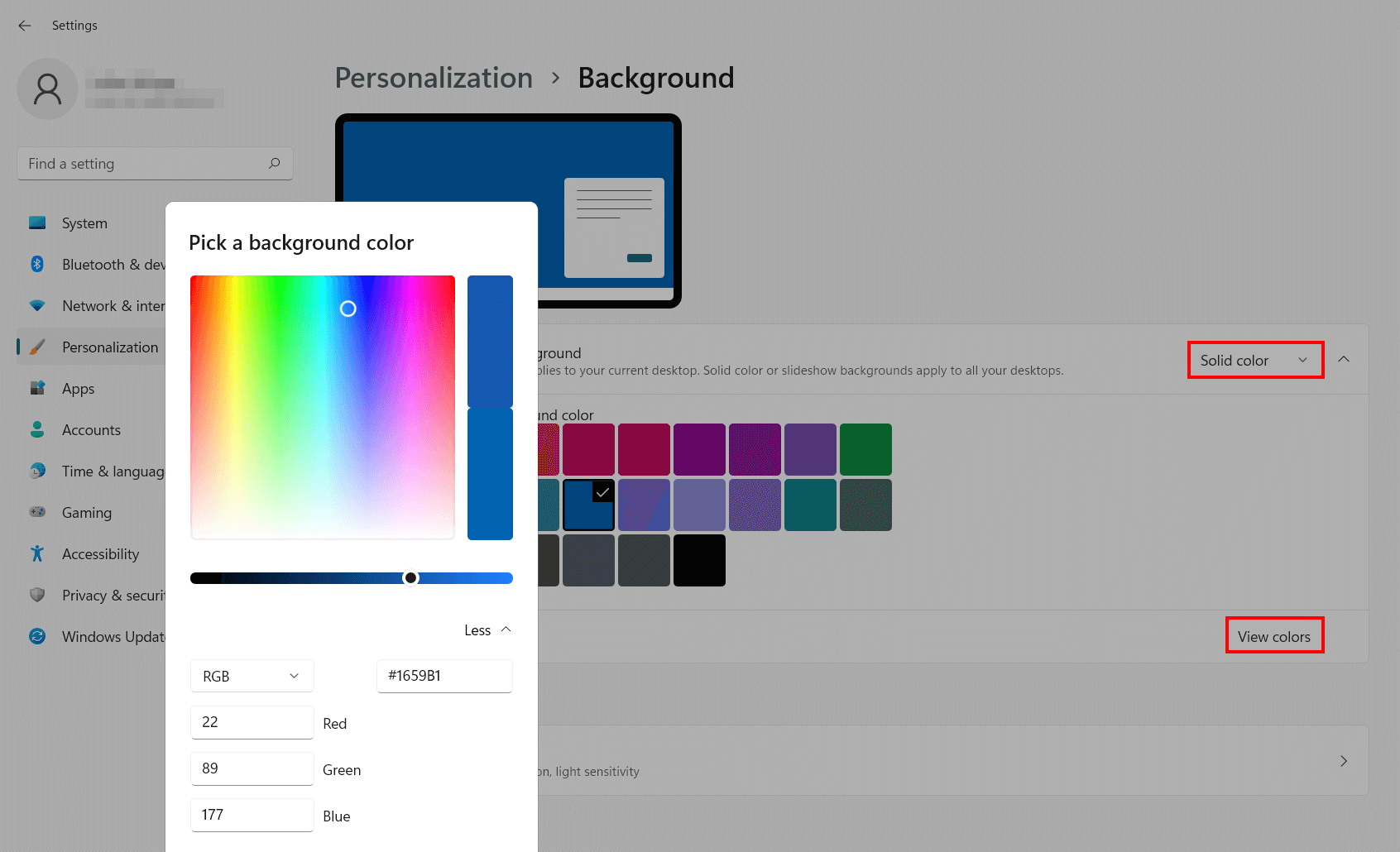
Prefer a solid color for your desktop theme? You’ve got two options here. Either pick a color from the default list of colors by left-clicking on it, or set a custom color. To customize a color, select “View colors” and use the slider or the RGB or HSV menu.
Customize Windows 11 desktop: set a slideshow as background theme
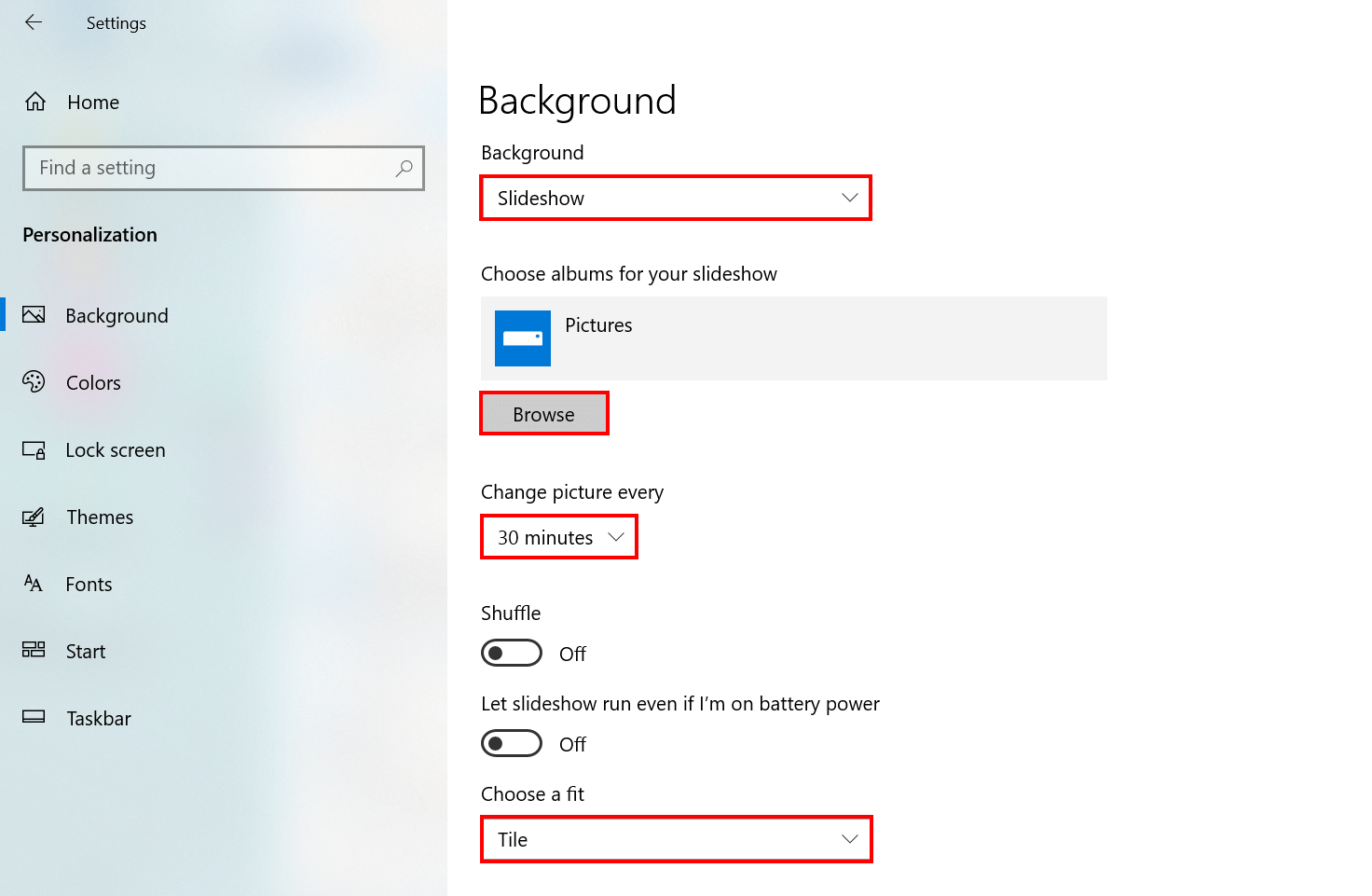
Select “Slideshow” and click on the folder that contains the images you’d like to display on your desktop background. To do this, click the “Browse” button and navigate to the folder. Finally, press the “Select this folder” button.
Following selection of a folder for the background slideshow, you can configure the interval at which you’d like to change images, for example, 30 minutes. This means every 30 minutes a new image from the specified folder is displayed. If you move the slider for “Shuffle the picture order” to “On”, Windows 11 plays the contents of the folder in random order. As with single images, you can set the arrangement of images (centered, stretched, etc.).
Changing the background theme: how to modify settings
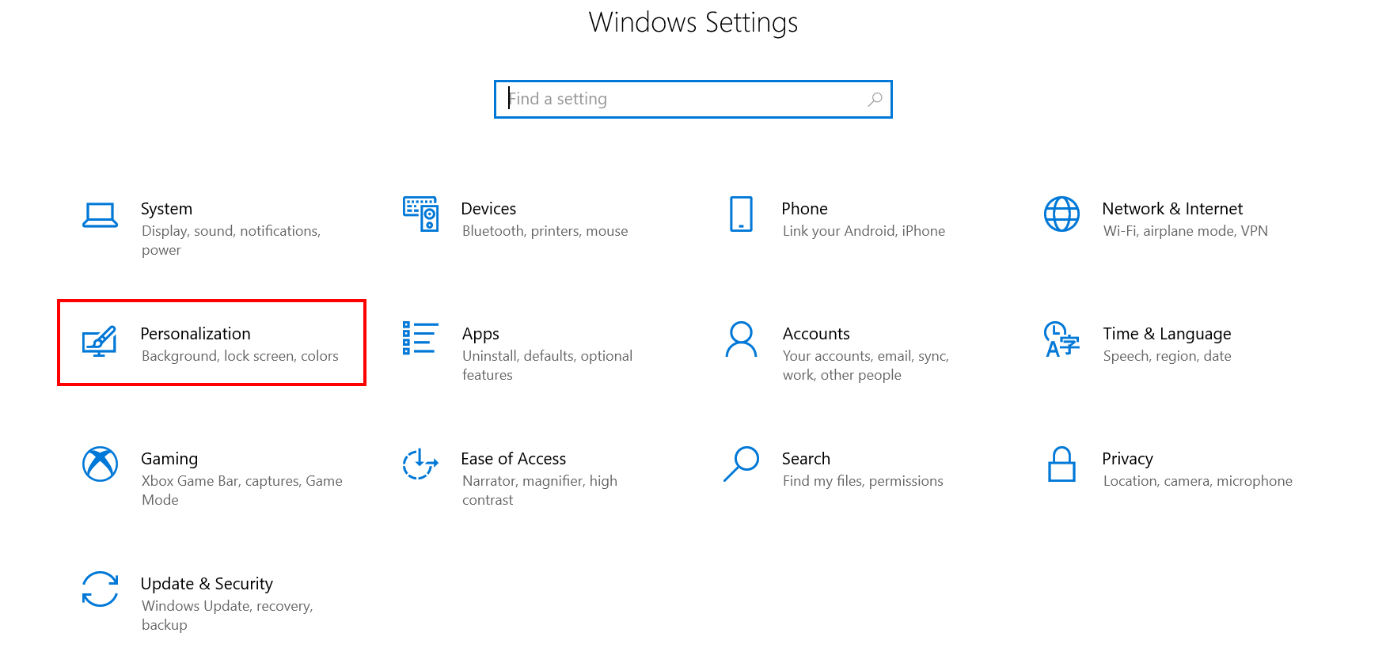
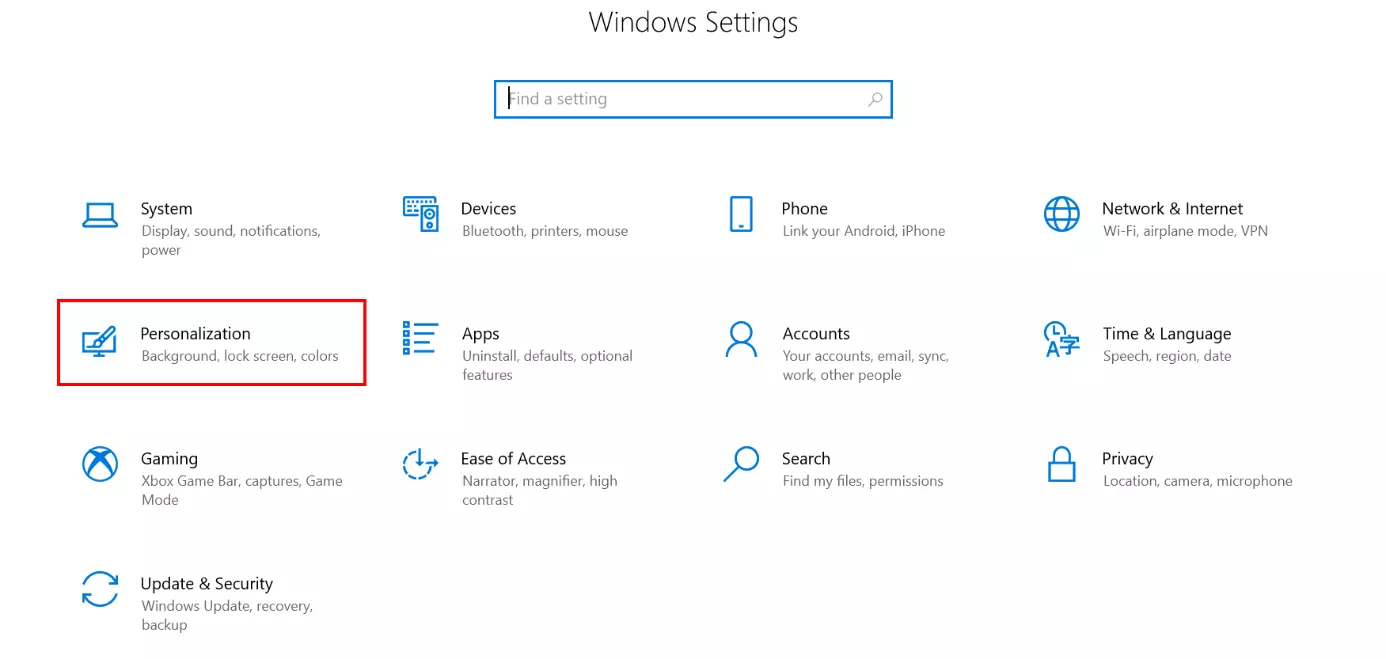
Windows 10 users can modify their wallpaper from the “Settings” menu. If the button of the same name is missing from the Start menu, you can access it using the key combination [Windows] + [i].
From the Windows settings select “Personalization”.
Select “Background” to toggle between solid color, images, and slideshow from the drop-down menu. Once again, you can adjust the settings, depending on the selection you’ve made.
Customize Windows 10 background: set an image as background theme
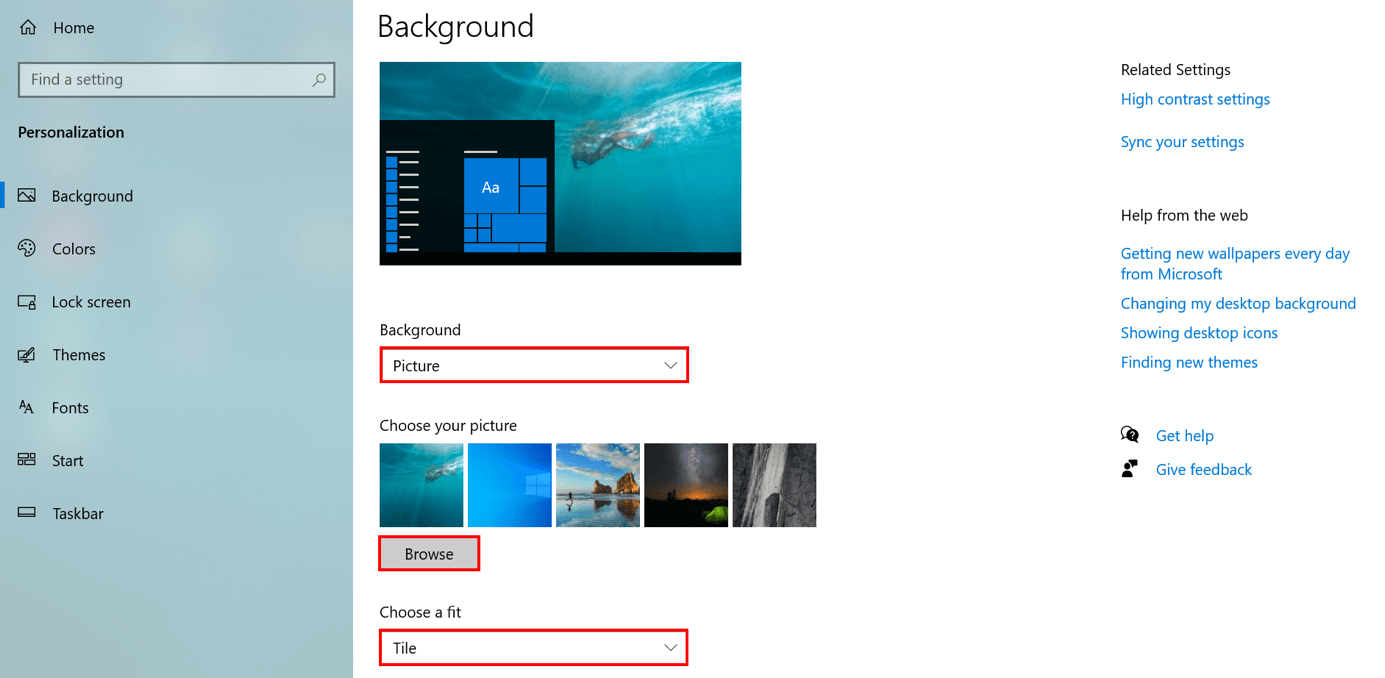
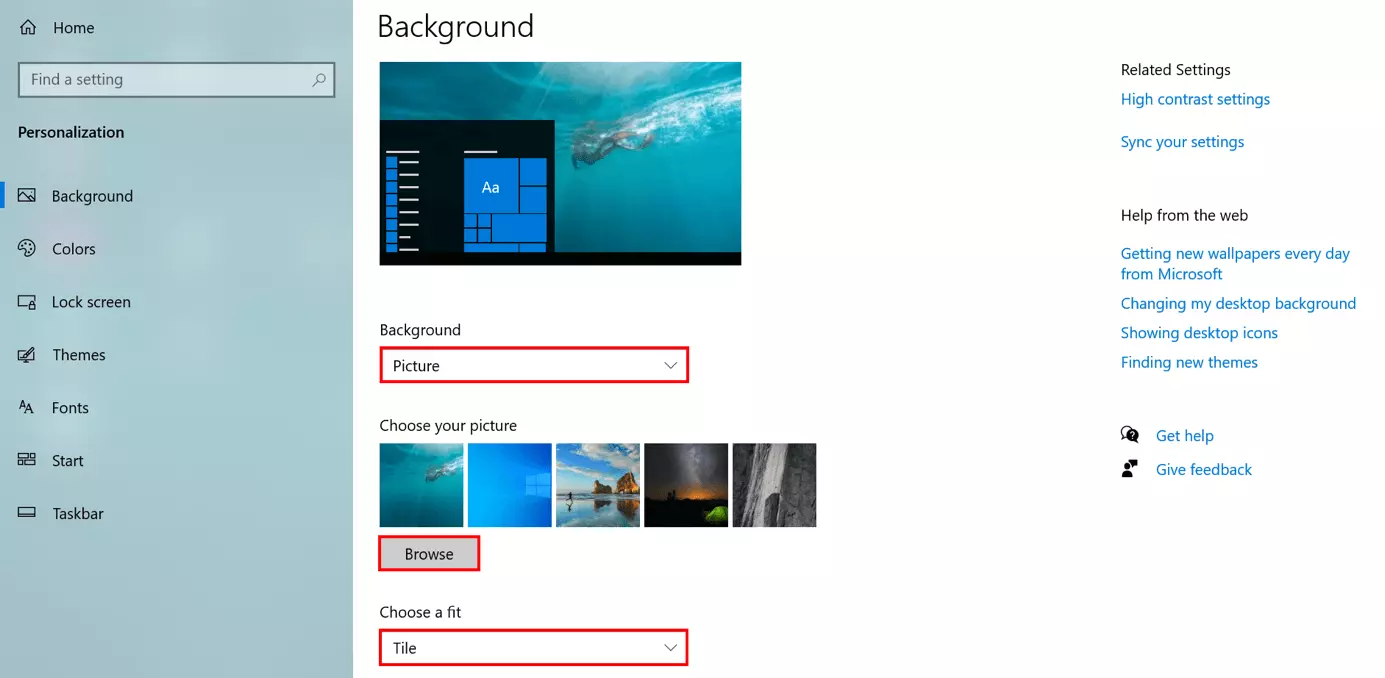
If you want to use an image, select it from the photos provided by Windows (by left-clicking) or upload your own (by specifying its location on the desktop). To add your own, press the “Browse” button. Adjust the image arrangement via “Choose a fit”.
Customize Windows 10 background: set solid color as background theme
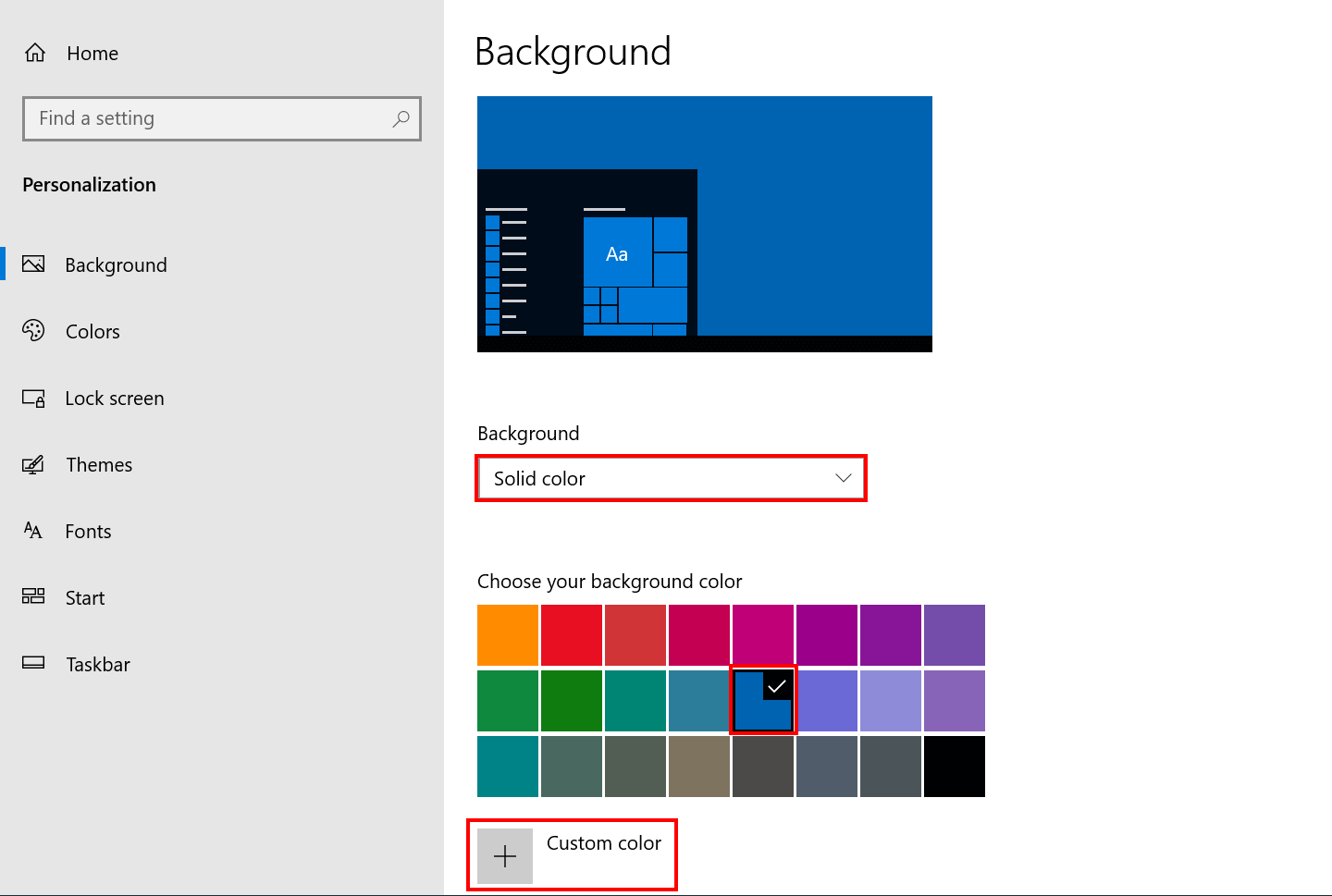
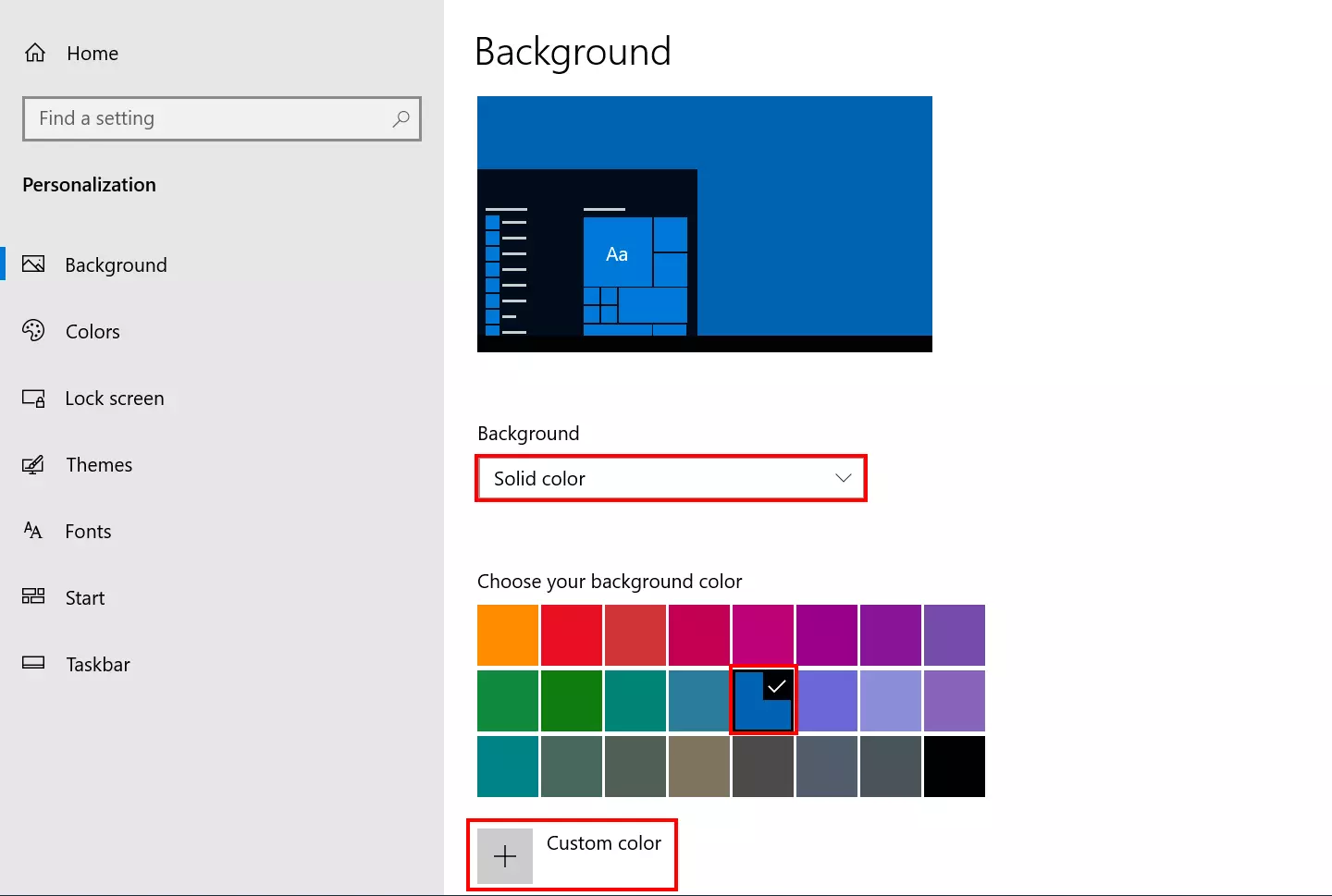
If you prefer a “Solid color”, select a standard color by left-clicking below “Choose your background color”. The small check mark in the upper right corner of the color tile confirms your selection. If you don’t like the colors provided, simply configure your own by clicking on “Custom color”.
Customize Windows 10 desktop: set a slideshow as background theme
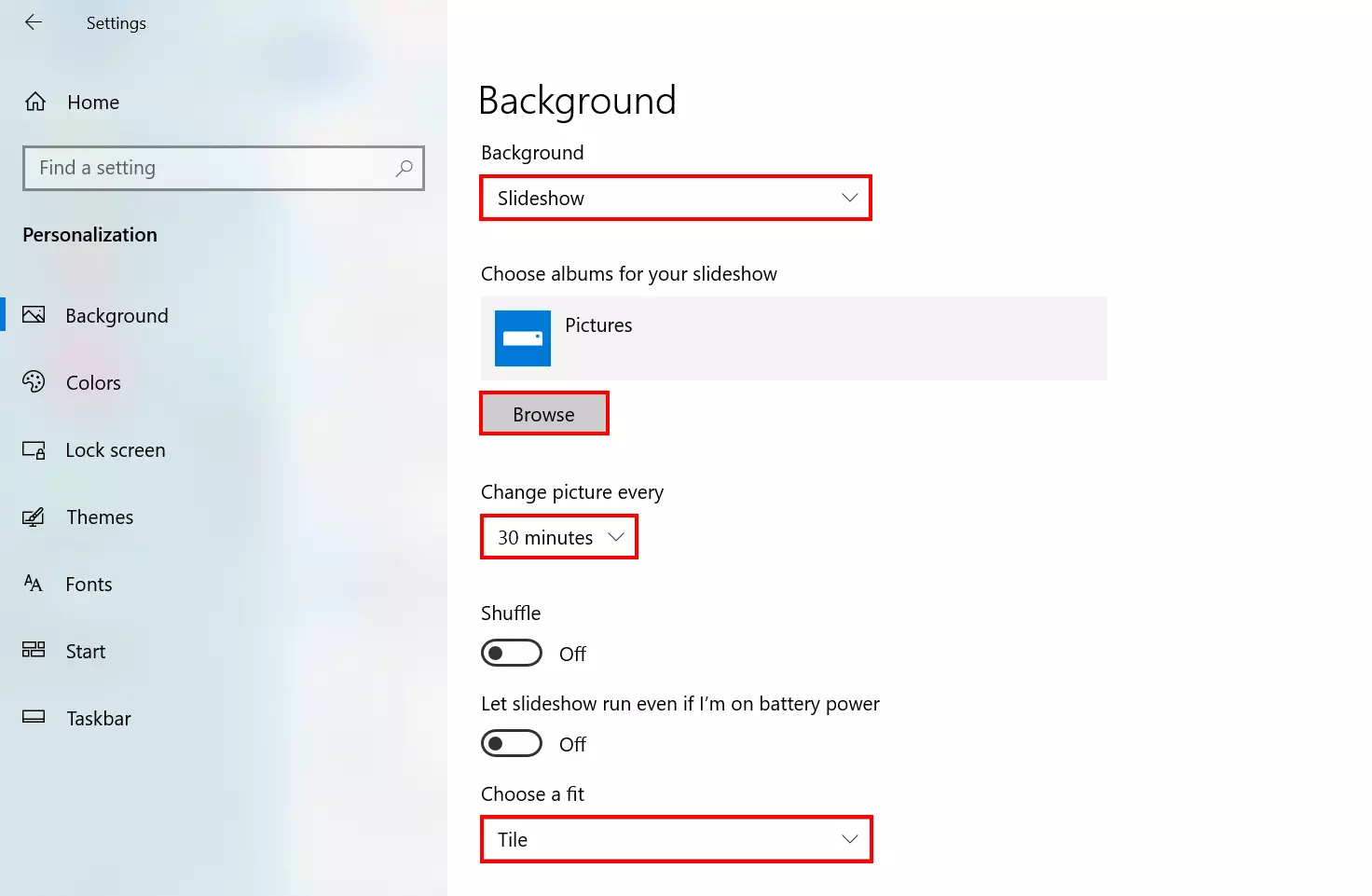
A slideshow is the perfect option if you don’t want to commit to a single image. First, specify the location of the folder with your images by hitting the “Browse” button. You can define the arrangement via “Choose a fit”. If you want Windows 10 to present the images in a random order, turn on “Shuffle”.
Reviewer

Christian Heldmaier
Christian Heldmaier is an experienced online marketing and SEO specialist from Karlsruhe. He has been working as an SEO Manager at IONOS since July 2020.