

How to generate SSH keys in Ubuntu

In Ubuntu simply use the terminal to create a SSH key pair. You then enter your server with the public key, giving yourself the chance to set up a secure connection. How does this work exactly?
What is an SSH key?
Those who would like a secure connection via SSH can authenticate using an SSH key instead of entering a password. To do this, you need an SSH key pair, made up of a public, and a private key. The public key is stored on the system to which the SSH connection is to be created, for example, on a server. The private SSH key should be stored securely and created on the client side. It is then used for encrypting the public SSH key when the connection is made.
SSH keys are used for many different types of services. Among other things, since 2021 SSH keys are used as one of two authentication processes for entering commands in GitHub. You can find out more about this in our article “Using an SHH key with GitHub”.
Create and generate SSH keys in Ubuntu step by step
Securely log in on servers or other services without entering a password. Using an SSH key pair for authentication is, above all, practical. In the following guide we will show you the example of Ubuntu 22.04 and how you can generate SSH keys in Ubuntu and create them for authentication purposes on a server, you can read through our article on using SSH keys for your network for more information.
Are you looking for a secure file-sharing host? Rent your FTP server from IONOS to save and send your files securely using SSH and FTP.
Step 1: Create an SSH key pair
Quickly generate SSH keys in Ubuntu. You can create a key pair including a public and private key at any time using the terminal. Open the command center in Ubuntu and enter the following:
ssh-keygenThis automatically generates an RSA key pair with 3,072 encryptions, more than enough for most uses. You can also create a larger key with 4,096 bits by entering the command with “-b 4096” at the end.
ssh-keygen -b 4096As soon as you enter the command Ubuntu generates a key pair. You will be asked if you want to save the SSH keys in the Ubuntu user directory (subfolder / .ssh), confirm this by pressing the enter key. Alternatively, you can enter another pathway.
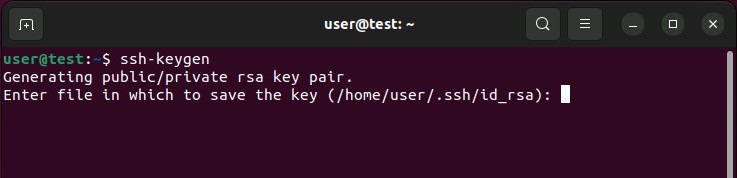
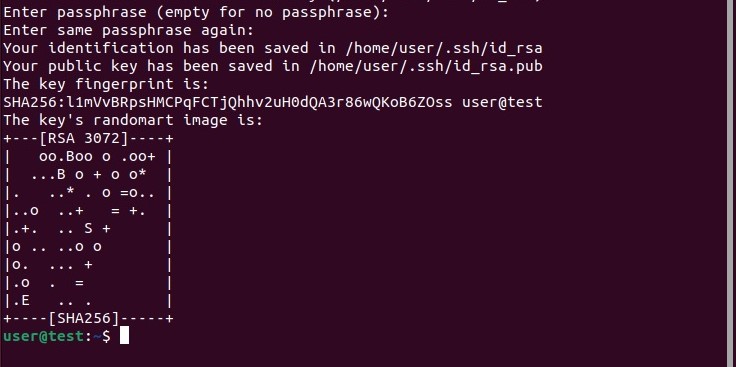
Once you have chosen where to save your key pair, Ubuntu will give you the option of setting a secure password. Entering a password to the encrypted authentication method is another level of security preventing those who are not authorized. Enter your chosen phrase or leave it blank if you do not want an extra level of security.
In both instances, use the enter key to confirm your choice. You will receive confirmation of the key being successfully created in the way of a “randomart image” of the SSH key.
Are you unsure about which system version you are using? Read our article on how to check your Ubuntu version for more information.
Step 2: Adding the public key to the server
The next step is to add the public key to the target server, where you want to later create an SSH connection. To do this you need the username used to log in to the system, as well as the IP address or domain of the system. If you haven’t got a username, you can use the user root instead.
To add the public SSH key, Ubuntu has the tool ssh-copy-id available. Enter the command as follows:
ssh-copy-id username@ip-adresse/domainIf you’re creating a connection to the target host for the first time, the terminal will display a warning that the “authenticity of the host…can’t be established”. Enter “yes” and confirm the entry to carry on with the process.


Following on from this, the service will look for the key that’s already been created. When found, you can continue with the process by entering the password to log in to the target system. The setup will end, and you will get the following output if the public key can be successfully added.


Step 3: SSH authentication on the target host
You can now log in to the device or server which has the key added to it via SSH. As with the transfer of the key, you need the username as well as the IP address or domain of the target host. Enter these as follows in the command field:
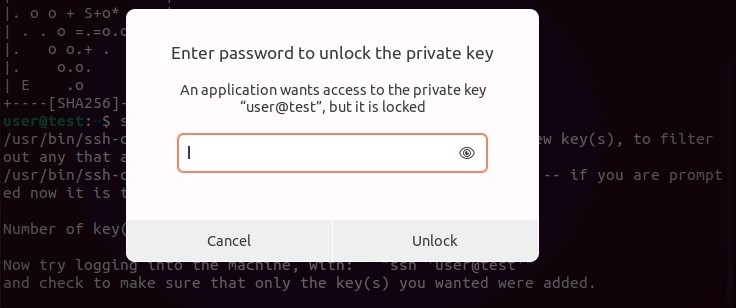
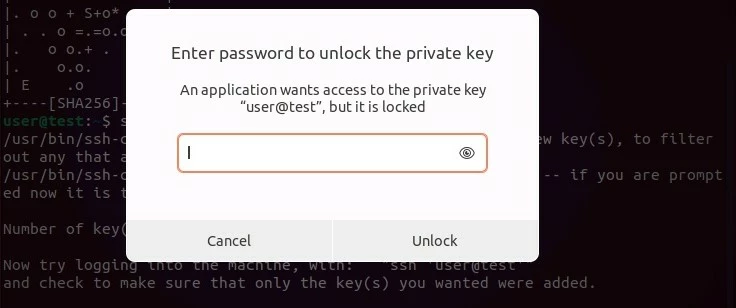
ssh username@ip-adresse/domainIf you set up a password for the key pair, you will be asked to enter it in the next step. Enter the password requested and then press “Unlock” to connect to the destination system.
Step 4: Deactivate password
If the SSH key pair was successfully set up, then you will no longer need to use standard password logins. In principle, this authentication procedure is still active, even for unauthorized persons who want to access the system, for example in the form of brute force attacks.
In order to improve security, you can deactivate password login on the server or end device. For this log in via SSH and open the configuration file of the SSH server.
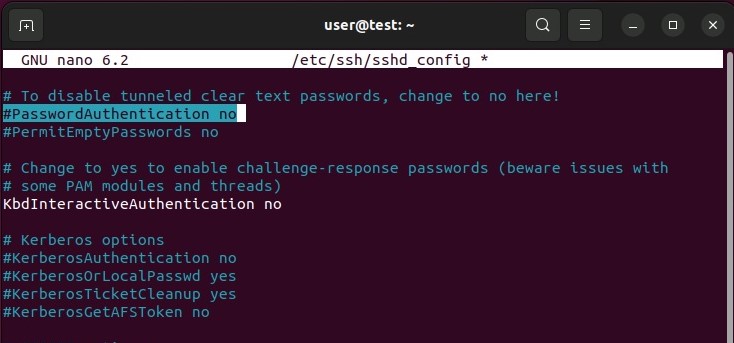
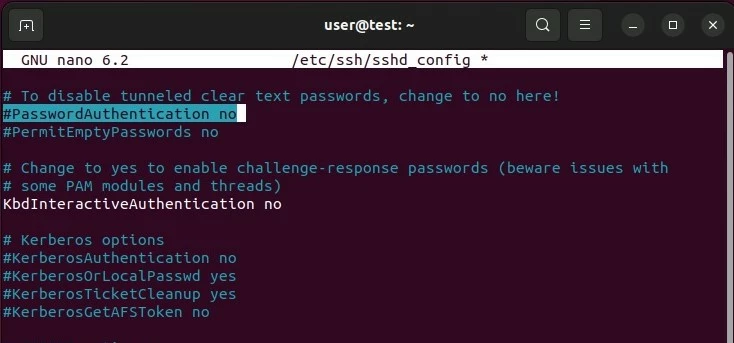
sudo nano /etc/ssh/sshd_configLook for the entry “PasswordAuthentication” in the configuration file and change this entry to “no”.
Save the changes in the configuration file and then restart the SSH service using the following command:
sudo systemctl restart sshHow to manually add your SSH key to Ubuntu
The second step, ssh-copy-id is not available on all systems. In this case, you can manually add the public key to the target system.
To do this, display your public key by running the following command:
cat ~/.ssh/id_rsa.pub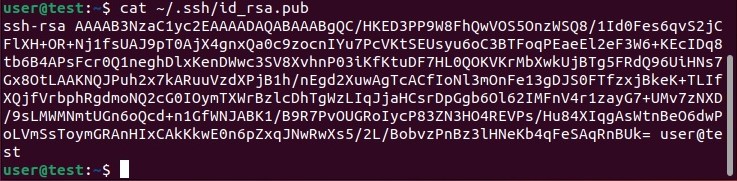
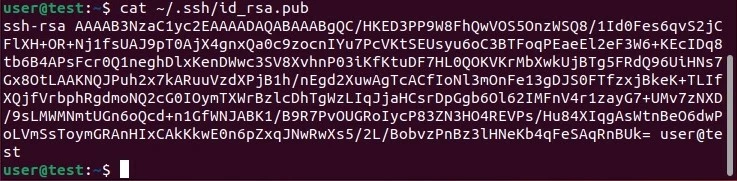
Now copy the key being displayed in the authorized_keys file in the ssh directory of the target host. If the directory is not available, use the following command:
mkdir -p ~/.sshTo add the code, you then use the following command:
echo key >> ~/.ssh/authorized_keysInstead of entering “keys”, enter the output obtained previously, beginning with “ssh-rsa” in the command.
In the last step, ensure that all groups and permissions are removed for the “ssh” directory and the “authorized_keys” file.
chmod -R go= ~/.sshAre you looking for more information about SSH and Ubuntu? These following articles in the Digital Guide could interest you:
Reviewer

Christian Heldmaier
Christian Heldmaier is an experienced online marketing and SEO specialist from Karlsruhe. He has been working as an SEO Manager at IONOS since July 2020.