

0x8000ffff | The best strategies for fixing error 0x8000ffff

Error code 0x8000ffff occurs relatively frequently in Windows systems because it can refer to errors in many different locations within the system instead of one specific error. Error 0x8000ffff is usually caused by problems with third-party programs and not by corrupted or missing Windows components. In most cases, third-party antivirus software is the cause of the “unexpected error.”
Be careful when googling Windows error messages. The first page of search results often includes untrustworthy websites offering more untrustworthy software that claims to fix the error you’re searching for. In fact, it’s not uncommon for hackers to spread their malware this way. Never install any of these programs and always fix the error using the troubleshooting tools provided by Microsoft, as described in this article.
Error 0x8000ffff occurs most frequently during these three situations:
- Software installation
- System recovery
- Windows updates
Fixing error 0x8000ffff during software installation
If error 0x8000ffff occurs when you’re installing software, an incomplete uninstall is often the cause. In this case, the software you’re installing was previously installed and there are still “remnants” of the installation in the system. To uninstall applications without a trace in Windows 10, do the following:
- Turn off third-party antivirus software or malware scanners.
- Close all other running applications.
- Uninstall the program in the Windows settings app under Apps & Features or by right-clicking the application in the Start menu.
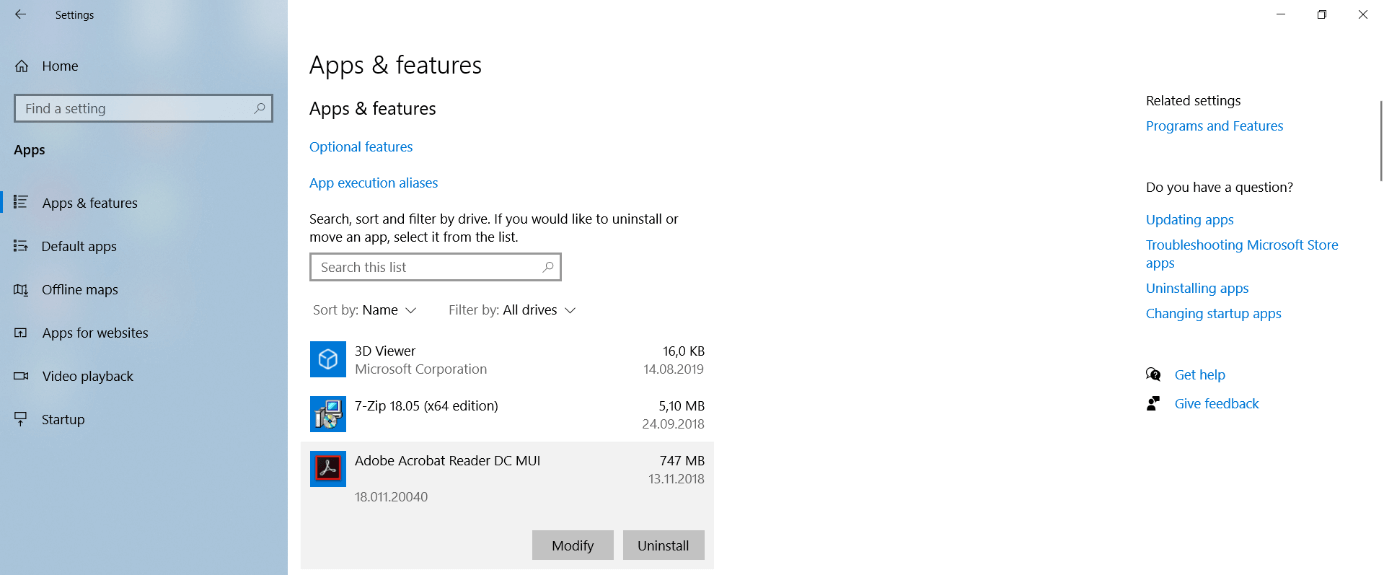
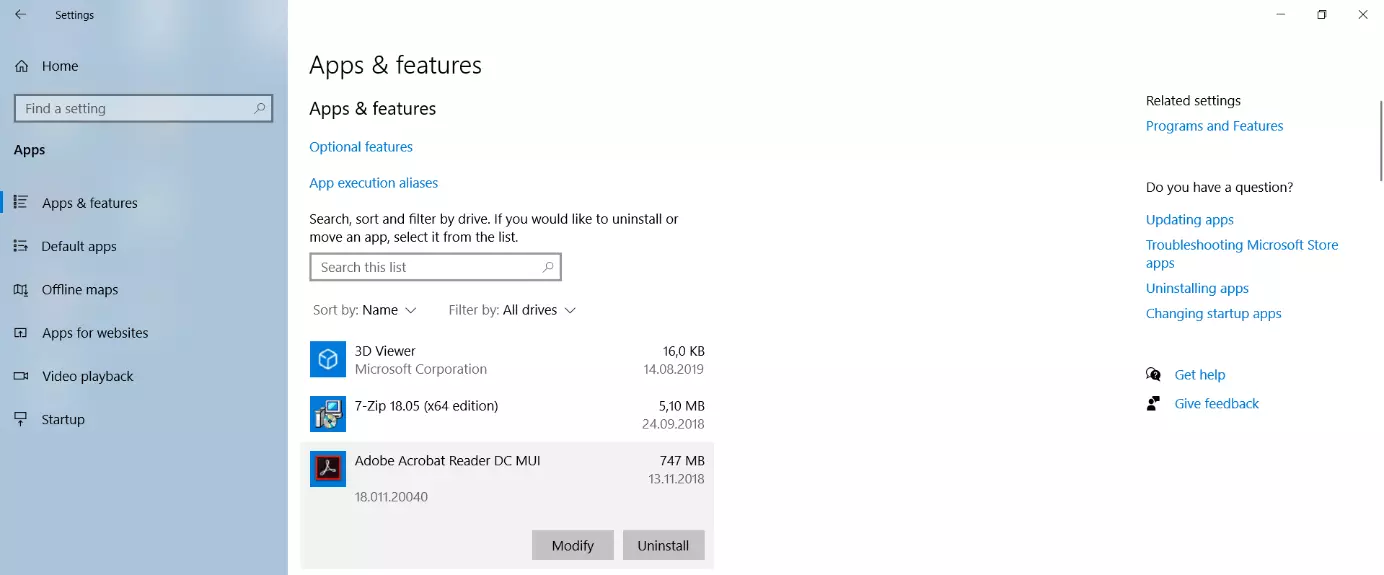
- Delete the application data and remnants of the program in the “.\Program Files,” “.\Program Files (x86),” “.\Users\\AppData\Local” and “.\Users\\AppData\Roaming” directories by deleting the folders that were created for the program.
- Use the Registry Editor to search for the registry entries of the program under “HKEY_CURRENT_USER\Software” and “HKEY_LOCAL_MACHINE\Software” and remove them.
- Empty the following temporary directories: “.\Temp,” “.\Windows\Temp” and “.\Users\\AppData\Local\Temp.”
- Restart your PC.
After restarting, turn off third-party security software again and then try to reinstall the program. This way, you can check whether the 0x8000ffff problem persists.
Fixing error 0x8000ffff during a system restore by restarting your PC
If error code 0x8000ffff occurs when you try to create a new system restore point or use a newly created point, restart your PC without startup programs and background services. To do this, proceed as follows:
- In the Start menu (Windows icon), under Windows Administrative Tools, open the System Configuration app.
- In the Services tab, select “Hide all Microsoft services.”
- Now click “Disable All” to disable all other startup services.
- Go to the Startup tab and click the “Open Task Manager” link.
- In the “Startup” tab in the Task Manager, disable all startup services.
- Restart your PC.
After restarting, turn off all third-party antivirus software and try to create or use a system restore point. Finally, enable the services and startup programs again and restart the PC.
Fixing error 0x8000ffff during a system restore using the DISM command line program
Corrupted system files are another possible cause of error 0x80000ffff. In this case, you can repair the system using the DISM command line tool and the Windows System File Checker. Both are pre-installed troubleshooting tools in Windows 10 and Windows 8. They are launched from the command line and have no graphical user interface, but work very efficiently. In Windows 7, a special Windows Automated Installation Kit (AIK) has to be downloaded and installed.
To fix the 0x8000ffff error using the command line, proceed as follows:
- Right-click the Windows logo in the taskbar to open the Start menu. Select “Command Prompt (Admin) or “Windows PowerShell (Admin).” Depending on your Windows configuration, only one of these options will be displayed.
- Type DISM/Online/Cleanup-image/Scanhealth into the command line tool and confirm by pressing the Enter key. The tool will now look for errors. This may take a few minutes. If DISM doesn’t find an error, the message “No component store corruption detected” will appear. In this case, you can skip the next step.
- If an error is displayed, type the command DISM/Online/Cleanup-image/Restorehealth and press Enter to confirm. The detected errors will now be repaired, which can take a while.
If a message appears notifying you that the Source files could not be found, you have to restore them from a Windows installation DVD or an ISO file.
If you don’t have the original Microsoft DVD, you can download and generate an ISO file using the Windows Media Creation Tool.
To restore the source files for the repair from the DVD or ISO file, type the drive path for the Windows installation image in the DISM command tool:
DISM/Online/Cleanup-Image/RestoreHealth/Source:wim:X:\sources\install.wim:1/LimitAccessReplace the drive letter “X:” with the drive letter of your DVD drive or the ISO file.
After DISM successfully completes the repair, start the System File Checker in the same Command Prompt window:
sfc /scannowUsing the troubleshooter to fix error 0x8000ffff during a Windows update
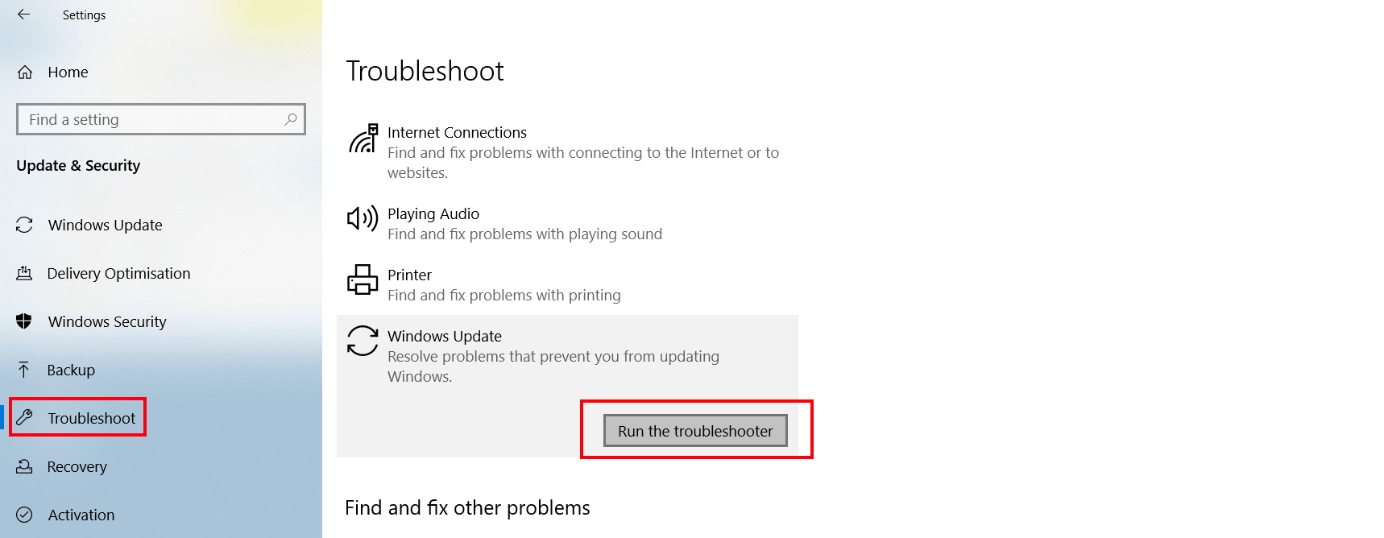
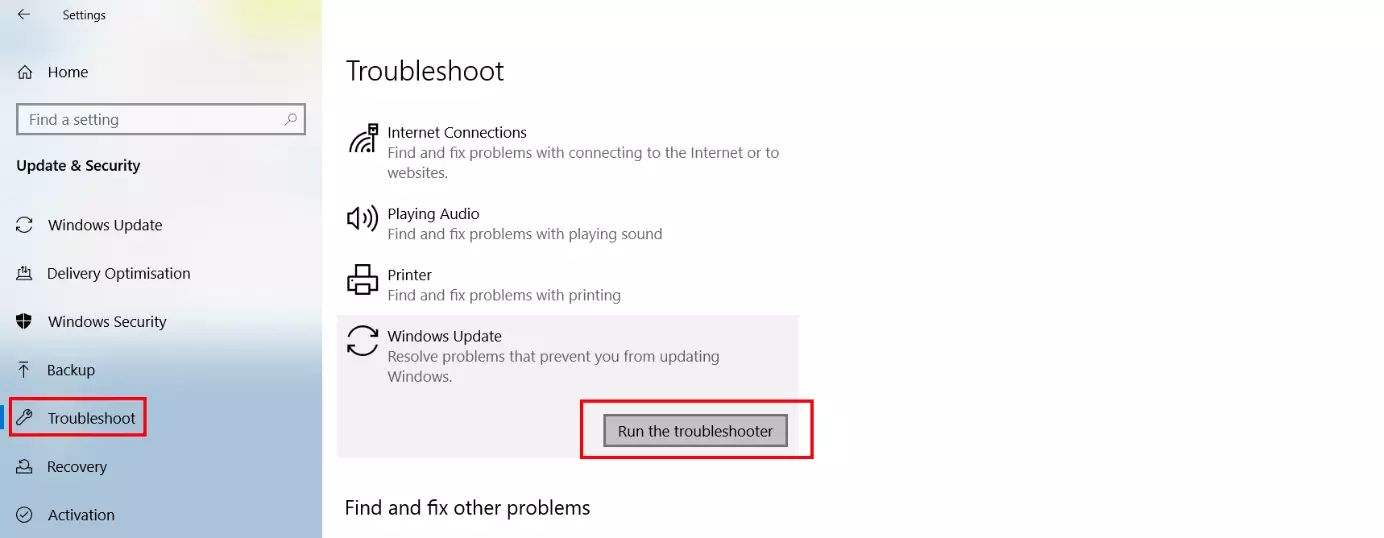
In the Windows 10 settings app via Update & Security Troubleshoot, you’ll find a tool called the “Troubleshooter” which automatically fixes most errors in the Windows Update system. If you see error code 0x8000ffff when you perform the standard update, this tool is a quick and easy way to resolve the problem.
You can open the Windows settings by choosing the Settings icon in the Start menu or by pressing the Windows key + i.
When you start the troubleshooter by clicking “Run the troubleshooter,” you just need to sit back and wait. The system application runs automatically and requires no further action on your part. When it finishes, a message appears notifying you whether the problem could be fixed.
Fixing error 0x8000ffff using the Reset Windows Update Agent Script
Over time, Microsoft has collected various tools, registry hacks, and command line tips for troubleshooting update errors in a Windows support database and grouped them together in a clear script. These tools will help you even if basic troubleshooting for the Windows update in the Settings app fails.
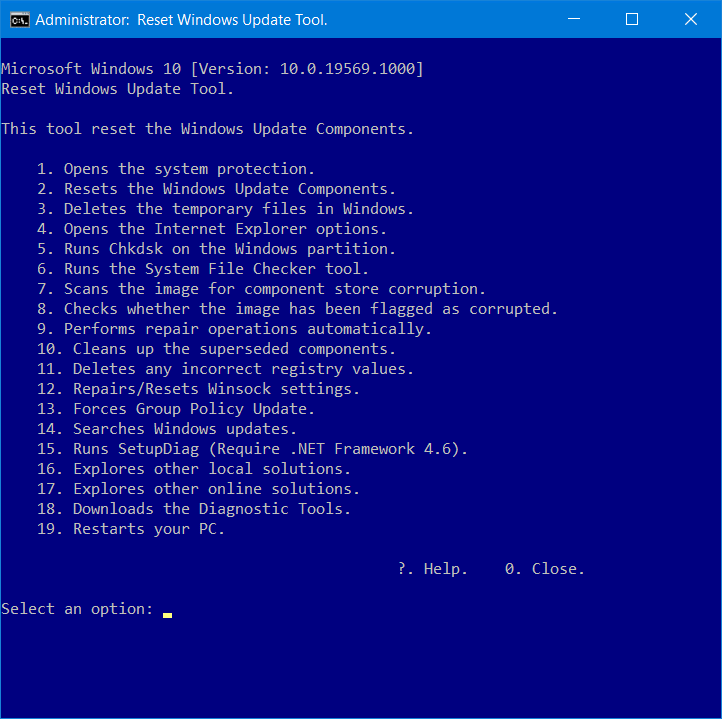
In a clearly organized text-based menu, you’ll find tools for resetting update components, deleting temporary files, cleaning up the registry, and checking protected system files. The Reset Windows Update Agent Script downloads and runs the latest versions of suitable tools. To use it, simply unzip the downloaded ZIP file in a folder on your hard drive and right-click the file to run the ResetWUEng.cmd script file as an administrator.
Always turn off all anti-malware software (except Windows Defender) because third-party security software often blocks access to critical system components and the scripts can mistake the unexpected reactions of the antivirus software for actual errors in the update system.
You run the individual components of the suite by entering numbers. To resolve the 0x8000ffff error, run components 1 through 11 one at a time. In most cases, the error will not reappear after that.
 Mikhail Mishuninshutterstock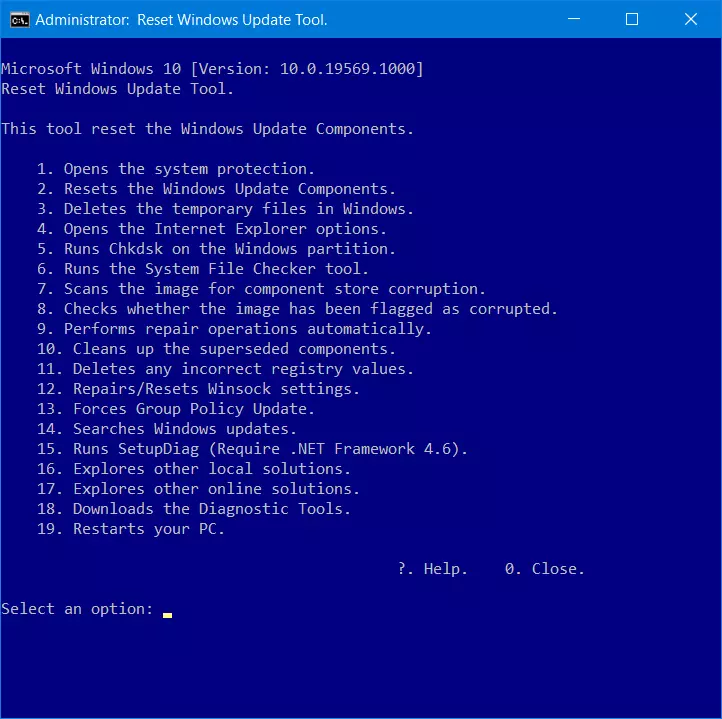
Fixing the 0x8000ffff error during a Windows update using the DISM command line program
You can also use the DISM and SFC command line tools to fix error code 0x8000ffff when you perform a Windows update.
Once the error has been fixed, it doesn’t mean that an unexpected error with the same error code cannot occur elsewhere in the system. If you keep encountering this type of error, you should uninstall your third-party security software and use only the Windows Defender or an equivalent alternative.
Reviewer

Christian Heldmaier
Christian Heldmaier is an experienced online marketing and SEO specialist from Karlsruhe. He has been working as an SEO Manager at IONOS since July 2020.