

How to use FileZilla

FileZilla is a free client software that allows its users to connect a local PC with an online server in order to exchange data. Uploads and downloads are carried out via the network protocol FTP (file transfer protocol), SFTP (SSH file transfer protocol), or FTPS (FTP over SSL/TLS). The program is licensed under GPL (GNU General Public License) and is available for download for Windows, Mac OS X, and Linux on the file hosting platform, SourceForge. Download links to the current version are found on FileZilla’s website. In this tutorial, we’ll show you how to use FileZilla and give you an overview of its functions–from installation to data transfer.
Do you want to save or transfer data? Then rent a secure FTP hosting from IONOS. Secure transfers via SSH and SSL/TLS, as well as daily back-ups are included.
Installing the client software
FileZilla’s installation can vary greatly depending on which software is supporting it. Essentially, all that needs to be done is for the desired software packet to be downloaded from the internet and then started up on a locally connected computer.
-
Windows: to install FileZilla for Windows, login with admin rights, run the installation file with the ending, .exe, and follow the set-up instructions
-
Mac OS: installing FileZilla on a Mac requires OS-X version 10.7 or higher. The software is easily installed by double clicking on the unzipped software package
-
GNU/Linux: for an easy installation of GNU/Linux, use your distributor’s package manager
User interfaces with window layouts
FileZilla presents the following interface in order to exchange files between your locally connected computer and a server.
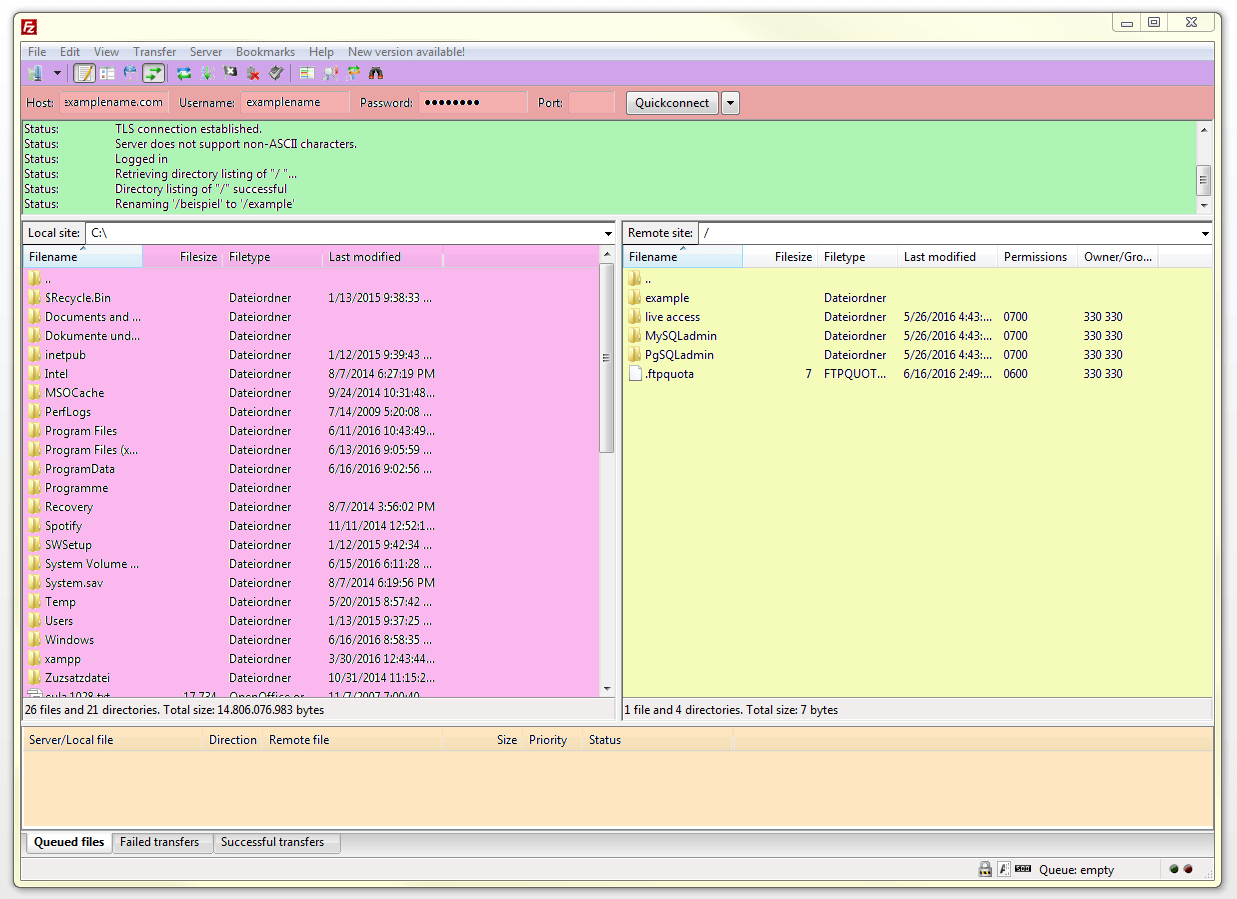
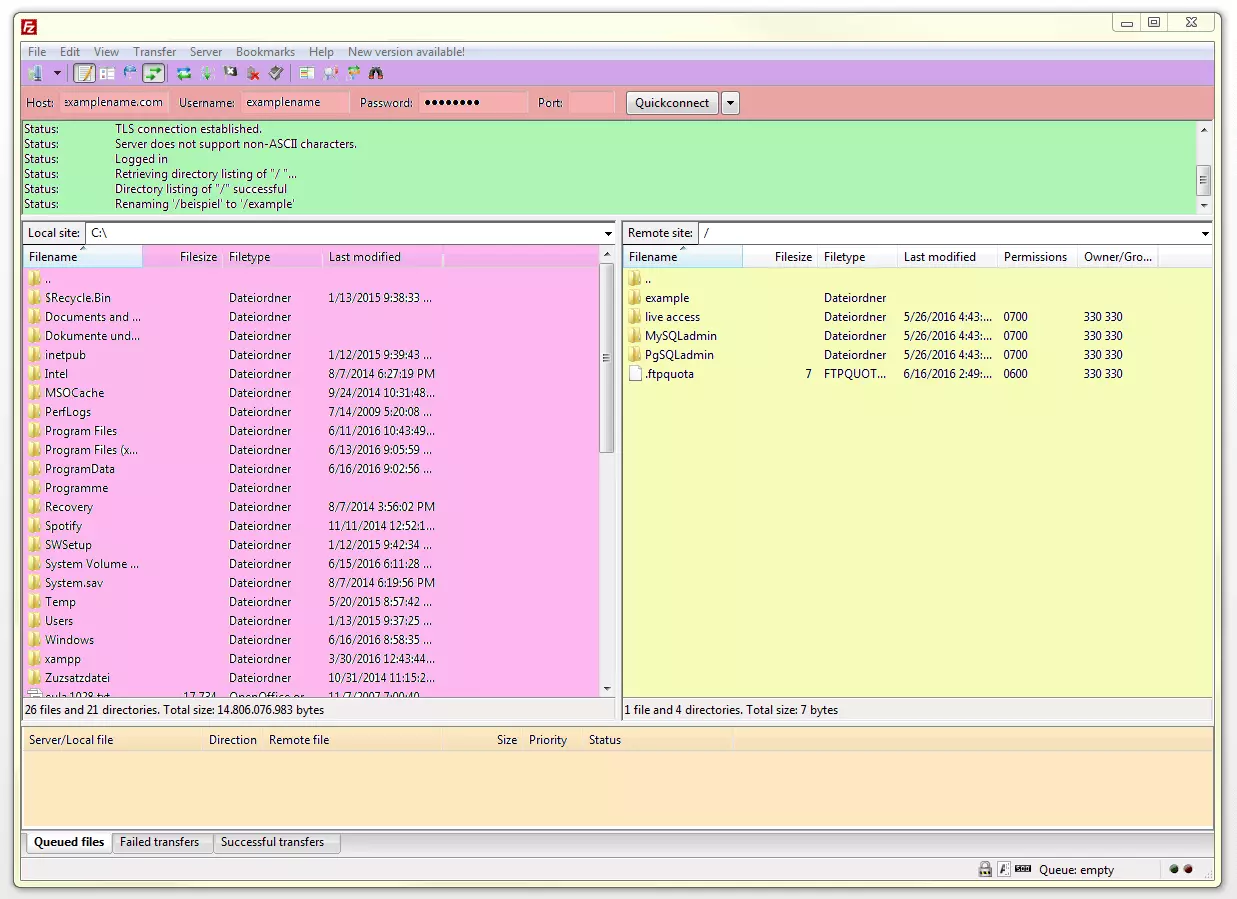
The client software’s user interface is divided into 6 areas, which have been marked with different colors for clarity.
-
Toolbar (purple): provides varying functions
-
QuickConnect bar (red): this section is for the connection to the server
-
Message protocol (green): displays messages about transfers and the connection
-
Local directory (pink): shows files and directories on the locally connected PC
-
Server directory (yellow): shows files and directories on the server
-
Transfer queue (orange): lists files that are to be transferred as well as files that have already been transferred
Setting up a FileZilla server connection
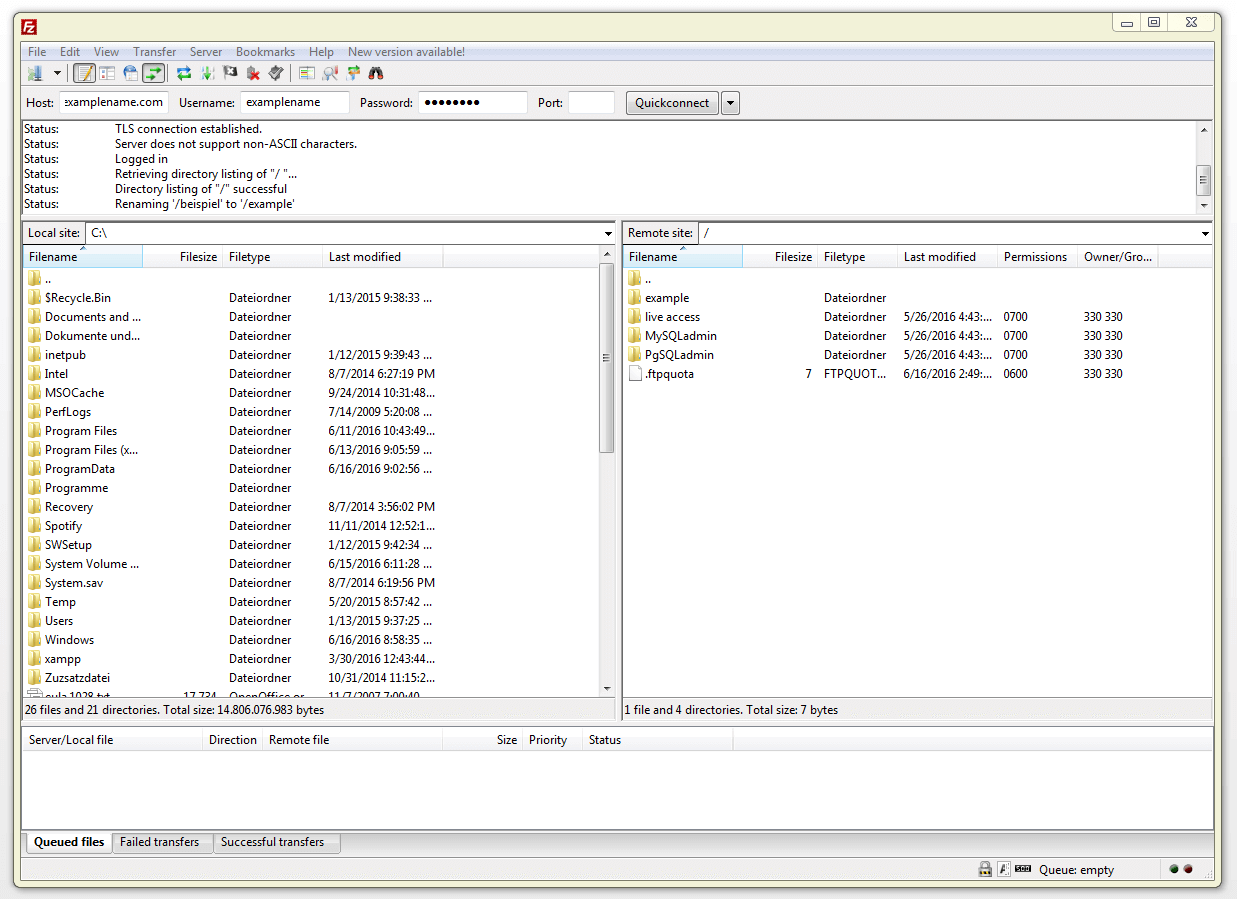
Establishing a server connection is easy with the help of the Quickconnect function located under the menu bar.


Enter the appropriate login data in the corresponding boxes located in the Quickconnect bar. This consists of a server name, user name, and a password. The server name (host) refers to the domain under which the computer is available over the internet. The IP address can also be used as an alternative at this point.


Leave the ‘port’ box empty if there is no specific login data for this parameter. For those wishing to set up a secure connection via FTPS or SFTP for the data transfer, add the following network protocols to beginning of the server name: sftp://examplename.com ftps://examplename.com Server names without such prefixes result in unencrypted FTP connections. The connection set-up’s status is displayed in the message protocol located below the Quickconnect bar:


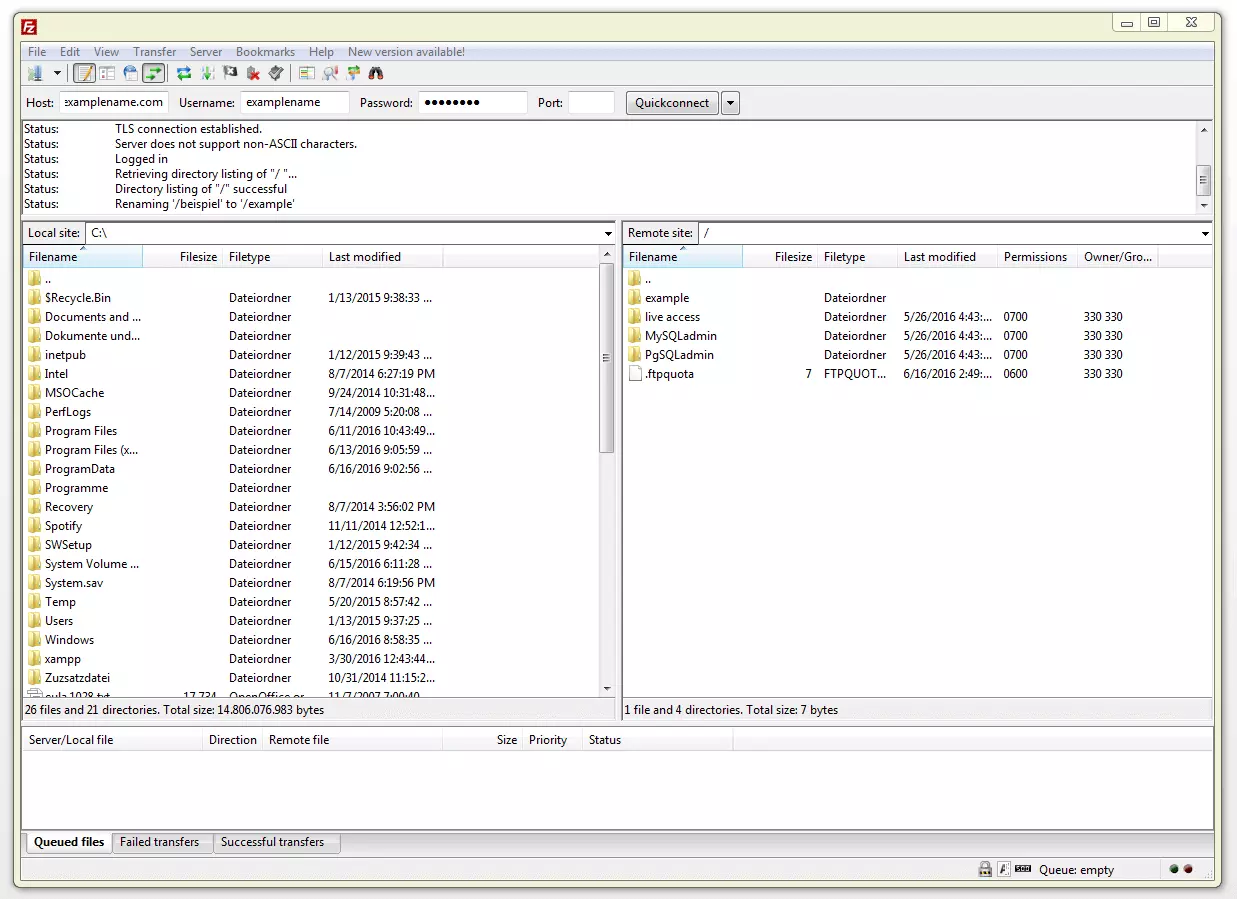
Once a connection is established, the user interface then displays two directory trees: the local directory (left) and your server’s directory (right).
Connection set-up via FileZilla site manager
Alternatively, you can set up a connection via the program’s site manager. Select the first button on the tool bar, ‘site manager…’.
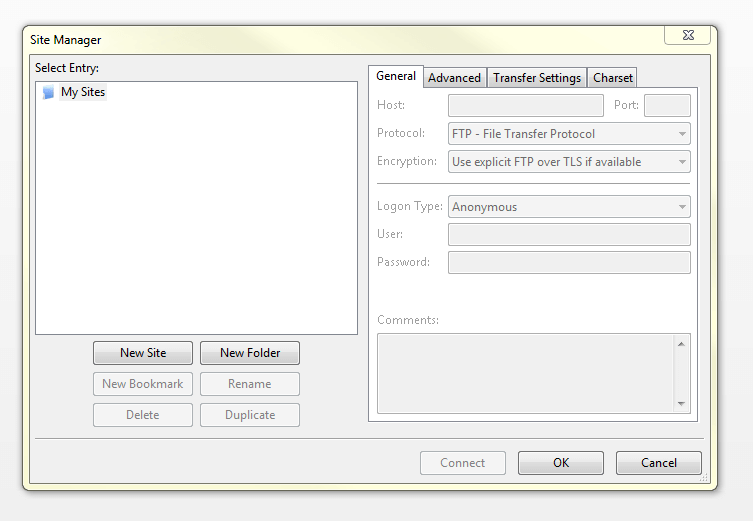
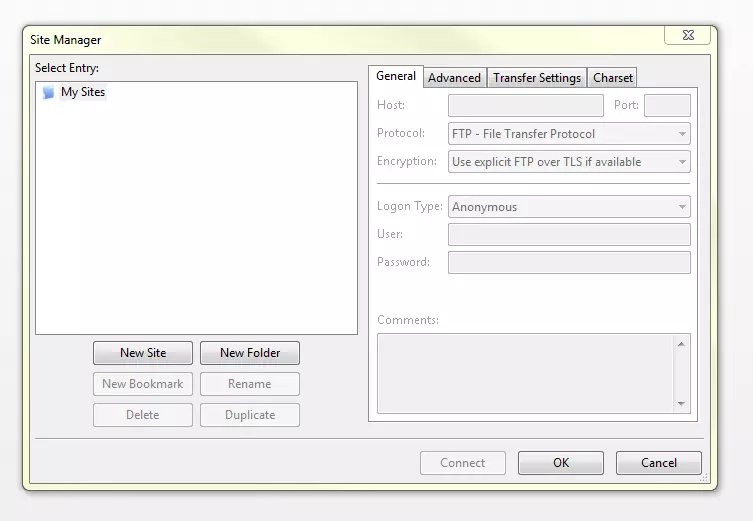
The server manager then opens its own dialog box where you can then add new servers. Name the entry for the server set-up and confirm this with the enter button. Now enter your server’s login data in the corresponding tab, ‘General’. Select the connection type, ‘Normal’, and close the dialog box by clicking ‘Connect’. FileZilla then establishes a connection to your server.
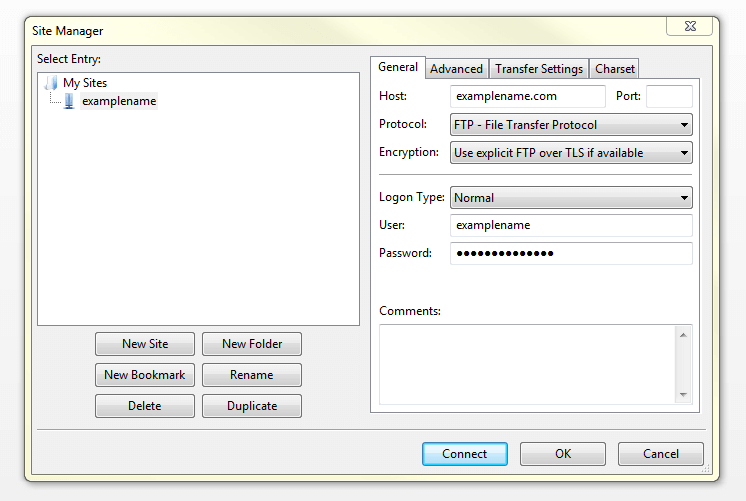
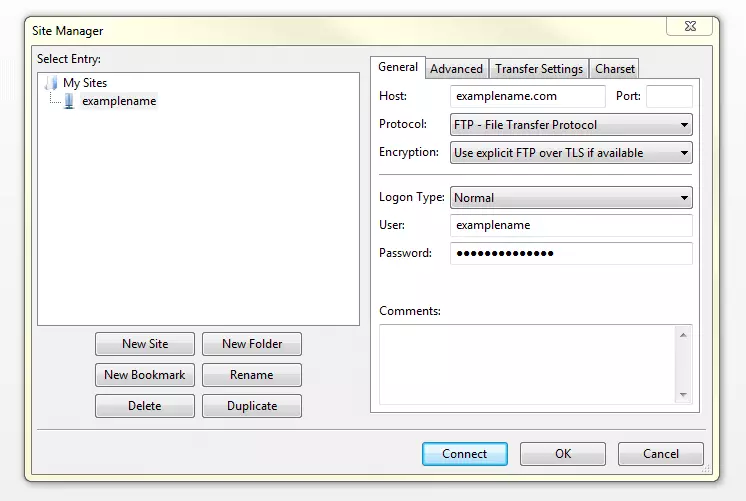
In order to make the setup of such connections easier in the future, FileZilla offers users the possibility to save login data, including passwords, into the site manager. But this can be a risk as connection data is stored on locally connected computers in plain text. Unfortunately, there’s no function available for storing this information in an encrypted form.
Transferring data
In order to transfer data from your locally connected computer to the server, select the file or directory (located in the local directory tree) you wish to send and move it via drag and drop into the target directory located on the server. As soon as you’ve determined its destination, the file then appears in the transfer queue. Transferring files or directories from the server onto the local computer follows this pattern as well. In addition to the drag and drop feature, you can also upload and download items through a context menu, which appears with a right click. This function also allows you to manage (i.e. create or delete) files and directories on the server. Should any of your actions when uploading and downloading lead to a file being overwritten, then FileZilla automatically opens a dialog window where you’re able to make decisions regarding the file in question. Here, you can choose to allow the file to be overwritten, skipped, or have its name changed.
Comparing directories
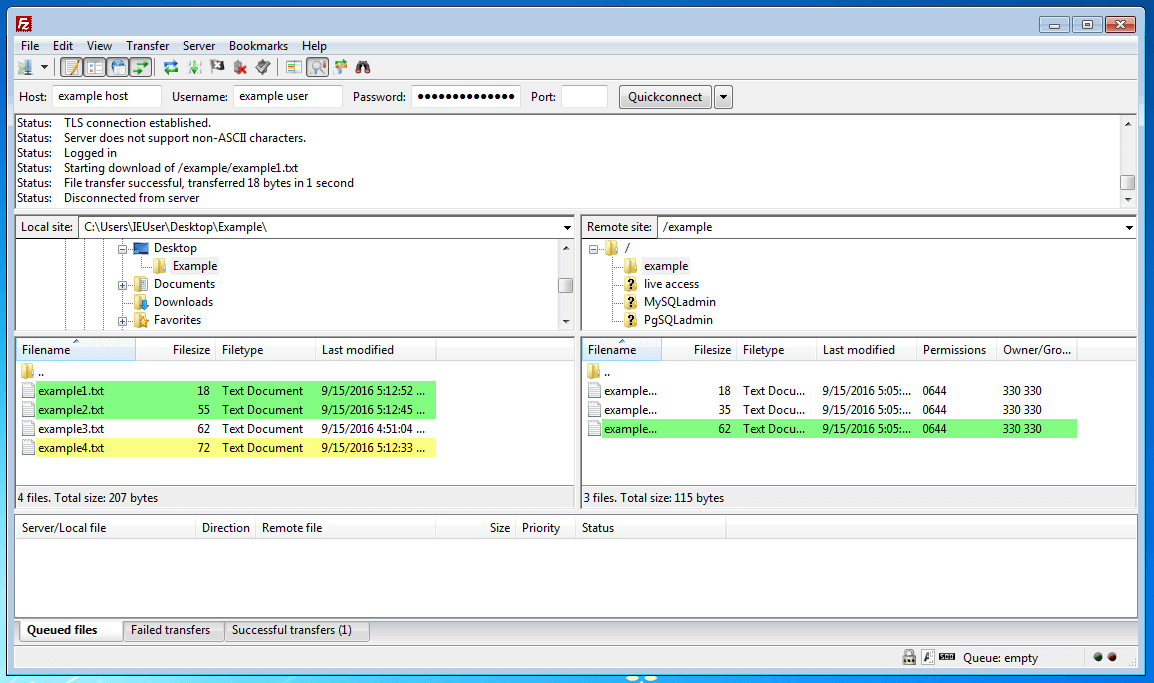
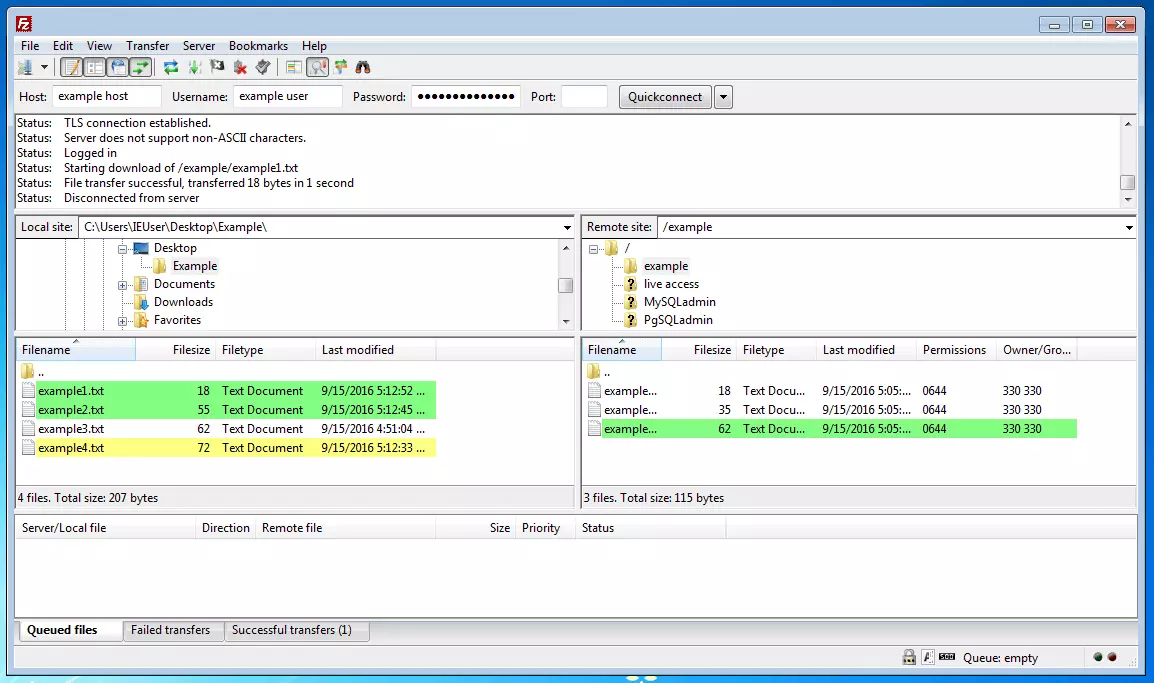
FileZilla has provided a function for comparing directories so that you’re able to keep an overview of the data being exchanged between your locally connected computer and the online server. Use the ‘Directory comparisons’ option in the toolbar to manage this task. Once the directory comparison has been activated, FileZilla then highlights the file differences in various colors, all of which are associated with different situations. The color coded statuses are broken down as follows:
-
Files with no highlighting: the file on the locally connected computer and on the server are identical
-
Yellow highlighted file: files are located either on the locally connected computer or on the server, but not on both.
-
Green highlighted files: files are located on the locally connected computer, but vary from one another in terms of their alteration dates
-
Red highlighted files: files are located on the locally connected computer and server, but vary from one another in terms of their file sizes
Author

Vladimir Simovic
Vladimir Simović has been building web projects with WordPress since 2004. He was one of the first German-speaking WordPress bloggers and has published several specialized books as well as over 60 expert articles, and has managed well over a hundred WordPress projects.
Reviewers

Sven Ignor
Sven Ignor is a TYPO3 web developer with over 15 years of experience and specialises in bespoke solutions based on TYPO3. He is happy to share his knowledge and is committed to TYPO3 and the community

Christian Heldmaier
Christian Heldmaier is an experienced online marketing and SEO specialist from Karlsruhe. He has been working as an SEO Manager at IONOS since July 2020.