

How do you set up Google Search Console (GSC)?

Google Search Console (GSC) is an essential tool for anyone who runs a website. After a one-time setup, it is available free of charge and supports both beginners and experienced webmasters in optimizing their websites effectively.
What exactly is Google Search Console?
Google Search Console, often referred to simply as Search Console or GSC, is a free, web-based analytics service provided by Google. Website and app owners can register to access a wide range of practical features and performance data. Among other things, the tool helps identify issues such as duplicate content, Googlebot crawling errors, and weaknesses in mobile usability. In addition, Google Search Console supports sitemap validation, checks for structured data, and offers detailed insights into the performance of your most important keywords.
Google contacts the responsible parties who have set up Google Search Console for their websites or apps as soon as issues are detected. This communication usually takes place via email first. In the case of more serious problems, direct contact with the support team by phone may also be possible.
How to set up Google Search Console
To use the Google tool, you need to register your website (or app) with the corresponding URL in the Search Console. The requirements for use are as follows:
- a valid Google account
- verification of the web project by the website owner or an authorized representative
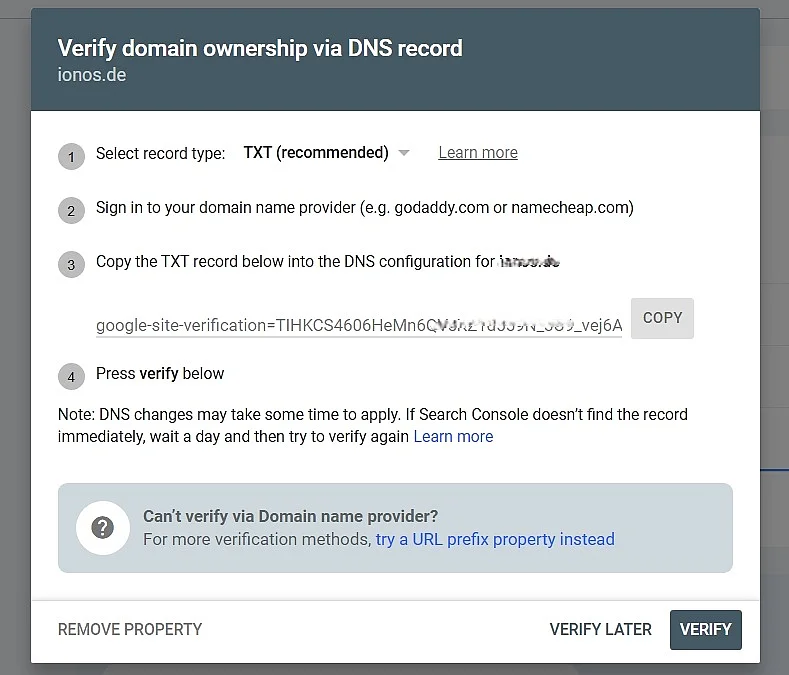
After signing in with your Google account and submitting the URL of your website or the desired subdomain, you must verify ownership of the domain. This is done by adding a TXT record to the DNS settings of your domain provider. Google explains the required steps for this process in the following dialog window:
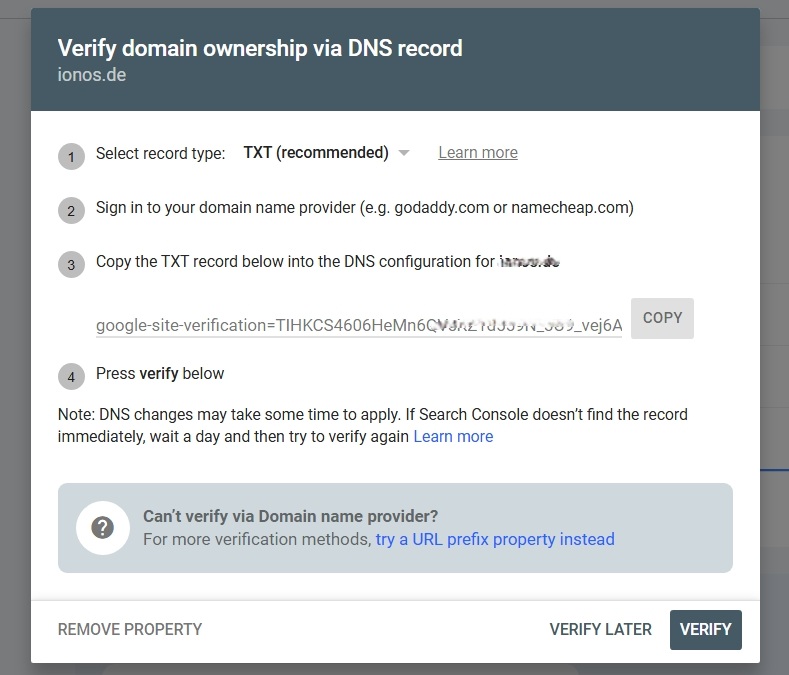
Unlike many other SEO tools, Google Search Console data is not public. Access is limited to verified site owners. Once ownership is confirmed, you’ll see a success message. Click “Go to property” to open the Search Console dashboard. At first, however, you won’t see any data because Google needs time to process it. Depending on how complex and extensive the web property is, this process can take several days.
The most important features of Google Search Console
Google Search Console offers many features for managing and monitoring website metrics and provides valuable guidance for optimizing a site. Webmasters get a summary of the most important insights right in the dashboard (“Overview”), which opens by default when you start GSC and clearly presents the key stats and updates.
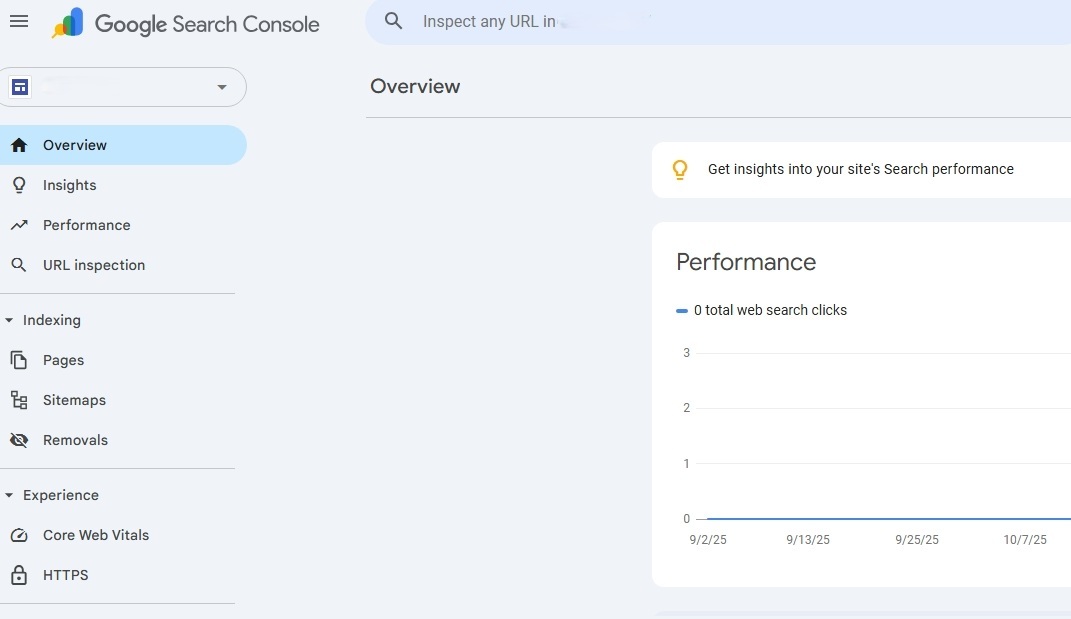
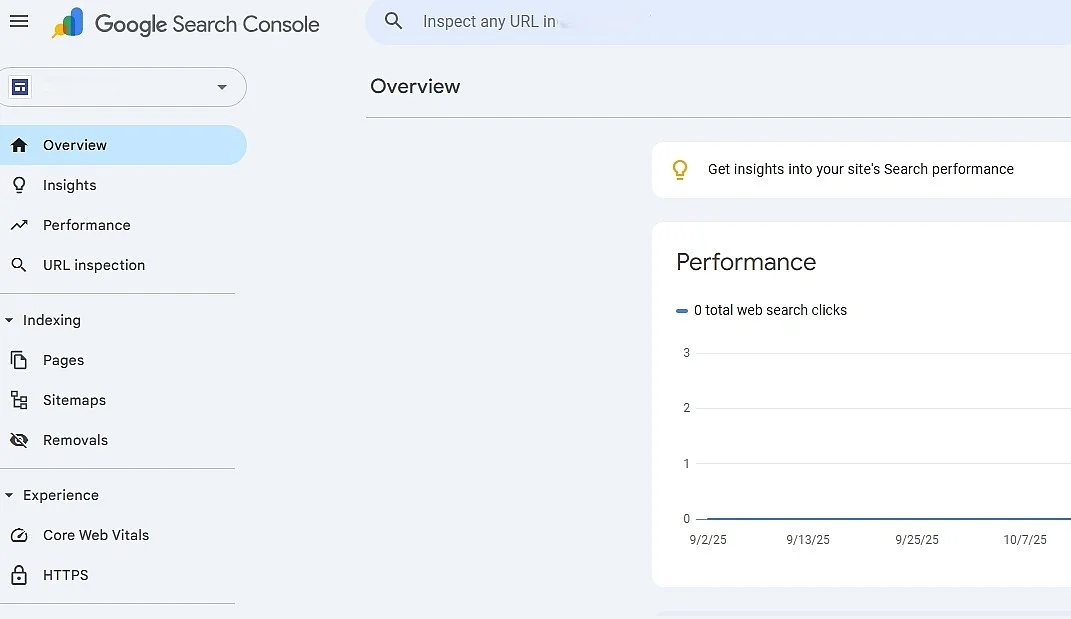
The various tools included in GSC can be accessed via the left-hand menu of the web analytics suite. They are grouped into the following categories, which are explained in more detail in the sections below:
- Insights
- Performance
- URL Inspection
- Indexing
- User Experience
- Security & Manual Actions
- Links
- Achievements
- Settings
Insights
Under the “Insights” category, Google Search Console provides various clear, visual stats on the performance of the registered web project. The reporting period can be set to different time intervals.
Performance
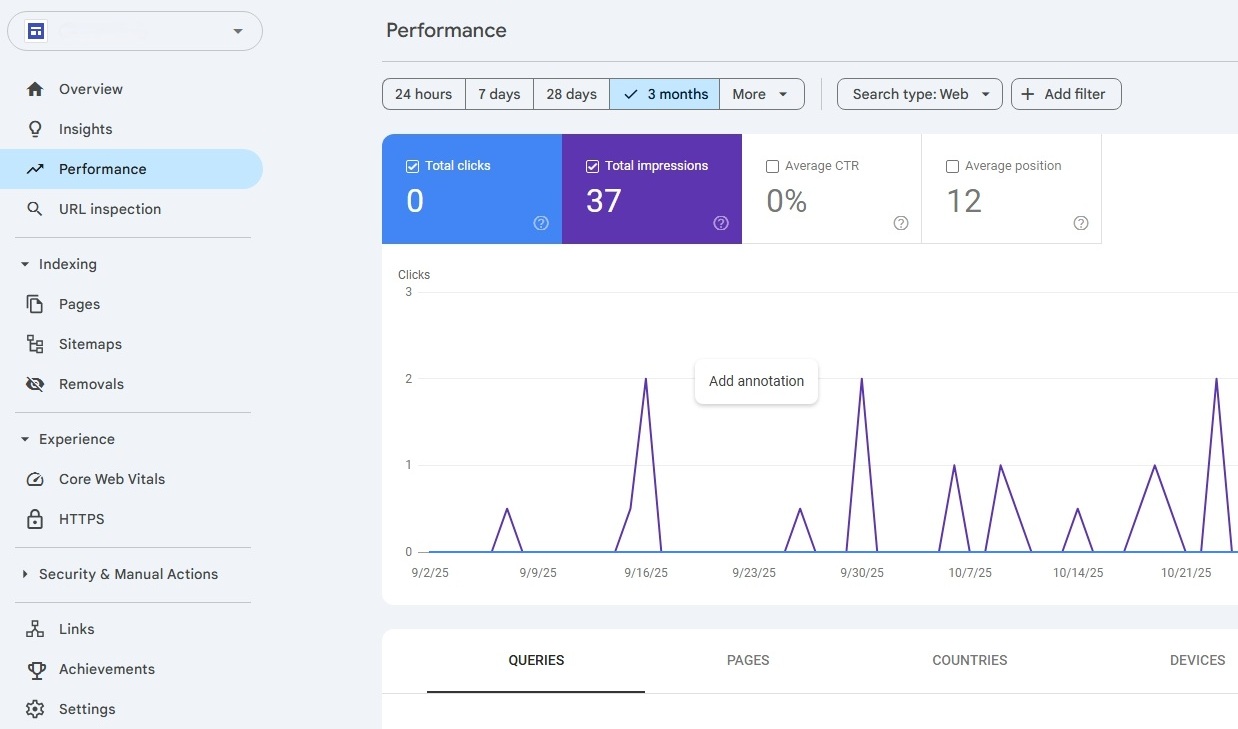
In the “Performance” section, Google Search Console lists the key performance metrics and user signals for the analyzed domain:
- the total number of impressions
- the total number of clicks
- the click-through rate
- the average position of pages in Google rankings
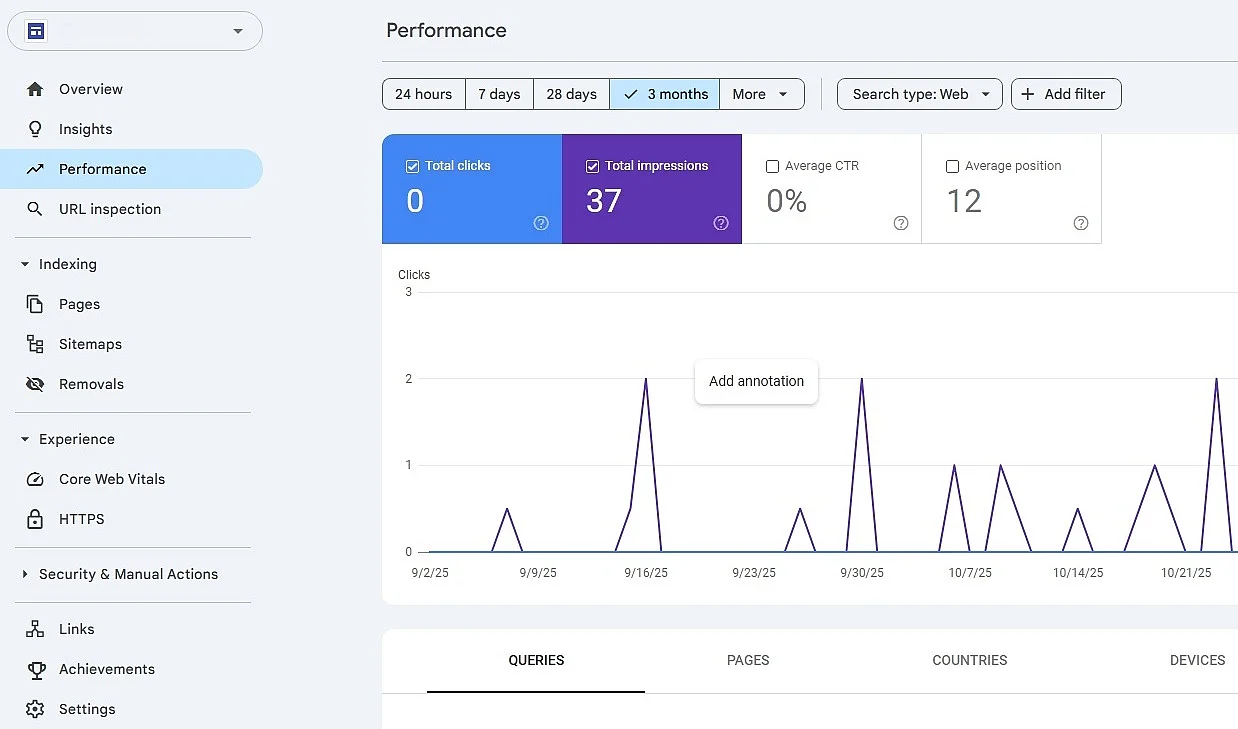
The four dimensions can be selected with a check mark and displayed visually in a chart. You can also right-click to add custom annotations to the chart. Using the menu at the top of the page, you can adjust and compare the time range, search type (Web, Image, Video, News), and other filters (query, page, country, device) for the key performance data. With the “Export” command in the upper-right corner of the page, you can export the displayed data to Google Sheets or download it as an Excel or CSV file.
In addition, this section provides detailed information on the context behind page views and impressions: you can see which search queries were used, which URLs account for the largest share of traffic, which countries visitors come from, which devices (desktop, mobile) they use to access the site, and what the appearance in search results looked like.
URL Inspection
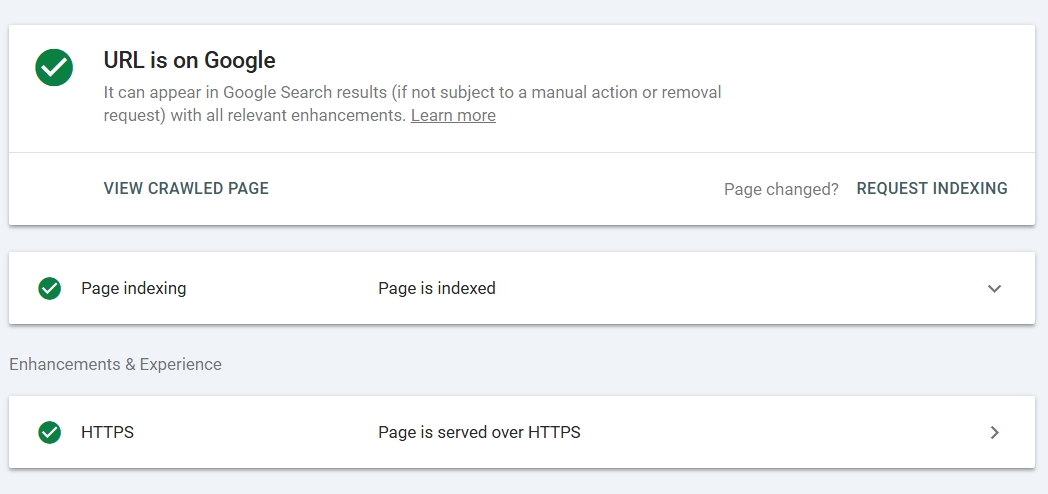
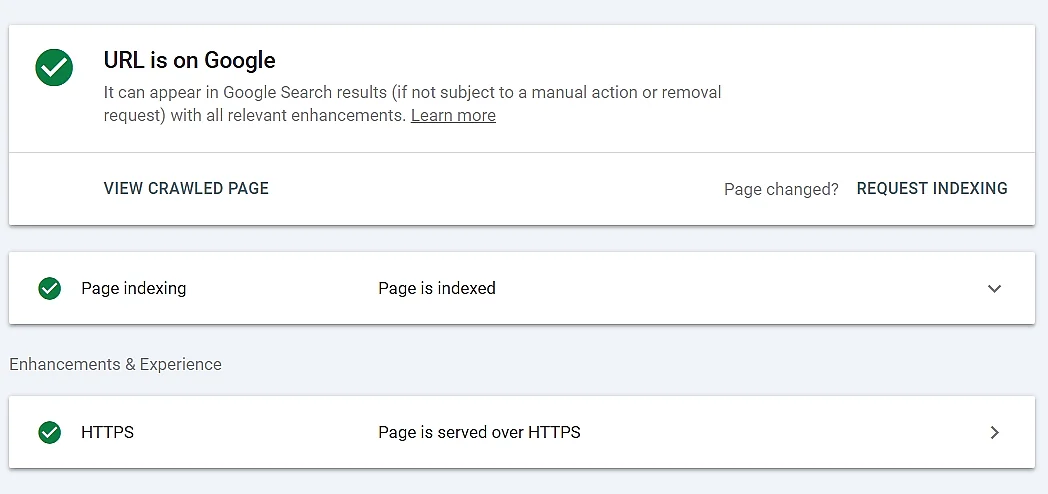
URL Inspection is a small but powerful tool that you can access from the left-side menu or directly via the search field in the top menu bar of Google Search Console. This lets you check the indexing status of any URL that belongs to the verified domain. If a page is not yet in the Google index, you can request indexing from the same place. This feature also provides tips for improving the page, for example in terms of user experience.
Indexing
The GSC category “Indexing” consists of three sub-items: “Pages,” “Sitemaps,” and “Removals.”
Under “Pages,” you’ll find all information about page indexing for the entire web project. Search Console lists all pages that are indexed as well as all pages that are excluded from indexing. For the latter, the tool also provides numbers on the reasons they weren’t included. You can review the specific reasons in the table below and filter them by various factors. Reasons for non-indexed pages include, among others, the following:
- excluded by
noindextag - alternate page with the correct canonical tag
- page with a redirect
- crawled, but currently not indexed
- found, but currently not indexed
- blocked by robots.txt file
- crawling anomaly
- 404 error
- duplicate
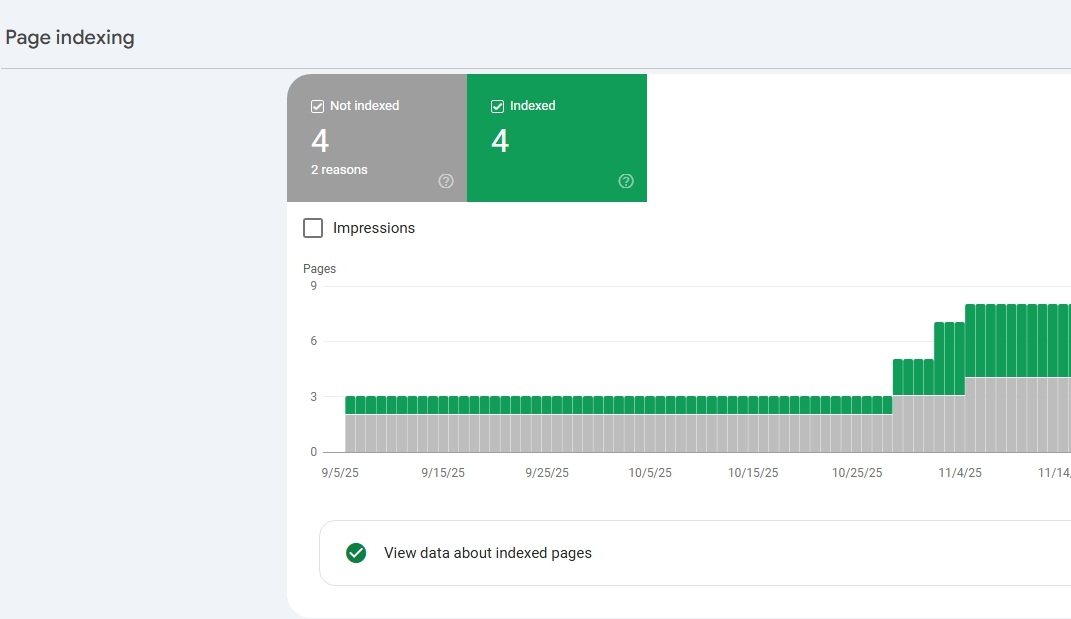
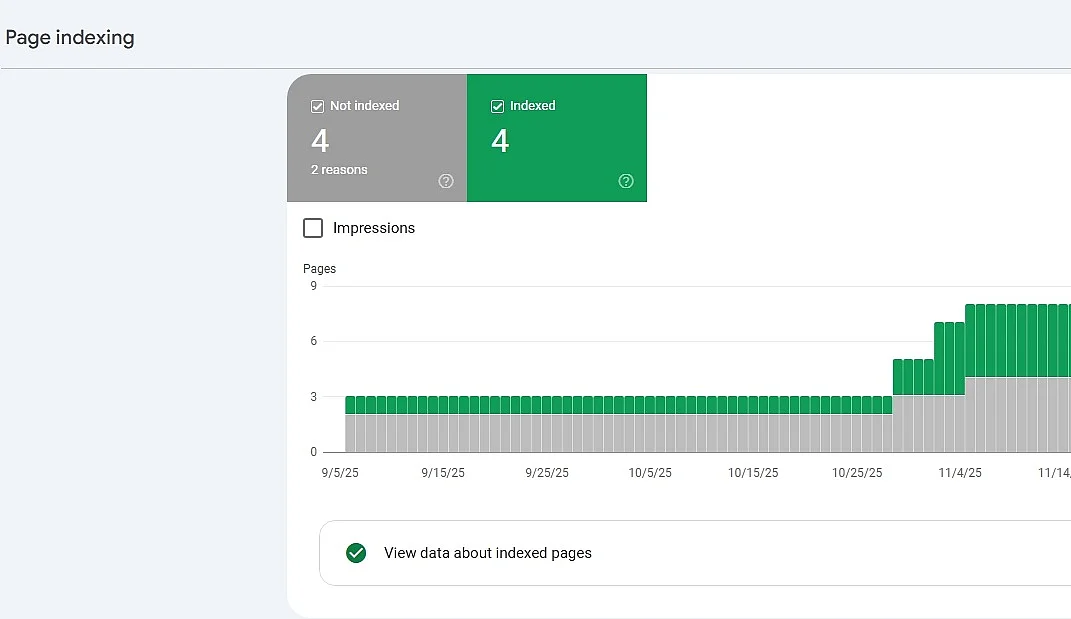
For web projects with shopping and product data, this section is especially important, since product detail pages and category pages are also included. With this feature in Google Search Console, you can see whether product-related pages are being indexed correctly by Google, whether structured product data can be crawled, and whether certain shopping URLs are excluded due to technical issues.
The second subcategory “Sitemaps” lets you submit your web project’s sitemaps and view sitemaps that have been submitted and recorded by Google. Here, you get an overview of your submission history and receive related error messages from Google.
In the third subcategory “Removals” in the Google Search Console, you can submit your own removal requests and get an overview of all submitted removal requests. Using the “New request” field opens a menu where you can temporarily remove URLs or clear snippets. You can also view requests related to your web project that were submitted due to outdated or explicit content.
If you have placed videos on your website and Google detects them, another subitem appears under the “Indexing” menu, which is “Video indexing.” This lists all videos that have been indexed by Google as well as those that have had indexing issues. The issues that occur are compiled in a table.
User-friendliness
In the “User-friendliness” menu item, webmasters will find two subcategories. In the Core Web Vitals section, you’ll find reports on website performance based on real usage data. The “Page Experience” reports incorporate factors such as Largest Contentful Paint (LCP), visual stability (CLS), and your website’s responsiveness (INP). Under the “HTTPS” menu item, it lists which URLs on your website use the secure, encrypted transport protocol Hypertext Transfer Protocol Secure (HTTPS) and which do not.
Both the HTTPS report and the Core Web Vitals help improve the security and user experience of your site.
Security and manual actions
Google defines clear guidelines known as Google Search Essentials that outline what’s required for fair and compliant visibility in search results. Attempts to manipulate the search index can lead to penalties, ranging from ranking drops to complete removal from Google’s search results.
The “Security & Manual Actions” menu item is divided into two subcategories. Under “Manual Actions,” you can see whether your project is affected by a penalty. The “Security issues” subitem also provides information about how secure the web application is. If Google identifies security vulnerabilities, they are shown here—whether it’s spam, malware, or unusual downloads.
Links
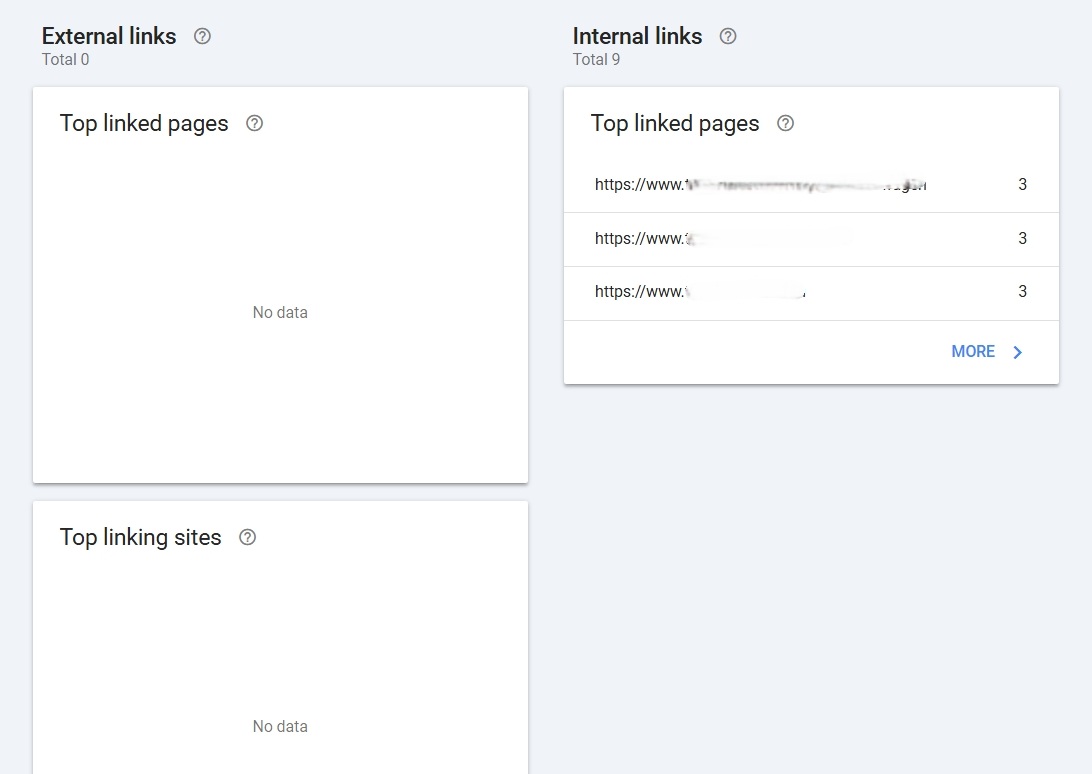
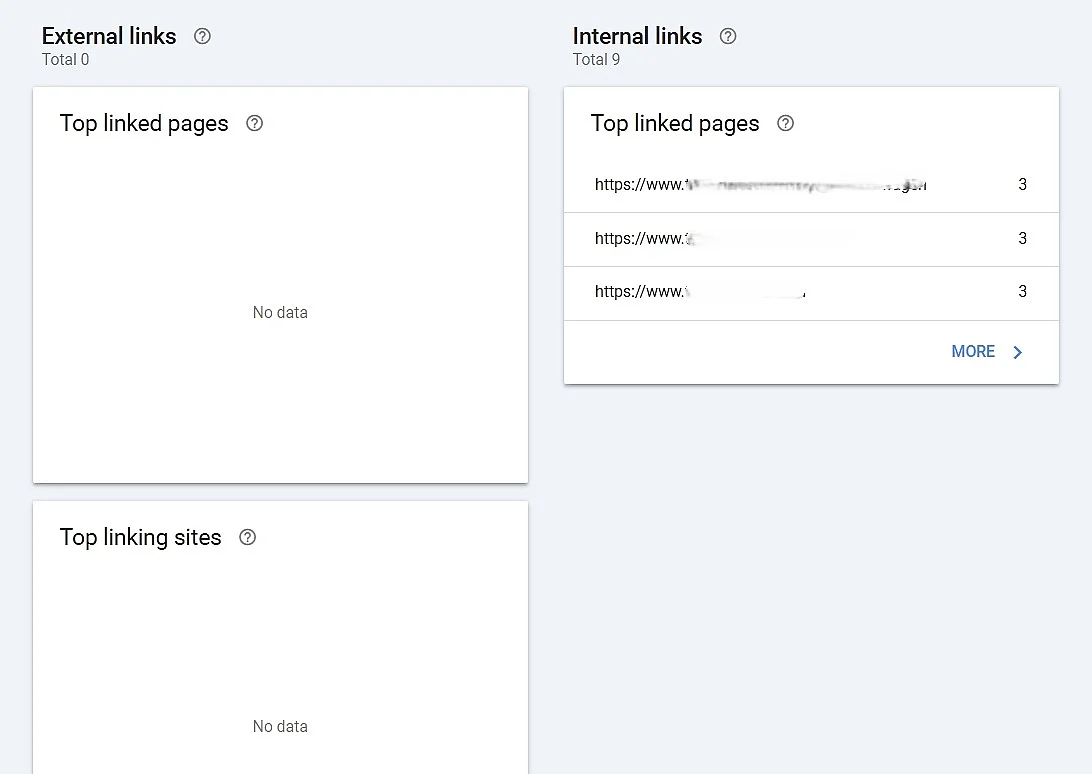
Internal and external links are among the most important building blocks of a successful web presence. Well-placed links provide value to visitors and also have a positive impact on how Google evaluates a website. That’s why the “Links” category in Google Search Console is especially important. Here, you get detailed data on all existing inbound and outbound links. You can also download this information using the “Export” command at the top right of the page.
Successes
This feature in Google Search Console tracks your website’s growth and individual achievements. Achievements are measured by the number of clicks reached and are presented in two sections, which are “In progress” and “Achieved.” When an “In progress” achievement is completed, Google sends you a congratulations email and moves the milestone to the “Achieved” section.
Achievements aren’t visible in all GSC properties. The feature was introduced experimentally in 2023/2024, but it isn’t available everywhere and may sometimes not be displayed.
Settings
In the “Settings” menu item, you can, among other things, add additional site owners, enter address changes, and access crawling statistics.

What are the SEO benefits of GSC?
With Google Search Console, you get a comprehensive overview of a website’s technical health. Whether it’s the number of clicks and impressions, indexing status, or link profile, Google provides valuable insights that you’d otherwise often have to get from paid third-party tools—and it’s completely free. Search Console is therefore one of the standard tools for search engine optimization and provides valuable information for both beginners and pros.
What’s the difference between GSC and Google Analytics?
While Google Analytics shows how users behave on a website—what they click and how long they stay on different pages—Google Search Console shows how the search engine evaluates the website from a technical perspective. Google Search Console therefore helps you better understand how the Google crawler indexes a page and how its position in the search results is determined.
How can you connect Google Search Console with Google Analytics?
Linking Google Analytics and Google Search Console has the advantage of letting you view technical performance data directly in context with user behavior on your website. This way, you can see not only which search queries bring visitors to your site, but also how they behave once they arrive. When you review technical data together with usage behavior, optimization opportunities become apparent faster, and you gain a clearer understanding of how your content performs in Google Search.
To link both services, proceed as follows:
- Make sure you’re listed in GSC as a verified owner and have at least Edit permissions in Google Analytics.
- Then, in Google Analytics (GA4), open the “Admin” section.
- Select “Product Links” and then “Search Console Links”.
- Select the desired property, link the appropriate web data stream, and complete the connection.
- Improve your Google ranking without paying an agency
- Reply to reviews and generate social media posts faster
- No SEO or online marketing skills needed
Reviewer

Melissa Senn
Melissa Senn has been with IONOS since 2016 and focuses on the areas of websites, e-commerce, social media, and AI in the Digital Guide. As a digital strategist, she draws on her extensive SEO and GEO experience to translate complex technological trends into practical content.