

How to make a PowerPoint into a video – step-by-step instructions

Creating a PowerPoint video – i.e. converting a finished PowerPoint presentation into a video – is a relatively simple matter since doing so basically only means clicking on “File” in the PowerPoint menu bar and then on “Export”. This allows you to save the PowerPoint presentation as a video on your computer. In this step-by-step guide, we will explain how to proceed in detail and what needs to be considered. We will also briefly discuss how to add audio or video comments to your PowerPoint presentation for a more effective video.
- Store, share, and edit data easily
- Backed up and highly secure
- Sync with all devices
Why save a PowerPoint as video?
PowerPoint is not only ideal for live presentations in front of an audience. The program also makes it easy and straightforward to record video presentations or create explanatory videos. This makes sense, for example, if you do not have the opportunity to give a presentation in front of an audience.
PowerPoint presentations that have been saved as videos can be shared in a variety of ways on the internet. This allows you to upload the video to your website or share it on YouTube or social networks such as Facebook or Twitter. PowerPoint video presentations can be distributed just as easily via mobile messengers such as WhatsApp, and you can also insert a link to your PowerPoint video into your emails. In addition, videos cannot be changed as easily as conventional presentations. PowerPoint videos provide more control than other formats over how long and in what order users can view the content.
How to turn a PowerPoint into a video - the basics
Basically, you can turn any finished PowerPoint presentation into a video in just a few clicks. However, it is often advisable to edit a presentation originally designed for a live audience before creating a video from it. Of course, you can also create a PowerPoint presentation directly with the intention of turning it into a video afterwards.
An important tool for designing uniform PowerPoint presentations is the PowerPoint slide master. PowerPoint shortcuts are also useful when creating any type of presentation. Further information concerning information technology can also be found in the article “Presenting effectively”.
One benefit of PowerPoint videos is that spoken text can be recorded and added to each slide. In addition, video recordings are possible in which the speaker’s camera image can be superimposed onto a slide in a small window. Your computer must have a microphone and/or camera in order to do this.
To supplement a PowerPoint presentation with spoken text or an integrated video, you will need to do the following:
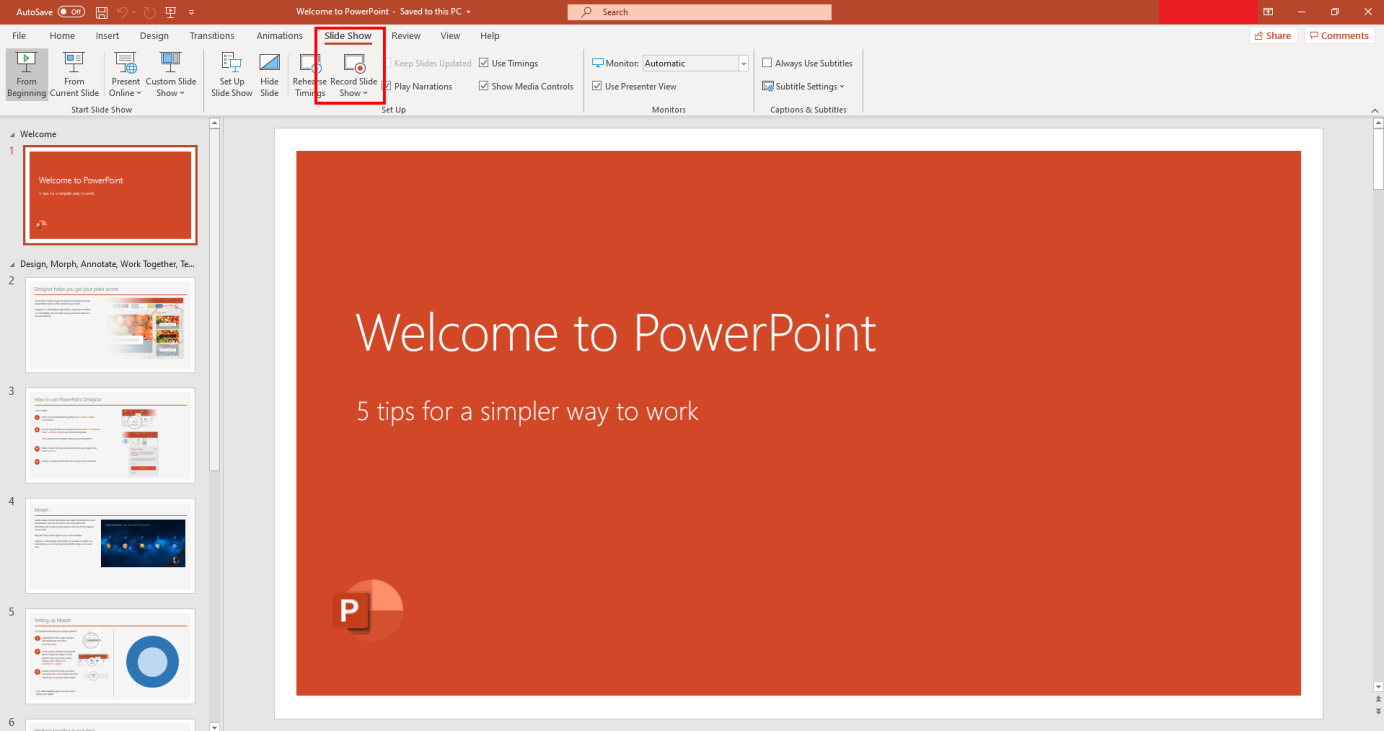
Step 1: Open the finished PowerPoint presentation that you want to turn into a video. Click on “Slide Show” in the menu at the top of the screen. Then, click on “Record Slide Show” in the toolbar.
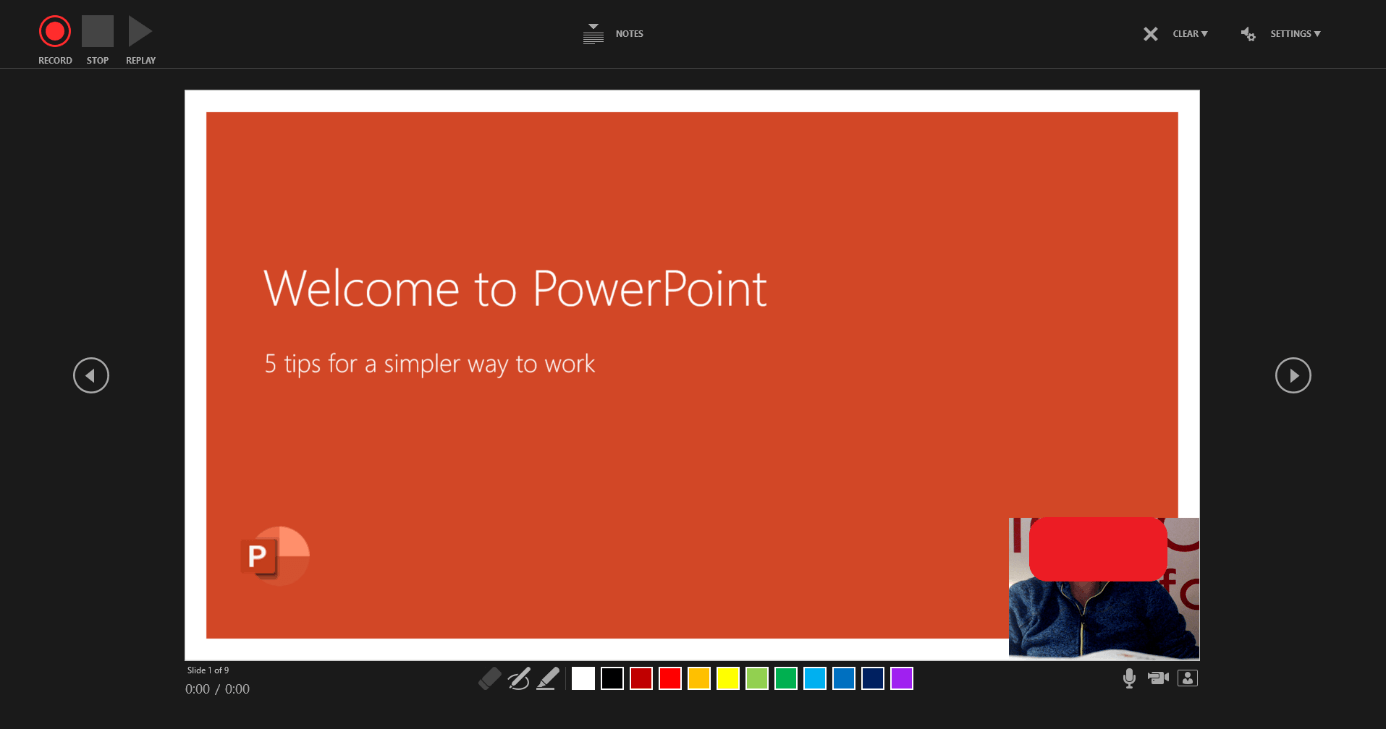
Step 2: Now, you can either record sound or a video for the respective slide by clicking on the red “Record” button in the upper left-hand corner. If you want to stop recording, just click the square next to it. To view or listen to your recording, click on the replay icon.
By clicking on the small microphone or camera symbol in the lower right-hand corner, you can switch the microphone or camera on or off, depending on whether you would like to record the voice or a video of the presenter to be integrated into the slide.
If you want to discard a previous recording and start a new one, click on “Clear” in the bar at the top. You can also use the pen or highlighter function to mark important points on the slide. You can open the virtual laser pointer by right-clicking and then clicking on “Show Options”. You will then repeat these steps for each slide in your presentation.
Step 3: Finally, you should save this presentation in ppt format, just like any other PowerPoint presentation. This allows you to make changes to it at any time. To do so, click on the “File” tab, then on the “Save As” menu item and choose the desired location to save the file.
Save PowerPoint as video
Saving a finished PowerPoint presentation in a video format is simple:
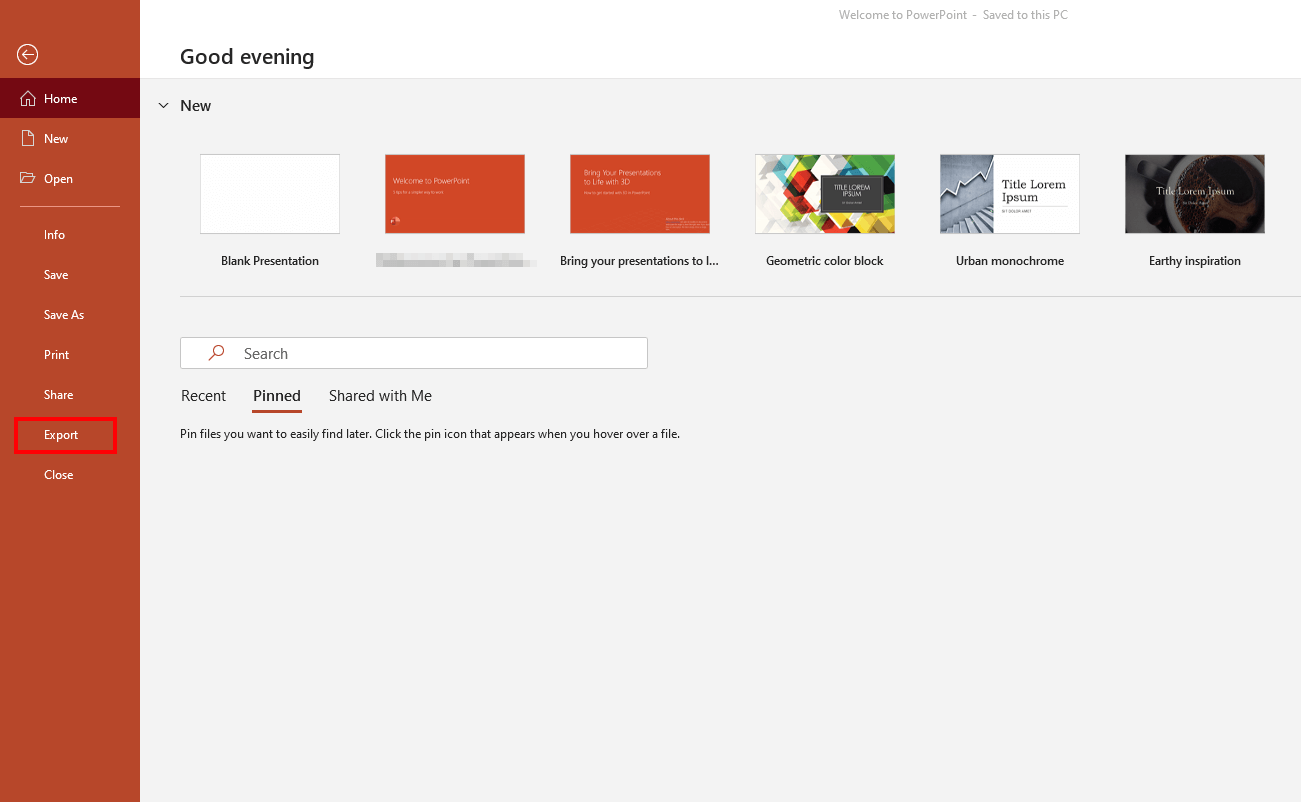
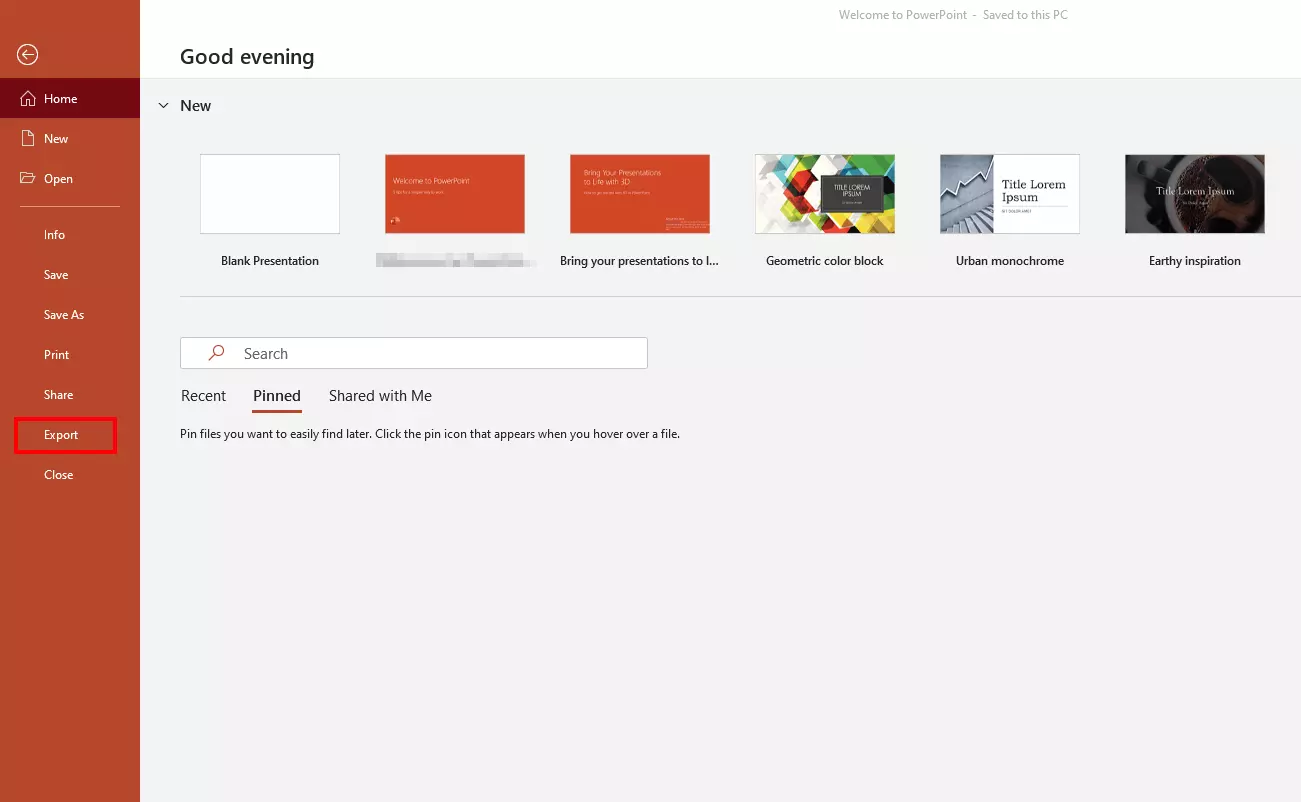
Step 1: As soon as you have opened the respective PowerPoint presentation, click on “File” in the menu bar at the top and then on “Export” (instead of “Save” or “Save As”) in the sidebar that opens on the left-hand side.
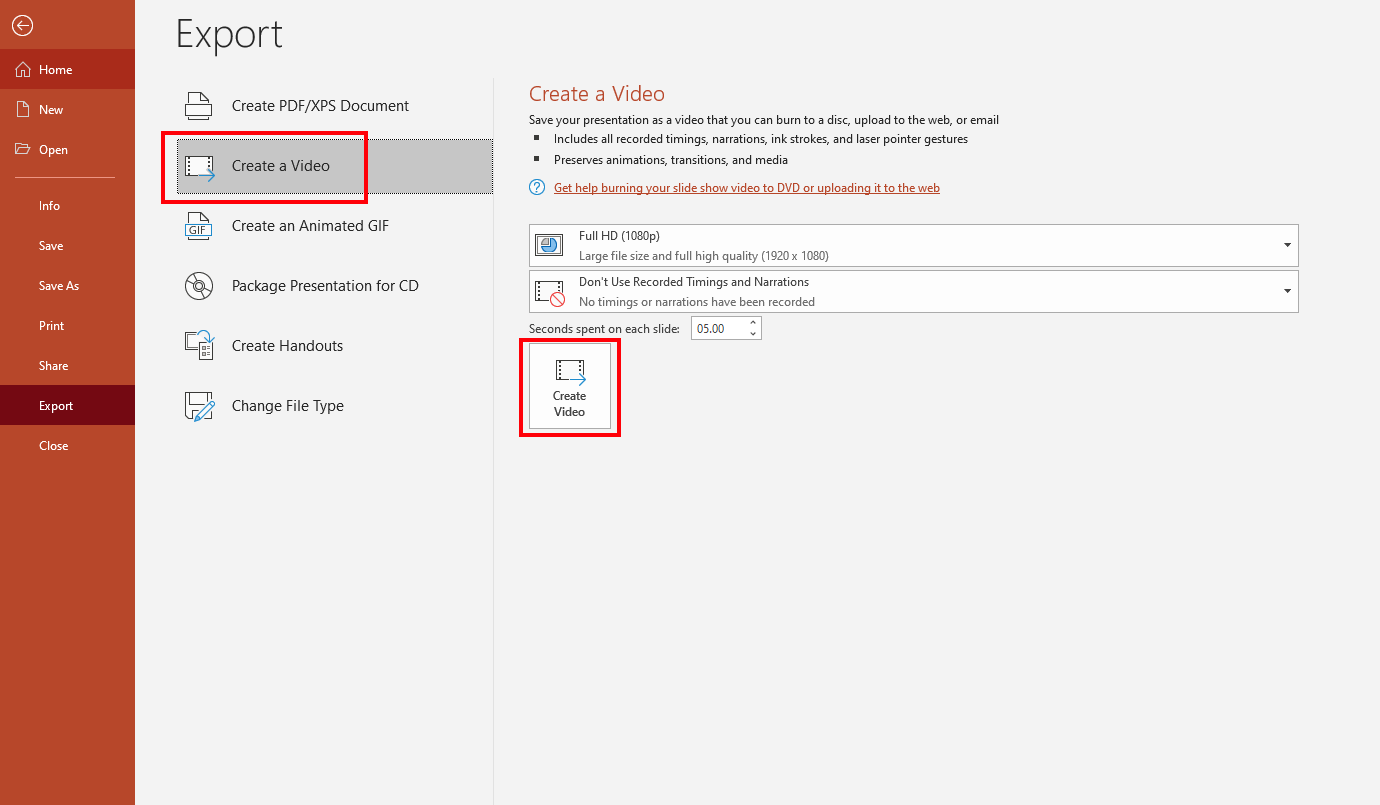
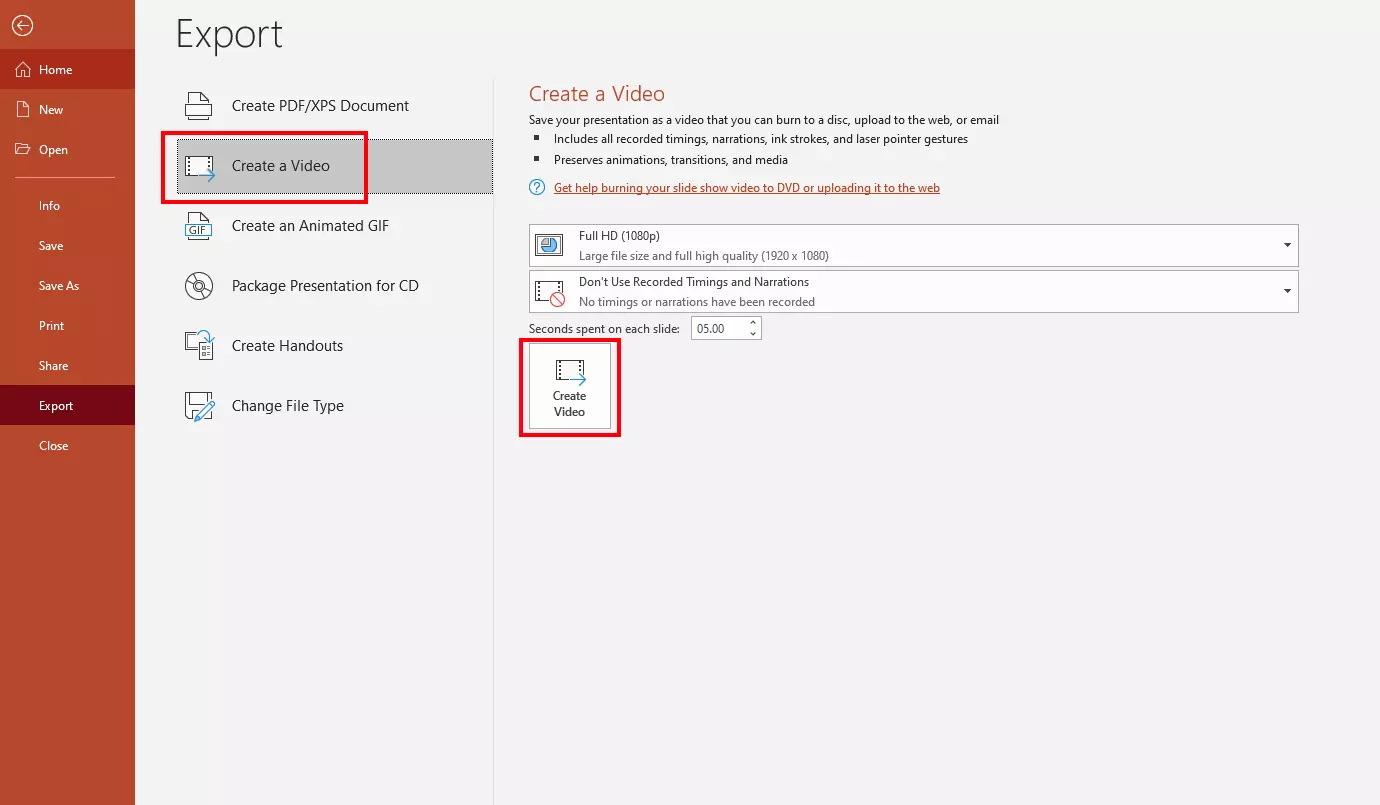
Step 2: Another sidebar will open with various options for exporting PowerPoint presentations. Select “Create a Video”. You can also choose from two drop-down menus:
- what resolution (and therefore also file size) your video should have
- and whether and/or how the recorded timings and narrations are used.
Once you have made your selection, click on the square “Create Video” button.
The resolution or quality of a video is usually directly related to the size of the video file. As a rule of thumb, the better the quality or resolution, the larger the file will be. A high resolution is particularly useful for users who will be watching the video on a large screen. Smaller files with lower resolutions are often easier to handle (e.g. upload faster). It makes sense to find a compromise between maximum video quality and minimum file size.
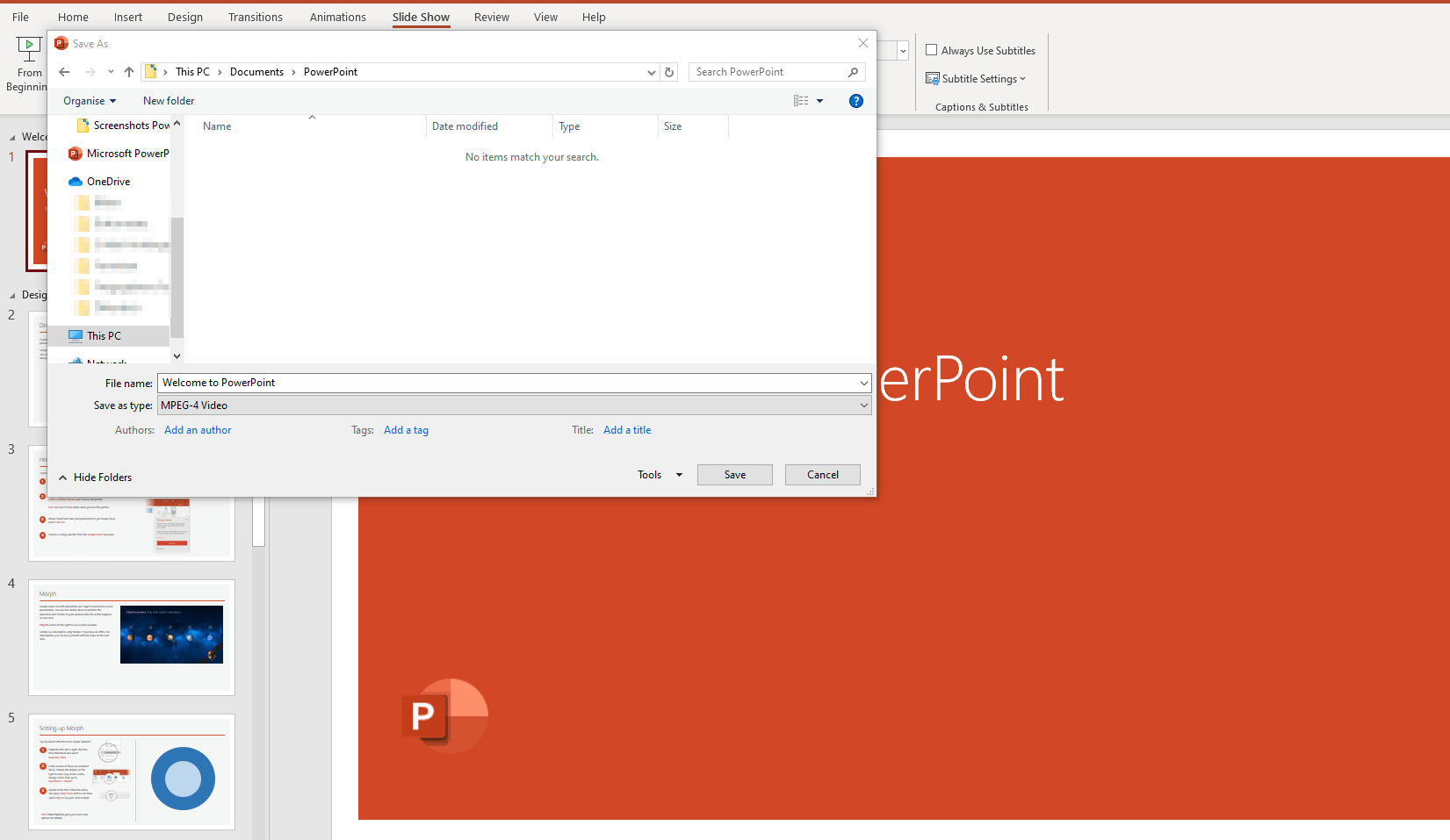
Step 3: After clicking on “Create Video”, you only have to choose the folder where you want to save your video from PowerPoint in the next window that opens. At this point, you can also select the file type in which your PowerPoint video is to be saved. Usually, you will have the common MPEG4 format and the Windows Media Video format to choose from. MPEG4 has the advantage of being able to be run on a larger number of devices and systems.
Once you have saved your PowerPoint video locally to your computer or online in the cloud, you have countless options. You can now upload your PowerPoint video to your own website, YouTube or Facebook. You can also send it by email or post it to a wide variety of social media channels.