

Google Sheets – keyboard shortcuts at a glance

The Google Sheets spreadsheet program in Google Workspace offers a wide range of useful features for your day-to-day business, from time recording to invoicing to project planning. All your spreadsheets are automatically linked to your Google account. That way, you have constant access to your files, even from your smartphone.
A variety of shortcuts make it easier to work with Google Sheets. In theory, you can even create and edit spreadsheets without a single click of the mouse. We’ve put together a list of the most useful keyboard shortcuts in Google Sheets. We’ll also show you how to access a menu of all shortcuts directly in Google Sheets. In this menu, you can search for specific keyboard shortcuts and enable compatible shortcuts from other spreadsheet programs (such as Microsoft Excel).
- Free Wildcard SSL for safer data transfers
- Free Domain Connect for easy DNS setup
Google Sheets: shortcuts for Windows and Mac users
In this guide, we’ll start by introducing you to the most useful Google Sheets keyboard shortcuts so you can edit and format your spreadsheets more easily on a PC or a Mac. Google Sheets also has keyboard shortcuts for navigating spreadsheets and using formulas. We've selected the most important ones for you.
Google Sheets shortcuts: general commands in Google Sheets
| Keyboard shortcuts for Windows | Keyboard shortcuts for Mac | |
|---|---|---|
| Select column | Ctrl + Space | Ctrl + Space |
| Select row | Shift + Space | Shift + Space |
| Select all | Ctrl + aCtrl + Shift + Space | ⌘ + a⌘ + Shift + Space |
| Undo | Ctrl + z | ⌘ + z |
| Redo | Ctrl + yCtrl + Shift + zF4 | ⌘ + y⌘ + Shift + zFn + F4 |
| Find | Ctrl + f | ⌘ + f |
| Find and replace | Ctrl + h | ⌘ + Shift + h |
| Fill range | Ctrl + Enter | ⌘ + Enter |
| Fill down | Ctrl + d | ⌘ + d |
| Fill right | Ctrl + r | ⌘ + r |
| Save (all changes are automatically saved in Google Drive) | Ctrl + s | ⌘ + s |
| Open | Ctrl + o | ⌘ + o |
| Ctrl + p | ⌘ + p | |
| Copy | Ctrl + c | ⌘ + c |
| Cut | Ctrl + x | ⌘ + x |
| Paste | Ctrl + v | ⌘ + v |
| Paste values only | Ctrl + Shift + v | ⌘ + Shift + v |
| Paste format only | Ctrl + Alt + v | ⌘ + Alt+ v |
| Show common keyboard shortcuts | Ctrl + / | ⌘ + / |
| Insert new sheet | Shift + F11 | Shift + Fn + F11 |
| Compact controls | Ctrl + Shift + f | Ctrl + Shift + f |
| Input tools on/off (available in spreadsheets in non-Latin languages) | Ctrl + Shift + k | ⌘ + Shift + k |
| Select input tools | Ctrl + Alt + Shift + k | ⌘ + Option + Shift + k |
| Search menus | Alt + / | Option + / |
Keyboard shortcuts for formatting in Google Sheets
| Keyboard shortcuts for Windows | Keyboard shortcuts for Mac | |
|---|---|---|
| Bold | Ctrl + b | ⌘ + b |
| Underline | Ctrl + u | ⌘ + u |
| Italic | Ctrl + i | ⌘ + i |
| Strikethrough | Alt + Shift + 5 | Option + Shift + 5 |
| Center align | Ctrl + Shift + e | ⌘ + Shift + e |
| Left align | Ctrl + Shift + l | ⌘ + Shift + l |
| Right align | Ctrl + Shift + r | ⌘ + Shift + r |
| Apply top border | Alt + Shift + 1 | Option + Shift + 1 |
| Apply right border | Alt + Shift + 2 | Option + Shift + 2 |
| Apply bottom border | Alt + Shift + 3 | Option + Shift + 3 |
| Apply left border | Alt + Shift + 4 | Option + Shift + 4 |
| Remove borders | Alt + Shift + 6 | Option + Shift + 6 |
| Apply outer border | Alt + Shift + 7Ctrl + Shift + 7 | Option + Shift + 7⌘ + Shift + 7 |
| Insert link | Ctrl + k | ⌘ + k |
| Insert time | Ctrl + Shift + ; | ⌘ + Shift + ; |
| Insert date | Ctrl + ; | ⌘ + ; |
| Insert date and time | Ctrl + Alt + Shift + ; | ⌘ + Option + Shift + ; |
| Format as decimal | Ctrl + Shift + 1 | Ctrl + Shift + 1 |
| Format as time | Ctrl + Shift + 2 | Ctrl + Shift + 2 |
| Format as date | Ctrl + Shift + 3 | Ctrl + Shift + 3 |
| Format as currency | Ctrl + Shift + 4 | Ctrl + Shift + 4 |
| Format as percentage | Ctrl + Shift + 5 | Ctrl + Shift + 5 |
| Format as exponent | Ctrl + Shift + 6 | Ctrl + Shift + 6 |
| Remove formatting | Ctrl + \ | ⌘ + \ |
Keyboard shortcuts for navigating Google Sheets
| Keyboard shortcuts for Windows | Keyboard shortcuts for Mac | |
|---|---|---|
| Move to beginning of row | Home | Fn + Left arrow |
| Move to beginning of sheet | Ctrl + Home | ⌘ + Fn + Left arrow |
| Move to end of row | End | Fn + Right arrow |
| Move to end of sheet | Ctrl + End | ⌘ + Fn + Right arrow |
| Scroll to active cell | Ctrl + Backspace | ⌘ + Backspace |
| Move to next sheet | Alt + Down arrow | Option + Down arrow |
| Move to previous sheet | Alt + Up arrow | Option + Up arrow |
| Display list of sheets | Alt + Shift + k | Option + Shift + k |
| Open hyperlink | Alt + Enter | Option + Enter |
| Open Explore | Alt + Shift + x | Option + Shift + x |
| Go to side panel | Ctrl + Alt + .Ctrl + Alt + , | ⌘ + Option + .⌘ + Option + , |
| Move focus out of spreadsheet | Ctrl + Alt + Shift + m | Ctrl + ⌘ + Shift + m |
| Move focus to quicksum (when range of cells is selected) | Alt + Shift + q | Option + Shift + q |
| Move focus to popup (for links, bookmarks and images) | Hold Ctrl + Alt, press e then p | Hold Ctrl + ⌘, press e then p |
| Open drop-down menu on filtered cell | Ctrl + Alt + r | Ctrl + ⌘ + r |
| Open revision history | Ctrl + Alt + Shift + h | ⌘ + Option + Shift + h |
| Open chat inside the spreadsheet | Shift + Esc | Shift + Esc |
| Close drawing editor | Shift + Esc | ⌘ + EscShift + Esc |
Google Sheets: keyboard shortcuts for notes and comments
| Keyboard shortcuts for Windows | Keyboard shortcuts for Mac | |
|---|---|---|
| Insert/edit note | Shift + F2 | Shift + F2 |
| Insert/edit comment | Ctrl + Alt + m | ⌘ + Option + m |
| Open comment discussion thread | Ctrl + Alt + Shift + a | ⌘ + Option + Shift + a |
| Enter current comment | Hold Ctrl + Alt, press e then c | Hold Ctrl + ⌘, press e then c |
| Move to next comment | Hold Ctrl + Alt, press n then c | Hold Ctrl + ⌘, press n then c |
| Move to previous comment | Hold Ctrl + Alt, press p then c | Hold Ctrl + ⌘, press p then c |
Keyboard shortcuts for opening menus in Google Sheets
| Keyboard shortcuts for Windows | Keyboard shortcuts for Mac | |
|---|---|---|
| “File” menu | Google Chrome: Alt + fOther browsers: Alt + Shift + f | Ctrl + Option + f |
| “Edit” menu | Google Chrome: Alt + eOther browsers: Alt + Shift + e | Ctrl + Option + e |
| “View” menu | Google Chrome: Alt + vOther browsers: Alt + Shift + v | Ctrl + Option + v |
| “Insert” menu | Google Chrome: Alt + iOther browsers: Alt + Shift + i | Ctrl + Option + i |
| “Format” menu | Google Chrome: Alt + oOther browsers: Alt + Shift + o | Ctrl + Option + o |
| “Data” menu | Google Chrome: Alt + dOther browsers: Alt + Shift + d | Ctrl + Option + d |
| “Tools” menu | Google Chrome: Alt + tOther browsers: Alt + Shift + t | Ctrl + Option + t |
| Open “Insert” menu | Ctrl + Alt + Shift + = Ctrl + Alt + = (with cells selected) | ⌘ + Option + = (with cells selected) |
| Open “Delete” menu | Ctrl + Alt + - (with cells selected) | ⌘ + Option + - (with cells selected) |
| “Form” menu (visible when the spreadsheet is connected to a form) | Google Chrome: Alt + mOther browsers: Alt + Shift + m | Ctrl + Option + m |
| “Add-ons” menu | Google Chrome: Alt + nOther browsers: Alt + Shift + n | Ctrl + Option + n |
| “Help” menu | Google Chrome: Alt + hOther browsers: Alt + Shift + h | Ctrl + Option + h |
| “Accessibility” menu (visible when screen reader support is enabled) | Google Chrome: Alt + aOther browsers: Alt + Shift + a | Ctrl + Option + a |
| “Sheet” menu (copy, delete, and other sheet actions) | Alt + Shift + s | Option + Shift + s |
| “Context” menu | Ctrl + Shift + \ | ⌘ + Shift + \ |
Google Sheets shortcuts for adding or changing rows and columns
| Keyboard shortcuts for Windows | Keyboard shortcuts for Mac | |
|---|---|---|
| Insert rows above | Ctrl + Alt + Shift + = Ctrl + Alt + = (with rows selected)Google Chrome: Alt + i, then rOther browsers: Alt + Shift + i, then r | ⌘ + Option + = (with rows selected)Ctrl + Option + i, then r |
| Insert rows below | Google Chrome: Alt + i, then WOther browsers: Alt + Shift + i, then w | Ctrl + Option + i, then b |
| Insert columns to the left | Ctrl + Alt + Shift + = Ctrl + Alt + = (with columns selected)Google Chrome: Alt + i, then cOther browsers: Alt + Shift + i, then c | ⌘ + Option + = (with columns selected)Ctrl + Option + i, then c |
| Insert columns to the right | Google Chrome: Alt + i, then oOther browsers: Alt + Shift + i, then o | Ctrl + Option + i, then o |
| Delete rows | Ctrl + Alt + - (with rows selected)Google Chrome: Alt + e, then dOther browsers: Alt + Shift + e, then d | ⌘ + Option + - (with rows selected)Ctrl + Option + e, then d |
| Delete columns | Ctrl + Alt + - (with columns selected)Google Chrome: Alt + e, then eOther browsers: Alt + Shift + e, then e | ⌘ + Option + - (with columns selected)Ctrl + Option + e, then e |
| Hide row | Ctrl + Alt + 9 | ⌘ + Option + 9 |
| Unhide row | Ctrl + Shift + 9 | ⌘ + Shift + 9 |
| Hide column | Ctrl + Alt + 0 | ⌘ + Option + 0 |
| Unhide column | Ctrl + Shift + 0 | ⌘ + Shift + 0 |
| Group rows or columns | Alt + Shift + Right arrow | Option + Shift + Right arrow |
| Ungroup rows or columns | Alt + Shift + Left arrow | Option + Shift + Left arrow |
| Expand grouped rows or columns | Alt + Shift + Down arrow | Option + Shift + Down arrow |
| Collapse grouped rows or columns | Alt + Shift + Up arrow | Option + Shift + Up arrow |
Keyboard shortcuts for formulas in Google Sheets
| Keyboard shortcuts for Windows | Keyboard shortcuts for Mac | |
|---|---|---|
| Show all formulas | Ctrl + ~ | Ctrl + ~ |
| Insert array formula | Ctrl + Shift + Enter | ⌘ + Shift + Enter |
| Collapse expanded array formula | Ctrl + e | ⌘ + e |
| Show/hide formula help (when entering a formula) | Shift + F1 | Shift + Fn + F1 |
| Full/compact formula help (when entering a formula) | F1 | Fn + F1 |
| Absolute/relative references (when entering a formula) | F4 | Fn + F4 |
| Toggle formula result previews (when entering a formula) | F9 | Fn + F9 |
| Resize formula bar (move up or down) | Ctrl + Up arrow or Ctrl + Down arrow | Ctrl + Option + Up arrow or Ctrl + Option + Down arrow |
Screen reader shortcuts for Google Sheets
| Keyboard shortcuts for Windows | Keyboard shortcuts for Mac | |
|---|---|---|
| Turn on screen reader support | Ctrl + Alt + z | ⌘ + Option + z |
| Read column | Ctrl + Alt + Shift + c | ⌘ + Option + Shift + c |
| Read row | Ctrl + Alt + Shift + r | ⌘ + Option + Shift + r |
Accessing the list of keyboard shortcuts directly in Google Sheets
You can view a list of all available keyboard shortcuts by pressing Ctrl + / (division sign in the number pad) on a PC or ⌘ + / on a Mac:
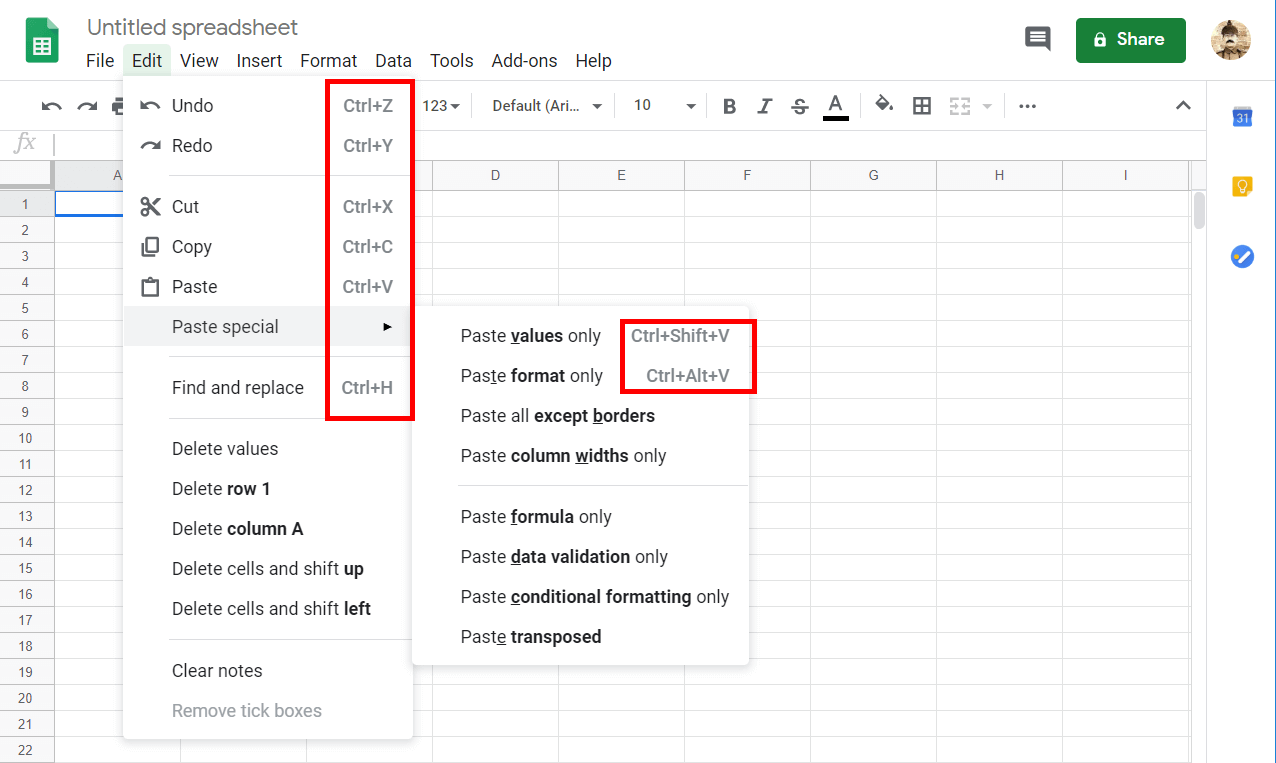
There are shortcut keys in many other office applications and in all operating systems. See our digital guide for articles about Google Docs shortcuts, Mac shortcuts, Word shortcuts, Photoshop shortcuts, PowerPoint shortcuts, Windows shortcuts, and Excel shortcuts.
Using compatible keyboard shortcuts for Google Sheets
At the bottom of the list of Google Sheets keyboard shortcuts, you’ll see the “Enable compatible spreadsheet shortcuts” toggle switch. When this switch is turned on, you can use familiar shortcuts from Excel and other spreadsheets in Google Sheets.
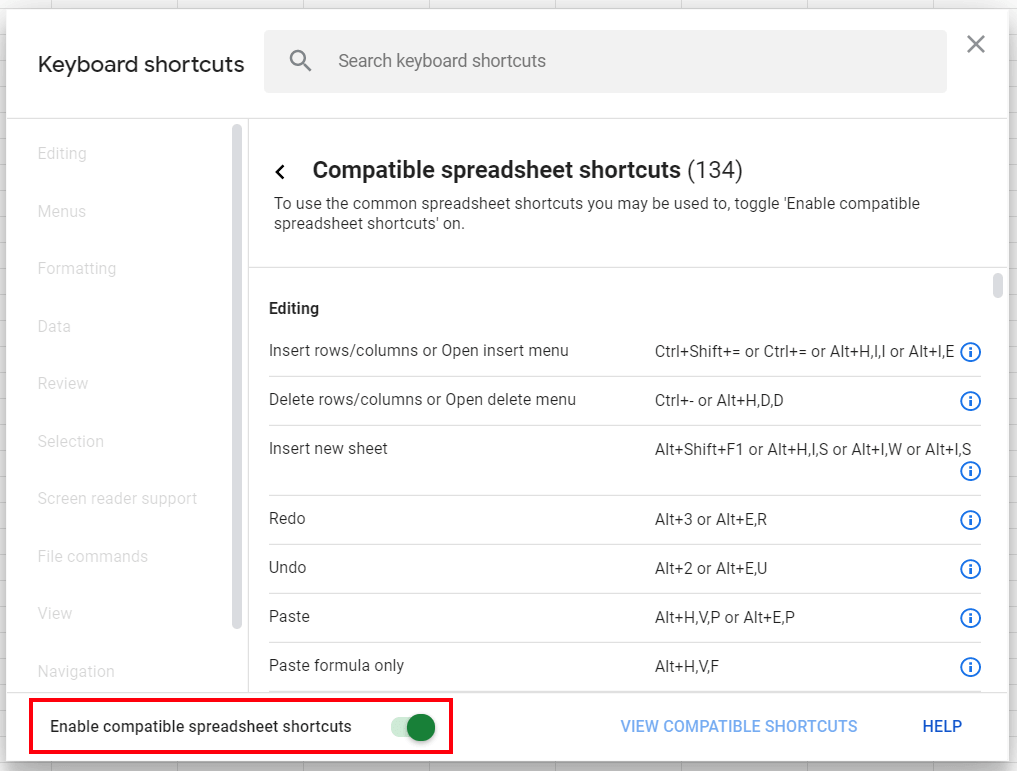
To view a list of available shortcuts, click the “View compatible shortcuts” link next to the switch.
- Automatic backup & easy recovery
- Intuitive scheduling and management
- AI-based threat protection
Reviewer

Jeanna Raffa
With over 18 years of experience in online marketing, Jeanna Raffa possesses extensive expertise in digital marketing. Since 2020, her focus has been on providing practical information regarding email, office, and cloud storage solutions.