

The most important Google Docs shortcuts at a glance

Google Docs has become an indispensable tool for many companies. The collaborative word processor in Google Workspace allows you to edit documents anytime and anywhere. For example, if you’re on the road and urgently need to modify a document, all you need is a Google account and a working Internet connection.
A special feature of Google Docs is link-sharing, which allows you to invite as many people as you want to your document. You decide who else besides you is allowed to edit the document and who has read-only access. Changes and comments are visible to all participants, so no one loses track of revisions. In addition, there is no need to forward office documents by email.
Google Docs also has a number of useful shortcuts that go far beyond simple copy-and-paste. We've put together a list of the most common Google Docs keyboard shortcuts for Windows and Mac. We’ll also show you how to view a list of all keyboard shortcuts in Google Docs with just a few clicks.
Google Docs: keyboard shortcuts for Windows and macOS
Google Docs shortcuts allow you to create documents faster and more efficiently. In this overview, we present keyboard shortcuts for basic commands, text, and paragraph formatting, comments and changes as well as other useful tools.
General shortcuts in Google Docs
| Windows | macOS | |
|---|---|---|
| Copy | Ctrl + c | ⌘ + c |
| Cut | Ctrl + x | ⌘ + x |
| Paste | Ctrl + v | ⌘ + v |
| Paste without formatting | Ctrl + Shift + v | ⌘ + Shift + v |
| Undo | Ctrl + z | ⌘ + z |
| Redo | Ctrl + Shift + z | ⌘ + Shift + z |
| Insert or edit link | Ctrl + k | ⌘ + k |
| Open link | Alt + Enter | Option + Enter |
| Ctrl + p | ⌘ + p | |
| Open | Ctrl + o | ⌘ + o |
| Find | Ctrl + f | ⌘ + f |
| Find and replace | Ctrl + h | ⌘ + Shift + h |
| Find again | Ctrl + g | ⌘ + g |
| Find previous | Ctrl + Shift + g | ⌘ + Shift + g |
| Hide menus (compact mode) | Ctrl + Shift + f | Ctrl + Shift + f |
| Search the menus | Alt + Shift + z | Ctrl + Option + z |
| Show common keyboard shortcuts | Ctrl + / | ⌘ + / |
| Insert page break | Ctrl + Enter | ⌘ + Enter |
Google Docs: Keyboard shortcuts for text and paragraph formatting
| Windows | macOS | |
|---|---|---|
| Bold | Ctrl + b | ⌘ + b |
| Italicize | Ctrl + i | ⌘ + i |
| Underline | Ctrl + u | ⌘ + u |
| Strikethrough | Alt + Shift + 5 | ⌘ + Shift + x |
| Superscript | Ctrl + . | ⌘ + . |
| Subscript | Ctrl + , | ⌘ + , |
| Copy text formatting | Ctrl + Alt + c | ⌘ + Option + c |
| Paste text formatting | Ctrl + Alt + v | ⌘ + Option + v |
| Clear text formatting | Ctrl + \ orCtrl + Space | ⌘ + \ |
| Increase font size | Ctrl + Shift + . | ⌘ + Shift + . |
| Decrease font size | Ctrl + Shift + , | ⌘ + Shift + , |
| Apply normal text style | Ctrl + Alt + 0 | ⌘ + Option + 0 |
| Apply heading style [1–6] | Ctrl+ Alt + [1–6] | ⌘ + Option + [1–6] |
| Left align | Ctrl + Shift + l | ⌘ + Shift + l |
| Center align | Ctrl + Shift + e | ⌘ + Shift + e |
| Right align | Ctrl + Shift + r | ⌘ + Shift + r |
| Justify | Ctrl + Shift + j | ⌘ + Shift + j |
| Numbered list | Ctrl + Shift + 7 | ⌘ + Shift + 7 |
| Bulleted list | Ctrl + Shift + 8 | ⌘ + Shift + 8 |
| Move paragraph up | Ctrl + Shift + Up arrow | Ctrl + Shift + Up arrow |
| Move paragraph down | Ctrl + Shift + Down arrow | Ctrl + Shift + Down arrow |
| Increase paragraph indentation | Ctrl + ] | ⌘ + ] |
| Decrease paragraph indentation | Ctrl + [ | ⌘ + [ |
Google Docs: Keyboard shortcuts for comments, edits and footnotes
| Windows | macOS | |
|---|---|---|
| Insert comment | Ctrl + Alt + m | ⌘ + Option + m |
| Open discussion thread | Ctrl + Alt + Shift + a | ⌘ + Option + Shift + a |
| Move to next comment | Hold Ctrl + Alt, press n then c | Hold ⌘ + Ctrl, press n then c |
| Move to previous comment | Hold Ctrl + Alt, press p then c | Hold ⌘ + Ctrl, press p then c |
| Undo | Ctrl + z | ⌘ + z |
| Redo | Ctrl + y | ⌘ + y |
| Insert footnote | Ctrl + Alt + f | ⌘ + Option + f |
| Move to previous footnote | Hold Ctrl + Alt, press p then f | Hold ⌘ + Ctrl, press p then f |
Google Docs shortcuts with other helpful features
| Windows | macOS | |
|---|---|---|
| Open revision history | Ctrl + Alt + Shift + h | ⌘ + Option + Shift + h |
| Open Explore tool | Ctrl + Alt + Shift + i | ⌘ + Option + Shift + i |
| Open spelling/grammar | Ctrl + Alt + x | ⌘ + Alt + x |
| Open dictionary | Ctrl + Shift + y | ⌘ + Shift + y |
| Word count | Ctrl + Shift + c | ⌘ + Shift + c |
| Move to next misspelling | Ctrl + ' | ⌘ + ' |
| Move to previous misspelling | Ctrl + ; | ⌘ + ; |
| Insert or move to header | Hold Ctrl + Alt, press o then h | Hold Ctrl + ⌘, press o then h |
| Insert or move to footer | Hold Ctrl + Alt + o, then press f | Hold Ctrl + ⌘ + o, then press f |
Displaying shortcuts directly in Google Docs
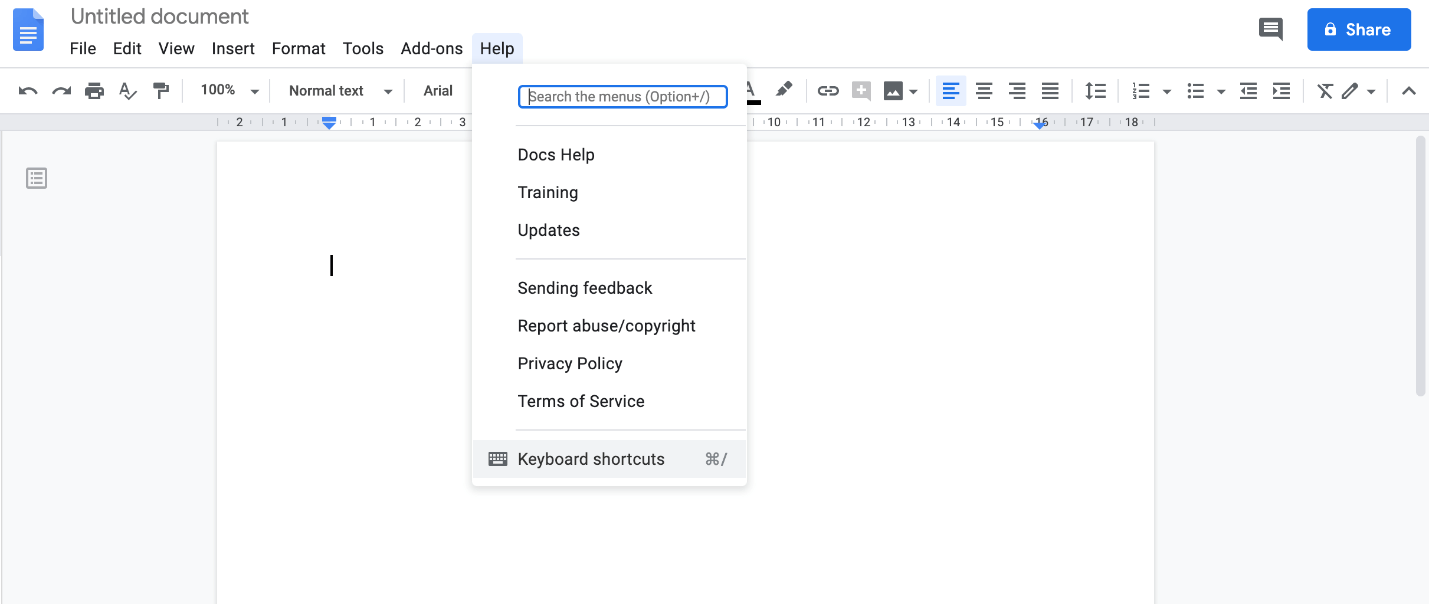
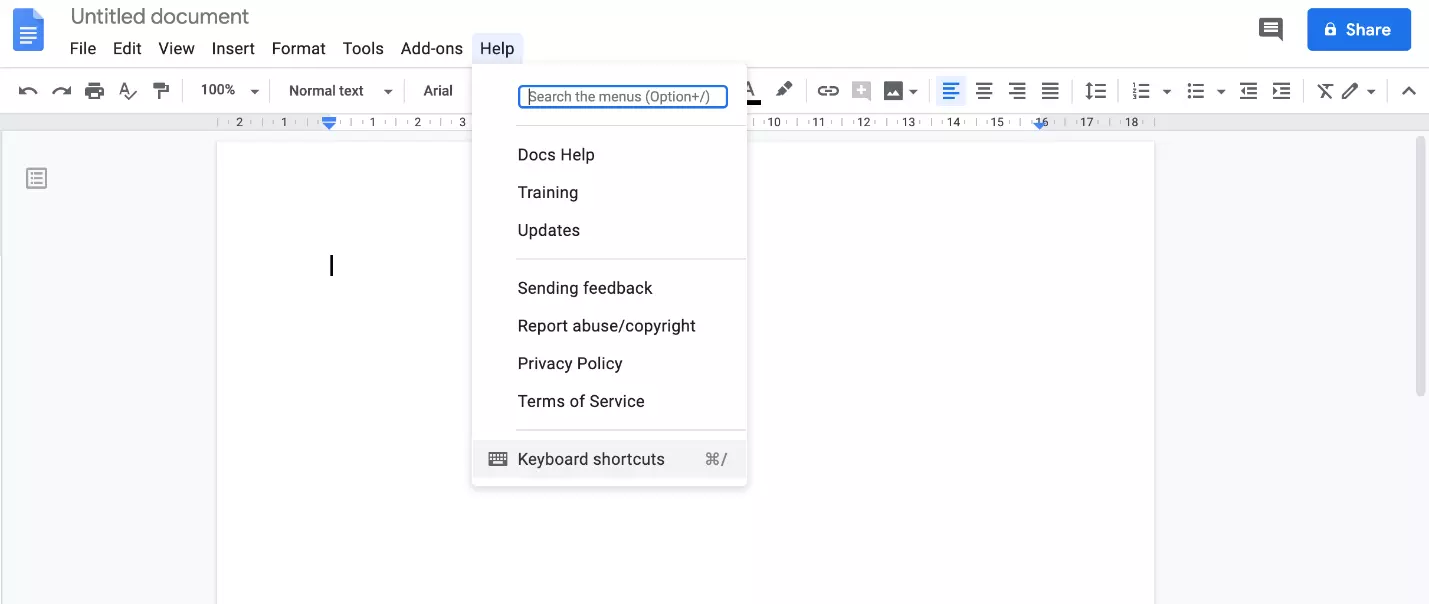
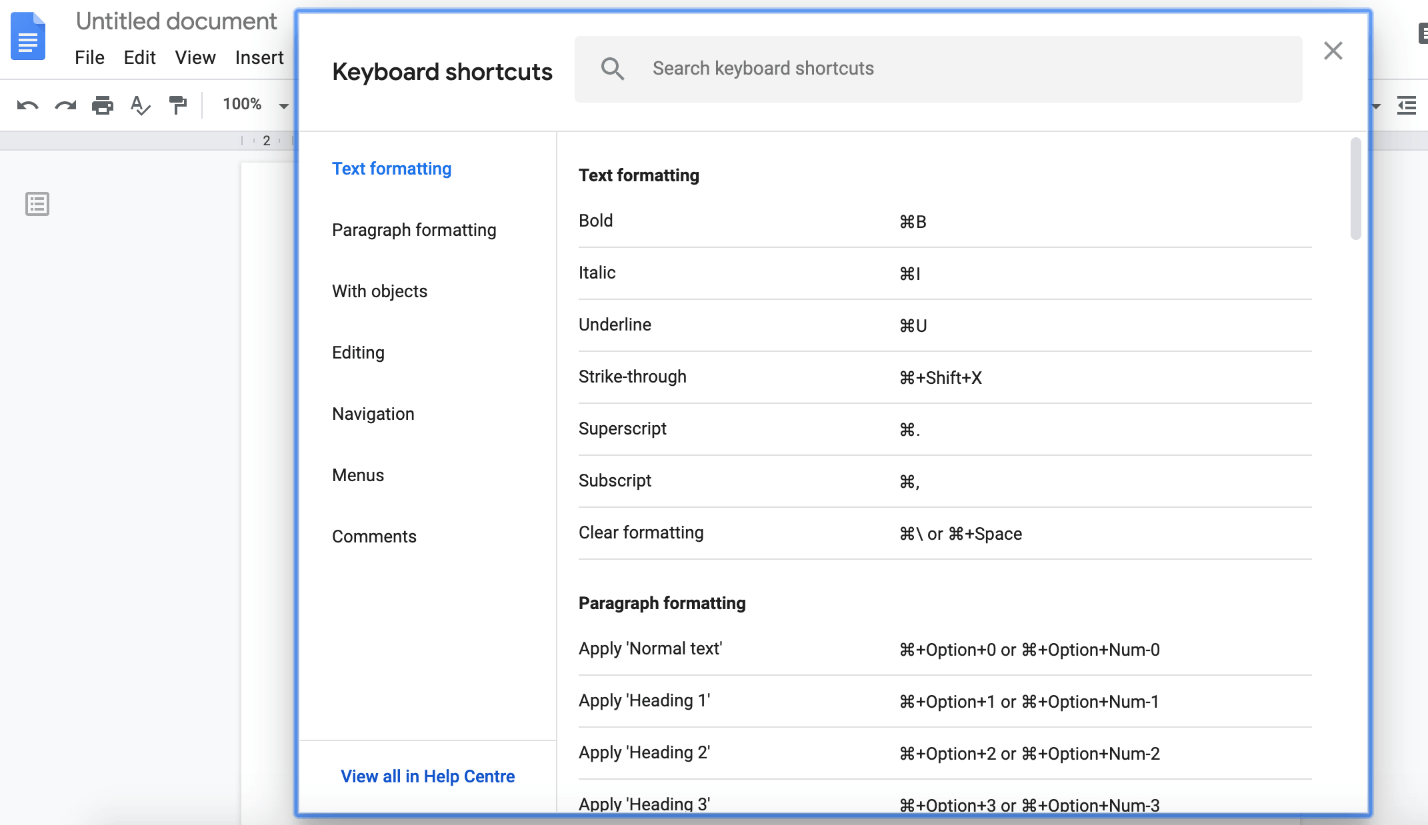
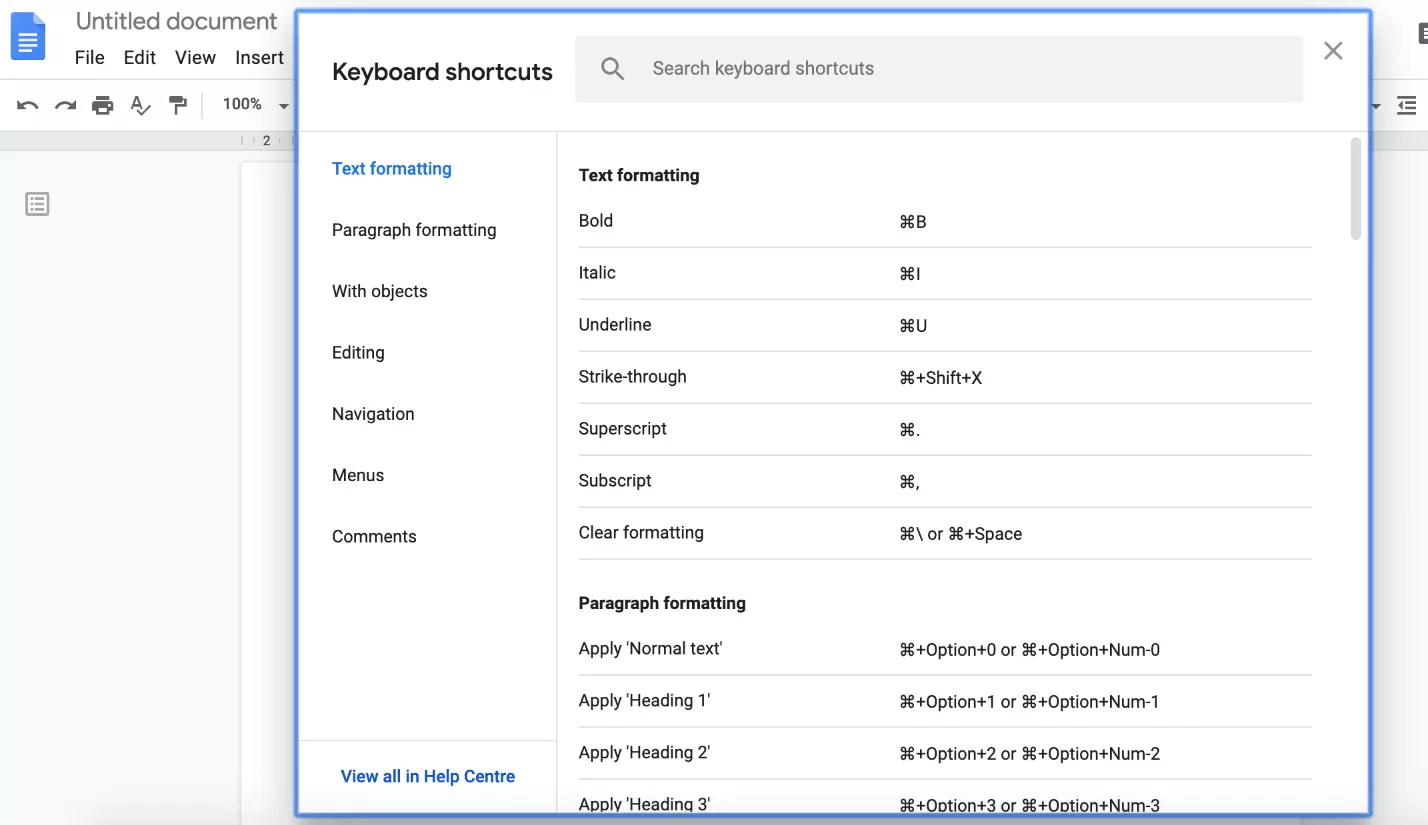
Google Docs offers a useful list of all shortcuts with a search function so you can find all available keyboard shortcuts.
Step 1: Open list of Google Docs shortcuts
Step 2: Search for Google Docs shortcuts
Keyboard shortcuts for controlling office programs or the operating system are extremely popular. To learn more, see our articles on Google Sheets shortcuts, Mac shortcuts, Word shortcuts, Photoshop shortcuts, PowerPoint shortcuts, Windows shortcuts and Excel shortcuts.
Reviewer

Jeanna Raffa
With over 18 years of experience in online marketing, Jeanna Raffa possesses extensive expertise in digital marketing. Since 2020, her focus has been on providing practical information regarding email, office, and cloud storage solutions.