

Microsoft Word: Find and Replace made simple

The Find and Replace function in Microsoft’s popular word processing program is used to find a particular character string in a text and replace it with another one. As well as visible characters such as numbers, letters and special characters, the function also recognizes control characters. With Find and Replace in Word you can replace tabs, paragraph marks and spaces with other characters with ease, or even delete them altogether. The Find and Replace function in Word is not just useful and practical for text creators and authors. The function can also be used to conveniently edit program scripts or HTML/XML texts. Used correctly, it can help to make your work significantly more efficient.
Find and Replace in Word: Avoiding errors
The function is particularly efficient if an existing text only has to be changed slightly. But what many people fail to consider is that as easy and convenient as the function appears at first glance, it also has plenty of stumbling blocks to avoid. Therefore, it is important to know what the result will look like before you use the function. Let’s imagine you want to edit the recurring phrase “Press button A and B” in a text.
If you want to replace the word “and” with the word “or”, it is crucial that you copy the spaces before and after the word “and”. Otherwise, chaos is inevitable. Wherever Word finds the character string “and”, it will blindly replace it with “or”. This will turn “hand” into “hor”, “command” into “commor” and “understand” into “understor”. The problem is that you might not immediately notice these changes. It’s highly likely that the spell checker will mark up all of these nonsense words for you. But that isn’t a foolproof method.
The Find and Replace function does make all the requested replacements throughout the text and takes absolutely no account of possible distortions made to your text.
If you have established that your Find and Replace feature in Word is not working as you want it to, you can easily undo the last action performed. Word’s Undo function reverses everything in an instant.
- Store, share, and edit data easily
- Backed up and highly secure
- Sync with all devices
Word: Find and Replace – Step by step
- Step 1: Highlight the section of text you want to find and replace, and then copy your selection.
- Step 2: Use the shortcut Ctrl + H. The “Find and Replace” window appears. You can also access the function from the navigation pane or the Home ribbon.
- Step 3: Paste the previously copied text into the first input box (“Find what”).
- Step 4: In the lower text box (“Replace with”), enter the text you intend to replace it with.
- Step 5: If you click on “Replace” the function only replaces the character string where you previously highlighted the text. If you click on “Replace all”, Word replaces the character string in the entire document.
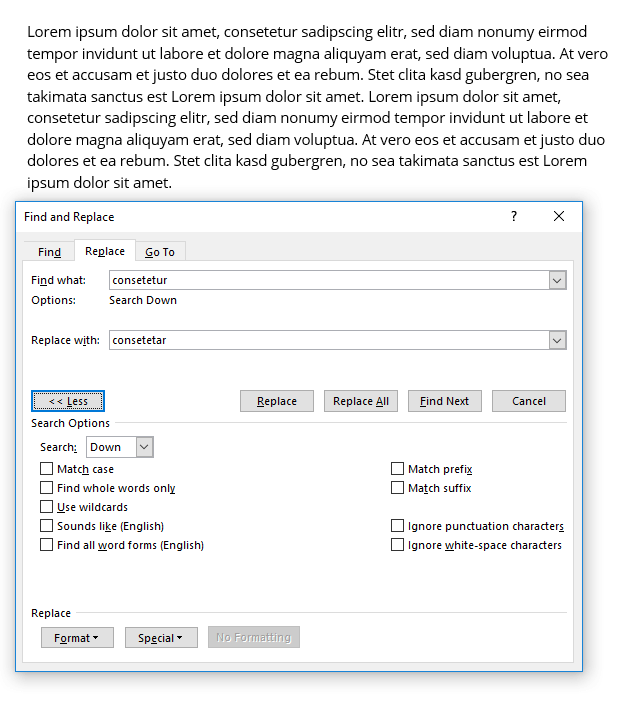
The “Find and Replace” function in Word is indifferent to the kind of characters you want to replace. You can replace anything with anything. However, certain character strings represent particular functions. For example, if you want to remove unnecessary paragraph marks, you can also do this using the Find and Replace function. To do this, go into the input screen for the function as normal and open up the advanced search options by selecting “More”. If you select “Special” and then the “Paragraph mark” option, Word automatically enters “^p” in the search box.
If you repeat this (i.e. enter two paragraph marks consecutively) in the “Find what” box and enter a single paragraph mark in the “Replace with” box, you can then confirm with “Replace All” to automatically replace all double paragraph marks in the text with a single paragraph mark. This function is often used when copying texts from other formats – for example websites or PDF documents – into a Word document.
If you want to replace capital letters with lower case letters, select “More” and check the “Match case” box.
Find and Replace in Word is a very powerful tool. However, we recommend practicing a little so that the function provides you with the desired result.
To enable you to work as efficiently as possible in Microsoft Word, you can learn the most important key combinations for abbreviations.
Reviewers

Jeanna Raffa
With over 18 years of experience in online marketing, Jeanna Raffa possesses extensive expertise in digital marketing. Since 2020, her focus has been on providing practical information regarding email, office, and cloud storage solutions.

Christian Heldmaier
Christian Heldmaier is an experienced online marketing and SEO specialist from Karlsruhe. He has been working as an SEO Manager at IONOS since July 2020.