

Which FTP client is the best? 9 FTP programs for Windows & Mac compared

To upload files to an FTP server or download them from it, you need an FTP client. This type of program establishes the TCP connection to the server’s port, which is then used to control data exchange using commands. For transfers, you use specialized FTP programs for Windows, macOS, and other operating systems that make file transfer via the FTP protocol much easier.
Overview of 9 FTP clients
The market offers numerous clients for transfer via FTP, some of which differ significantly in terms of features and usability. There are both paid and free options. Some are compatible only with Windows, others only with macOS or Linux. We’ll introduce you to nine programs.
| Developer | Platform | Cost | |
|---|---|---|---|
| CloudMounter | Electronic Team, Inc. | Windows, macOS | $29.99 on macOS; $29.99 on Windows |
| Commander One | Electronic Team, Inc. | macOS | $29.99 |
| Cyberduck | Iterate | Windows, macOS | free |
| FileZilla | Tim Kosse | Windows, macOS, Linux | free |
| ForkLift | BinaryNights | macOS | $19.95 |
| SmartFTP | SmartSoft Ltd. | Windows | from $79.99/year |
| Transmit | Panic | macOS | $45 |
| WinSCP | Martin Přikryl | Windows | free |
| WISE-FTP | AceBIT | Windows | free |
FileZilla
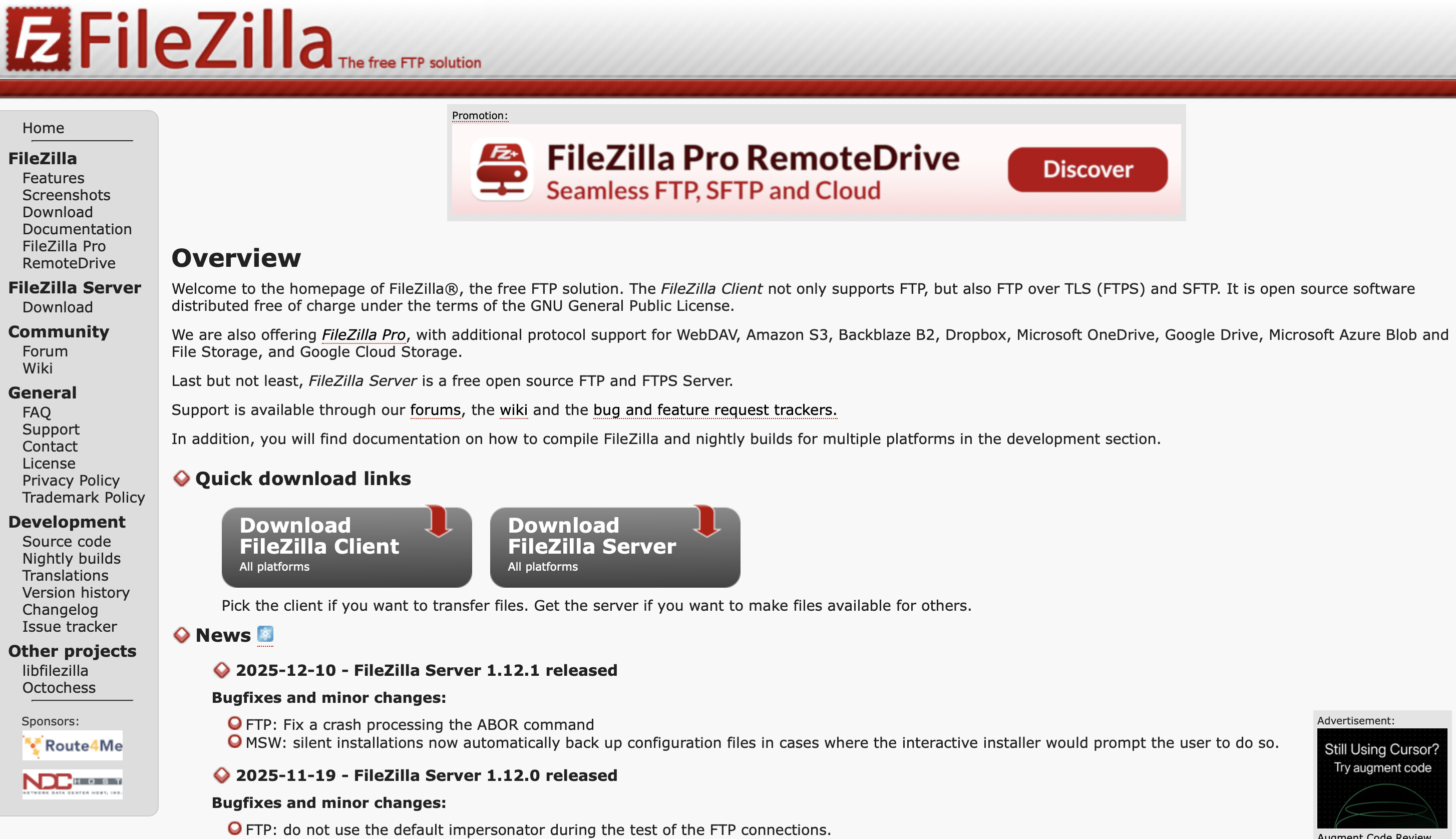
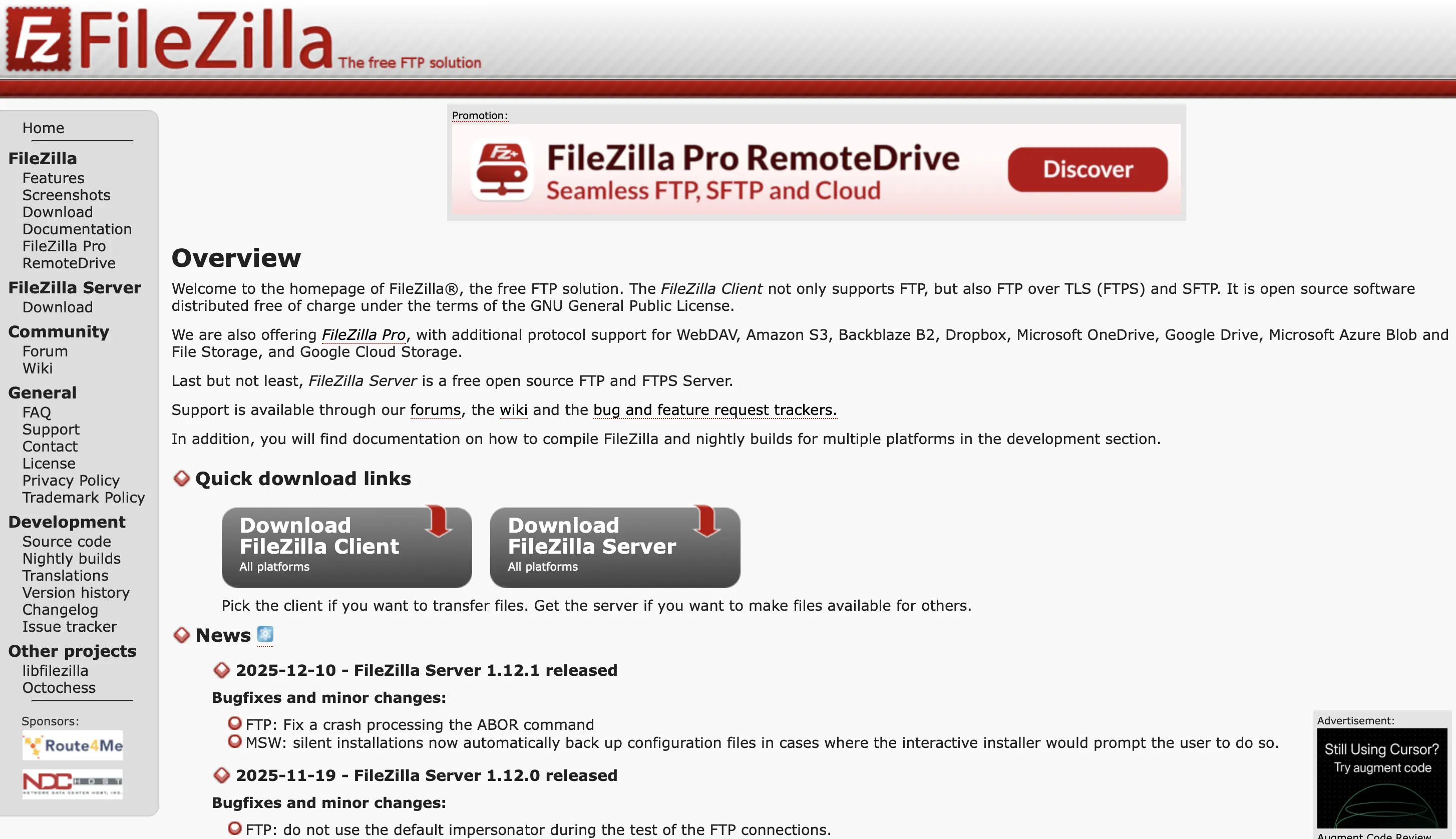
FileZilla is one of the most widely used FTP applications for good reason. This open-source FTP software is free and available for Windows 10 and later, Linux, and macOS. Once a connection is established, files can be easily transferred between the FTP client and server via drag-and-drop. FileZilla supports the transfer of very large files and allows interrupted uploads or downloads to be resumed at any time. Users can manually adjust upload and download speeds as needed. The Server Manager lets you store frequently used FTP servers along with their login details. In addition, the File Transfer Protocol can be secured using SSL/TLS or SSH encryption. Here’s an overview of FileZilla’s features:
- compatible with Windows, Linux, and macOS
- supports SSL and SSH encryption
- configurable transfer speeds
- enables connections to FTP proxy servers
- detailed documentation
- keep-alive system to maintain the network connection
| Advantages | Disadvantages |
|---|---|
| ✓ can be used across platforms | ✗ login credentials are stored in plain text by default |
| ✓ supports transferring large files |
CloudMounter
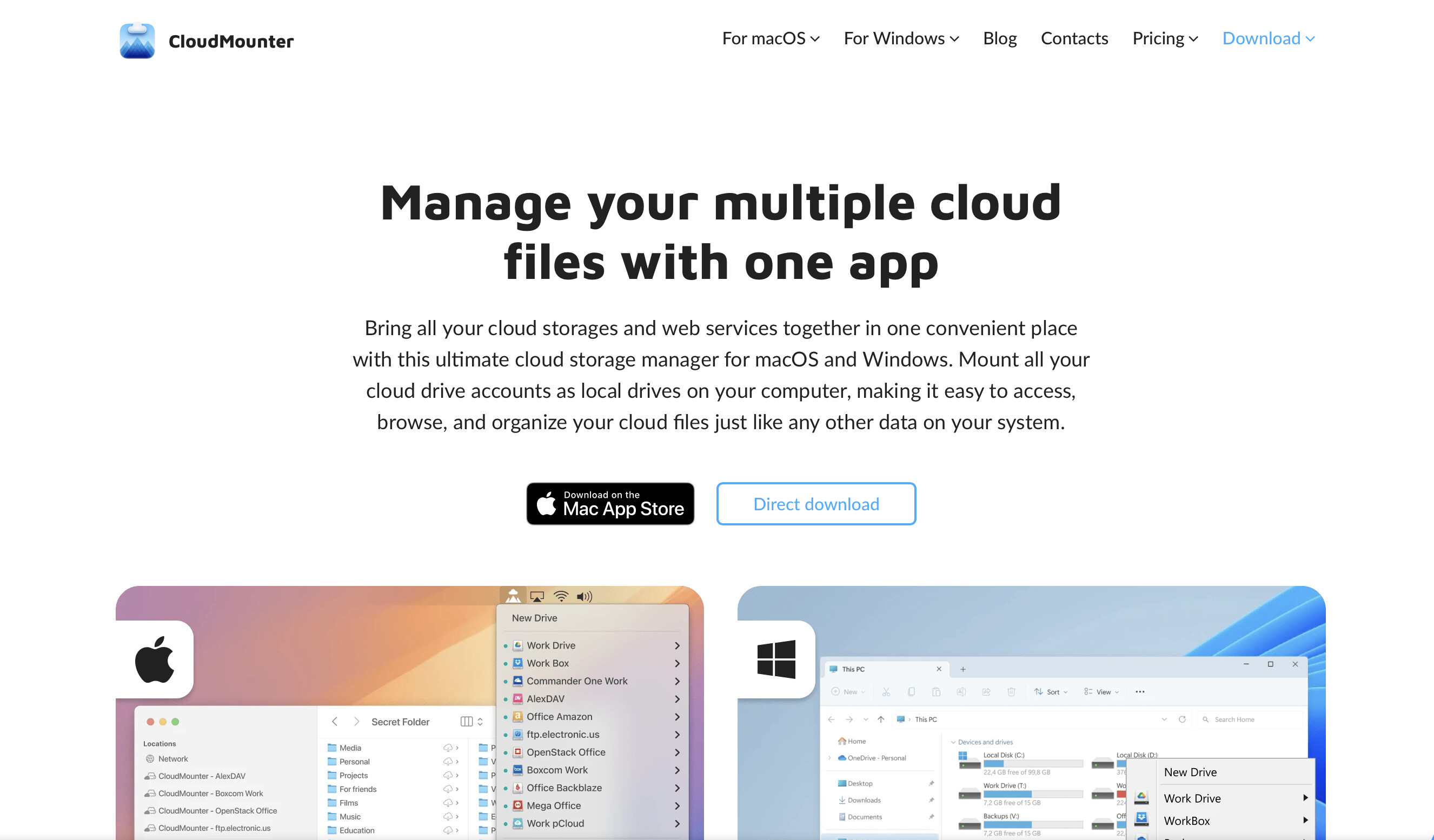
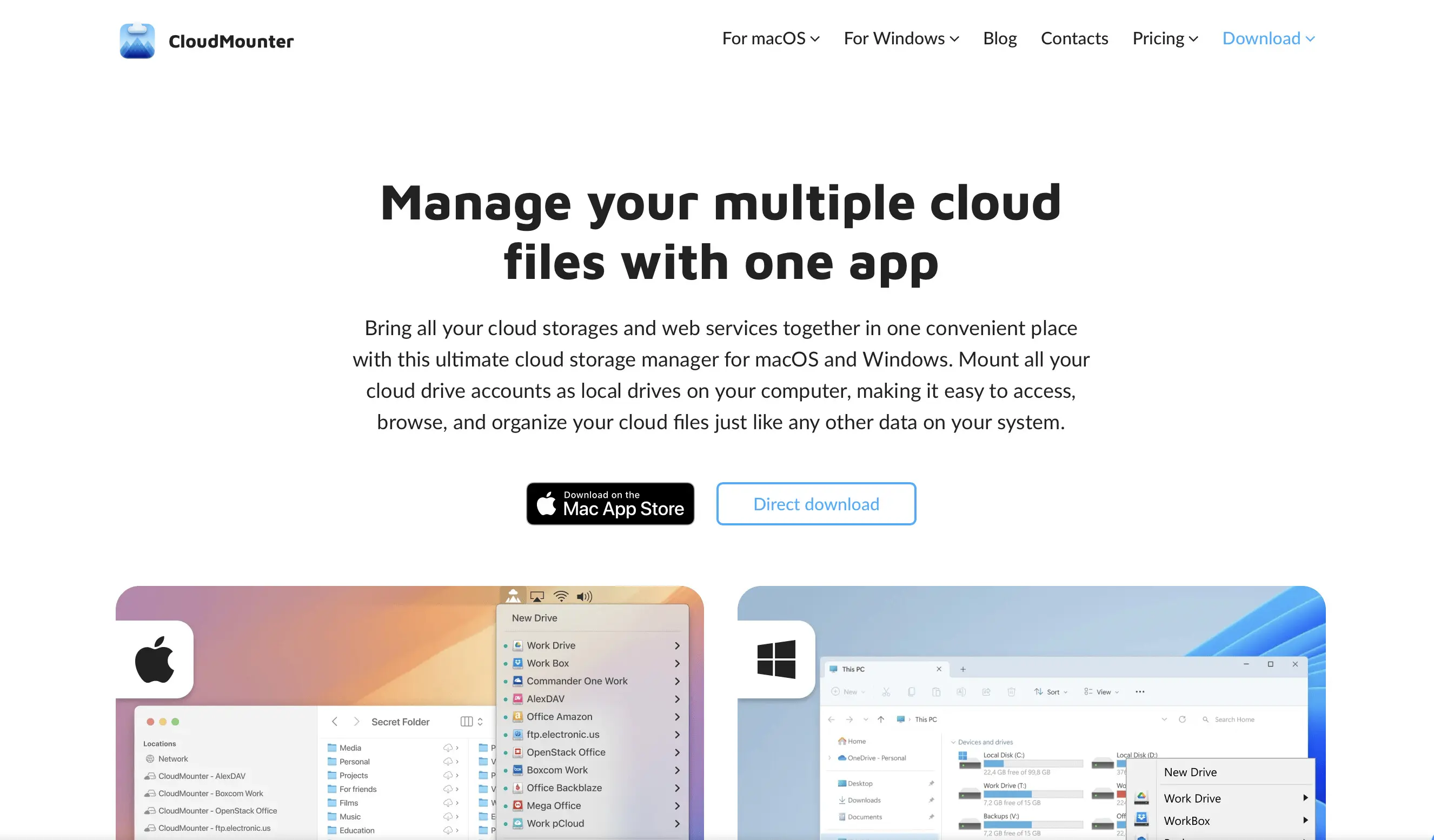
CloudMounter is much more than a classic FTP client. It combines FTP, SFTP, and cloud storage functions in a single application that works directly with Windows File Explorer or the macOS Finder. CloudMounter supports multiple protocols and services, allowing you to use not only traditional FTP connections but also manage cloud accounts centrally. FTP, SFTP, and WebDAV as well as cloud storage services like Dropbox, Google Drive, Microsoft OneDrive, Amazon S3, Box, MEGA, and Backblaze B2 can be integrated and managed together. Here’s an overview of CloudMounter’s features:
- compatible with Windows and macOS
- supports FTP, SFTP, and FTPS for secure connections
- mounts cloud storage as a drive
- multiple connections can be used in parallel
- encrypted storage of access credentials
- no local synchronization required
| Advantages | Disadvantages |
|---|---|
| ✓ integrates multiple servers and cloud services as drives | ✗ full feature set requires a paid license |
| ✓ access directly via File Explorer |
WISE-FTP
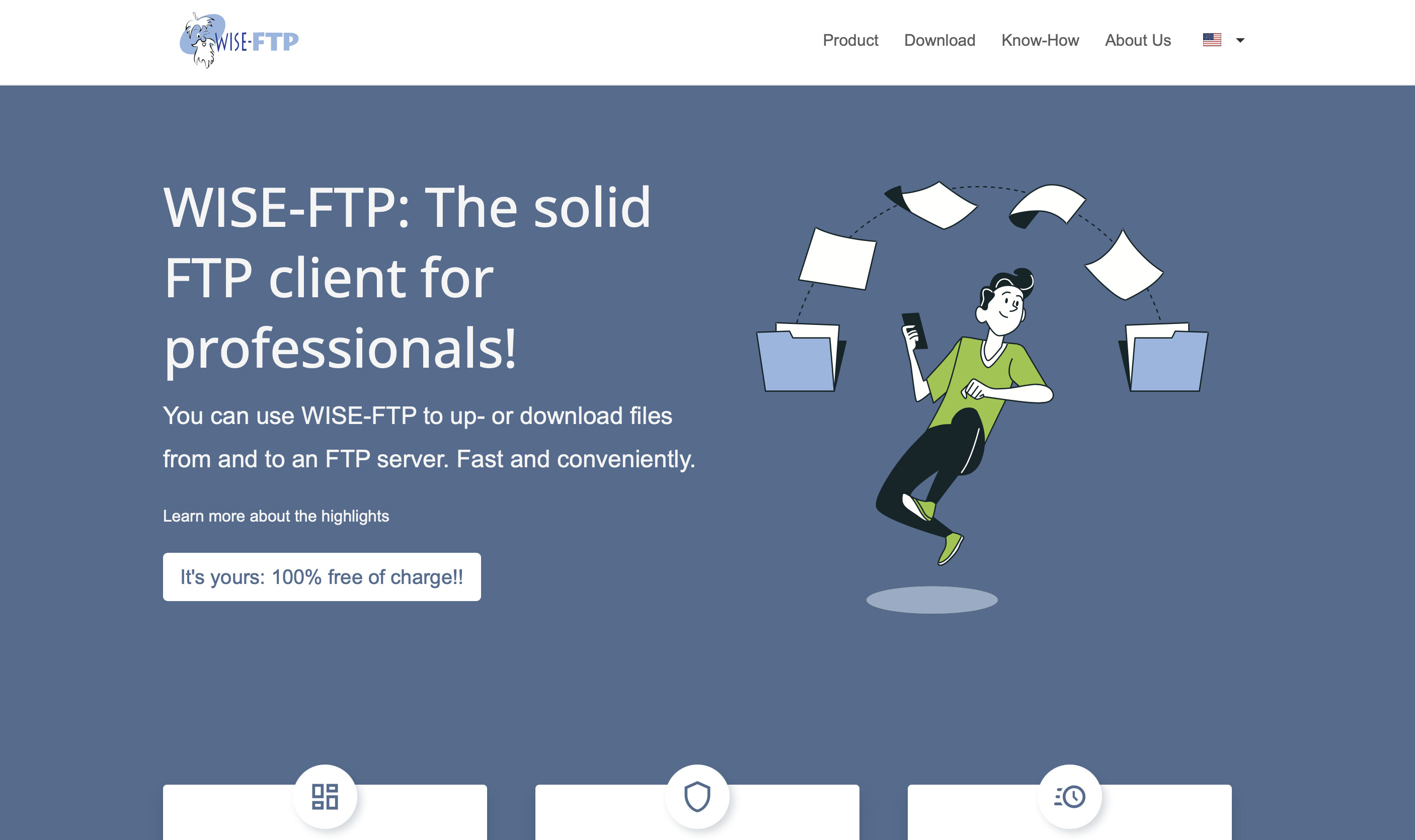
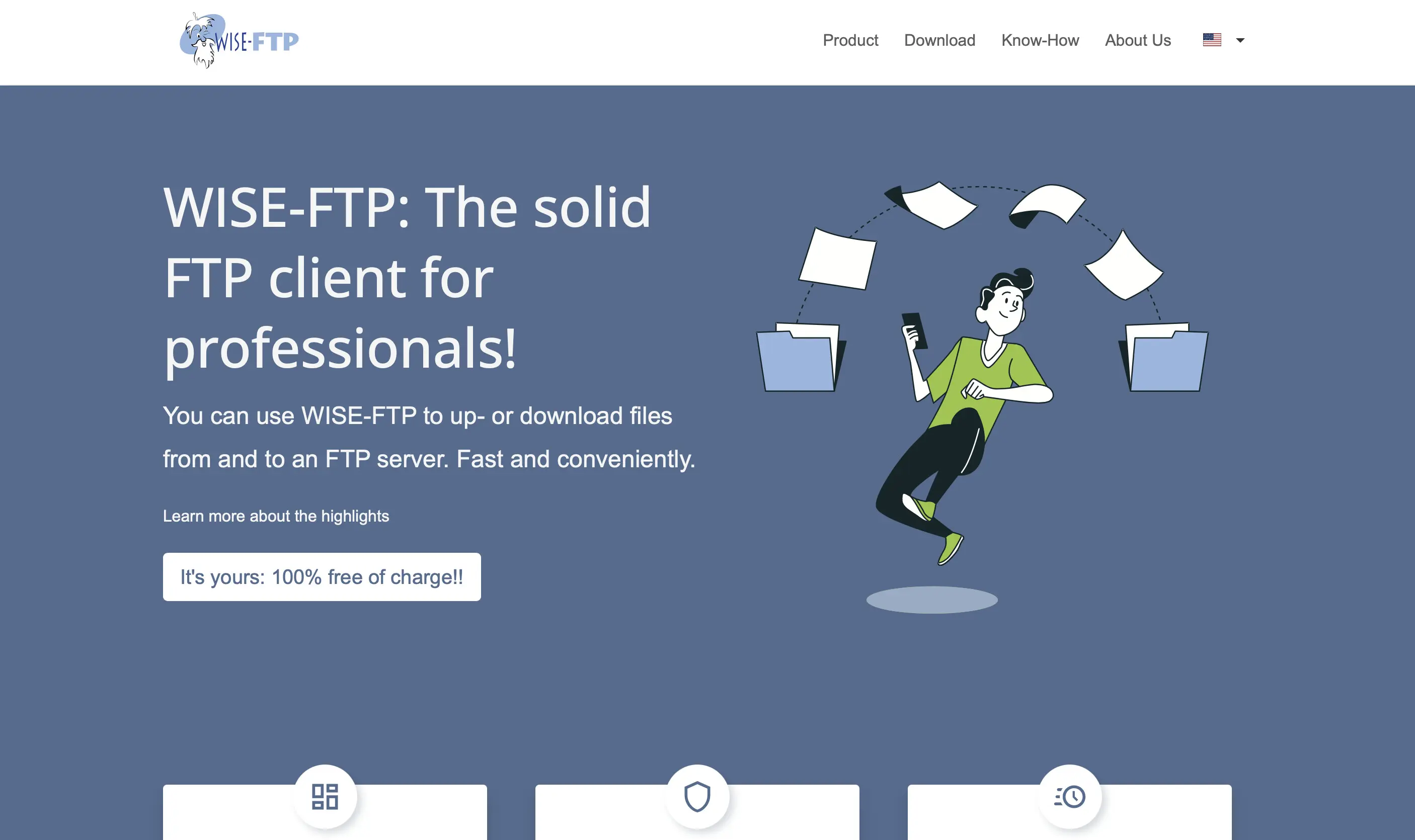
WISE-FTP is a free FTP program for Windows operating systems (Vista and later). The FTP software supports all common protocols such as FTP, SFTP, FTPS, or FTPES, making it possible to connect to any FTP server. Thanks to the integrated task scheduler, uploading and downloading files can be fully automated with WISE-FTP. Users simply need to define the target server in advance and specify when and how often a particular task should run. Both authentication and file transfer are subject to the highest security level thanks to the SFTP or FTPS protocol. In addition, the data can optionally be encrypted via Rijndael, BlowFish, or TripleDES. Here’s an overview of WISE-FTP’s features:
- compatible with Windows
- data encryption available (Rijndael, BlowFish, TripleDES)
- integrated task scheduler
- powerful FTP synchronization
- customizable, saveable keyboard shortcuts
- adjustable upload and download speed
| Advantages | Disadvantages |
|---|---|
| ✓ integrated task scheduler | ✗ only available starting with Windows Vista |
| ✓ various encryption algorithms available |
Transmit
The paid FTP client Transmit is a top-tier choice for macOS devices. The engine used enables very fast data transfer, including an adjustable bandwidth limit. The Mac-style interface impresses not only visually, but also functionally. Thanks to the sync feature, for example, entire directories can be easily synchronized between server and client. Transmit supports encrypted transfer via SSL/TLS and SSH, as well as the use of online storage services such as Amazon S3, Dropbox, or WebDAV. Users can access the respective servers either via Quick Connect or save them as favorites, so they are then listed on the application’s home screen. Here’s an overview of Transmit’s features:
- compatible with macOS
- supports SSL and SSH encryption
- enables connections to FTP, SFTP, WebDAV, and Amazon S3
- adjustable upload and download limit
- server-to-server data transfer via FXP
- multiple active connections possible
| Advantages | Disadvantages |
|---|---|
| ✓ two-factor authentication | ✗ no confirmation prompt when deleting files |
| ✓ integrations with various cloud storage services |
Cyberduck
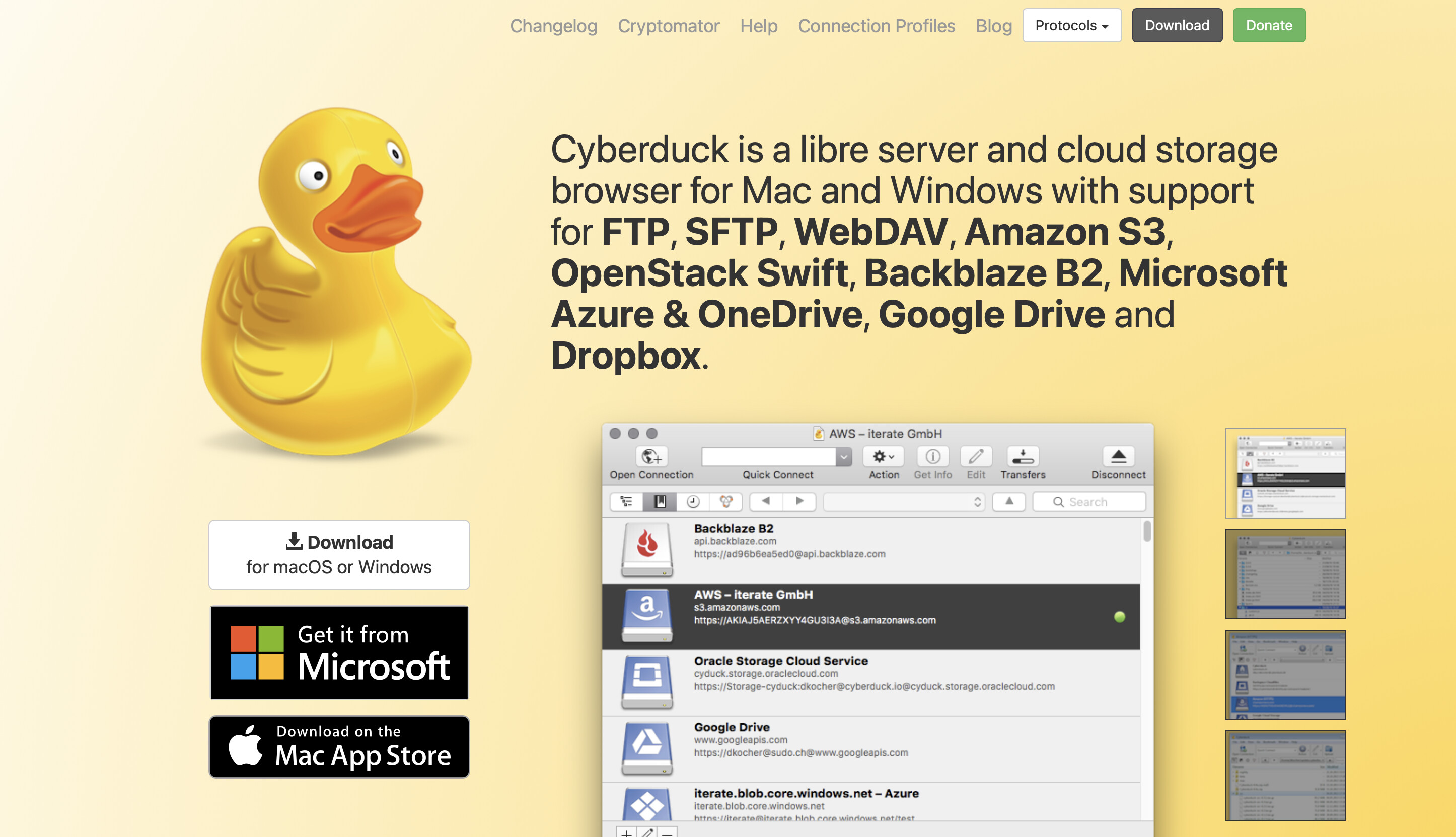
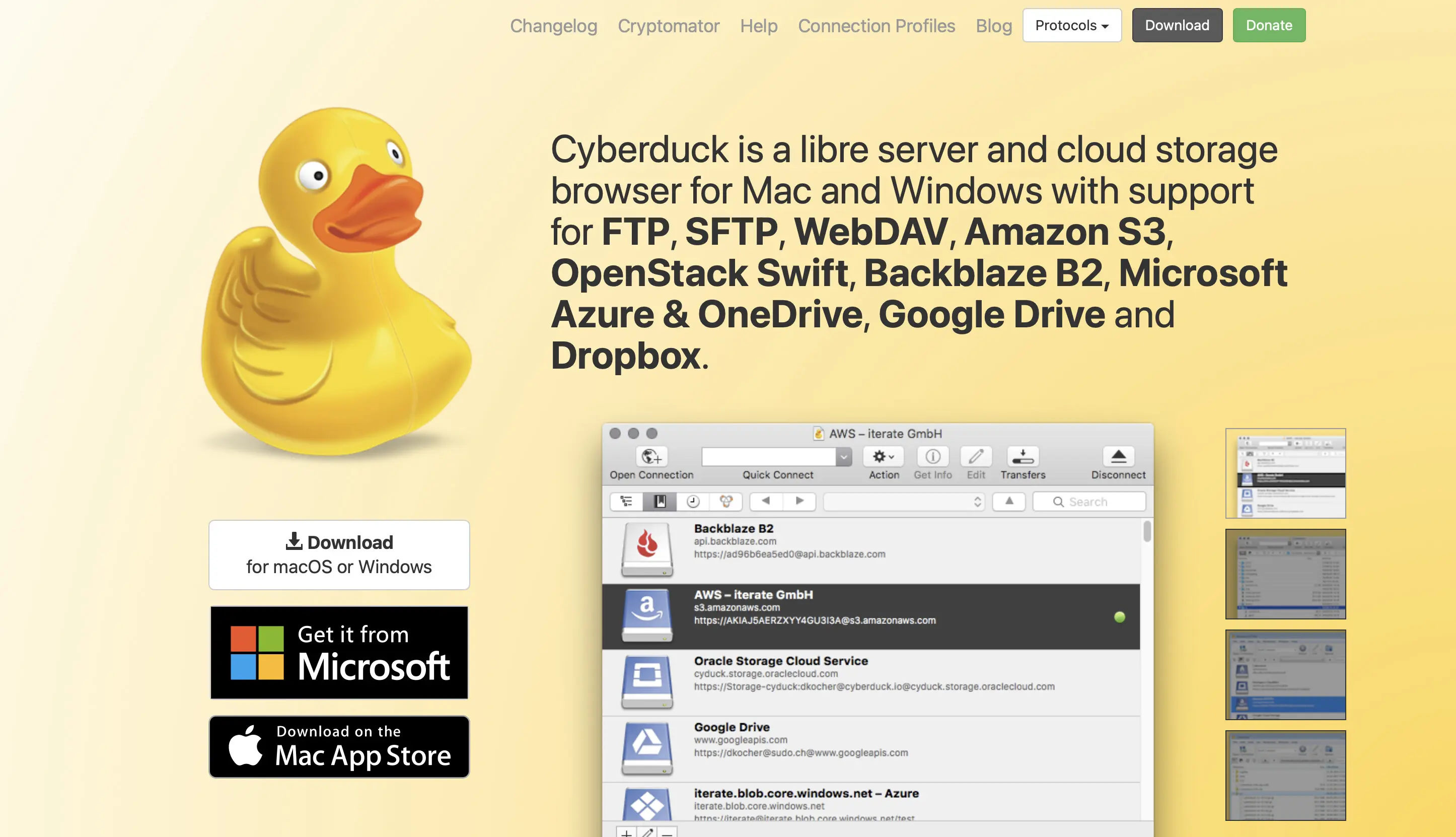
Cyberduck is a free FTP program that supports all Windows operating systems from Windows 10 as well as macOS from 10.13. It allows easy connections to any FTP, SFTP, or WebDAV servers and cloud services such as Amazon S3, Azure, or OpenStack. The user interface is intuitive and clear, making it quick to add new servers. If needed, you can limit the number of simultaneous file transfers, and resuming interrupted transfers is also possible with this FTP software without any issues. Cyberduck also offers excellent bookmark organization via drag-and-drop, which can even be imported from other programs if needed. Here’s an overview of Cyberduck’s features:
- compatible with Windows and macOS
- enables connections to FTP, SFTP, WebDAV, Azure, OpenStack, Amazon S3, and much more
- adjustable number of simultaneous transfers
- archiving and extracting tar/zip files via SSH
- client-side encryption via Cryptomator
- depending on the service, segmented uploads for files larger than 5 GB
| Advantages | Disadvantages |
|---|---|
| ✓ easy-to-use, clearly laid-out interface | ✗ occasional connection dropouts |
| ✓ client-side encryption via Cryptomator |
- Stay online with 99.99% uptime and robust security
- Add performance with a click as traffic grows
- Includes free domain, SSL, email, and 24/7 support
Commander One Pro
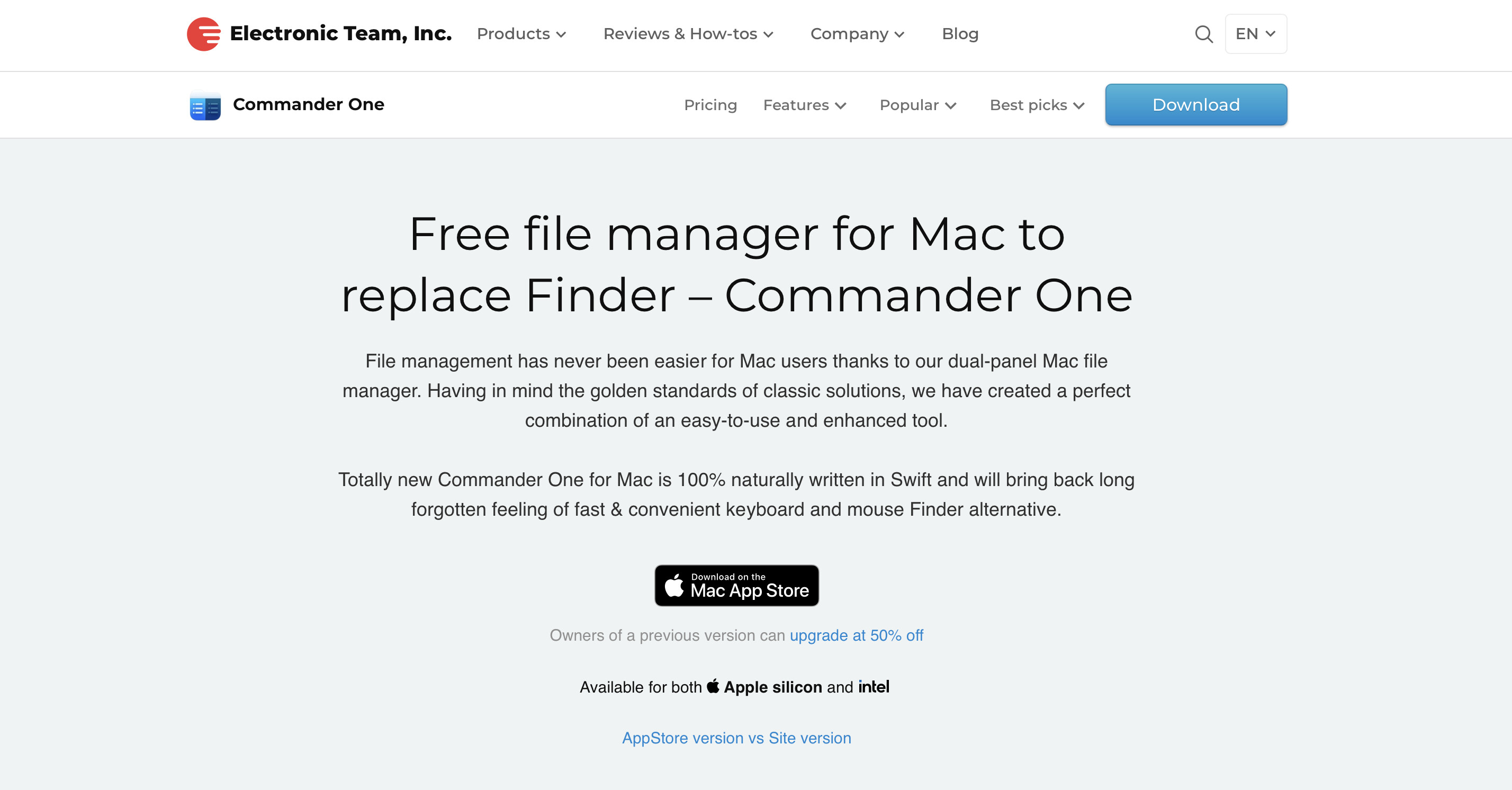
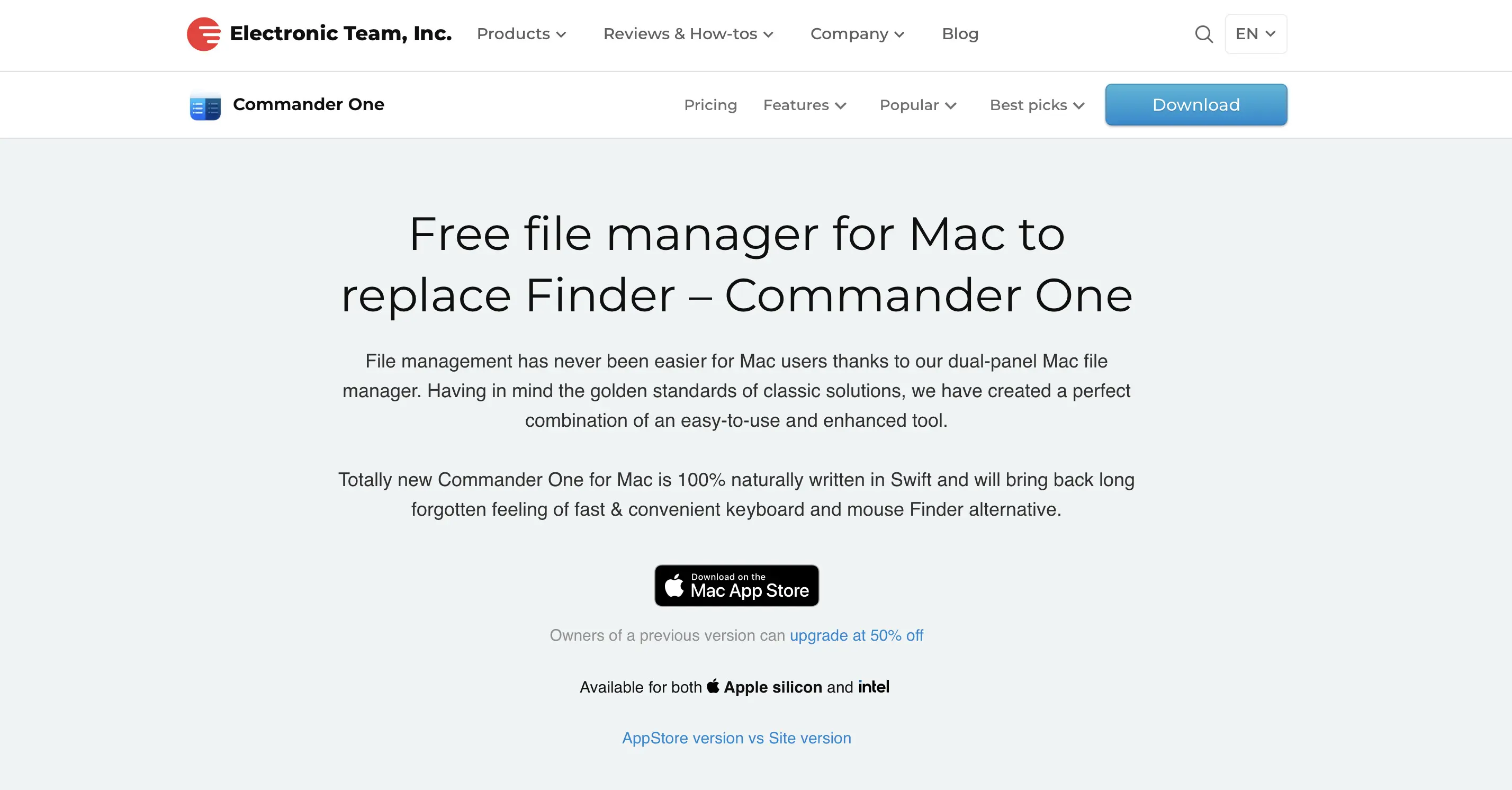
The Mac file manager Commander One can also function as an FTP client once you upgrade to the paid Pro edition. In addition to supporting FTP, FTPS, and SFTP, the Pro version enables data transfers via WebDAV as well as integration with cloud storage services such as Dropbox, OneDrive, Google Drive, and Amazon S3.
Commander One enables simultaneous file transfers to ensure fast and efficient uploads and downloads. An integrated queue function manages transfer tasks intelligently, helping to avoid bandwidth bottlenecks. When connecting to an FTP server, users can also specify the maximum number of concurrent connections. Here’s an overview of Commander One Pro’s features:
- compatible with macOS
- enables connections to FTP, FTPS, SFTP, WebDAV, Google Drive, OneDrive, and Amazon S3
- integrated process manager
- built-in terminal emulator
- various themes available
- automatically saves all server settings and login credentials in the macOS Keychain
| Advantages | Disadvantages |
|---|---|
| ✓ automatically saves server data in the macOS Keychain | ✗ no feature for synchronizing directories |
| ✓ comes with its own built-in terminal |
SmartFTP
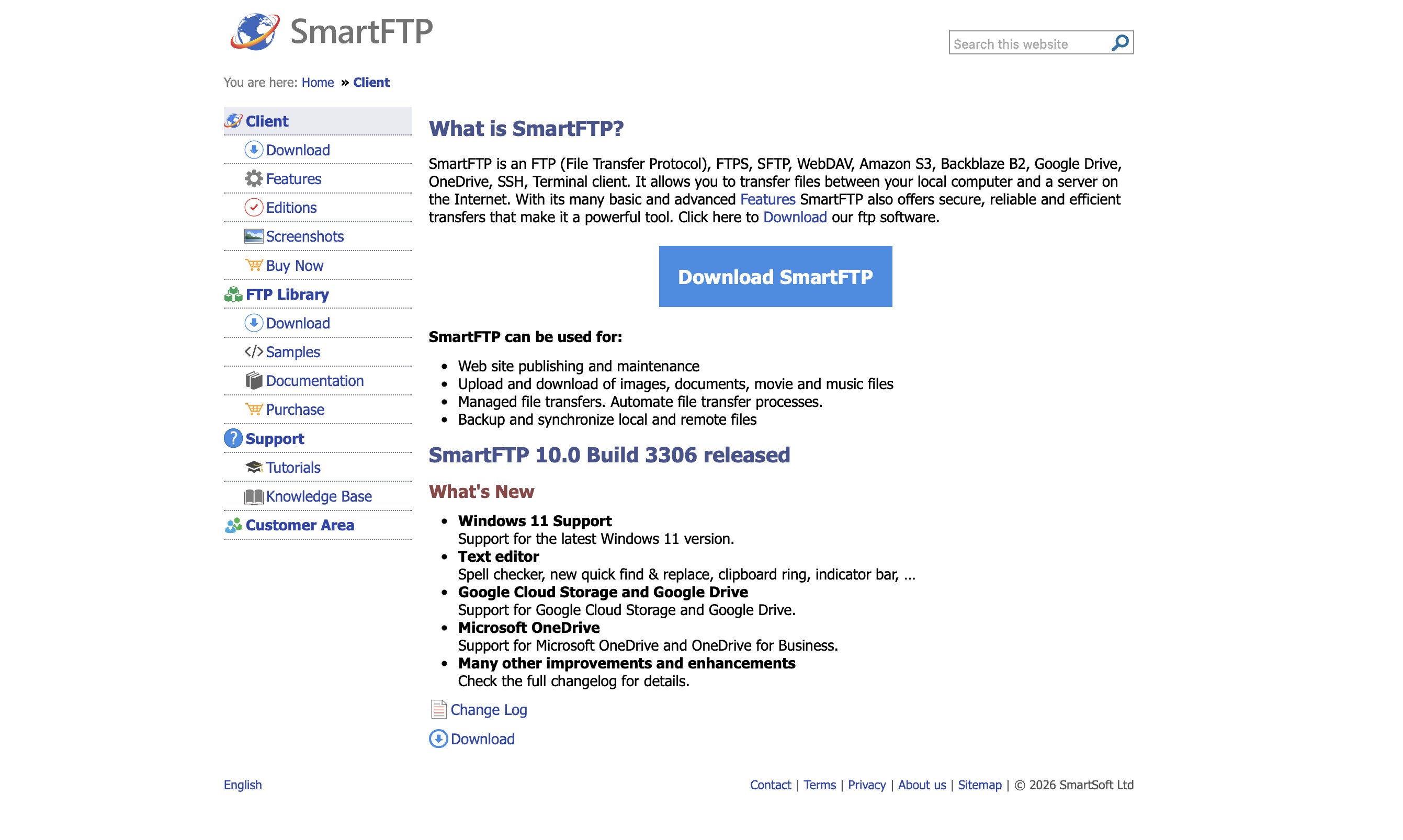
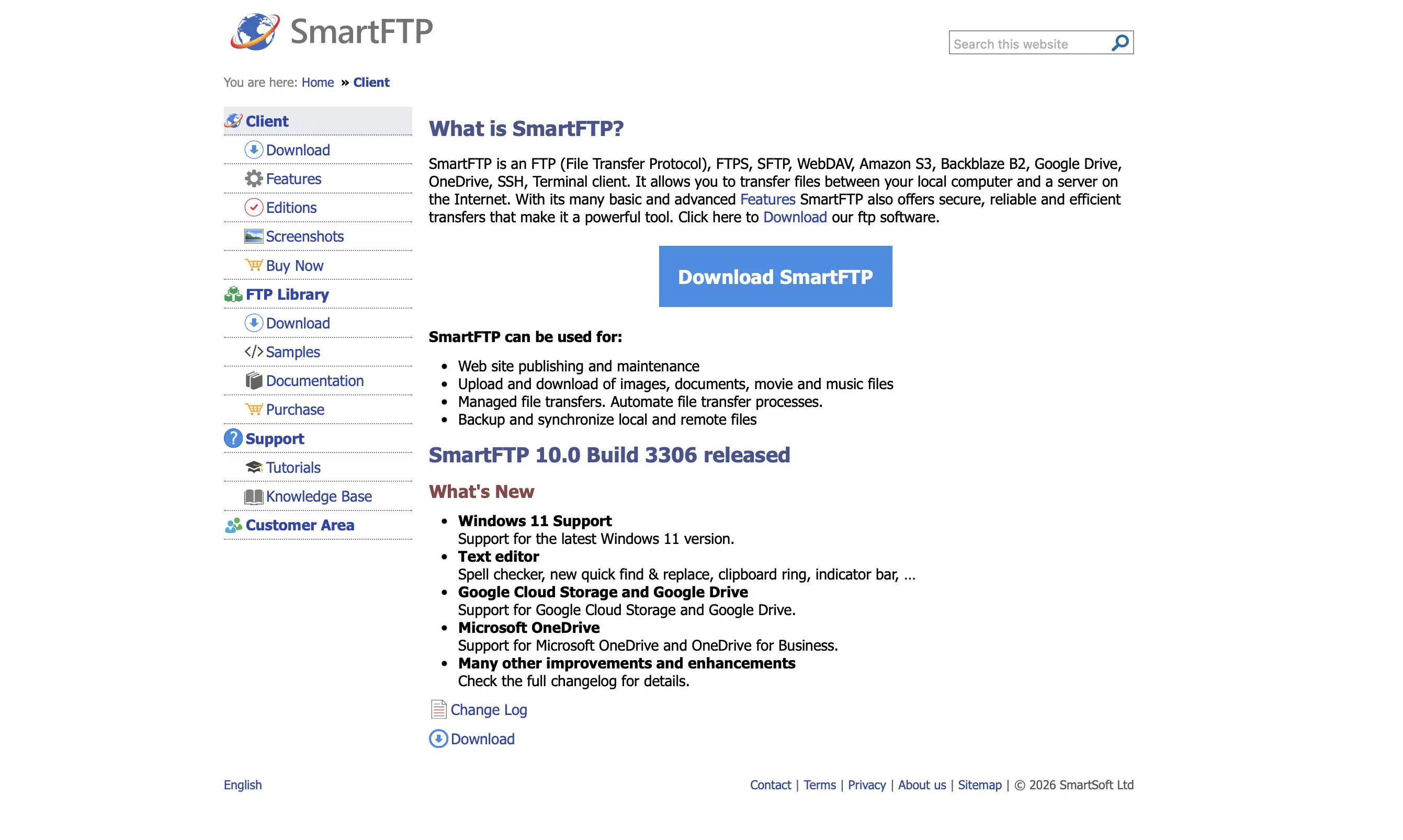
The commercial FTP solution SmartFTP offers a 30-day trial before purchase. The client runs on Windows 10 and later and supports the FTP, FTPS, and SFTP protocols. Depending on the selected edition, it also provides integration with WebDAV, Amazon S3, Google Drive, Microsoft OneDrive, Google Cloud Storage, Backblaze B2, Box, and a built-in terminal emulator.
SmartFTP allows connections to multiple servers simultaneously, enabling direct server-to-server transfers via FXP. Its integrated search function is particularly useful when working with large FTP servers, making it easier to locate files quickly. After the trial period, users can choose between the Professional, Ultimate, and Enterprise editions, each offering a different range of features. Here’s an overview of SmartFTP’s features in the Enterprise edition:
- compatible with Windows
- supports SSL and SSH encryption
- enables connections to FTP, SFTP, WebDAV, Google Drive, Microsoft OneDrive, and Amazon S3
- transfer schedules
- resume interrupted transfers
- simultaneous connections to multiple servers
| Advantages | Disadvantages |
|---|---|
| ✓ resume interrupted data transfers | ✗ comparatively expensive |
| ✓ integrated remote browser |
ForkLift
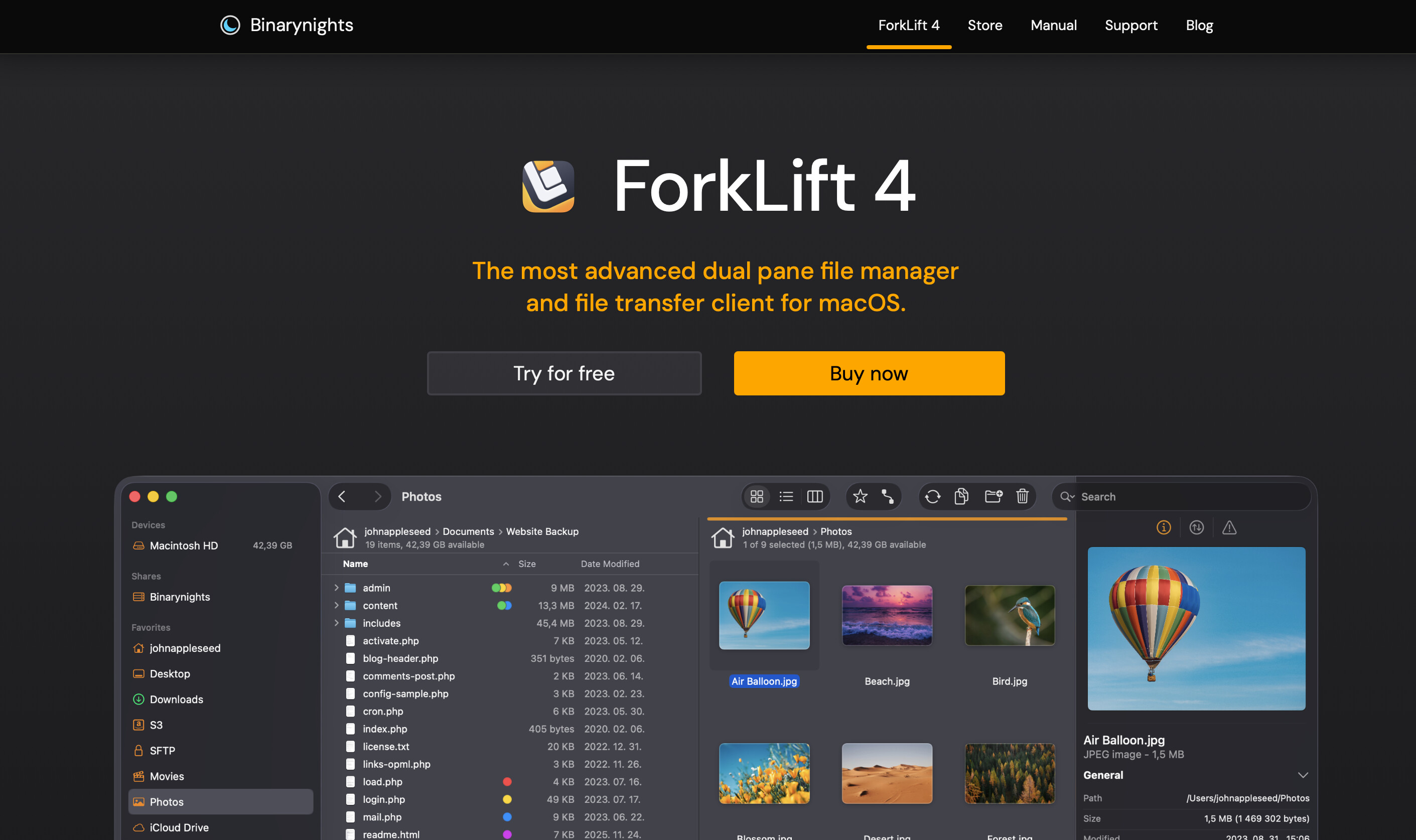
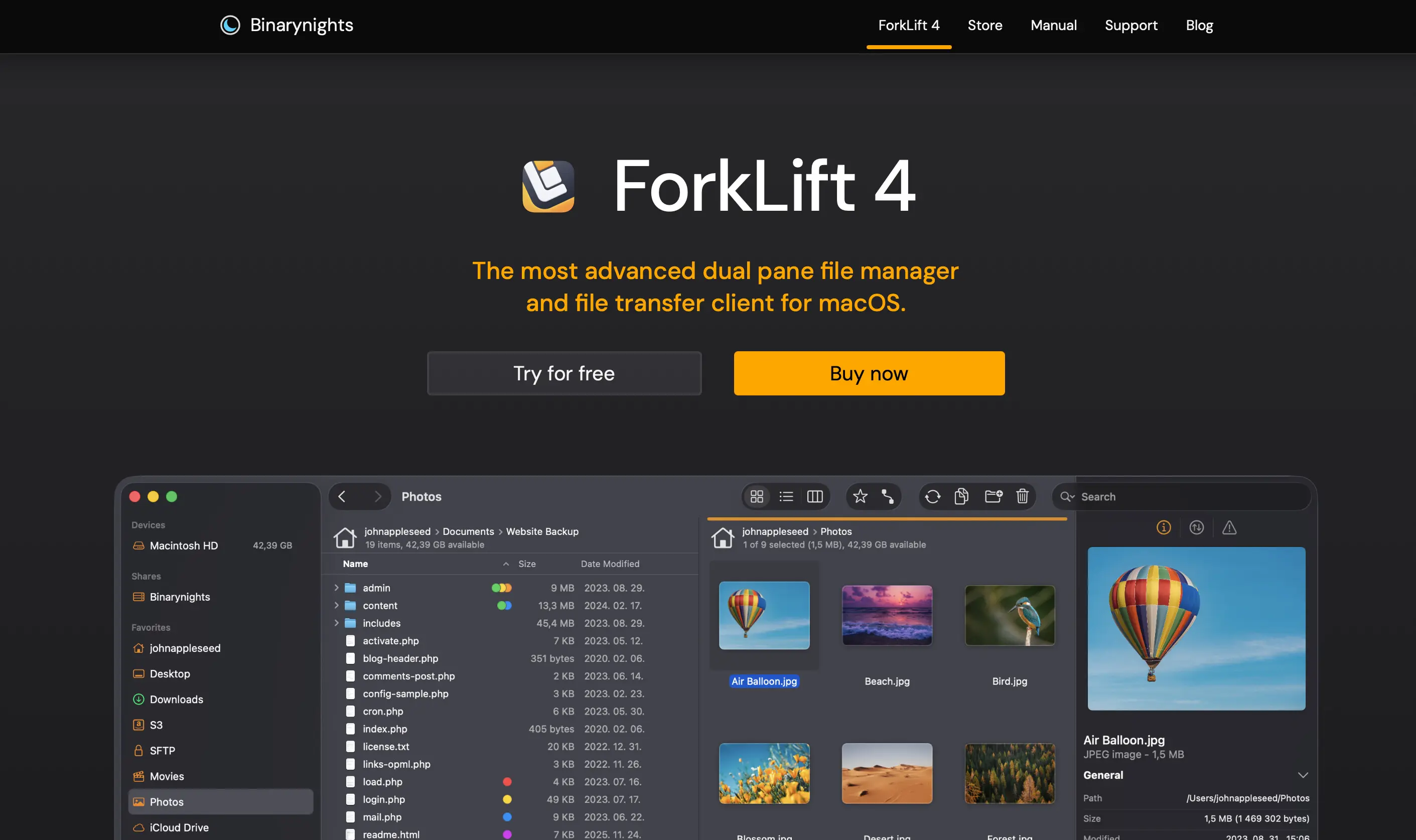
The FTP program ForkLift has been one of the most feature-rich solutions for Mac computers for years. The paid FTP software not only supports various protocols such as FTP, SFTP, SMB, AFP, and NFS, but also provides interfaces to online services like Amazon S3, Google Drive, and Backblaze B2. Users can establish connections to multiple servers at the same time and conveniently move files between them via drag and drop. In addition, entire directories can be synchronized (one-way or two-way) with a single click, making it possible, for example, to transfer changes to local files to the FTP server in no time at all—and files can also be renamed in batches. Here’s an overview of Forklift’s features:
- compatible with macOS
- enables connections to FTP, SFTP, SMB, Google Drive, and Amazon S3, among others
- password protection for server information
- easy file organization using tags
- directory synchronization
- preview (images, PDFs, text) and playback function (video and audio files)
| Advantages | Disadvantages |
|---|---|
| ✓ password protection for server data | ✗ updates included for only one or two years; after that, new costs apply |
| ✓ practical preview/playback function |
WinSCP
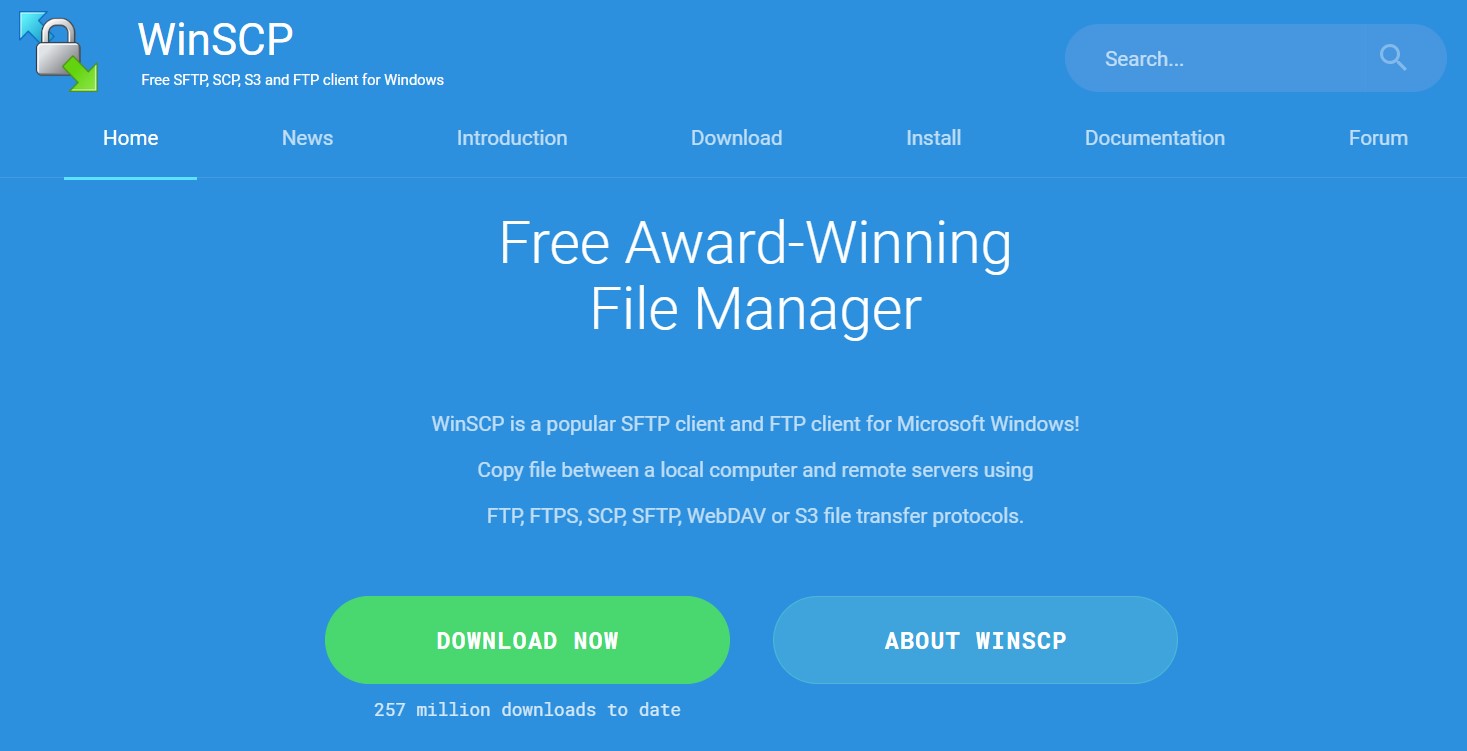
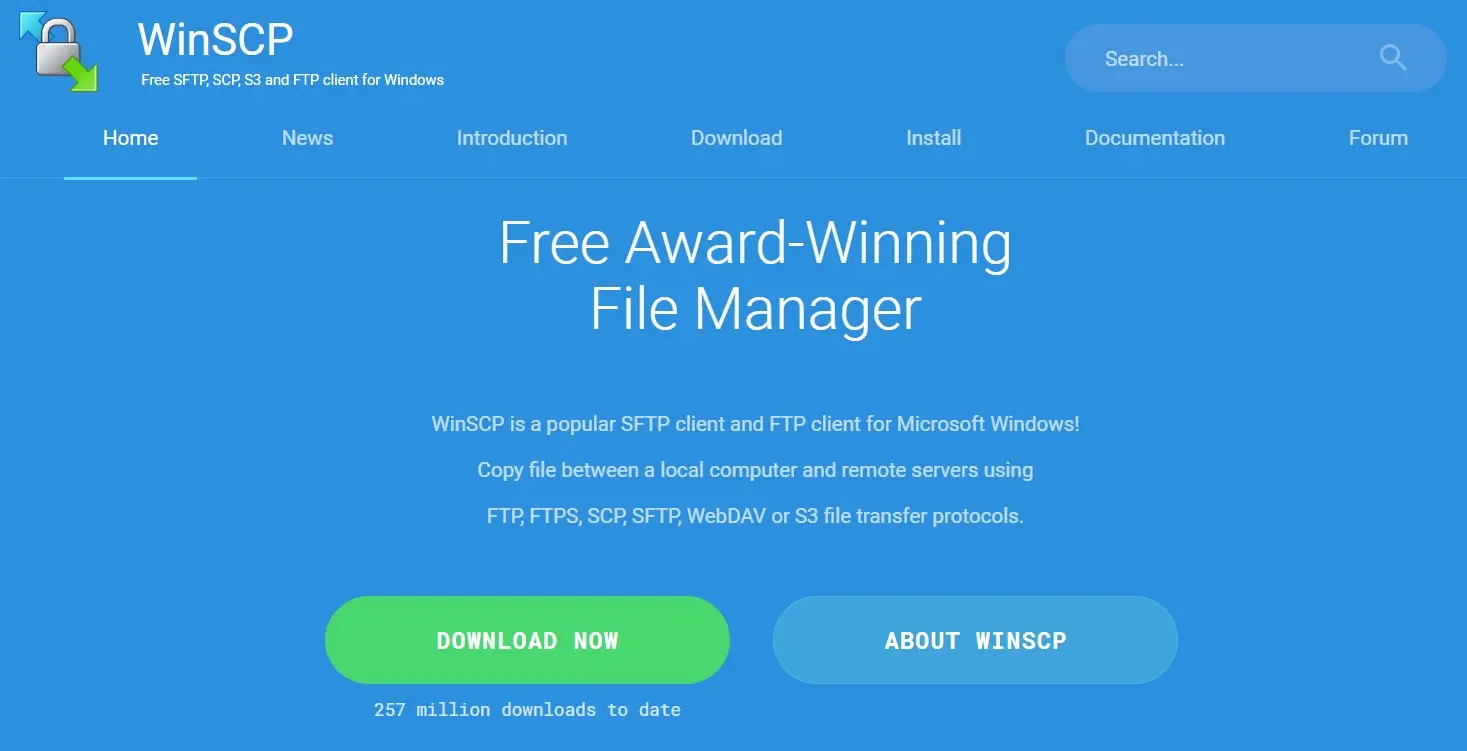
WinSCP is an open-source program for Windows (Windows 7 and later) that, in addition to the FTP, SFTP, WebDAV, and S3 protocols, also supports the SCP encryption protocol, among others. When connecting to SSH servers, users benefit from encrypted file exchange, and login credentials are also transmitted in encoded form in this case. With WinSCP, directories can be synchronized and files can be copied, deleted, or moved. Depending on preference, the user can choose between two interfaces. The Explorer interface is based on the familiar Windows folder structure, while the Norton Commander interface is modeled on the file manager of the same name. Frequently used connections can be saved as favorites with WinSCP. Here’s an overview of WinSCP’s features:
- compatible with Windows
- supports SSL, SSH, and SCP encryption
- enables connections to FTP and SFTP
- directory synchronization in semi-automated or fully automated steps
- built-in text editor
- optional portable version enables use without installation
| Advantages | Disadvantages |
|---|---|
| ✓ open source | ✗ issues transferring large files |
| ✓ optional Commander or Explorer interface |
How file transfer via (S)FTP works
To access an FTP server, a connection must first be established using an FTP client. The client creates a TCP connection to the server’s control port (by default, port 21) and can then send commands, which the server responds to. The actual file transfer takes place over a separate port. Two transfer modes are distinguished:
- In active mode, the client provides the server with its own IP address and port during the connection setup via port 20. This allows the server to know which port to use to reach the client.
- In passive mode, the server does not receive an IP address from the client, for example due to a blocking firewall. Instead, the server offers a port to the client, which then initiates the connection.
With a web hosting solution that includes FTP access, users can transfer files quickly and efficiently between their local device and the web server. Dedicated FTP software simplifies this process through an intuitive user interface, offering functionality and convenience that browser-based clients typically do not provide.