

WinSCP

The internet can be a dangerous place. There are always stories circulating of unauthorized parties gaining access to sensitive information. Transferring data via email also carries a potential risk when using unencrypted channels. Popular transfer protocols such as FTP (file transfer protocol) or the now outdated RCP (remote copy protocol) are susceptible to data theft since they transfer file content (i.e. user names and passwords) in plain text. The SFTP protocol (SSH file transfer protocol) and SCP (secure copy) offer a more secure alternative. These enable an encrypted, authenticated connection between the server and client using SSH (secure shell). An SSH-proficient client program is available to Windows users with WinSCP. But what advantages does WinSCP offer and how can it be implemented?
- Great premium TLDs at affordable prices
- Simple registration & transfer
What is WinSCP?
WinSCP (Windows secure copy) is a client program written in the programming language, C++. It enables secure data transfer between two computers. The free software supports multiple authentication and encryption methods and therefore presents itself as a Windows-based alternative to OpenSSH and PuTTY. Based on SSH, the SFTP, and SCP protocols are used to form an encrypted connection, which is of great significance. The program supports the unencrypted transfer of FTP as well as the standard WebDAV. Just like other client programs (e.g. FileZilla), WinSCP serves as a file management on web servers via remote access. Generally, a connection is established between a local Windows PC and the web server. This makes it possible to download files from the server to the client, to upload from the client to the server as well as to manage them on the server. In this way, WinSCP offers a multitude of advantages:
-
User-friendly operation: WinSCP benefits from its graphical user interface that is available in two versions: the Commander interface offers the user two folder views in one window. The local computer’s file directory is shown on the left, and on the right are the remotely accessed files. The Explorer interface, on the other hand, resembles that of Windows Explorer and offers just one folder view. The data transfer takes place on both user interfaces using the drag and drop feature. You can make use of the Windows shortcuts on the Explorer interface.
-
Integrated text editor: WinSCP allows the direct editing of text files in the remote directory on the server. The software also provides an internal text editor. HTML, PHP, or CSS files can be opened and adjusted in the client program. During the writing process, WinSCP creates a copy in the cache, which is loaded in the remote directory after the saving process and replaces the original file. External editors such as Notepad++ or Eclipse can alternatively be integrated into WinSCP.
-
Automatic synchronization: WinSCP allows the synchronization of 2 directories. This facilitates data management for administrators since files on the web server can be automatically synchronized with local databases on the PC. If WinSCP is requested to keep a remote directory up-to-date, the program monitors the data in the local directory, independently uploads modified files, and deletes the old version at the server’s request.
-
Free usage: WinSCP is licensed under the general public license (GNU). As a free software, the program can be changed and distributed. The program code for SSH and SCP is based on the client program PuTTY (the FTP program code on FileZilla).
Encrypted connection via SSH
WinSCP is particularly attractive for users because with this client software as they can send their data securely over an unsecured network. The integrated SSH client establishes an encrypted network connection between the local PC and a remote device (usually a web server). Like SCP, SFTP relies on the network protocol SSH and uses its encryption and authentication capabilities. There are several differences regarding the range of functions.
-
Secure Copy (SCP): an encrypted data transfer via SCP that uses SSH-1 and exclusively supports the transfer of files from one computer to another. Since the introduction of SSH-2 and the more flexible transfer standard, SFTP (which was built on SSH-2), SCP has become less and less popular. Compared with SFTP, SCP takes the lead with its efficient transfer algorithm which results in a quicker data transfer.
-
SSH File Transfer Protocol (SFTP): The transfer protocol SFTP came onto the market along with SSH-2. Just like SCP, SFTP stood out from FTP through an authentication from the server and clients as well as through an encrypted data transfer. SFTP’s range of functions is clearly bigger than those of SCP. Instead of just transferring data, SFTP can also manage and edit files in the remote directory.
Requirements for using WinSCP
WinSCP runs on every Windows computer. In order to establish a connection to a web server, you need a username as well as the required log-in information. The encrypted access via SFTP or SCP requires a SSH server on the server’s side. This is usually automatically installed for Linux distributions. For the authentication from the web server you can either use a classic password or a SSH key pair. Popular hosting packets beyond beginner level generally allow access via SSH.
Public key authentication
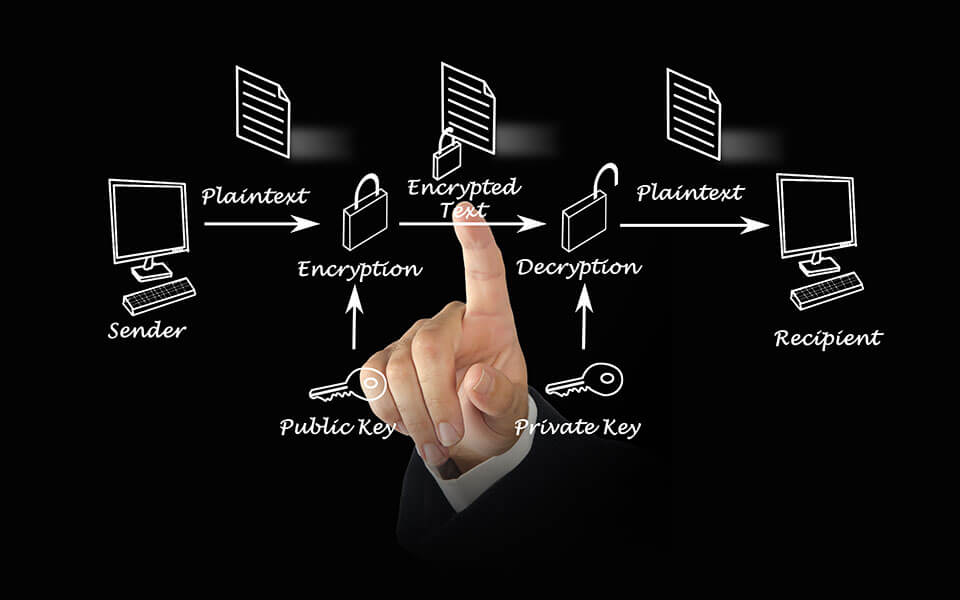
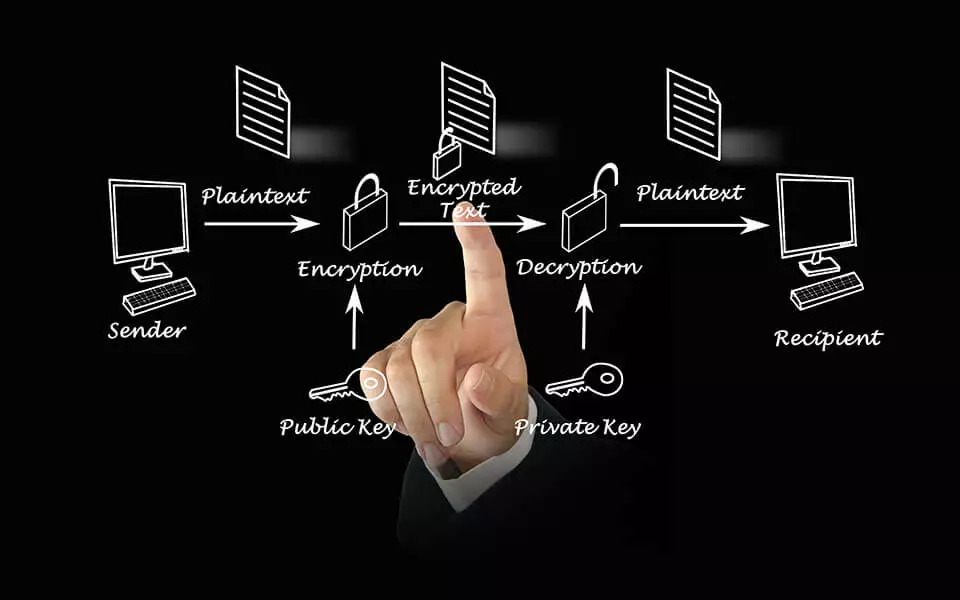
A key pair made of private and public keys is generated with the WinSCP integrated application PuTTYgen for a public key authentication. While the public key is saved on the SSH server, the private key is saved on the local computer. This allows WinSCP to create signatures for the authentication whose identity can be verified by the web server with help from the public key. It is often encrypted with a random password and locally saved so that the private key doesn’t fall into the wrong hands.
Simplified authentication through Pageant
The public key authentication can be simplified with the PuTTY authentication agent (Pageant). For this authentication help, you just have to enter your private key password when starting a Windows session. Afterwards, the Pageant keeps the key on hold in plain text for any further log-ins. If the user logs out, the Pageant shuts down without saving the unencrypted private key on the hard drive. Visit or Digital Guide article to find out more about the first steps of WinSCP.
Author

Vladimir Simovic
Vladimir Simović has been building web projects with WordPress since 2004. He was one of the first German-speaking WordPress bloggers and has published several specialized books as well as over 60 expert articles, and has managed well over a hundred WordPress projects.
Reviewers

Sven Ignor
Sven Ignor is a TYPO3 web developer with over 15 years of experience and specialises in bespoke solutions based on TYPO3. He is happy to share his knowledge and is committed to TYPO3 and the community

Julia Hertler
With over 18 years of experience in content marketing, Julia Hertler has deep expertise in digital communications. For the past 10 years, she has specialized in the areas of domains and hosting at the IONOS Digital Guide, making complex technical topics easy to understand.