

How to install WordPress in Plesk

For any Cloud Server with Plesk, applications like WordPress should always be installed through the Plesk interface. Follow the instructions in this tutorial to learn how to install and run WordPress on a Plesk server.
Requirements
- A Cloud Server with Plesk (any operating system)
- NEW: VM cloning, load balancing, block storage, and more
- Ideal for agentic AI, LLMs, and automation at scale
- Free 24/7 expert support and 99.99%+ uptime
- Unlimited traffic and no setup fees
Install WordPress
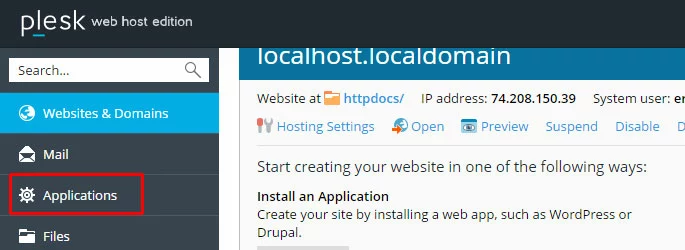
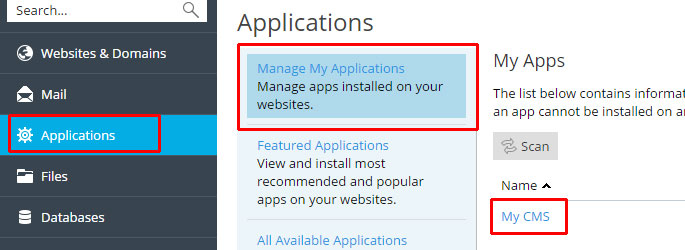
Log in to the Plesk admin page and select Applications on the left-hand menu.
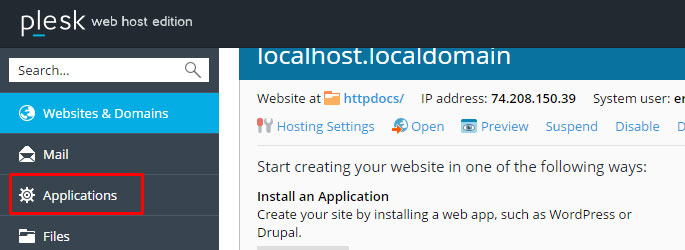
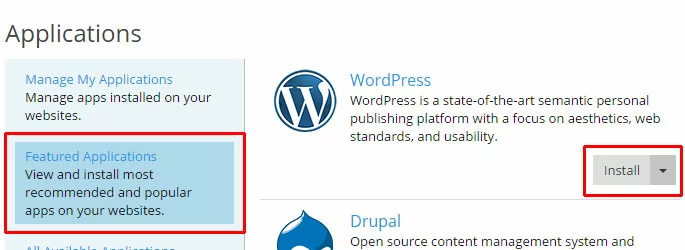
Click Install for WordPress on the Applications page.
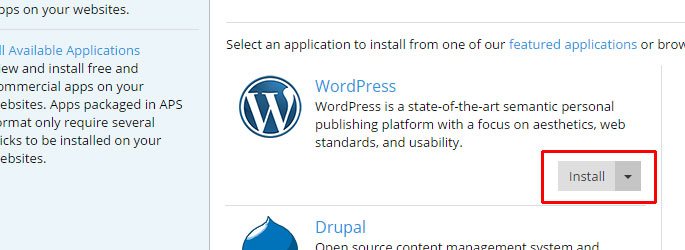
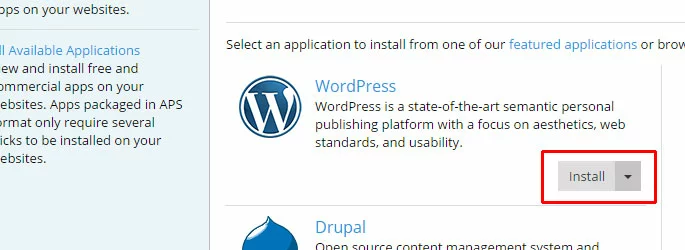
WordPress can also be found in the Featured Applications section.
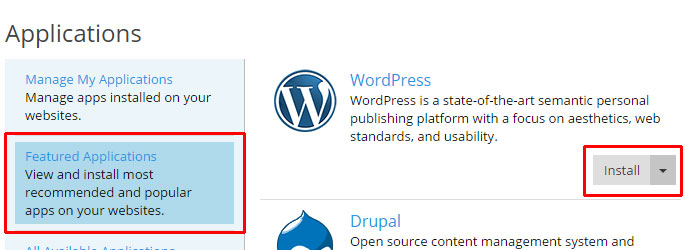
It will take a few moments for the WordPress application to download and install. After the process completes, you will be able to view and manage your WordPress installation.
Manage WordPress
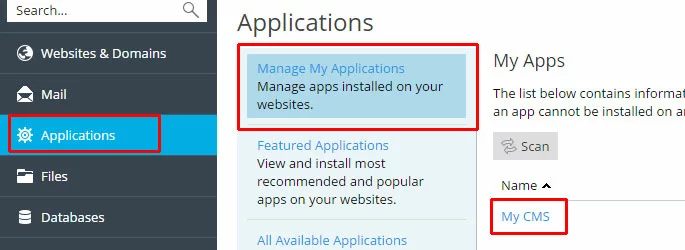
To manage the WordPress installation, go to Applications > Manage My Applications and click on My CMS.
Update the site name
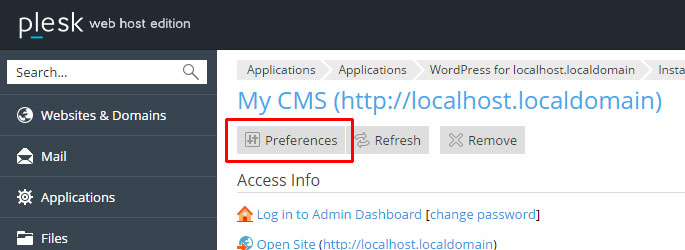
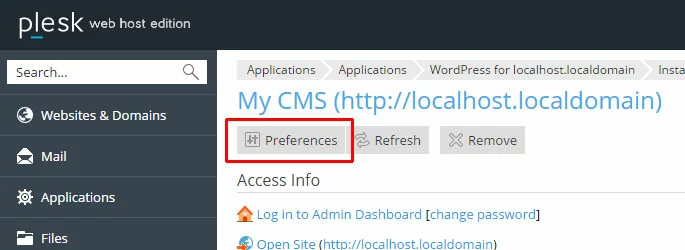
Click the Preferences button to update the WordPress site name and/or administrator email address.
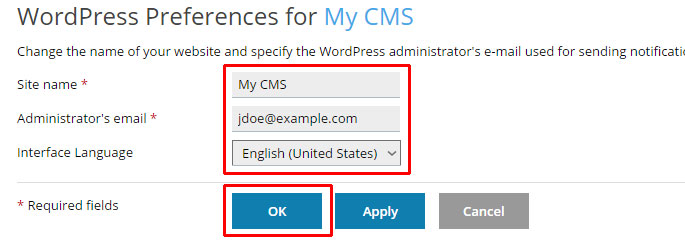
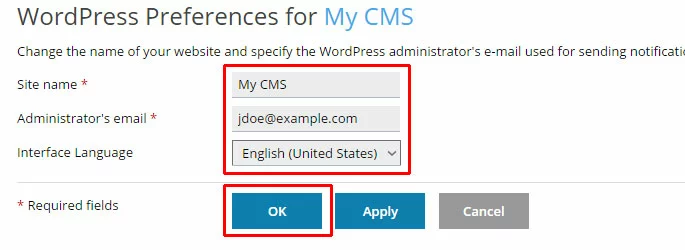
Fill out the desired new site name, administrator email address, and/or interface language. Click OK to apply the changes and return to the main WordPress admin page.
Change the admin password
To change the admin password (which will default to the original admin password set for your Plesk installation), click change password.
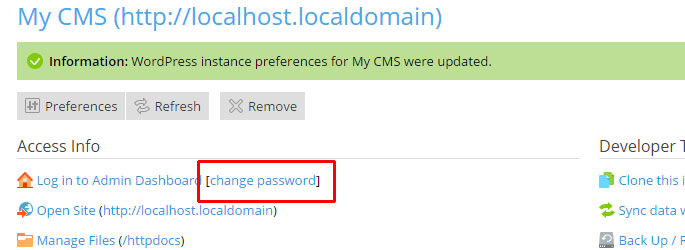
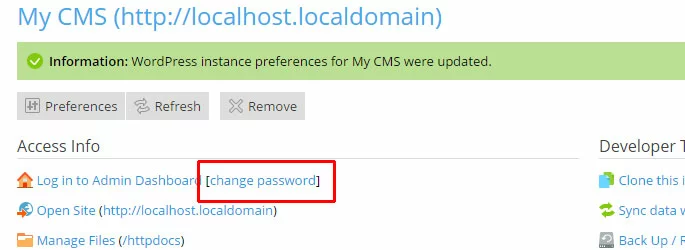
Click Change to change the password.
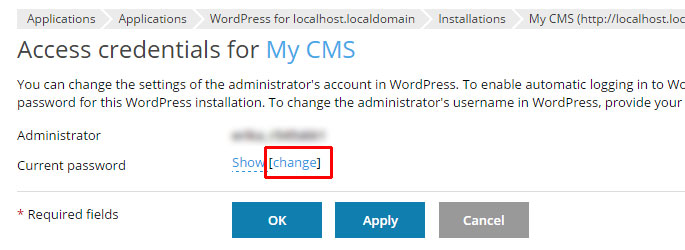
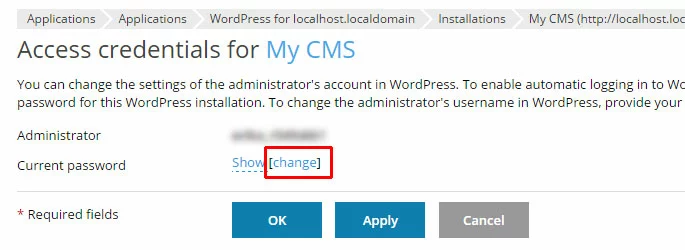
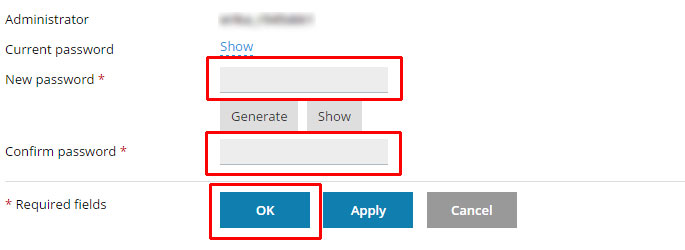
Enter the new password twice, then click OK to save the change and return to the WordPress management page.
Access the WordPress admin panel
Click Log in to Admin Dashboard to log in to the WordPress admin panel.
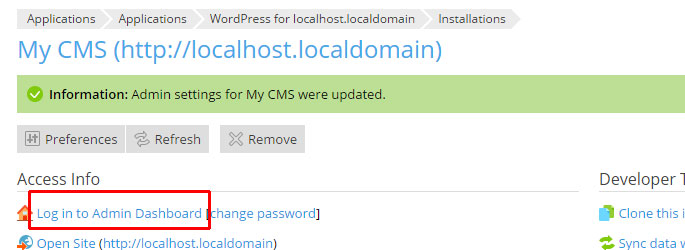
This will log you in without having to enter a password.
- Fast page loads while cutting costs by 60%
- Keep your site open 24/7 with 99.99% uptime
- Never run out of space with unlimited storage
Reviewer

Julia Hertler
With over 18 years of experience in content marketing, Julia Hertler has deep expertise in digital communications. For the past 10 years, she has specialized in the areas of domains and hosting at the IONOS Digital Guide, making complex technical topics easy to understand.