

How to duplicate a WordPress page step by step

Duplicating pages or posts can greatly streamline building a WordPress website. Instead of recreating similar pages from scratch, you can copy an existing one and adapt it as needed. If you duplicate WordPress pages often, using a plugin offers a fast and convenient solution.
- Free Wildcard SSL for safer data transfers
- Free private registration for more privacy
- Free Domain Connect for easy DNS setup
How to duplicate a WordPress page with Yoast Duplicate Post
Yoast Duplicate Post is one of the most popular plugins for duplicating WordPress posts, with over four million downloads. The plugin is suitable for both dynamic posts and regular pages – and it’s incredibly easy to use.
WordPress distinguishes between different types of content. The main ones are dynamic “posts” and static “pages.” While the content on “pages” remains basically the same, new content can easily be added to “posts.” Consequently, the position of the content shifts dynamically.
Step 1: Adjust settings
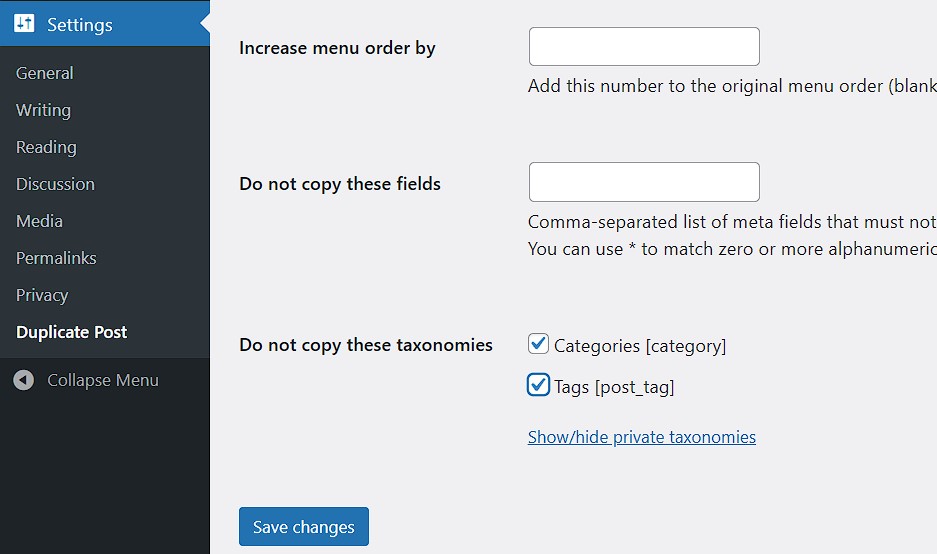
After installing and activating Yoast Duplicate Post, go to “Settings” in your WordPress backend and click the “Duplicate Post” button that appears after installation. There, you can adjust which elements of a page or post should or shouldn’t be copied. If you’re unsure which options to select, it’s best to keep the default settings and test by duplicating a page or post.
If you change any settings, click “Save changes” to apply them.
Step 2: Select page
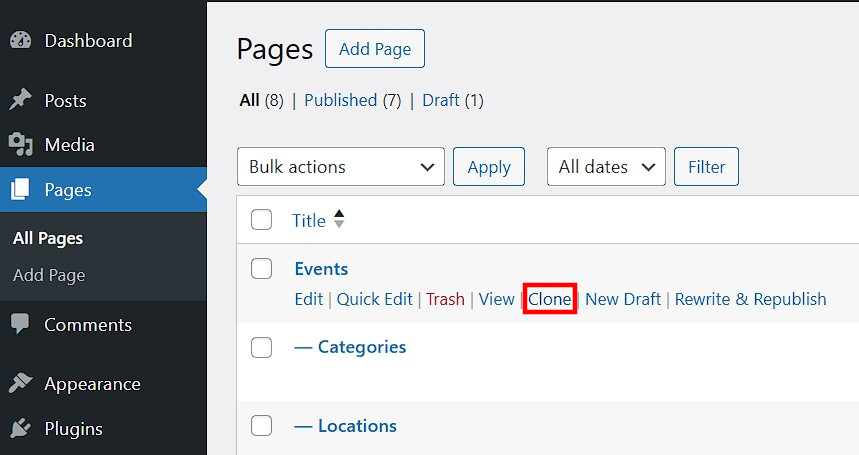
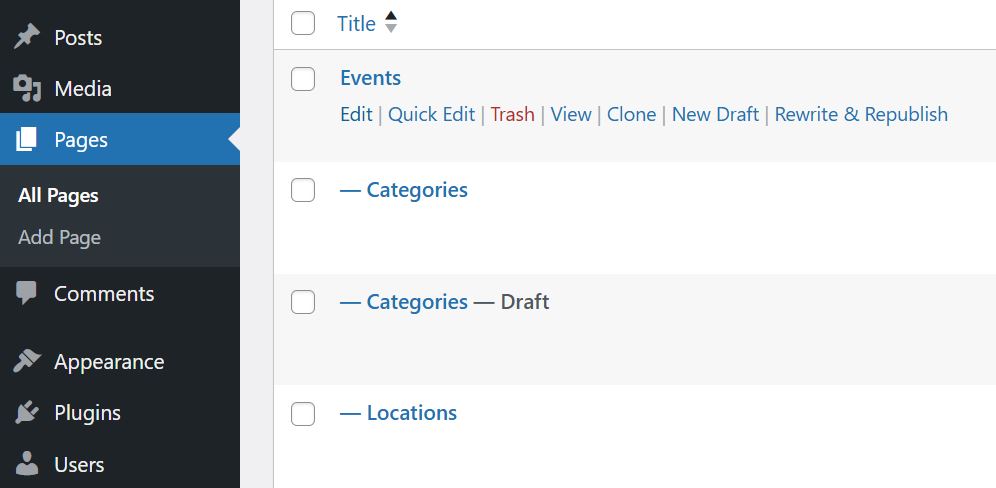
Now it’s time for the key step: using Yoast Duplicate Post to duplicate WordPress pages or posts. In the WordPress backend, go to the left sidebar and choose either “Pages” or “Posts,” then select “All Pages” or “All Posts.” You’ll see a list of all your WordPress content. Hover over the page or post you want to duplicate, and several options will appear — including “Clone.” Click it to create a copy.
Step 3: WordPress duplicate page
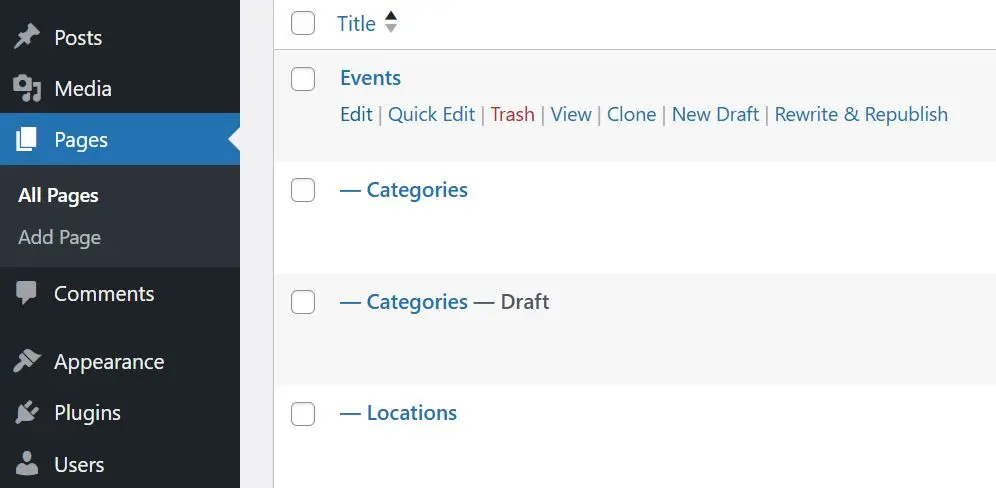
After clicking “Clone,” the duplicated page (or post) will appear as a draft under the original page. In this guide, we duplicated the “Categories” page. You can edit the draft as you like and then publish it. To avoid confusion from the start, you should first change the page name.


How to duplicate a WordPress page with the Duplicate Page plugin
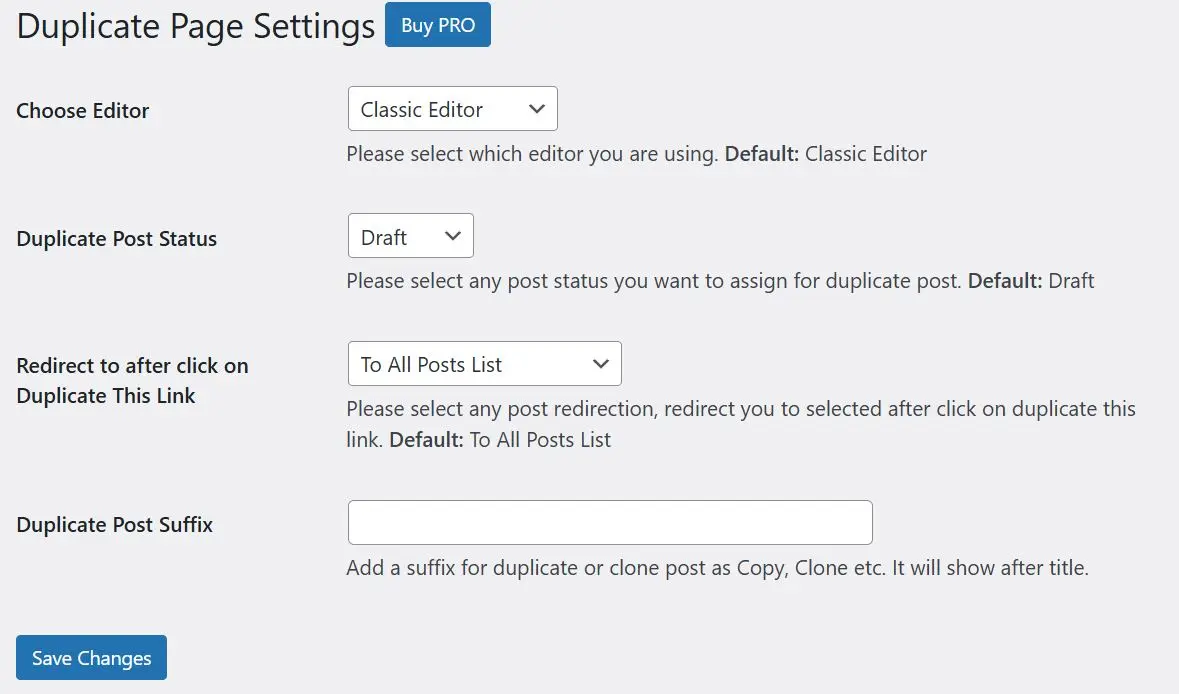
Another popular plugin for copying WordPress pages and posts is Duplicate Page, which has been installed over three million times. It works much like Yoast Duplicate Post, allowing you to duplicate pages and posts with just a few clicks. However, the free version of Duplicate Page offers fewer configuration options — which may actually be an advantage for beginners who want a simpler setup.
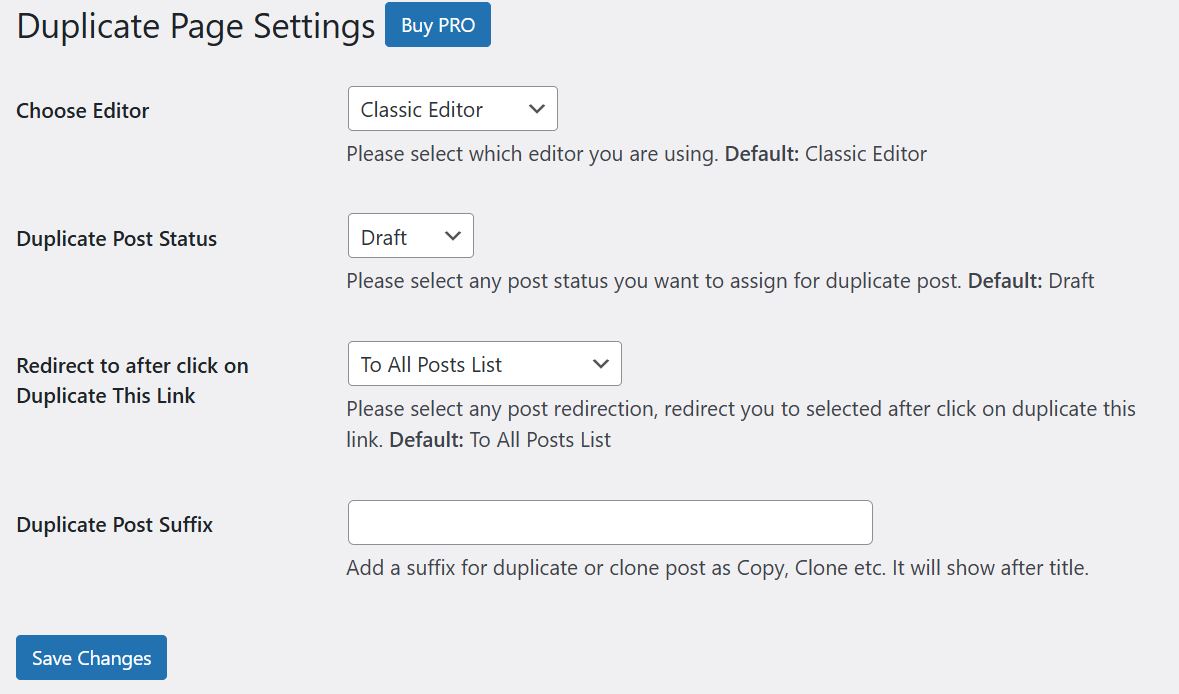
You can duplicate WordPress pages or posts with Duplicate Page just as you would with Yoast Duplicate Post: go to “All Pages” or “All Posts,” hover over the desired page or post, and click “Duplicate this.”
How to manually duplicate a WordPress page in Gutenberg
WordPress pages and posts can also be easily duplicated in the WordPress backend without plugins — for example, directly in the Gutenberg editor.
Step 1: Copy blocks in Gutenberg
In the WordPress backend, open the page or post you want to copy. To do this, click on “Pages” and then “All Pages” in the left sidebar. For the page you want to copy, click “Edit” to open it in the Gutenberg editor. Once there, click the three stacked dots in the top-right corner. In the menu that appears, select “Copy all blocks.”
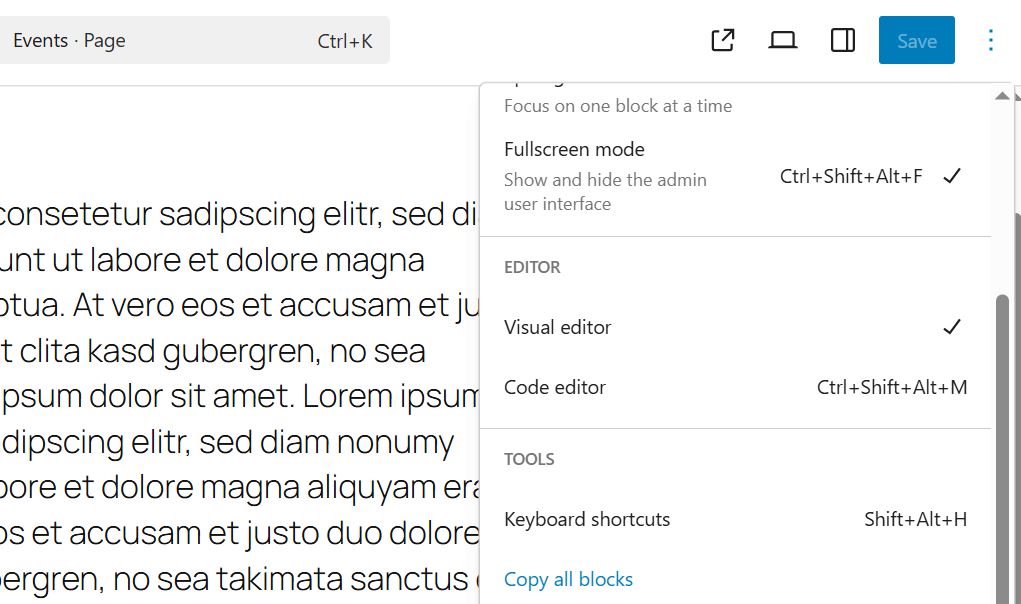
Step 2: Paste copied content
Now paste the content into a new page or post. To do this, first create a new page (or new post) by clicking “Add New” in the “Pages” section of the sidebar in the backend. In current WordPress versions, this takes you directly to the Gutenberg Editor. Move your mouse to the field that says “Type / to choose a block.” Then paste the previously copied content using [Ctrl] + [V].
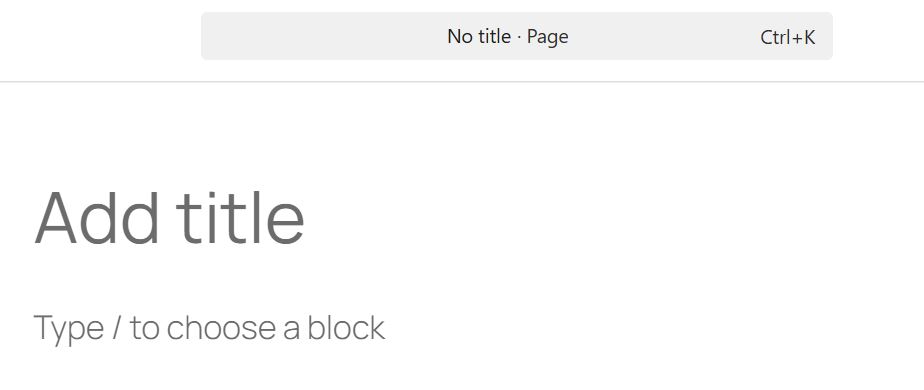
Of course, you can also manually copy and paste the code of a page or post using [Ctrl] + [C] and [Ctrl] + [V]. This is another way to easily copy a WordPress page or post.
Reviewer

Julia Hertler
With over 18 years of experience in content marketing, Julia Hertler has deep expertise in digital communications. For the past 10 years, she has specialized in the areas of domains and hosting at the IONOS Digital Guide, making complex technical topics easy to understand.