

How to enable Theme- and Plugin Editor in WordPress

When you set up your WordPress installation with our Click & Buildapplications, we make some settings and add features to make creating your website easier and safer. For example, we disable the theme and plugin editors.
This allows you to reactivate the theme and plug-in editor afterwards:
Enable theme and plugin editor in wp-config.php
This customization requires a standard WordPress installation and is Managed WordPresscurrently not supported in WordPress. If required, you can convert Managed WordPressto a standard installation.
If you want to activate the theme and plugin editor, you need to make some minor changes to your wp-config.php file:
- Log in to your webspace via SFTP and go to your WordPress website
- Open the folder /path-to-my-wordpress-website/
Connection data for secure FTP at a glance. - Open the file wp-config.php on your computer with a text editor like Notepad++.
- Search for this entry:
define('DISALLOW_FILE_EDIT', true);- Cange 'true' to 'false':
define('DISALLOW_FILE_EDIT', false);- Save the file and upload it again
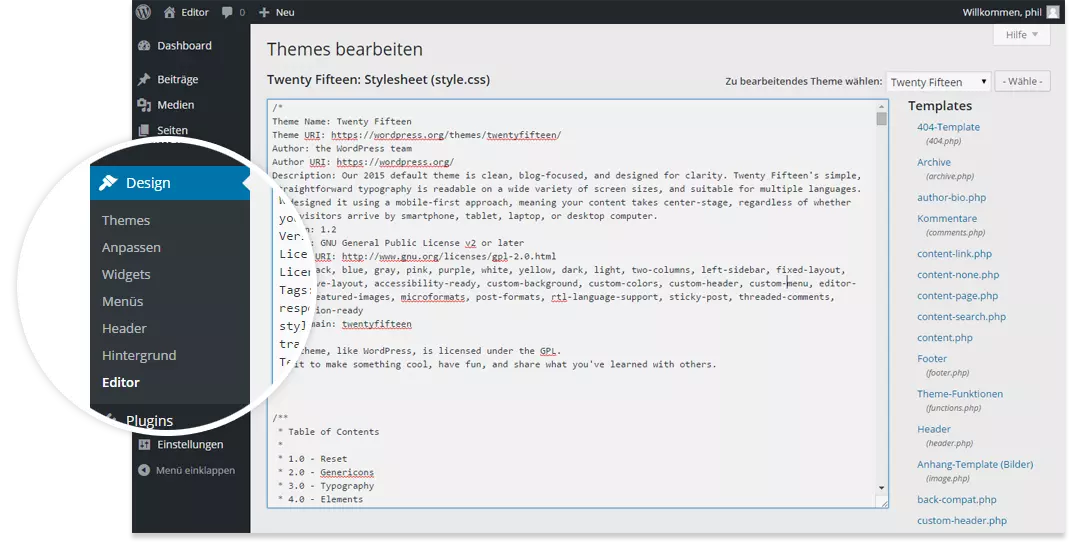
The Theme Editor is now available under Design > Editor.
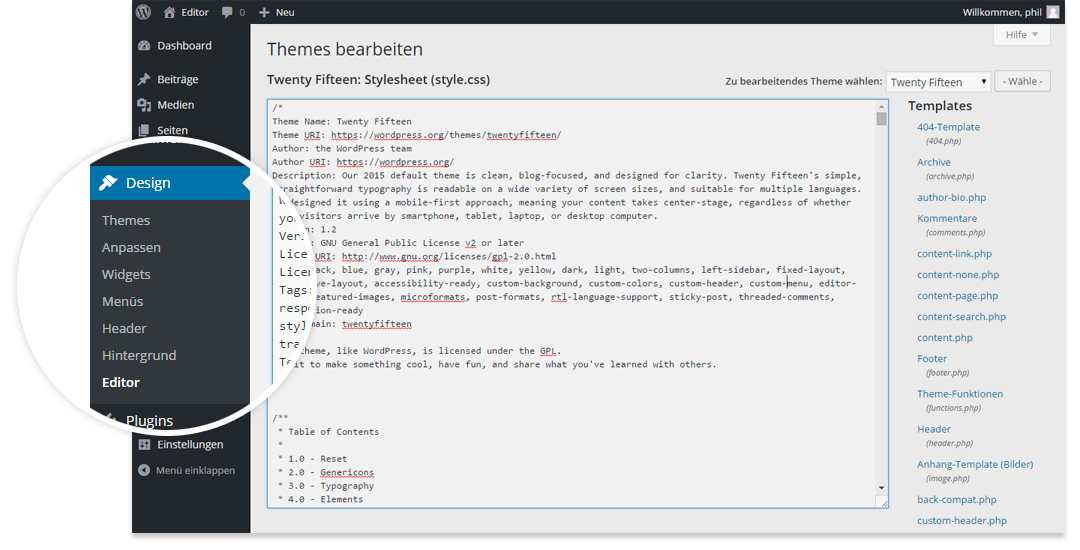
Security risks with active editors
There is a risk if another person has gained access to the admin area of your WordPress installation. If this happens and you have activated the editor, this person can change the code at will.
Then no FTP access or similar is required. In this case WordPress offers all necessary accesses to make changes to your site and abuse your data.
- Fast page loads while cutting costs by 60%
- Keep your site open 24/7 with 99.99% uptime
- Never run out of space with unlimited storage
Theme or plugin updates and editor changes
A further risk is that it is very easy to make changes with the editor activated that are highly unlikely to work after an update of the theme or plugin.
In most cases the theme should be adapted and there are several ways to do this.
- If it is only about CSS, you should use a plugin with a CSS editor (recommendation: Simple Custom CSS), with which you can adjust the styling independently of the theme. In case of a theme update or theme change, your customized CSS will still be loaded.
- Another possibility is the creation of a child theme. However, this is more of an advanced method for overwriting parts of a theme and can sometimes be tricky. But once you understand how it works, you can do great things with a child theme. Comprehensive information about Child Themes can be found in the WordPress Codex
Reviewer

Julia Hertler
With over 18 years of experience in content marketing, Julia Hertler has deep expertise in digital communications. For the past 10 years, she has specialized in the areas of domains and hosting at the IONOS Digital Guide, making complex technical topics easy to understand.