

OneNote alternatives: A comparison of digital notebooks

How many times have you forgotten your shopping list at home? How many notes and stickers with reminders do you have lying around? Do you often have good ideas only to realize you do not have your notebook on you? The simple solution to this common problem is a digital notebook. With a digital notebook, you have all your notes on you at all times, easily accessible via Smartphone, even when you are on the go.
Microsoft is the market leader of digital notebooks with OneNote, which is included in the current Microsoft 365 package, and is also available individually for free. The downside: OneNote is primarily for Windows users. The OneNote app is available on other platforms, such as Linux, macOS, Android, or iOS, but only with limited functions. As a result, many users are on the search for suitable alternatives. Good alternatives to OneNote can be found in this overview.
This article was last updated in April 2021.
Outline (for Mac): OneNote’s best friend
Whether it is school, university, work, or everyday use, the digital notebook Outline is very popular with Apple users. This app is particularly suitable if you want to record notes on your smartphone or tablet on the go. The best part? Outline is totally compatible with OneNote. The app combines the strongest aspects of OneNote and adds additional features – making Outline one of the best OneNote alternatives.
A definite advantage is clarity: Just like OneNote, you can collect your notes in different books, which in turn can then be organized into as many tabs as required. Under these, you can create an unlimited amount of additional pages. The principle resembles a filing cabinet. It is simple to operate, allowing you to swiftly manage your books according to your personal themes. Your notes can be placed on the whiteboard and restructured according to preference. Your OneNote notes can also be transferred, opened and edited on Apple’s Outline. Apple’s chic design gives everything the finishing touch. Alternatively, you can also download OneNote’s format.
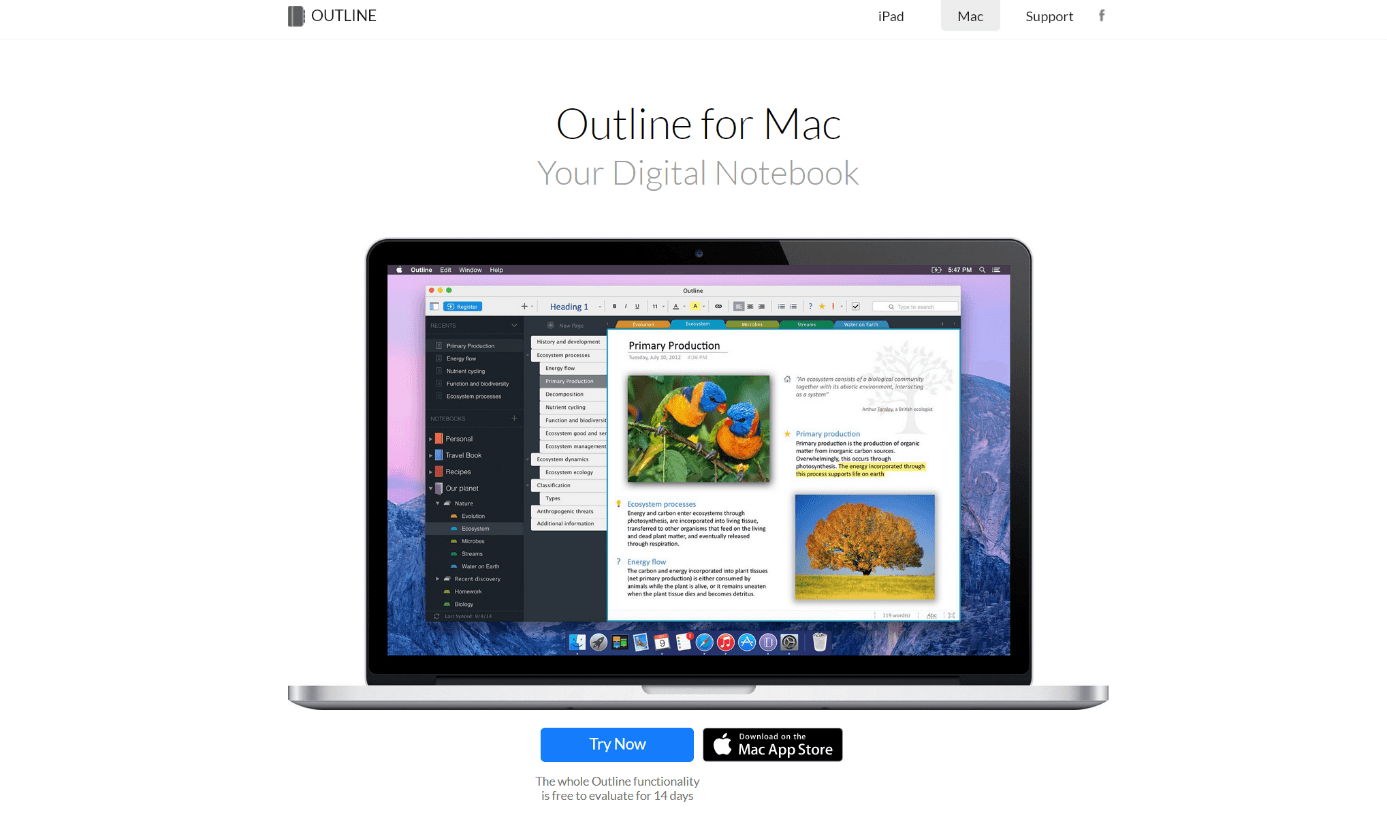
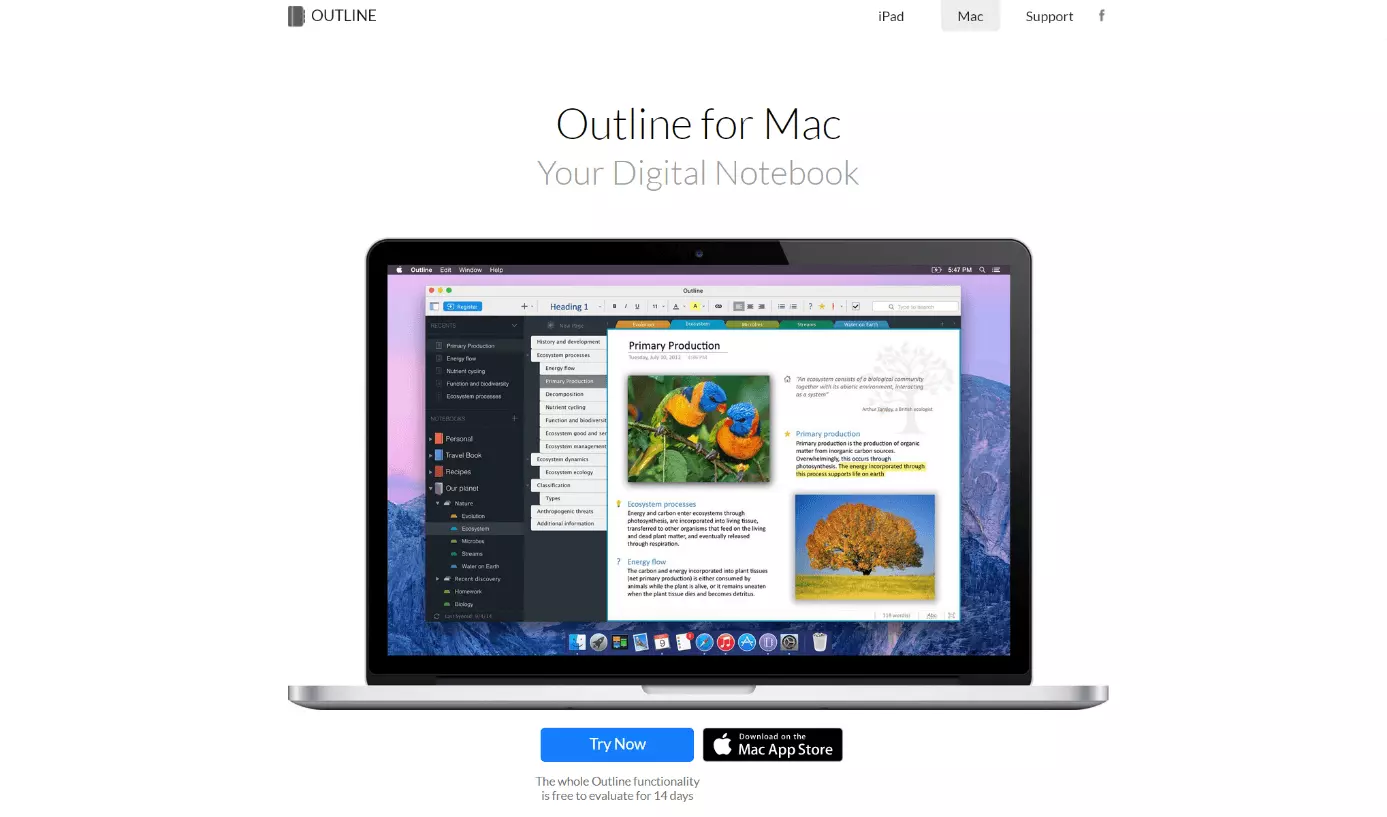
In terms of text formatting, all the essential tools you might need are there, including word processing tools such as Word. Additionally, there is a drawing function which allows you to draw by yourself, or select prescribed shapes such as circles, rectangles, or arrows. The integrated search function allows you to easily go through your notes. You can find your notes even faster when you prioritize single words with tags. You can allocate passwords to your notebooks, to protect them from unauthorized access.
With regards to multimedia, Outline is versatile: You can insert pictures, graphics, and screenshots in your notes, as well as videos or voice messages. You can print single notes directly or save them in Word or in PDF format respectively. Furthermore, PDF documents can be labeled and commented on.
Additionally, you have the opportunity to share your notebooks with colleagues or friends by email, and invite them to create shared notes. To do this, select your preferred cloud solution and save your notes for example on iCloud drive, Box, OneDrive, SharePoint, or Dropbox. Highly sensitive notes should be protected and kept offline.
Shared note creation with OneNote users is only possible in Outline via Microsoft's in-house storage solution OneDrive.
Outline requires a fee – which is not that surprising considering the wide range of functions. With its attractive OneNote compatibility, many users are happy to pay for it. Even though the app is extremely reliable, there are occasionally synchronization errors. In particular, the transferring of hand-written notes is not always successful. Even though Outline has many convincing aspects, the program only catches the interest of Apple users.
| Advantages | Disadvantages |
|---|---|
| ✓Compatible with OneNote | ✗Requires a fee |
| ✓Clear, easy to use | ✗Only for iOS and macOS |
| ✓Multimediality: drawing function, audio and voice files, Excel sheets, graphics, PDF files, to-do lists | ✗Occasional synchronization errors (primarily with hand-written notes) |
| ✓Integrated search functions, prioritization of tags | ✗Creating shared notes with other OneNote users is only possible with OneDrive |
| ✓ “Share with friends” function | |
| ✓PDF files can be edited and commented on | |
| ✓Password function | |
| ✓Create and send notes by email | |
| ✓Choose between different cloud systems (iCloud Drive, Box, OneDrive, Dropbox) |
Evernote: More features but more expensive
Evernote can offer everything that Outline is missing: Thanks to suitable apps, the virtual notebook is completely functional on all platforms and can be used just as well as an app on a PC (Windows and macOS), smartphone or tablet (iOS and Android), or as a web app. When new features become available, they are available on all operating systems at the same time. Because of this, Evernote is one step ahead of its opponents and enjoys growing popularity as a OneNote alternative.
With regards to clarity, text formatting, and multimedia, Evernote is comparable to Microsoft’s OneNote. With Evernote, you can also create as many notebooks as you want. Inside, you can collect your notes chronologically, like a folder. For every new note, you can assign keywords which you can use to re-find relevant notes. The keywords work the same way with inserted pictures, tables, PDFs, or Office documents.
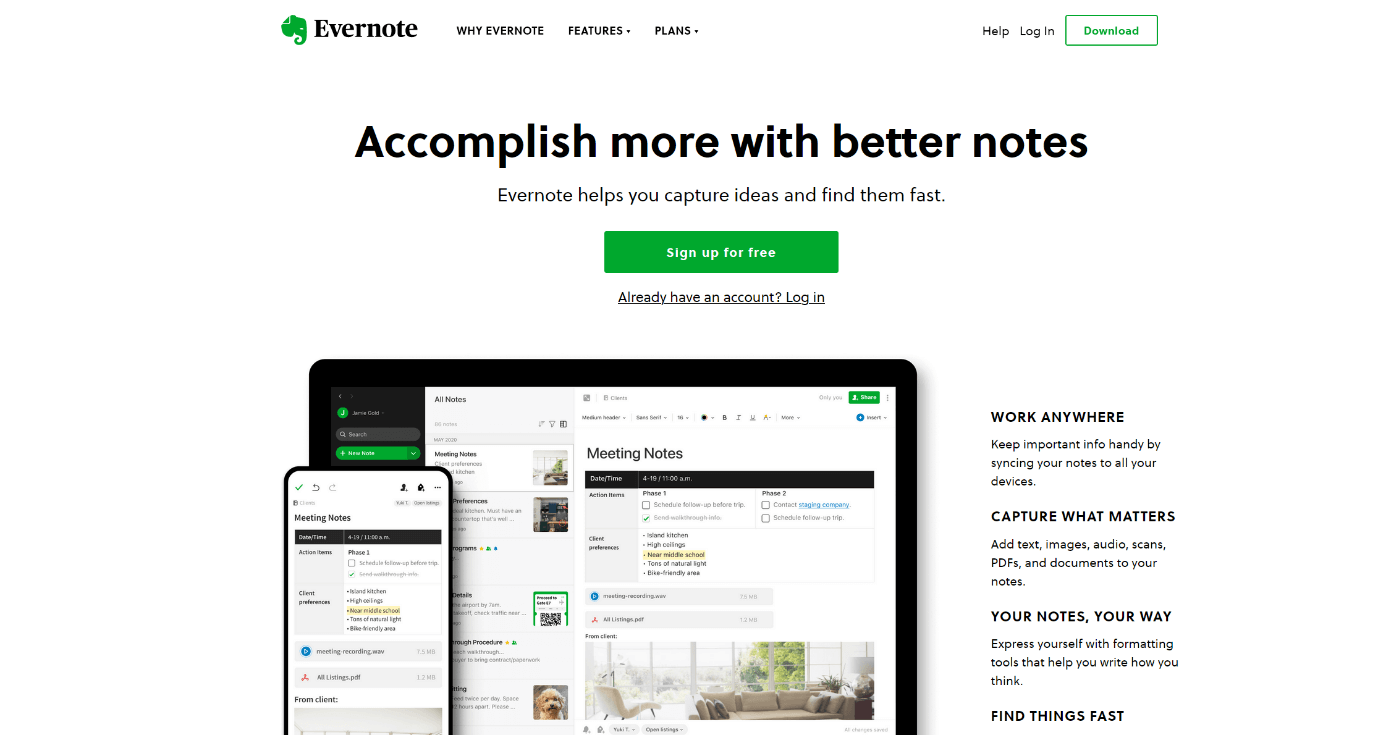
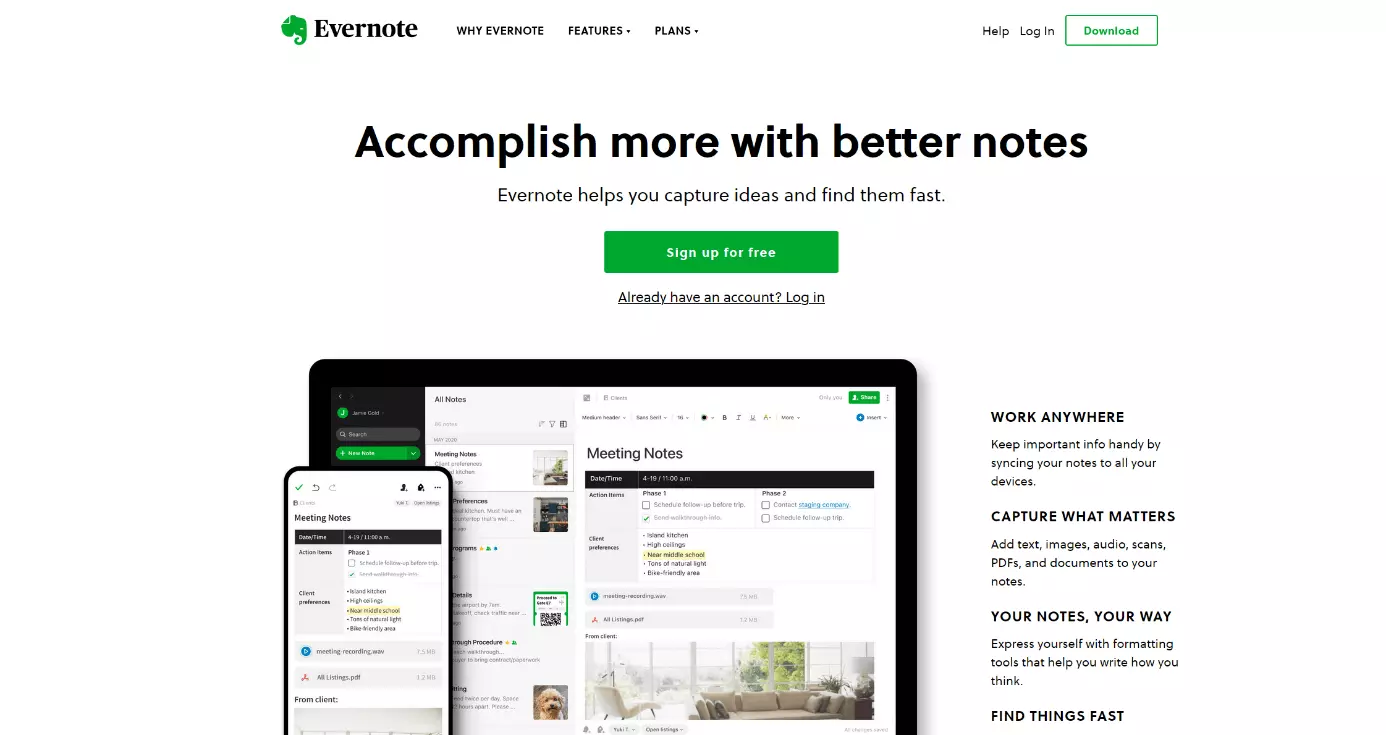
Evernote offers many interesting features, such as offline mode or searchable PDF files. However, the majority of the additional functions are only available in the paid versions Evernote Premium and Evernote Business. The free of charge basic rate on the other hand, is massively restricted. With this rate, only the search function, the passcode lock, as well as the ability to share and comment on notes by friends and acquaintances are integrated. Also, you have access to 60MB per month for uploads, and you can only synchronize between two devices. In the fee-based, premium version you receive 10GB or 20GB per month, and you can synchronize your notes limitlessly between all devices.
A further shortcoming is its user-friendliness. Since the software can be connected to countless apps and web applications – for example, the daily weather report – the notebook can quickly become overloaded. However, those who work regularly with Evernote will become accustomed to how it operates.
| Advantages | Disadvantages |
|---|---|
| ✓Compatible with any platform; features on all platforms function equally | ✗Full spectrum of features only available in the fee-based packets |
| ✓Integrated search function (search for notes using key words) | ✗The basic plan is greatly reduced, e.g. there is no offline function |
| ✓Multimediality: Pictures, tables, PDF and Office files, audio and voices messages, to-do lists | ✗Not easy to use; extra effort needed with key word allocation |
| ✓Memory function | |
| ✓Integration with Google Drive | |
| ✓Share and discuss notes | |
| ✓Password lock | |
| ✓Web-frontend | |
| ✓Professional features available for business customers (scan your business cards, presentation etc.) |
Notion: The “All-in-one” workspace
The Notion developer team calls its in-house alternative to OneNote an "all-in-one" workspace. A tool for the entire team, for writing, planning, and organizing - Notion has all the necessary prerequisites to keep up with Microsoft's note-taking software. To this end, the application relies on three basic features: In the team wiki, all important information can be archived and viewed in the usual wiki manner for current and future projects. Meanwhile, the concrete planning of projects and tasks can be done via Kanban boards, tables, or lists. Meanwhile, Notion manages notes and documents separately.
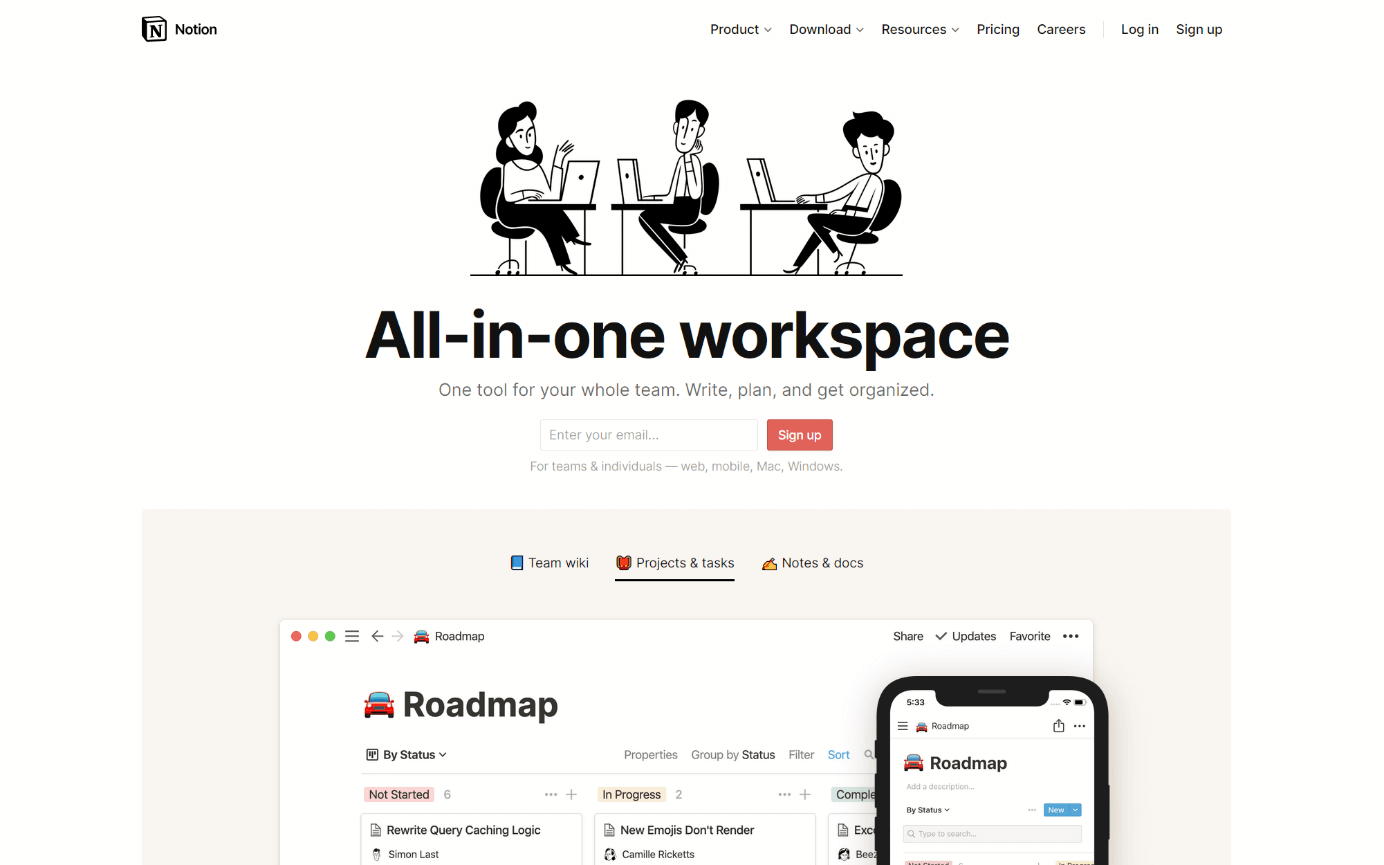
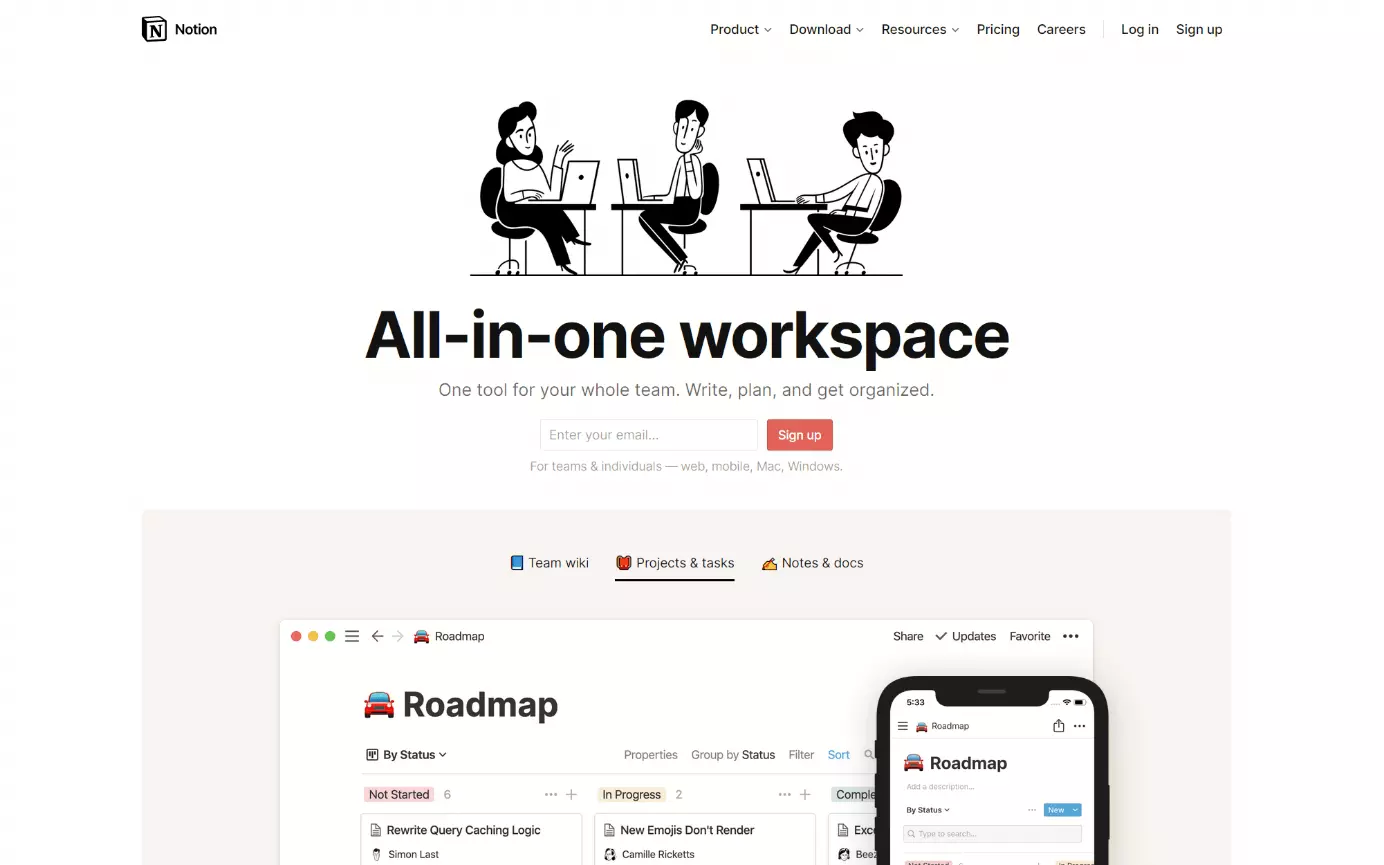
Even though Notion is primarily aimed at companies and larger teams, the OneNote alternative could also be interesting for individuals - especially since the basic edition is completely free of charge and allows an unlimited number of pages and notes. The synchronization of data across all devices (macOS, Windows, iOS and Android) can also be enjoyed by non-paying users.
Purchasing a paid Notion subscription is recommended if you need features for collaboration like a shared workspace, an access rights system, or administrator tools. Version management, security mechanisms like SAML SSO or the possibility to add an unlimited number of team members and guests are only available to paying Notion customers.
For the design of the workspace, the alternative to OneNote provides over 40 content blocks and more than 50 starter templates. Whether you want to access your notes and planning via desktop application, app, or via the Notion web application is up to you. One downside is that there are limitations with the size of the file upload - users of the Personal plan have to be content with a maximum of five megabytes.
| Advantages | Disadvantages |
|---|---|
| ✓ Optionally available as desktop client, mobile app, or web application | ✗ Heavily restricted basic edition with limited file upload size (5 MB) |
| ✓ Large selection of personalizable templates for the design of the workspace | ✗ Navigation could be improved |
| ✓ Excellent collaboration features in the paid business versions | |
| ✓ Project planning either by Kanban, table, or list |
Simplenote: The understated alternative to OneNote
If you prefer a notebook that is simple and effective at the same time, without having a lot of features, then you will be in good hands with Simplenote. The program is completely free and simplicity is its strongest characteristic. As the name implies, it is an easy to use notebook which allows you to create notes on any platform such as iOS, Android, Mac, Windows, Linux, or on the web.
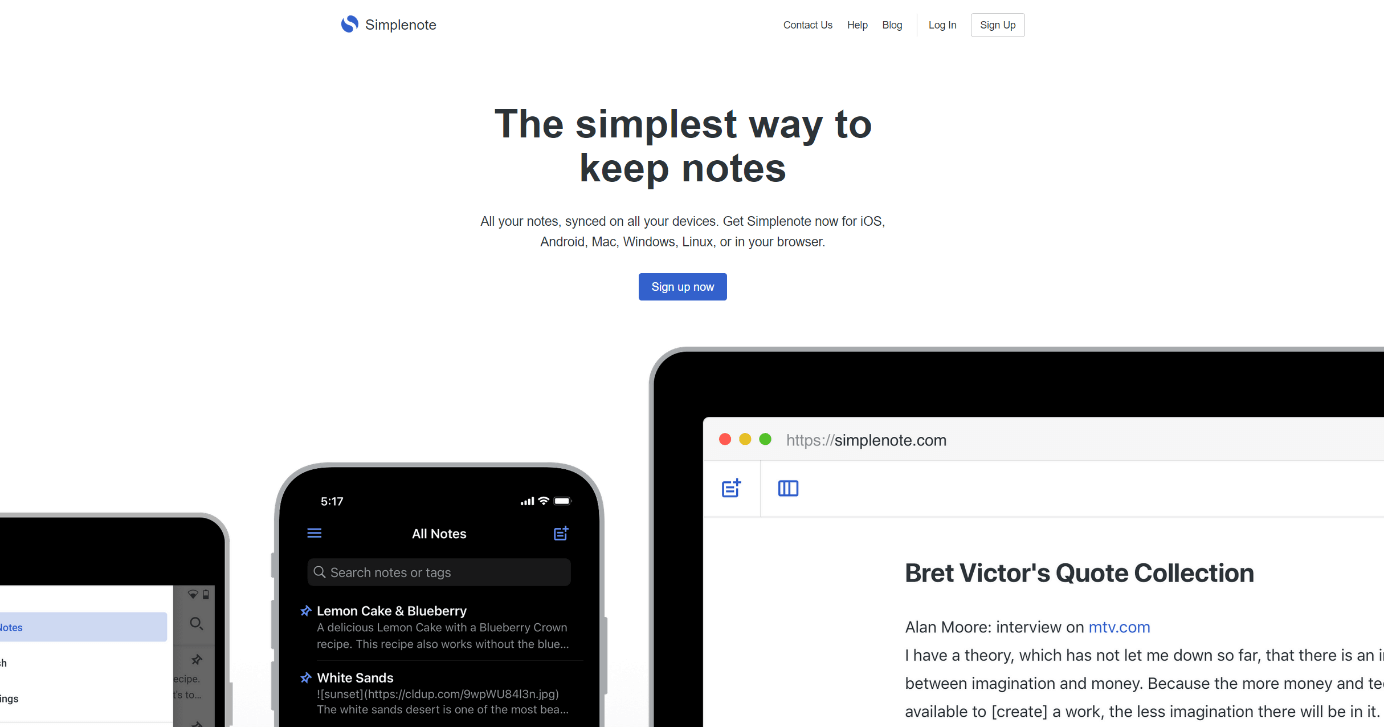
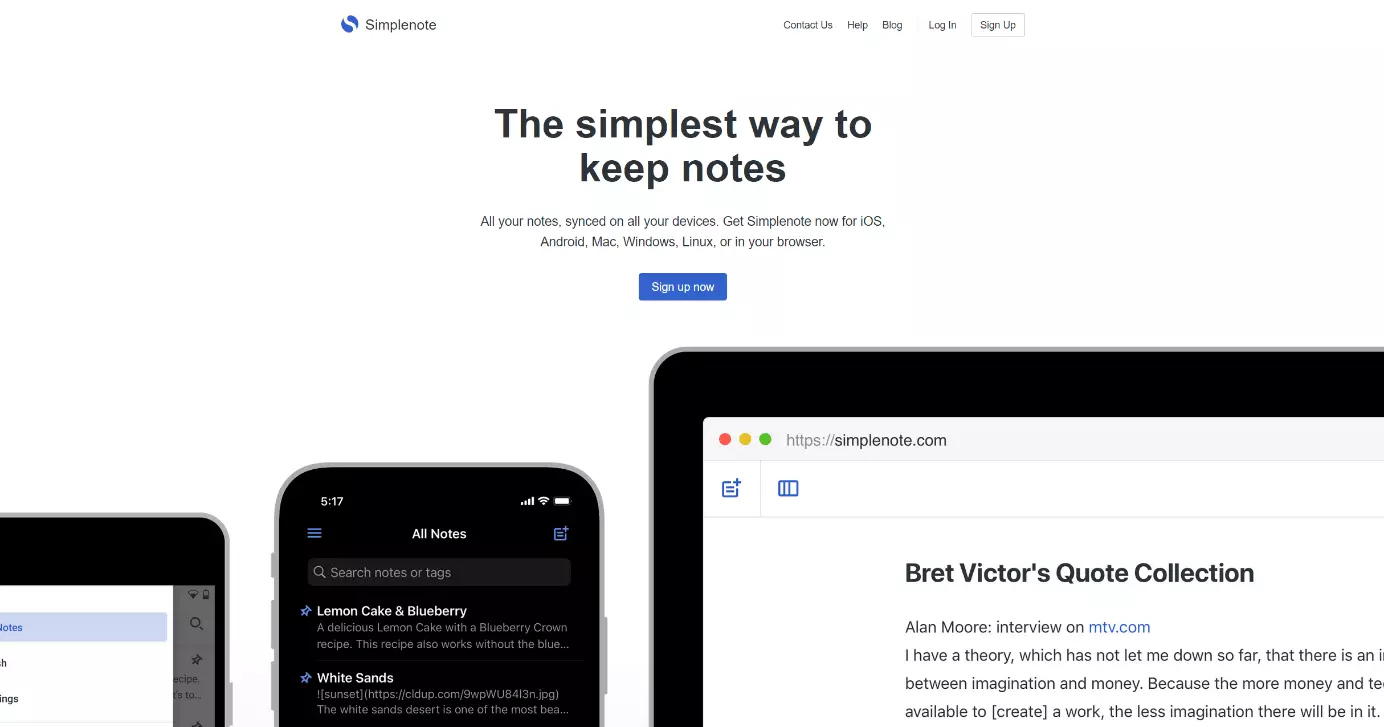
In order to use Simplenote, you have to register for free with the provider. All of your notes will automatically be saved to your account without a fixed data limit. In any case, it is recommended that your notes do not exceed 1,000 words in length, to avoid affecting the memory process.
Similarly to Evernote, your notes are organized chronologically by creation date and you can also organize them alphabetically. You can prioritize your notes with tags, so that they can be found quickly on the search list. This means you always have your important notes in view.
You can use your account to share notes with other Simplenote users. The share function can also be used through email or social media networks such as Facebook. A password lock can protect your notebook from unauthorized access.
In terms of the range of functions, Simplenote offers very little in comparison to its competitors. This suits people who prefer a notebook with a simple text format – especially because the program supports the popular Markdown language, which allows for simple design options. However, multimedia features or the ability to insert or edit documents is not available.
Another downside is that you have to log into your Simplenote account every time you use the program if you want to create or share notes.
| Advantages | Disadvantages |
|---|---|
| ✓Free on all platforms (iOS, Android, macOS, Windows, Linux, and web) | ✗Limited range of functions |
| ✓It is manageable; quick and easy operation | ✗Only comes in text format – picture files can be introduced using the extra tool Markdown. |
| ✓Integrated search function, possibility of prioritizing using tags | ✗Requires logging into a Simplenote account |
| ✓ “Share notes” function | |
| ✓Automatic back-ups | |
| ✓Password lock |
Google Keep: Wherever, whenever – record your ideas anywhere
Those who want to record their ideas in a quick and simple way will find Google Keep just right. The free program is particularly suited to Smartphone users who want to jot down and save their thoughts on the go. As a result of this, Google Keep is a suitable and easy to use alternative to OneNote.
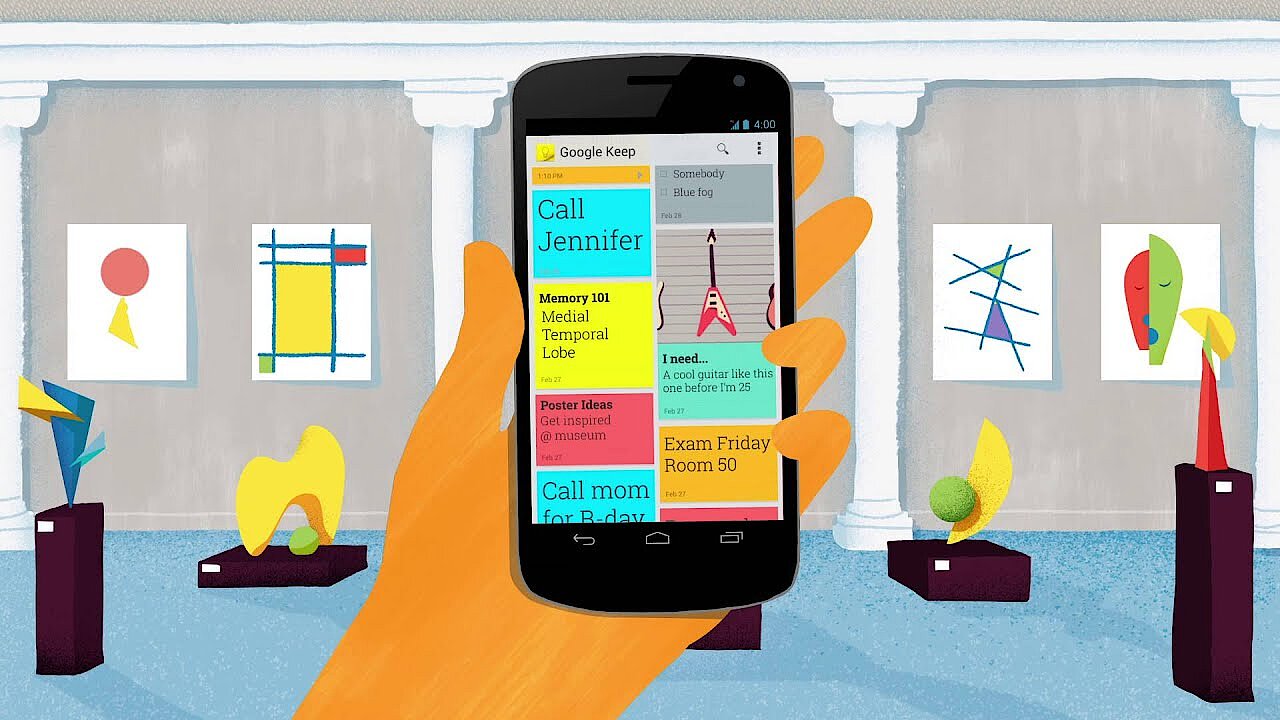
Google Keeps works a bit like a bulletin board: your notes are laid out on the display screen like post-its which can also be marked in color. One particularly special feature is that with the Android app, you can even dictate your notes instead of typing them.
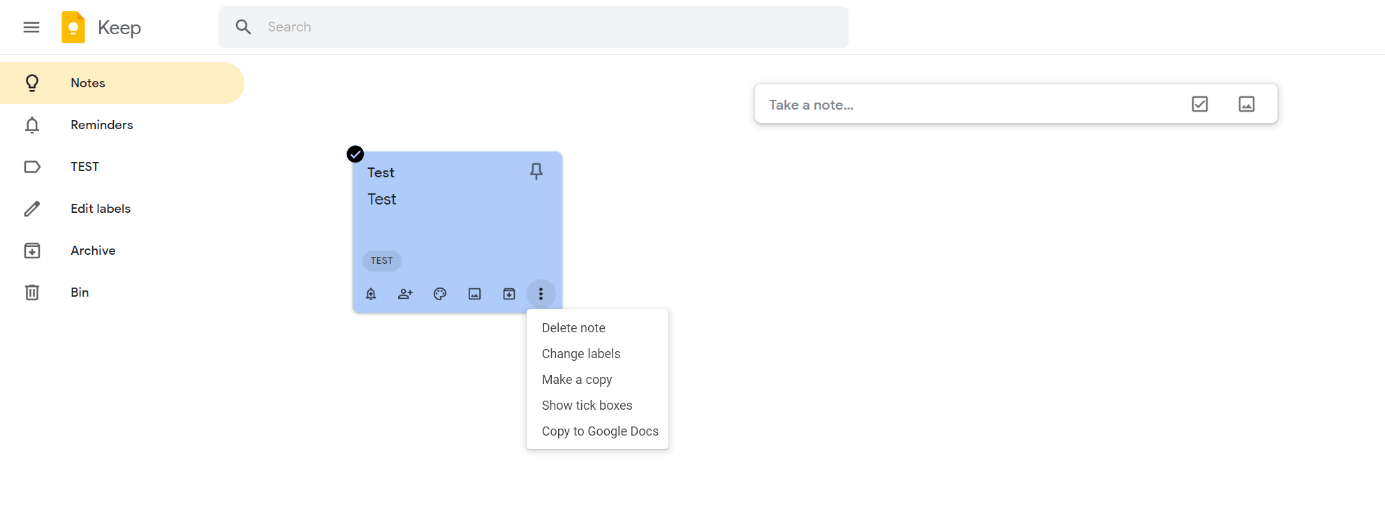
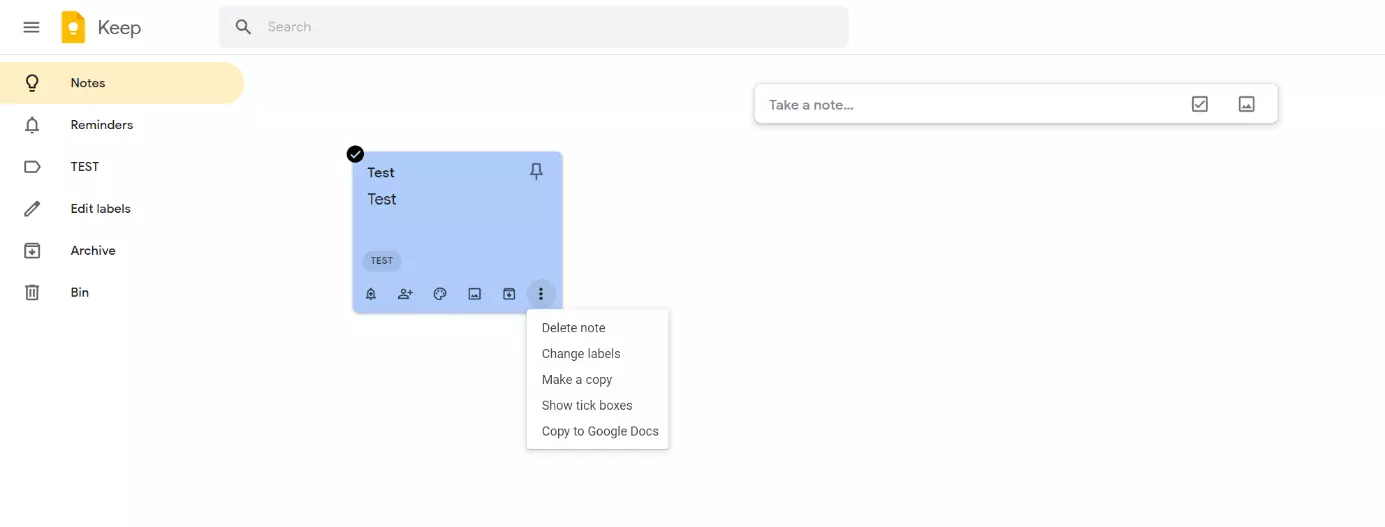
Google Keep is available as an app for Android and iOS, as well as a web application. There is also an additional Chrome extension. Synchronizing between devices works through the in-house cloud Google Drive. With Google Drive you have access to 15GB storage space, free of charge. However, you will need a Google account in order to use Google Keep.
Google Keep doesn’t just let you make notes and checklists, it also allows you to save photos and documents which you can then share with other users. Use the integrated search bar to find all your notes and content. A plus: the memory function, so you will never forget another appointment.
 To display this video, third-party cookies are required. You can access and change your cookie settings here.
 | Advantages | Disadvantages |
|---|---|
| ✓Free | ✗Fewer functions than Outline or Evernote |
| ✓It is manageable; quick and easy operation | ✗More suitable for spontaneous notes, less so as a long-term notebook |
| ✓Integrated search function, keywords | |
| ✓Memory function | |
| ✓Multimediality: voice memos, photos | |
| ✓Chic design (colorful post-its) |
Memonic: Keep the overview together?
Memonic is also a very popular digital notebook amongst users. There is a free of charge and a paid version of the program. In the free version you can create up to 100 notes, as well as 3 group projects per month. On top of that, you are permitted 2MB per file attachment. If you opt for the Premium version, you can make unrestricted use of all the features. The file attachment size allowance increases to 20MB per file. Premium users can also use the “collection mode”, which is helpful when undertaking extensive web research.
Students receive a discount on the Premium version.

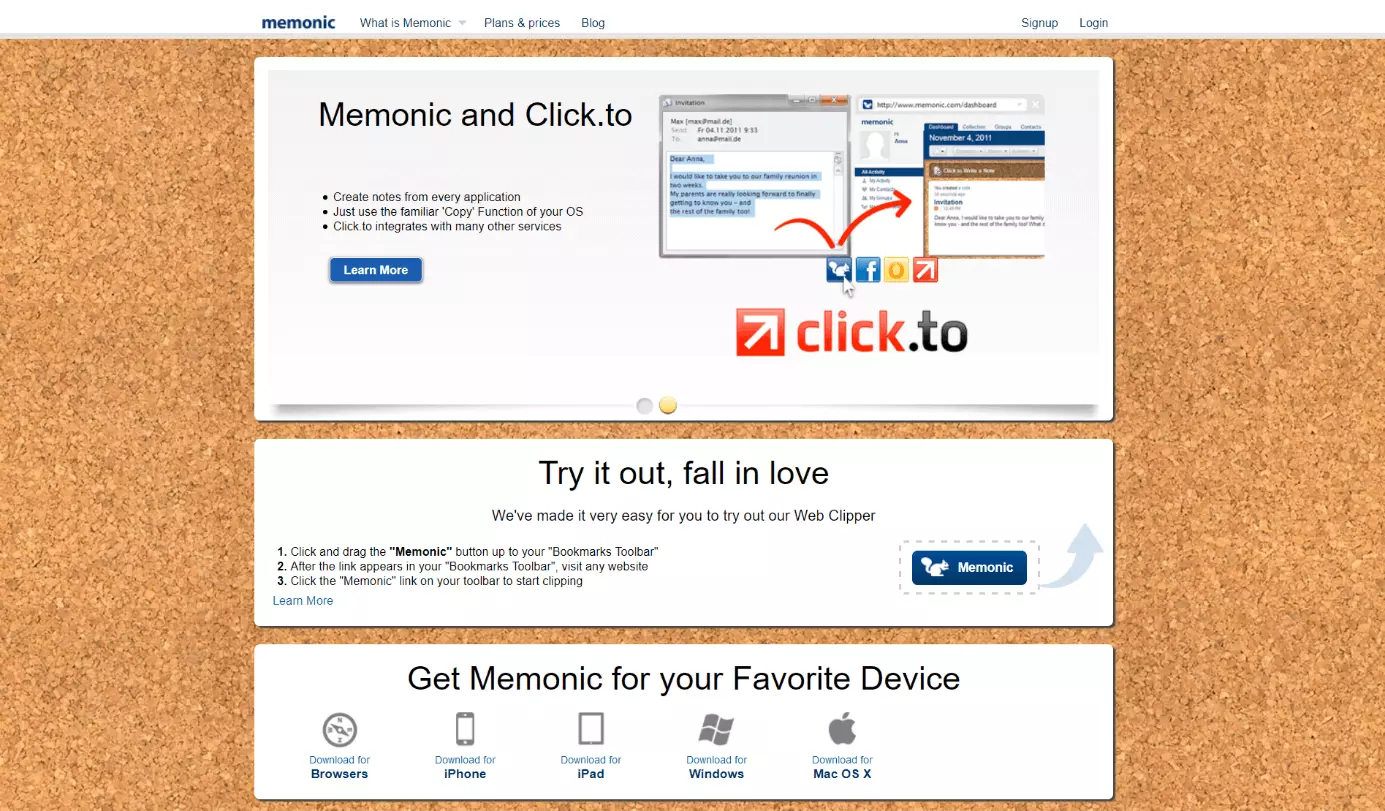
One of the unique aspects of Memonic is that, similar to social networks, you can choose to make your entries private and visible only to yourself, your friends, or public to all users. You can also make groups and create shared notes. Discuss your projects together directly using the integrated mail function or share your notes over social networks such as Facebook or Twitter. You can save content from the web directly into Memonic using the additional tool Web Clipper.
Memonic also scores big points in terms of multimedia. Not only do you get a multifunctional text tool, but you can also embed documents, graphics, videos etc. at the same time. Tags help you prioritize your notes and locate things quickly on the search list. Last but not least, there is a wide variety of background themes available to choose from.
Memonic functions seamlessly on all devices. The app is available for iPhone, iPad, Mac, Android and Windows, as well as a web application and browser extension.
Memonic has the potential to shine as a OneNote alternative, however, you only get unrestricted access to all the tools and features with the paid version. Since Memonic works as a social network, you should be careful of what notes you want to share with the public: be sure to check the privacy settings. Those who are cautious with security should opt for the private setting and then manually share individual notes.
| Advantages | Disadvantages |
|---|---|
| ✓Free version: Limited access to all the tools features in the paid version (exception: ‘collection mode’ function) | ✗Fewer functions than Outline or Evernote, focus on group projects |
| ✓Paid version has a discount for students | ✗Creating unlimited notes and groups, 20 MB attachment size, “collection mode”: these are only available in the paid version |
| ✓Compatible with all platforms; features function equally well on all platforms | |
| ✓Manageable; quick and easy to use | |
| ✓Integrated search function, allocation of keywords |
| Characteristics/ Functions | OneNote (free) | Outline ($$) | Evernote – Basic (free) | Evernote – Premium ($$$) | Simplenote (free) | |
|---|---|---|---|---|---|---|
| Compatible with Windows, macOS, Android, iOS & Co. | ✓ | - | iOS and macOS | ✓(can be synchronized on two devices) | ✓(can be synchronized on all devices) | ✓ |
| Wide range of features | ✓✓✓ | ✓✓✓ | ✓✓(does not include all features) | ✓✓✓ | ✓ | |
| Cloud storage | 5 GB (subscribers to Microsoft 365 get 1TB) | ✓(several to choose from) | 60 MB | 10 or 20 GB | ✓(not stated) | |
| Clarity | ✓✓✓ | ✓✓✓ | ✓✓ | ✓✓ | ✓✓ | |
| Easy to use | ✓✓ | ✓✓ | ✓ | ✓ | ✓✓✓ | |
| Wide range of text formatting tools | ✓✓✓ | ✓✓✓ | ✓✓ | ✓✓✓ | ✓ | |
| Content sharing with other users | ✓ | ✓ | ✓ | ✓ | ✓ | |
| Create notes using email | ✓ | ✓ | - | ✓ | - | |
| Save content from the web | ✓ | ✓ | ✓ | ✓ | (✓) | |
| Integrated search function | ✓ | ✓ | ✓ ✓ | ✓ | ||
| Multimedia features | ✓✓✓ | ✓✓✓ | ✓✓ | ✓✓✓ | - | |
| Editing and commenting on documents | - | ✓ | - | ✓ | - | |
| Install add-ons for free | ✓ e.g. Onetastik, OneNote Web Clipper, News360 | not stated | ✓ e.g. Evernote Clearly, Web Clipper | ✓ | ✓ e.g. DashNote, supports Markdown |
| Characteristics/ Functions | Google Keep (free) | Notion (free) | Notion ($$) | Memonic (free) | Memonic Premium ($$) |
|---|---|---|---|---|---|
| Compatible with Windows, macOS, Android, iOS & Co. | ✓ | ✓ | ✓ | ✓ | ✓ |
| Wide range of features | ✓ | ✓ | ✓✓✓ | ✓(includes all features, but with restricted usage) | ✓✓ (Features unlimited + collection mode) |
| Cloud storage | 15 GB | ✓ | ✓ | 2 MB (per file) | 20 MB (per file) |
| Clarity | ✓ | ✓✓ | ✓✓ | ✓✓ | ✓✓ |
| Easy to use | ✓✓✓ | ✓✓ | ✓✓ | ✓✓✓ | ✓✓✓ |
| Wide range of text formatting tools | ✓ | ✓ | ✓ | ✓✓ | ✓✓ |
| Content sharing with other users | ✓ | ✓ | ✓✓✓ | ✓ + group function | ✓ + group function |
| Create notes using email | ✓ | ✓ | ✓ | ✓ | ✓ |
| Save content from the web | ✓ | ✓ | ✓ | ✓ | ✓ |
| Integrated search function | ✓ | ✓ | ✓ | ✓ | ✓ |
| Multimedia features | ✓✓ | ✓✓ | ✓✓ | ✓✓ | ✓✓ |
| Editing and commenting on documents | - | ✓ | ✓✓✓ | - | - |
| Install add-ons for free | ✓ e.g. Chrome extension, Google Calendar | ✓ e.g. Web Clipper | ✓ | ✓ e.g. create a Clip button, Click.to Application, Memonic WordPress plug-in | ✓ |
Those who want to upload their notes to Wiki sites should take a look at the Zim software. Another interesting OneNote alternative is TiddlyWiki, a non-linear web notebook for sophisticated users.