

What is an email blacklist? How to protect against spam emails

Email blacklists help protect users from unwanted content like spam. Internet providers and external services often use artificial intelligence to detect recurring, suspicious or fraudulent patterns, placing those senders on a blacklist.
The term “blacklist” is well established in a technical context. While it linguistically suggests “black = bad,” its origin is not racially motivated. Here, we use it solely in its established technical sense.
What is a blacklist?
“Email blacklisting” refers to identifying and blocking senders of spam so they can’t deliver messages. These senders are automatically added to a spam blacklist, which includes email addresses, domain names or IP addresses. Messages from blacklisted senders are automatically blocked from reaching accounts that use this list. Email blacklists are updated in real-time. The opposite of blacklisting is whitelisting. Another effective method of combating spam is greylisting.
How does blacklisting work?
Blacklisting works like a sieve: What’s undesirable (spam) is filtered out, while legitimate emails pass through. Blacklists use various criteria to identify and block unwanted content, including an email sender’s IP address, domain name, or even suspicious programs and file types.
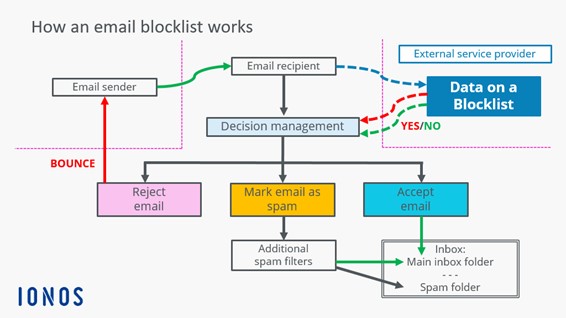
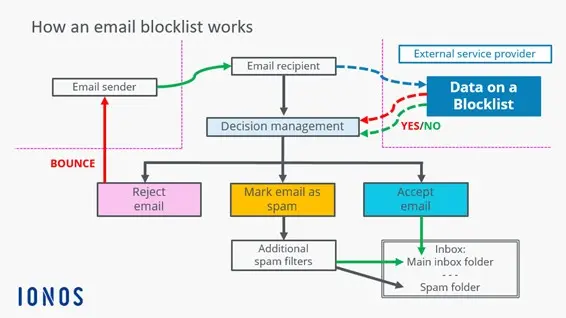
Despite their usefulness, blacklists have limitations. For example, they can only block content that’s already known to be harmful, meaning threats are not blocked until the blacklist is updated. Unlike automated spam detection techniques, blacklists require manual upkeep by administrators.
- Professional data and security protection
- Secure encrypted email with SSL/TLS
- Email protection on any device thanks to firewalls and spam filters
- Daily backups, daily protection
Which blacklists matter most?
Most blacklists are maintained by the email providers themselves, but there are also public providers often referred to as “spam police.” These organizations maintain spam filters and blacklists, send notifications when a sender address is listed, or automatically block affected emails.
Key email blacklists include:
| Blacklist | Operator | Special features |
|---|---|---|
| Spamhaus | The Spamhaus Project | Highly regarded and strictly maintained. Being listed here can cause serious delivery issues |
| Spamcop | Cisco Systems | Fast response to spam. Often used with other lists |
| Cloudmark Sender Intelligence (CSI) | Proofpoint | Widely used by major ISPs like Comcast and AT&T. Reputation-based, less transparent |
| Invaluement | Invaluement | Commercial list focused on low misclassifications. 7-day trial available |
| Passive Spam Block List (PSBL) | PSBL Community | Lightweight list based on Spamikaze. Good delivery rates and easy delisting options |
| Abusix Mail Intelligence | Abusix | Dynamic DNSBL gaining popularity, particularly with ISPs and hosting providers |
Many of these blacklist providers let you check if your email address is listed.
How do you end up on a blacklist?
Spam filters use scoring systems to evaluate incoming emails. Each provider has its own threshold for adding senders to an email blacklist. Common reasons for being listed include:
- Sending emails to inactive recipients or those who have previously marked messages from the sender’s address as spam. Returned emails (bounces) are also a red flag.
- A sudden increase in email volume, often triggered by seasonal promotions, like summer sales, holidays or Black Friday campaigns.
- A rapid rise in sending frequency without notice. A high number of spam complaints almost always guarantees a sender being placed on a blacklist.
- Using suspiciously large mailing lists – which can indicate a purchased list. Reputable lists grow gradually, not overnight.
- Tampering with email headers, especially the “From” and “Return-Path” lines to create fake sender identities.
How can you avoid being blacklisted? 8 tips
Follow these best practices to reduce the risk of being listed on an email blacklist. Mass email senders, like newsletter services, need to be especially careful.
-
Create varied content, so you don’t look like a spam bot. Avoid repeatedly using the same phrases.
-
Obtain explicit consent from recipients before sending messages.
-
Use secure servers from certified providers and professional email marketing software.
-
Avoid personal or private email addresses. Use your company or brand name instead. Terms like “shop,” “newsletter,” or “contact” work better than individual names.
-
Get added to allowlists by asking recipients to “Save our contact in your address book” or similar.
-
Avoid sending emails made up entirely of images, which many spam filters flag as empty content.
-
Do not use phrases that create artificial urgency, such as “Only three days left – book now,” or offer financial incentives that seem suspicious.
-
Avoid using ALL CAPS, or multiple exclamation points. Otherwise, you’re likely to end up on an email blacklist. Avoid topics such as gambling or certain medication as these are often flagged by spam filters.
Commercial email senders also need to comply with legal requirements when sending emails. This includes, for instance, adding an imprint and an unsubscribe link.
What to do if you’re on an email blacklist
Being listed on an email blacklist is not permanent. There are numerous lists, and appearing on one isn’t unusual—it may just indicate that your email marketing needs some fine-tuning. A few blacklist entries for your domain won’t significantly affect your email traffic. However, if your domain shows up on several blacklists, immediate action is required. When you find your domain or IP address on a blacklist, most providers offer instructions or links for requesting removal from the list.
- Create professional newsletters, no experience needed
- Drive clicks and conversions with smart templates
- Optimize every campaign with real-time analytics
How to create your own email blacklist using IONOS as an example
If you own a domain, many providers let you create and manage your own blacklist of unwanted senders. These emails are automatically redirected to the spam folder.
With IONOS, you can set up your own email blacklist like this:
-
Log in to IONOS Webmail using your credentials.
-
Click the gear icon in the top right corner, and select All Settings to open the settings menu.
-
In the left-hand menu, go to the Anti-SPAM section.
-
Scroll to the Personal Lists section and enter the email addresses you want to block under Blocked Senders.

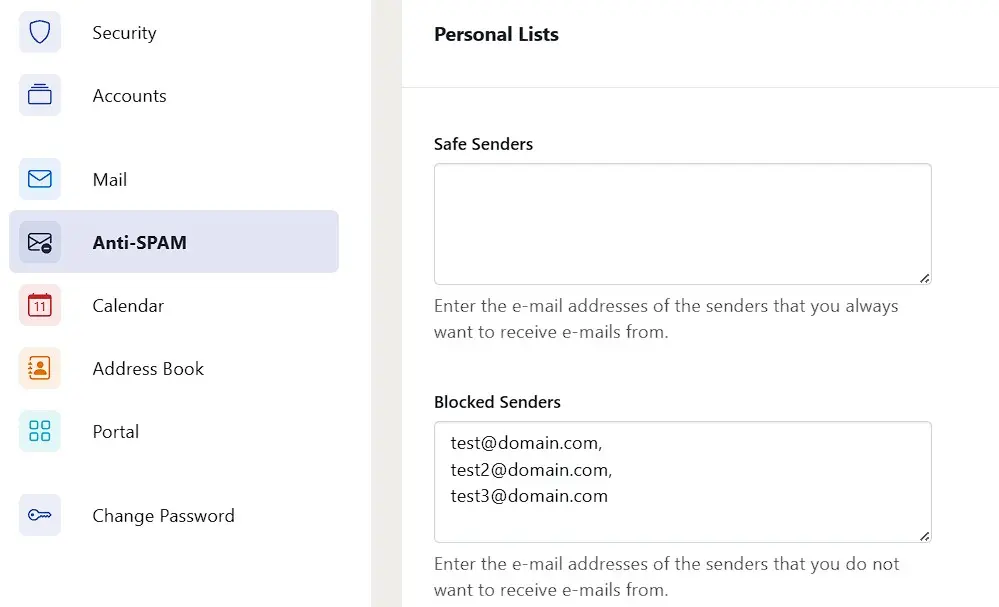
You can block not only individual addresses but also entire domains. For example, if you want to add all emails from the domain @domain.com to your IONOS Blacklist, simply enter *@domain.com. The asterisk acts as a wildcard here.
Reviewer

Jeanna Raffa
With over 18 years of experience in online marketing, Jeanna Raffa possesses extensive expertise in digital marketing. Since 2020, her focus has been on providing practical information regarding email, office, and cloud storage solutions.