

How can you find, view, and download old versions of websites?

There is often a need to access or recover older versions of websites. Tools like the Wayback Machine, Google Cache, and WebCite allow you to view past snapshots, restore lost content, and revisit old websites.
- Intuitive website builder with AI assistance
- Create captivating images and texts in seconds
- Domain, SSL and email included
Why is it useful to restore old websites?
- Offline pages: Technical issues or terminated hosting services can make content inaccessible, but archives preserve it. This allows you to view old versions of websites even if the original site no longer exists.
- Research and source verification: Journalists, bloggers, and scientists can review earlier versions of websites and cite them transparently.
- SEO purposes: Archived content helps check backlinks, document changes, and leverage the link power of older domains.
- Legal evidence preservation: Screenshots and archived content can serve as proof in cases of defamation, threats, or labor disputes.
What is the Internet Archive Project?
The Internet Archive is a nonprofit project by Brewster Kahle that has been archiving digital content since 1996. Its core feature is the Wayback Machine, which allows you to view old versions of websites and access historical screenshots, texts, images, or videos. The earliest saved websites date back to 1996. The Wayback Machine contains over 300 billion archived pages. This way, old websites can be restored and you can find old websites.
In addition to websites, the Internet Archive also collects:
- Texts and books
- Audio recordings, including live concerts
- Videos and TV shows
- Images
- Software programs
The content originates from the public domain or is donated by rights holders. Many contents come from universities, government organizations, or digitization projects like Project Gutenberg and LibriVox.
How to find and archive old websites with the Wayback Machine
If content on your website is lost or you want to view earlier versions of a page, the Wayback Machine can help. In just a few steps, you can find old versions of websites, access old websites, and even archive your own pages.
Step 1: Enter URL directly
Enter the desired domain into the top search bar and press Enter to go directly to the results page.
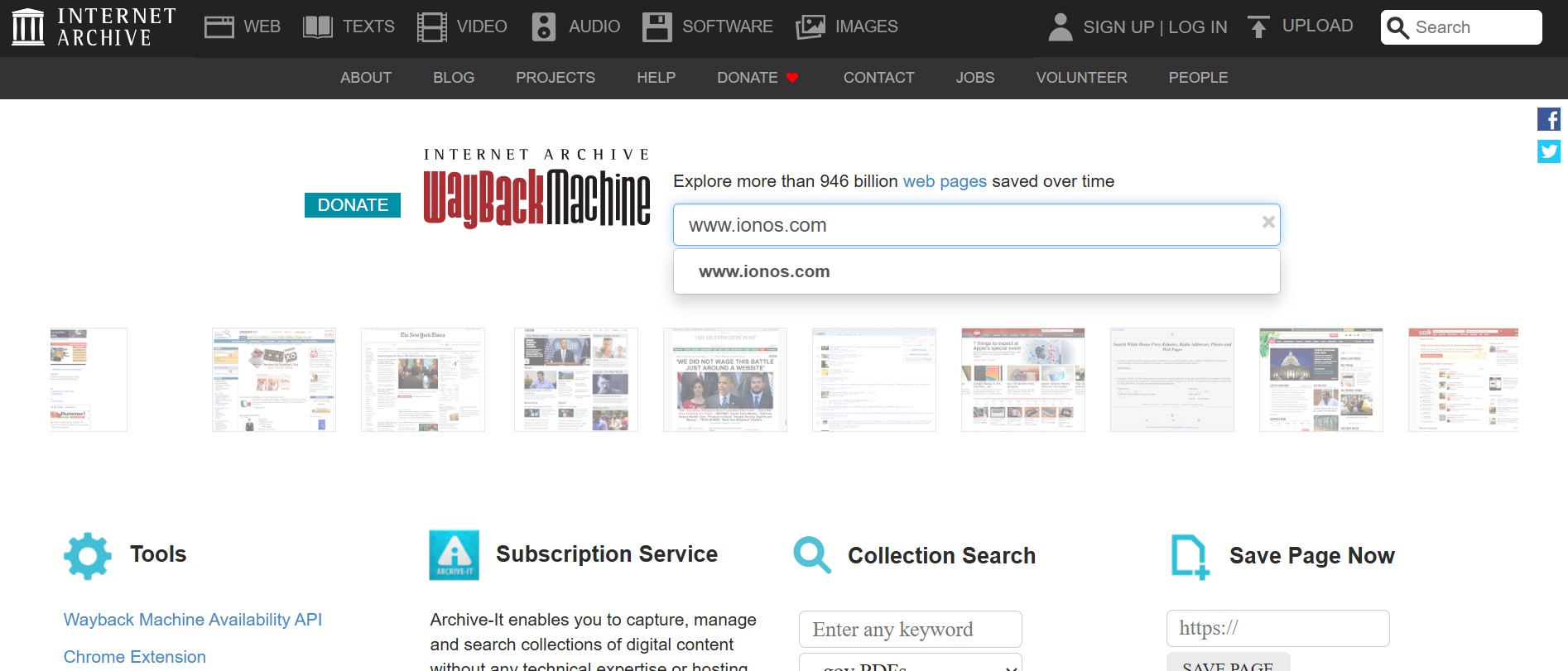
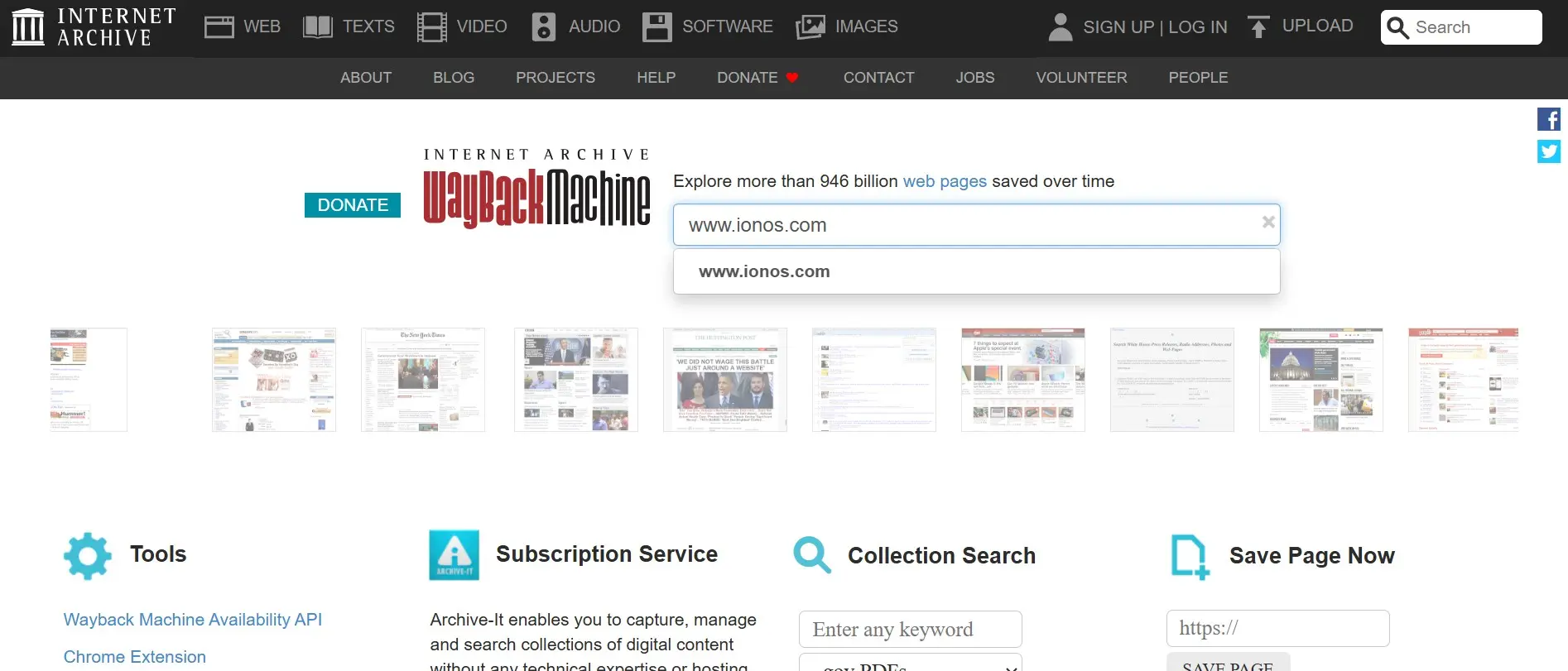
Step 2: Access the Wayback main page
Click on the yellow web icon to go to the main page. There, you can enter a domain URL and click on “Browse History” to see archived versions.
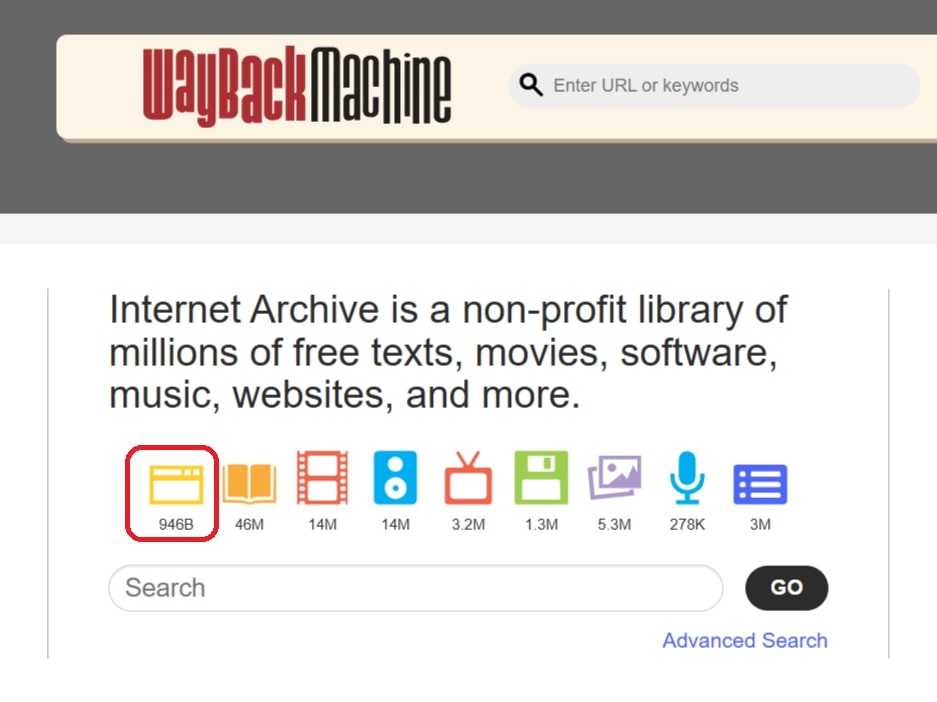
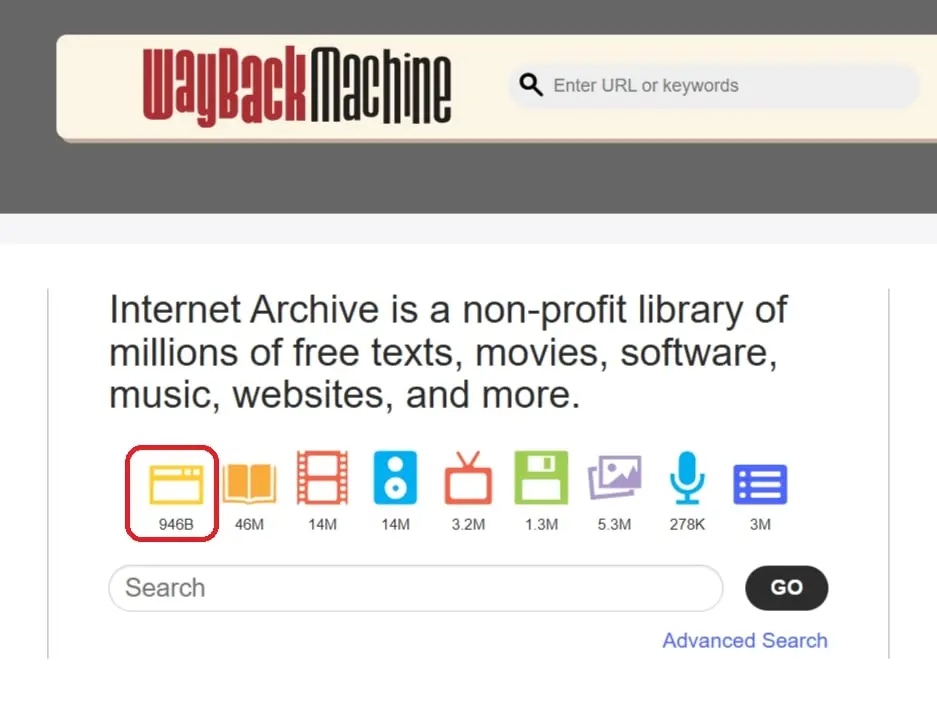
Step 3: Search by keywords
Enter the search term into the lower search bar and select “Search archived web sites.” Click on “Go” to receive the results list showing the domain, description, snapshots, and media captures.
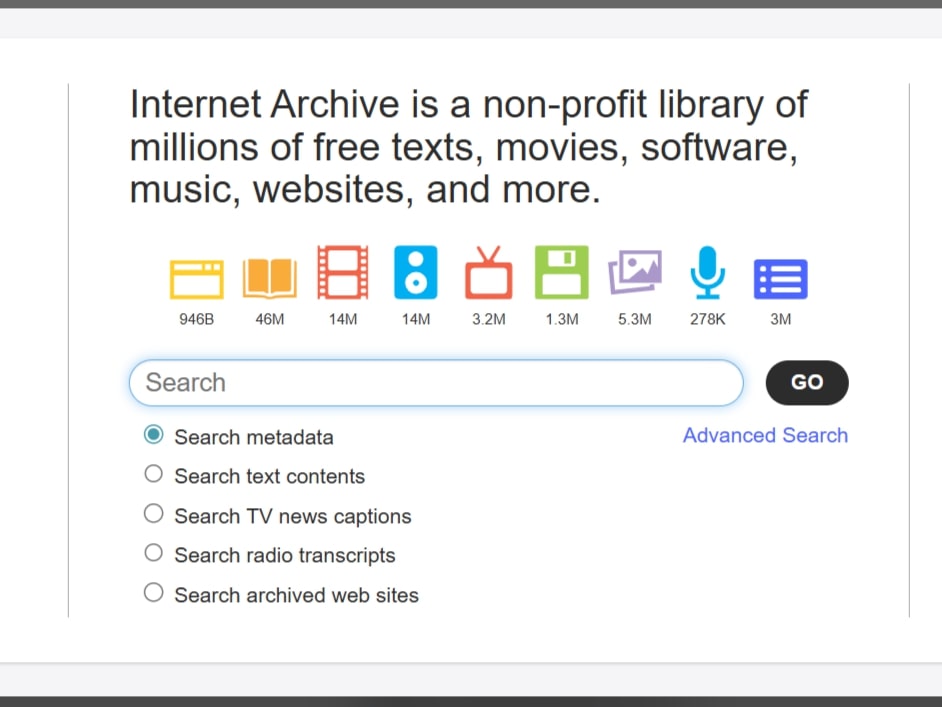
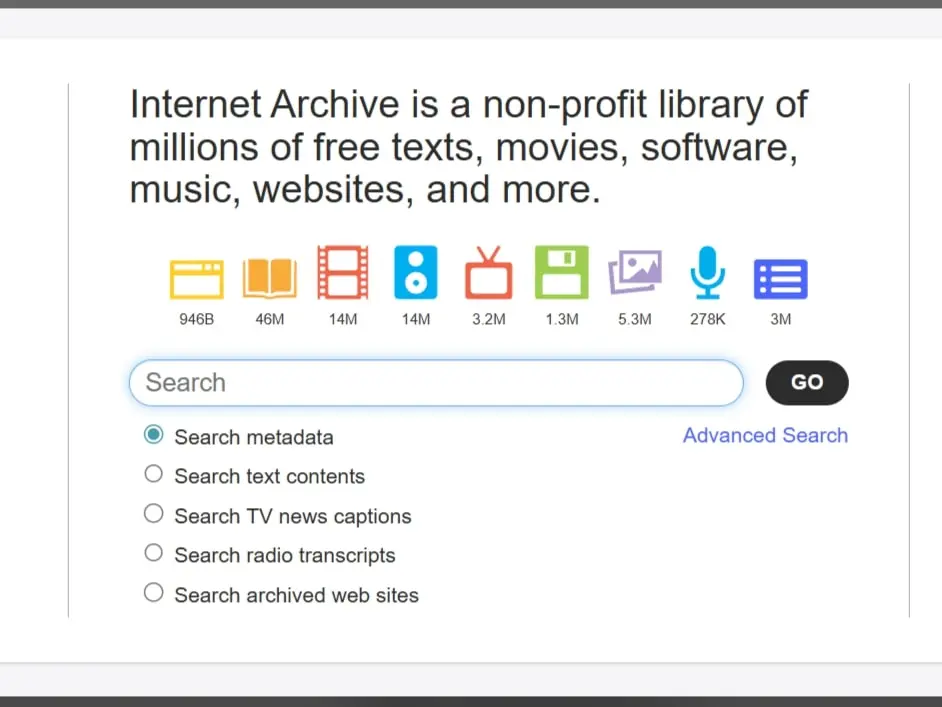
A snapshot is a saved copy of a website at a specific point in time. While interactive elements like forms won’t work, the static content can still be viewed and copied.
Step 4: Use the timeline and snapshots
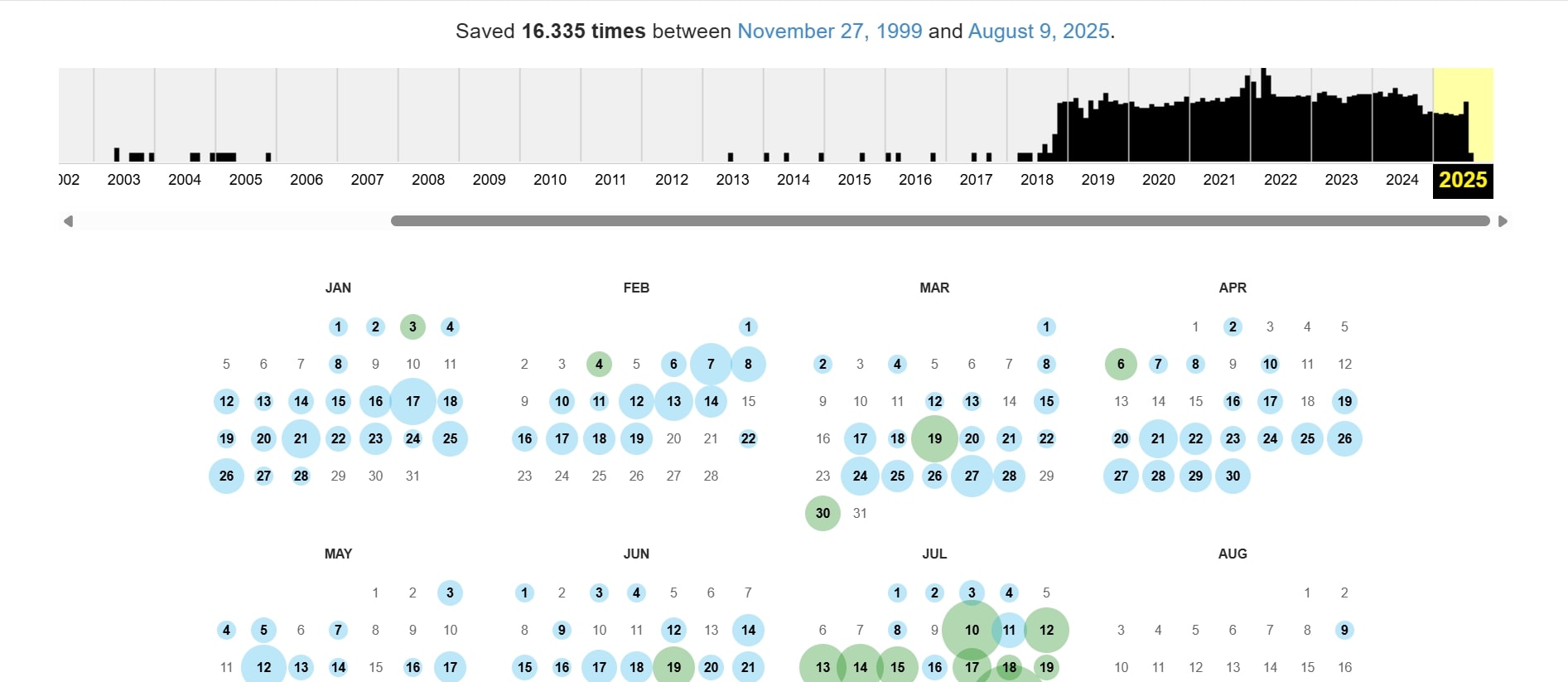
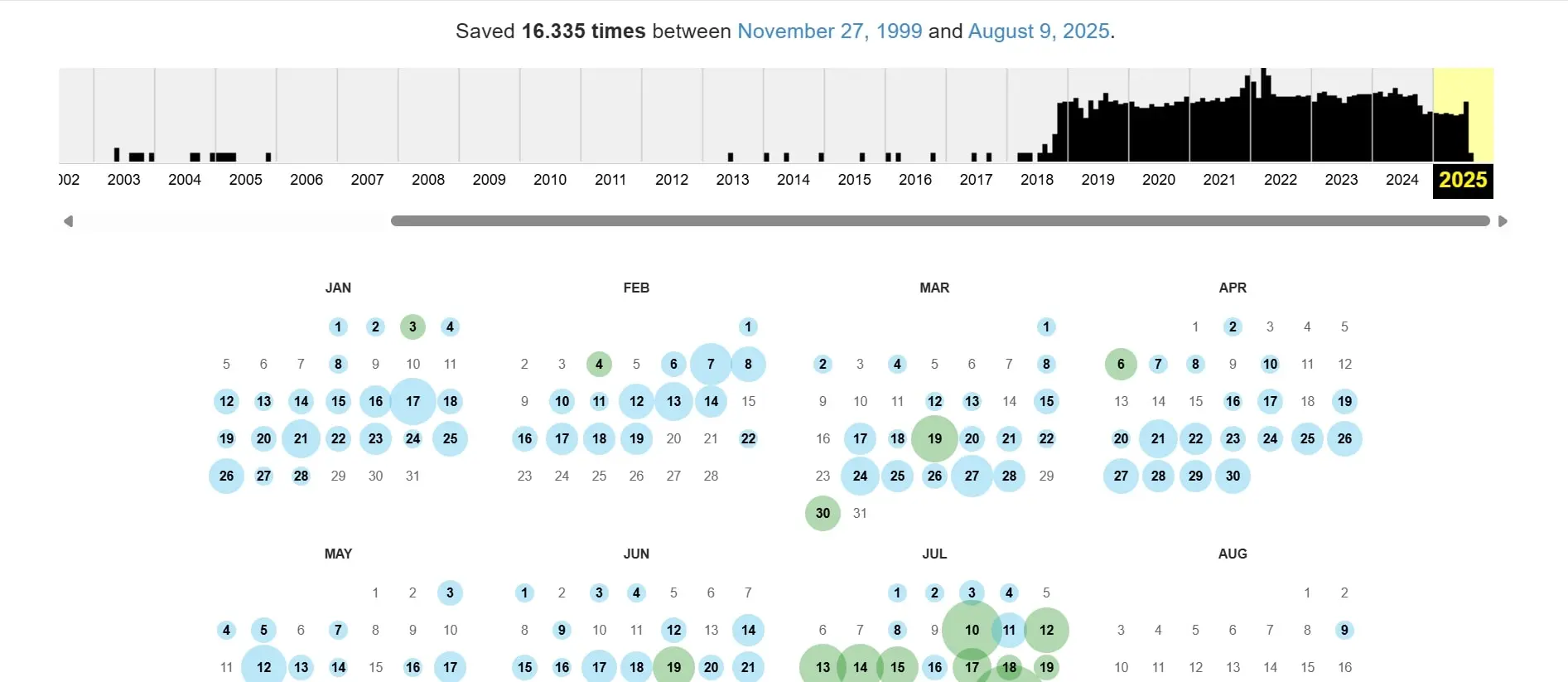
For every archived URL, the Wayback Machine shows a timeline with columns representing the number of snapshots taken on each date. In the calendar view, these snapshots are color-coded:
- Blue: Successful crawl
- Green: Redirects
- Orange: URL not found (4xx)
- Red: Server error (5xx)
How to use the timeline:
- Click a highlighted date.
- Choose the desired timestamp to open the archived version of the website.
- Browse the page as usual and copy any needed content.
Step 5: Archive your own website (Self-Snapshot)
Not every website is automatically archived. Reasons can include:
- A
noindextag or a corresponding entry in the robots.txt prevent indexing - Password-protected content
- Manual removal from the archive
- Dynamic content that is not captured correctly
How to back up your website:
-
Go to the Wayback Machine main page.
-
Use the “Save Page Now” field and enter your domain.
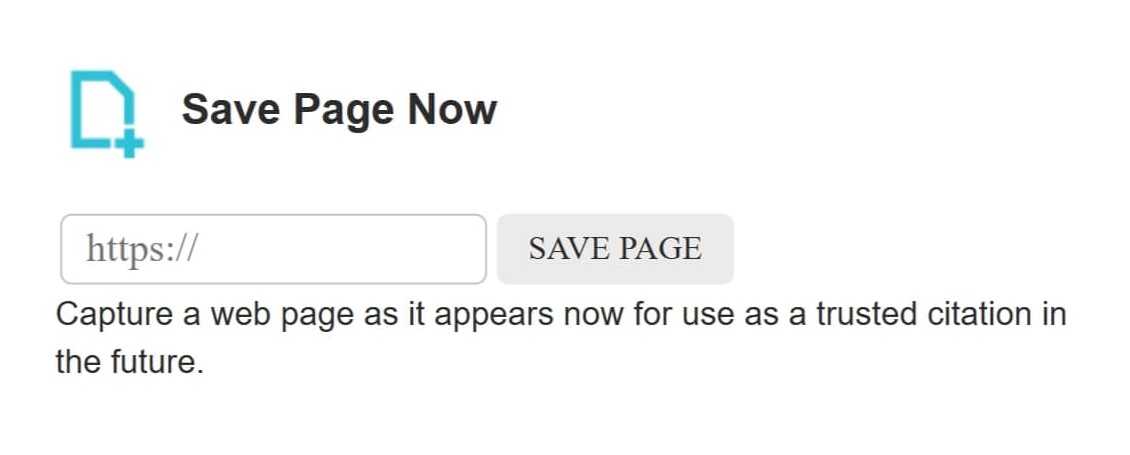
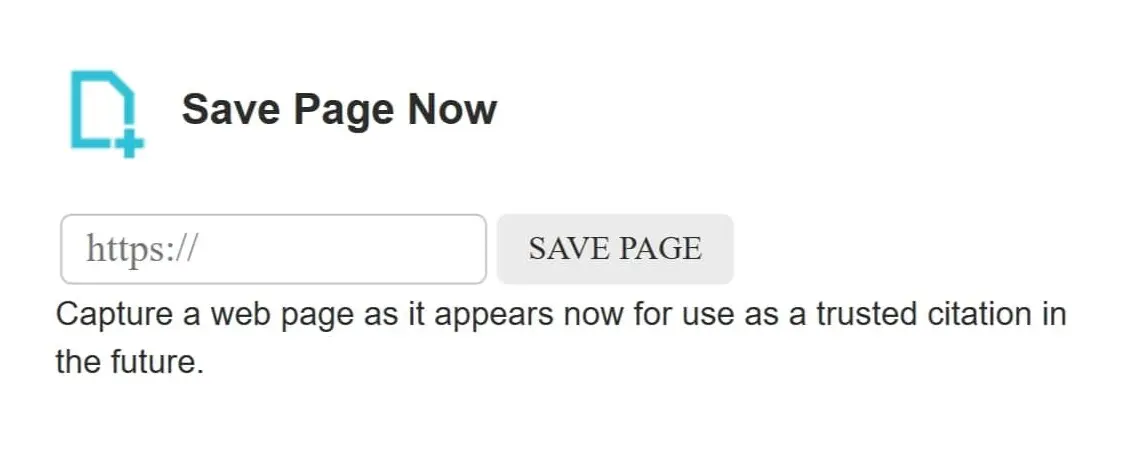
- After a short time, the Wayback Machine creates a snapshot that is permanently stored. This way, you can view old websites even if the live page is no longer available later.
For less well-known or regional websites, it’s worth regularly creating your own snapshots.
- Professional templates
- Intuitive customizable design
- Free domain, SSL, and email address
How to download old versions of websites
For further use, such as source code, links, or SEO tests, there are tools like:
- Wayback Machine Downloader (GitHub, open source): Downloads HTML files, media, and index pages.
- Archivarix (web-based): Free for websites with up to 200 files; ZIP download available after registration.
- HTTrack Website Copier: A classic tool to download entire websites (including archived pages if you provide the Wayback URLs).
Archive.org itself does not offer a website downloader, but it allows downloading texts, images, and audio files if the rights are available.
Alternative 1: Find not-so-old websites using Google Search
If the information you are looking for is still relatively current, a simple Google search might suffice. Google crawlers capture websites similar to the Wayback Machine and store a snapshot in the cache, which shows the most recently indexed version of the site. If the live website is temporarily down, the cache can still be used. Compared to archive.org, this snapshot is often more current; however, there is only one timestamp per version.
To access the cached version of a page, enter the following command directly into your browser’s address bar:
http://webcache.googleusercontent.com/search?q=cache:https://www.DOMAIN.com
Replace DOMAIN.com with the desired URL. Keep in mind that Google snapshots largely do not display dynamic elements or media content.
Even if a page is set to noindex and does not appear in search results, the cache can sometimes still provide an older version.
Alternative 2: Access already archived websites with WebCite
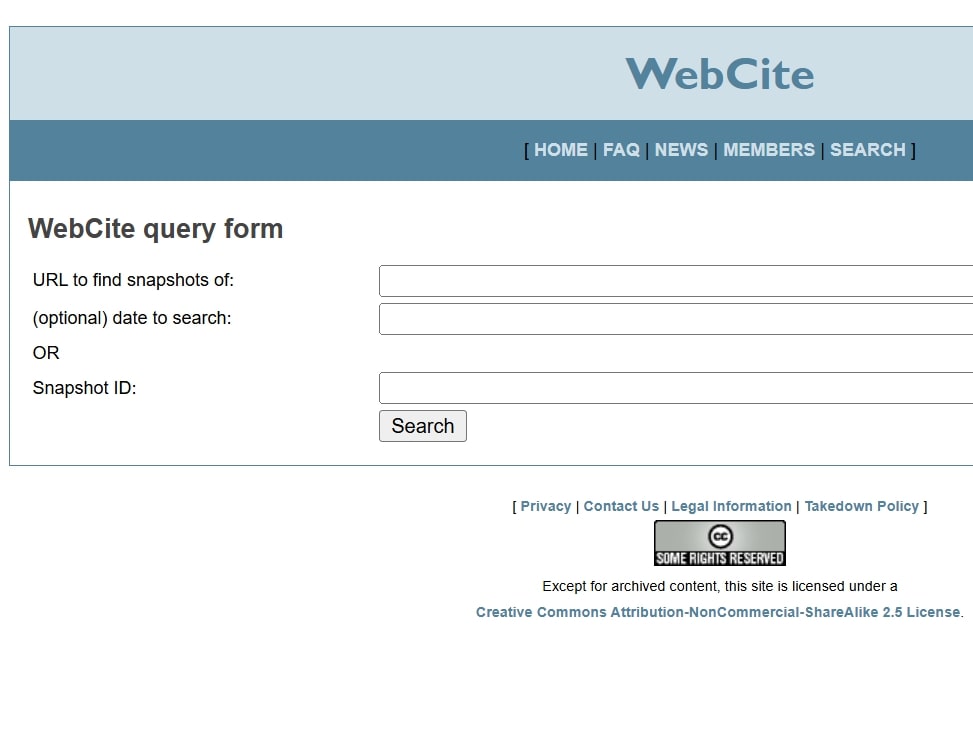
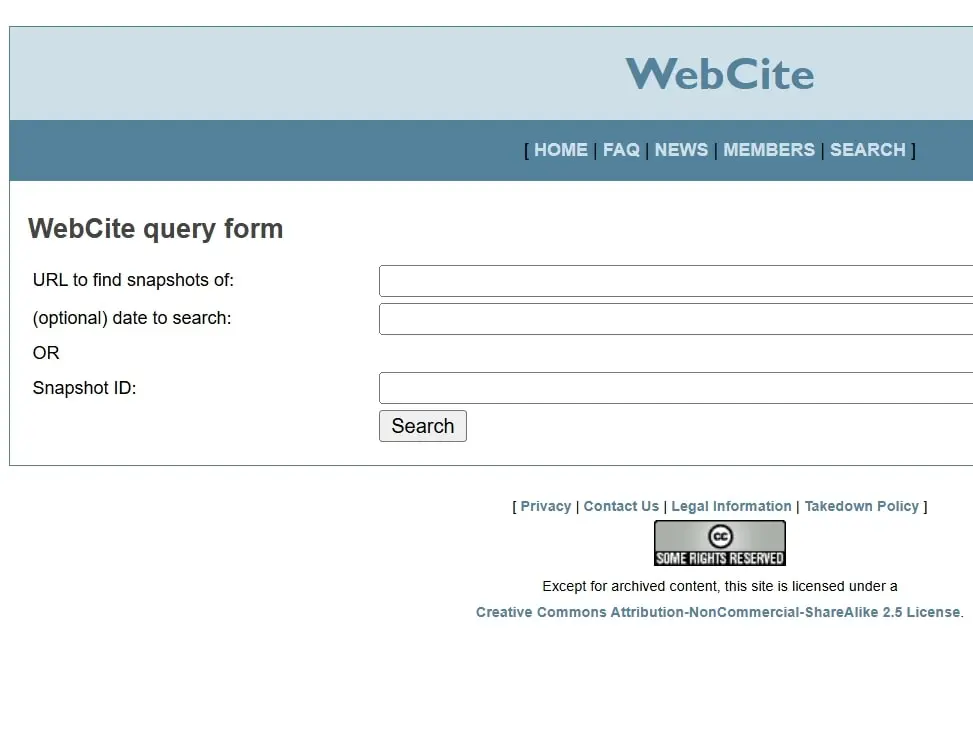
WebCite allows access to already archived websites and the ability to cite them. Currently, no new archiving requests are being accepted. However, already archived snapshots can still be accessed and used in citations. This way, you can restore and view old websites.
To access an archived version of a website, visit the WebCite website and use the search function to enter the domain or snapshot ID. This lets you view previously archived websites and cite them as unalterable sources.
Reviewer

Melissa Senn
Melissa Senn has been with IONOS since 2016 and focuses on the areas of websites, e-commerce, social media, and AI in the Digital Guide. As a digital strategist, she draws on her extensive SEO and GEO experience to translate complex technological trends into practical content.